
- What a module is in Perfex CRM module development
- Step 1: Create the folder and the main file
- Step 2: Add the activation hook file
- Step 3: Add a controller and a view
- Step 4: See the module in the list
- Step 5: Open the menu item and the page
- What to learn next in Perfex CRM module development
- Tips for module authors
- Frequently asked questions
A module is the right way to add your own features to the CRM, because an update of Perfex CRM does not overwrite it. Perfex CRM module development starts with a folder, one main file and a few hooks. This guide, tested on Perfex CRM 3.4.1, builds a small Hello module that adds a menu item and a page, and shows what each file does.
What a module is in Perfex CRM module development #
A module is a folder inside modules. The CRM reads the main file of every folder, so the main file must have the same name as the folder. Our module is called docs_hello, so the file is modules/docs_hello/docs_hello.php. The default modules, such as Goals, Menu Setup and Database Backup, work the same way. For Perfex CRM module development, always use a test install and never your live CRM.
Step 1: Create the folder and the main file #
Create the folder modules/docs_hello and add the file docs_hello.php. The comment at the top is the header that the Modules page reads: module name, description, version and the lowest CRM version. The file then registers an activation hook and a menu hook.
<?php

defined('BASEPATH') or exit('No direct script access allowed');

/*
Module Name: Hello Module
Description: A small example module that adds a menu item and a page.
Version: 1.0.0
Requires at least: 3.0.*
Author: Systematica
*/

define('DOCS_HELLO_MODULE', 'docs_hello');

register_activation_hook(DOCS_HELLO_MODULE, 'docs_hello_activation_hook');

function docs_hello_activation_hook()
{
    require_once(__DIR__ . '/install.php');
}

hooks()->add_action('admin_init', 'docs_hello_menu');

function docs_hello_menu()
{
    $CI = &get_instance();
    $CI->app_menu->add_sidebar_menu_item('docs_hello', [
        'name'     => 'Hello module',
        'href'     => admin_url('docs_hello'),
        'position' => 35,
        'icon'     => 'fa-regular fa-hand',
    ]);
}
Step 2: Add the activation hook file #
The activation hook runs once, when you click Activate. In our module it loads install.php, which creates a table and one row. The check with table_exists makes the file safe to run again.
<?php

defined('BASEPATH') or exit('No direct script access allowed');

$CI = &get_instance();

if (!$CI->db->table_exists(db_prefix() . 'docs_hello_notes')) {
    $CI->db->query('CREATE TABLE `' . db_prefix() . 'docs_hello_notes` (
        `id` INT(11) NOT NULL AUTO_INCREMENT,
        `note` VARCHAR(255) NOT NULL,
        PRIMARY KEY (`id`)
    ) ENGINE=InnoDB DEFAULT CHARSET=' . $CI->db->char_set . ';');

    $CI->db->insert(db_prefix() . 'docs_hello_notes', ['note' => 'Hello from the module']);
}
Step 3: Add a controller and a view #
Perfex CRM module development follows the MVC pattern. The controller sits in modules/docs_hello/controllers/Docs_hello.php and extends AdminController. The name of the class is the first part of the address, so the page opens at /admin/docs_hello. The view sits in modules/docs_hello/views/index.php and is loaded as docs_hello/index.
<?php

defined('BASEPATH') or exit('No direct script access allowed');

class Docs_hello extends AdminController
{
    public function index()
    {
        $data['title'] = 'Hello module';
        $data['notes'] = $this->db->get(db_prefix() . 'docs_hello_notes')->result_array();
        $this->load->view('docs_hello/index', $data);
    }
}
<?php defined('BASEPATH') or exit('No direct script access allowed'); ?>
<?php init_head(); ?>
<div id="wrapper">
<div class="content">
<div class="panel_s">
<div class="panel-body">
<h4><?= e($title); ?></h4>
<p>This page comes from the module Hello Module.</p>
<ul>
<?php foreach ($notes as $note) { ?>
<li><?= e($note['note']); ?></li>
<?php } ?>
</ul>
</div>
</div>
</div>
</div>
<?php init_tail(); ?>Step 4: See the module in the list #
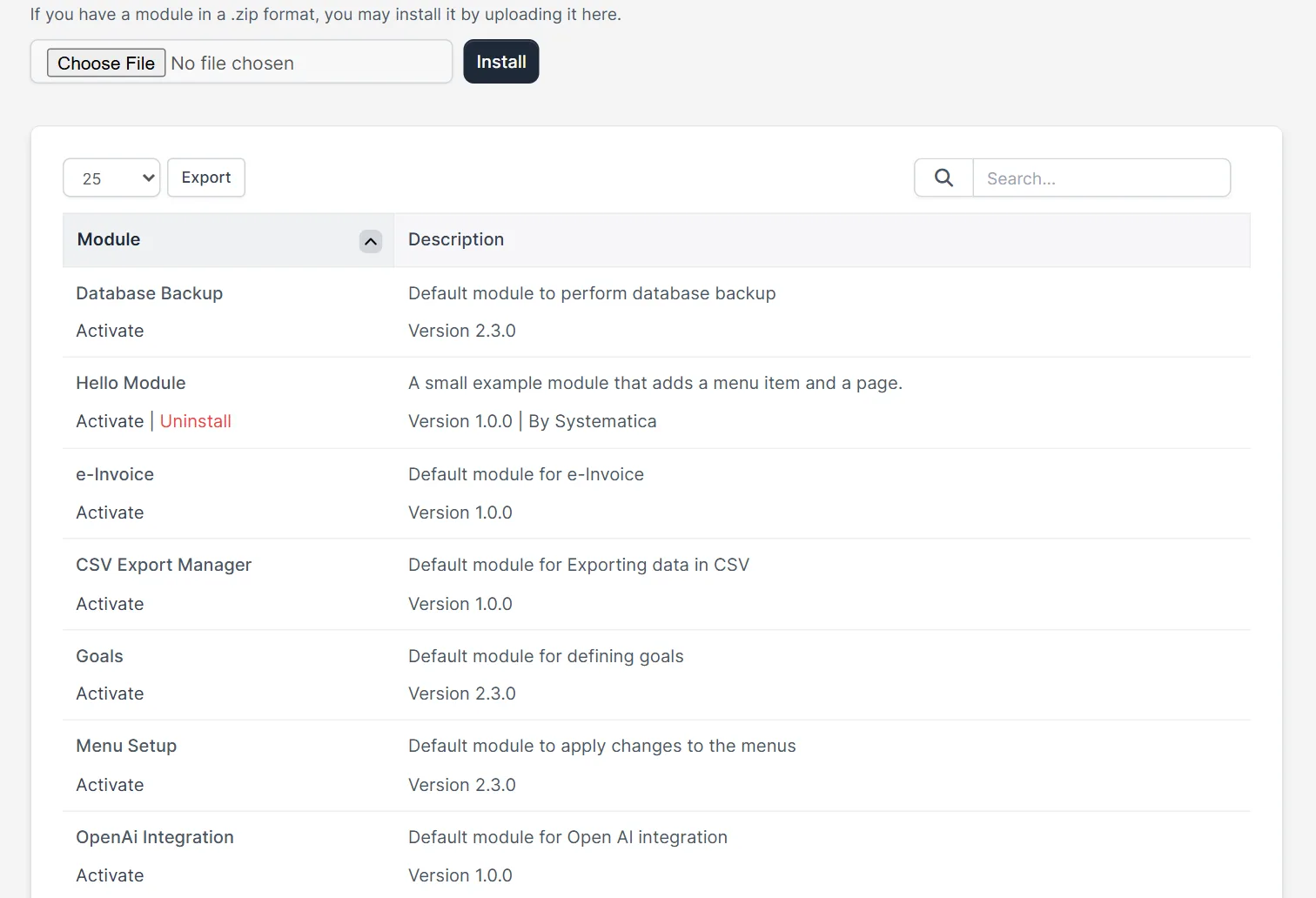
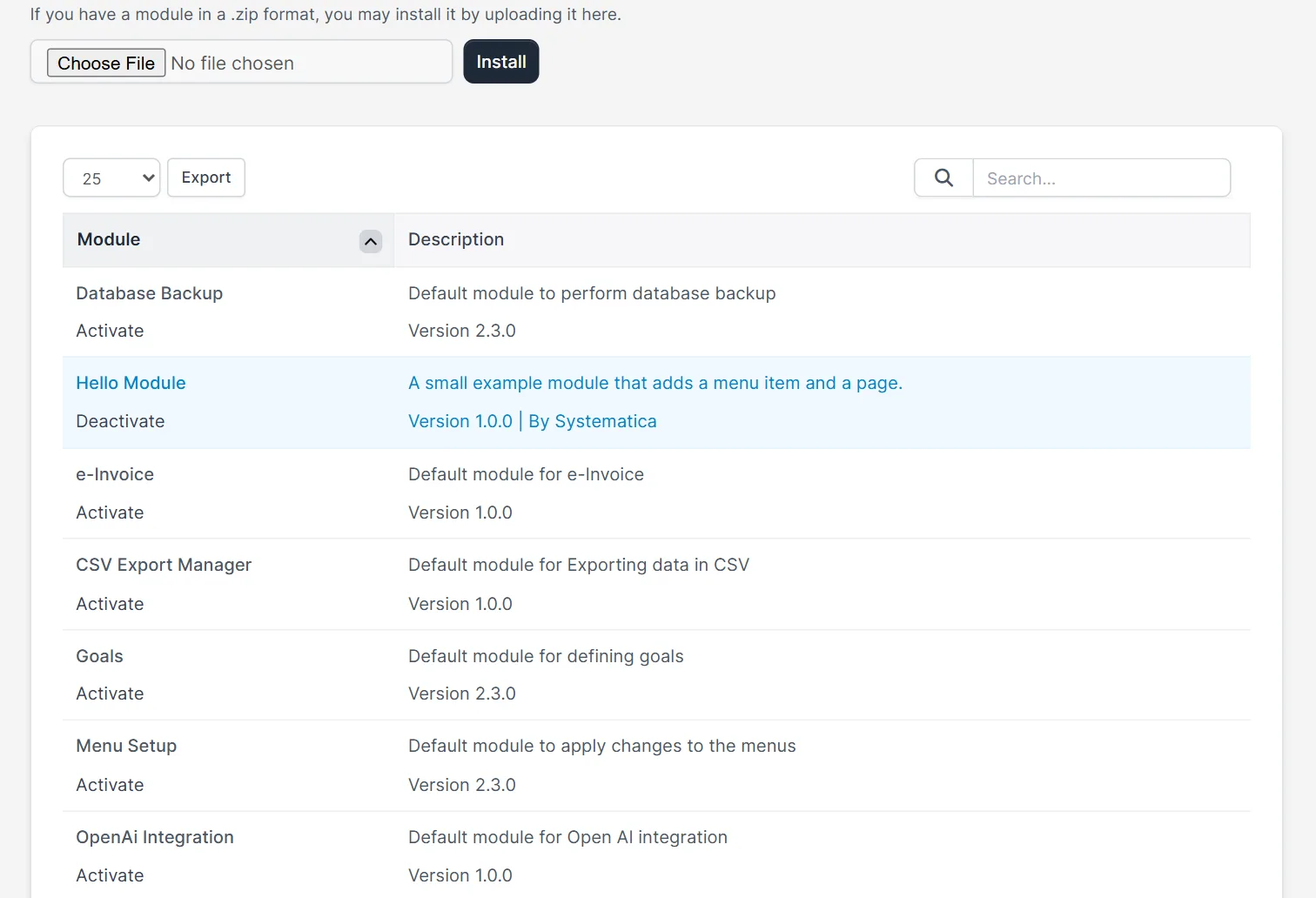
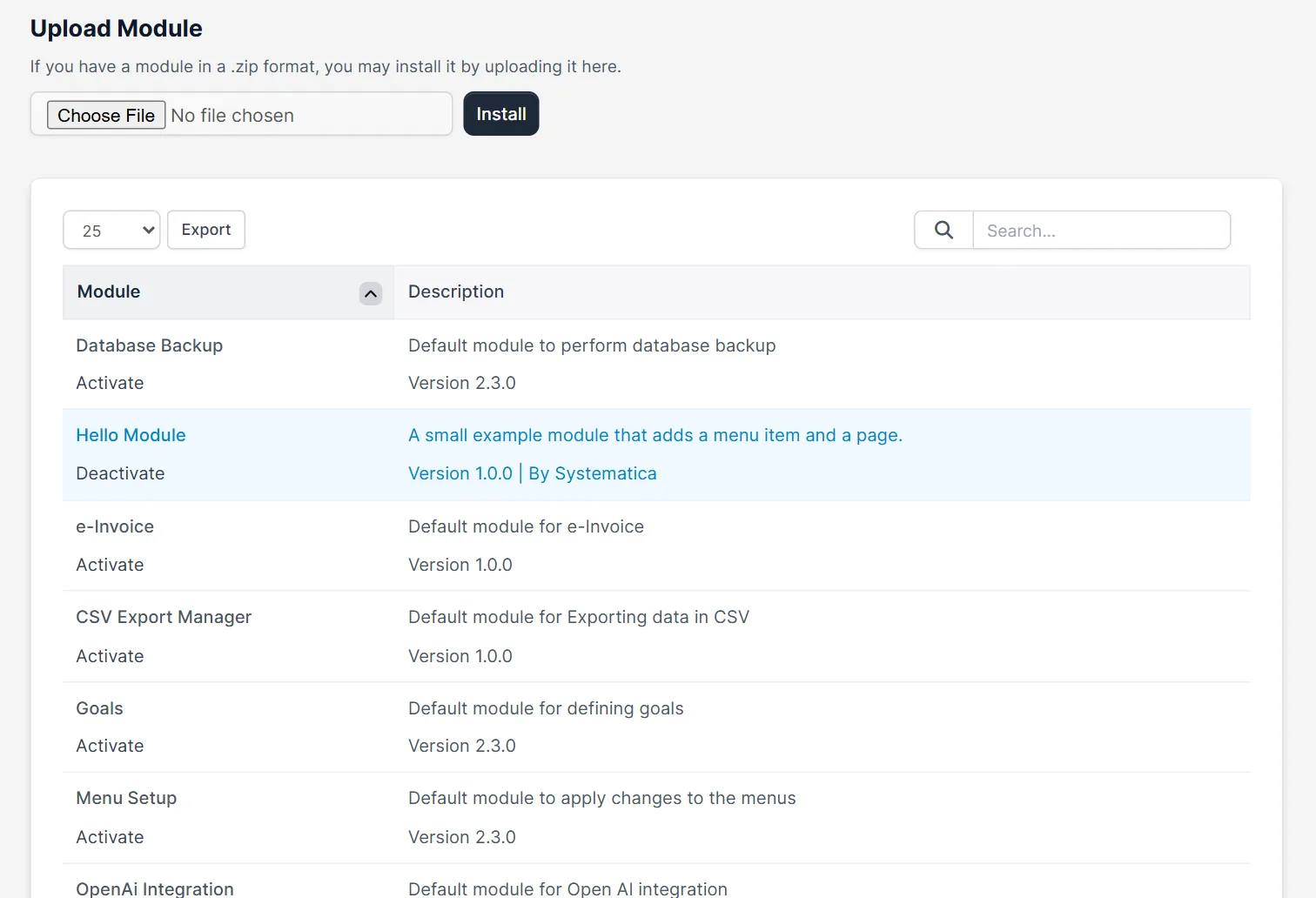
Open Setup > Modules. The new row shows Hello Module, its description, Version 1.0.0 and the author, with the links Activate and Uninstall. Click Activate. The row changes to Deactivate. In the database we saw the new table with one row, so the activation hook ran. Read Perfex CRM install module for more on this page.
Step 5: Open the menu item and the page #
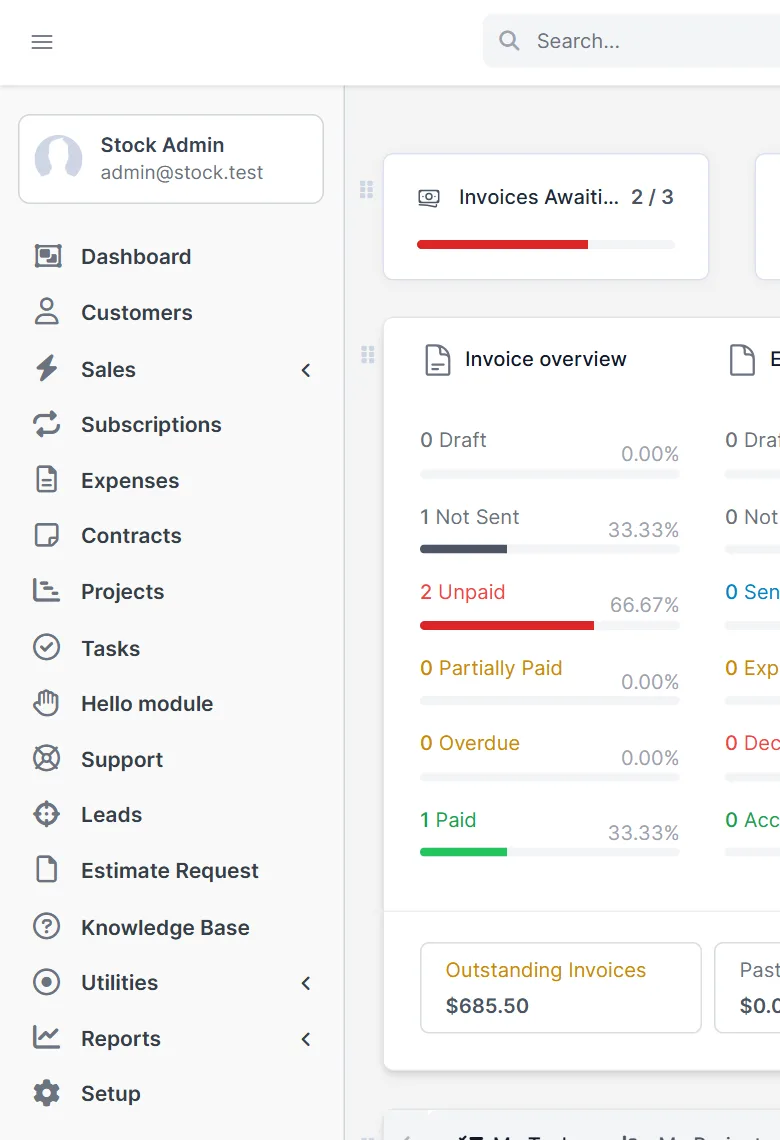
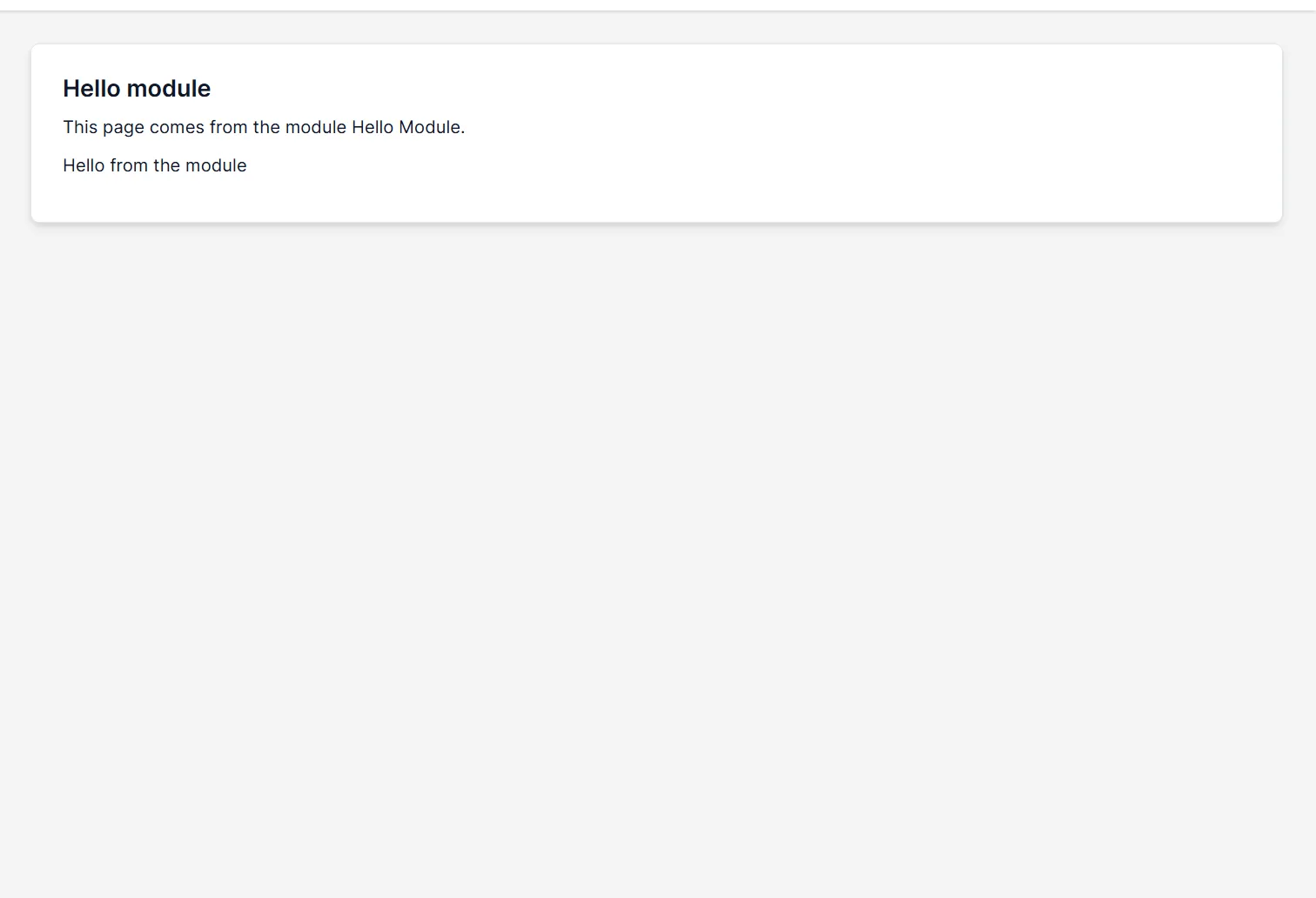
The menu hook adds Hello module to the sidebar, below Tasks, because the position is 35. Click it. The page shows the heading, the sentence from the view and the row from the table. This shows the full path of Perfex CRM module development: header, hook, controller, view and database.
What to learn next in Perfex CRM module development #
Perfex CRM module development has much more to offer: models for your data, language files, settings pages, permissions, dashboard widgets and hooks for events such as a new invoice. Look at the default modules as examples, for instance Goals, which has controllers, models, views, a language folder and an install file. Keep the names of your tables, functions and constants unique with a prefix, because all modules share one PHP process. If you need a module and do not want to write it yourself, read about custom Perfex CRM modules.
Tips for module authors #
- In Perfex CRM module development, test on a copy or a local install and keep a database backup before you activate a new module.
- Escape every value you print with the e() function, as in the view above.
- Put database changes in the activation hook and make them safe to run twice.
- Never edit the core files of the CRM. Use hooks, so updates do not break your work.
- Look at Perfex CRM menu setup to see how the menu items of modules can be moved.
Not tested here: the Uninstall link and an uninstall hook, language files, permissions, and the behavior of the module on other CRM versions. Read the official Perfex CRM help for more.
Related module: If you only need new links in the menu, the Custom Links for Perfex CRM module adds internal, external or iframe links to the main, setup or client menu without code.
Frequently asked questions #
What do I need for Perfex CRM module development? #
A folder in modules with a main file of the same name. The file starts with a header comment and registers hooks.
What is an activation hook? #
A function that runs once when you click Activate. It is the place to create database tables.
How do I add a menu item? #
Use the admin_init hook and call app_menu add_sidebar_menu_item with a name, a link, a position and an icon.
Where do I test a new module? #
On a local or test install, never on your live CRM, and with a database backup.


