
A customer asks “What do I still owe you?” The Perfex CRM customer statement answers this on one page: the invoices, the payments and the balance for a period you choose. This guide, tested on Perfex CRM 3.4.1, shows where to find it, how to change the period and how to print it, save a PDF or email it.
What the Perfex CRM customer statement shows #
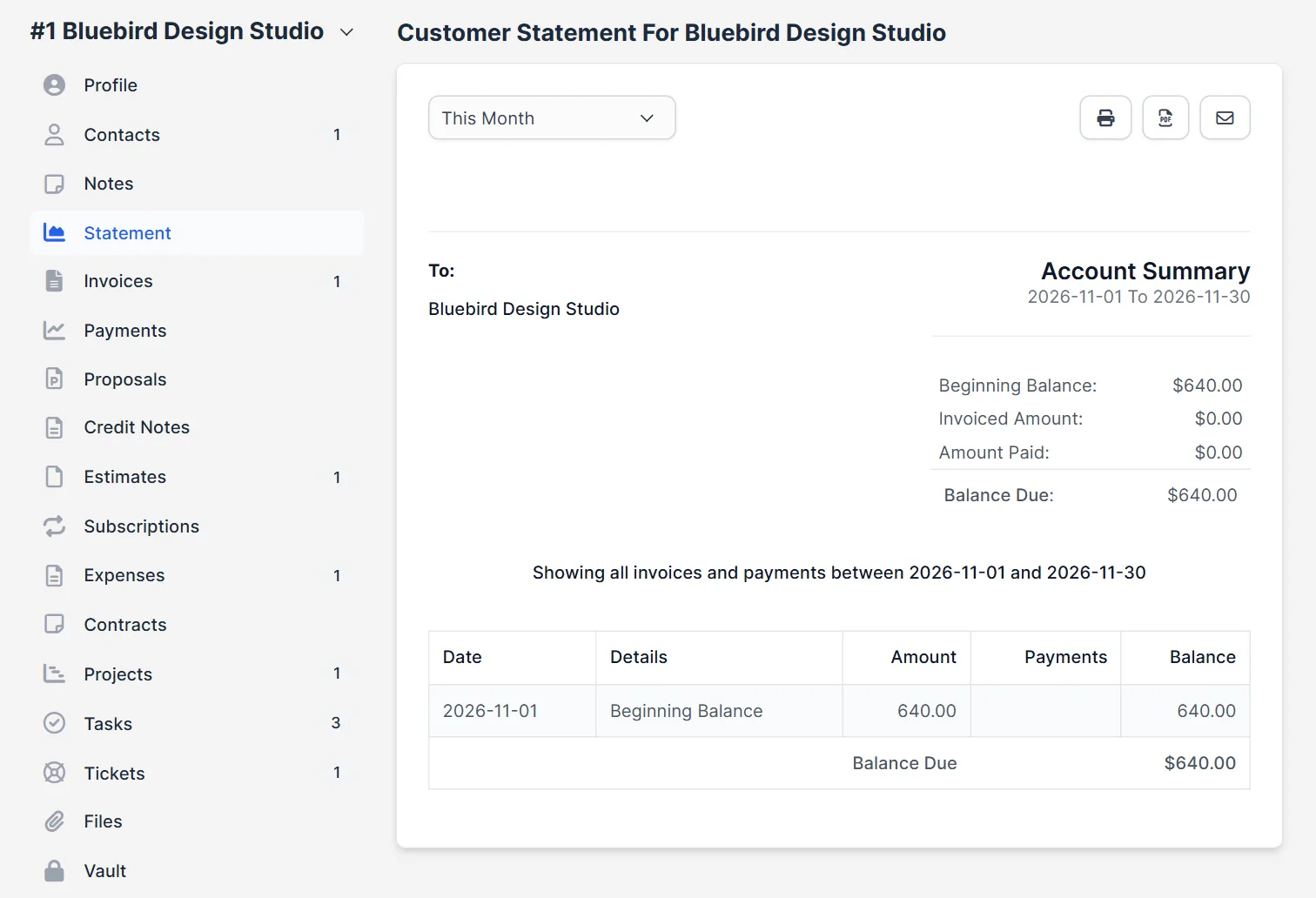
Open Customers and click a customer. The profile has a tab called Statement in the left menu. The page is titled Customer Statement For followed by the customer name. It has an Account Summary with four numbers: Beginning Balance, Invoiced Amount, Amount Paid and Balance Due. Below, a table lists Date, Details, Amount, Payments and Balance. The sentence above the table says which period the Perfex CRM customer statement covers.
Step 1: Open the Statement tab #
The first view is the current month. In our test, the customer had an unpaid invoice from an earlier month, so the beginning balance was 640.00, nothing was invoiced or paid this month, and the balance due stayed 640.00. The table shows one line, Beginning Balance. This is the usual picture of a customer who owes money from before.
Step 2: Choose the period #
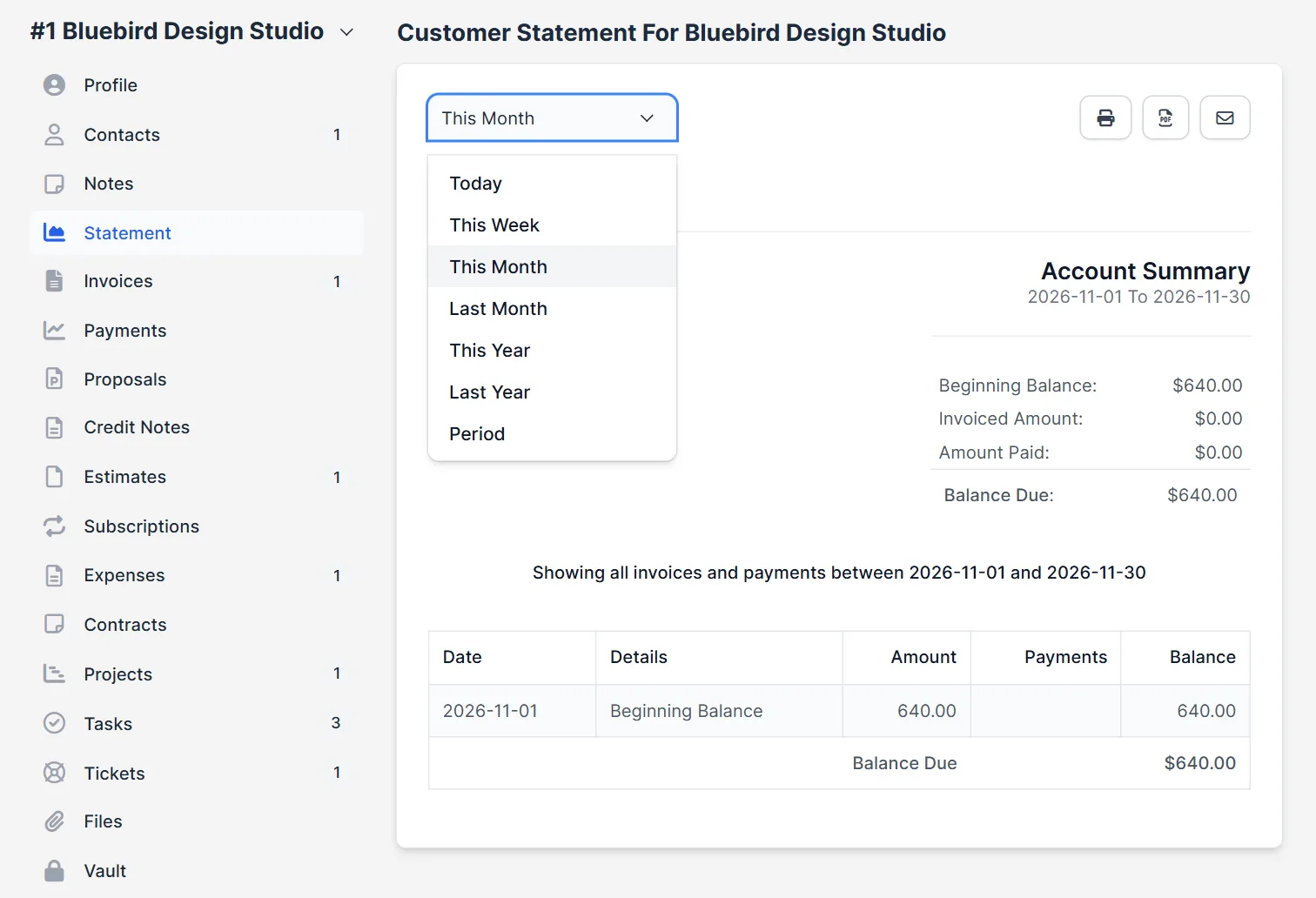
At the top left, a list sets the period. The choices are Today, This Week, This Month, Last Month, This Year, Last Year and Period. Pick one, and the page reloads with new numbers. A year view is the best choice for a customer who asks for an overview of the whole relationship.
Step 3: Read the year #
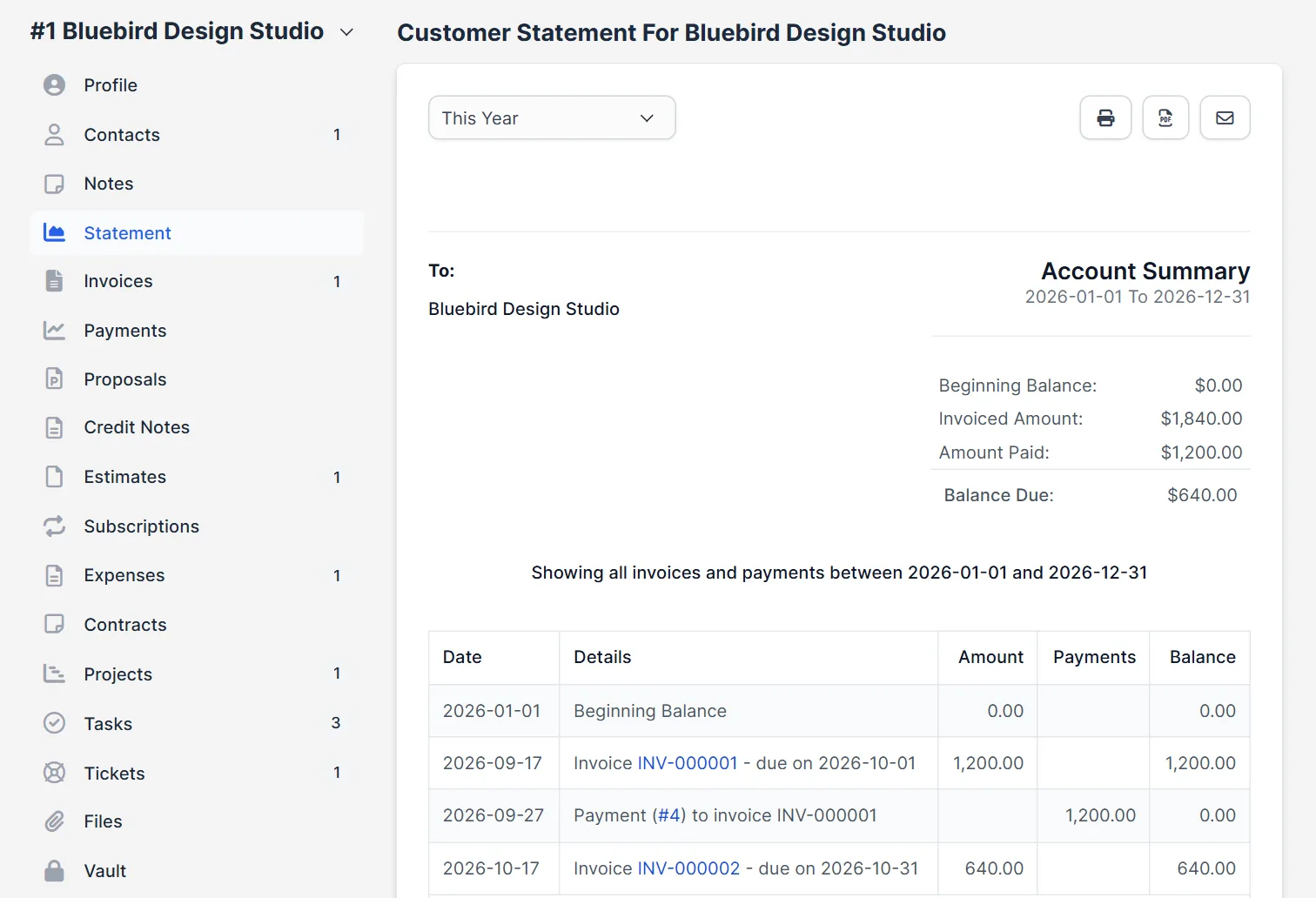
We chose This Year. The account summary showed an invoiced amount of 1,840.00, an amount paid of 1,200.00 and a balance due of 640.00. The table listed each event in date order: an invoice with its due date, a payment with its number and the invoice it paid, and the next invoice. Each invoice number is a link. The balance column adds up after every line, so you can follow how the debt grew and shrank.
Step 4: Use a custom period #
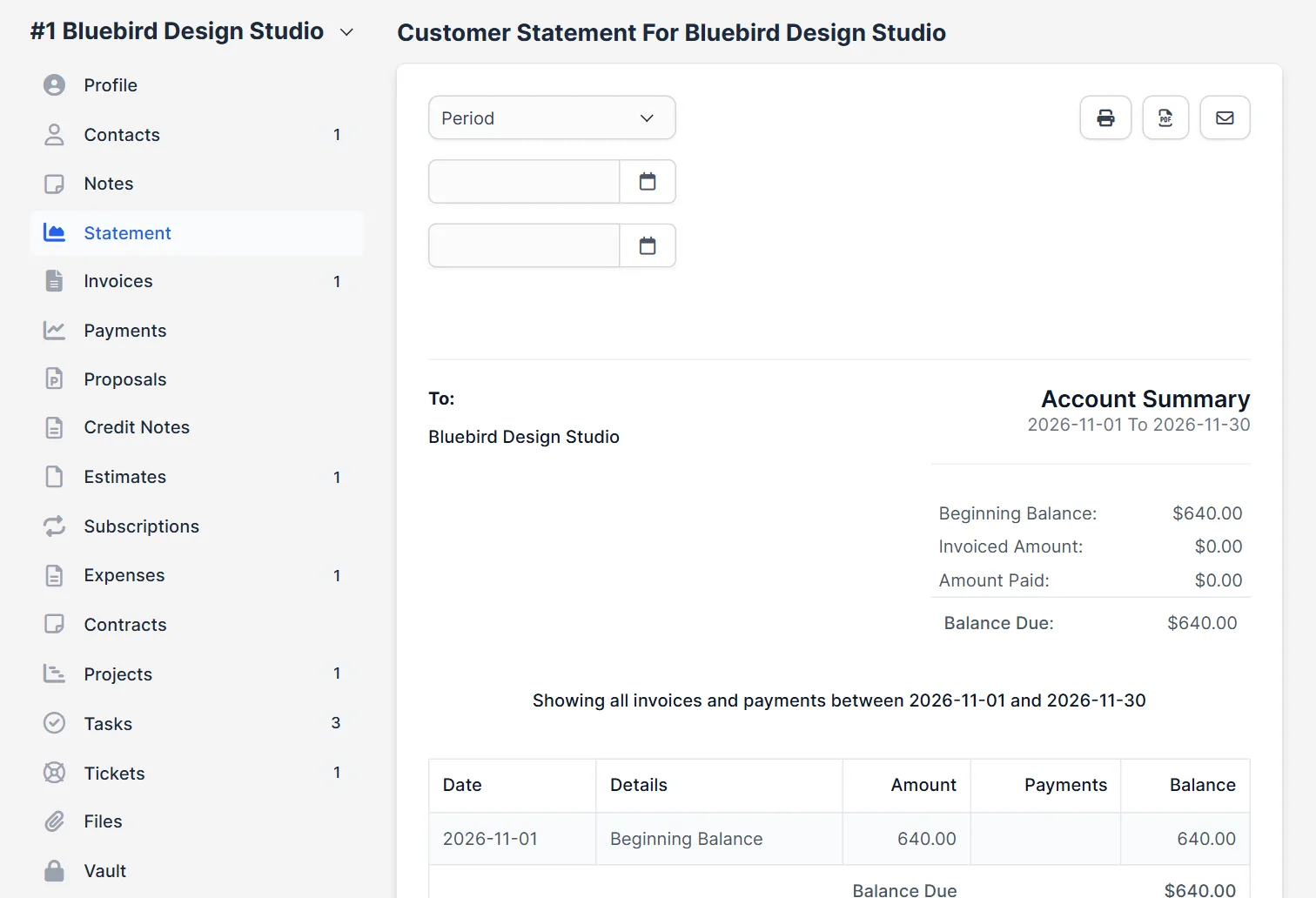
Choose Period and two date fields appear under the list. Enter the start and end date, and the Perfex CRM customer statement shows only that range. Use this for a quarter, for the time of one project or for the days since the last statement you sent.
Step 5: Print, save or send it #
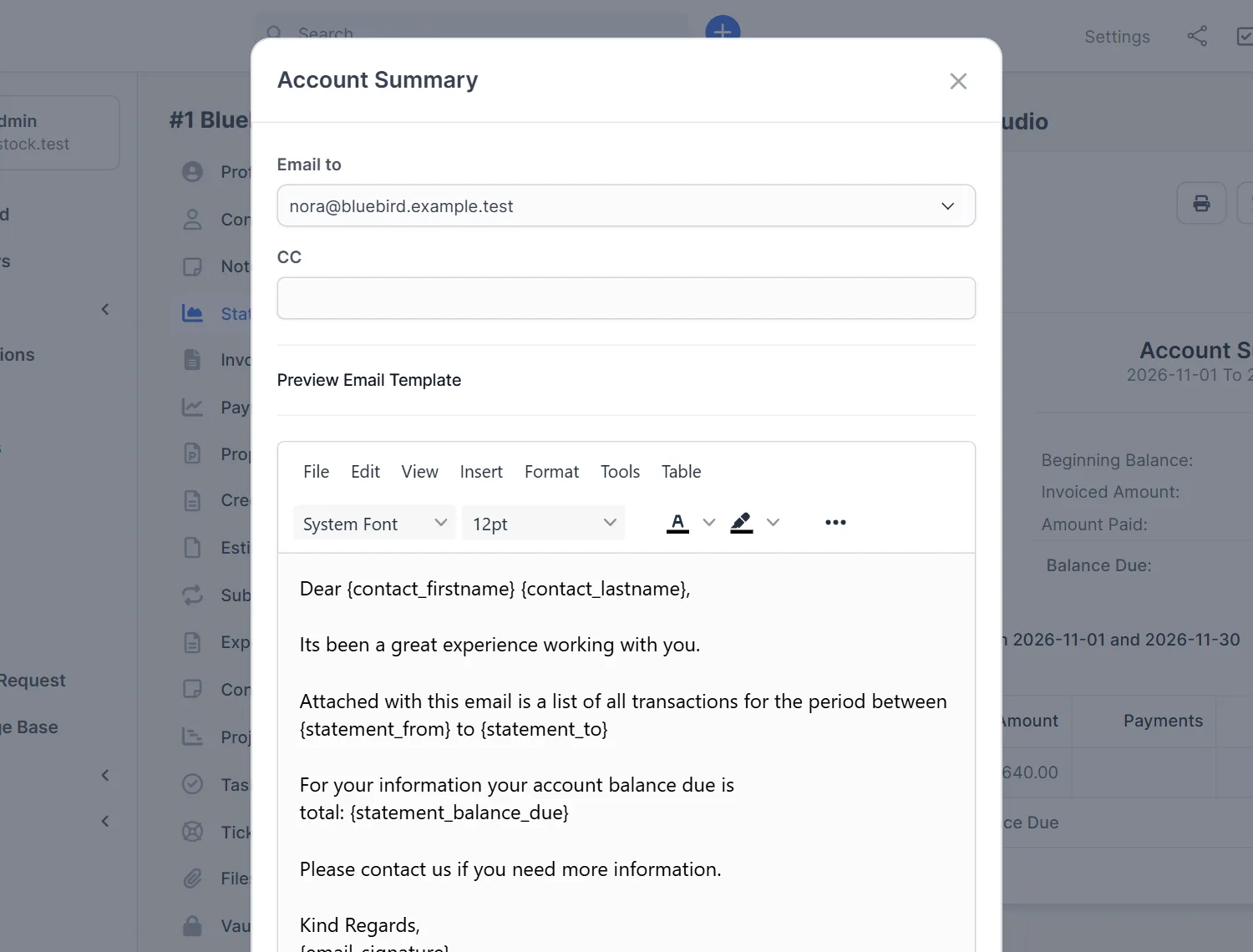
Three icons sit at the top right. The first prints the page and the second creates a PDF. The third, the envelope, opens the window with the title of the account summary. It has Email to with the customer contact, a CC field and a Preview Email Template with an editor. The default text greets the contact, says that the email contains a list of all transactions for the period and states the balance due, using the merge fields {contact_firstname}, {contact_lastname}, {statement_from}, {statement_to}, {statement_balance_due} and {email_signature}. Change the words if you like and send it.
When to send a statement #
Send a Perfex CRM customer statement at the end of every month to customers with open invoices. It is friendlier than an overdue notice and often enough to start a payment. Send one as well when a customer disputes a balance, because the list of invoices and payments settles most questions. For automatic reminders, read Perfex CRM overdue invoice reminders.
Tips for statements #
- Check that every payment is recorded before you send the statement. A missing payment makes the balance wrong.
- Use the same period every month, so customers know what to expect.
- Look at the PDF once, because that is what the customer reads.
- Read Perfex CRM create invoice and Perfex CRM payment modes for how invoices and payments are recorded.
- Use the statement for the account summary, and the invoice tab for single invoices.
Why the Perfex CRM customer statement matters #
The Perfex CRM customer statement is the one page that both sides trust. Customers see what they were billed and what they paid. You see who is late. A regular Perfex CRM customer statement also cuts the number of questions by email, because the answer is already on the page. Treat the Perfex CRM customer statement as part of your month-end routine, next to sending invoices.
Not tested here: the email reaching a customer (no mail server), the contents of the PDF and the print layout. Read the official Perfex CRM help for more.
Related module: For full accounts next to your invoices, the Perfex CRM Financial Management Module turns the CRM into an accounting suite for freelancers and larger companies.
Frequently asked questions #
Where is the Perfex CRM customer statement? #
Open a customer and click Statement in the left menu of the profile.
How do I change the period? #
Use the list at the top left: Today, This Week, This Month, Last Month, This Year, Last Year or Period with two dates.
How do I send it to the customer? #
Click the envelope icon, check the contact and the text, and send. You can also print it or save a PDF.
What is in the account summary? #
The beginning balance, the invoiced amount, the amount paid and the balance due for the period.


