
- How the Perfex CRM invoice project function bills a project
- Step 1: Set the billing type of the project
- Step 2: Check the logged hours
- Step 3: Click Invoice Project in the Perfex CRM invoice project window
- Step 4: Find the invoices of the project
- Tips before your Perfex CRM invoice project
- Common mistakes with Perfex CRM invoice project
- Quick checklist for a Perfex CRM invoice project
- Related guides
- Summary
- Frequently asked questions
The Perfex CRM invoice project function turns a finished project into an invoice: you use the Invoice Project button in the project, and the CRM turns the logged hours and billable expenses into a normal invoice. This guide, tested on Perfex CRM 3.4.1, shows how to choose the billing type, check the hours, pick how the lines are built and find the invoice afterwards, so you can bill task hours without typing them again.
How the Perfex CRM invoice project function bills a project #
A project has a Billing Type: a fixed rate, project hours or task hours. With Task Hours, each billable task has its own hourly rate and the time logged on it becomes the amount. The overview of the project shows what is ready to bill: Billable Hours, Billed Hours and Unbilled Hours, plus the project expenses that are billable and not yet invoiced.
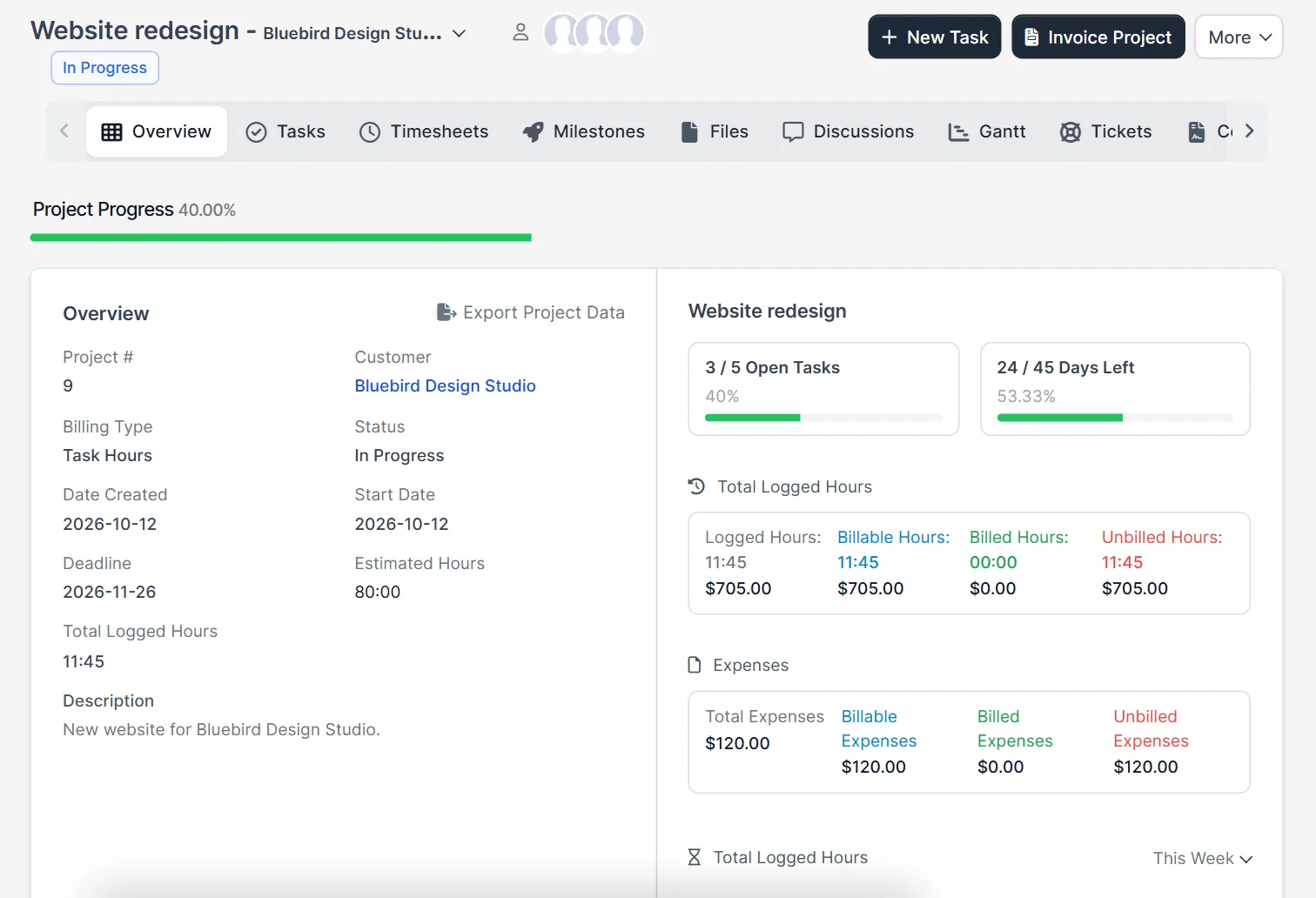
Step 1: Set the billing type of the project #
Open the project, click More and edit it. Under Billing Type choose how you charge, set the status, estimated hours and members, and save. For hours-based billing, also make sure each task is marked Billable and has an hourly rate, because the invoice uses that rate.
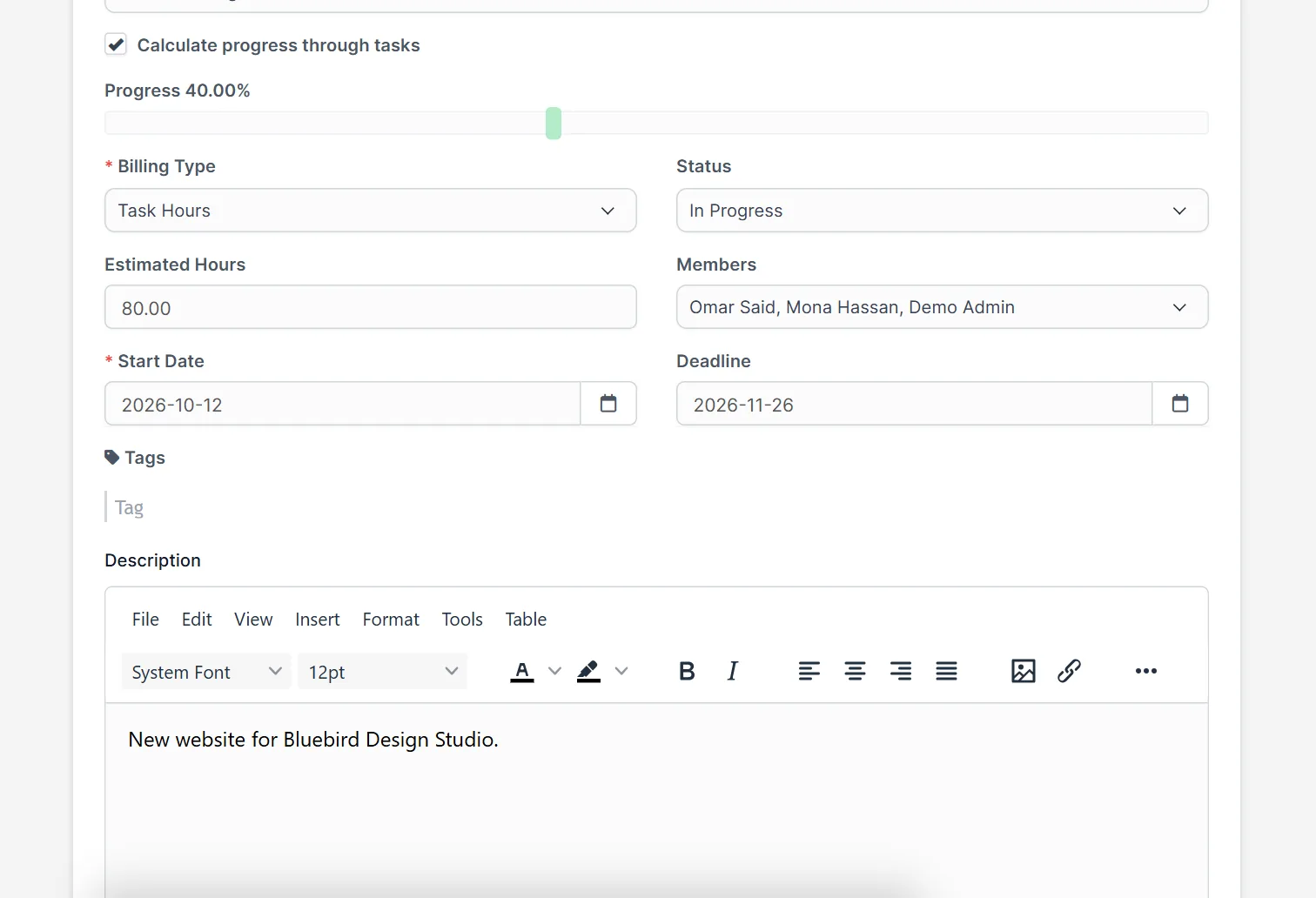
Step 2: Check the logged hours #
Open the Timesheets tab and look at who logged time on which task. Fix a wrong block before you invoice, because billed tasks are closed afterwards and you must bill task hours only once. Our guide to Perfex CRM timesheets shows how to add or correct a block.
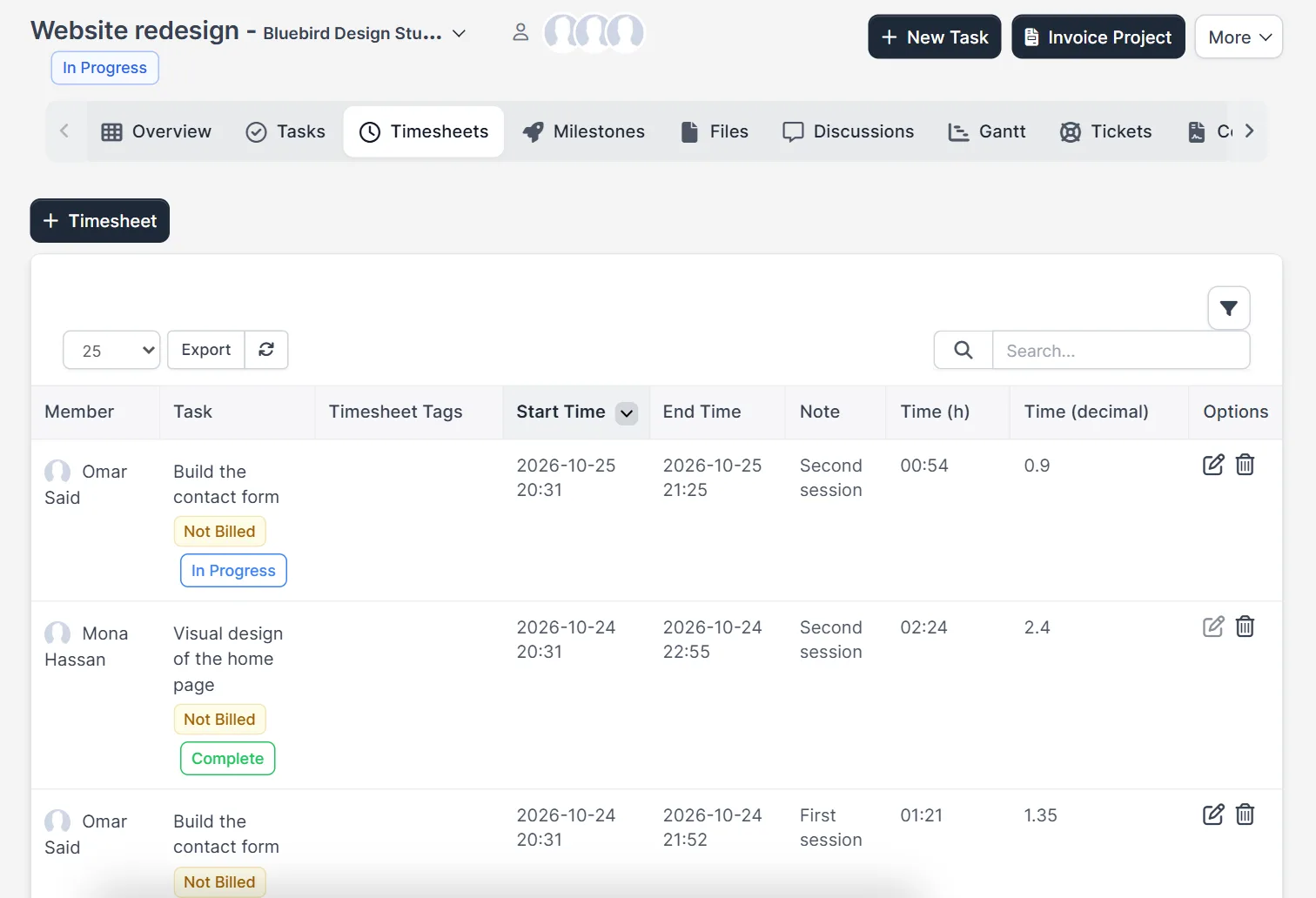
Step 3: Click Invoice Project in the Perfex CRM invoice project window #
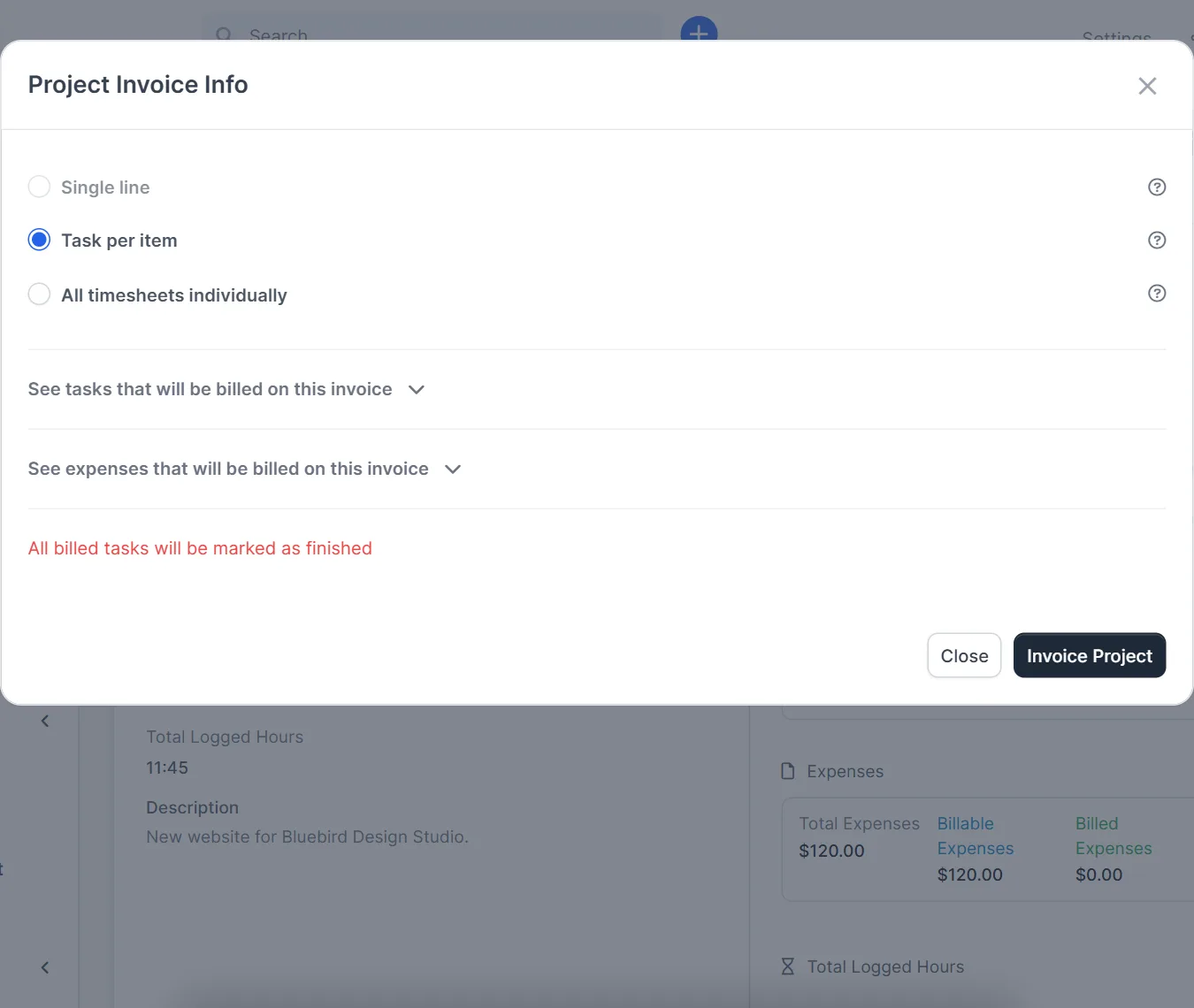
Click Invoice Project at the top right of the project. The window Project Invoice Info offers three ways to build the invoice lines:
- Single line: one line with the project name. It is not available when the billing type is Task Hours, which is why it is greyed out in the picture.
- Task per item: one line for every billable task with its logged time.
- All timesheets individually: one line for every timesheet block.
Open See tasks that will be billed on this invoice and See expenses that will be billed on this invoice to review the list. The red note reminds you that all billed tasks will be marked as finished. Click Invoice Project to create the invoice.
Step 4: Find the invoices of the project #
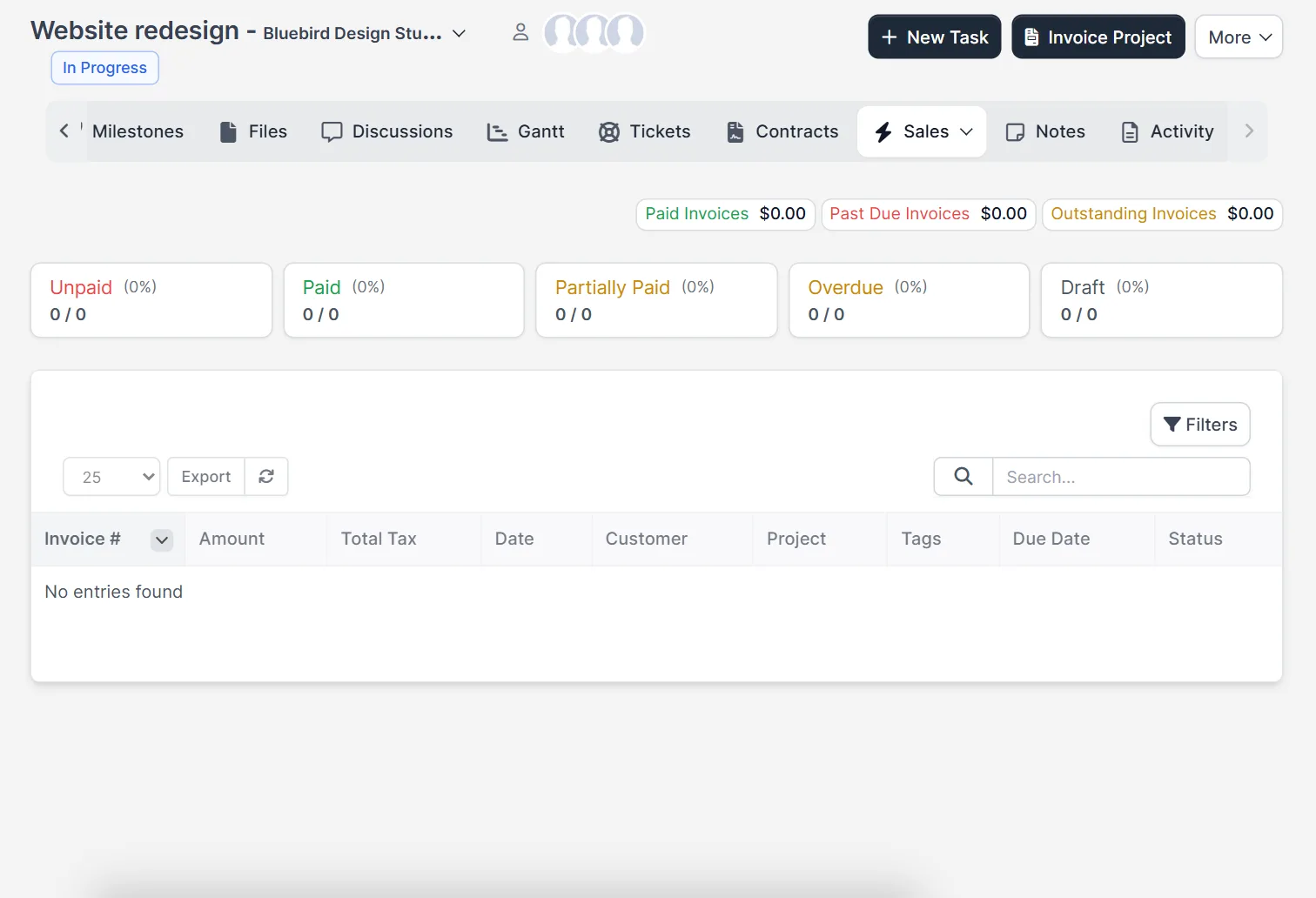
Open the Sales menu inside the project and choose Invoices. The page counts the unpaid, paid, partially paid, overdue and draft invoices of this project and lists them in a table, so you always know what the customer still owes. Send or edit the invoice like any other, as described in how to create an invoice in Perfex CRM.
Tips before your Perfex CRM invoice project #
- Invoice from the project, not from the Sales menu, so every invoice stays linked to the project.
- Open the lists in the Project Invoice Info window and check them before you click the button.
- Set the tax and currency of the customer first, so the invoice opens with the right ones.
Common mistakes with Perfex CRM invoice project #
The most common mistake with a Perfex CRM invoice project run is billing before the hours are checked. Open the timesheets first, because the tasks that you bill are marked as finished and their hours leave the unbilled total. A second mistake is a missing hourly rate: a task with a rate of zero adds a zero amount, so you cannot bill task hours that have no price. A third mistake is choosing Single line for a project that bills task hours, which the window does not allow. If the invoice has the wrong lines, check the line style and the lists of tasks and expenses in the window before you click Invoice Project.
Quick checklist for a Perfex CRM invoice project #
- The billing type of the project matches how you agreed to charge.
- Every billable task has an hourly rate and the right member logged the time.
- The timesheets of the project have no missing or doubled blocks.
- The customer has the right currency and tax settings.
- You open the lists of tasks and expenses in the Project Invoice Info window.
- You start the invoice from the project, so it stays linked to it.
Related guides #
- Plan the stages with project milestones.
- Record costs with Perfex CRM expenses and tax rates.
- Add accounting reports with our Financial Management module.
- Read the official help on invoicing a project.
The screenshots come from a demo CRM. Creating the invoice itself, the Fixed Rate and Project Hours billing types and the result on the invoice were not tested here, because that changes demo data; the steps follow the window you see in the pictures.
Summary #
A Perfex CRM invoice project run is quick when the work is tracked: pick the billing type, log the hours, click Invoice Project, choose the line style and review what is billed. Then follow the paid and unpaid invoices on the Sales tab.
Frequently asked questions #
Where is the Invoice Project button? #
It is at the top right of the project page, next to New Task.
Why is Single line greyed out? #
Single line is not available when the project billing type is Task Hours.
Are the billed tasks closed? #
Yes. The Project Invoice Info window says that all billed tasks will be marked as finished.
Where do I see the invoices of one project? #
Open the Sales menu inside the project and choose Invoices.


