
- Where to find Perfex CRM contracts
- Step 1: Create contract types
- Step 2: Click New Contract
- Step 3: Fill in the contract details
- Step 4: Write or upload the contract text
- Step 5: Track expiry and renewals
- Step 6: Link contracts to invoices and projects
- Tips for Perfex CRM contracts
- Perfex CRM contracts FAQ
- Modules that help with agreements
- Summary
Perfex CRM contracts keep your signed agreements in one place, linked to the customer. You can set a value, a start and end date and a type, share the contract with the customer and see which ones are about to expire. This guide shows how to create and manage Perfex CRM contracts step by step.
Where to find Perfex CRM contracts #
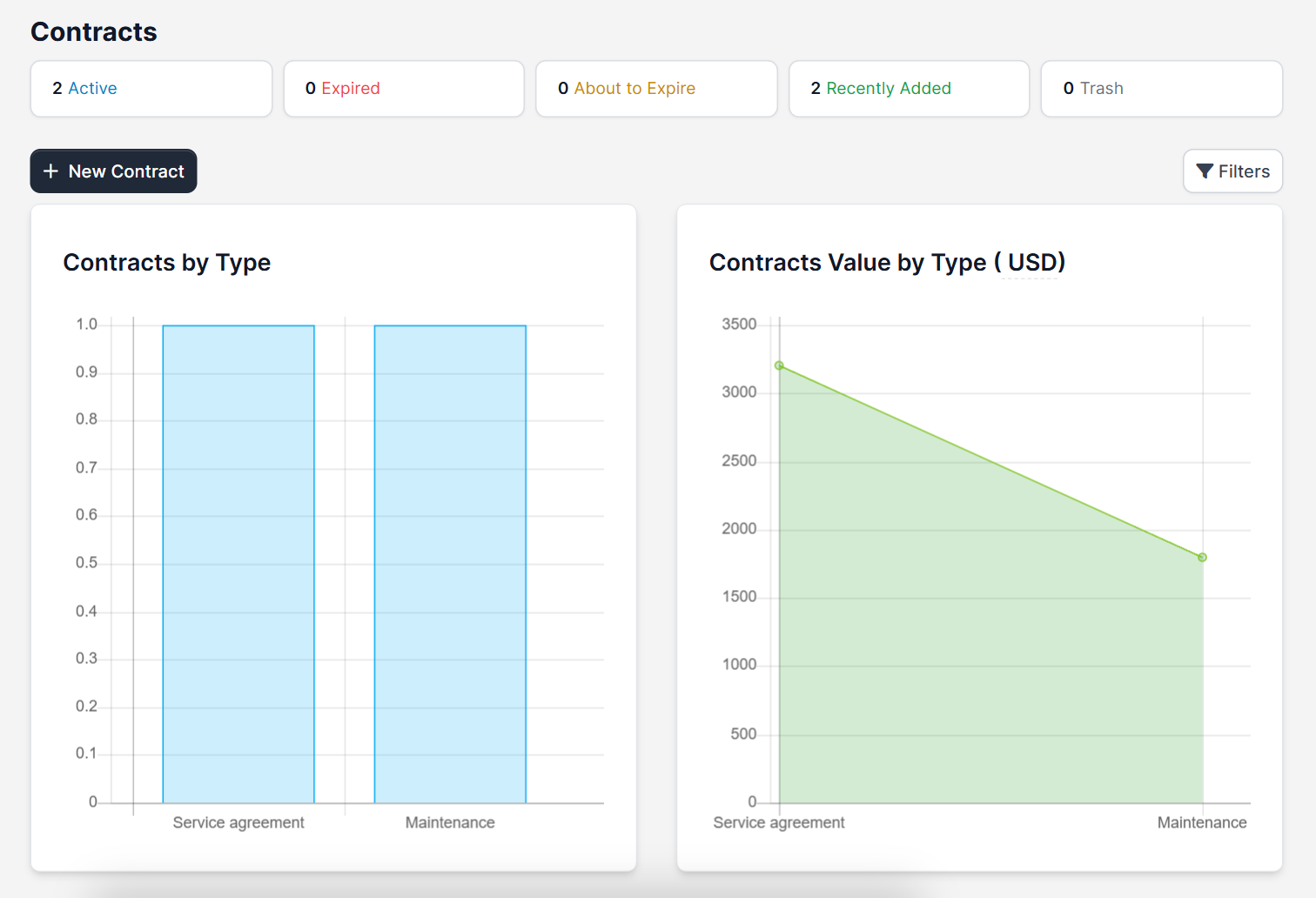
Open Contracts in the main menu. The page shows two charts, Contracts by Type and Contracts Value by Type, and a table with #, Subject, Customer, Contract Type, Contract Value, Start Date, End Date, Project and Signature. Use Filters to find contracts that expire soon.
Step 1: Create contract types #
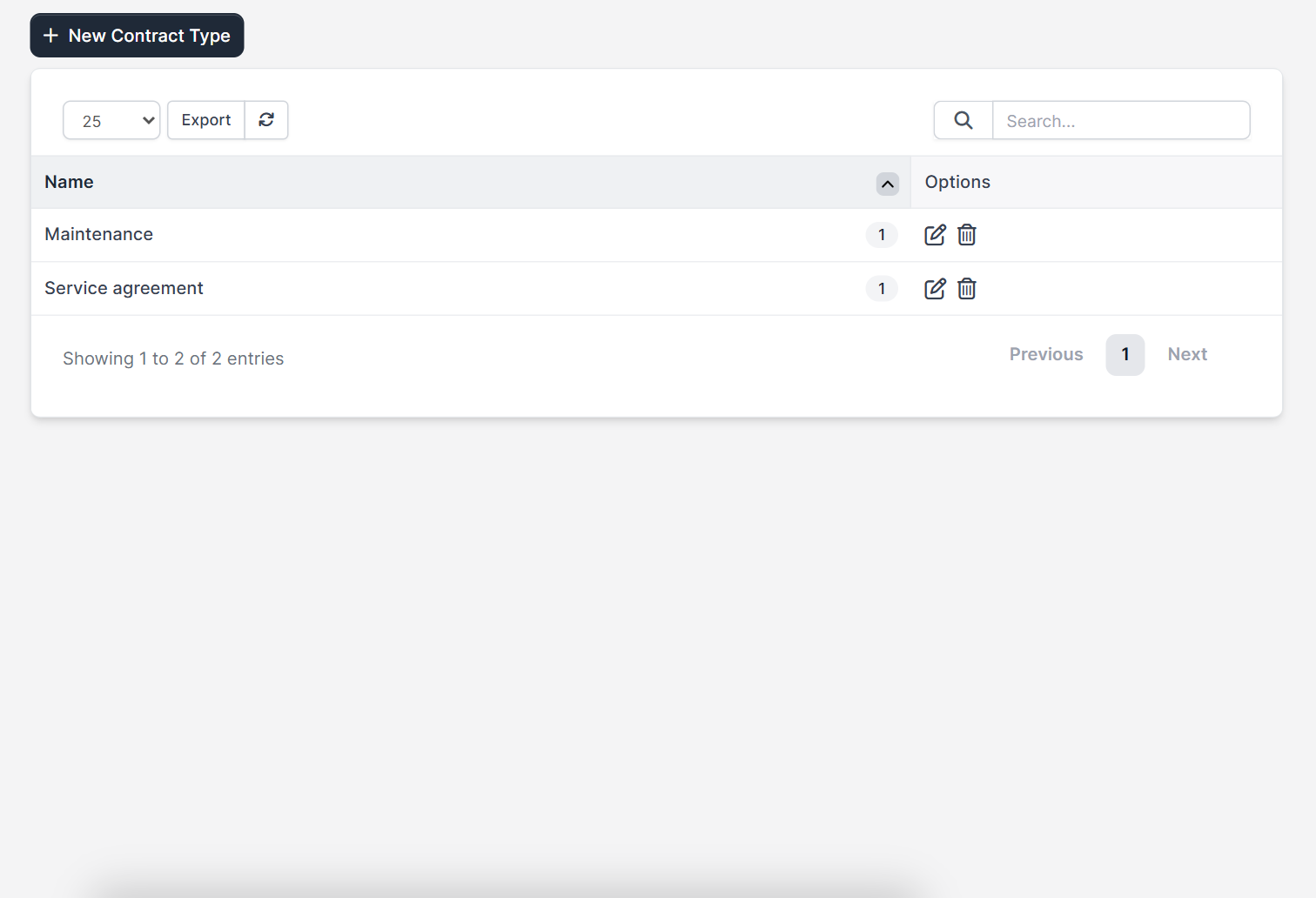
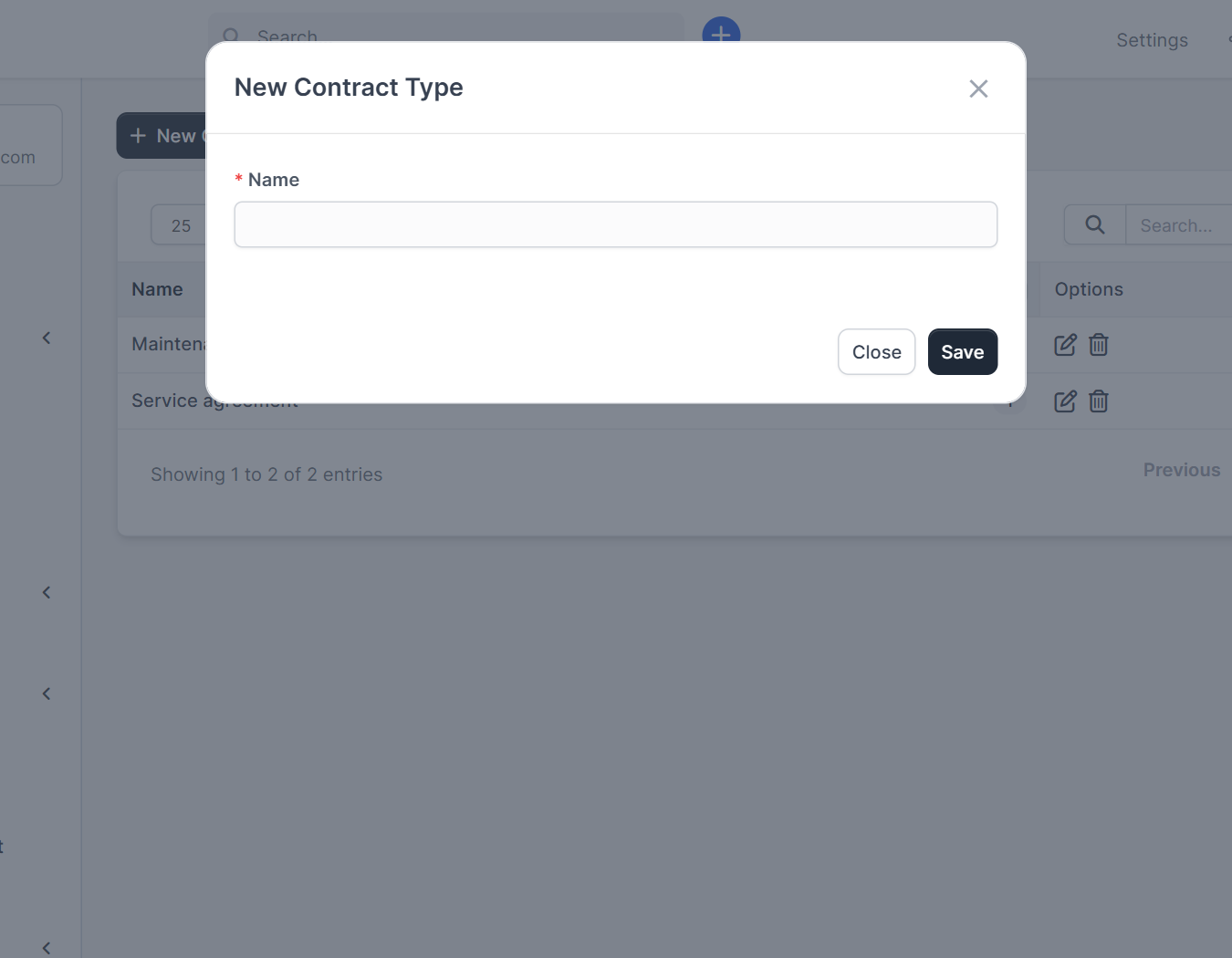
Types group your agreements for the charts and filters. Open the contract types page and click New Contract Type, then enter a name such as Service agreement or Maintenance. The list shows each Name with the number of contracts that use it and edit and delete options. You can also add a type from the plus button next to the Contract type field in the contract form.
Step 2: Click New Contract #
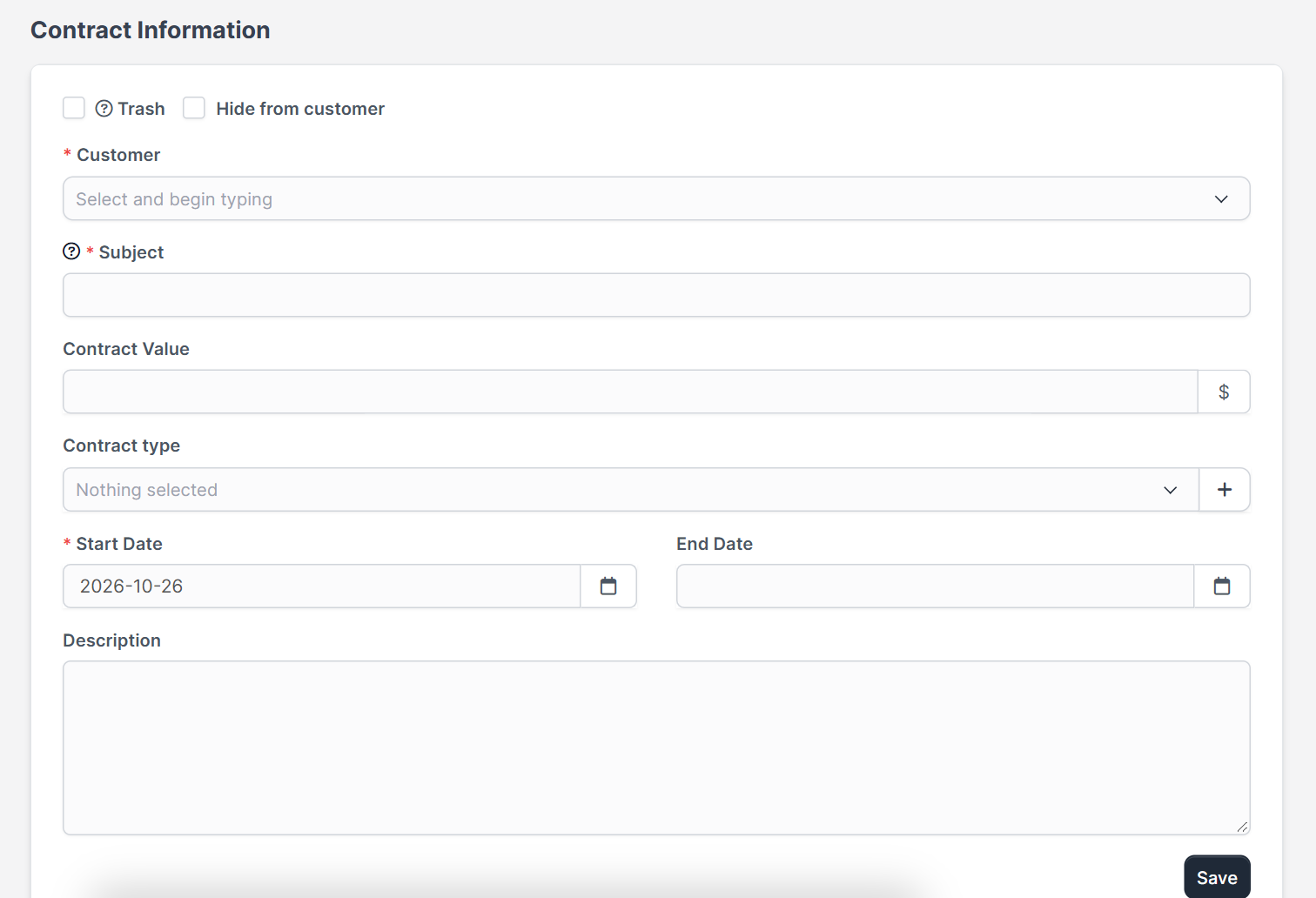
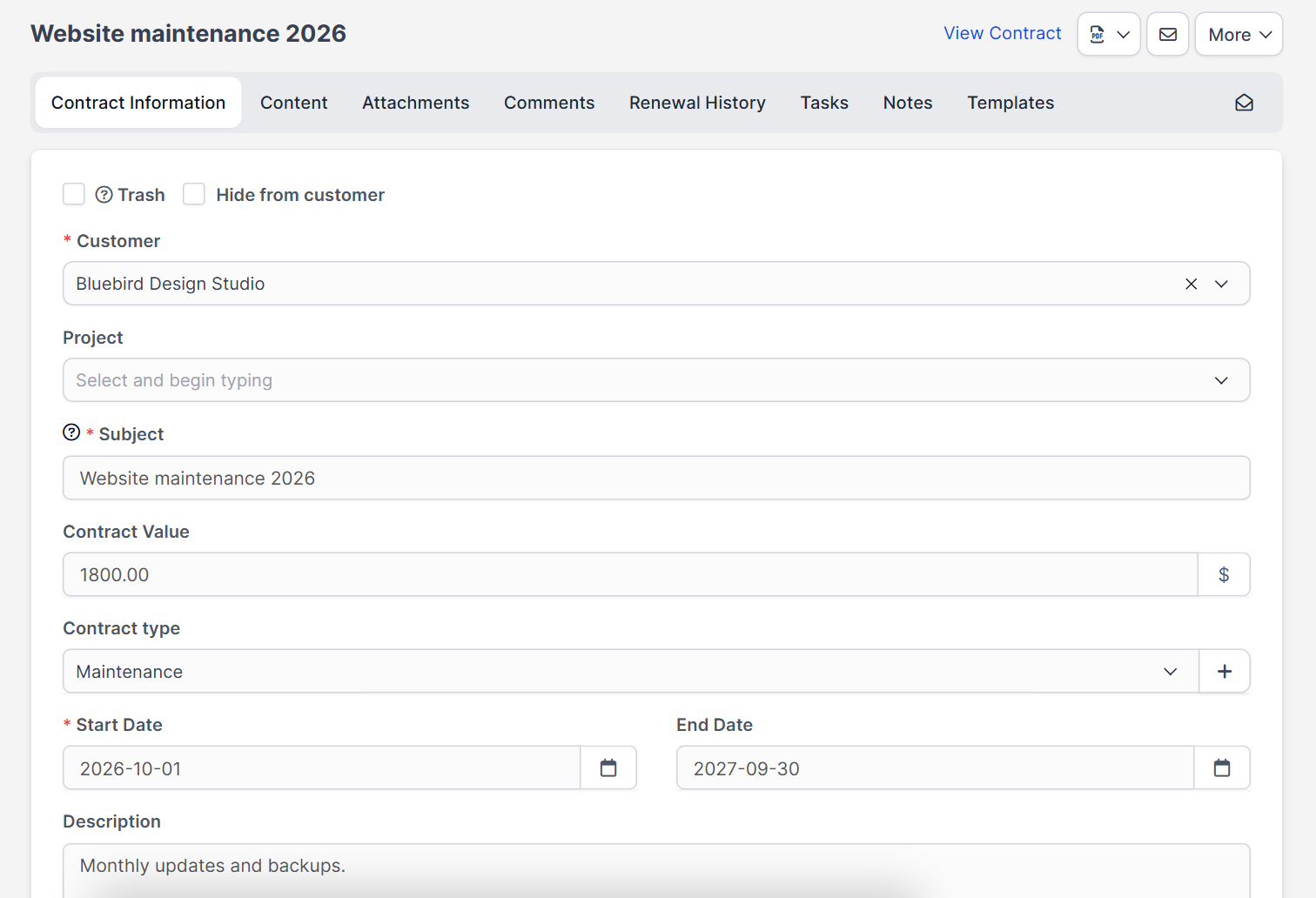
Click New Contract. The form Contract Information opens with the fields below. Make sure the customer exists first, see Perfex CRM new customer.
Step 3: Fill in the contract details #
- Customer is required, and Project is optional.
- Subject is required. Use a clear name such as “Website maintenance 2026”.
- Contract Value is the total amount.
- Contract type comes from the list you made in step 1.
- Start Date is required and End Date is optional.
- Description is a short note about the scope.
Two switches at the top matter: Hide from customer keeps the contract private, and Trash moves it away. Click Save.
Step 4: Write or upload the contract text #
After saving, the contract opens with the tabs Contract Information, Content, Attachments, Comments, Renewal History, Tasks, Notes and Templates. Write the agreement in Content or start from a template. At the top, View Contract shows the customer view, and the buttons next to it download the PDF, send it by email or open the More menu. The customer can open the contract in the customer area when it is not hidden, and the Signature column shows whether it has been signed.
Step 5: Track expiry and renewals #
Sort the table by End Date to see which Perfex CRM contracts end soon. The cron job also sends expiration and sign reminders, so make sure your Perfex CRM cron job runs. The reminder emails use the Perfex CRM email templates.
Step 6: Link contracts to invoices and projects #
Choose a project on the contract to connect the two. For repeating work, create a Perfex CRM recurring invoice that matches the contract value and period.
Tips for Perfex CRM contracts #
- Use the same subject pattern for every contract, for example customer name plus year.
- Always set the end date, even for open-ended work, so you remember to review it.
- Keep one contract type per kind of service for clean charts.
- Hide drafts from the customer until they are final.
- Check the Signature column every week for unsigned contracts.
Perfex CRM contracts FAQ #
Can the customer sign a contract online? #
Yes, when the contract is visible in the customer area the customer can review and sign it. The Signature column tells you the result.
Can I hide a contract from the customer? #
Yes. Switch on Hide from customer while you prepare it.
What is the difference between a contract and a proposal? #
A proposal is an offer before the deal. A contract is the agreement after it. See Perfex CRM proposals.
Can I filter contracts by type? #
Yes, use Filters and choose the type.
Modules that help with agreements #
Keep all customer emails in one thread with the Mailbox module, and track the people who work on a contract with the HR module.
Summary #
To manage Perfex CRM contracts well, create types, fill in the value and dates, decide who can see each one and watch the end date. Your contracts then stay organized and nothing renews or expires by surprise. More about the system is on the official Perfex CRM website, and a clean list of Perfex CRM contracts makes every renewal easier. Review your Perfex CRM contracts monthly, because a renewal you plan is easier than one you rush. Clean Perfex CRM contracts also help reports and reminders.


