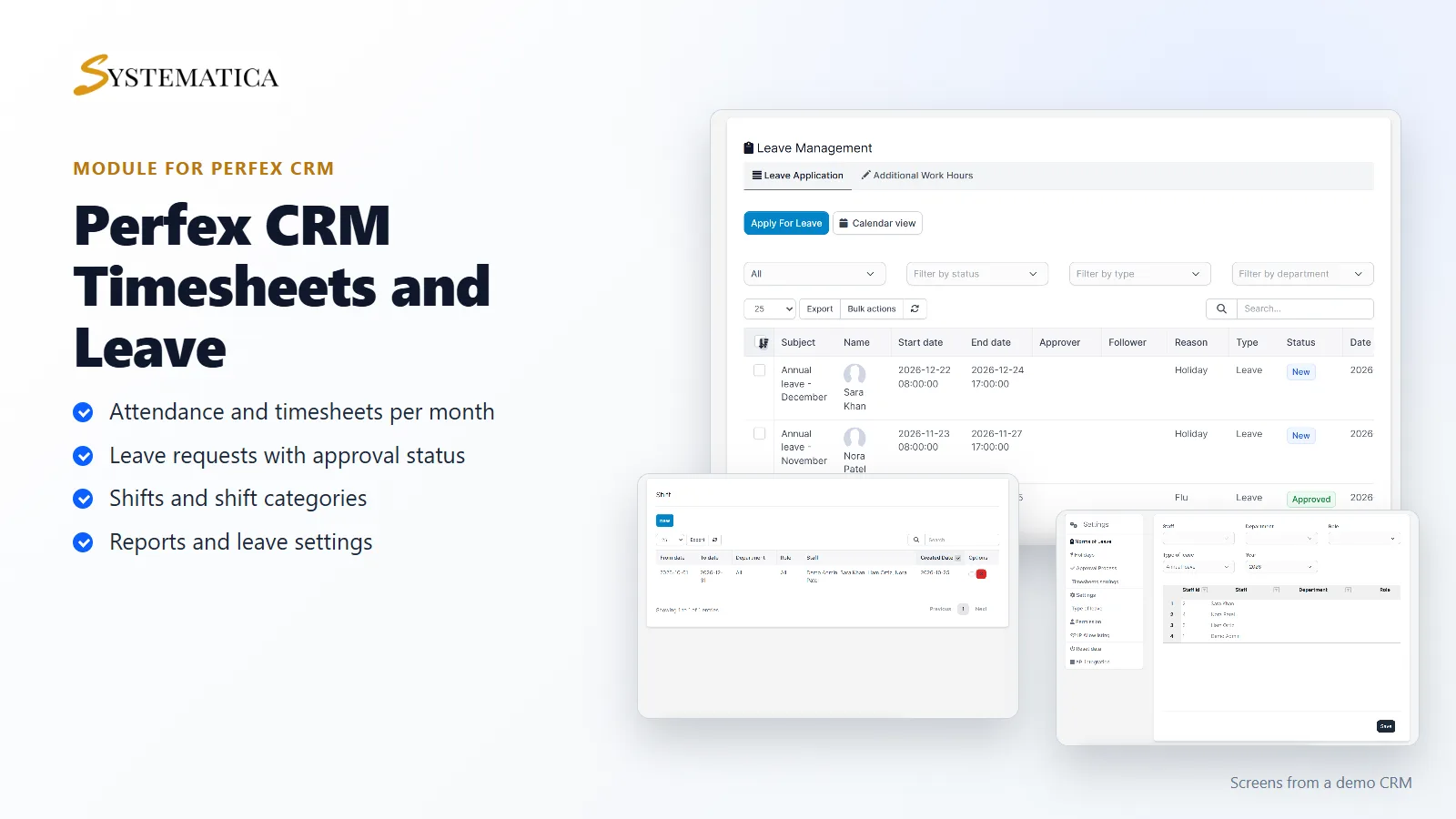
Timesheets and Leave Management for Perfex CRM keeps attendance, leave, holidays and shifts in one place inside your CRM. Staff check in and out, apply for leave and see their balance. Managers approve requests, plan shifts and run reports. It replaces the shared spreadsheet that nobody keeps up to date.
What you get with Timesheets and Leave Management for Perfex CRM
- A monthly timesheet grid per staff member, with filters for month, department, role and staff
- Check-in and check-out for staff, and an export of the grid to Excel
- Leave applications with a subject, dates, reason, type, approver, followers and status
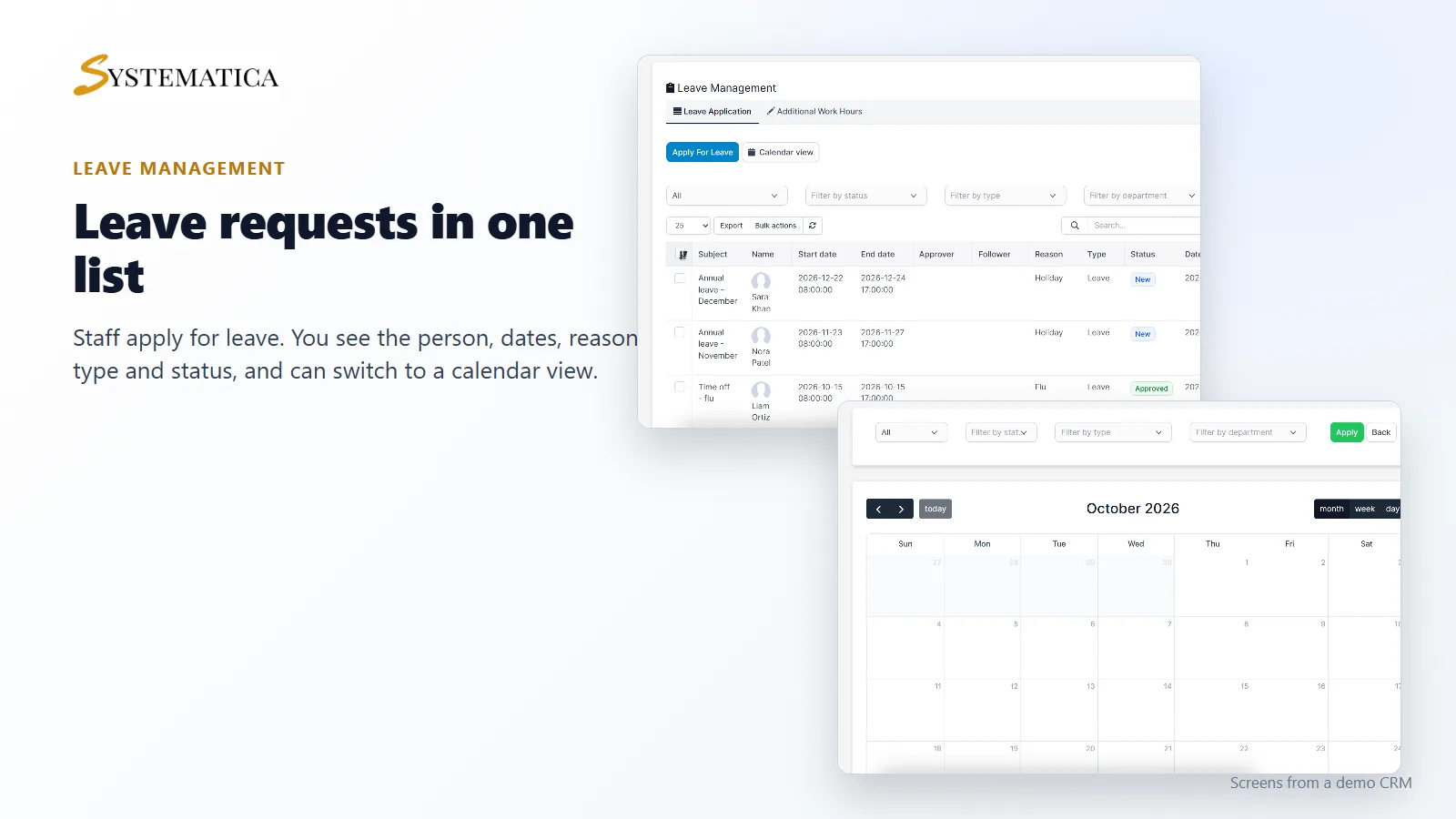
- A calendar view of leave and filters by status, type and department
- Additional work hours as a separate request type
- Shifts and shift categories, with start, end and lunch break times
- Leave norms per staff member, type of leave and year
- Holidays, an approval process and permissions
- IP allowlisting, workplaces and routes for check-in, as listed in the settings and menu
- Reports for annual leave, attendance, leave applications and check-in history, and charts for working hours and leave
Leave requests and approval
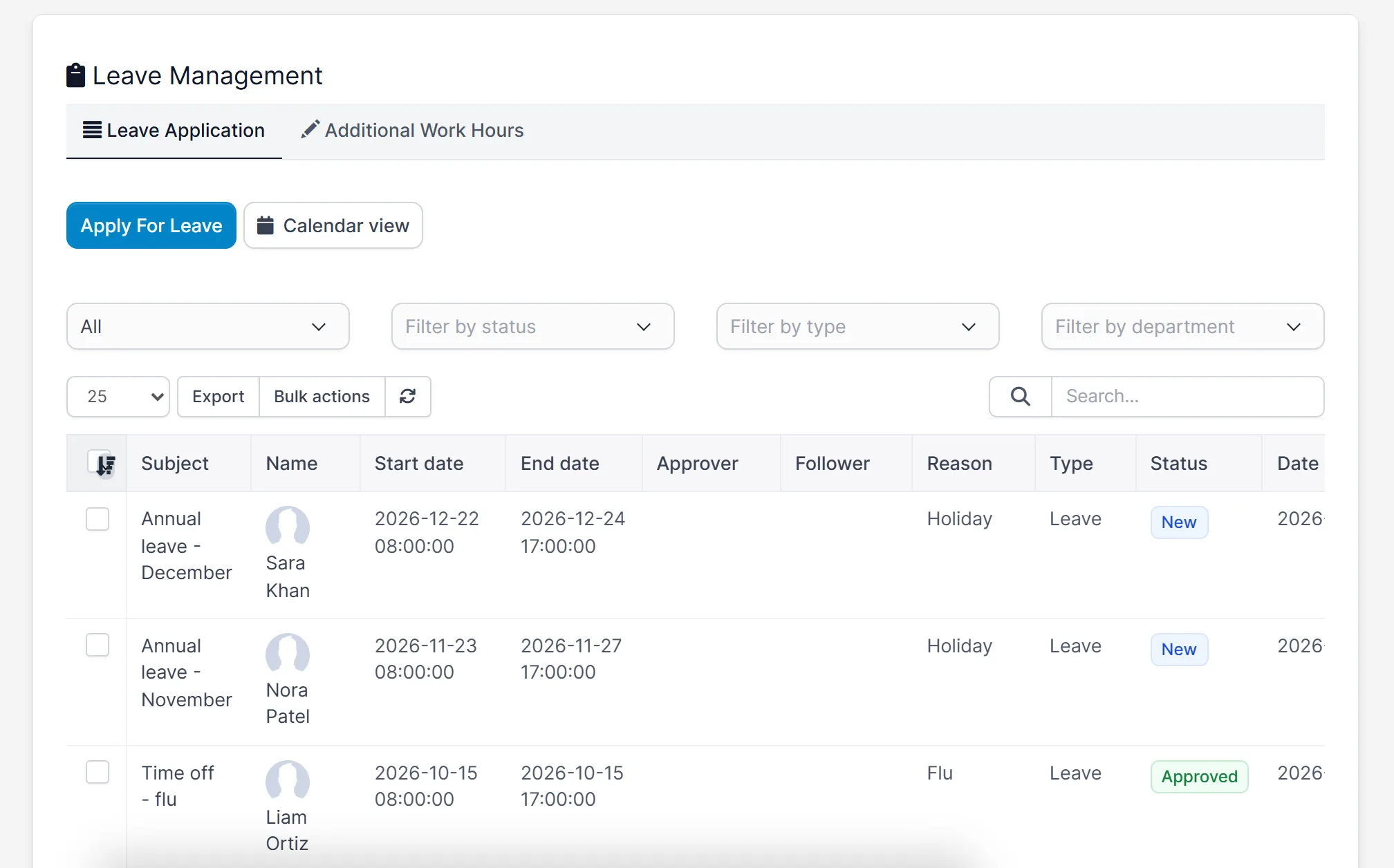
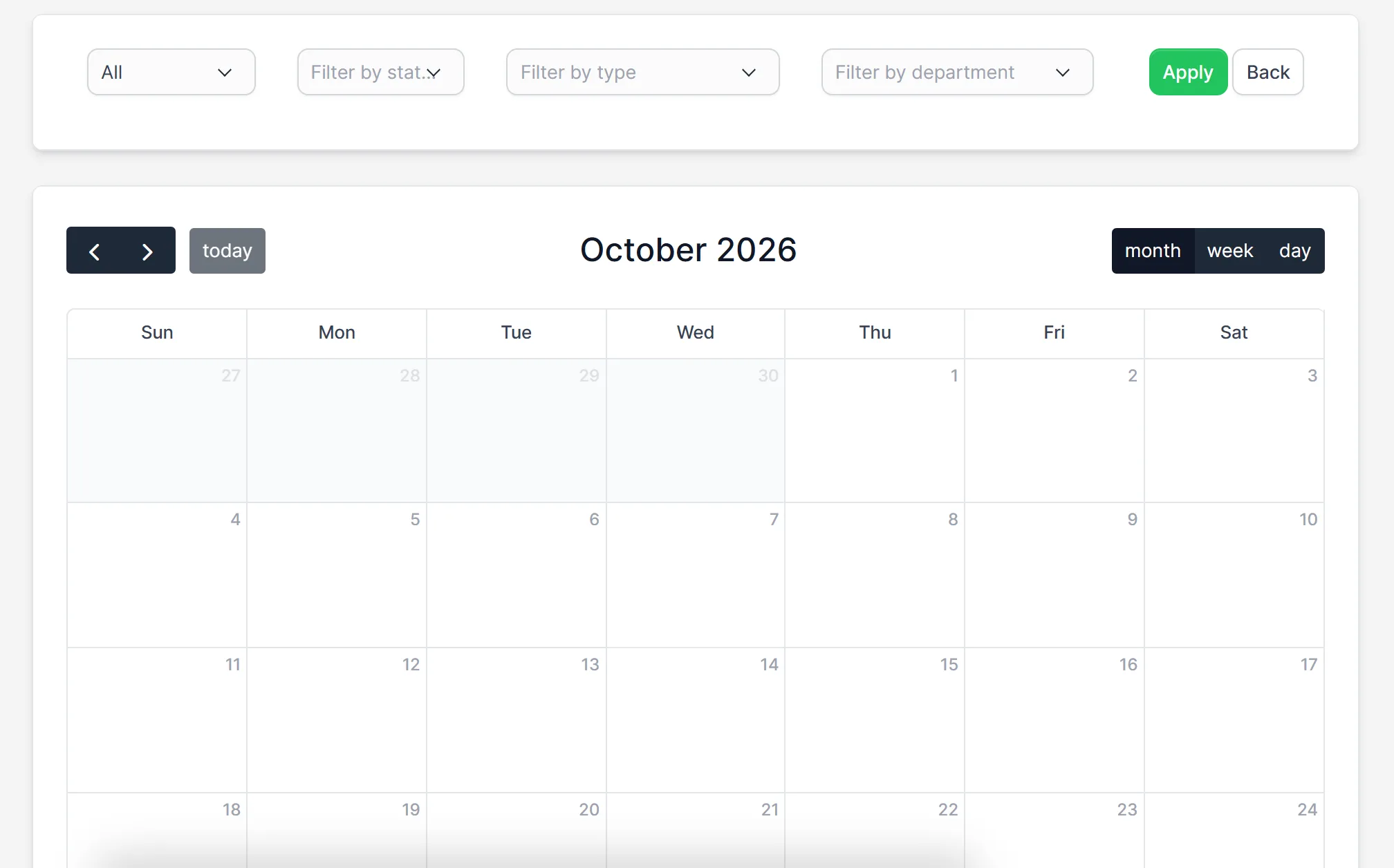
Staff apply for leave from one screen in Timesheets and Leave Management for Perfex CRM. The list shows each request with the person, the start and end date, the reason, the type and the status, such as new or approved. You can filter by status, type and department, and open a calendar view to see who is away when. The approval process in the settings decides who signs off.
Shifts for your team
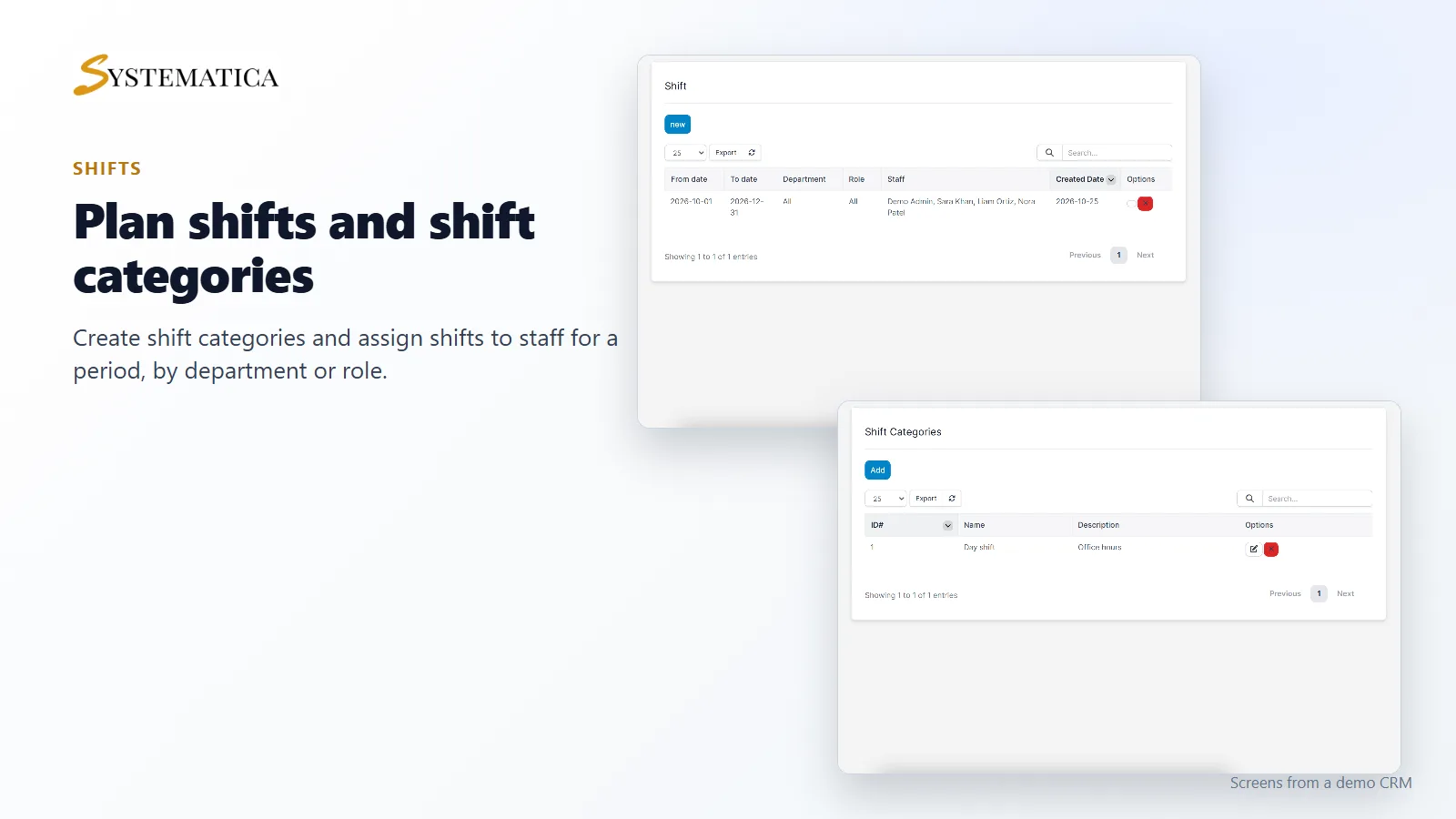
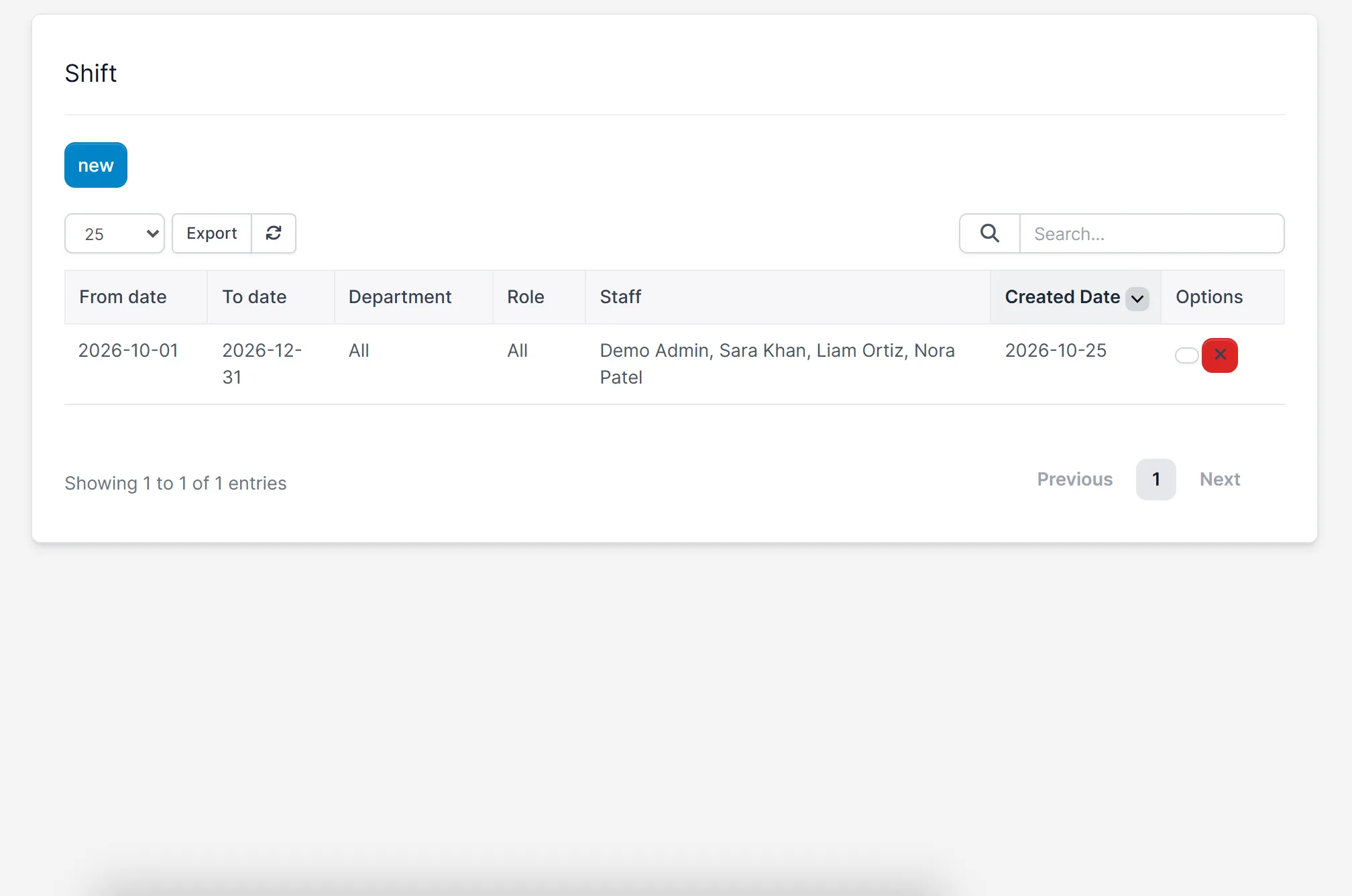
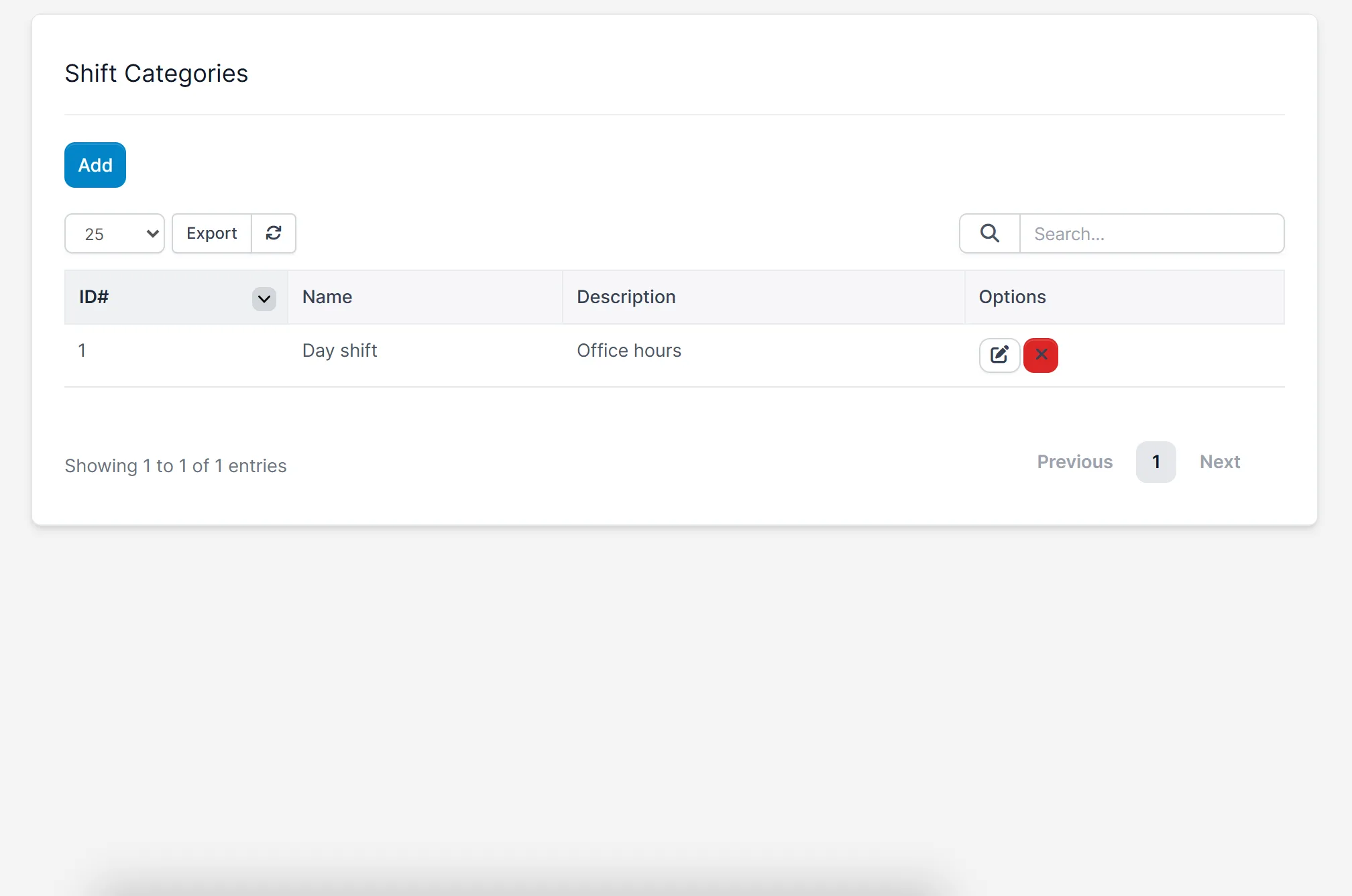
With Timesheets and Leave Management for Perfex CRM you create shift categories, such as a day shift, with working hours and a lunch break. Then create a shift for a period and assign it to staff, to a department or to a role. Timesheets and Leave Management for Perfex CRM shows the shift period and the people on it in one list.
Reports and leave settings
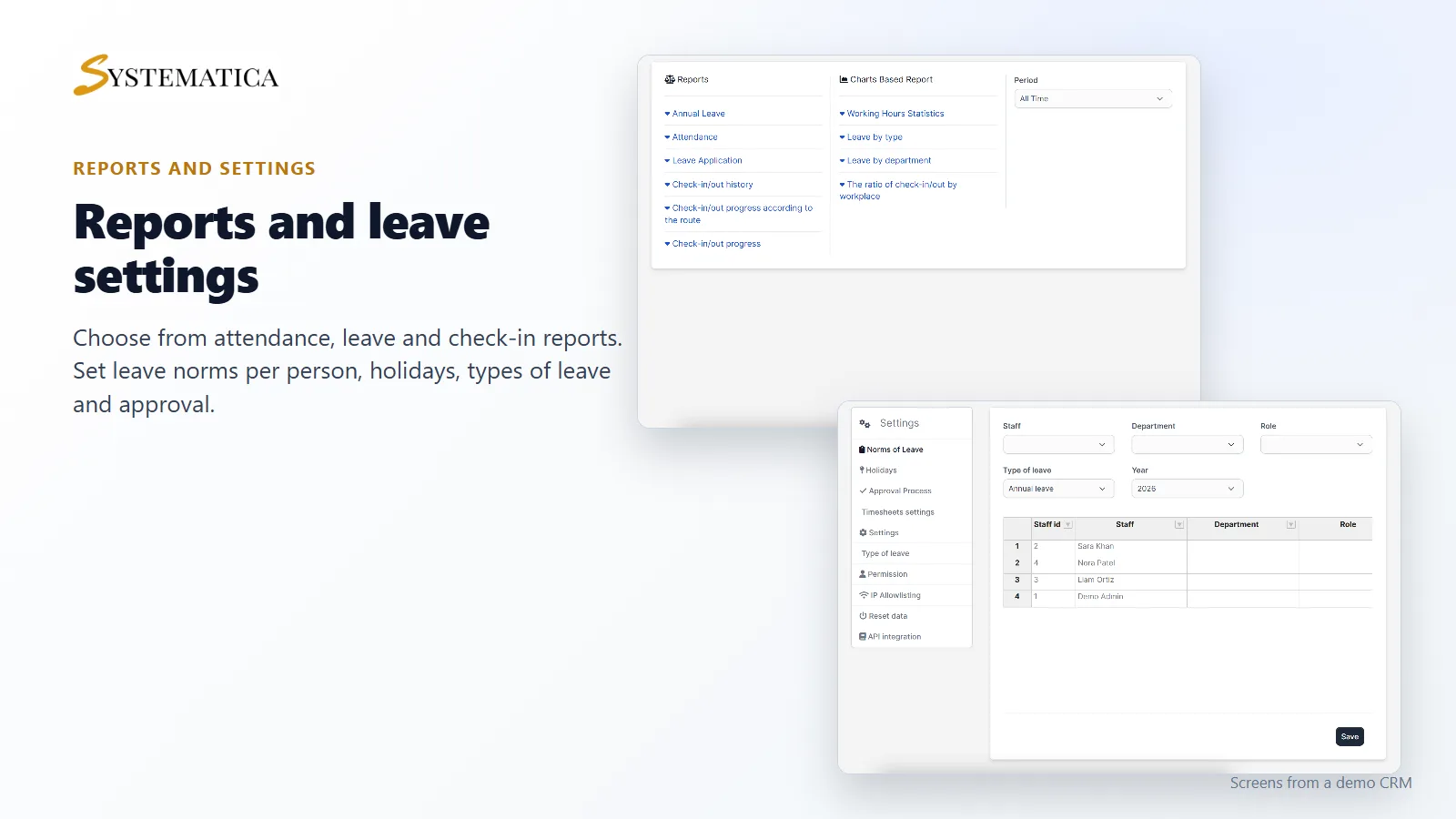
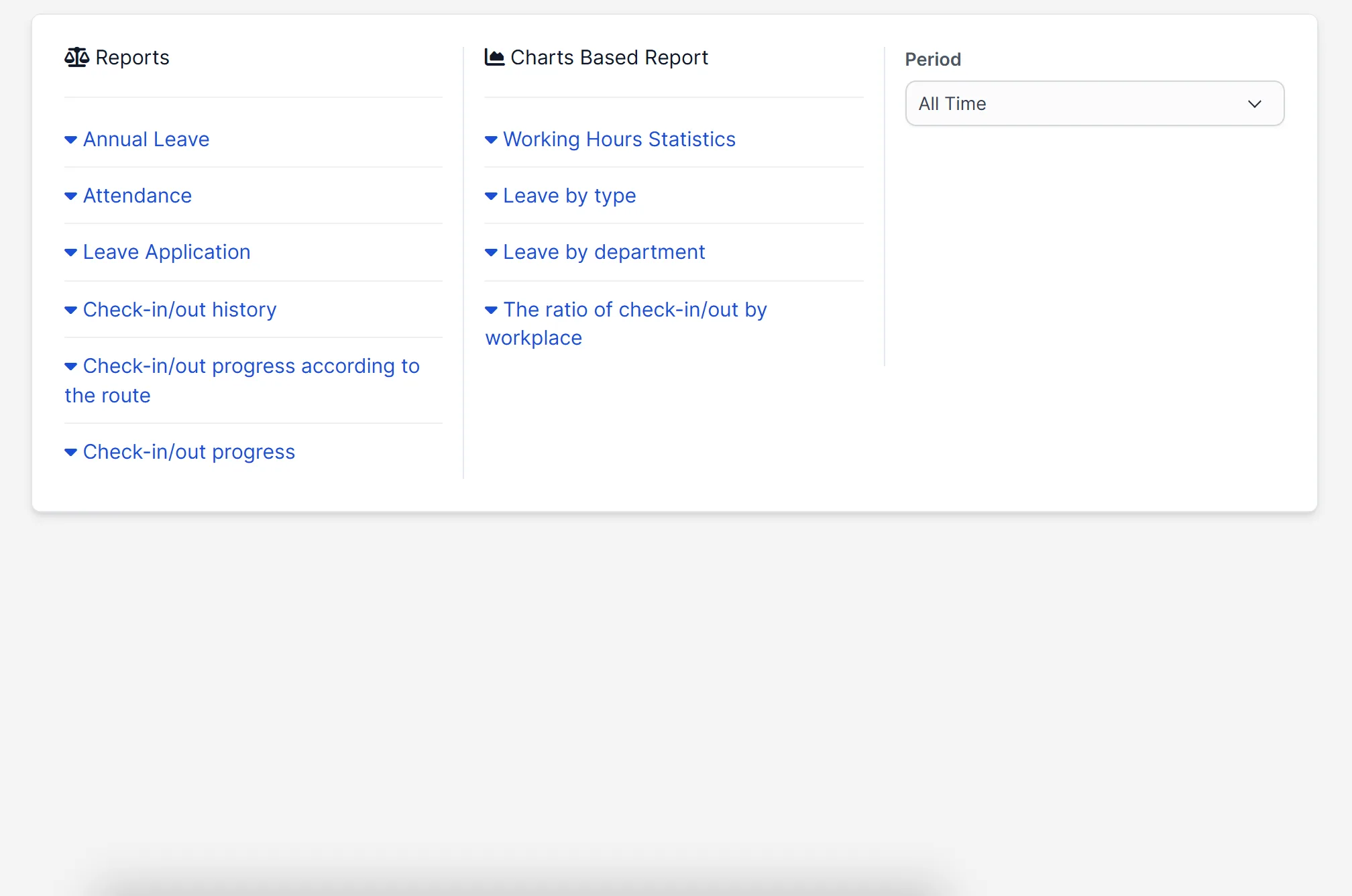
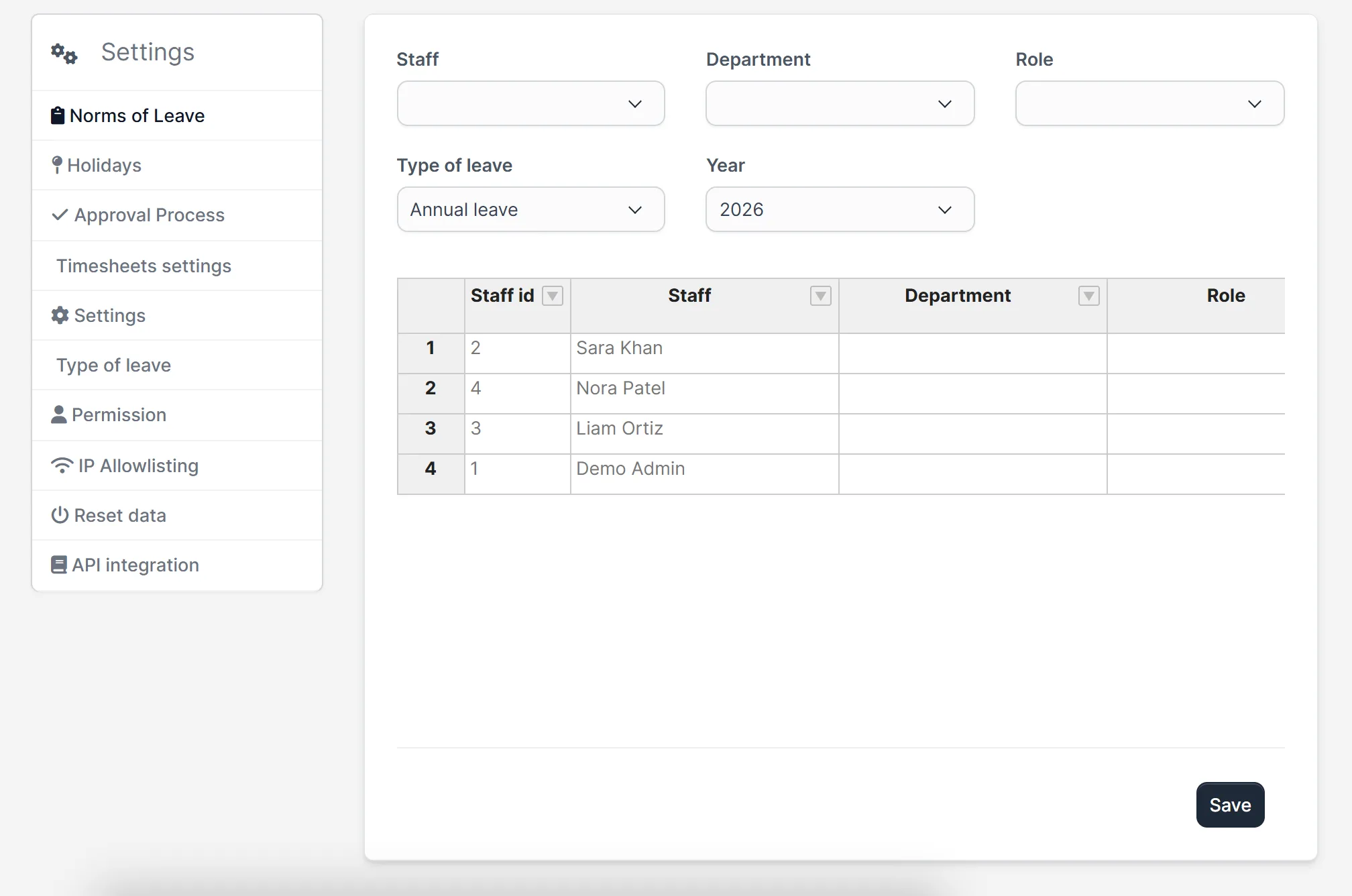
The reports page of Timesheets and Leave Management for Perfex CRM lists annual leave, attendance, leave application, check-in and out history and progress by route. Charts show working hours, leave by type, leave by department and the ratio of check-ins by workplace. In the settings you set leave norms per person and type of leave for a year, holidays and permissions.
Set it up
- Upload the module under Setup > Modules and activate it.
- Open Timesheets > License and enter your license key.
- Open Timesheets > Setting and set leave norms, holidays and the approval process.
- Create shift categories and a shift, and assign your staff.
- Ask staff to check in and to apply for leave in Timesheets and Leave Management for Perfex CRM from their menu.
Requirements
- Perfex CRM 3.4 or newer for Timesheets and Leave Management for Perfex CRM (tested on 3.4.1)
- A connection from your server to systematica.app over HTTPS
Good to know
- The screens of Timesheets and Leave Management for Perfex CRM in the pictures are from a demo CRM with sample staff and requests.
- The monthly grid shows “NS” (no shift) for days without an assigned shift.
- Check-in by location, route and IP address depends on the options you switch on in the settings.
License, support and updates
After purchase you receive a license key by email. One license key activates the module on one website. To move it, deactivate the license under Timesheets > License and activate it on the new site. You get 1 year of use, support through our ticket system and free updates through your Systematica account. Timesheets and Leave Management for Perfex CRM runs inside Perfex CRM, which you need to own.
Frequently asked questions
What does Timesheets and Leave Management for Perfex CRM do?
It tracks attendance, leave, holidays and shifts for your staff in Perfex CRM, with approvals and reports.
Can staff apply for leave themselves?
Yes. Staff apply for leave from the leave management screen, and the approver decides.
Can I plan shifts?
Yes. You create shift categories and shifts for a period and assign them to staff, departments or roles.
Which reports are included?
Annual leave, attendance, leave applications and check-in and out history, plus charts for working hours and leave.
Can I use one license on more than one website?
One license key activates the module on one website. You can move it by deactivating it on the old site and activating it on the new one.
Need help with this module?
Every license is valid for 1 year and includes support through our ticket system and free updates. To keep using the module after that, renew your license.