
Appointment Manager Perfex CRM Documentation: Booking Setup
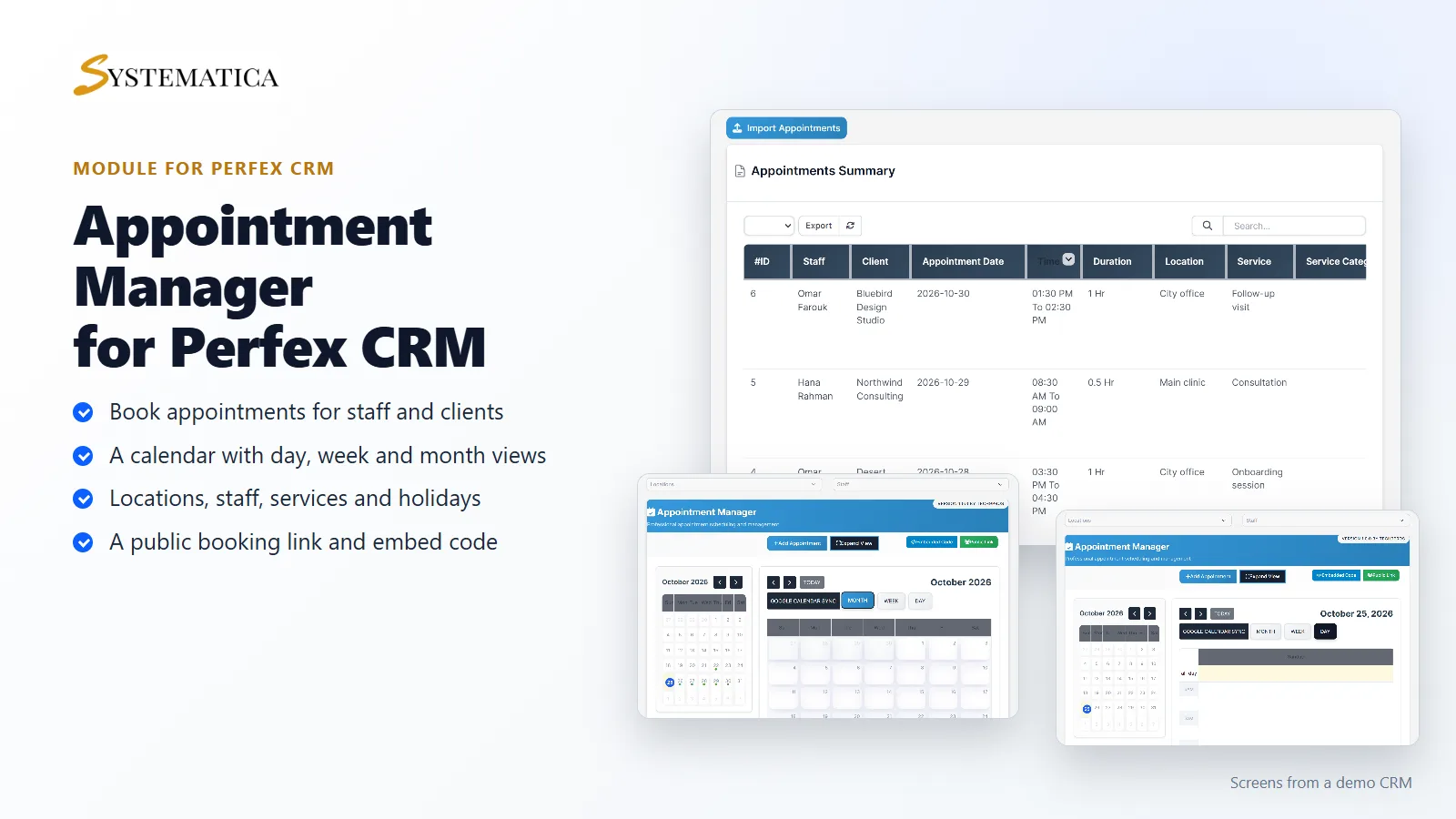
This appointment manager Perfex CRM documentation shows how to set up booking: locations, staff, services and holidays, a list and a calendar of every appointment, and a public link or embedded form for clients. It all runs inside your own Perfex CRM.
What appointment manager Perfex CRM includes
- An appointment list with staff, client, date, time, duration, location, service and status
- A calendar with day, week and month views, and filters for location and staff
- An Add Appointment button and an Import Appointments button
- Locations with opening and closing times
- Staff profiles with their availability and unavailability
- Services and service categories
- Holidays, so nobody books on a day you are closed
- Statuses such as Upcoming, Approved, Cancelled, Missed and Waiting For Approval
- A public link and an embed code for your booking form
- A reminder time for each appointment, and a Google Calendar sync button
Requirements
- Perfex CRM 3.4 or newer (tested on 3.4.1)
- For Google Calendar sync, your own Google account settings
- A connection from your server to systematica.app over HTTPS for the license check
How to set up appointment manager Perfex CRM
- Upload the appointment manager Perfex CRM module under Setup > Modules and activate it.
- Open Appointment Manager > License and enter your license key.
- Add your Locations, Services and Holidays.
- Add your Staffs and their availability.
- Click Add Appointment, or share the Public Link with clients.
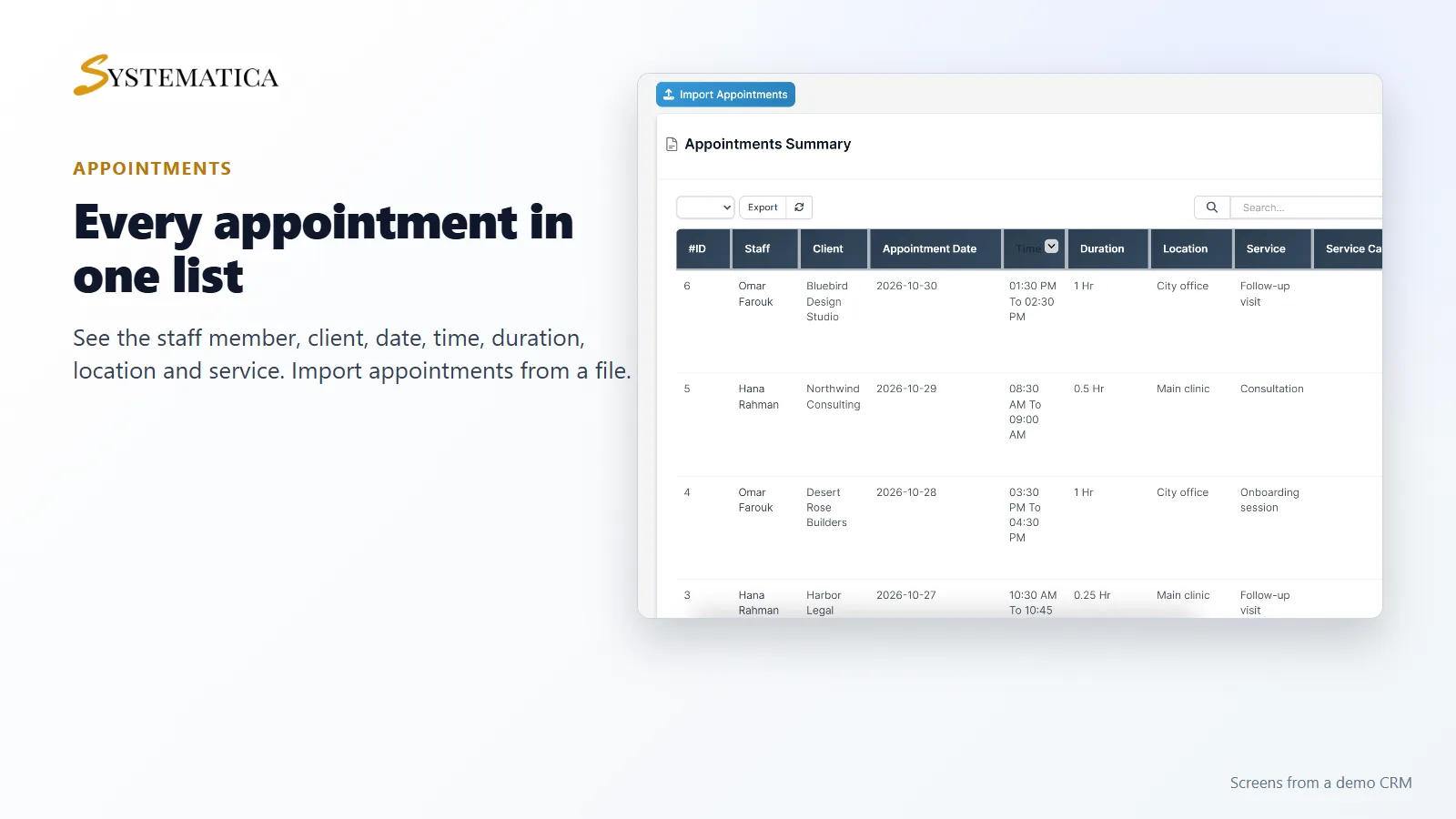
See every appointment in one list
The appointments list shows the staff member, the client, the date, the time range, how long it lasts, the location and the service. Sort it, search it or export it. You can also import appointments from a file.
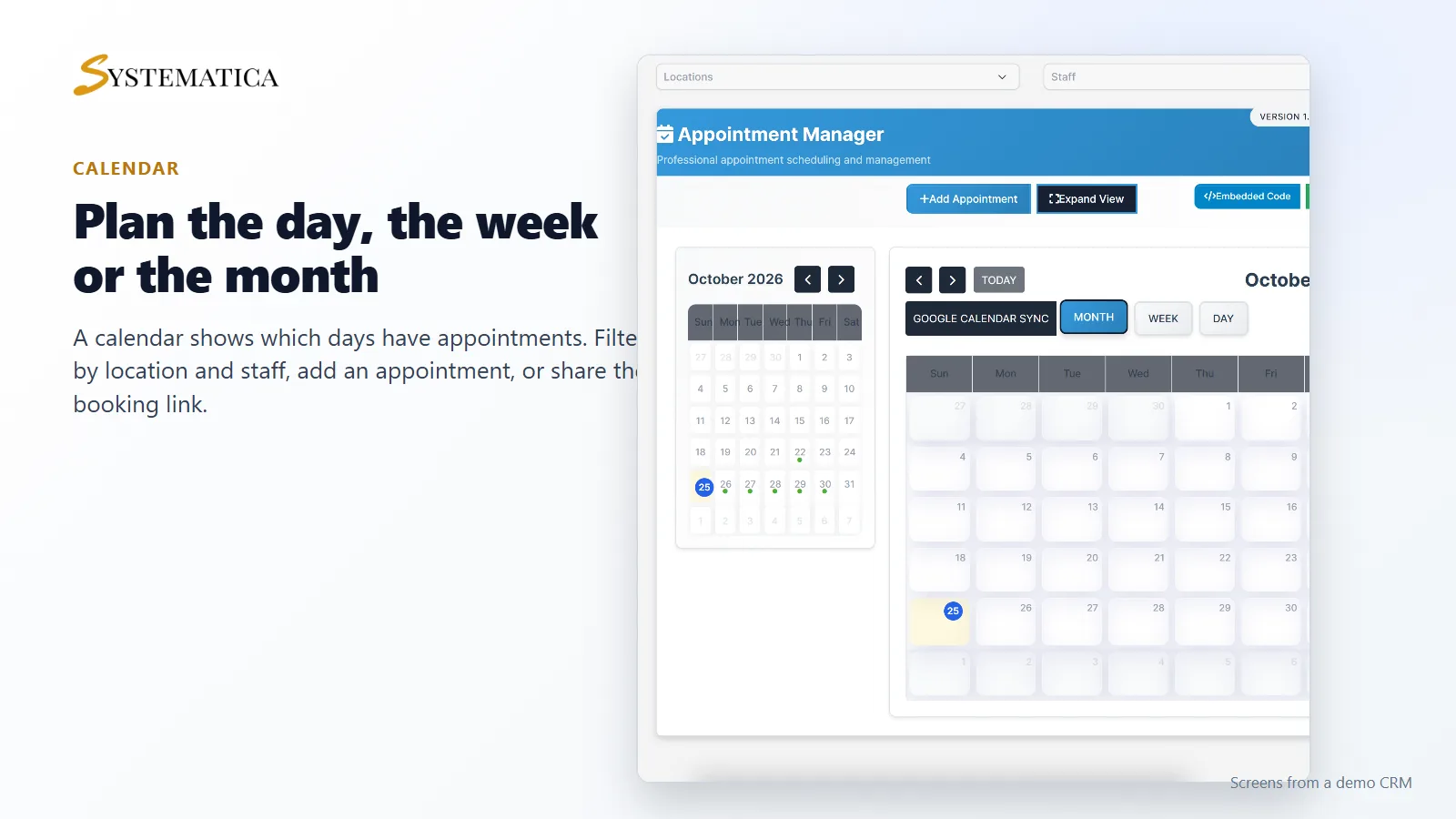
A calendar for the day, week and month
The dashboard has a small month calendar that marks the days with appointments, and a larger calendar with day, week and month views. Pick a location or a staff member to see only their schedule. From here you add an appointment, copy the public link or copy the embed code for your website.
Locations, staff, services and holidays
Add each place where you meet clients with its opening and closing times. Add the staff who take appointments and the hours they are available. List your services and group them in categories. Add holidays to block those dates.
Good to know
- The screens in the pictures come from a demo CRM with sample appointments.
- Staff use the appointment manager Perfex CRM module in the CRM. Clients book through the public link or the embedded form.
- Reminders and the Google Calendar sync depend on the Perfex cron job and your own settings.
Your license is valid for 1 year and includes support through our ticket system and free updates through your Systematica account. One license key activates the appointment manager Perfex CRM module on one website. The appointment manager Perfex CRM module runs inside Perfex CRM, which you need to own.
Frequently asked questions
Can clients book online with appointment manager Perfex CRM?
The appointment manager Perfex CRM module gives you a public link and an embed code for a booking form.
Can I stop bookings on holidays?
Yes. Add holidays and those dates are marked as closed.
Does it work with Google Calendar?
There is a Google Calendar sync button on the calendar. You set it up with your own Google account.
Where do I enter the license key?
Open Appointment Manager > License after activating the appointment manager Perfex CRM module.
Related guides and support
- See the Appointment Manager product page.
- Create follow-up tasks with Workflow Rules.
- Read the Perfex CRM custom links guide.
- Need help? Open a ticket on the support page.
- Read more in the Perfex CRM documentation.