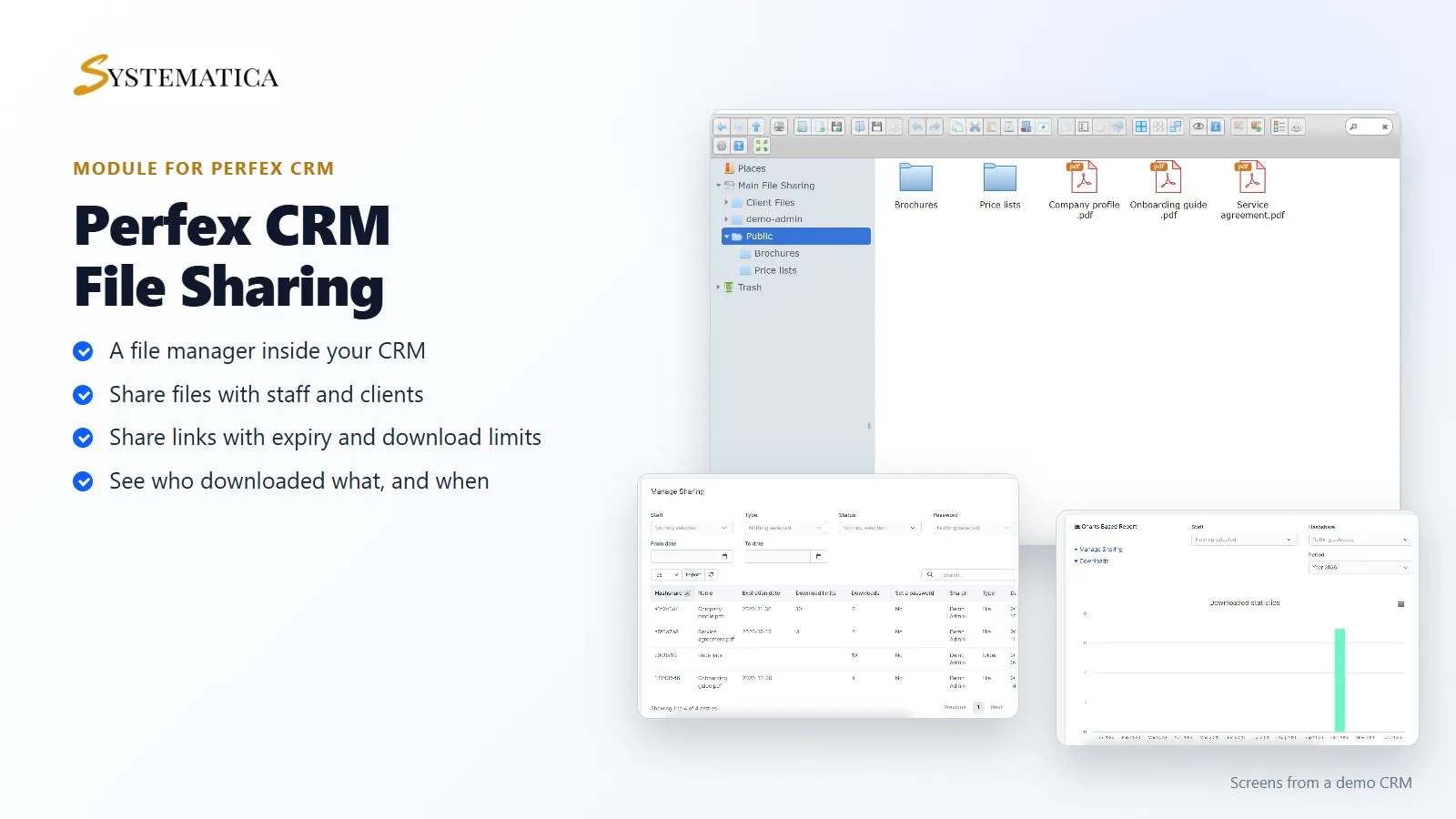
The File Sharing Module for Perfex CRM gives you a file manager inside your CRM. You keep contracts, price lists and project files in folders, and share them with your team, your clients or the public. Each share can have an expiry date and a download limit, and you can see who downloaded what and when.
What you get with the File Sharing Module for Perfex CRM
- A file manager with folders, upload, rename, move, copy and delete
- Main folders for client files and public files, with a folder for each staff member
- A trash folder for deleted files
- Share links for files and folders, with an expiry date and a download limit
- A list of all shares, with filters for staff, type, status, password and date
- A download log with the IP address, browser and time of each download
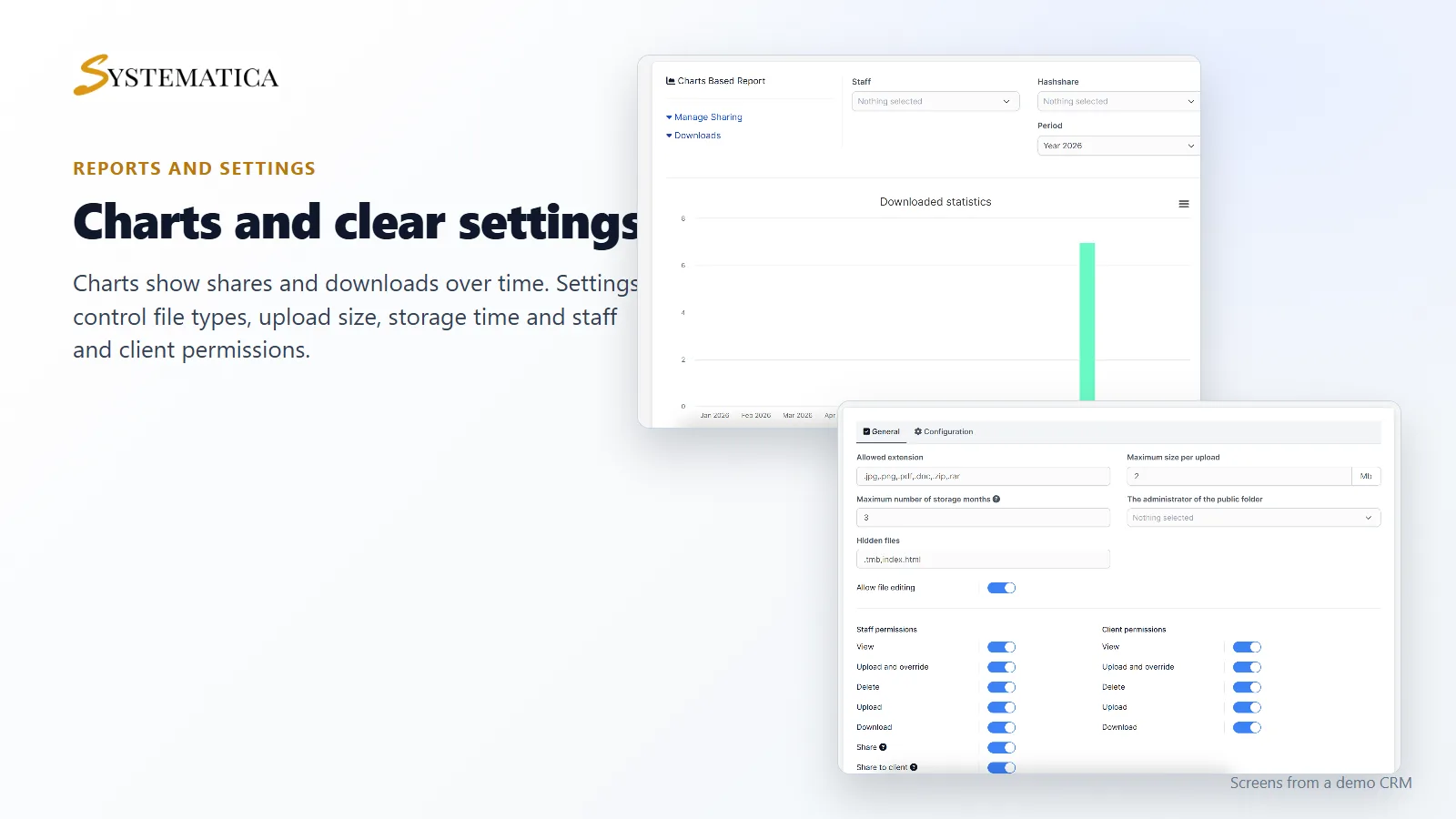
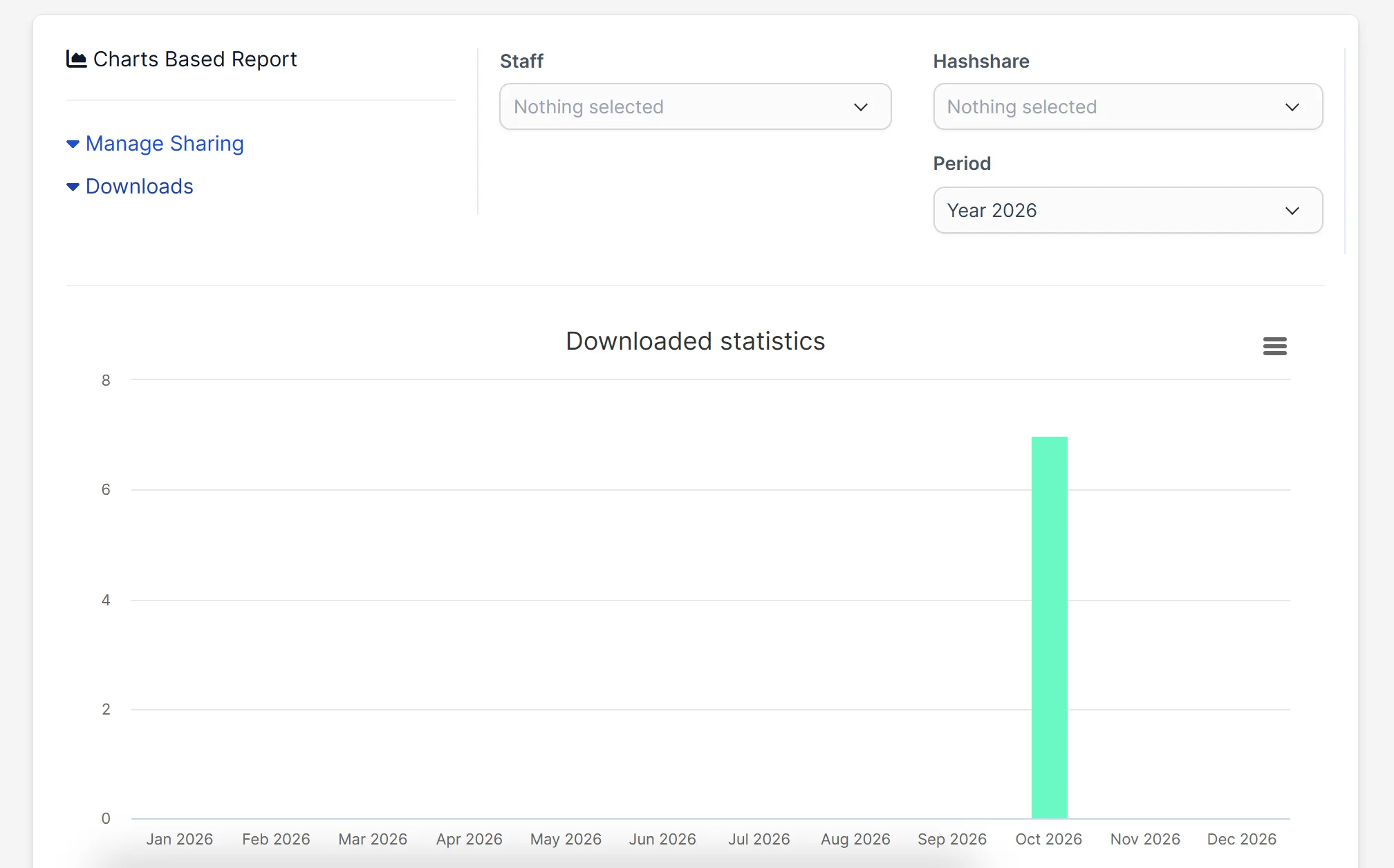
- Charts for shares and downloads by month
- Settings for allowed file types, maximum upload size, storage time and hidden files
- Staff and client permissions for view, upload, download, delete and share
Keep your files in one place
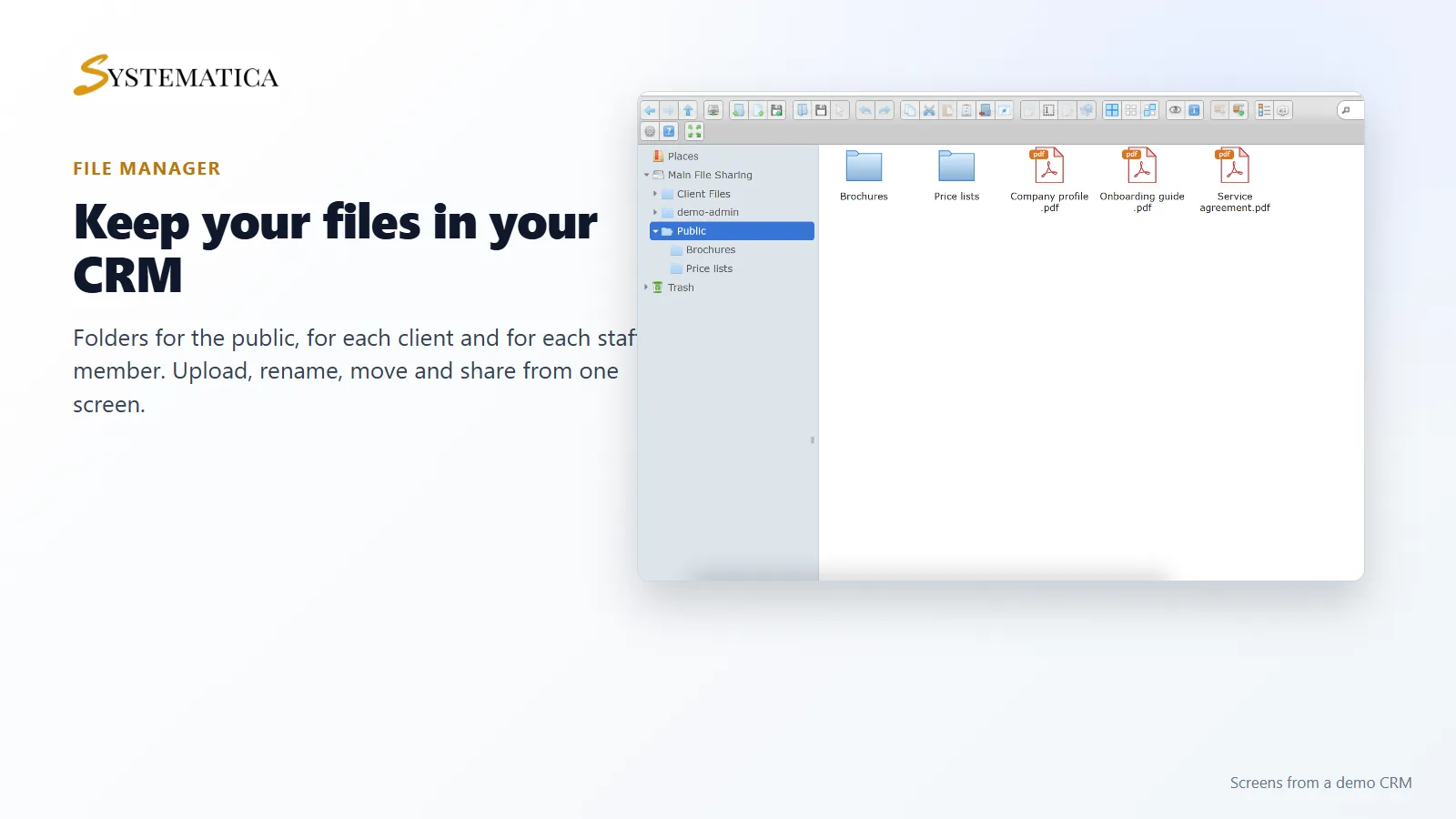
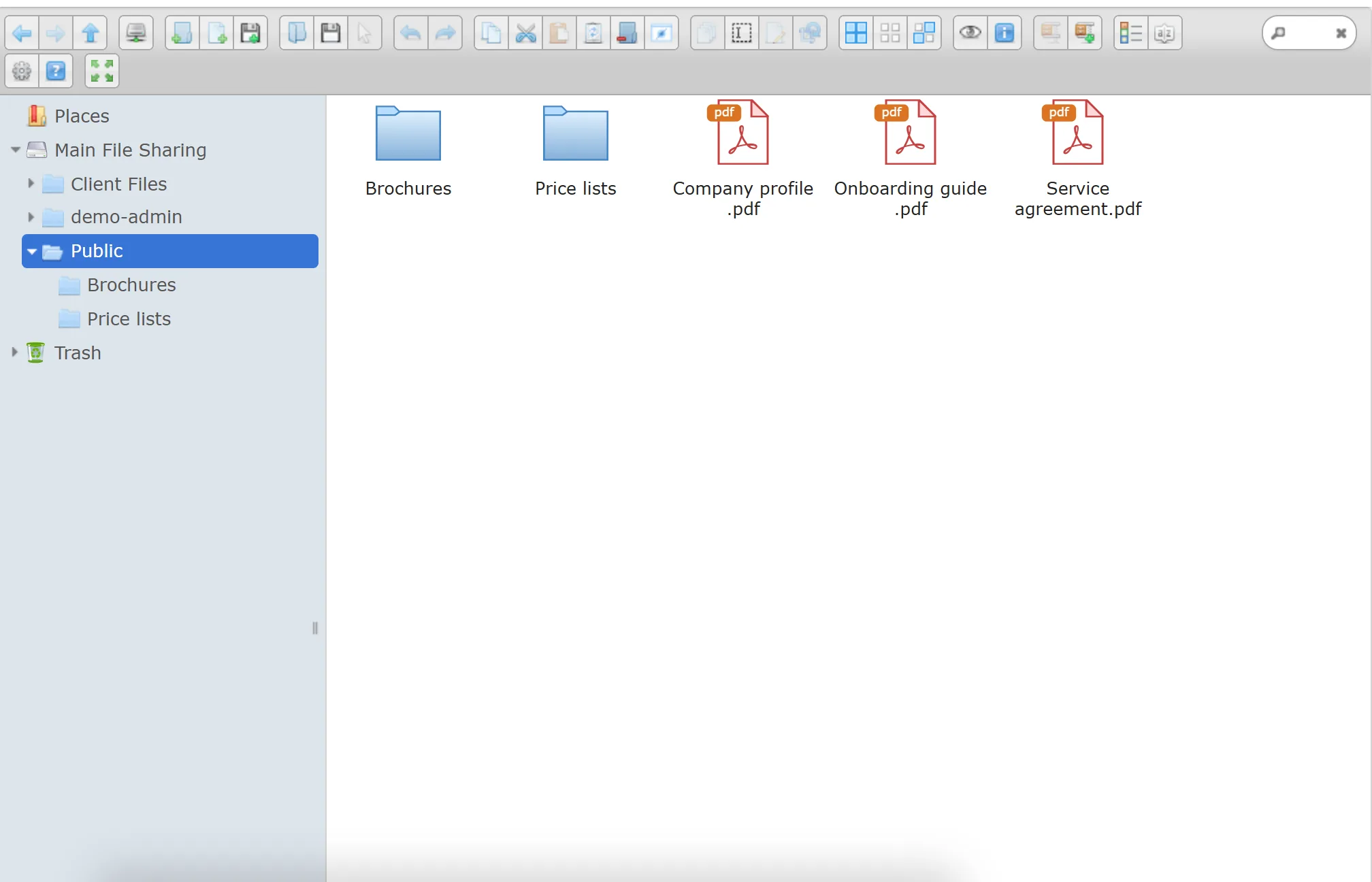
The File Sharing Module for Perfex CRM opens a file manager in the CRM menu. Create folders for brochures, price lists or each client. Drag files in, preview them and move them around, the way you do on your computer. PDF files and pictures show with a preview or an icon.
Share a file or a folder with a link
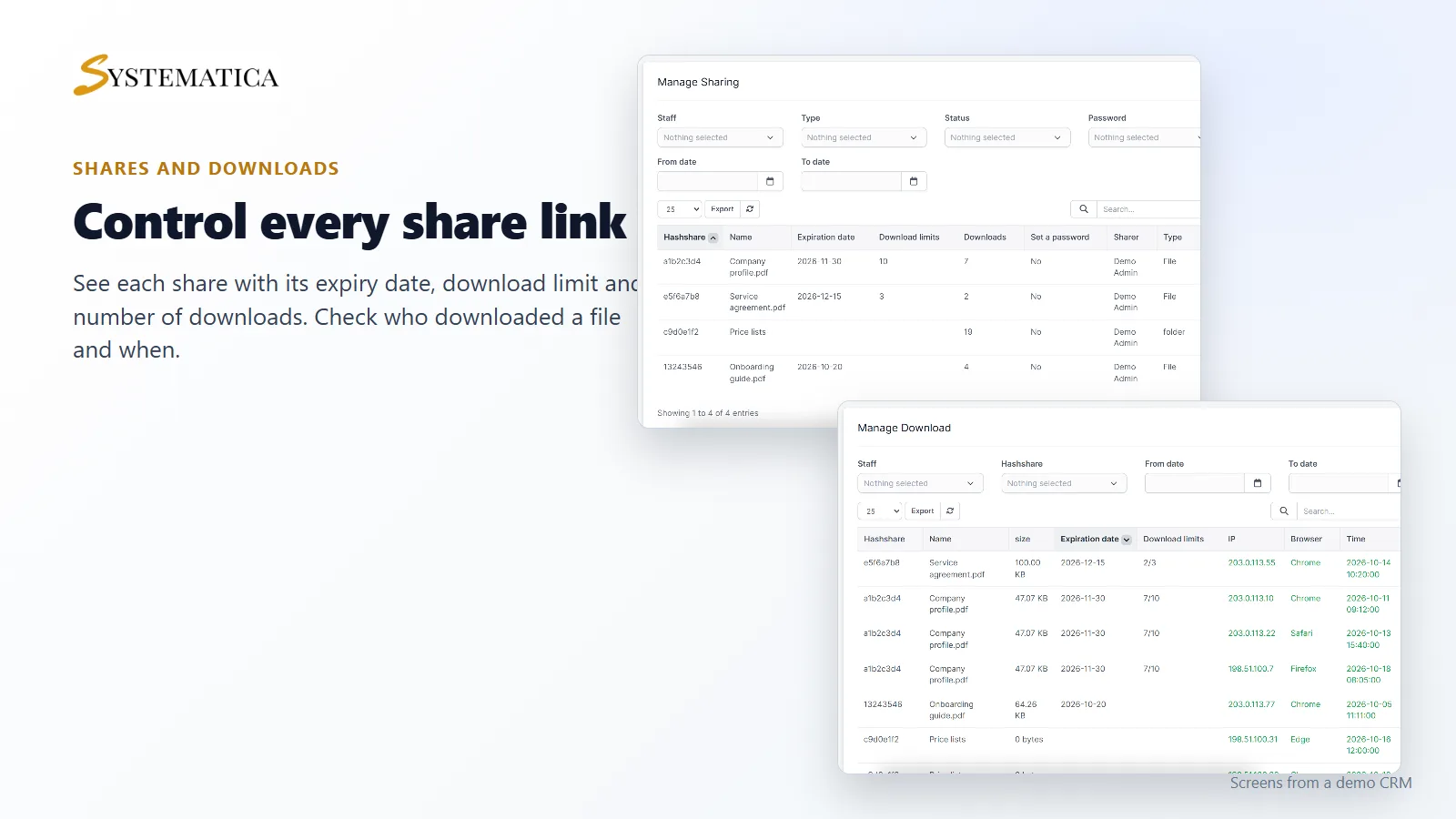
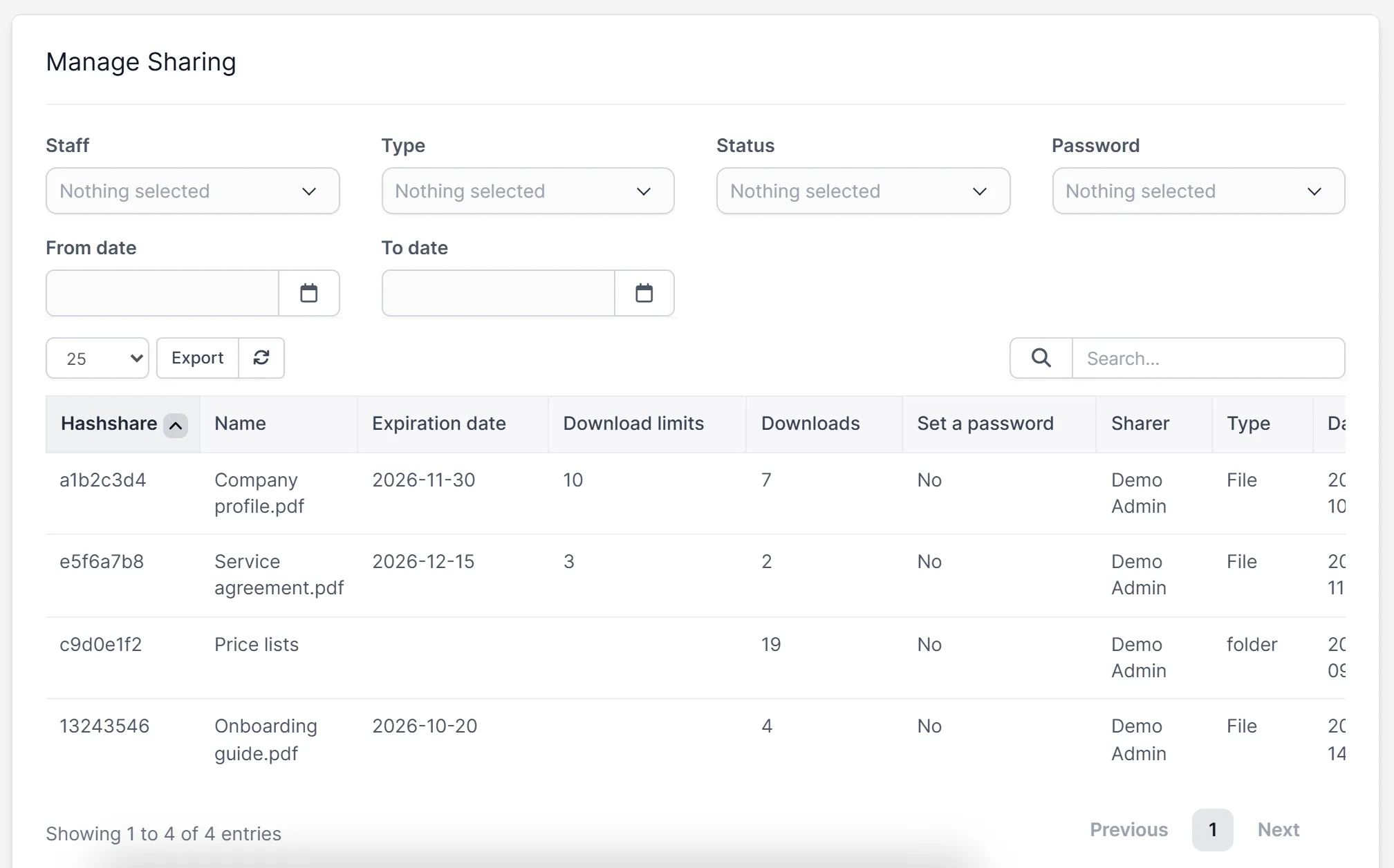
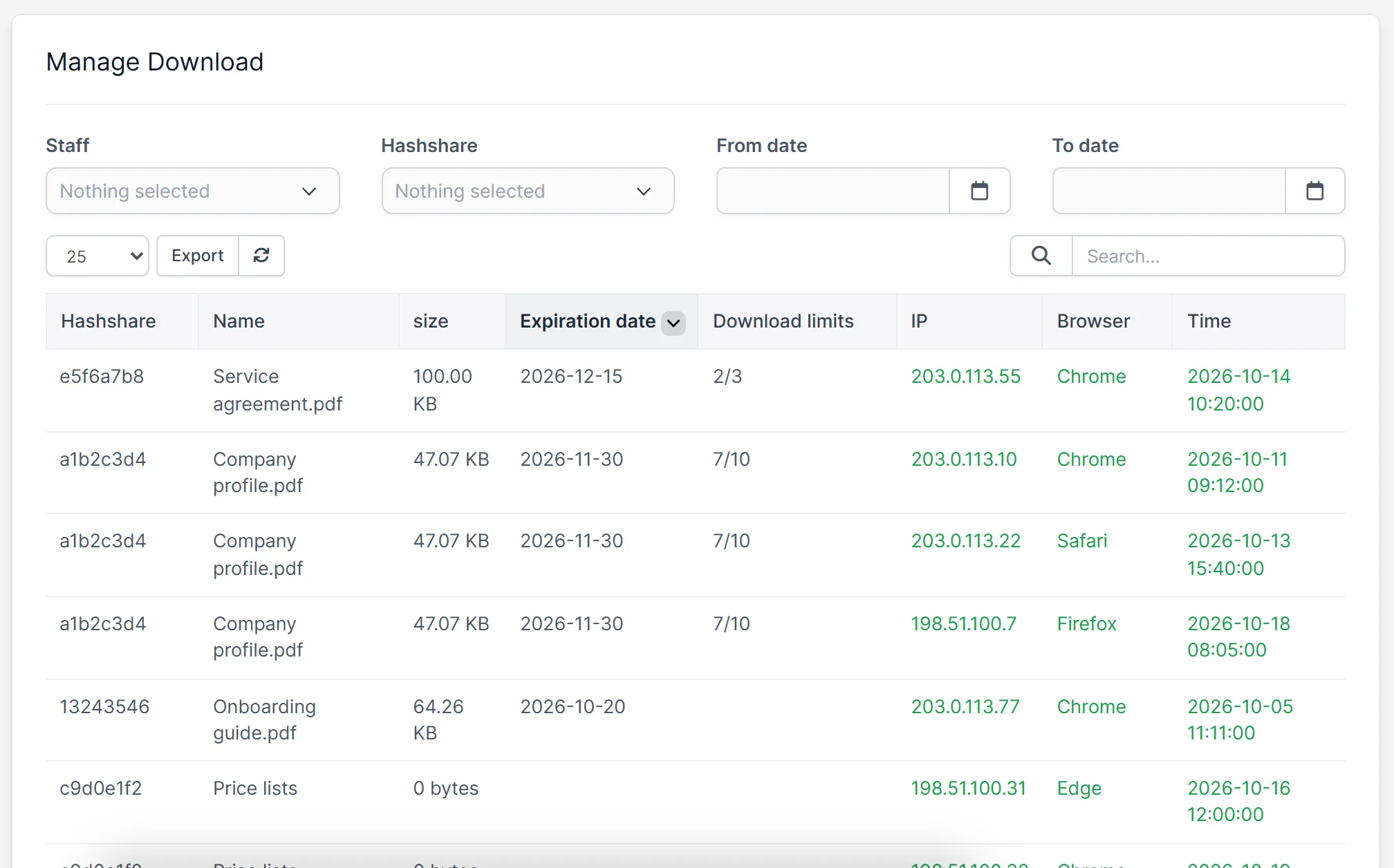
Pick a file or a folder and create a share. Set an expiry date, a download limit, or both. The shares screen of the file sharing module for Perfex CRM lists every share with its hash, name, expiry date, download limit, number of downloads, who shared it and the date. You can find a share by staff member, type, status or date.
See who downloaded your files
Each download is written to a log: the share, the file name and size, the expiry date, the download count against the limit, the IP address, the browser and the time. You can filter the log by staff, share and date, and export it.
Settings and permissions
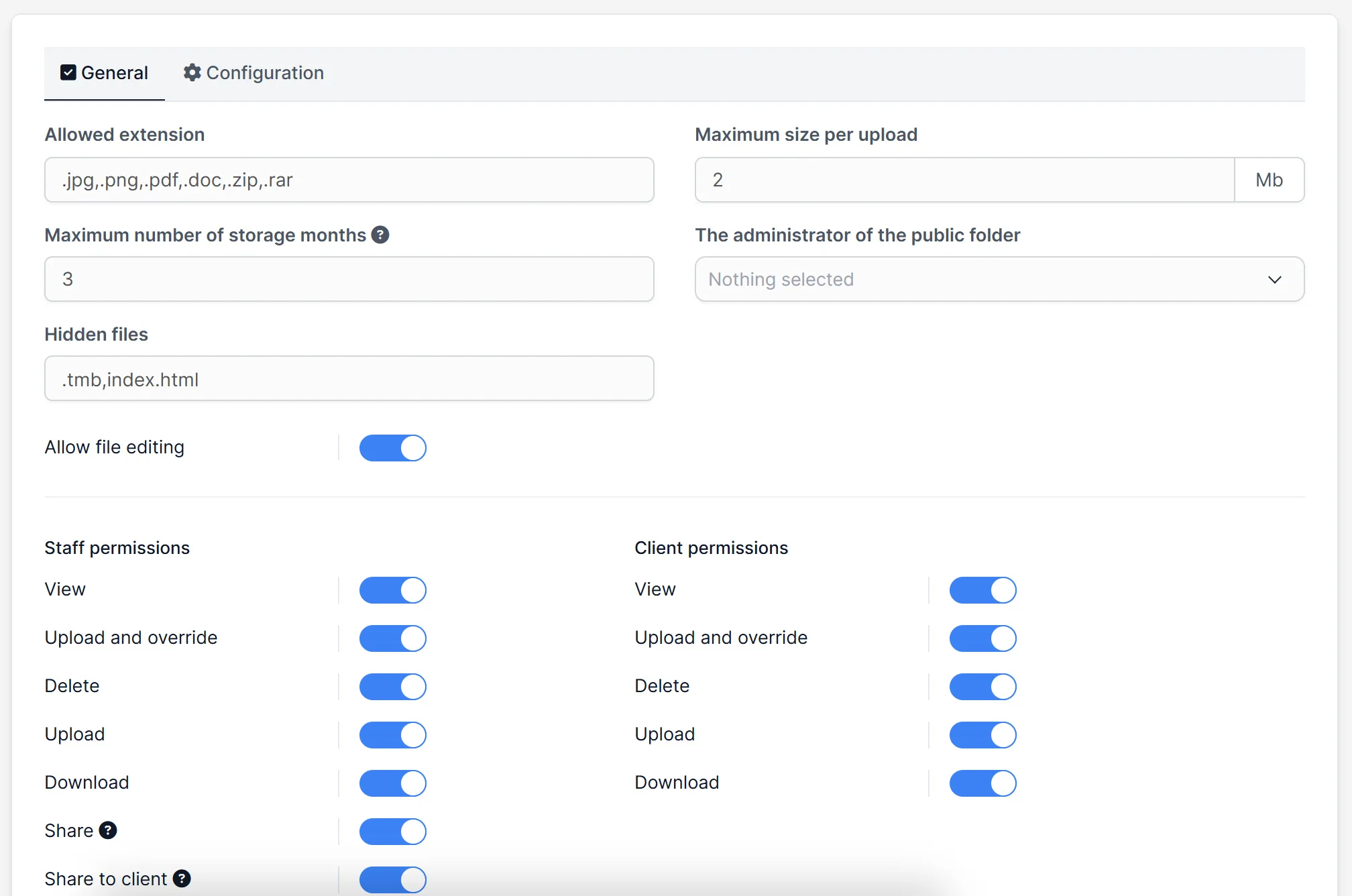
Choose the file types people may upload, the maximum size of one upload and how many months files are kept. Staff and clients each get their own switches for view, upload and override, delete, upload, download and share. The module also has a separate configuration tab for sharing rules.
Set up the file sharing module
- Upload the module under Setup > Modules and activate it.
- Open File Sharing > License and enter your license key.
- Open File Sharing > Settings and set file types, size and permissions.
- Open File Sharing > File management and add folders and files.
- Create a share and set an expiry date or a download limit if you need one.
Requirements
- Perfex CRM 3.4 or newer (tested on 3.4.1)
- A connection from your server to systematica.app over HTTPS
- Enough disk space on your server for the files you store
Good to know
- The screens in the pictures are from a demo CRM with sample files and sample IP addresses.
- Files are stored on your own server, in the module’s folder.
- The File Sharing Module for Perfex CRM limits uploads to the file types and size you set in the settings.
License, support and updates
After purchase you receive a license key by email. One license key activates the module on one website. To move it, deactivate the license under File Sharing > License and activate it on the new site. You get 1 year of use, support through our ticket system and free updates through your Systematica account. The file sharing module for Perfex CRM runs inside Perfex CRM, which you need to own.
Frequently asked questions
What does the File Sharing Module for Perfex CRM do?
It adds a file manager to Perfex CRM and lets you share files and folders with staff, clients or the public, with expiry dates, download limits and a download log.
Can I limit how often a file is downloaded?
Yes. A share can have a download limit and an expiry date.
Can I see who downloaded a file?
Yes. The download log shows the IP address, browser and time of each download.
Can clients use it too?
The settings have separate permission switches for clients, and there is a client view of the file manager. You decide what clients may do.
Can I use one license on more than one website?
One license key activates the module on one website. You can move it by deactivating it on the old site and activating it on the new one.
Need help with this module?
Every license is valid for 1 year and includes support through our ticket system and free updates. To keep using the module after that, renew your license.