
Perfex CRM reminders make sure a follow-up does not slip away. You attach a short note and a date to a customer, a lead or a task, choose who should be reminded and, if you like, send an email copy. This guide, tested on Perfex CRM 3.4.1, shows how to set a task reminder, where to see all reminders and what to check when they do not arrive.
What Perfex CRM reminders do #
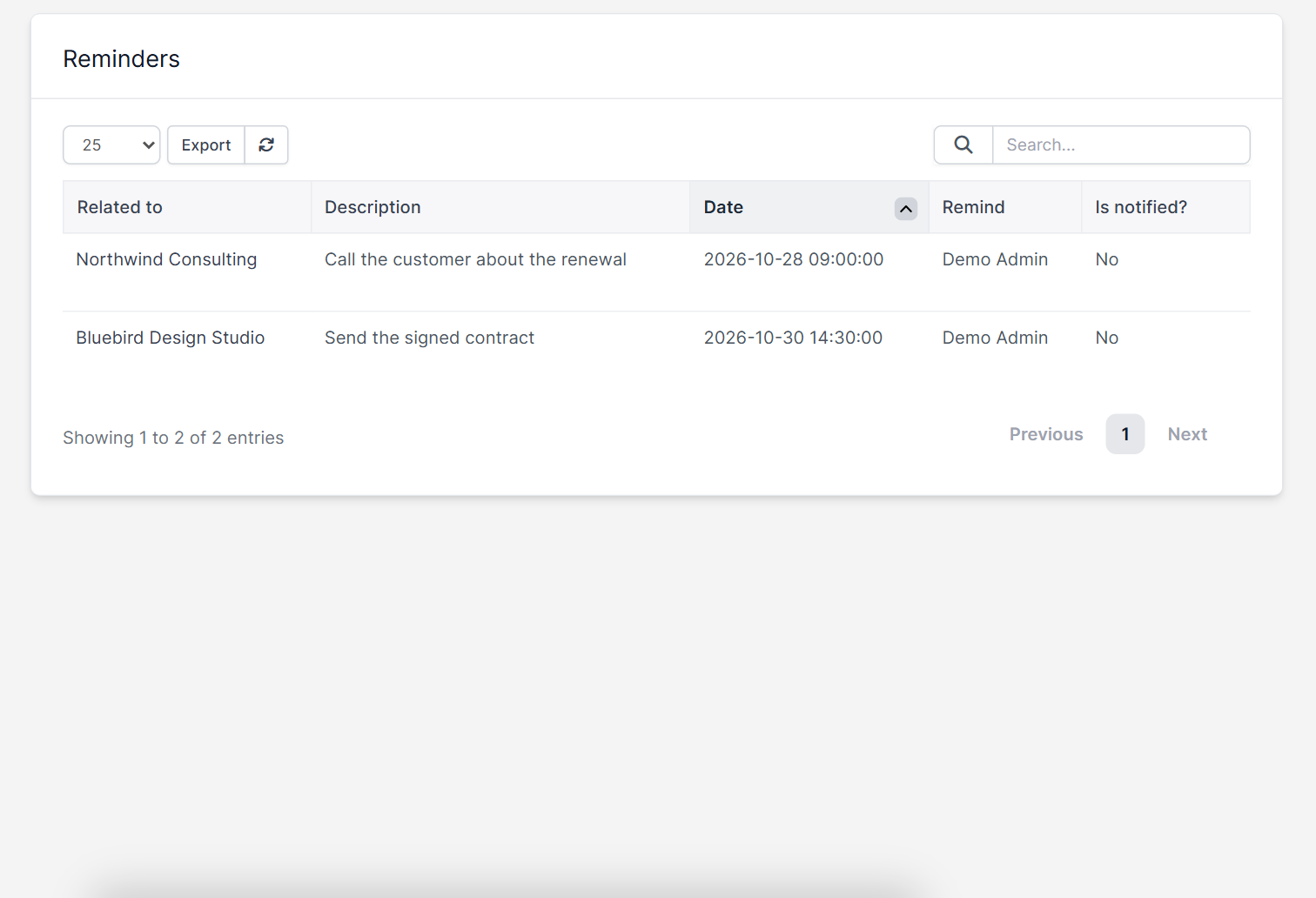
A reminder has a description, a date and time, and a staff member who gets notified. Reminders belong to a record: for example a customer, a lead, a ticket or a task. The Reminders page lists every reminder with the record it relates to, the description, the date, the staff member to remind and a column called Is notified? that tells you if the alert was already sent.
Step 1: Open the record #
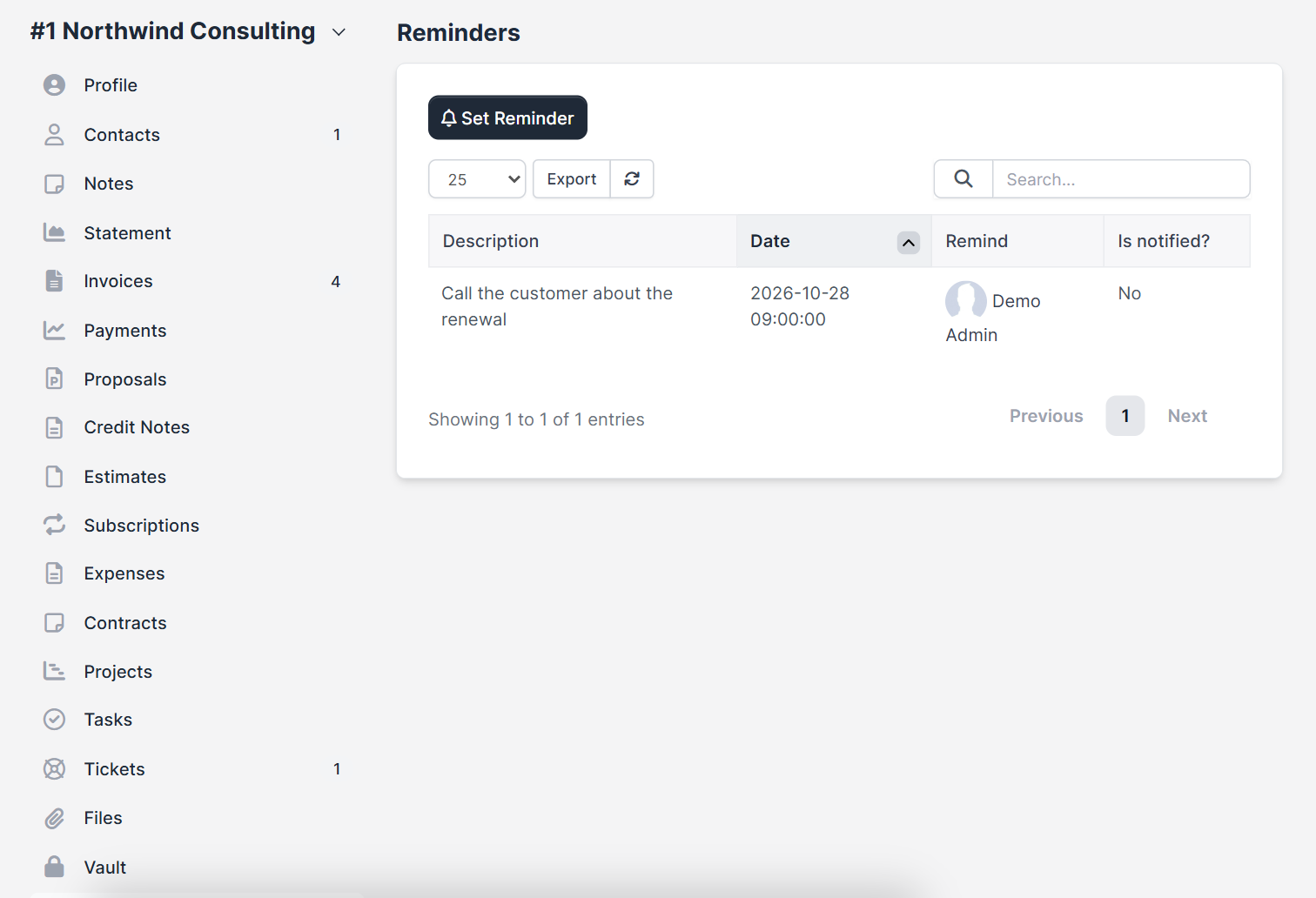
Open the customer, lead or task that needs a follow-up. On a customer, open the Reminders tab in the left menu of the profile. The tab lists the reminders of that customer and a Set Reminder button.
Step 2: Set the reminder #
Click Set Reminder. The window asks for four things:
- Date to be notified: the day and time of the alert.
- Set reminder to: the staff member who gets it.
- Description: what to do, in a few words.
- Send also an email for this reminder: tick it when a notification alone is not enough.
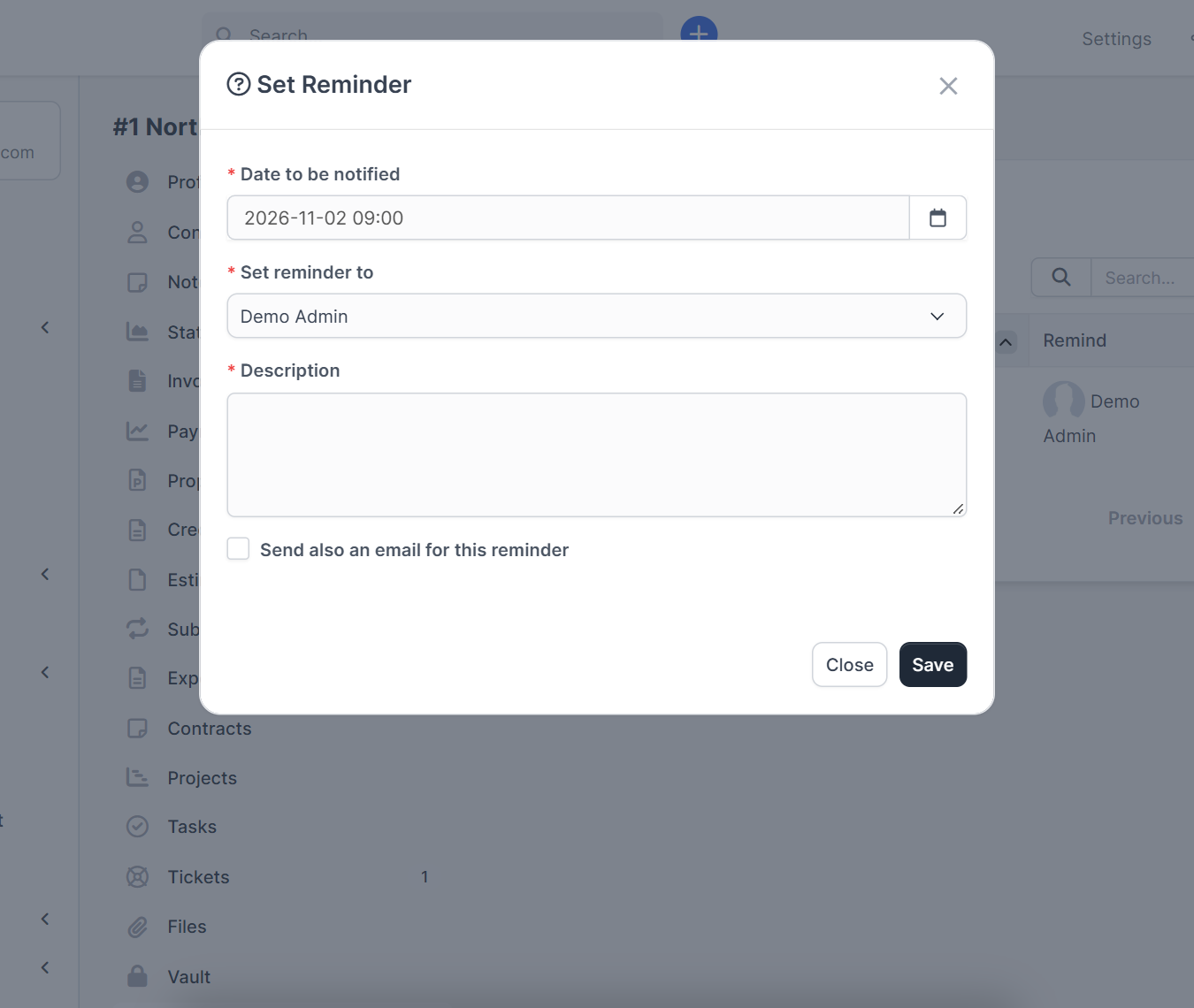
Write the description as an action, such as Call the customer about the renewal. Click Save.
Step 3: Set a task reminder #
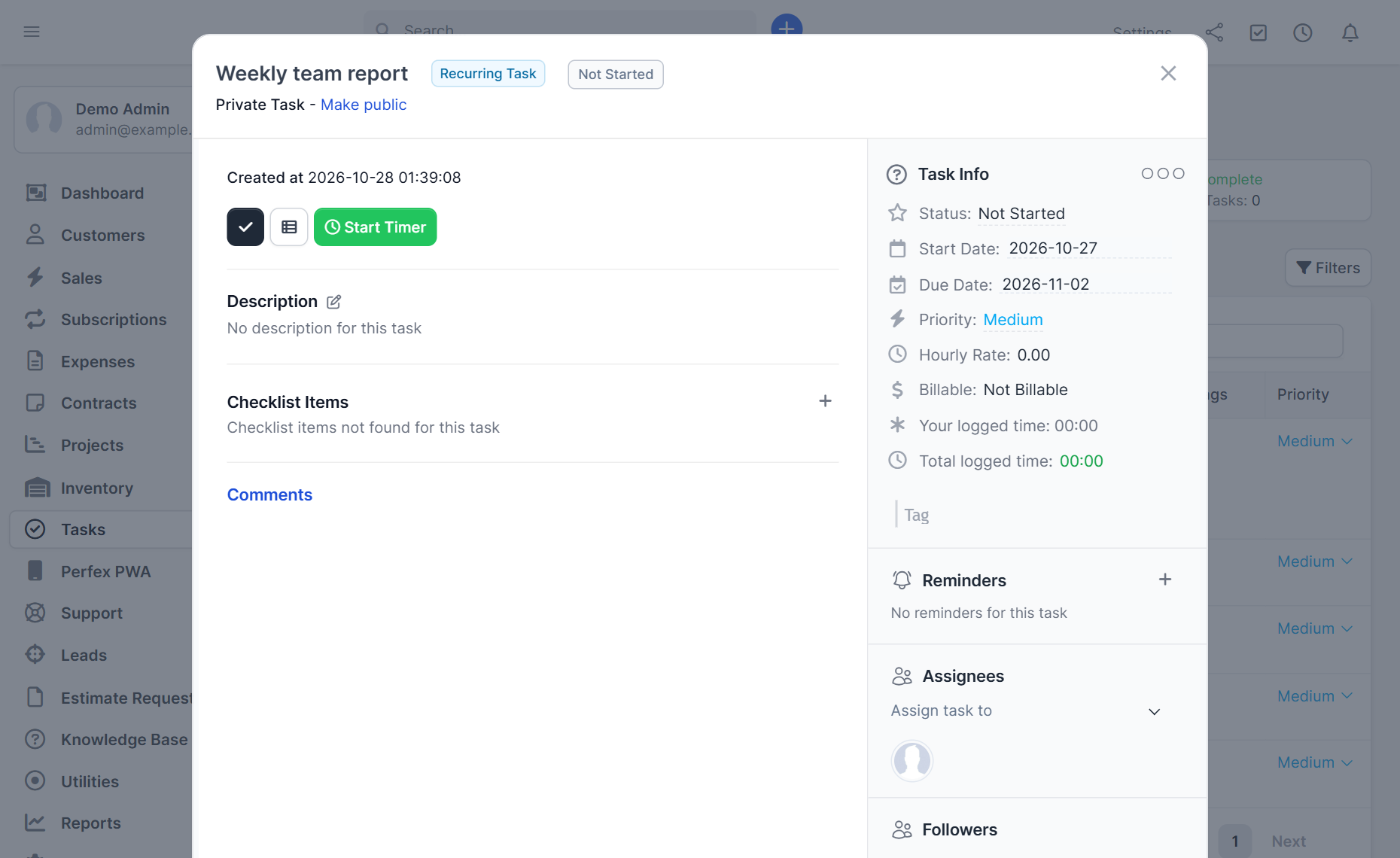
Open any task. The panel on the right has a Reminders section with a plus icon. Click the plus to add a task reminder with the same four fields. This is the best way to remind someone before a deadline, because the reminder sits right beside the task.
Step 4: See reminders on the calendar #
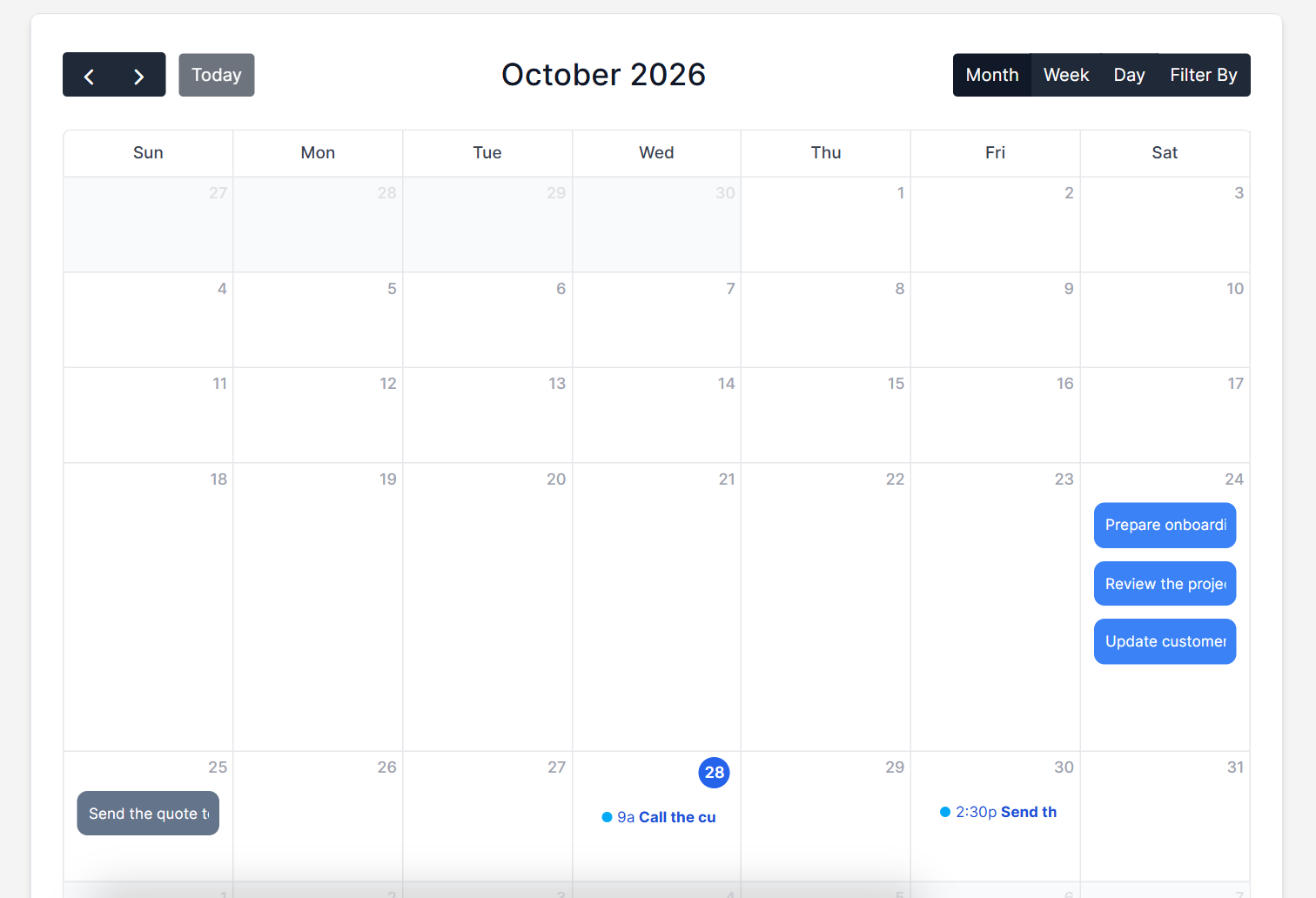
Reminders also show on the calendar under Utilities > Calendar. A small blue dot, the time and the description mark each one on its day, next to your tasks. That makes the calendar a good view for planning the week.
Step 5: Make sure reminders arrive #
Reminders are sent by the Perfex CRM cron job, so it must run regularly. If a reminder does not arrive, check Perfex CRM cron job first. For the email copy read Perfex CRM email not sending.
Staff can also receive alerts on a phone through the Perfex CRM Mobile App, which sends push notifications for tasks, leads and tickets.
Tips for Perfex CRM reminders #
- Set a reminder right after a call, while you remember what was said.
- Use the email copy for deadlines you cannot afford to miss.
- Create follow-up tasks automatically with Workflow Rules, and keep reminders for personal follow-ups.
- Book customer visits in Appointment Manager and use a reminder for the call before the visit.
- Learn the basics of tasks in Perfex CRM tasks.
For official details see the Perfex CRM help page about reminders. The demo CRM has no cron job running, so the delivery of the alert itself was not tested here.
Frequently asked questions #
How do I set a reminder in Perfex CRM? #
Open a customer, lead or task, click Set Reminder, enter the date, the staff member and the description, and save.
Can a reminder send an email? #
Yes. Tick Send also an email for this reminder in the Set Reminder window.
Where can I see all my reminders? #
The Reminders page lists them, and the calendar under Utilities shows them on their day.
Why did my Perfex CRM reminders not arrive? #
The cron job may not be running, or email may not be set up. Check both before you check the reminder itself.


