
Perfex CRM contract types group your contracts into kinds such as Service agreement, NDA or Maintenance. Once every contract has a type, you can sort the list, count contracts by kind and see which kind brings the most value. This guide, tested on Perfex CRM 3.4.1, shows how to add a contract type, use it and read the charts.
What Perfex CRM contract types are #
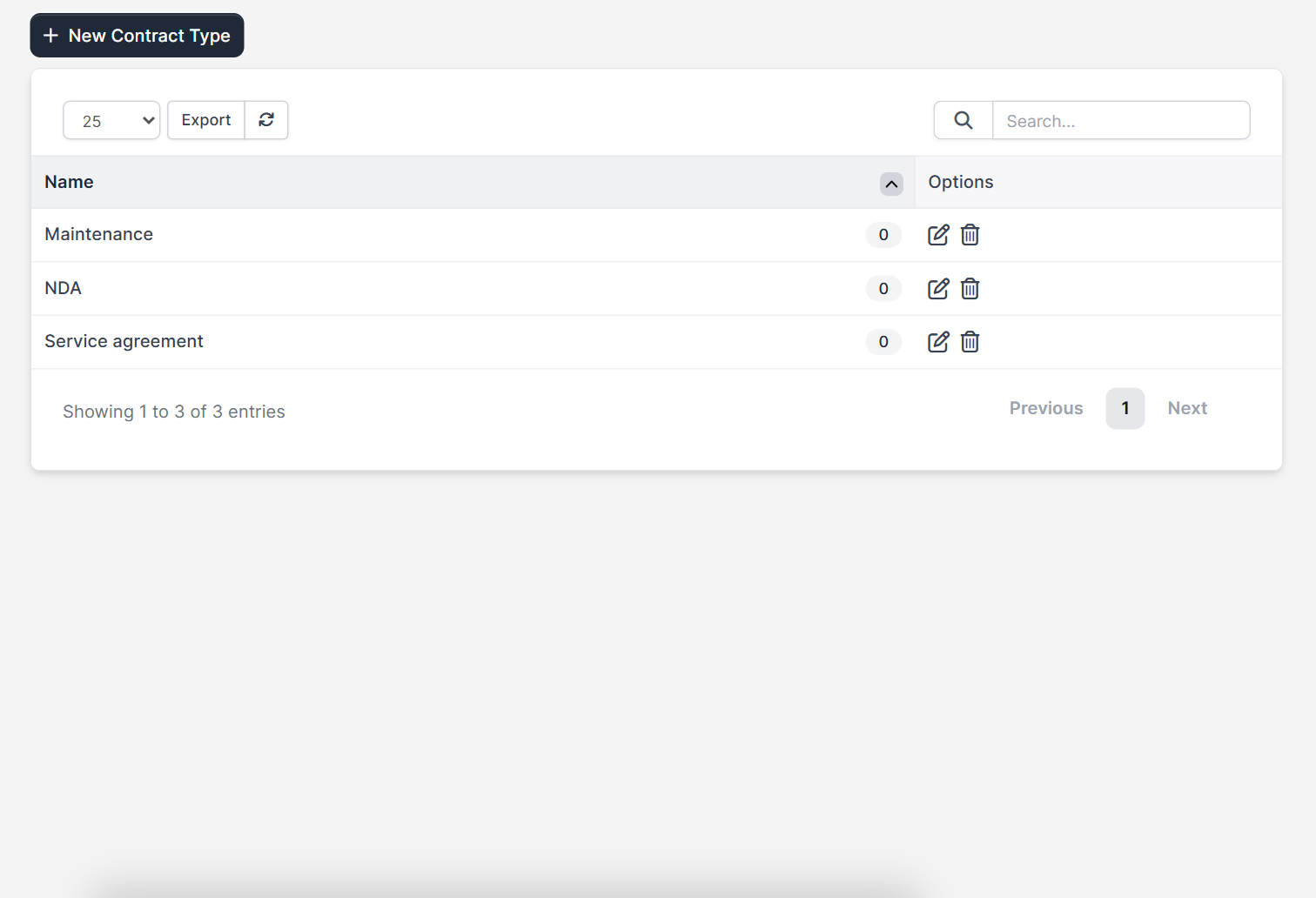
A contract type is a simple name that creates contract categories for your list. You create the list under Setup > Contracts > Contract Types. The table shows each type with a number, which counts the contracts that use it, and the edit and delete icons. A New Contract Type button sits above the table.
Why use Perfex CRM contract types #
Perfex CRM contract types turn a long list into contract categories that you can count and compare. You find all NDAs in one click, you see how many maintenance contracts are active and you know which kind of agreement brings in the most revenue. Contract types also help new staff, because the name of a type tells them what the document is for.
Step 1: Plan your contract types #
Choose types that you can recognise at a glance. Common examples are:
- Service agreement for work you deliver over time
- NDA for confidentiality
- Maintenance for support plans
- Reseller or partner agreement
- Employment or freelancer contract
Keep the list of Perfex CRM contract types short. A type is a label for sorting, and long lists make it harder to pick the right one.
Step 2: Add a contract type #
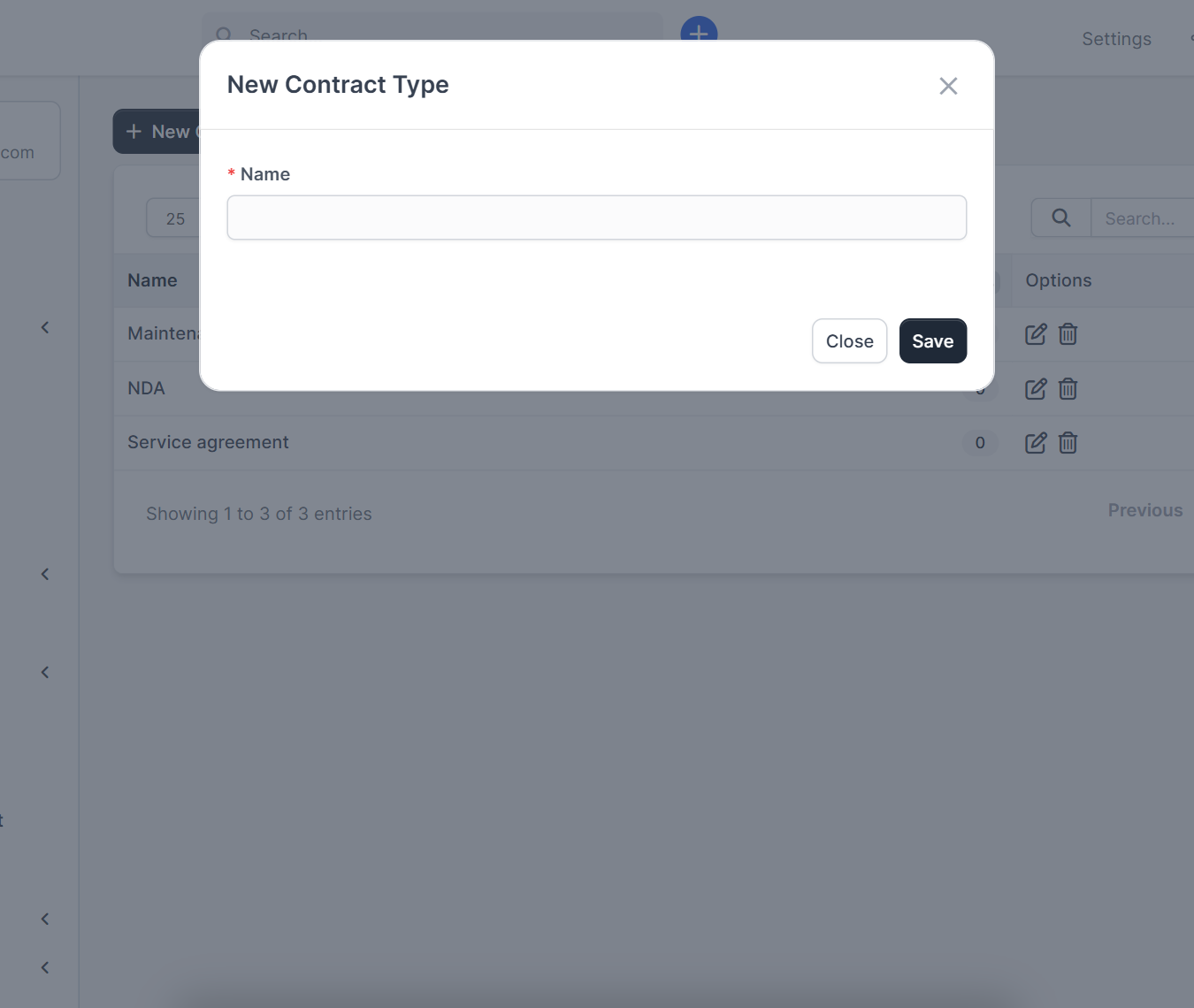
Click New Contract Type. The window has one required field, the Name. Type it and click Save. The new Perfex CRM contract types are available at once on the contract form. You can rename a type later with the edit icon.
Step 3: Choose the contract type on a contract #
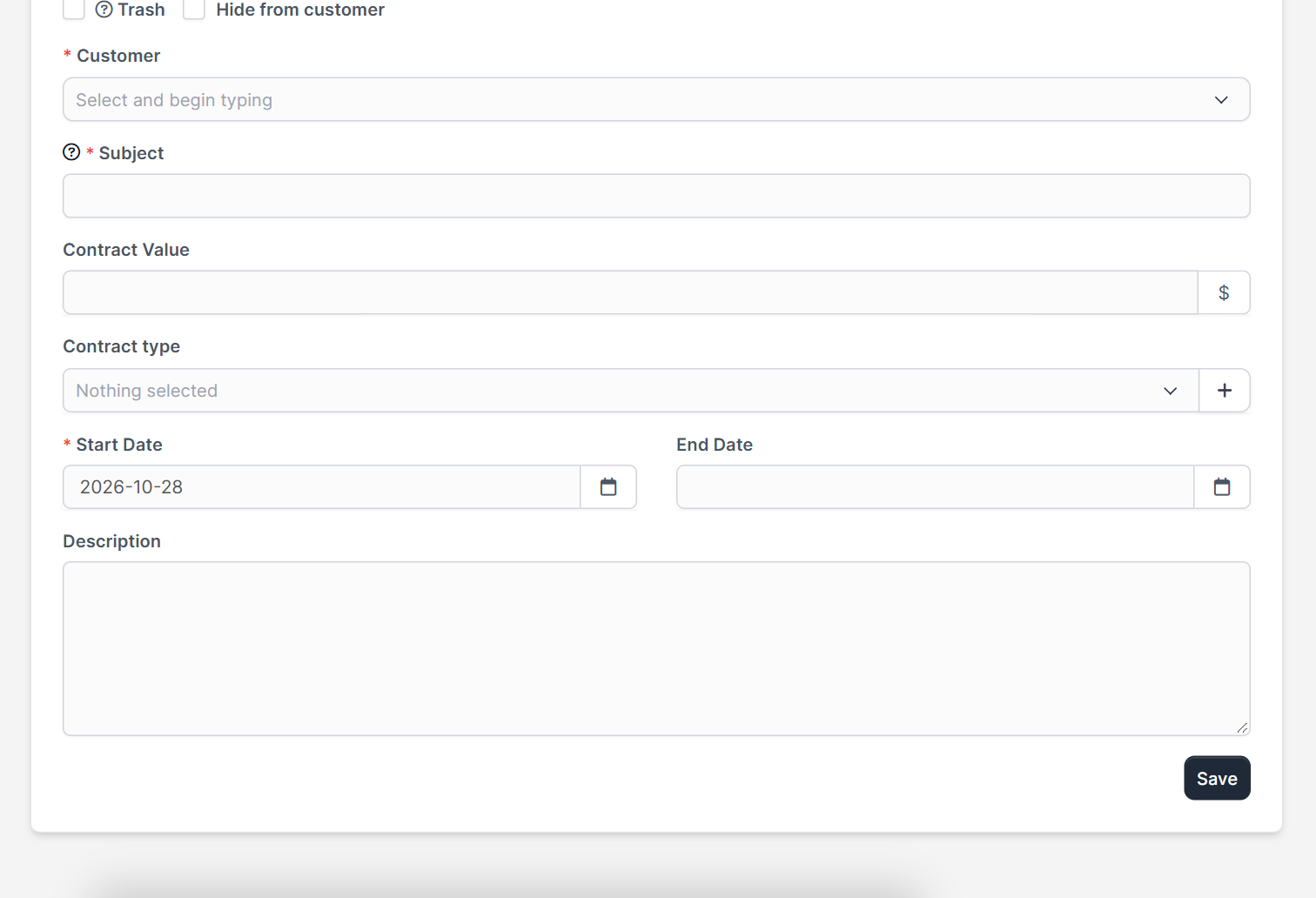
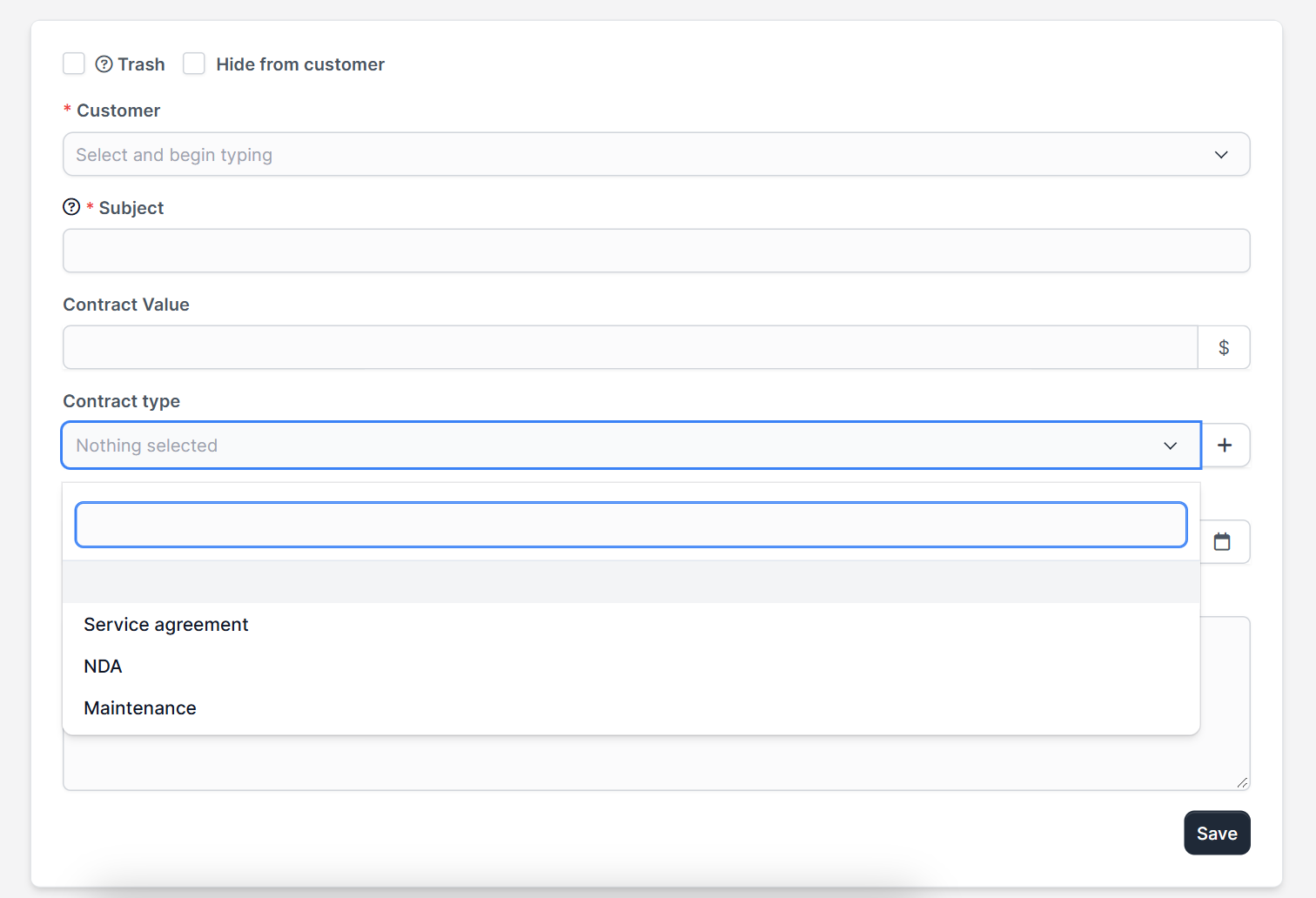
Open Contracts and click New Contract. The form asks for the Customer, the Subject, the Contract Value, the Contract type, the Start Date and the End Date, with a description below. A plus button beside the type field adds a new type without leaving the form.
The full contract flow is in Perfex CRM contracts.
Step 4: Read the charts by contract type #
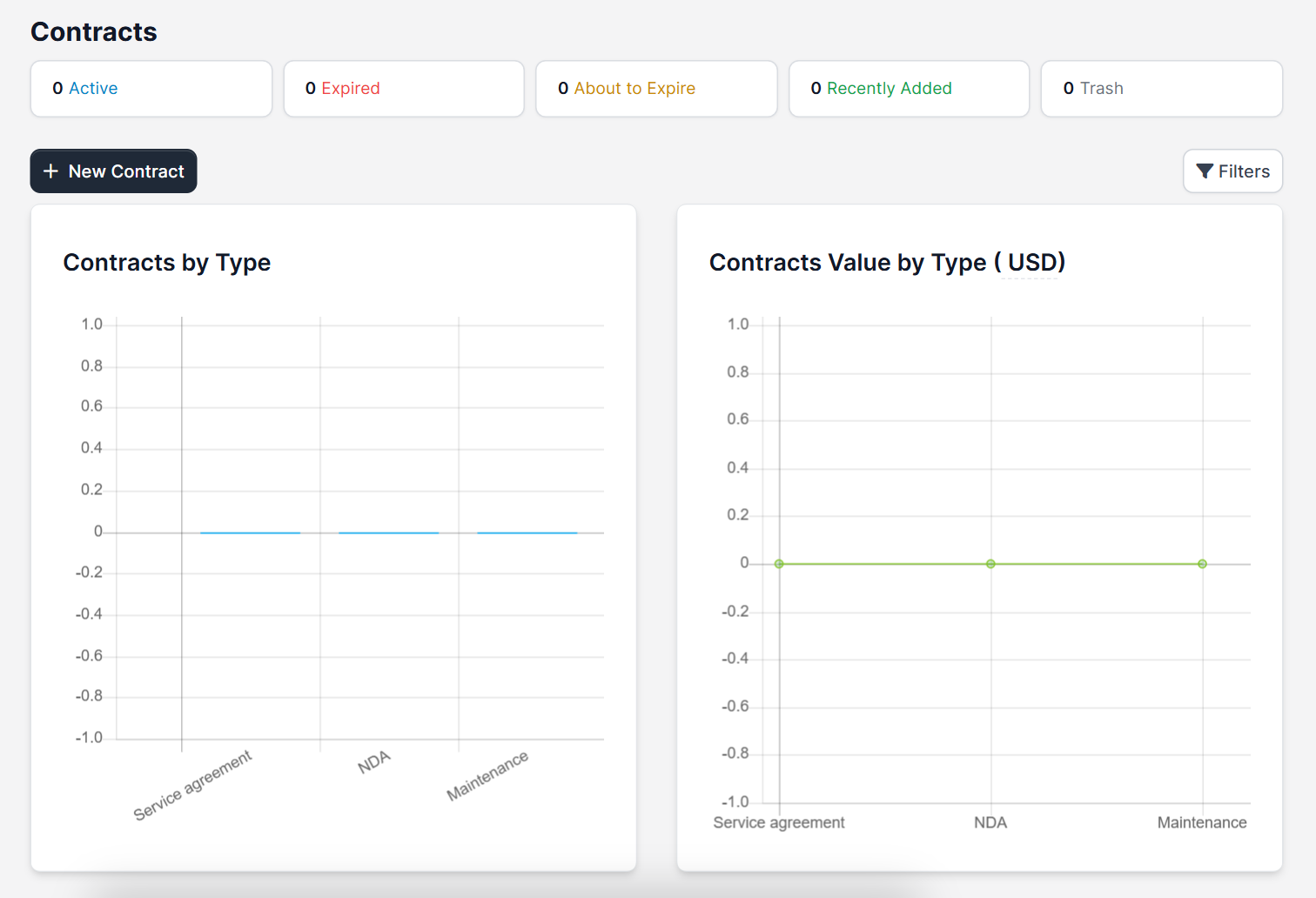
The Contracts page shows two charts. Contracts by Type counts how many contracts each type has, and Contracts Value by Type adds up the contract value of every type in your currency. Above them, small counters show Active, Expired, About to Expire, Recently Added and Trash.
Perfex CRM goals can count contracts by type too, see Perfex CRM goals.
Tips for contract types #
- Choose the type before you send the contract, so the charts stay correct.
- Do not delete a type that old contracts use. Rename it instead.
- Fill the customer details first, see Perfex CRM new customer.
- Create a task before a contract ends with Workflow Rules.
- Read the official Perfex CRM help for more about contracts.
The demo CRM has no contracts, so the charts are empty. The screenshots show the setup screens only, and the signing of a contract by a customer was not tested.
Frequently asked questions #
Where do I add Perfex CRM contract types? #
Open Setup, Contracts, Contract Types and click New Contract Type.
Can I add a contract type from the contract form? #
Yes. The contract type field has a plus button for adding a type without leaving the form.
What do the contract charts show? #
Contracts by Type counts the contracts of each type, and Contracts Value by Type adds up their value.
Can I rename a contract type? #
Yes. Use the edit icon in the list and save the new name.


