
Perfex CRM lead sources tell you where each lead came from, and the lead status tells you how far it has come. Together they answer two daily questions: which channel brings people in, and who needs a call today. This guide, tested on Perfex CRM 3.4.1, shows how to add sources, create your own lead status and read the counters on the Leads page.
What Perfex CRM lead sources and statuses are #
In Perfex CRM lead sources, a source is a label such as Google, Facebook or Referral, and it records the lead origin. A status is a step in your sales process, such as New, Contacted or Qualified. You set both once under Setup > Leads, and then pick them on every lead. The lists show how many leads sit in each source and each status, so you see the result of your marketing at a glance.
Step 1: Add one of your Perfex CRM lead sources #
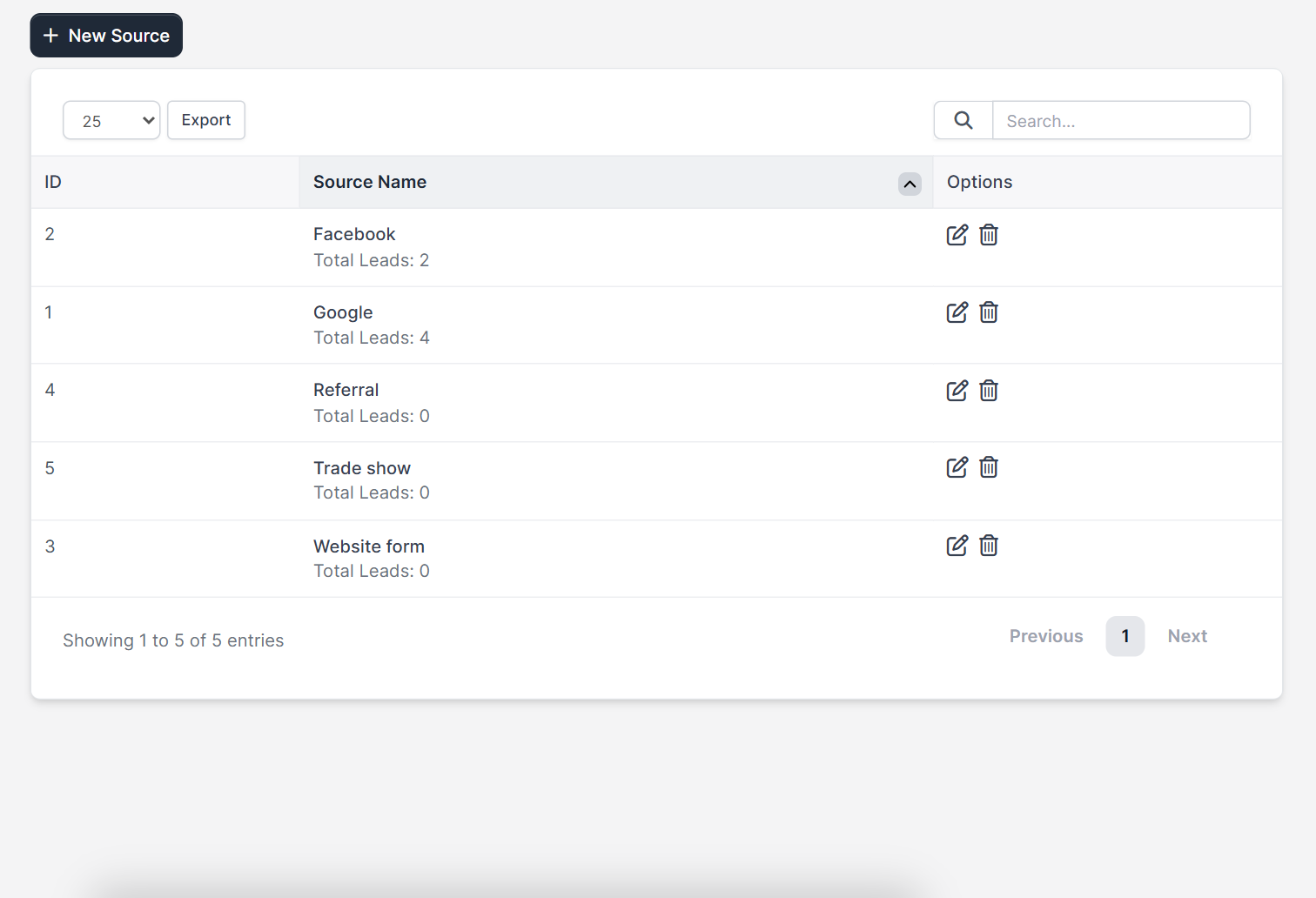
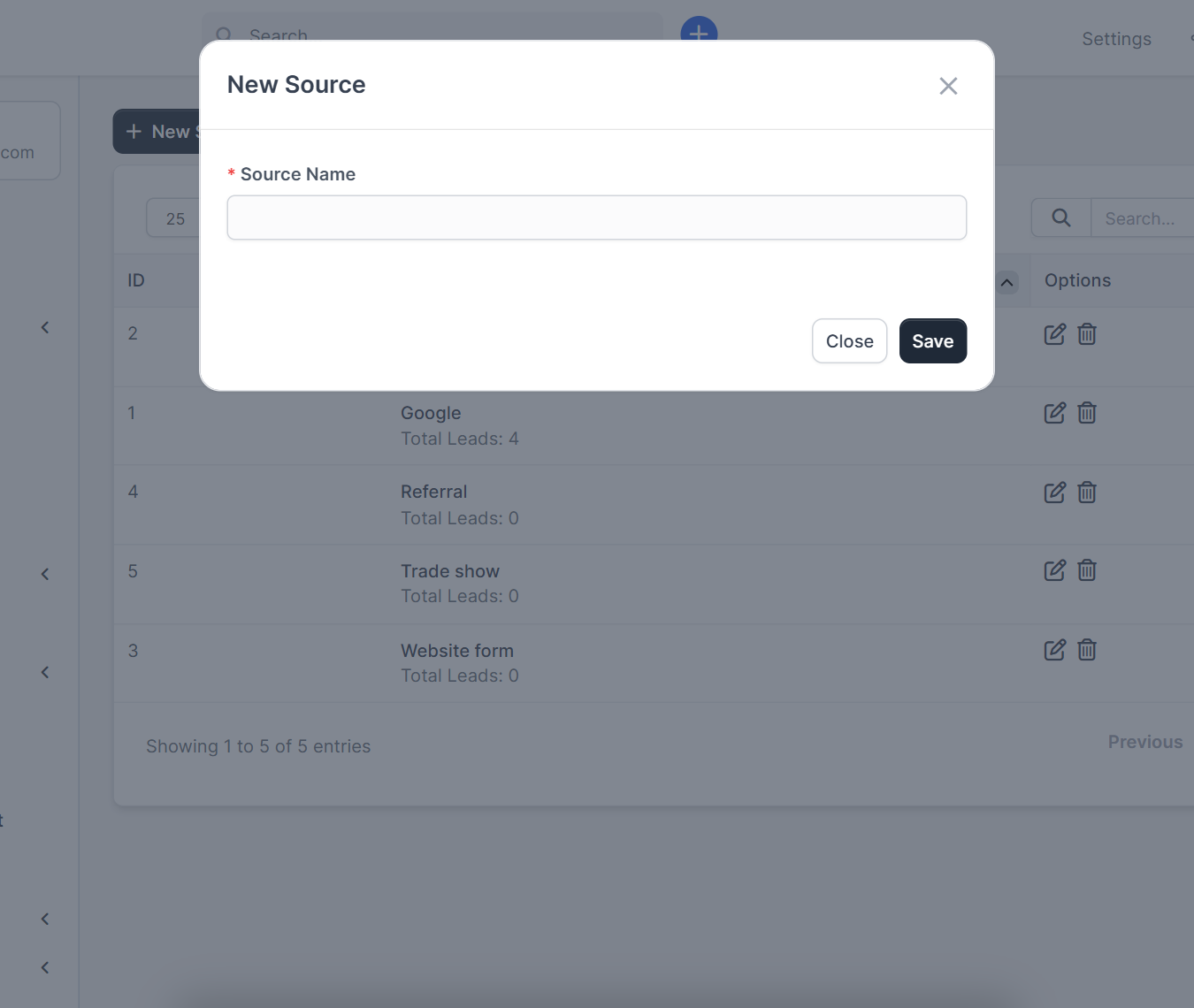
Open Setup > Leads > Sources and click New Source. Type the Source Name, for example Website form, Referral or Trade show, and click Save. The list shows each source with its ID, and under the name it shows Total Leads. Use the edit icon to rename a source and the delete icon to remove one you no longer use.
Keep one source per real channel in your Perfex CRM lead sources. If you create a source for every campaign, the lead origin list becomes too long to read.
Step 2: Plan your lead status steps #
Before you add a lead status, write down the steps your team really uses. A short path is easier to keep clean:
- New: nobody has contacted the lead yet.
- Contacted: someone called or wrote.
- Qualified: the lead fits what you sell.
- Proposal sent and Negotiation: your own steps after that.
- Customer: the lead became a customer.
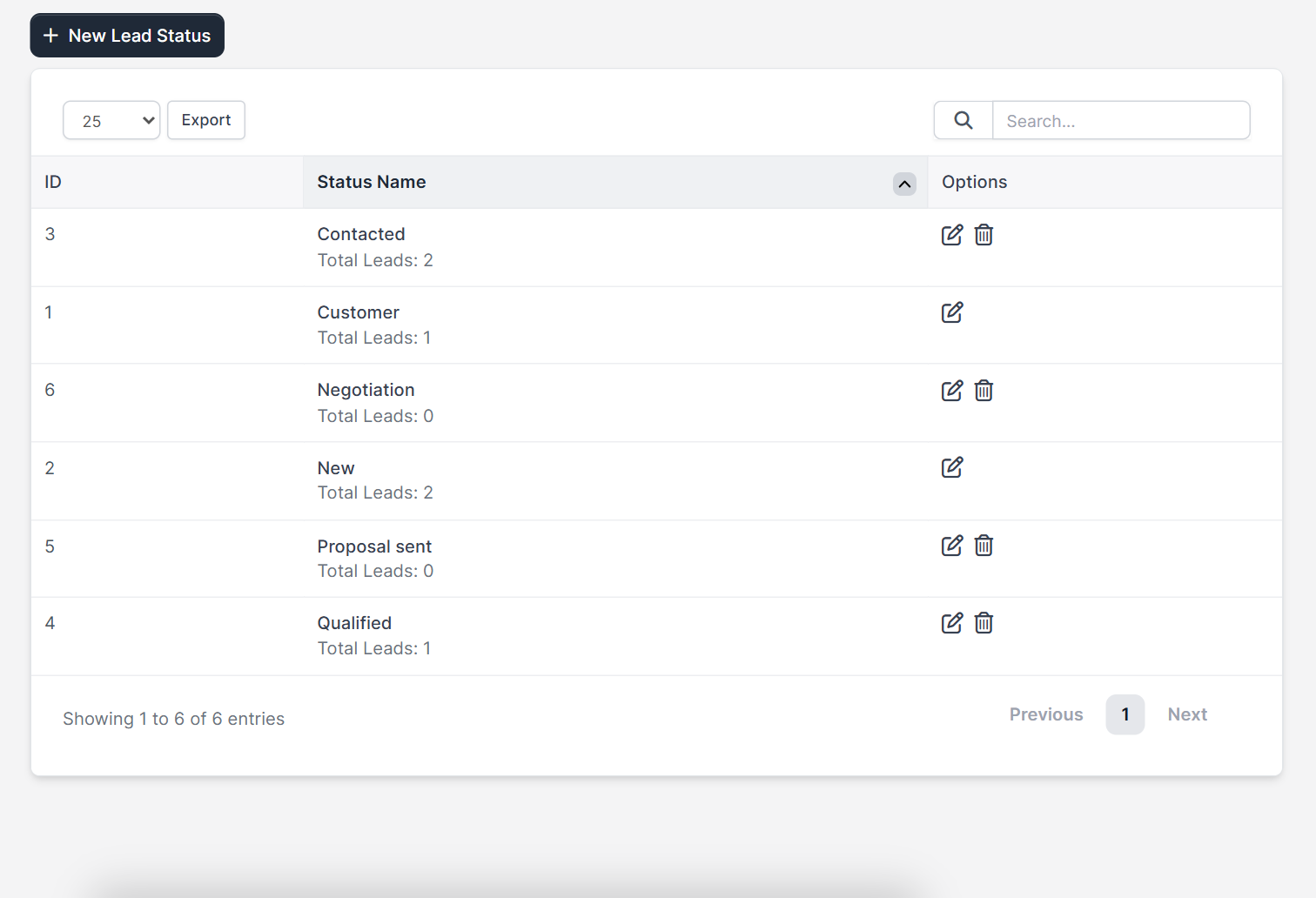
Perfex CRM includes New, Contacted, Qualified and Customer. Some of the built-in ones, such as New and Customer, show only an edit icon, so you can rename them but not delete them.
Step 3: Create a lead status #
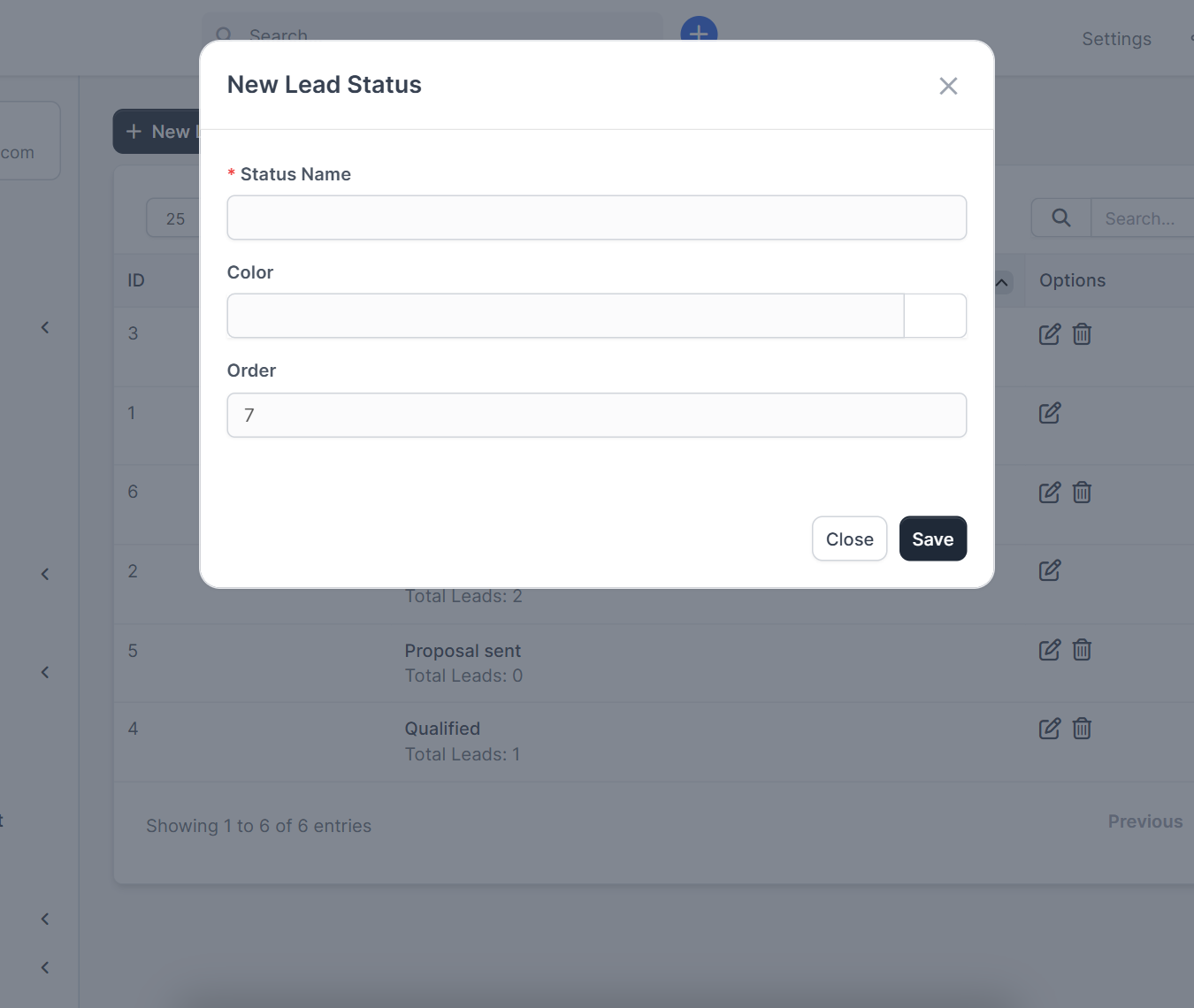
Open Setup > Leads > Statuses and click New Lead Status. The window has three fields: Status Name, Color and Order. The order number decides where the status sits in the list and on the Leads page, so give the next free number. Click Save.
Step 4: Read the counters on the Leads page #
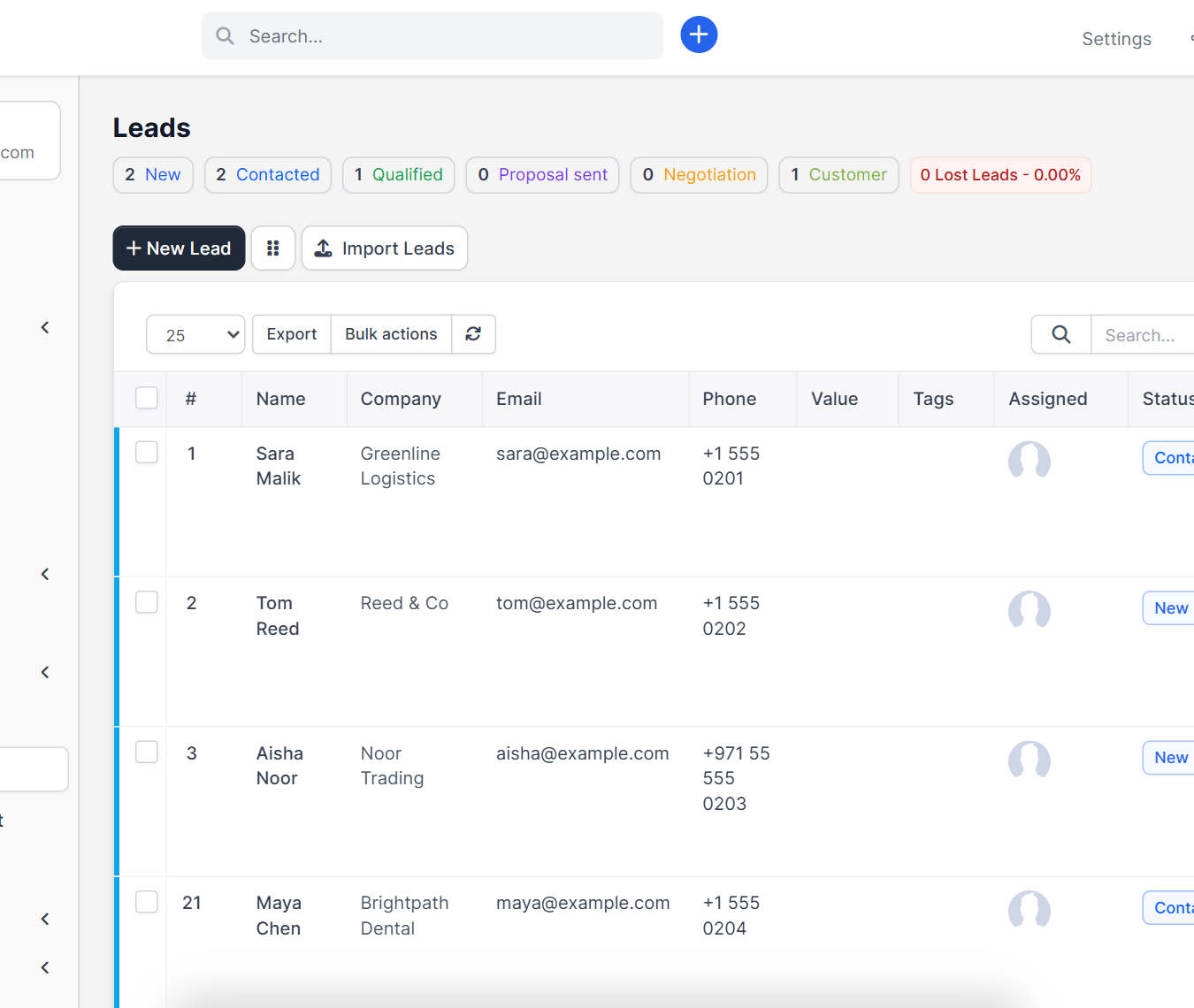
Open Leads. Above the table, small tags count the leads of each lead status in the color you chose, with a red tag for lost leads. Your new status appears there as soon as it exists. The same page has the table with the assigned person and the status of every lead.
Use Perfex CRM lead sources to work better #
- Let the web form record the lead origin for you with Perfex CRM web to lead form.
- Turn a won lead into a customer with convert lead to customer in Perfex CRM.
- Create a follow-up task for every new lead of one source with Workflow Rules, which can check the lead source and the lead status.
- Call new leads from the same screen with the Call Manager module.
- Read the official Perfex CRM help for more about leads.
The demo CRM has only a few leads, so the counters are small. The screenshots show the setup screens, and the effect of a deleted source or status on existing leads was not tested.
Frequently asked questions #
What are Perfex CRM lead sources? #
They are labels that show where a lead came from, such as Google, Facebook or a referral. You add them under Setup, Leads, Sources.
How do I add a lead status? #
Open Setup, Leads, Statuses, click New Lead Status and enter a name, a color and an order number.
Can I delete a built-in lead status? #
Some built-in statuses, such as New and Customer, only have an edit icon, so you can rename them but not delete them.
Where do I see how many leads are in each status? #
The Leads page shows a colored counter for each status above the table.


