
Perfex CRM predefined replies are ready-made answers that you write once and use again in any support ticket. Canned responses save typing, keep your tone the same for every customer and make new agents productive on day one. This guide, tested on Perfex CRM 3.4.1, shows how to create them and how to use them while you answer a ticket.
What Perfex CRM predefined replies are #
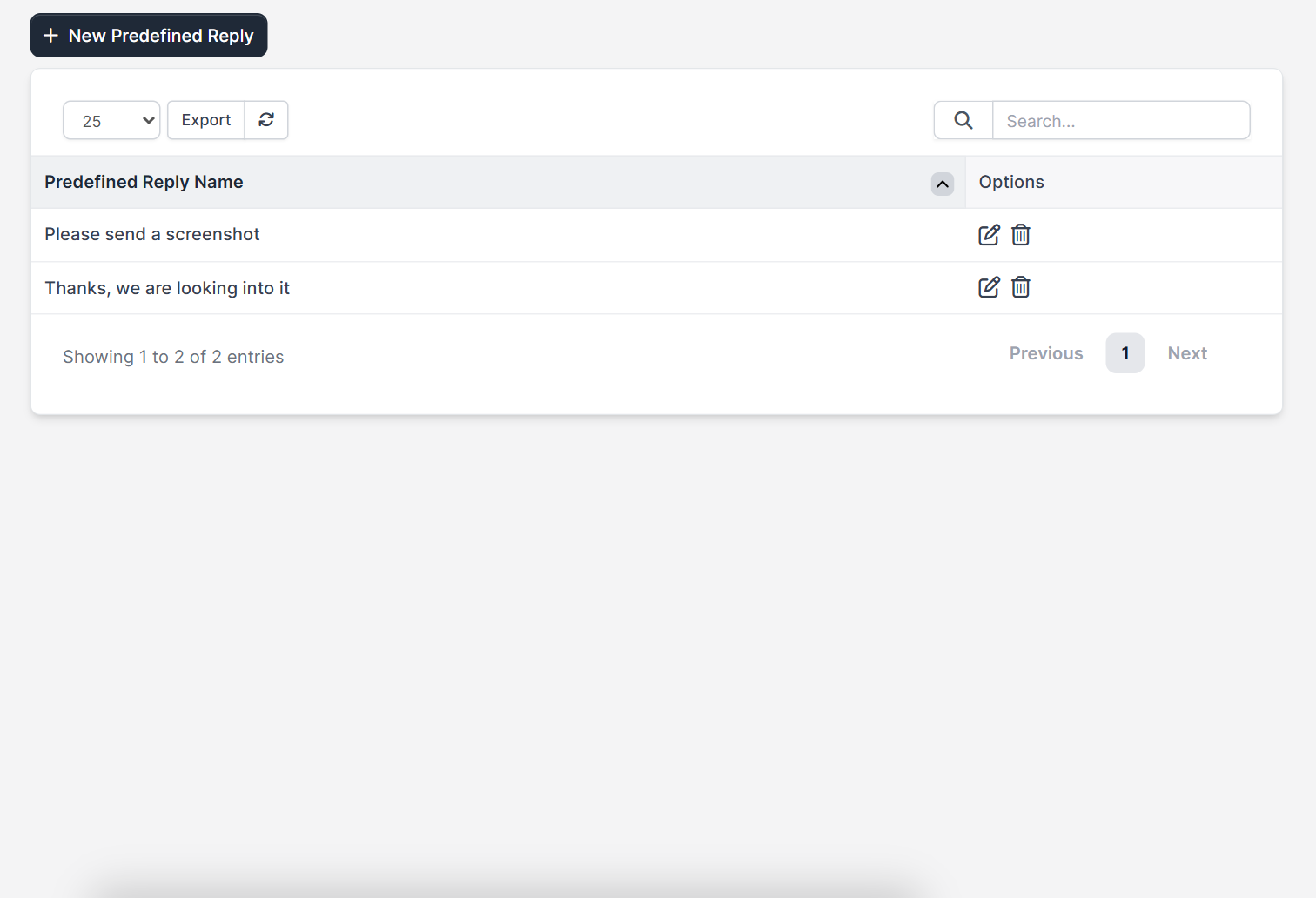
A predefined reply has a name and a message. The name is what your agents see in a list, and the message is the text that goes into the ticket reply. You manage them under Setup > Support > Predefined Replies, where the list shows each reply with an edit icon and a delete icon, and a New Predefined Reply button.
Why use Perfex CRM predefined replies #
Perfex CRM predefined replies solve three problems at once. First, your team answers faster, because the common answers are ready. Second, every customer gets the same polite tone, even when five agents share the inbox. Third, the facts in your canned responses are correct, because you checked them once, and not typed from memory each time. A new agent can use Perfex CRM predefined replies on the first day and learn your style by reading them.
Step 1: Decide which answers you repeat #
Look at your last twenty tickets. The questions that come back again and again are the ones to turn into canned responses. Good candidates are:
- A first reply that confirms you received the ticket
- A request for a screenshot and the steps to repeat the problem
- How to reset a password, see Perfex CRM forgot password
- How to find an invoice or a download in the customer area
- A polite closing message when the problem is solved
Write each one so that it works for any customer, without a name or an order number inside the text.
Step 2: Create a predefined reply #
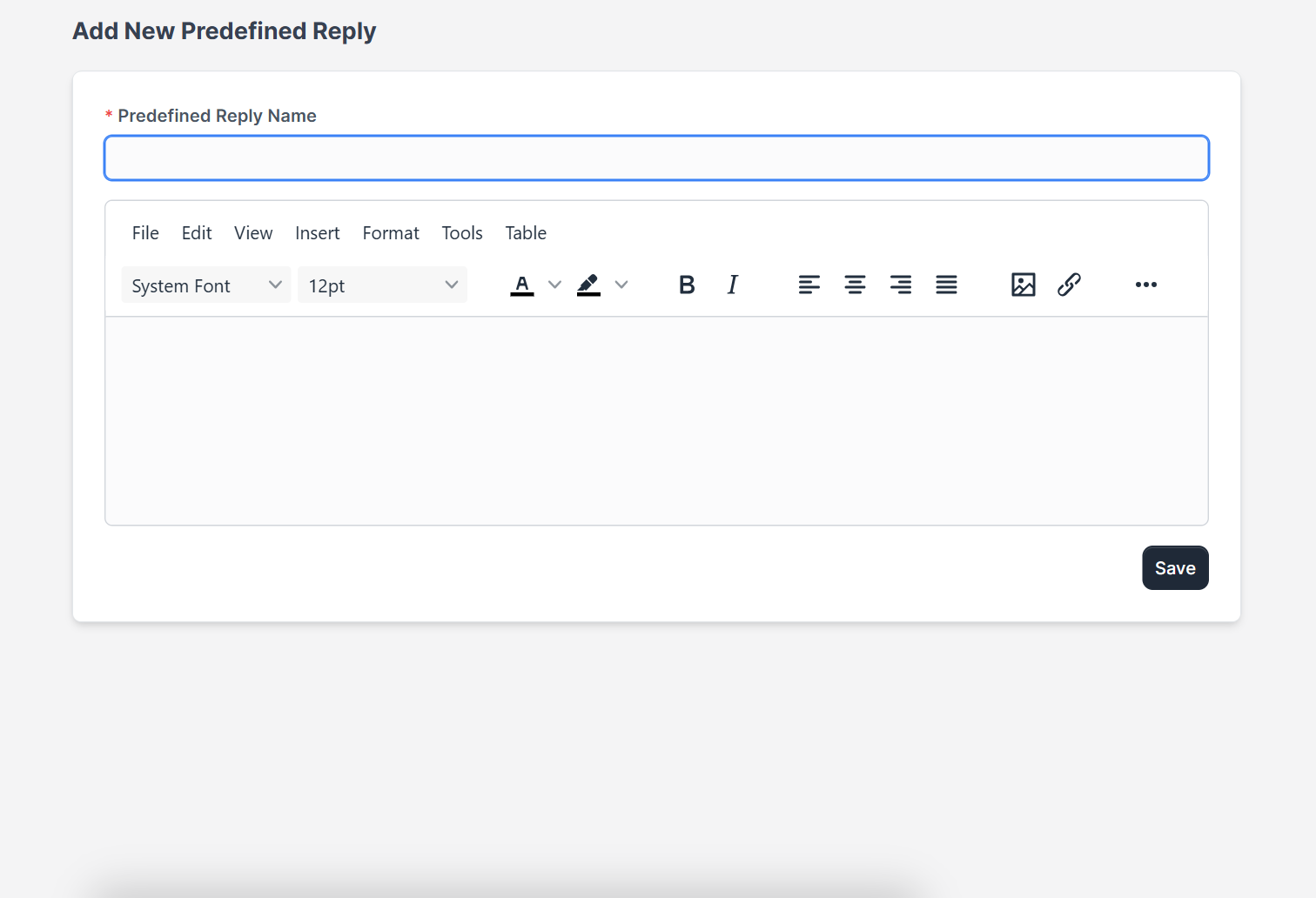
Click New Predefined Reply. The form has a required Predefined Reply Name field and a message editor with the usual formatting buttons, a font menu, colors, alignment, an image button and a link button. Choose a short, clear name, because agents scan the list by name.
Step 3: Write the message #
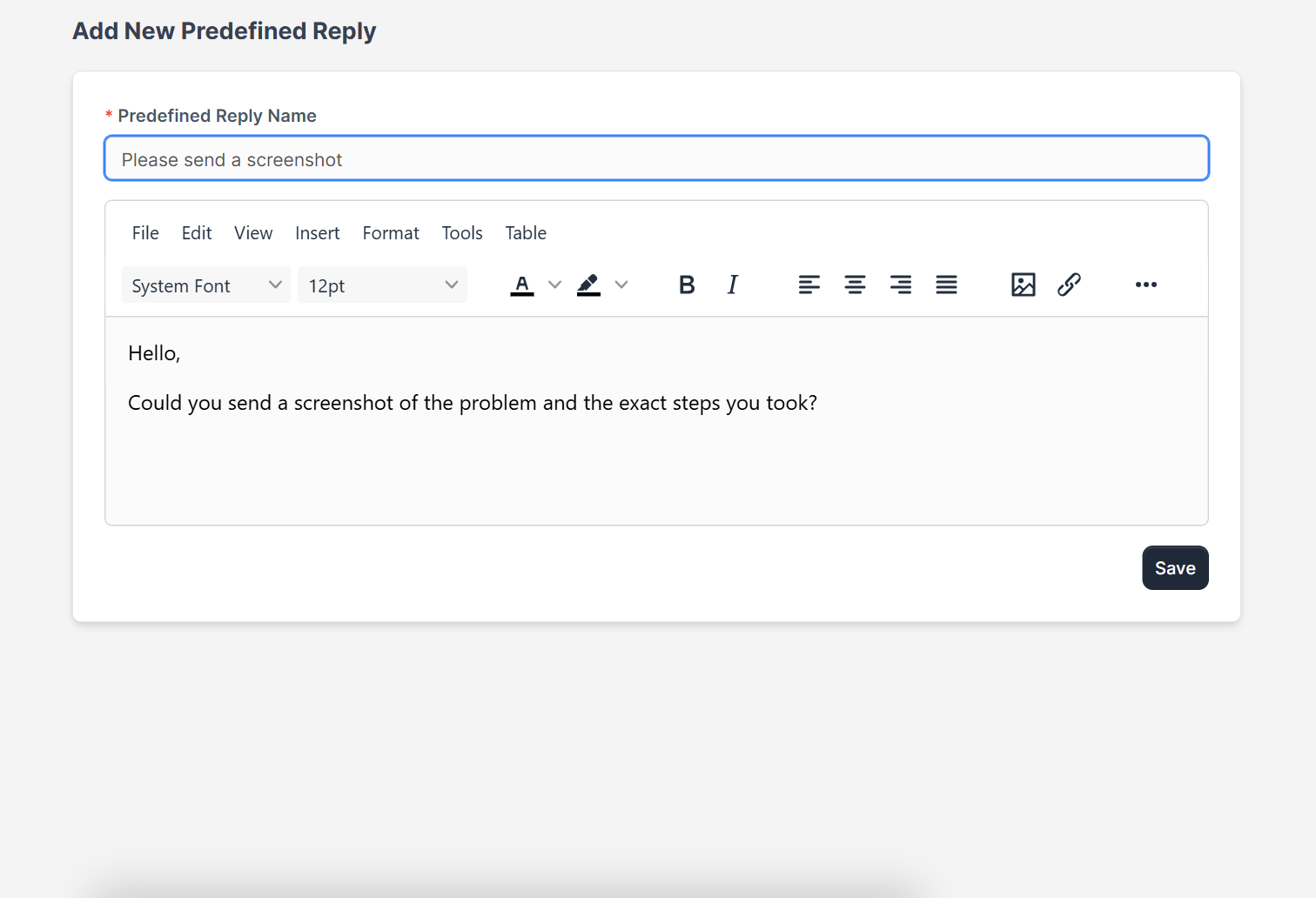
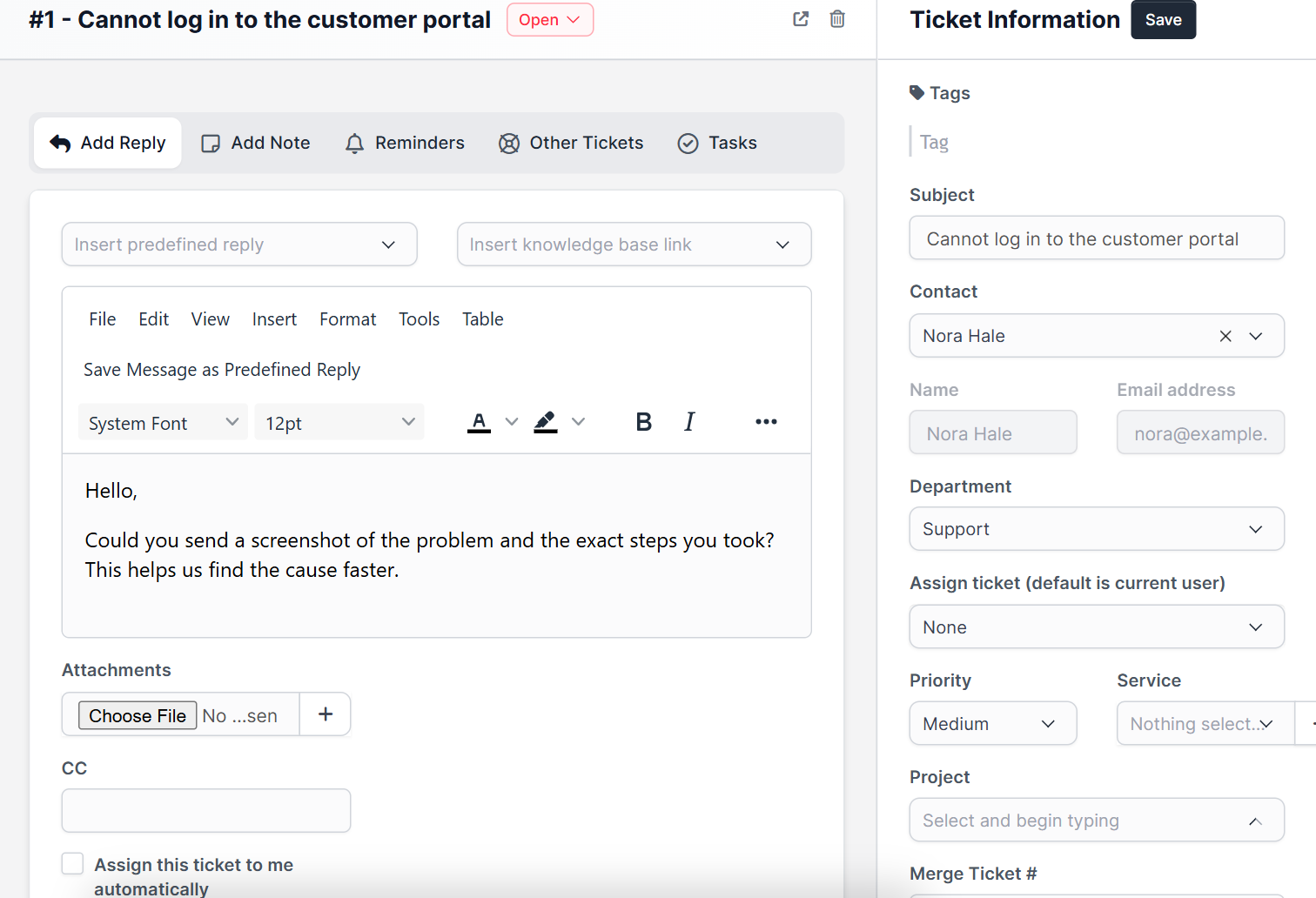
Type the text in the editor. Start with a greeting and keep the message to a few lines. In the example the reply asks for a screenshot and the exact steps the customer took. Click Save and the reply appears in the list.
Step 4: Use the reply in a ticket #
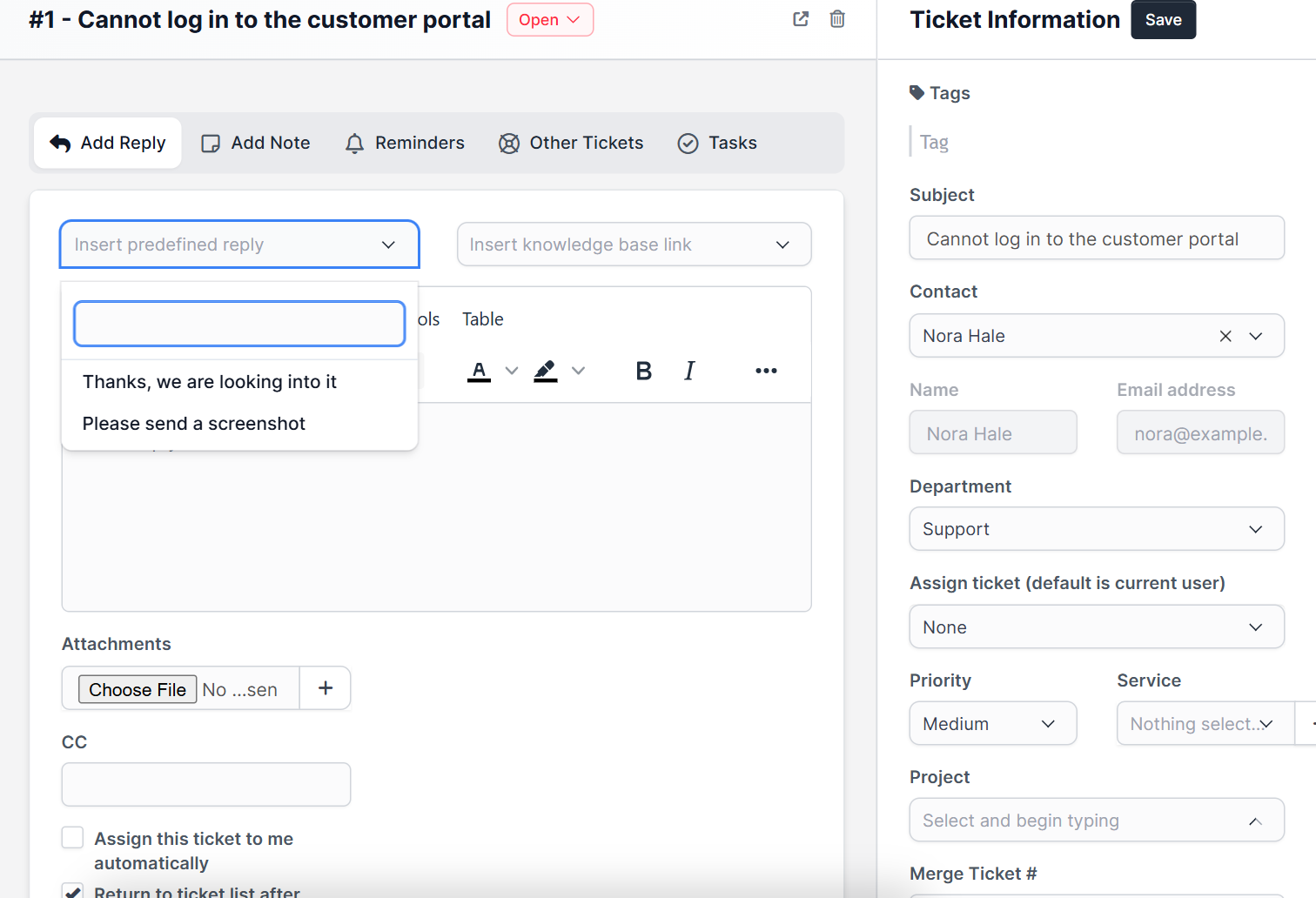
Open a ticket from the Support menu. Above the reply editor there are two drop-down lists: Insert predefined reply and Insert knowledge base link. Open the first one and you see the names of your canned responses. Choose one and edit the text if needed before you click Add Response.
Tips for canned responses #
- Review the list every few months and delete replies nobody uses.
- Always read the message once before you send it, because a canned answer must still fit the question.
- Link help articles with the Perfex CRM knowledge base and the knowledge base drop-down.
- Make sure your answers reach the customer, see Perfex CRM ticket notifications.
- Handle tickets from your phone with the Perfex CRM Mobile App.
Read more about tickets in Perfex CRM ticket departments and in the official Perfex CRM help. In the demo CRM the list opened and showed the replies, but sending a ticket reply with a predefined text was not tested.
Frequently asked questions #
Where do I create Perfex CRM predefined replies? #
Open Setup, Support, Predefined Replies and click New Predefined Reply.
How do I use a predefined reply in a ticket? #
Open the ticket, choose a name in the Insert predefined reply list above the editor, check the text and add the response.
Can I use formatting and links in a reply? #
Yes. The message editor has formatting, color, image and link buttons.
Can I change a predefined reply later? #
Yes. Use the edit icon in the list, change the text and save.


