
- Where to find the Perfex CRM email templates
- Edit a Perfex CRM email template in 6 steps
- Useful settings inside every template
- Merge fields: examples that save time
- Best practices for Perfex CRM email templates
- Why a template is not sent
- Related guides
- Visual guide: Perfex CRM email templates
- Perfex CRM email templates: tips and questions
- Modules that extend your messages
- Useful resources
- Summary: Perfex CRM email templates
The Perfex CRM email templates decide what your customers and staff read when an invoice is sent, a ticket is answered or a new contact is added. Good templates sound like your business, include the right details and avoid sending messages nobody needs. This guide shows where the templates live, what each field does, and how to edit them safely.
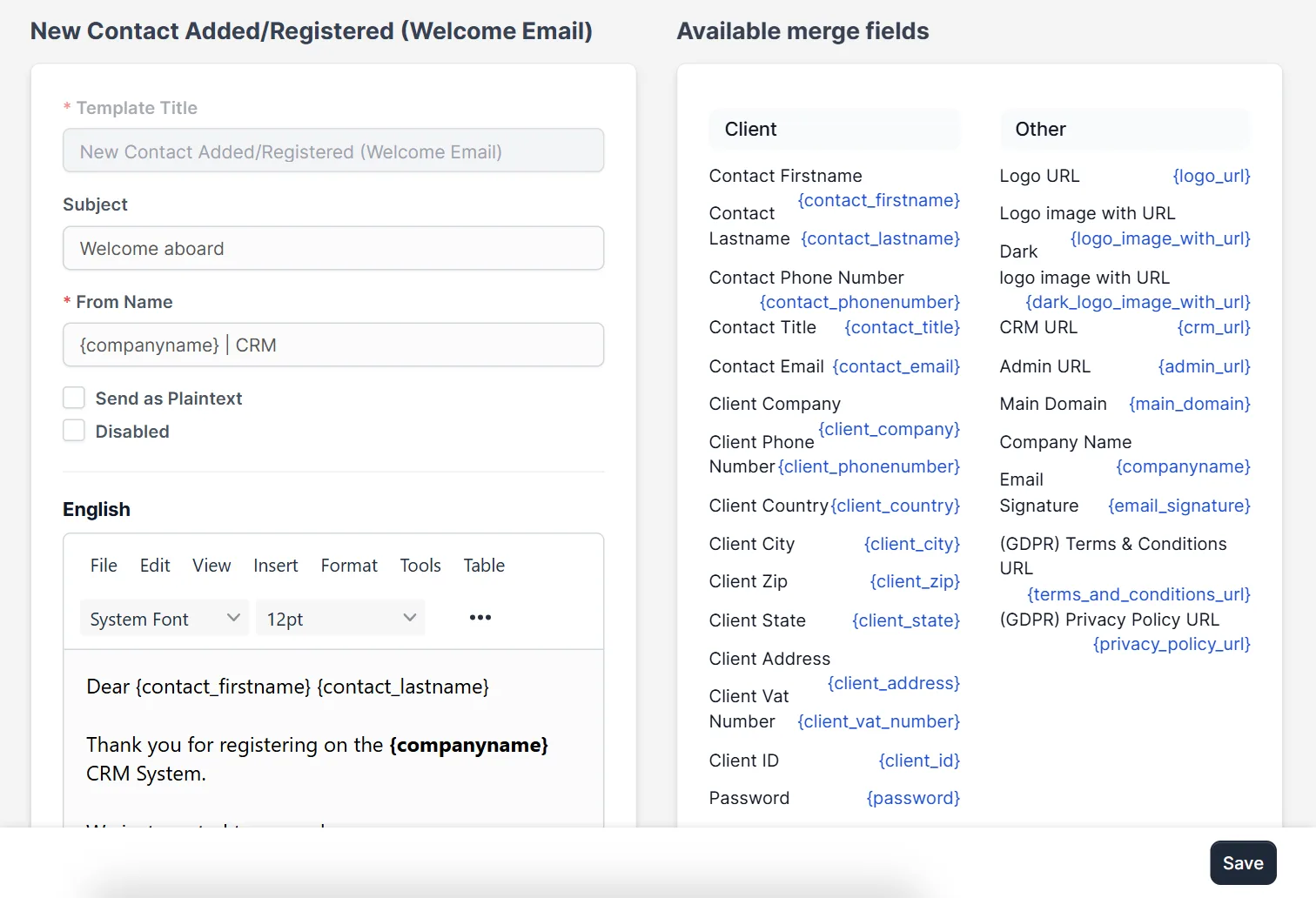
Where to find the Perfex CRM email templates #
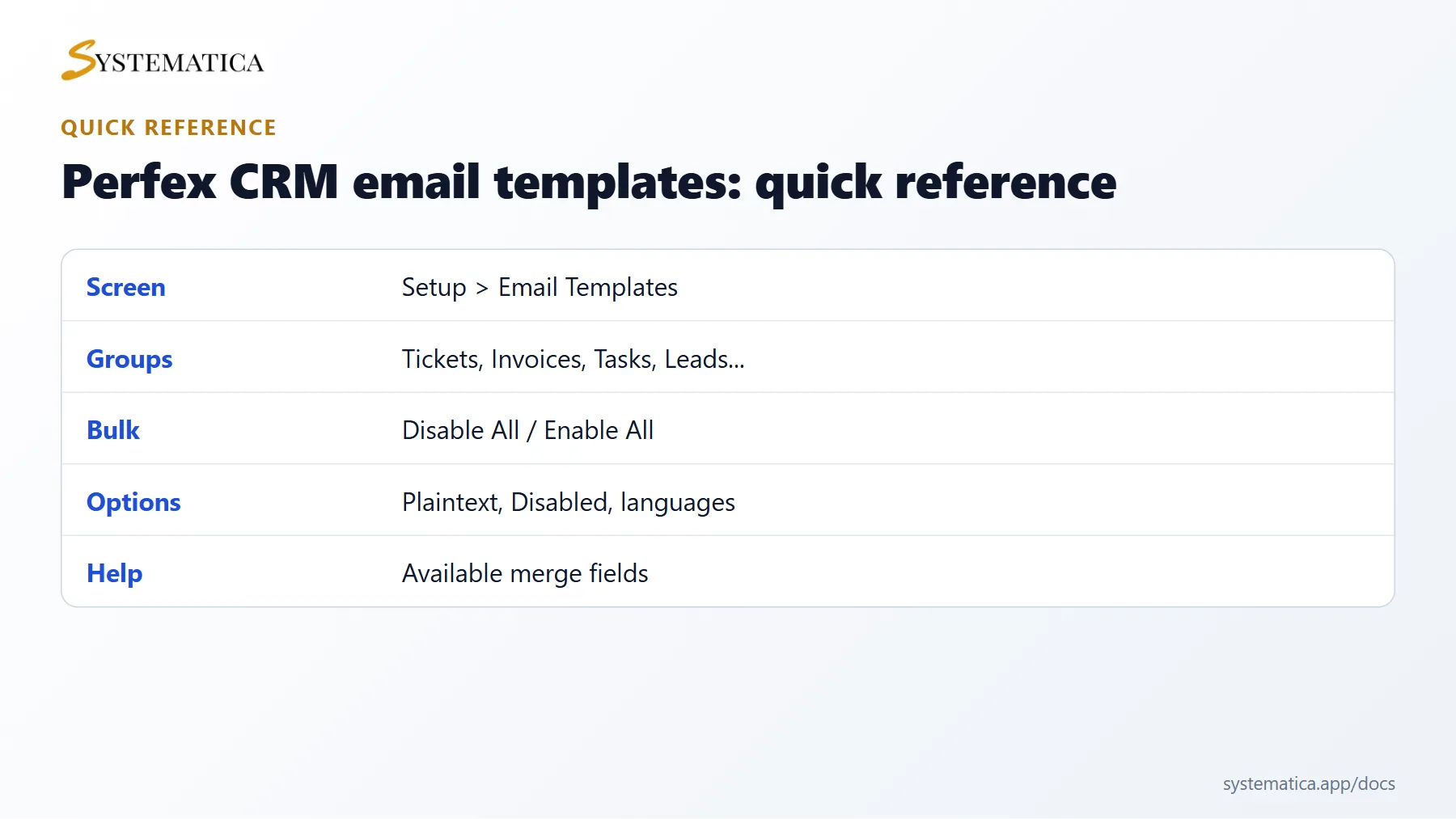
Open Setup > Email Templates. The page lists templates in groups: Tickets, Estimates, Contracts, Invoices, Subscriptions, Credit Note, Tasks, Customers, Proposals, Projects, Staff Members, Leads, Estimate Request, Notifications and General Data Protection Regulation (GDPR). Modules may add groups of their own.
Each group has Disable All and Enable All links. Use them when you want to switch off a whole family of messages, such as every task notification.
Edit a Perfex CRM email template in 6 steps #
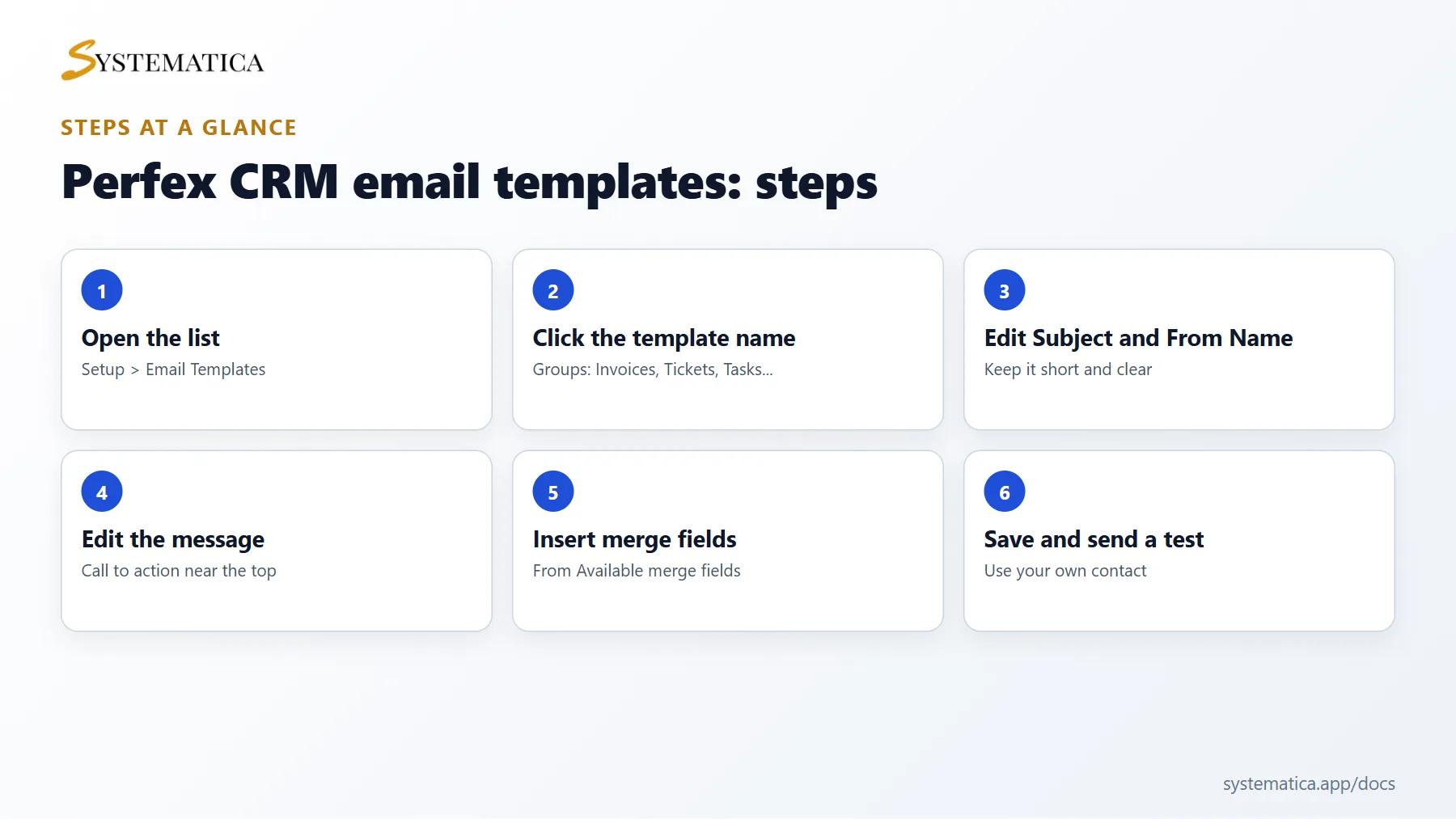
- Click the template name to open it.
- Change the Subject. Keep it short and specific, for example include the invoice number.
- Set From Name and, if needed, From Email. If you leave the email blank, Perfex CRM uses the address from your SMTP settings.
- Edit the message in the editor. Write in plain, friendly sentences and keep the call to action near the top.
- Insert merge fields from the Available merge fields list on the right of the page. They are replaced with real data when the email is sent, such as the customer name or the invoice link.
- Click Save and send yourself a real test, for example by sending an invoice to your own contact.
Useful settings inside every template #
- Template Title is the name you see in the list. Staff only see it, customers never do.
- Send as Plaintext sends the message without formatting. It can help with strict mail filters, but you lose bold text and links styled as buttons.
- Disabled stops that one message from being sent. Perfex CRM then skips it without any error.
- Language tabs. The same template can be saved in each language you have enabled. Customers and staff receive the version that matches their language.
Merge fields: examples that save time #
The merge field list depends on the template. Invoice templates offer fields for the customer name, invoice number, due date and a link to the invoice. Ticket templates offer the subject, the department and the ticket link. Always copy the field exactly as shown, including the curly brackets, because a typing mistake means the text is not replaced.
Best practices for Perfex CRM email templates #
- Keep one clear purpose per message and put the most important fact in the subject.
- Use the same tone in every template so customers recognise your brand.
- Avoid long legal text in the body. Put terms on a page and link to it.
- Check mobile screens. Many customers open invoices on a phone.
- Review your templates after every Perfex CRM update, because new versions can add templates.
Why a template is not sent #
If a message does not arrive, work through this list: the template is not Disabled; your SMTP settings pass the test email; the email queue is not stuck; and the cron job is running. If a customer says they never get the invoice email, ask them to look in spam and to whitelist your sender address.
Related guides #
To send invoices automatically each month, read about Perfex CRM recurring invoices.
Visual guide: Perfex CRM email templates #
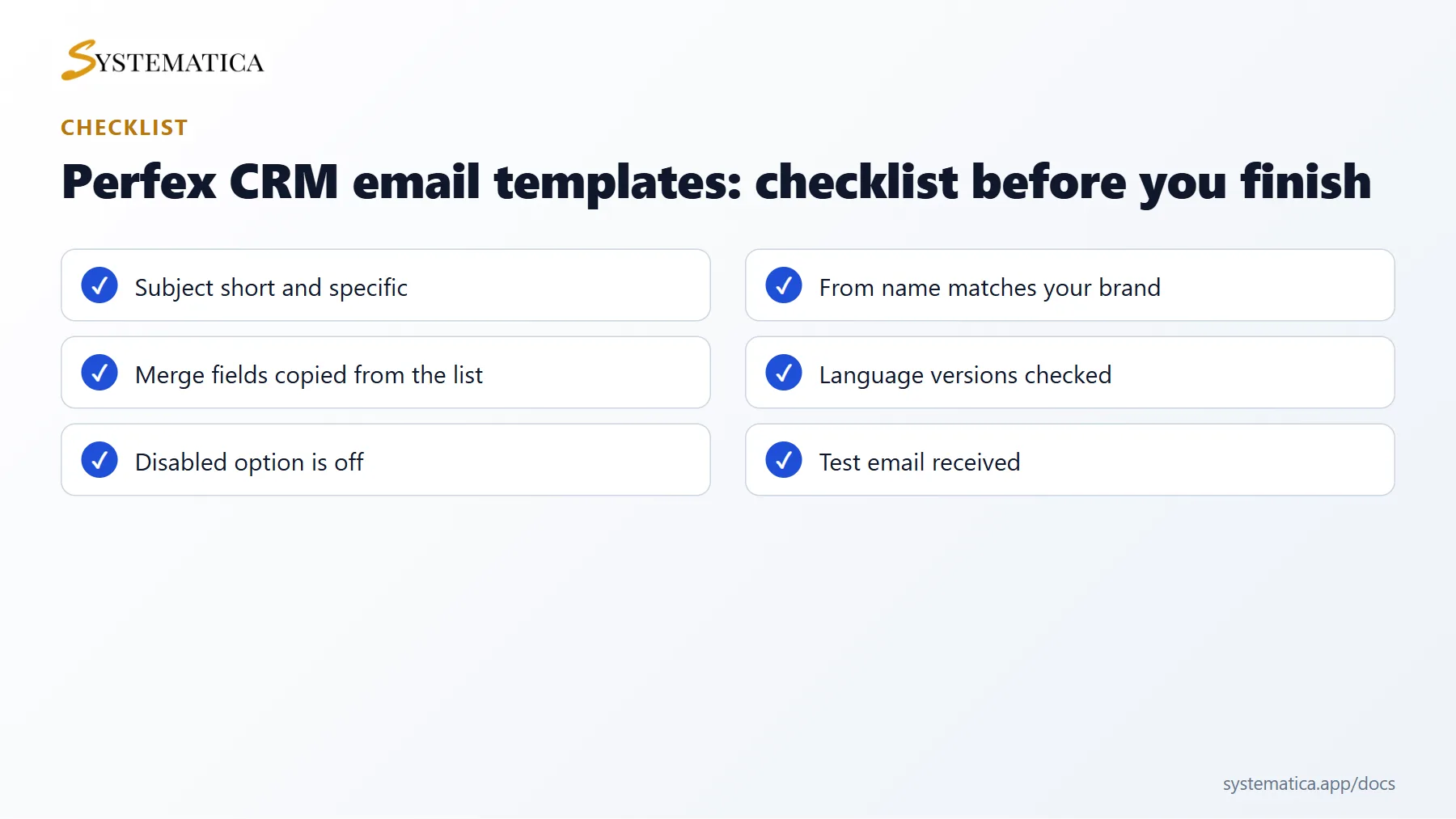
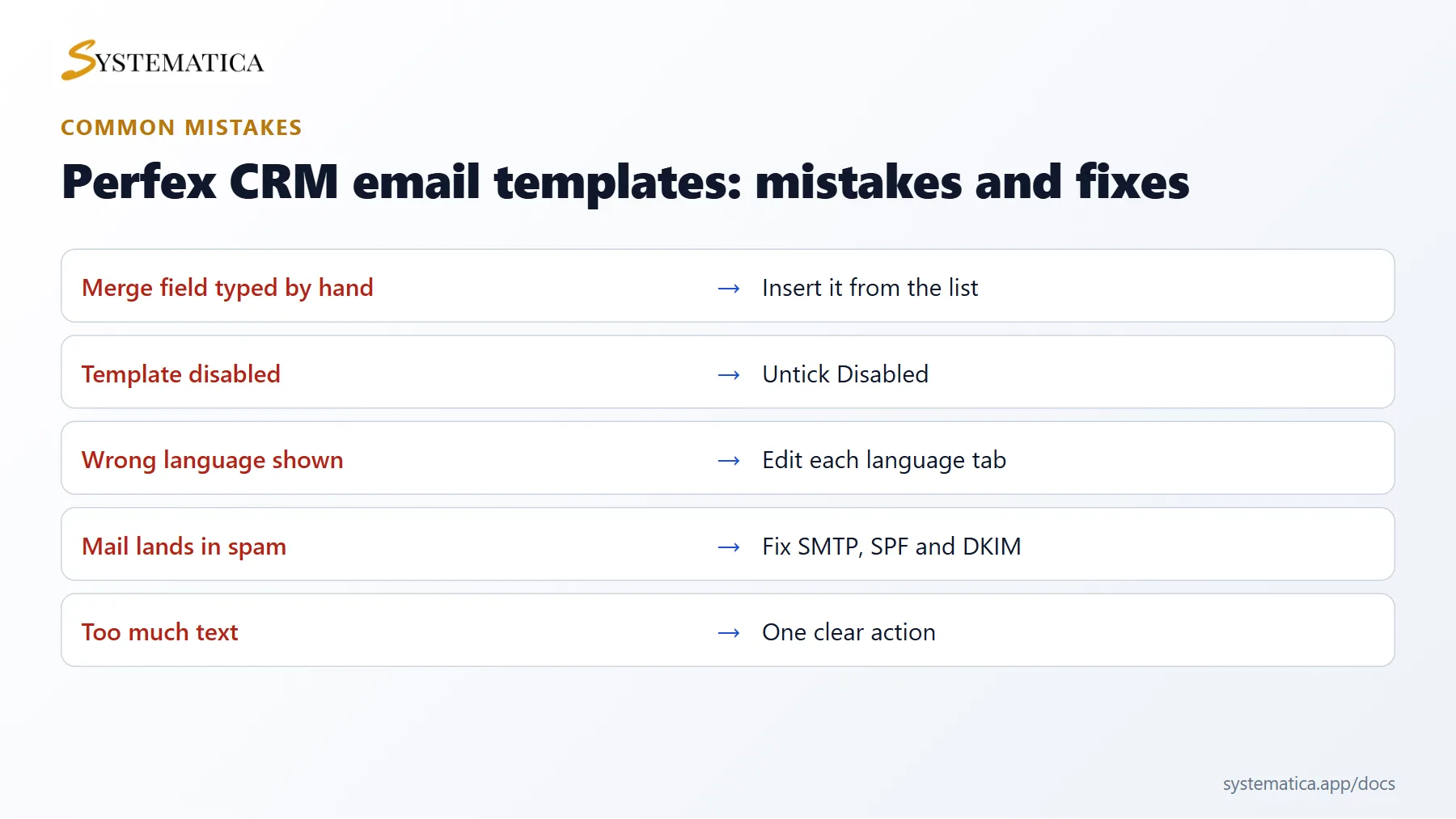
Save or share these four cards. They summarize the steps, the checklist, the usual mistakes and the key values from this guide.
Perfex CRM email templates: tips and questions #
Can I add my logo to Perfex CRM email templates? #
Yes. Use the image button of the editor to insert your logo from a public address, or add it once in the predefined header on the email settings screen so it appears in every message. Keep the picture small, because large images slow down mail and trigger spam filters.
Can I use different Perfex CRM email templates per language? #
Yes. Each template has a tab for every enabled language, so you can keep an English version and a French version. Customers receive the one that matches their language. See Perfex CRM language settings.
What happens to my changes after an update? #
Templates live in the database, so a file update does not remove them. New versions can add new templates, which appear in the list with their default text. Review them after each update.
How do I go back to the default text? #
Copy the text of your template into a note before you edit it. If you want the original text, create a fresh test installation and copy it from there, or ask the support team of the product.
Why do I see curly brackets in the email? #
A merge field was typed wrongly or is not available in that template. Insert merge fields from the list on the right of the editor instead of typing them.
Can I turn off emails for customers only? #
Yes. Each template has a Disabled option, and each group has Disable All. Staff messages and customer messages are separate templates, so you can switch off one side only.
Modules that extend your messages #
Send updates where customers read them fastest. The WhatsApp integration for Perfex CRM lets you message leads and customers from the CRM, and the Mailbox module keeps email conversations next to your records.
Useful resources #
Preview how your message looks in common inboxes with a tool such as Mail-Tester, and read the official Perfex CRM website for news about new template features. Good Perfex CRM email templates are short, clear and consistent, so review them whenever your offer or branding changes.
Summary: Perfex CRM email templates #
Good Perfex CRM email templates are short, clear and tested. Open Setup > Email Templates, edit the subject, the sender and the message, insert merge fields from the list and send yourself a test. Review your Perfex CRM email templates after every update and every change of branding. If a message does not arrive, check that its template is not disabled and that your email settings work. Clear Perfex CRM email templates build trust with customers and save your team time every day.


