
- What the Perfex CRM cron job does
- Step 1: Copy your cron command
- Step 2: Add the Perfex CRM cron job in cPanel
- Step 3: Test the Perfex CRM cron job
- Step 4: Choose the reminder times
- Step 5: Confirm that it keeps running
- Common Perfex CRM cron job problems
- Next steps
- Visual guide: Perfex CRM cron job
- Perfex CRM cron job FAQ
- Useful resources
The Perfex CRM cron job is a small scheduled task that makes your server open one special address in Perfex CRM every few minutes. Without it, invoices are not renewed, reminders are not sent, tickets are not imported from email and the email queue never empties. This guide shows you how to set up the Perfex CRM cron job on cPanel, how to test it, and how to choose the reminder times.
What the Perfex CRM cron job does #
Perfex CRM does not run background work on its own. It waits for the cron address to be opened, and then it does everything that is due at that moment:
- sends invoice overdue reminders and due reminders
- creates new invoices, expenses and tasks from recurring ones
- sends task deadline reminders and stops timers that were left running
- sends contract expiry and signing reminders
- closes tickets automatically after the number of hours you set
- sends the emails waiting in the email queue
Step 1: Copy your cron command #
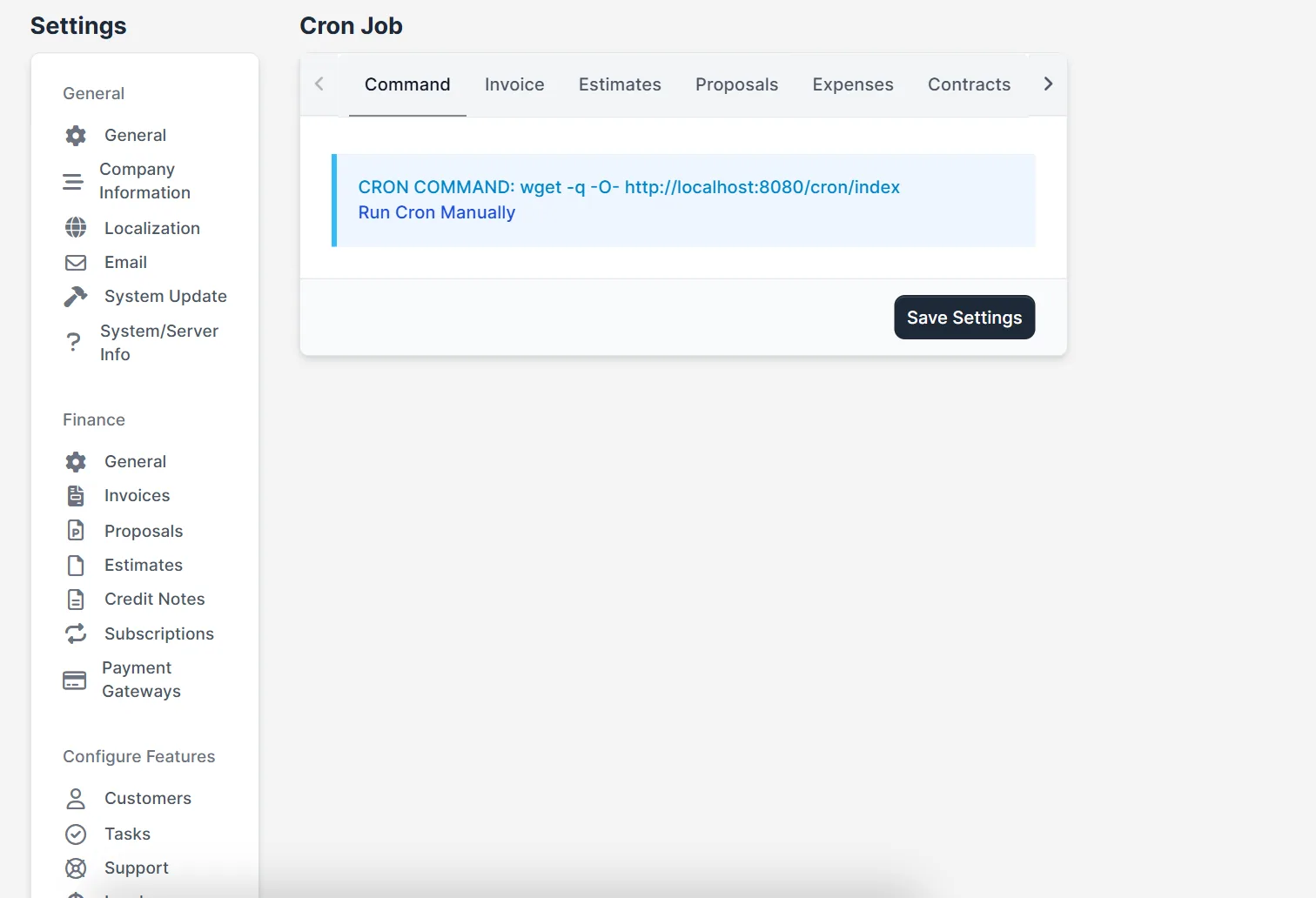
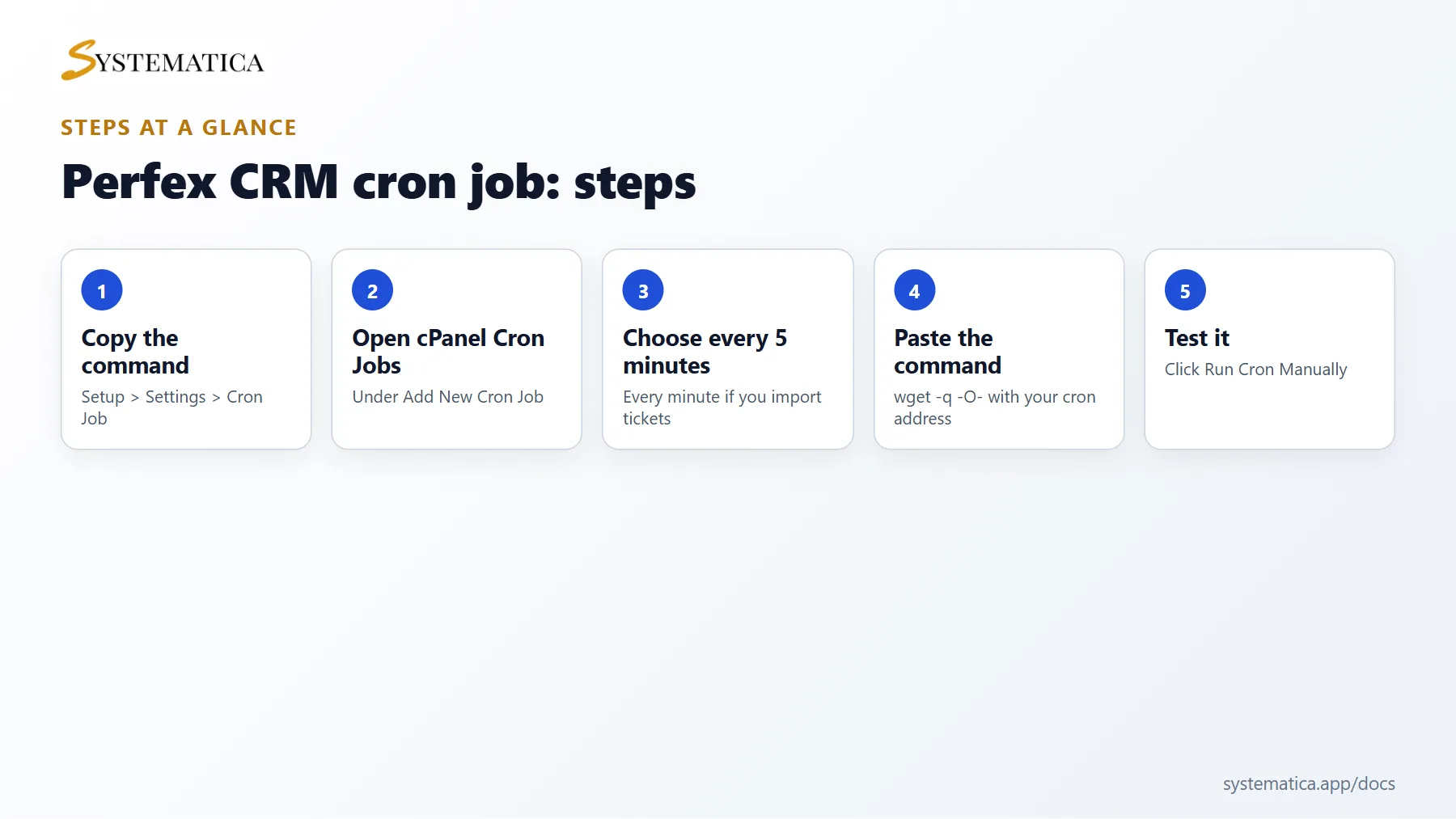
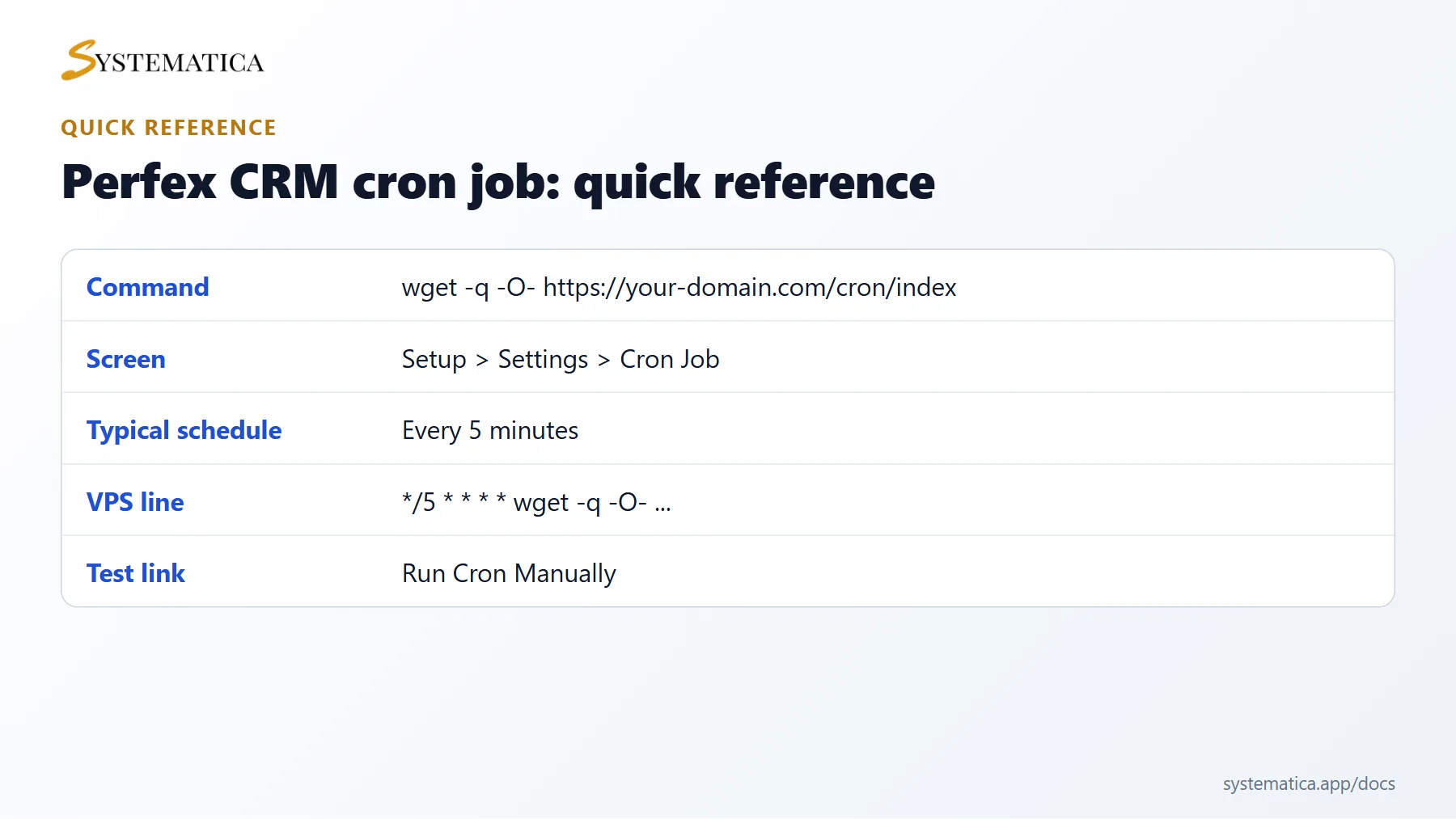
Sign in as an administrator and open Setup > Settings > Cron Job. The Command tab shows the exact command for your site. It looks like this:
wget -q -O- https://your-domain.com/cron/index
If your application/config/app-config.php file defines APP_CRON_KEY, the key is added to the end of the address. Always copy the command from the screen instead of typing it, so the address matches your site.
Step 2: Add the Perfex CRM cron job in cPanel #
- Log in to cPanel and open Cron Jobs.
- Under Add New Cron Job, choose a common setting such as Once Per Five Minutes. Five minutes is enough for most teams. Choose every minute if you import tickets from email or use the email queue heavily.
- Paste the command into the Command box.
- Click Add New Cron Job.
On a VPS, run crontab -e and add the line */5 * * * * wget -q -O- https://your-domain.com/cron/index. If wget is not installed, use curl -s with the same address.
Step 3: Test the Perfex CRM cron job #
On the same Cron Job screen, administrators see a Run Cron Manually link. Click it once to check that the address works. If you see an error page instead of a blank or short success page, check that the address starts with the correct domain and that your site loads over the protocol you used in the command (HTTP or HTTPS).
Step 4: Choose the reminder times #
The cron settings are split into tabs: Invoice, Estimates, Proposals, Expenses, Contracts, Tasks and Tickets. A few useful fields:
- Hour of day to perform automatic operations sets when the daily jobs run. Pick a quiet hour for your team.
- Auto send reminder after (days) and Auto re-send reminder after (days) control overdue notices.
- Send due reminder X days before due date warns customers early.
- Task deadline reminder before (Days) and Automaticaly stop task timers after (hours) keep task data clean.
- Auto close ticket after (Hours) closes quiet tickets.
Click Save Settings after each change.
Step 5: Confirm that it keeps running #
Wait ten minutes, then check that something scheduled has happened. A simple test is to create a recurring task or invoice due today and see that Perfex CRM creates the next one. If nothing happens, open the Run Cron Manually link again and read your hosting log for the cron job.
Common Perfex CRM cron job problems #
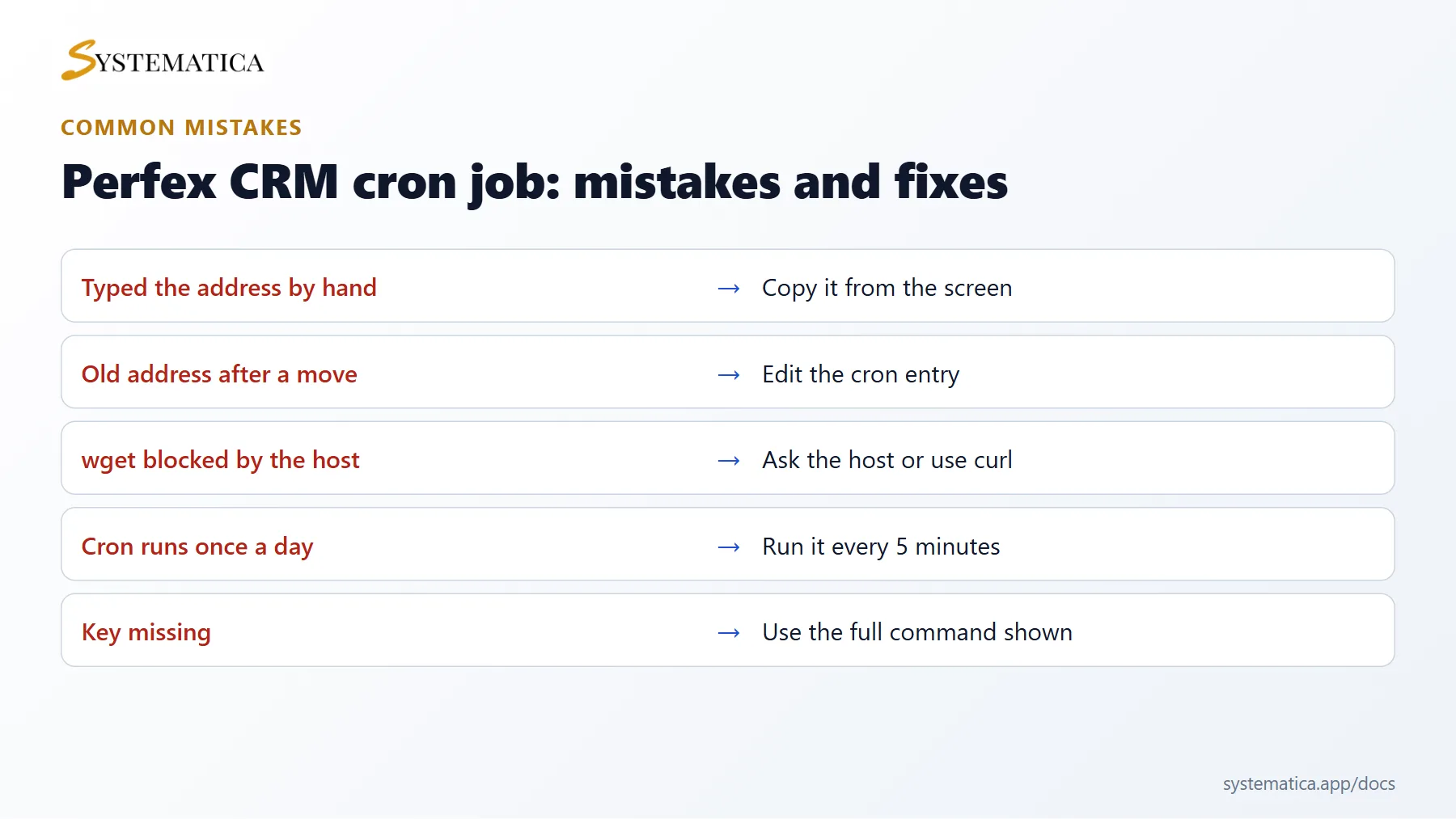
- The cron job runs but nothing is sent. Check the email settings first. See our guide to Perfex CRM SMTP settings.
- Reminders arrive at the wrong hour. Check the default time zone in Setup > Settings > Localization and the hour set on the Cron Job screen.
- Your host blocks wget. Ask support to allow it, or switch to
curl. - The address redirects. If you moved the site to HTTPS, update the command. See how to switch Perfex CRM to HTTPS.
Next steps #
When the cron job works, set up your emails with the Perfex CRM email queue and automate billing with recurring invoices. New to the system? Start with the Perfex CRM installation guide.
Visual guide: Perfex CRM cron job #
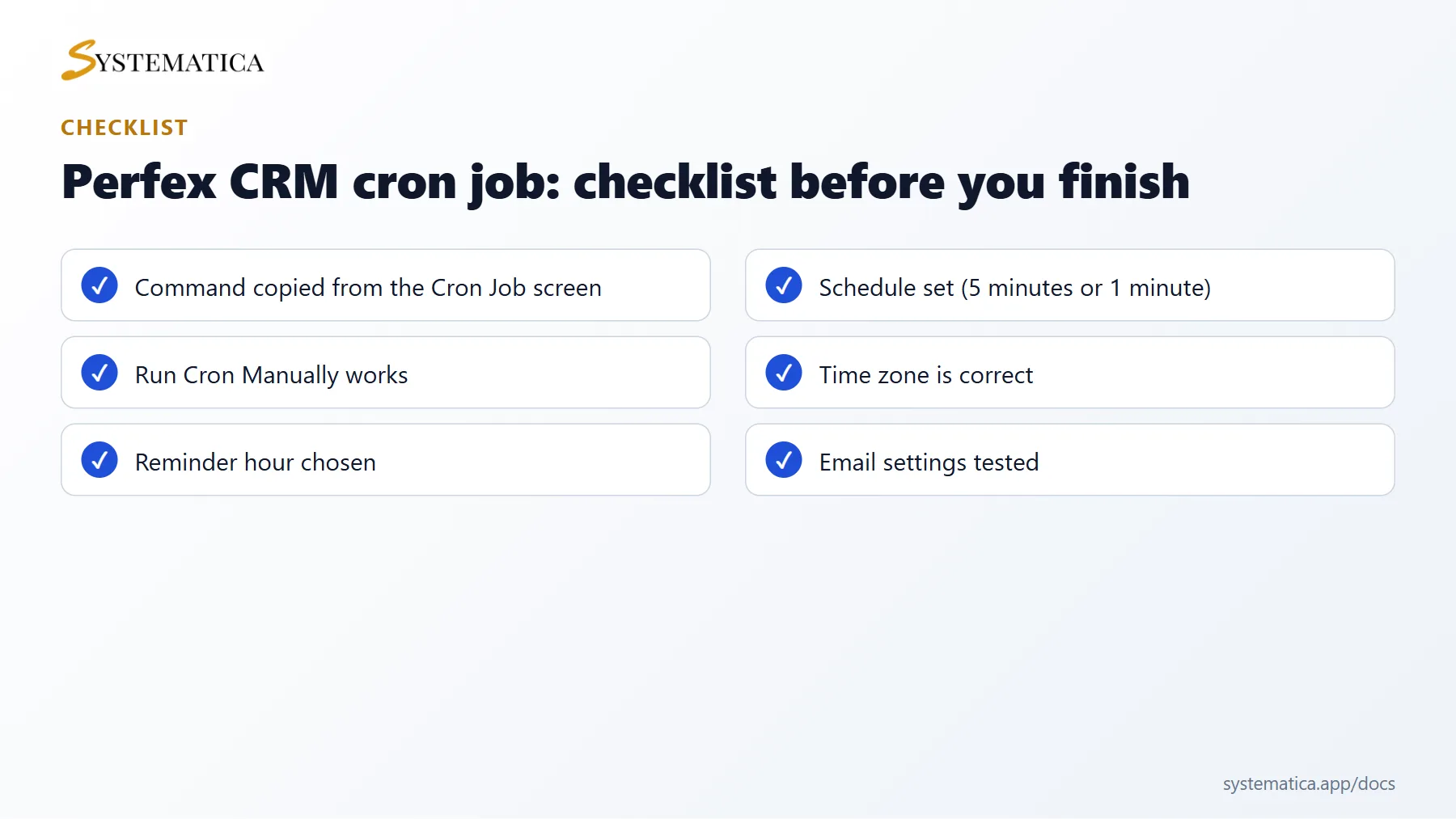
Save or share these four cards. They summarize the steps, the checklist, the usual mistakes and the key values from this guide.
Perfex CRM cron job FAQ #
How often should the Perfex CRM cron job run? #
Every five minutes suits most teams. Run the Perfex CRM cron job every minute if you import tickets from email or want invoices and reminders to go out on the exact minute. Running it less than once an hour makes reminders and the email queue late.
Can I use a different cron command? #
Yes. Any command that opens the cron address works, for example curl -s instead of wget -q -O-. Some hosts also allow a PHP command that calls index.php cron directly, but the web address is the safest choice because it uses the same settings as your site.
Does the Perfex CRM cron job need a key? #
Only if your app-config.php defines APP_CRON_KEY. A key stops strangers from running your cron job by opening the address. Copy the full command from the Cron Job screen and it will include the key when one is set.
Why did my reminders stop after I moved the site? #
The old cron command still points to the old address. After a move, edit the entry in cPanel so it calls the new address. Our guide to migrating Perfex CRM to a new server lists this step.
Is the Perfex CRM cron job safe to run twice? #
Running it twice at the same moment is harmless, because the system only does work that is due. Do not set two entries that run every minute, because they add load without a benefit.
How do I know the Perfex CRM cron job works? #
Create a task with a deadline tomorrow and a reminder, or a recurring invoice due today, and watch what happens after the next run. Also look at the hosting log of your cron job for errors.
Want more automatic work for your team? Browse all Perfex CRM modules for sales, support and operations.
Useful resources #
If you are new to schedules, crontab.guru explains cron times in plain words, and the cPanel cron jobs documentation shows the hosting screen step by step. A reliable Perfex CRM cron job is the base for reminders, renewals and email, so test it again after every server change.


