
- Open the Perfex CRM language settings
- Step 1: Choose the date and time format
- Step 2: Set the default time zone
- Step 3: Choose the default language
- Step 4: Control which languages are enabled
- Step 5: Decide about client PDF documents
- Add a language that is not in the list
- Check the Perfex CRM language settings
- Related settings
- Visual guide: Perfex CRM language settings
- Perfex CRM language settings FAQ
- Useful resources
- Summary: Perfex CRM language settings
The Perfex CRM language settings control the language of the admin area and the customer area, plus the date format, time format and time zone your team sees. Set them once at the start and your invoices, emails and reports look right for your country. This guide shows every option on the localization screen and how to add a language that is not in the list.
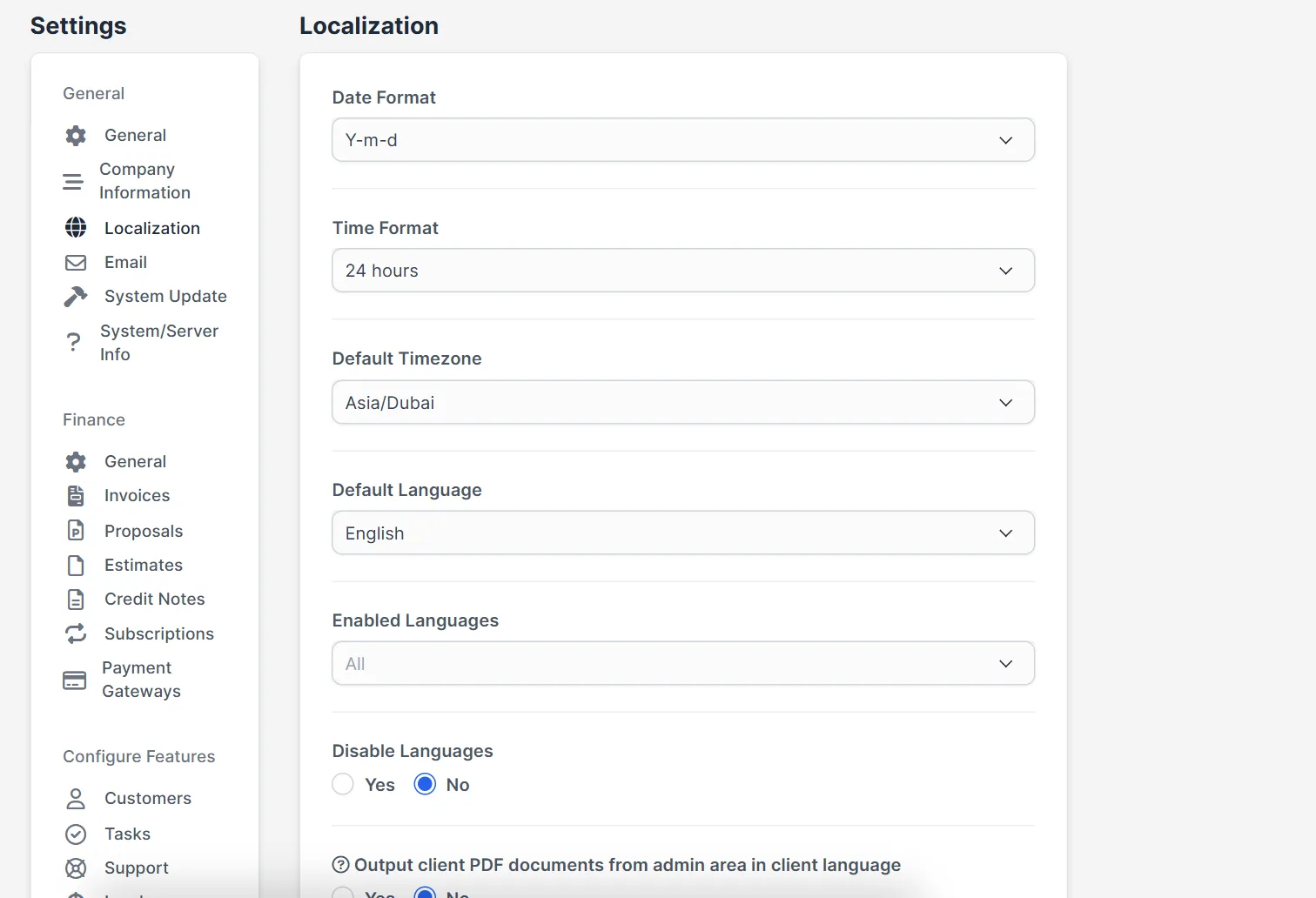
Open the Perfex CRM language settings #
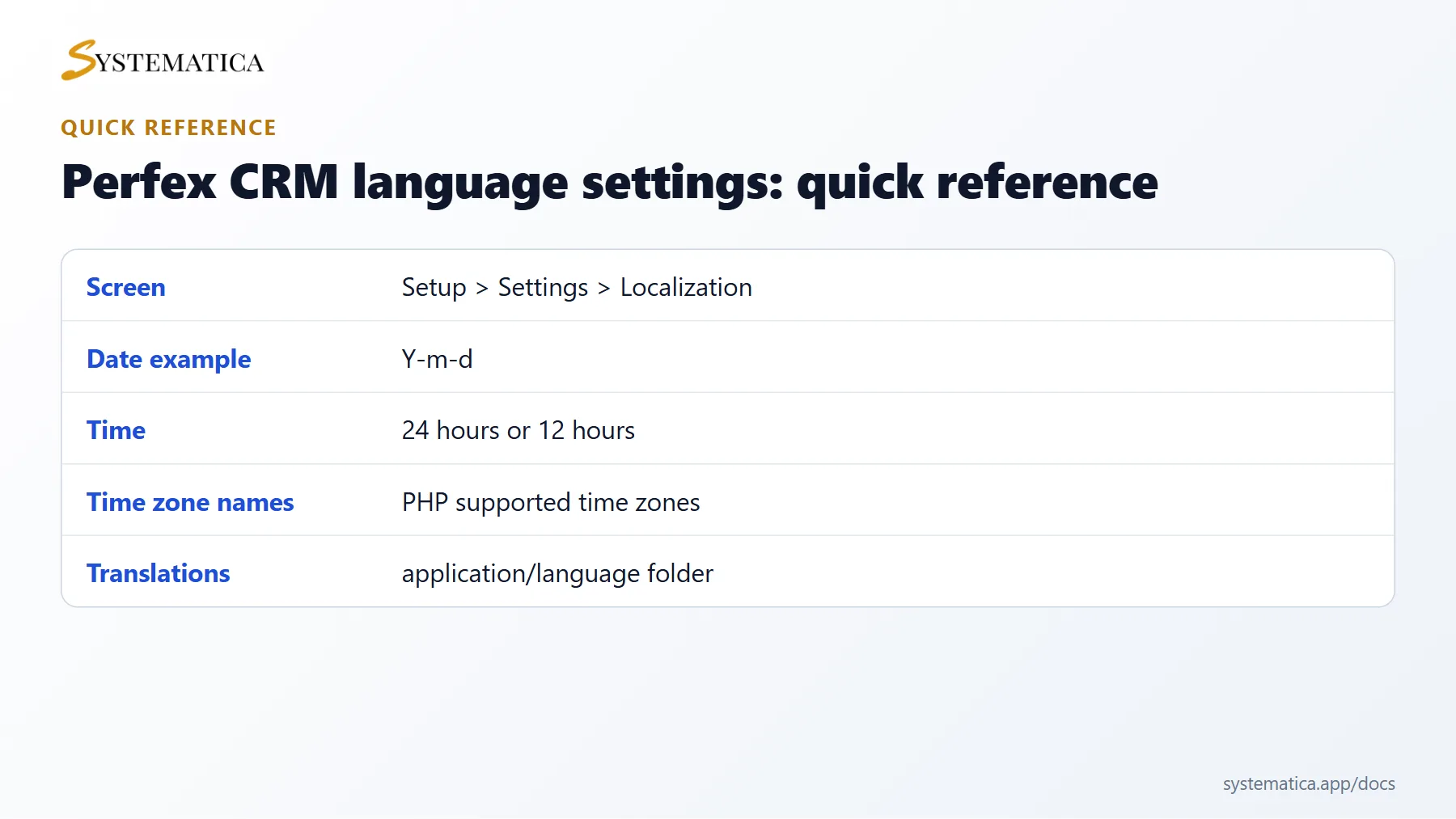
Sign in as an administrator and go to Setup > Settings > Localization. All the options below are on that one screen. Click Save Settings when you are done.
Step 1: Choose the date and time format #
Date Format controls how dates appear everywhere, for example Y-m-d for 2026-10-25. Time Format lets you choose between a 24-hour clock and a 12-hour clock. Pick the style your customers expect, because the same format appears on invoices and in emails.
Step 2: Set the default time zone #
Default Timezone decides the time shown for due dates, reminders and activity. It also decides when your daily jobs run, so set it to the time zone of your office. If your time zone is wrong, reminders arrive at the wrong hour. The hour itself is chosen on the cron job screen.
Step 3: Choose the default language #
Default Language is used for staff who have not picked a language and for customers when no language is set on their record. The list shows the languages that come with your version, such as English, French, German, Spanish and many more.
Step 4: Control which languages are enabled #
Enabled Languages lets you limit the list to languages you really use, and Disable Languages turns the language choice off for users. A shorter list is easier for your staff and for customers. Each staff member can still use a different language in their own profile.
Step 5: Decide about client PDF documents #
The last option is Output client PDF documents from admin area in client language. Set it to Yes when you serve customers in several languages and want invoices and estimates to download in the language of the customer, not in the language of the staff member who clicks the button.
Add a language that is not in the list #
You can add your own translation by copying the English folder inside application/language/ to a new folder with the name of your language, then renaming and translating the files inside. The new folder name then appears in the language lists. Keep a backup of your translation, because a Perfex CRM update may overwrite files you changed. A safer way is to keep your own language files in a separate backup folder.
Check the Perfex CRM language settings #
- Open an invoice and look at the date and number format.
- Send a test email from a template. The Perfex CRM email templates can be saved per language, so check each version.
- Ask a customer to log in and confirm that the portal shows the right language.
Related settings #
Money formats are set per currency, so read how to set up Perfex CRM currencies. If you work in a specific country, our country configuration guide goes deeper into regional setup.
Visual guide: Perfex CRM language settings #
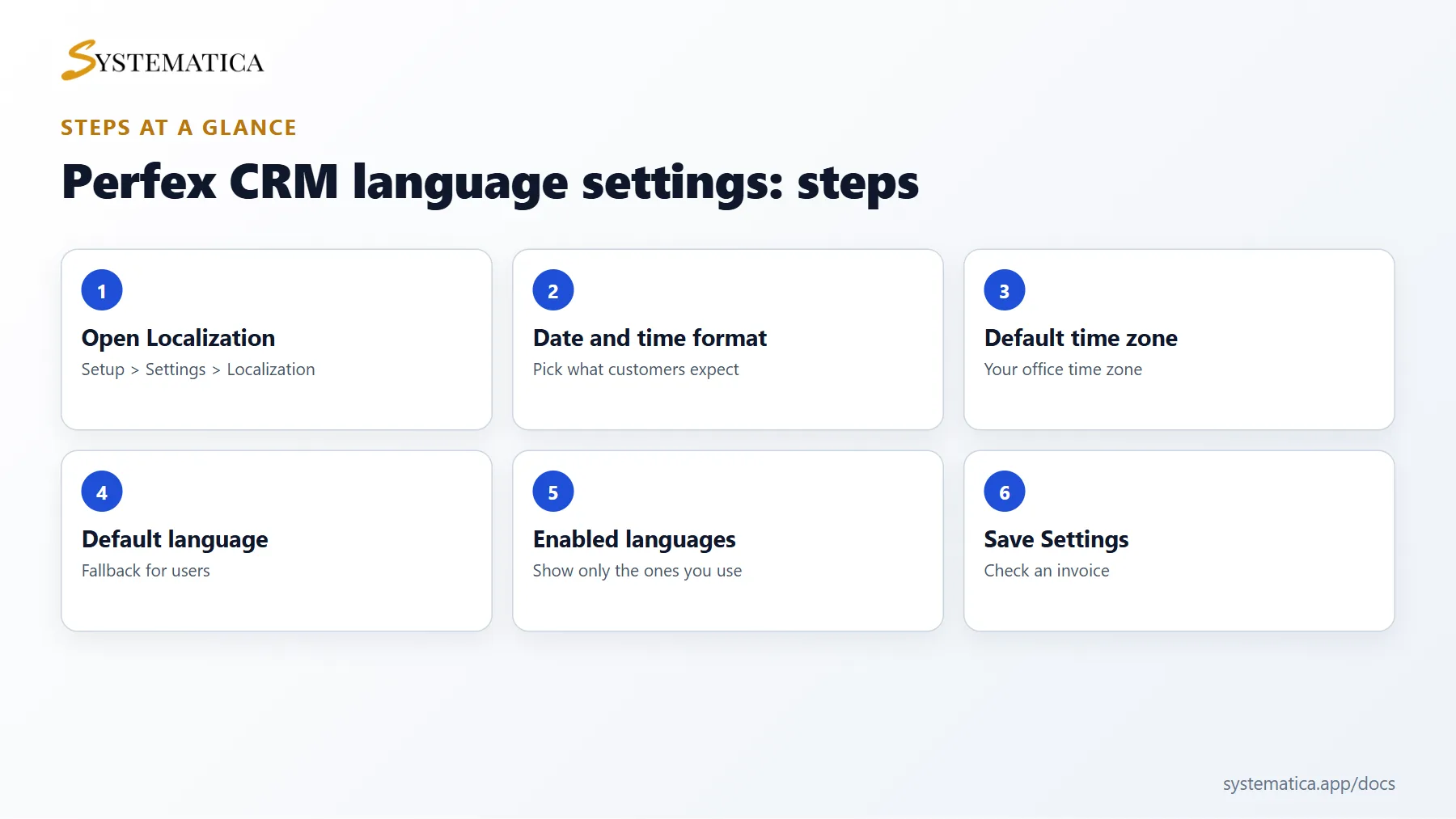
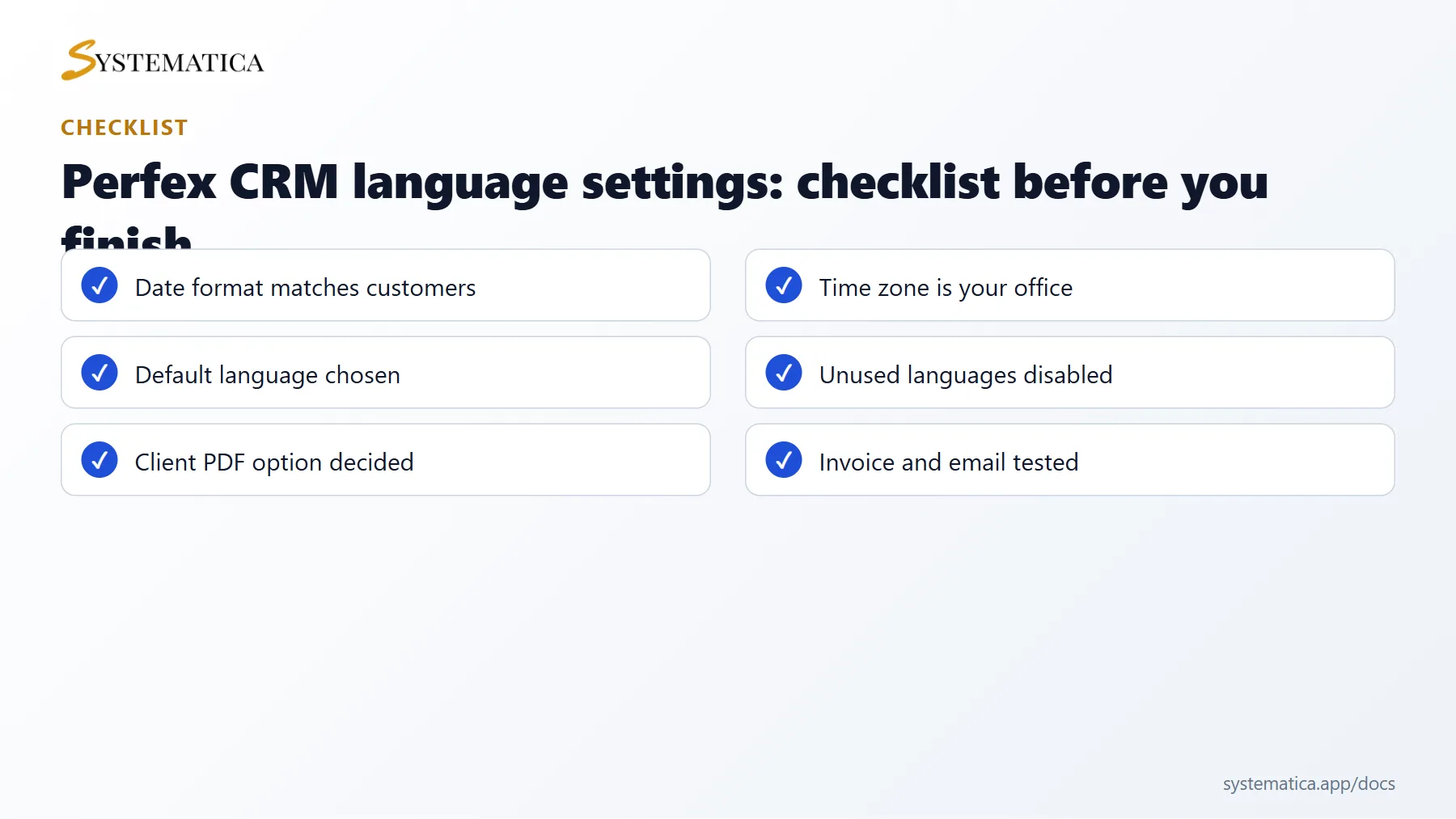
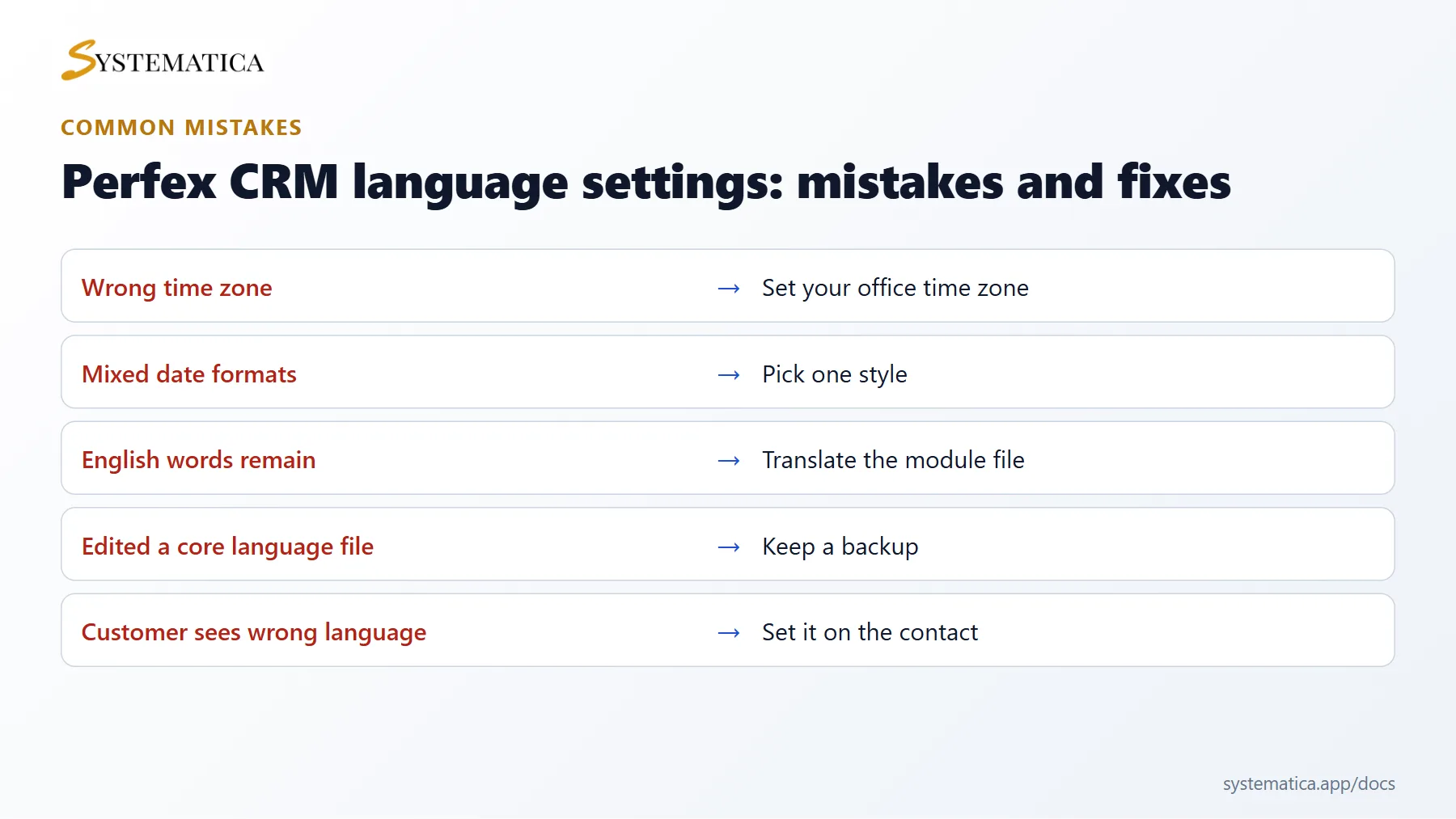
Save or share these four cards. They summarize the steps, the checklist, the usual mistakes and the key values from this guide.
Perfex CRM language settings FAQ #
Can each user choose their own language in the Perfex CRM language settings? #
Staff can pick a language in their own profile, and customers can have a language set on their contact. The default language on this screen is the fallback when nothing else is chosen.
Why are some words still in English? #
Translation files may not cover every phrase, especially text added by modules. Modules have their own language files. Ask the module author or translate the module file yourself.
How do I translate the system into my own language? #
Copy the English language folder, rename it and translate the text on the right side of each line. Keep the left side (the keys) unchanged. Then select your language in the Perfex CRM language settings.
Which date format should I choose? #
Choose the format your customers read every day. Use Y-m-d if your customers are international, because it cannot be misread. Use day first or month first only if everyone uses it.
Does the time zone change old data? #
No. It changes how times are shown from now on. Old records keep their stored time and are displayed in the new zone.
What about right-to-left languages? #
Perfex CRM supports right-to-left languages such as Arabic and Persian through its language files and a direction setting. Test your invoices after switching, because PDF layout can differ.
Looking for more features for your team? See our Perfex CRM modules and the Perfex CRM Mobile App, which gives staff the CRM on their phone.
Useful resources #
You can look up the exact time zone name in the PHP list of supported time zones. Correct Perfex CRM language settings prevent confusion on invoices and reminders, so check them again whenever you open an office or serve customers in a new country.
Summary: Perfex CRM language settings #
The Perfex CRM language settings sit in one place: Setup > Settings > Localization. Choose the date and time format, the time zone, the default language and the enabled languages, then save and check an invoice. Review the Perfex CRM language settings whenever you open a new office or serve customers in a new country. Correct Perfex CRM language settings keep invoices, reminders and emails clear for everyone who reads them.


