
Perfex CRM expense categories sort your costs into groups such as Travel, Software or Office supplies. When every expense has a category, your reports show where the money goes and you can compare months. This guide, tested on Perfex CRM 3.4.1, shows how to add an expense category, use it and read the report.
What Perfex CRM expense categories are #
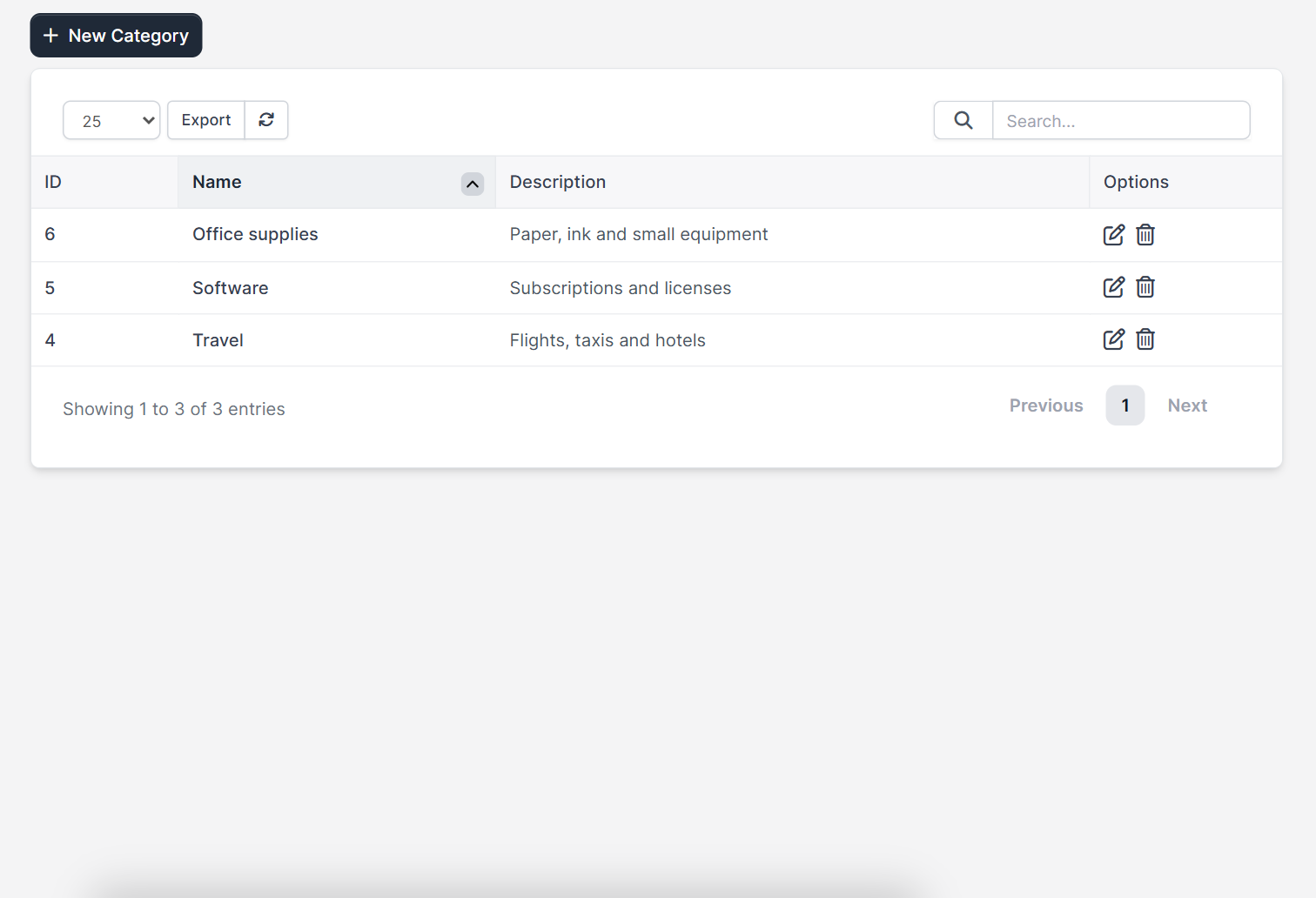
A category is a name with an optional description. You create the list once and pick a category every time you record an expense. Open Setup > Finance > Expenses Categories. The table shows the ID, the name, the description and the edit and delete icons, with a New Category button above it.
Step 1: Plan your categories #
Think about the questions your reports must answer. A short list works best, for example:
- Travel: flights, taxis and hotels
- Software: subscriptions and licenses
- Office supplies: paper, ink and small equipment
- Marketing: ads and printing
- Professional fees: accountant and lawyer
Ask your accountant which groups they need, so the report matches the books. Do not create a category for a single purchase.
Why Perfex CRM expense categories matter #
Without Perfex CRM expense categories, an expense list is only a long list of amounts. With them, you can answer questions such as how much you spent on travel last quarter or whether software costs are rising. Each expense category also makes tax time easier, because your accountant gets totals that already match the groups in the books.
Step 2: Add one of your Perfex CRM expense categories #
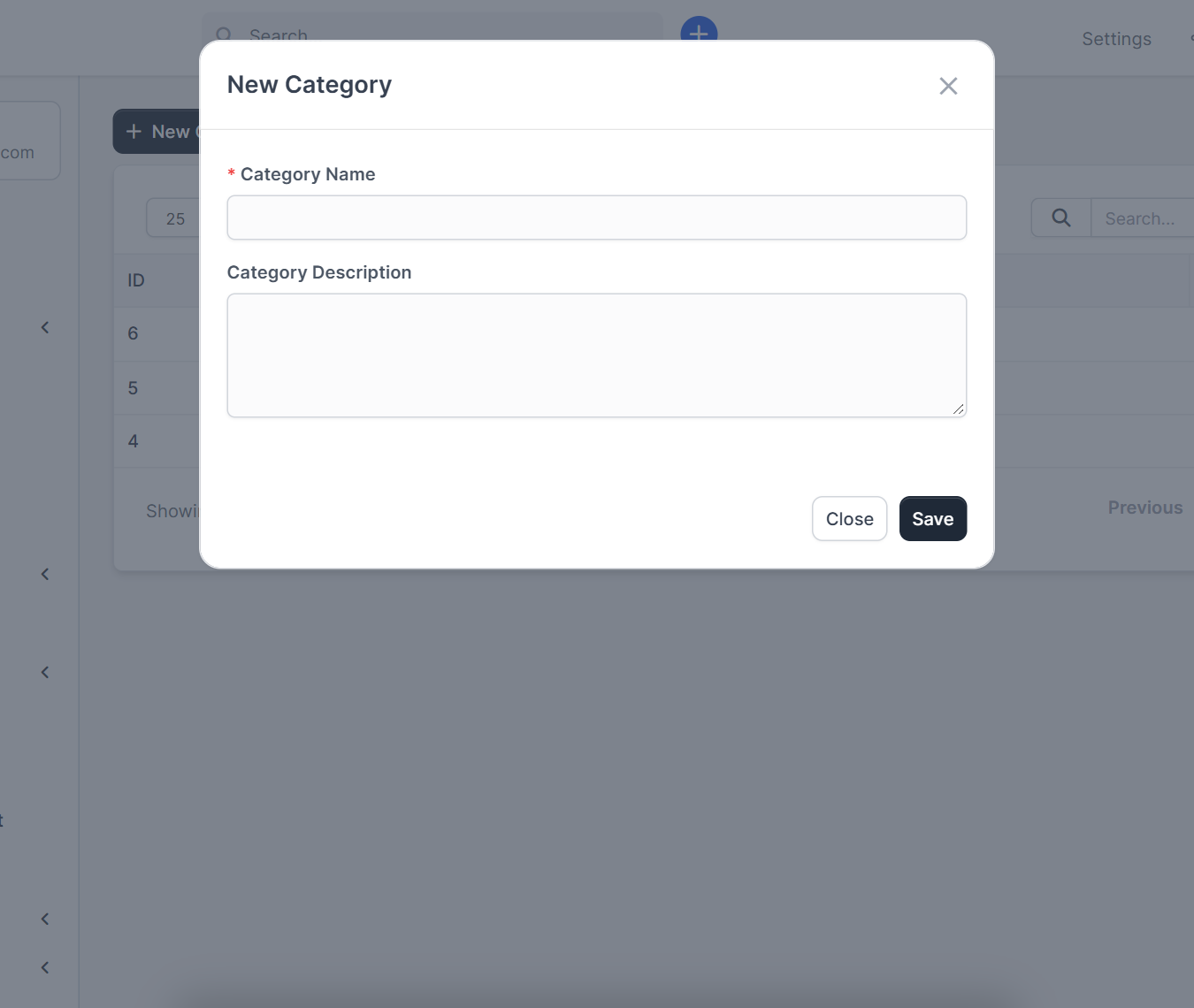
Click New Category. Type the Category Name, which is required, and a short Category Description that tells your team what belongs in it. Click Save. The new Perfex CRM expense categories show up in the list right away, and you can edit or delete them later with the icons.
Step 3: Choose a category when you record an expense #
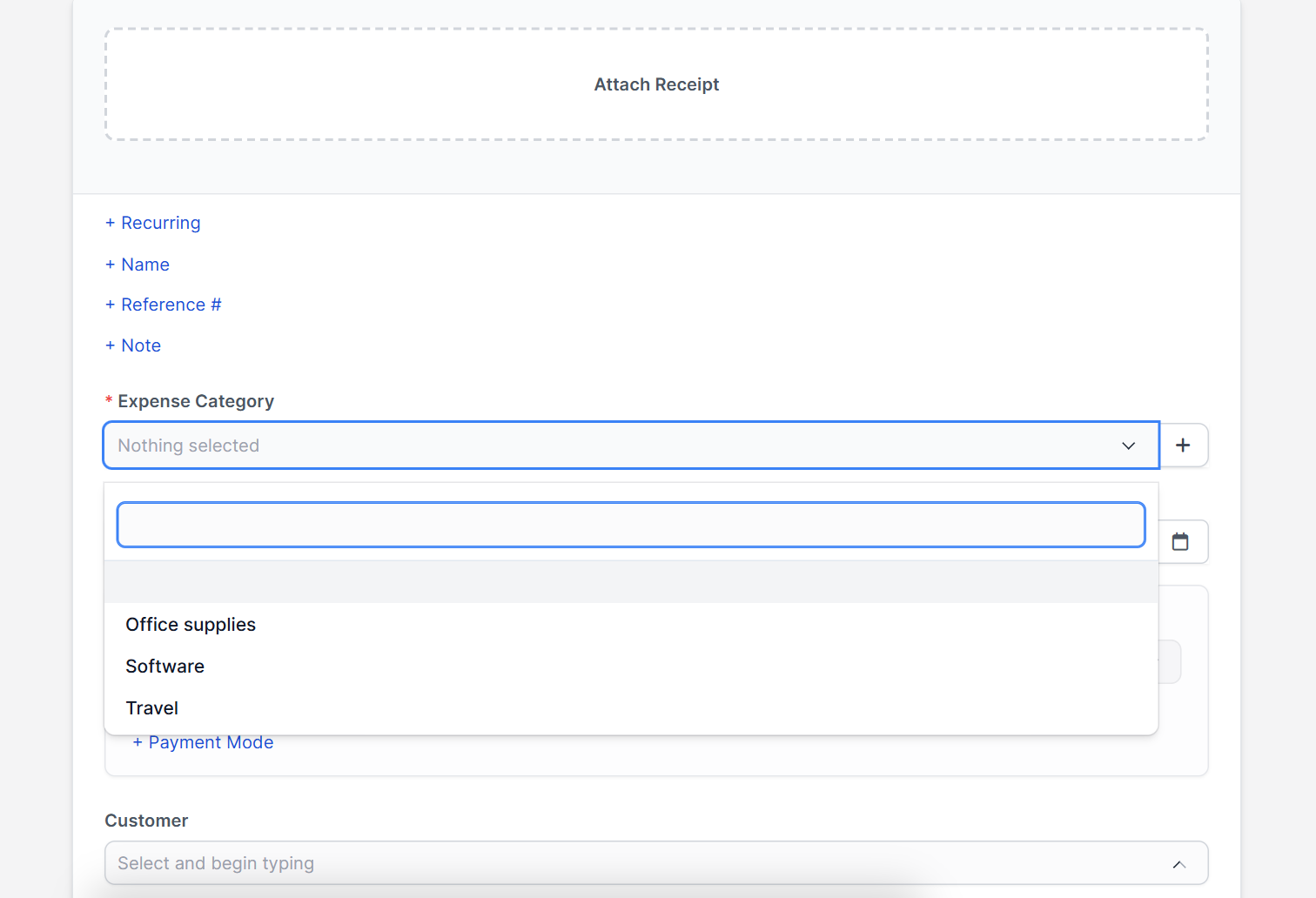
Open Expenses and click Record Expense. The form has a required Expense Category field with a plus button beside it, so you can add a missing category without leaving the form. Choose the category, set the date and the amount, and add a customer if the cost is billable. For all fields see Perfex CRM expenses.
Step 4: Read the expenses report #
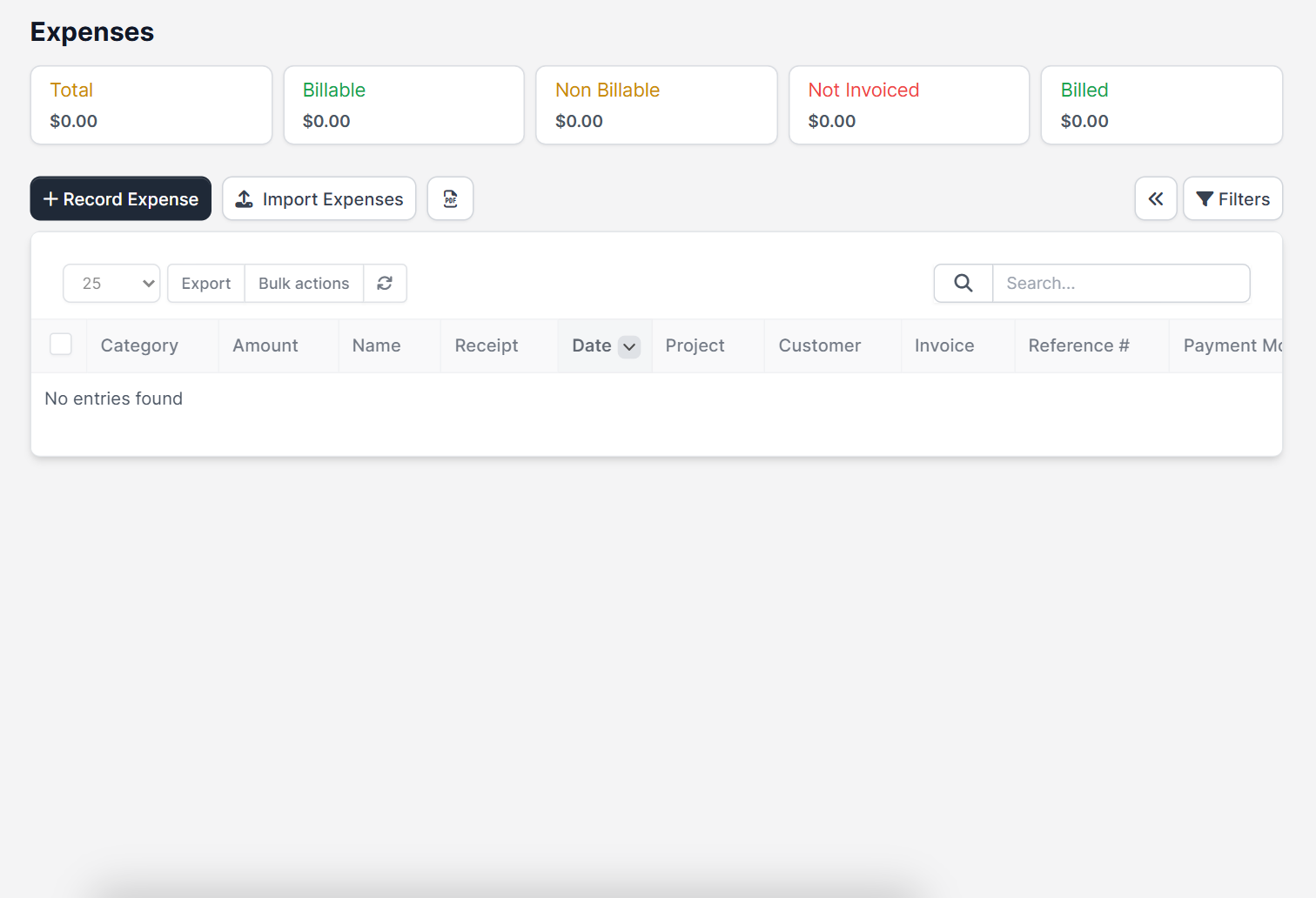
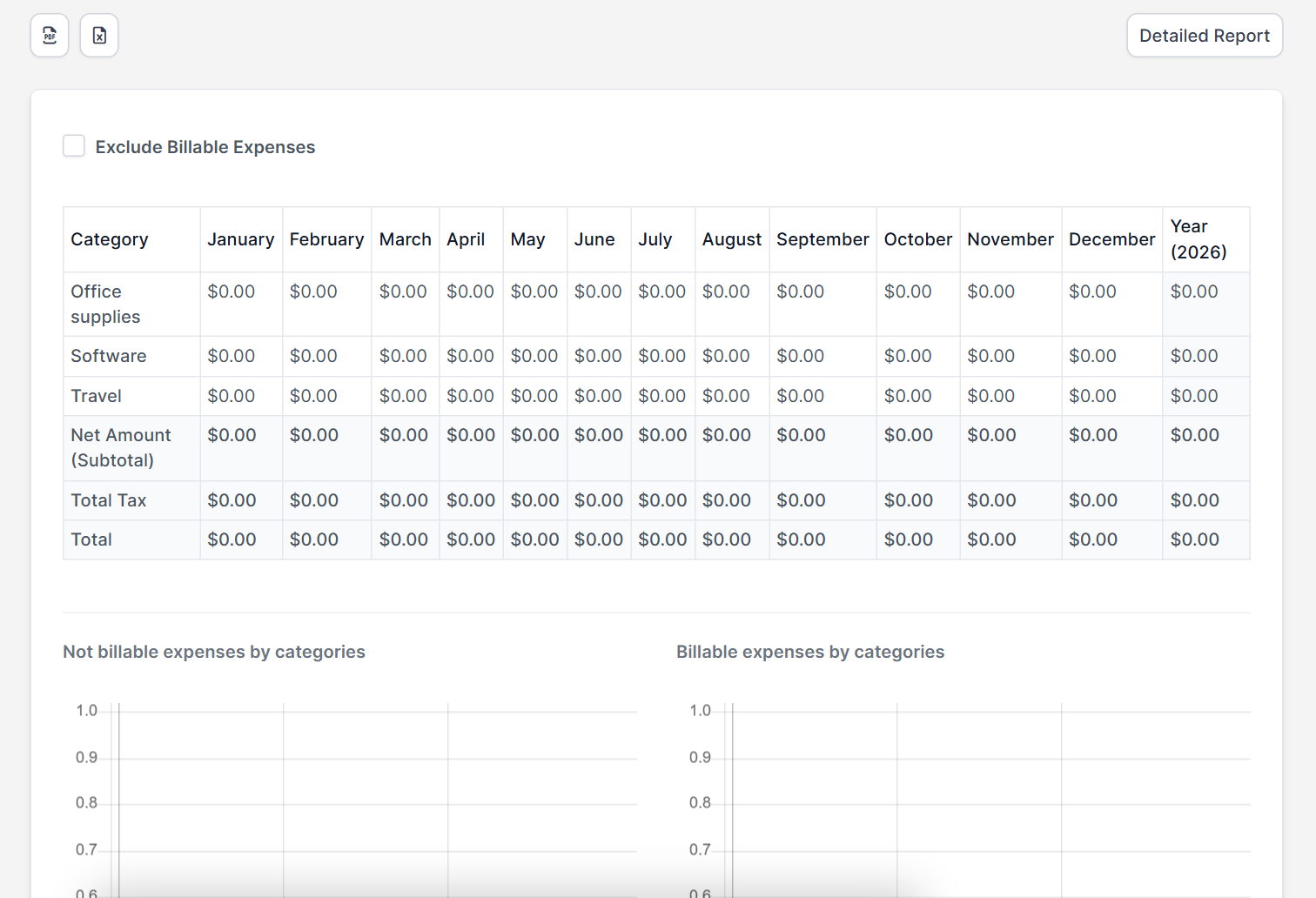
Open Reports > Expenses. The table lists each expense category in a row, with one column for every month of the year and a total, plus the net amount, the total tax and the grand total. Two charts below show billable and not billable expenses by category. Because the demo CRM has no expenses yet, every cell shows zero, but the categories are already listed.
Tips for expense categories #
- Review the list once a year and merge categories you rarely use.
- Rename a category instead of deleting it, so old expenses keep their group.
- Pair categories with Perfex CRM tax rates so the tax on each expense is correct.
- Bill expenses to customers with Perfex CRM create invoice.
- Keep full books with the Financial Management module, which also reads your expenses.
The official Perfex CRM help has more about expenses. What happens to existing expenses when a category is deleted was not tested.
Frequently asked questions #
Where do I add Perfex CRM expense categories? #
Open Setup, Finance, Expenses Categories and click New Category.
Can I add an expense category while I record an expense? #
Yes. The Expense Category field has a plus button for adding one without leaving the form.
Is a category required for every expense? #
Yes. The Expense Category field is marked as required on the form.
Where can I see expenses by category? #
Open Reports, Expenses. The report lists each category with a column for every month.


