
- Where to find Perfex CRM estimates
- Step 1: Click Create New Estimate
- Step 2: Choose the customer and project
- Step 3: Set the number, dates and status
- Step 4: Add the items
- Step 5: Add notes and terms
- Step 6: Send the estimate
- Step 7: Convert an accepted estimate
- Settings that change Perfex CRM estimates
- Tips for better Perfex CRM estimates
- Perfex CRM estimates FAQ
- Modules that extend your sales process
- Summary
Perfex CRM estimates let you send a price offer before work starts. The customer can accept or decline it online, and an accepted estimate can become an invoice with one click. This guide shows how to create, send and follow Perfex CRM estimates, and where the settings that change their look are.
Where to find Perfex CRM estimates #
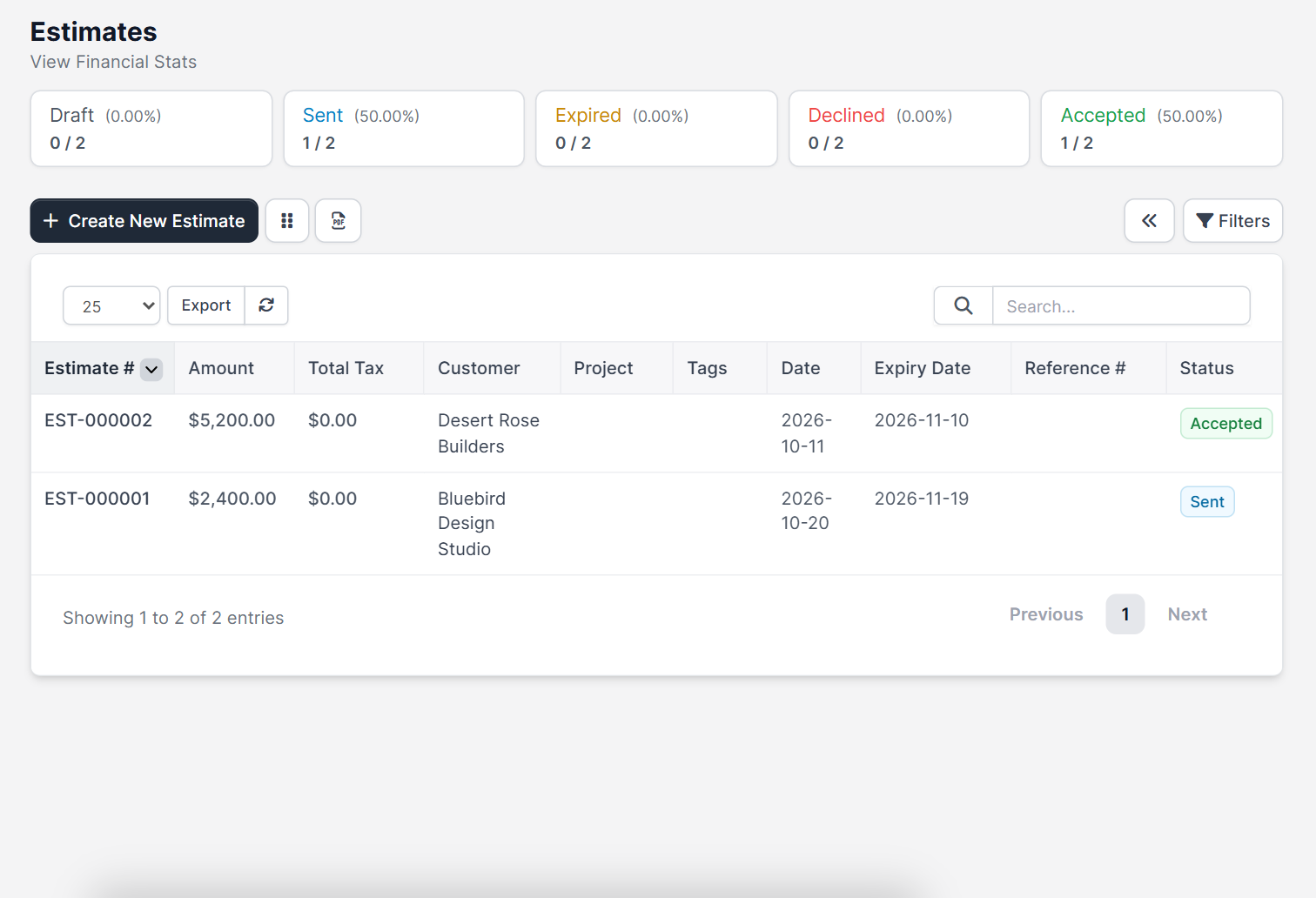
Open Sales > Estimates. The top of the page counts estimates by status: Draft, Sent, Expired, Declined and Accepted, each with its share of the total. Below you see a table with Estimate #, Amount, Total Tax, Customer, Project, Tags, Date, Expiry Date, Reference # and Status. Use Filters to find estimates by status, year or sale agent.
Step 1: Click Create New Estimate #
Click Create New Estimate. The form has a left side with the customer details and a right side with the numbers and dates. Before you start, make sure the customer exists. If not, read how to add a Perfex CRM new customer.
Step 2: Choose the customer and project #
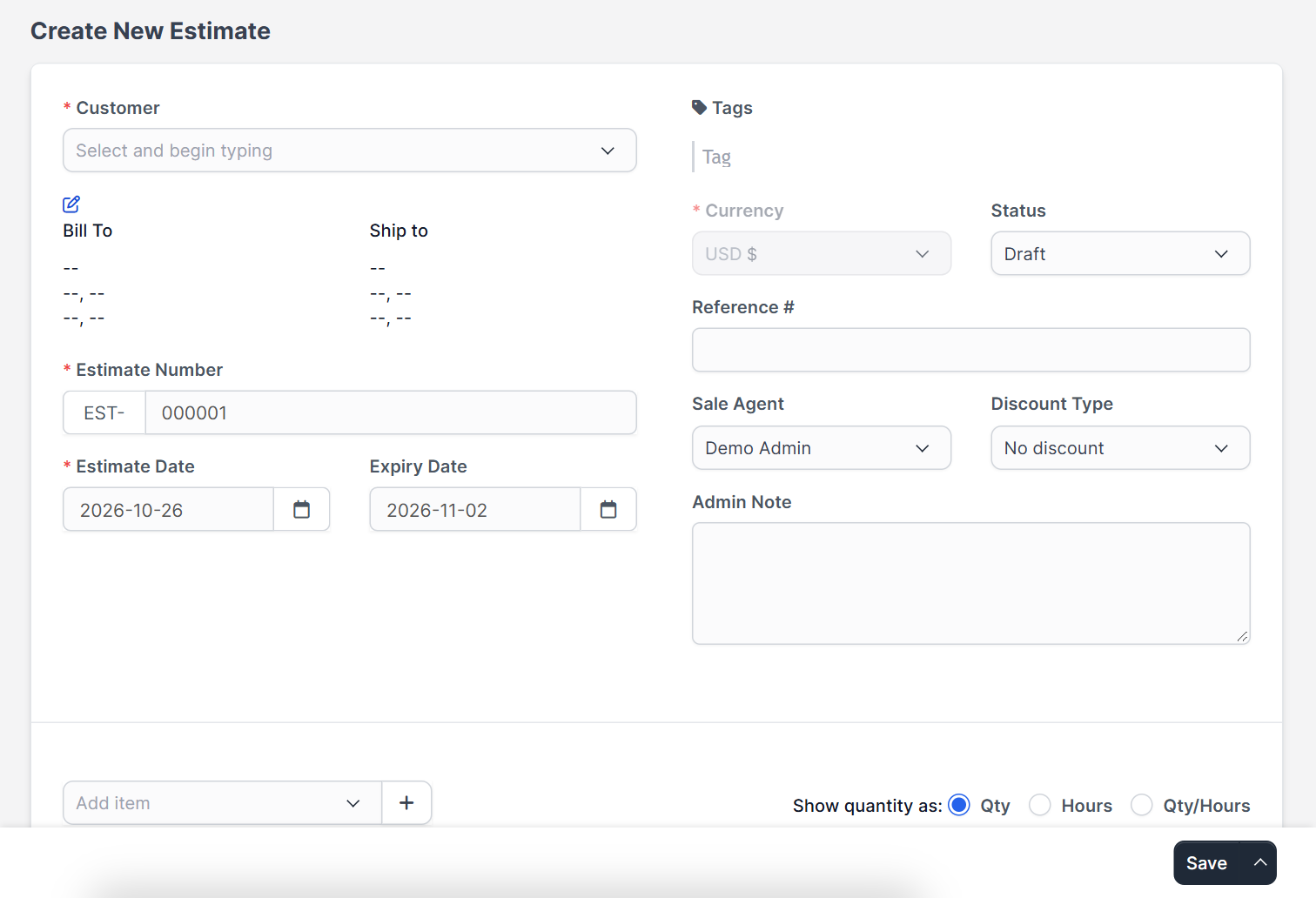
Select the Customer by typing the first letters. The billing address is filled in, and you can pick a Project if the offer belongs to one. The Shipping Address block has a switch Show shipping details in estimate.
Step 3: Set the number, dates and status #
- Estimate Number follows your numbering format.
- Estimate Date and Expiry Date show how long the offer is valid.
- Currency comes from the customer. See Perfex CRM currencies.
- Status starts as Draft, Reference # is for the customer’s own number, and Sale Agent is the staff member who owns the offer.
- Discount Type can be no discount, before tax or after tax.
Step 4: Add the items #
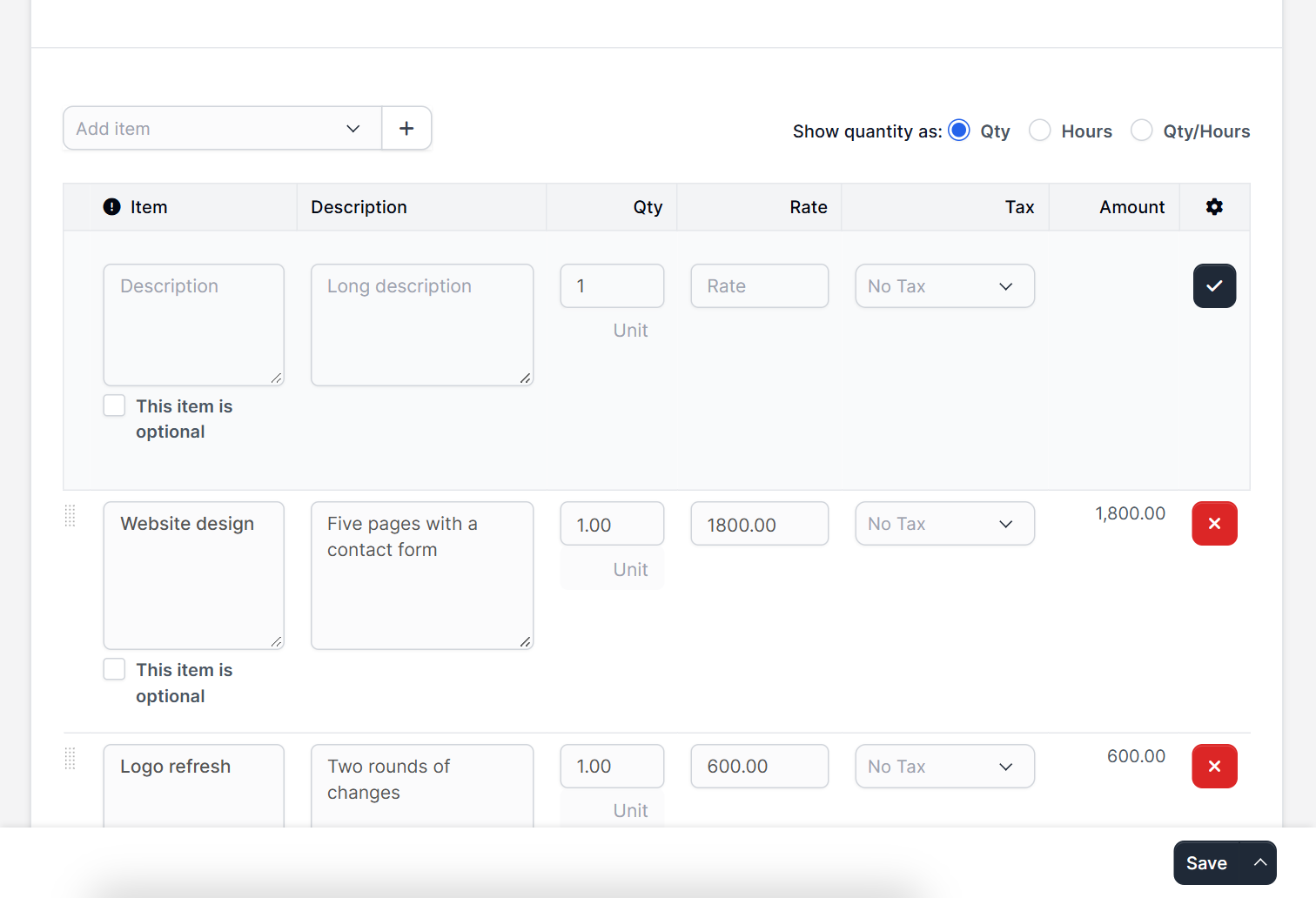
In the items table choose Add item or pick one from your saved list. Each row has a description, quantity, rate, tax and amount. A switch on the row marks an item as optional, so the customer can choose it. Save products once under Perfex CRM invoice items and reuse them in every estimate.
Step 5: Add notes and terms #
Use Client Note for text the customer sees, Terms & Conditions for payment and delivery rules and Admin Note for yourself. Click Save.
Step 6: Send the estimate #
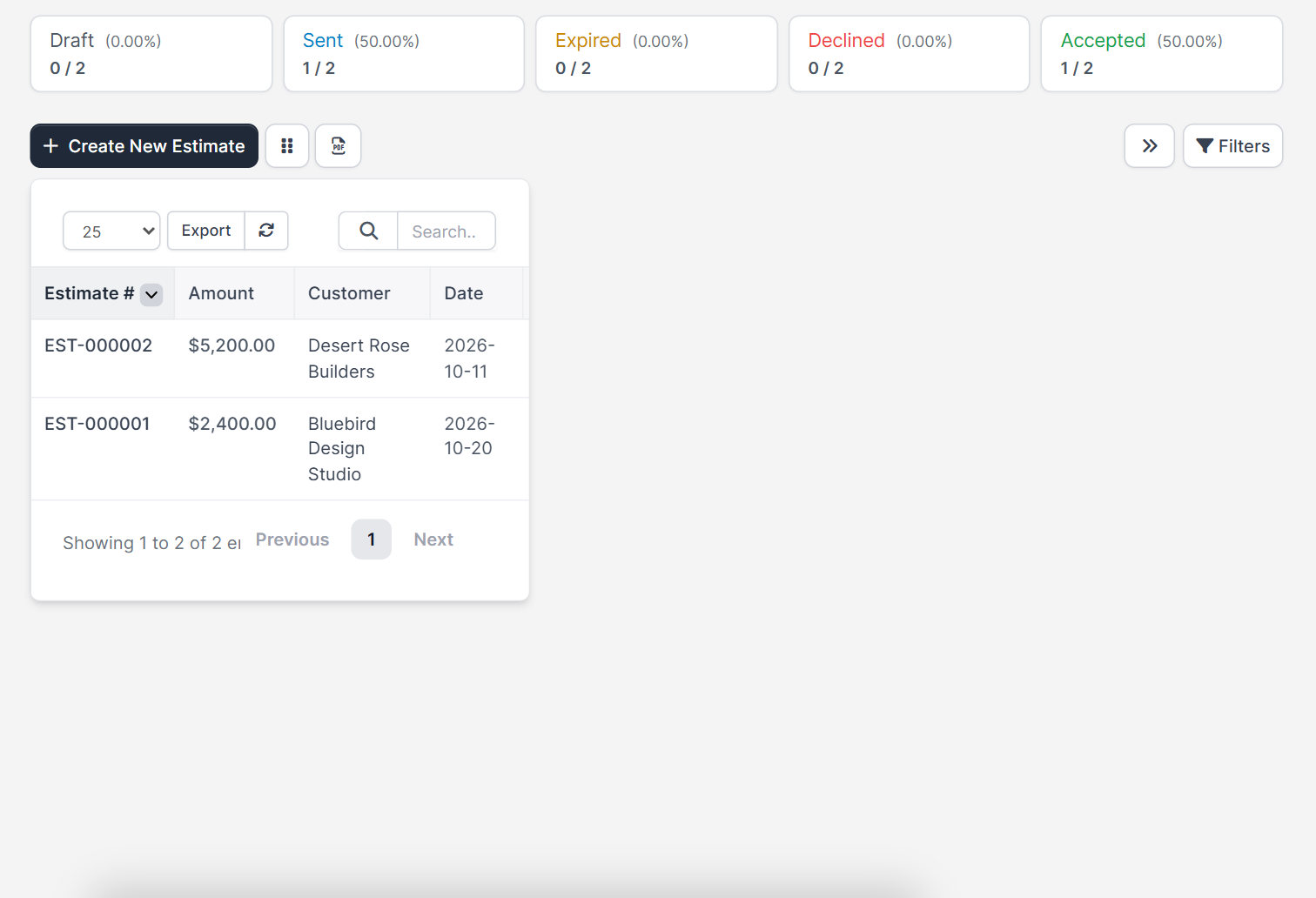
Save the estimate and open it from the list. The list counters then update, for example one Sent and one Accepted estimate. From the estimate view you can change the status, send it by email and download the PDF. The email text comes from your Perfex CRM email templates, and the message only leaves your server when SMTP is set up.
Step 7: Convert an accepted estimate #
When the customer accepts, change the estimate to an invoice from the same preview. Items, taxes and the customer are copied, so you do not type anything twice. For repeating work, set up Perfex CRM recurring invoices afterwards.
Settings that change Perfex CRM estimates #
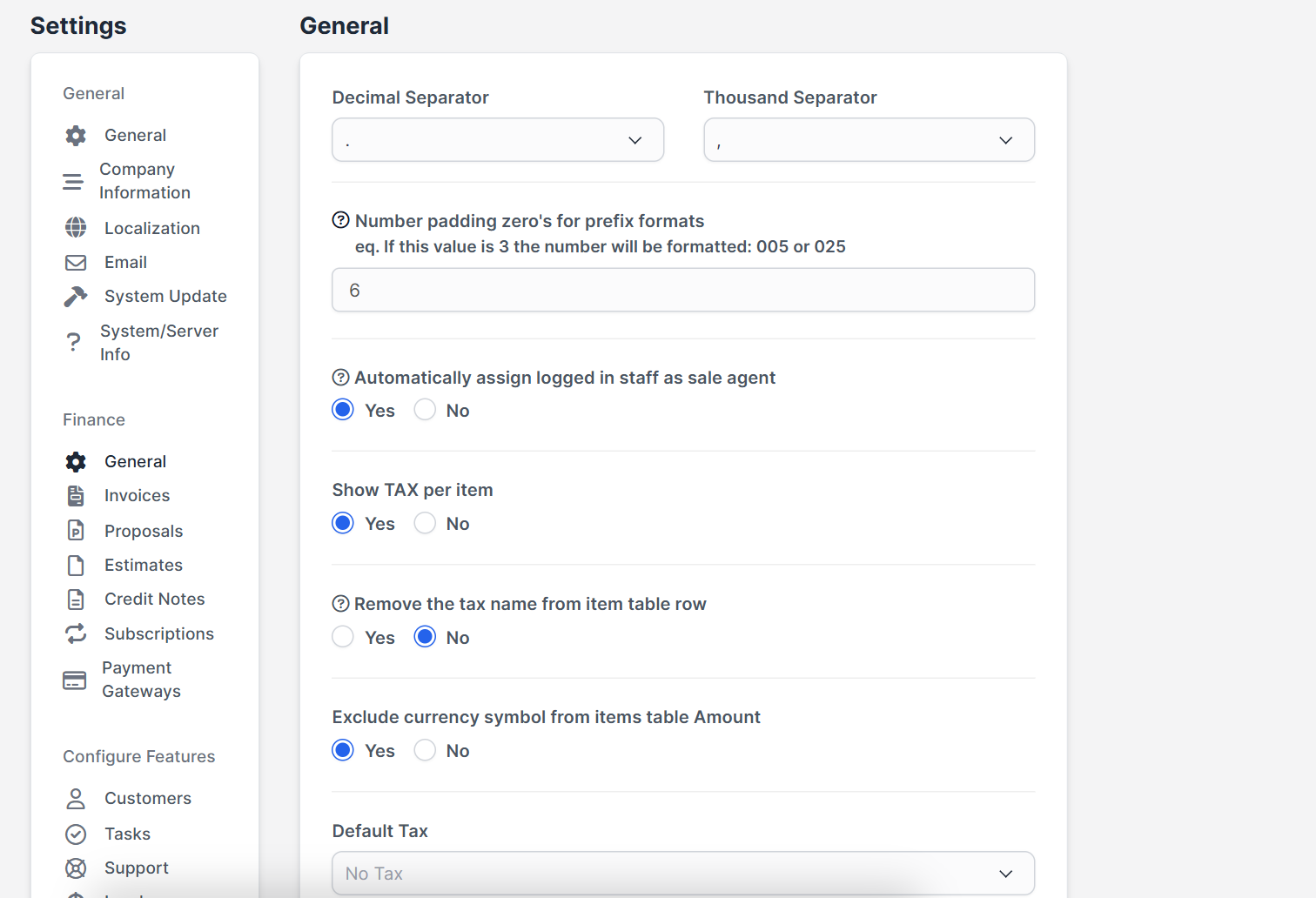
Open Setup > Settings > Finance > General. Here you choose the decimal and thousand separators, the number padding for prefix formats (6 gives EST-000001), whether the logged-in staff member becomes the sale agent automatically, whether tax is shown per item, whether the currency symbol is left out of the amount column and the default tax. The same Finance menu also has a separate Estimates page for estimate-specific options.
Tips for better Perfex CRM estimates #
- Use a short expiry date, such as 14 or 30 days, so prices stay fair.
- Describe each item in plain words and add a long description for scope.
- Add a reference number from the customer so they can find it in their system.
- Follow up on Sent estimates before they expire.
- Send from a real staff email, not a no-reply address.
Perfex CRM estimates FAQ #
What is the difference between an estimate and a proposal? #
An estimate is a simple price list with items. A proposal is a longer document with text and sections, often sent to a lead before it becomes a customer.
Can a customer accept an estimate online? #
Yes. The customer opens the link, reviews the items and accepts or declines.
Can I edit a sent estimate? #
Yes, as long as it is not accepted. Tell the customer when you change prices.
Can I use Perfex CRM estimates for a lead? #
Convert the lead first, see how to convert a lead to a customer.
Modules that extend your sales process #
Track stock for estimate items with Inventory Management for Perfex CRM and pay your sales team with the Sales Commission Program. The Financial Management module adds accounting reports.
Summary #
Good Perfex CRM estimates have a clear customer, short expiry date, plain item descriptions and a fast path to an invoice. Create, send and follow up each offer from one screen. More about the product is on the official Perfex CRM website, and well made Perfex CRM estimates win more work.


