
- Where to find Perfex CRM proposals
- Step 1: Click New Proposal
- Step 2: Choose who it is for
- Step 3: Set dates, currency and status
- Step 4: Add the items
- Step 5: Save or save and send
- Step 6: Follow the proposal
- Step 7: Set the proposal options
- Tips for better Perfex CRM proposals
- Perfex CRM proposals FAQ
- Modules that help close deals
- Summary
Perfex CRM proposals are the documents you send before a deal is closed. A proposal can go to a lead who is not a customer yet, or to an existing customer, and it can hold items, prices, a validity date and your own text. This guide shows how to create and send Perfex CRM proposals, which settings control them and how an accepted proposal becomes an invoice.
Where to find Perfex CRM proposals #
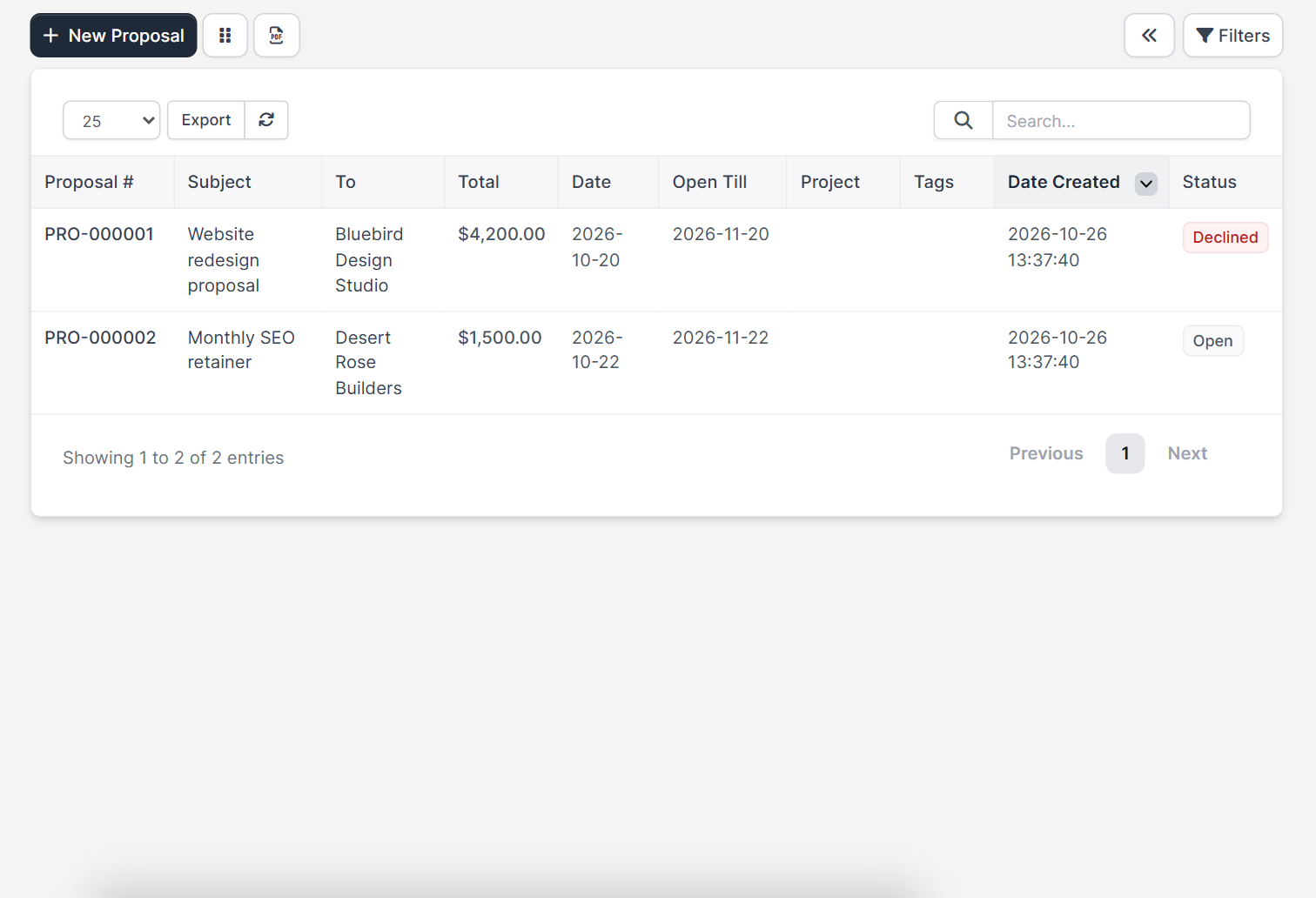
Open Sales > Proposals. The table shows Proposal #, Subject, To, Total, Date, Open Till, Project, Tags, Date Created and Status. Use Filters to narrow the list, and New Proposal to start one.
Step 1: Click New Proposal #
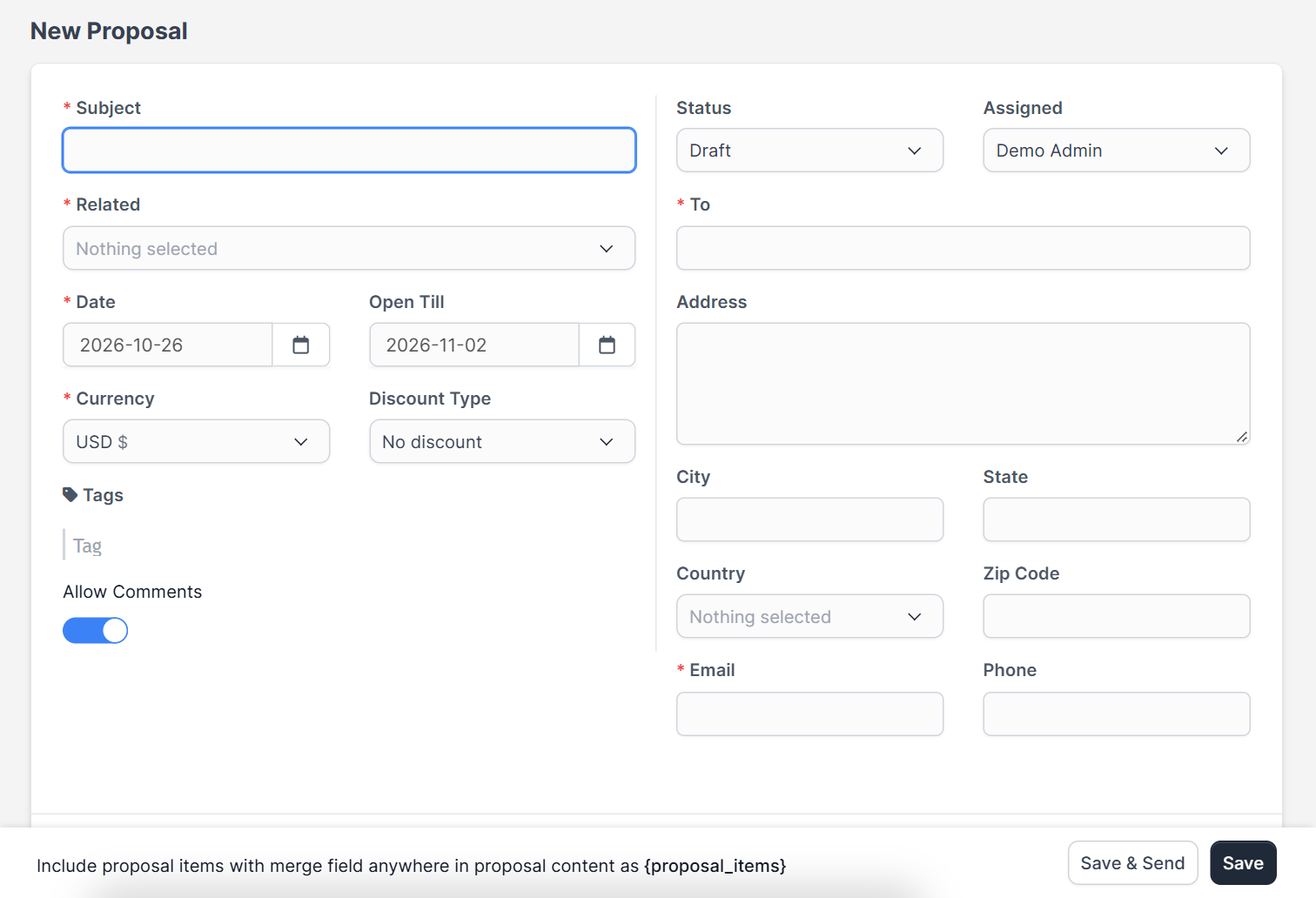
The form opens with the title New Proposal. Give the proposal a clear Subject, such as “Website redesign proposal”. The customer sees it in the email and on the document.
Step 2: Choose who it is for #
In Related pick Lead or Customer, then select the record. The To, Address, City, State, Country, Zip Code, Email and Phone fields are filled in from it. Check the email, because the proposal is sent to that address. If you are starting from a lead, read how to convert a lead to a customer after the proposal is accepted.
Step 3: Set dates, currency and status #
- Date is the day of the proposal and Open Till is the last day it can be accepted.
- Currency follows your default. See Perfex CRM currencies.
- Discount Type can be left on no discount.
- Status starts as Draft, and Assigned is the staff member who owns the proposal.
- Tags and Project help you find it later.
Step 4: Add the items #
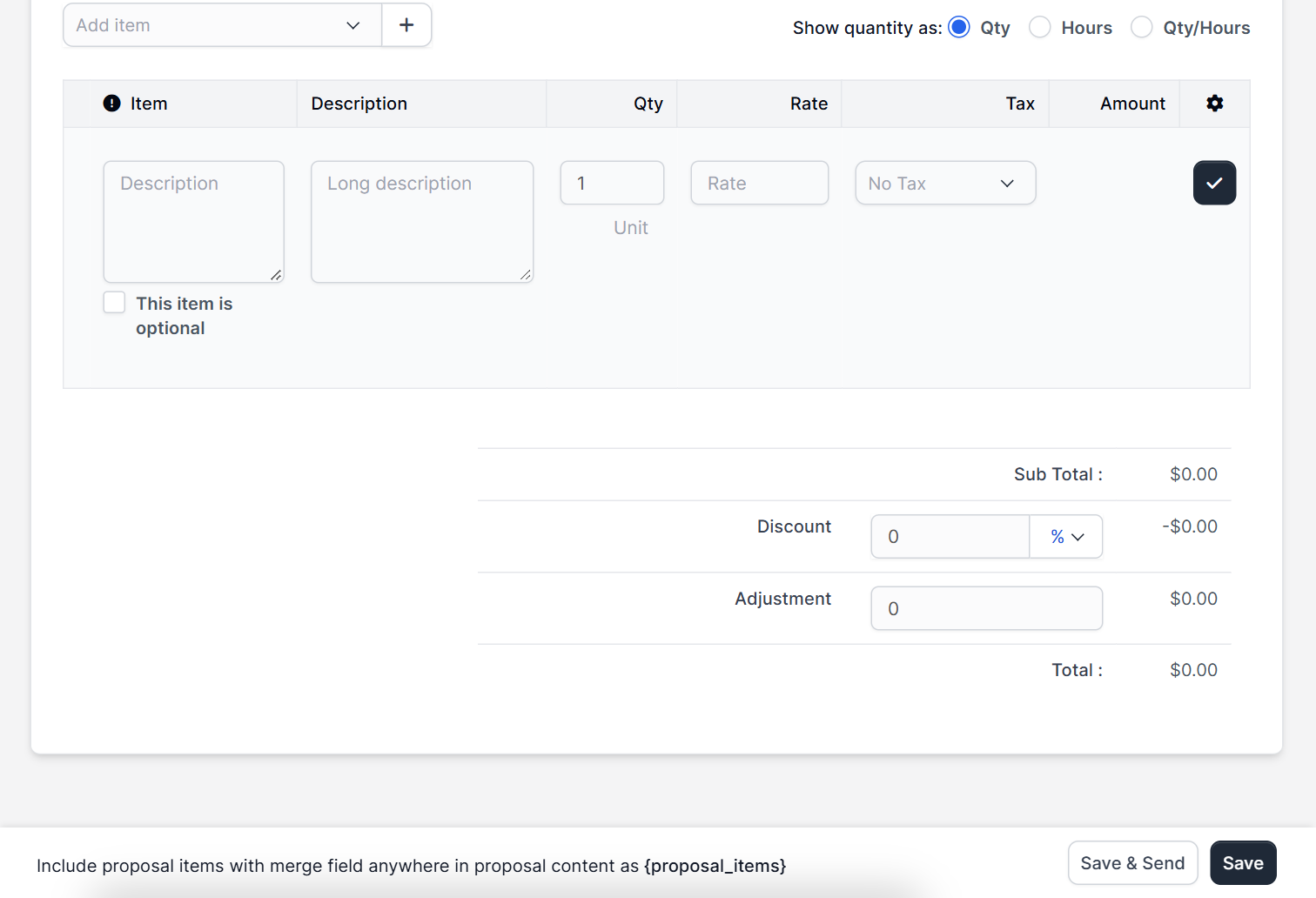
Use Add item to pick a saved item or write a new one. Each row has the item, description, quantity, rate, tax and amount, and you can mark a row as optional so the customer can choose it. Saved items come from Perfex CRM invoice items.
Step 5: Save or save and send #
At the bottom you have Save and Save & Send. Choose Save to keep a draft, or Save & Send to email it at once. The email text comes from your Perfex CRM email templates and needs working SMTP settings.
Step 6: Follow the proposal #
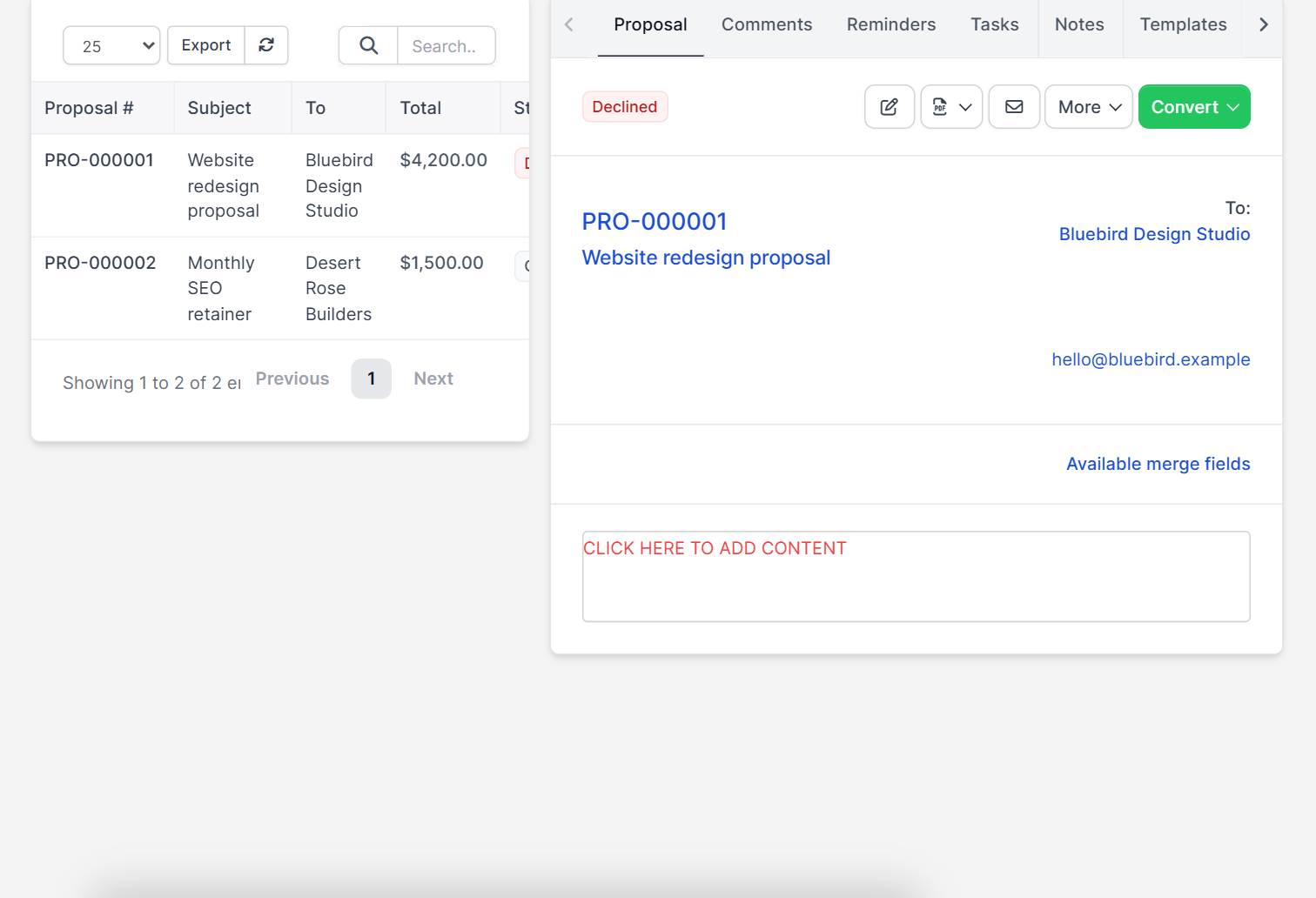
Click a proposal in the list and its view opens beside the table. The tabs are Proposal, Comments, Reminders, Tasks, Notes and Templates. At the top you see the status badge, buttons to edit, download the PDF, send by email and a More menu, plus a green Convert button that turns the proposal into an estimate or an invoice. Keep an eye on the Open Till date and follow up before it passes.
Step 7: Set the proposal options #
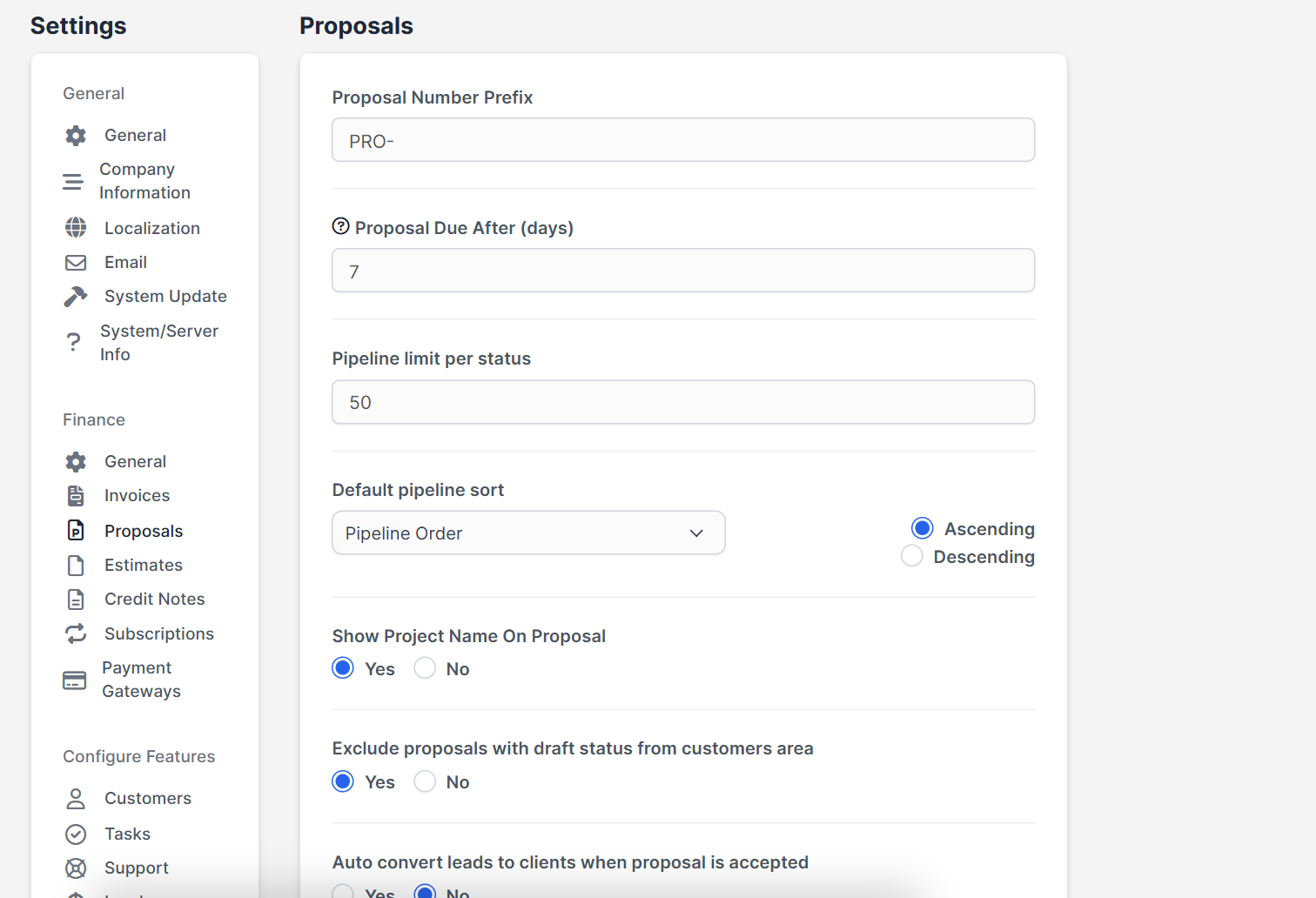
Open Setup > Settings > Finance > Proposals. The page has:
- Proposal Number Prefix and Proposal Due After (days).
- Pipeline limit per status, Default pipeline sort and Pipeline Order for the pipeline board.
- Show Project Name On Proposal.
- Exclude proposals with draft status from customers area.
- Auto convert leads to clients when proposal is accepted and Auto convert the proposal to invoice after client accept.
- Allow staff members to view proposals where they are assigned to and a Proposal Info Format for the PDF and web page.
Tips for better Perfex CRM proposals #
- Keep the subject specific, with the customer’s name or the project.
- Set a short Open Till date so prices stay fair.
- Use optional items for extras instead of sending two documents.
- Switch on auto convert only when you are sure about your process.
- Send from a real staff email so replies reach you.
Perfex CRM proposals FAQ #
What is the difference between a proposal and an estimate? #
A proposal can go to a lead and can carry a longer description. An estimate is a simpler price list for a customer. See Perfex CRM estimates.
Can I send a proposal to a lead? #
Yes. Choose Lead under Related. The lead can become a customer when the proposal is accepted if you turn on the auto convert option.
Can the customer accept online? #
Yes. The customer opens the proposal link and accepts or declines it.
Can I convert an accepted proposal into an invoice? #
Yes, either by hand or automatically with the auto convert setting.
Modules that help close deals #
Follow up by phone with the Call Manager module, keep email threads next to the lead with the Mailbox module and reward your team with the Sales Commission Program.
Summary #
Good Perfex CRM proposals have a clear subject, the right recipient, plain items and a fair open-till date. Use Save & Send for speed and the settings page to control numbering and conversion. More background is on the official Perfex CRM website. Review your Perfex CRM proposals every week and follow up on each one before it closes. Treat every one of your Perfex CRM proposals as a short sales page: a clear subject, honest prices and one next step. Keep a short log of which Perfex CRM proposals were accepted and why, and your next Perfex CRM proposals will be sharper. Fast follow-up on Perfex CRM proposals is usually what wins the deal.


