
Perfex CRM bulk PDF export lets you download many documents as PDF files in one go instead of opening them one by one. It is the quick way to export invoices for your accountant at the end of the month, or to collect all payments of a quarter. This guide, tested on Perfex CRM 3.4.1, shows each field of the export screen.
What Perfex CRM bulk PDF export does #
Open Utilities > Bulk PDF Export. The screen has one form. You choose the type of document, an optional date range and tag, and the status. Perfex CRM then prepares the matching PDF files for download. Use it for a monthly archive, for an audit or to send a batch to your accountant.
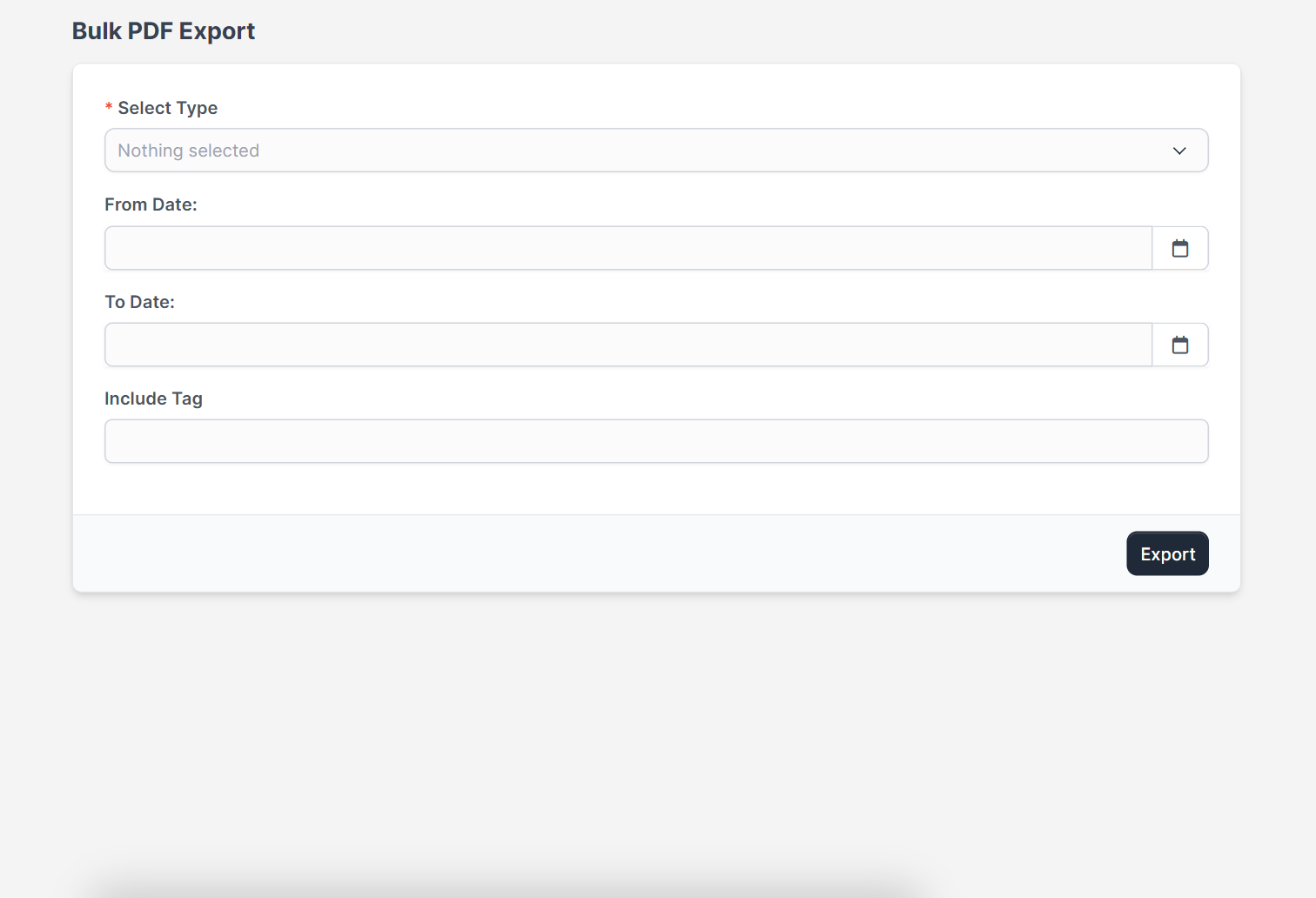
When to use Perfex CRM bulk PDF export #
Use Perfex CRM bulk PDF export when you need many documents at once. The most common reason is the accountant: at the end of a month or a quarter you export invoices, payments and credit notes and send them together. It also helps in an audit, when you must show all estimates of a year, and when you move to another system and want an archive of your documents. If you only need a single document, open it and download that one PDF instead.
To export invoices for your accountant, choose the type Invoices, set the month and keep the status on All. Then export invoices again with the type Payments, so your accountant can match each payment to an invoice.
Step 1: Select the type #
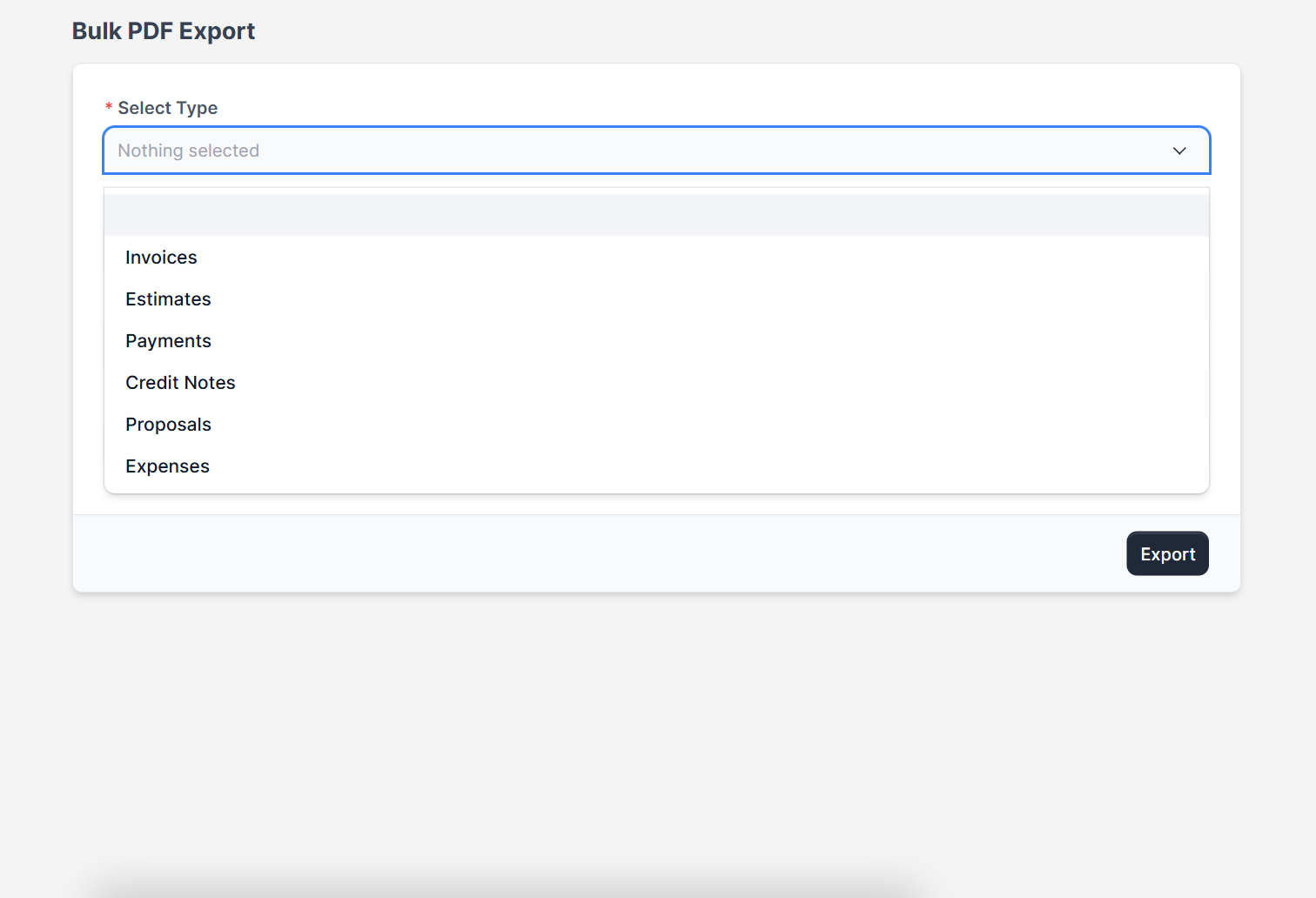
Click Select Type (required). The list offers six types:
- Invoices
- Estimates
- Payments
- Credit Notes
- Proposals
- Expenses
Step 2: Choose the status #
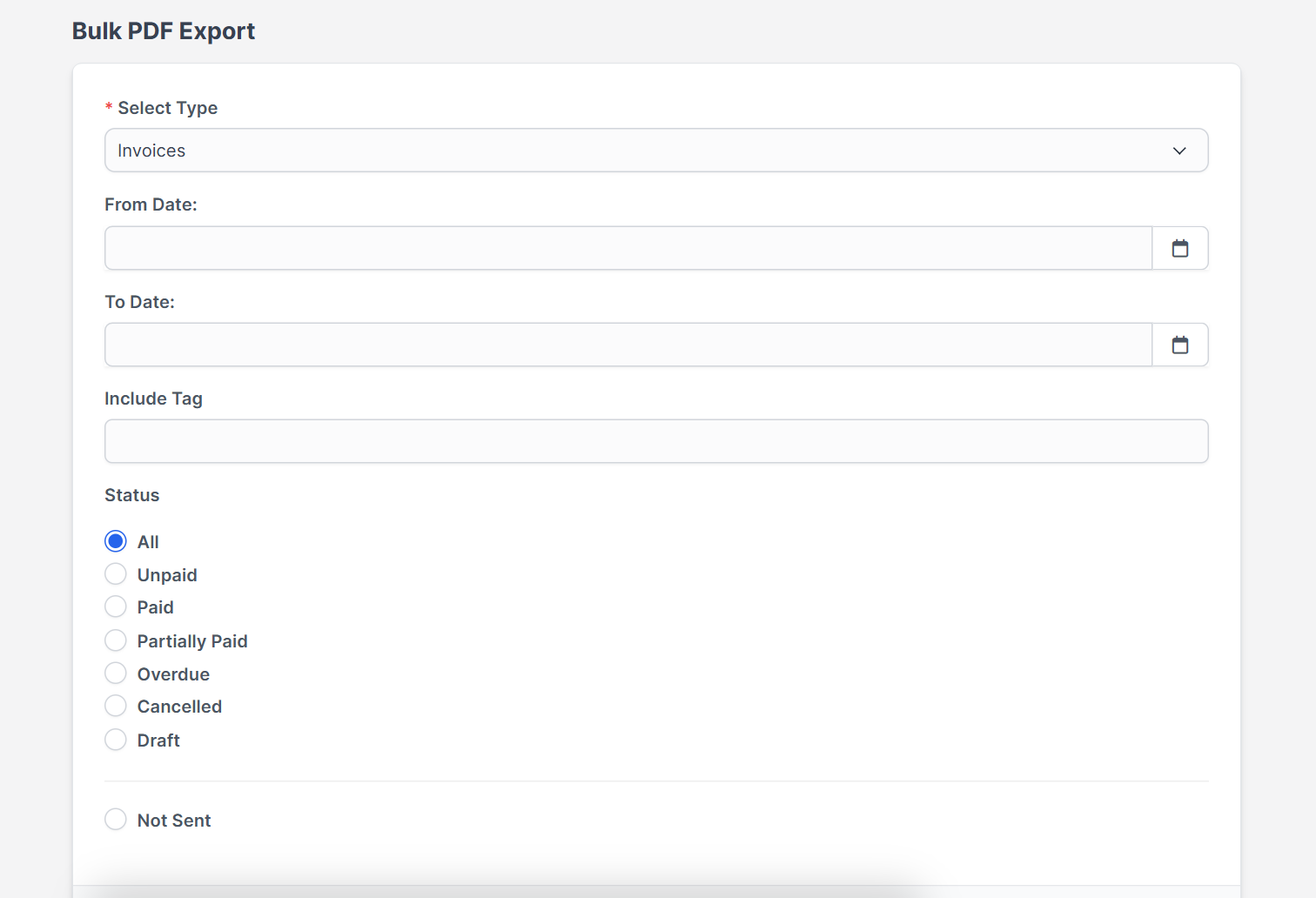
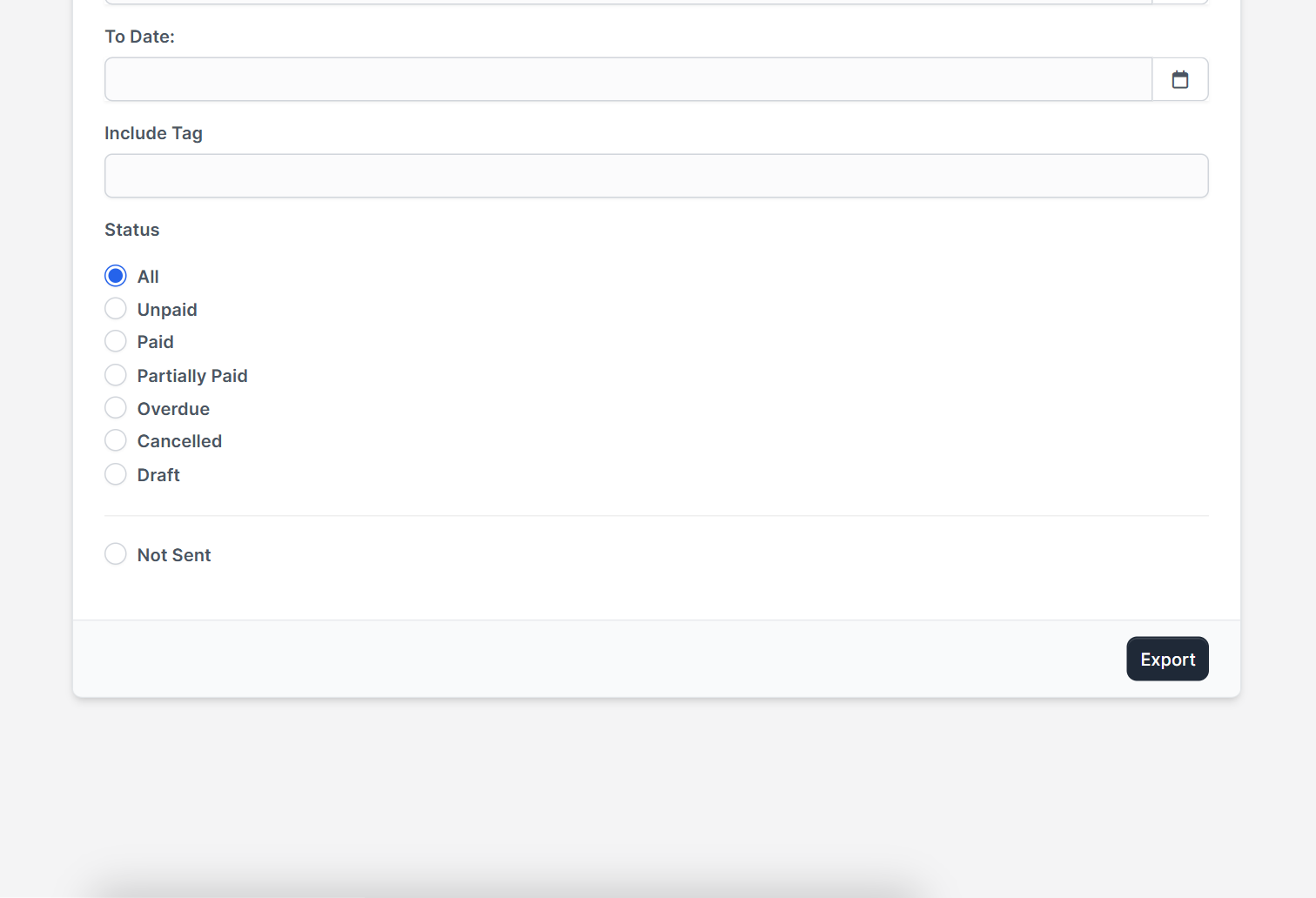
After you select Invoices, a Status list appears with radio buttons: All, Unpaid, Paid, Partially Paid, Overdue, Cancelled, Draft and Not Sent. Choose All to export every invoice in the period, or one status when the accountant only needs paid invoices. The other types show their own statuses, for example Draft, Sent, Accepted or Declined for estimates.
Step 3: Set the date range and tag #
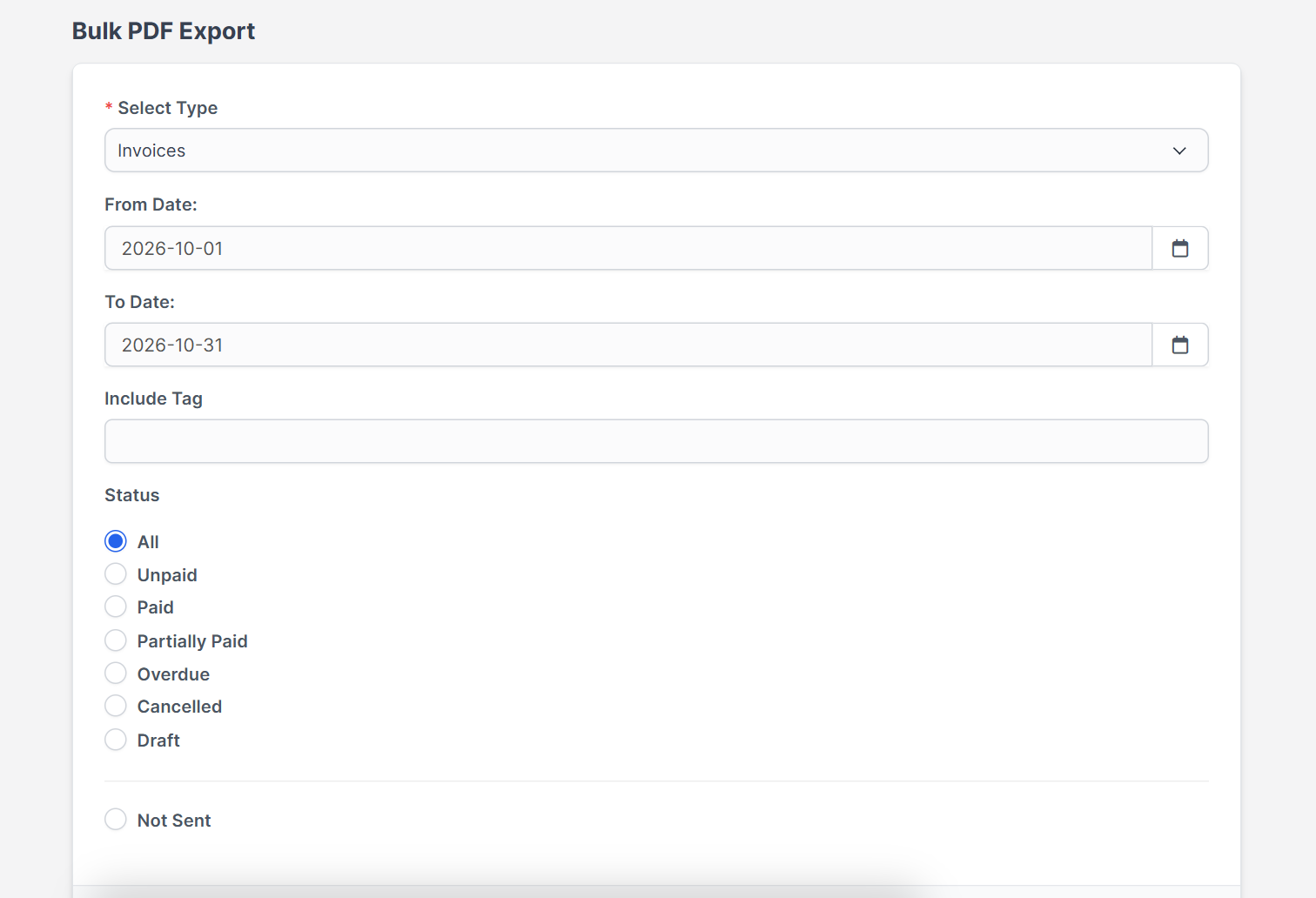
Use From Date and To Date to limit the export to a month or a quarter, for example 2026-10-01 to 2026-10-31. The optional Include Tag field lets you export only the documents that carry a tag you added before. Leave the dates empty when you want everything.
Step 4: Export #
Check the type, the status and the dates once more, then click Export at the bottom of the form. Payments have one more option, Payment Modes, to export only the payments made with a given method. Large exports can take a while on a small server, so export one month at a time.
Tips for exporting invoices and other PDFs #
- Check how your PDFs look first, see Perfex CRM PDF settings and Perfex CRM company logo.
- Create the invoices to export with Perfex CRM create invoice.
- Keep the books behind the PDFs with the Financial Management module.
- Use a naming habit: export one type per month and store the files in one folder per year.
- Read the official Perfex CRM help for more about the Utilities menu.
The screenshots show the form with demo data. The export itself was not run in this test, so the article does not describe the format of the downloaded file.
Frequently asked questions #
Where is Perfex CRM bulk PDF export? #
Open Utilities and then Bulk PDF Export.
Which documents can I export? #
Invoices, estimates, payments, credit notes, proposals and expenses.
Can I export invoices for one month only? #
Yes. Enter a From Date and a To Date and choose a status before you click Export.
What does Include Tag do? #
It limits the export to documents that carry the tag you enter.


