
Perfex CRM recurring tasks save you from typing the same task again and again. A weekly report, a monthly backup check or a yearly renewal can repeat by itself, and each copy lands in the task list of the right person. This guide, tested on Perfex CRM 3.4.1, shows how to repeat a task, how the custom option works and how to spot a recurring task in the list.
What Perfex CRM recurring tasks are #
A recurring task is a normal task with a repeat setting. You choose how often it repeats and how many times. Perfex CRM then creates the next copy when the cycle comes round, so the work shows up on time without anyone remembering to add it. The copies are created by the cron job, so check Perfex CRM cron job before you rely on them.
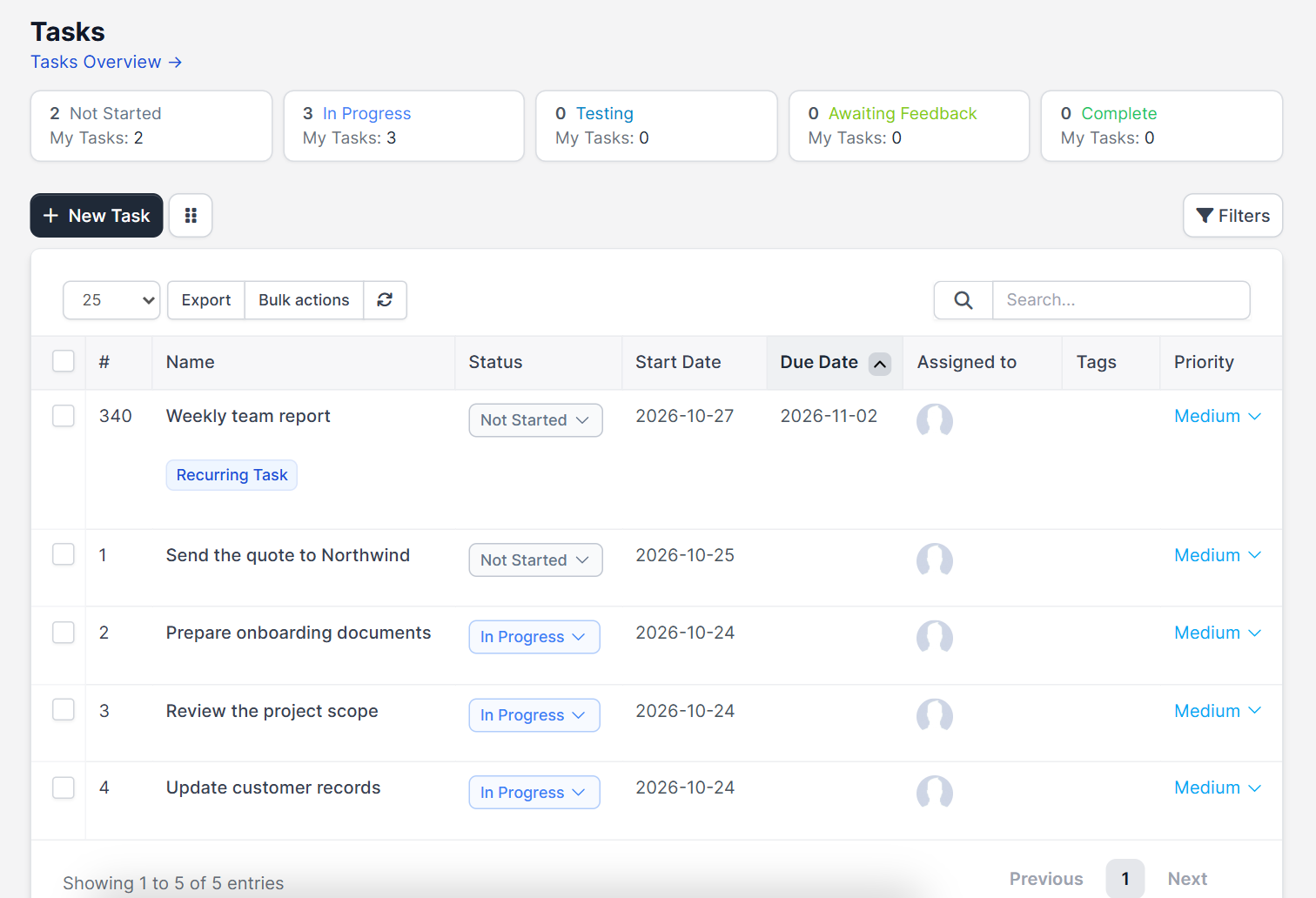
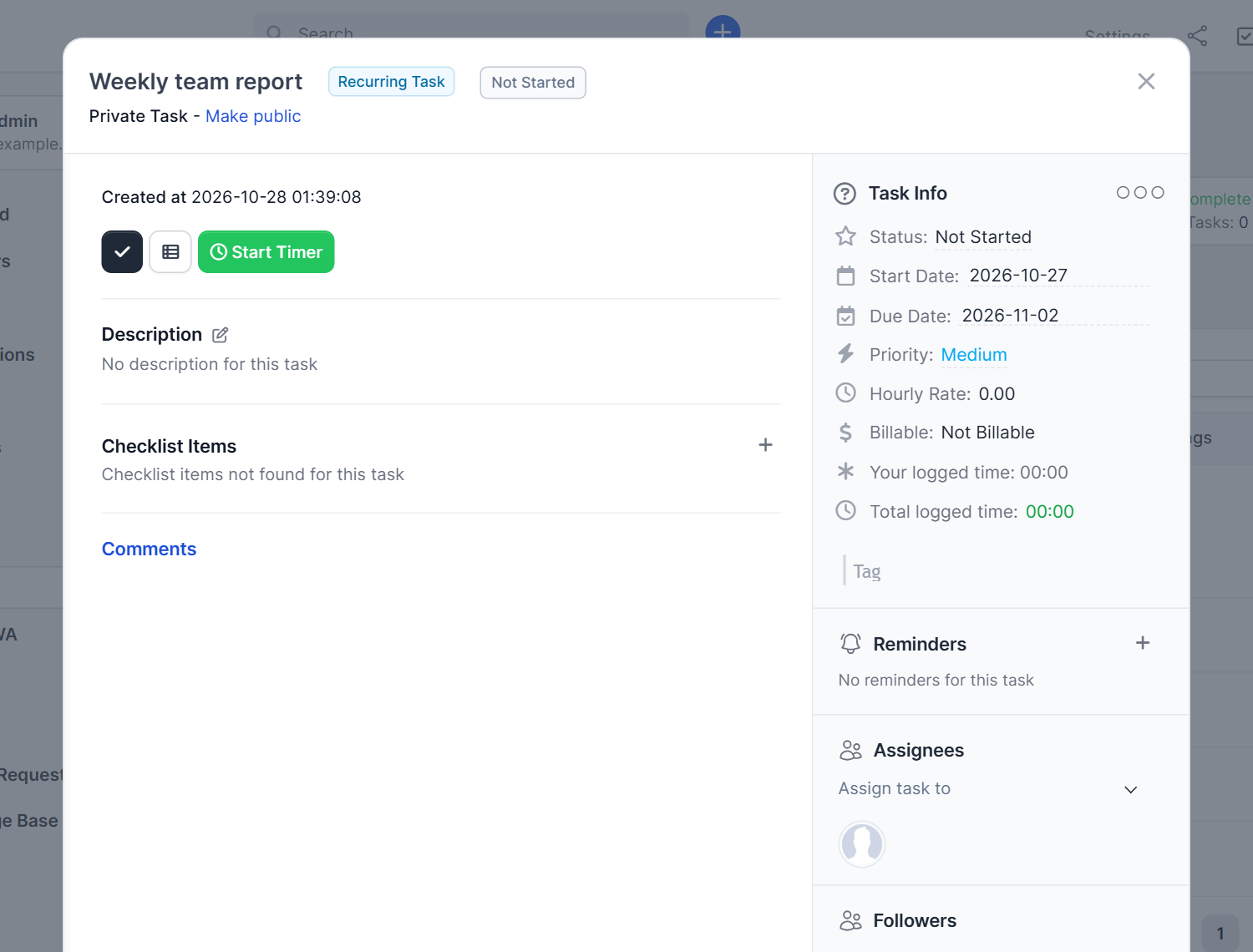
Every recurring task carries a blue Recurring Task badge under its name in the list, so you can tell it apart from a one-off task.
Step 1: Open the form for Perfex CRM recurring tasks #
Open Tasks and click New Task. The form asks for a Subject, an hourly rate, a Start Date and an optional Due Date. Add the priority, the assignees and followers, tags and a description as you do for any task. See Perfex CRM tasks for the basics.
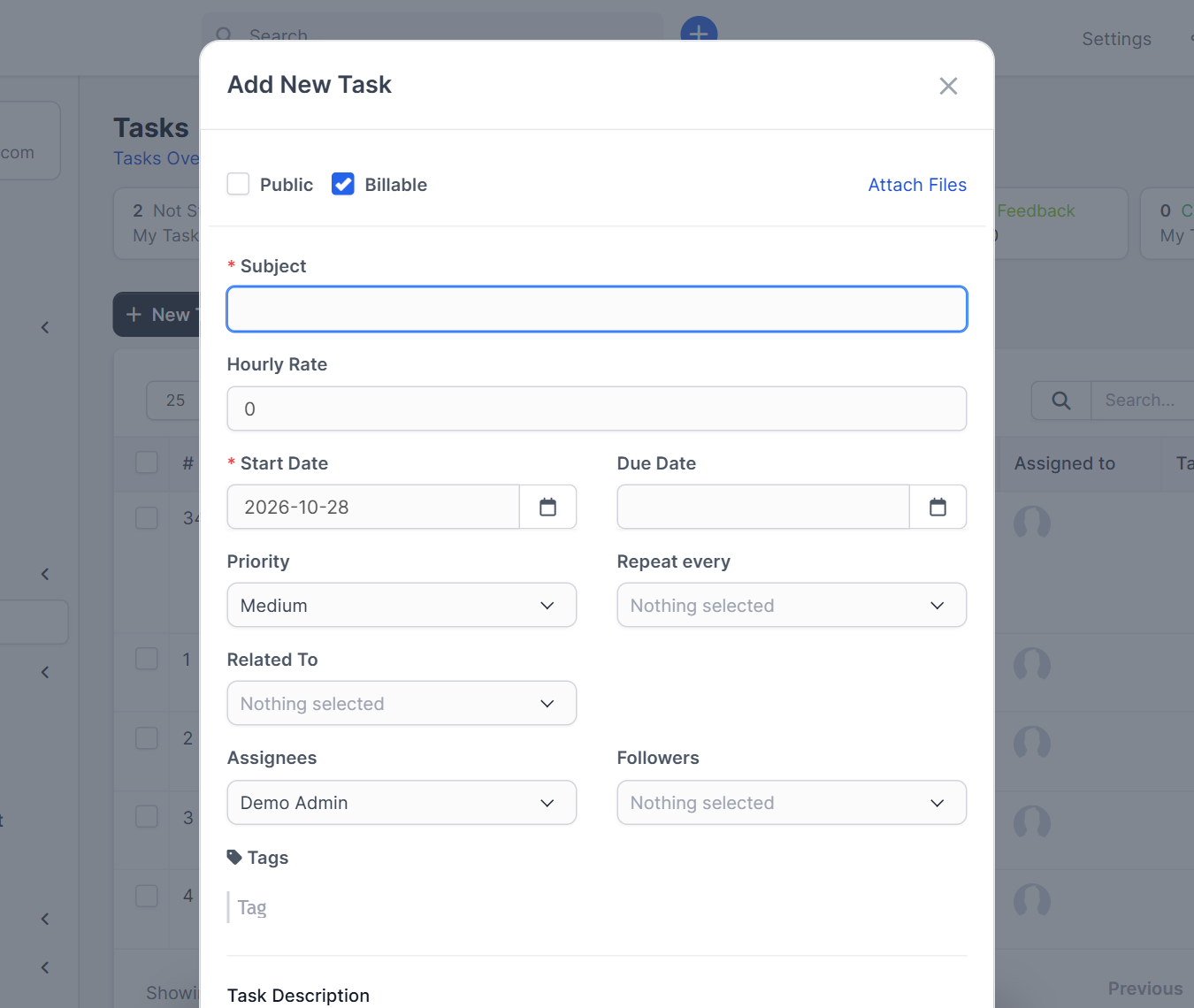
Step 2: Choose how often a repeat task runs #
Find the field Repeat every next to Priority. Open the list and pick a ready-made period:
- Week or 2 Weeks
- 1 Month, 2 Months, 3 Months or 6 Months
- 1 Year
- Custom
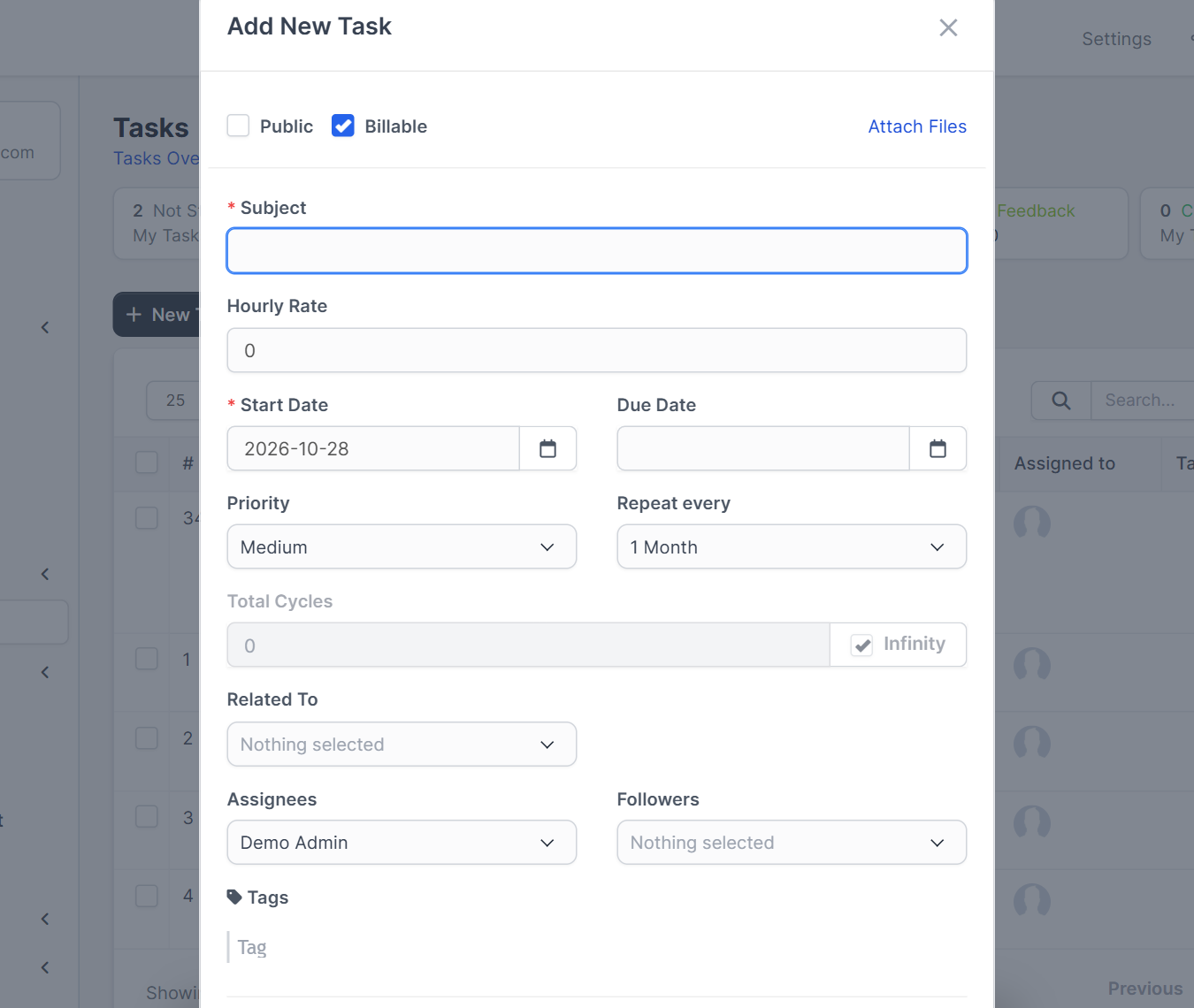
If you leave the field empty, the task is a normal one-time task.
Step 3: Use a custom repeat period #
Choose Custom when the ready-made periods do not fit. Two new fields appear: a number and a unit, which can be Day(s), Week(s), Month(s) or Year(s). For example, 10 days or 3 weeks. A Total Cycles field also appears. Leave the Infinity box ticked to repeat forever, or untick it and type how many times the task should repeat.
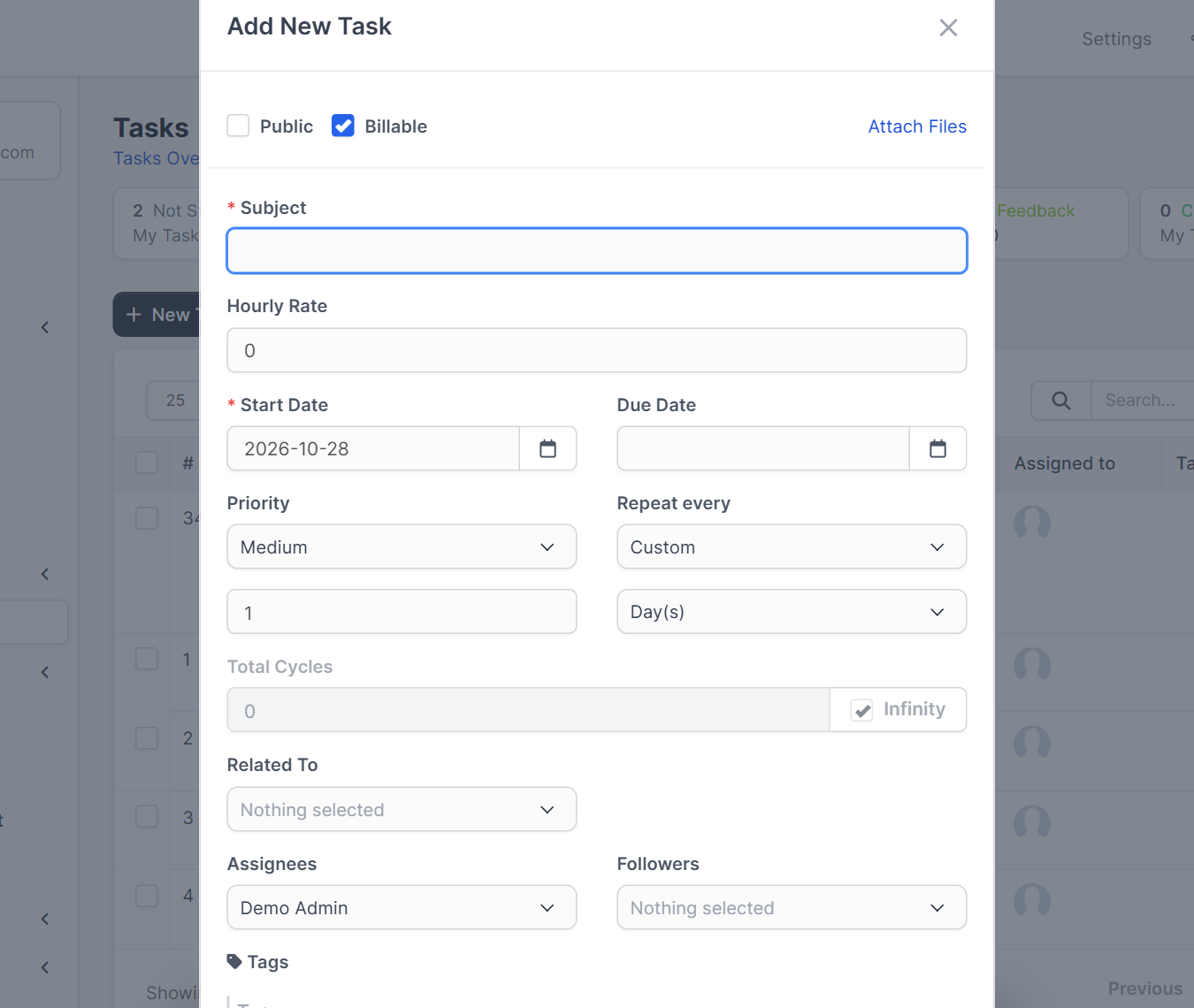
Step 4: Save and check the task #
Click Save. Open the task from the list: the task window shows the Recurring Task label next to the title, with the status, the dates, the priority and the assignees on the right side.
To change or stop the repetition, edit the task and change the Repeat every setting. Your Perfex CRM recurring tasks then follow the new rule.
Ideas for Perfex CRM recurring tasks #
- A weekly team report every Monday
- A monthly check that backups ran
- A quarterly review of open proposals
- A yearly renewal reminder for each customer contract
These tips make a repeat task and your Perfex CRM recurring tasks work better:
- Give the task a clear subject and one assignee, so it has an owner.
- Add a due date a few days after the start date, so late copies stand out.
- Catch late work with Workflow Rules, which can notify a person when a task is overdue.
- Track the time spent on repeat work with Timesheets and Leave Management.
- Read Perfex CRM projects to link repeat tasks to a project.
For more detail see the official Perfex CRM help about tasks. In the demo CRM the creation of the next copy by the cron job was not tested.
Frequently asked questions #
How do I make a task repeat in Perfex CRM? #
Open the new task form, choose a period in the Repeat every field and save the task.
Can I repeat a task every 10 days? #
Yes. Choose Custom, type 10 and select Day(s).
How do I stop Perfex CRM recurring tasks? #
Edit the task and change its Repeat every setting, or set a limited number of Total Cycles when you create it.
Do recurring tasks need the cron job? #
Yes. The cron job creates the next copy, so it must run regularly.


