
Perfex CRM customer groups are labels that help you sort your customers into sets, such as VIP, Wholesale or Newsletter. When you segment customers this way, you find the right people in seconds and keep your customer list organised as it grows. This guide, tested on Perfex CRM 3.4.1, shows how to create groups, assign them and read them in the customer list.
What Perfex CRM customer groups are #
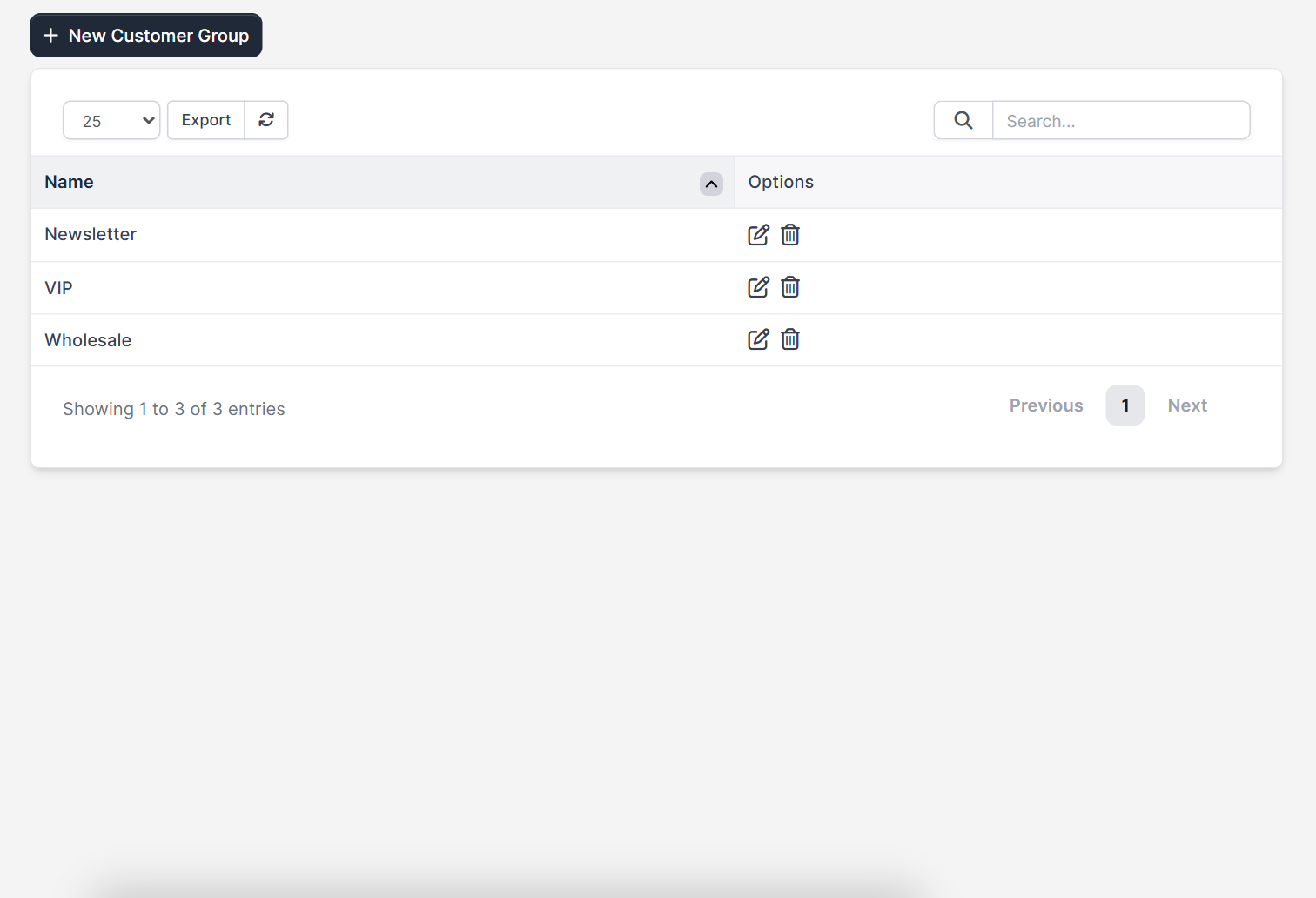
A group is a name that you attach to a customer. One customer can belong to several groups, and one group can hold many customers. In Perfex CRM a group is a label for sorting and finding customers, so you can plan around it. Open Setup > Customers > Groups to see the list. It shows the group names with edit and delete icons, and a New Customer Group button.
Step 1: Plan the groups #
Before you click anything, decide how you want to segment customers. Good groups answer a business question:
- By value: VIP, Standard, Small account
- By type: Wholesale, Retail, Agency, Partner
- By contact rule: Newsletter, Do not call, Quarterly review
- By region or industry: Europe, Gulf, Construction
Keep the list short. Five to ten Perfex CRM customer groups are easy to remember, and a long list of overlapping groups is hard to keep correct.
Step 2: Create a customer group #
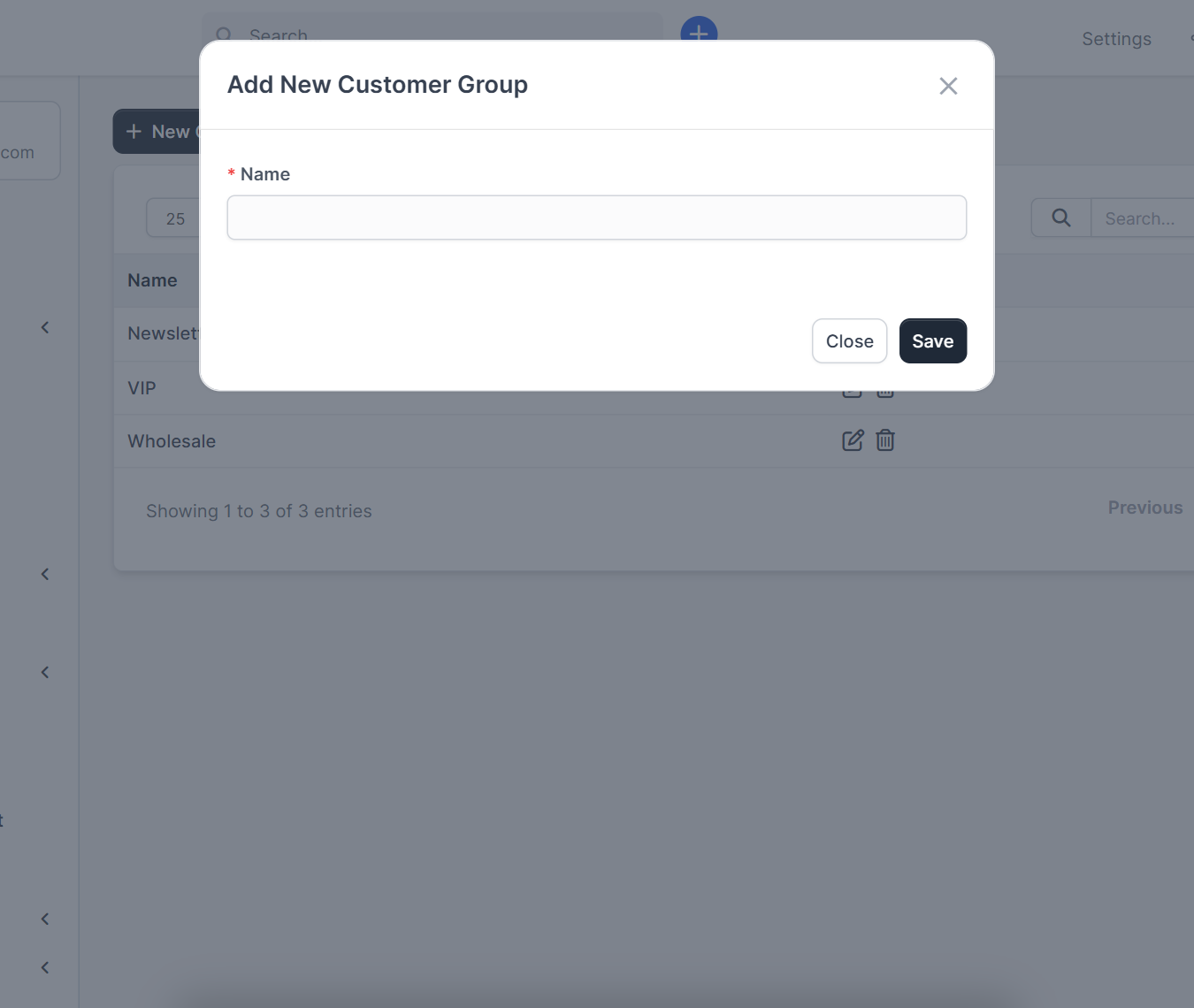
Click New Customer Group. A small window opens with one required field, the Name. Type the name, for example VIP, and click Save. The new group appears in the list straight away. Use the edit icon to rename a group later, and the delete icon when you no longer need it.
Step 3: Assign groups to a customer #
Open a customer from Customers and stay on the Profile tab. The Groups field sits next to the phone and website fields. Click it and choose one or more groups. The plus button next to the field lets you create a new group without leaving the customer. Click Save at the bottom of the form.
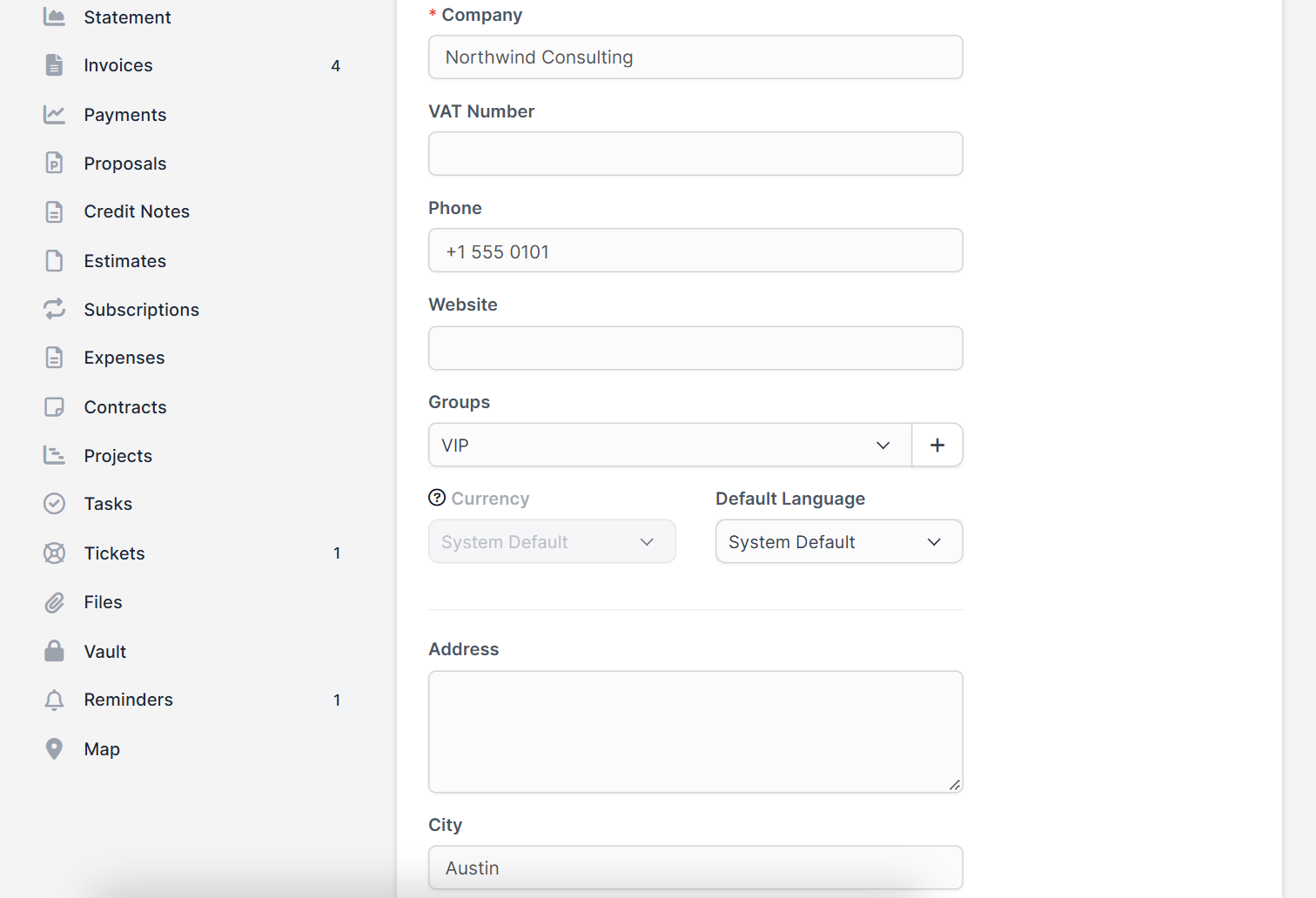
New customers can get groups in the same way when you add them. For the full form see Perfex CRM new customer, and for many customers at once read Perfex CRM import customers.
Step 4: Read the groups in the customer list #
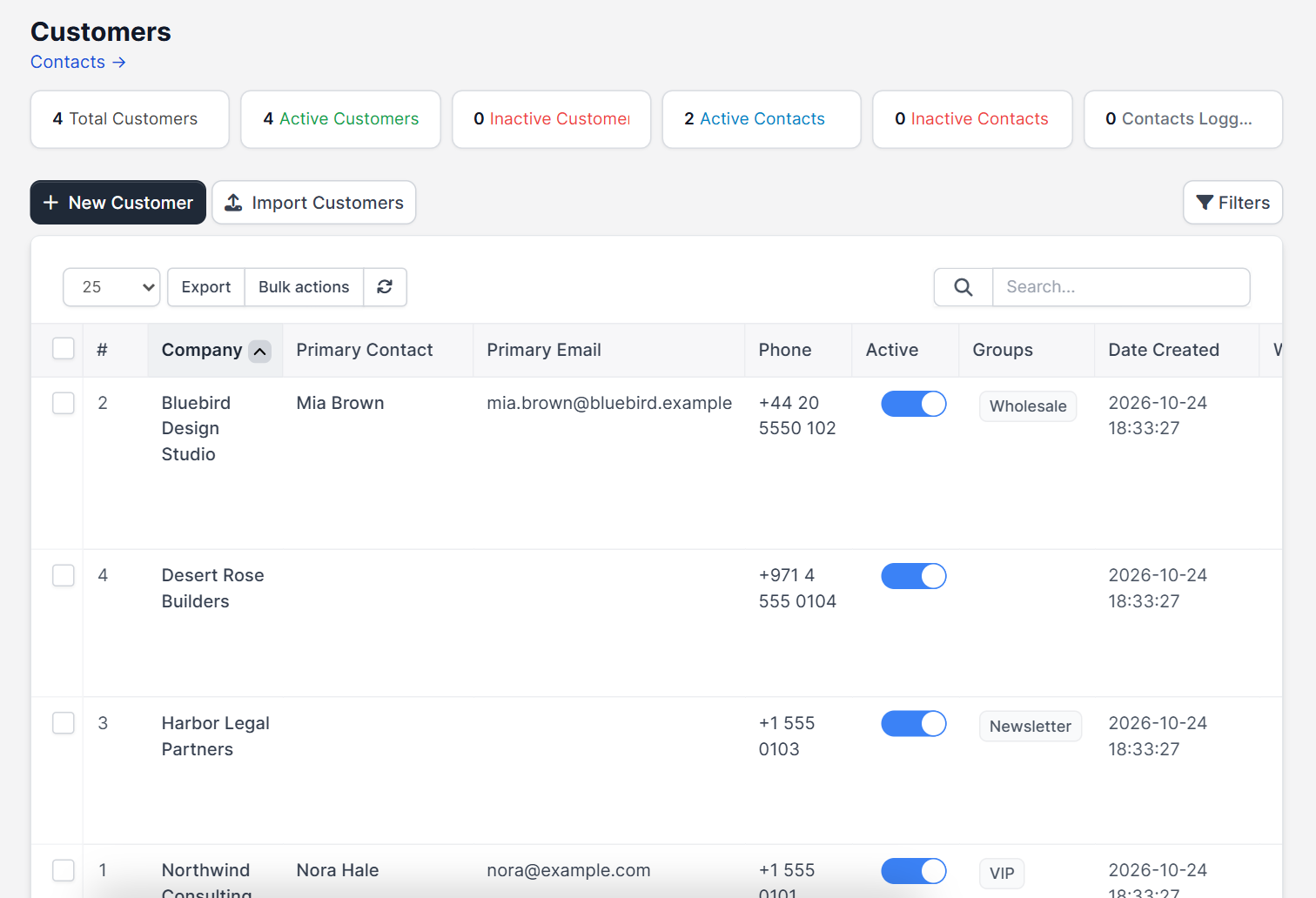
The customer list has a Groups column that shows the group of each customer as a small tag. The Filters button above the table lets you save your own filters for the customer list.
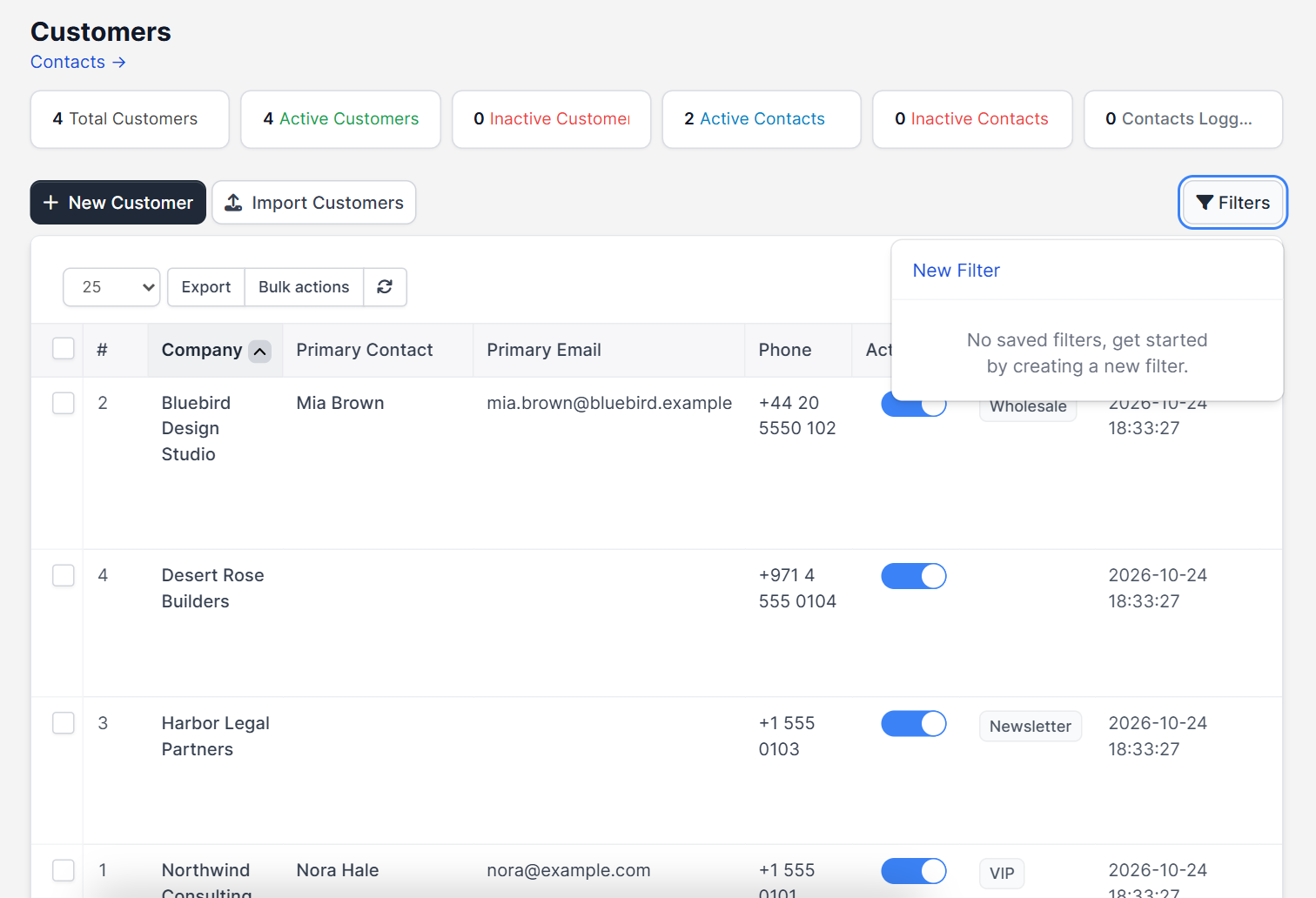
The Filters menu in the screenshot is empty because no filter was saved yet. This guide did not test every filter option for groups.
Tips to segment customers well #
- Name groups with plain words your whole team understands.
- Review the groups every quarter and merge the ones nobody uses.
- Add the people who work at the customer under Perfex CRM customer contacts so messages reach the right person.
- Contact a group through WhatsApp with the WhatsApp module or by email in the Mailbox module.
- Turn a lead into a customer with convert lead to customer in Perfex CRM, then add the group right away.
Customer groups are part of Perfex CRM. The official Perfex CRM help site has more guides on customers.
Frequently asked questions #
Where are Perfex CRM customer groups? #
Open Setup, then Customers, then Groups. You can also create a group from the Groups field in a customer profile.
Can a customer be in more than one group? #
Yes. The Groups field accepts several groups for one customer.
Do groups change customer permissions? #
No. In Perfex CRM a group is a label that helps you sort and find customers.
How do I rename or delete a group? #
Open the groups list and use the edit icon to rename, or the delete icon to remove the group.


