
- Where to find Perfex CRM projects
- Step 1: Click New Project
- Step 2: Fill in the project tab
- Step 3: Decide who is notified
- Step 4: Choose what the customer sees
- Step 5: Add tasks and milestones
- Step 6: Track time and costs
- Step 7: Invoice the work
- Tips for running Perfex CRM projects
- Perfex CRM projects FAQ
- Modules for teams and time
- Summary
Perfex CRM projects bring tasks, files, time, invoices and customer communication for one piece of work into one screen. You choose the customer, how the work is billed, who is on the team and what the customer may see. This guide shows how to create and run Perfex CRM projects from start to finish.
Where to find Perfex CRM projects #
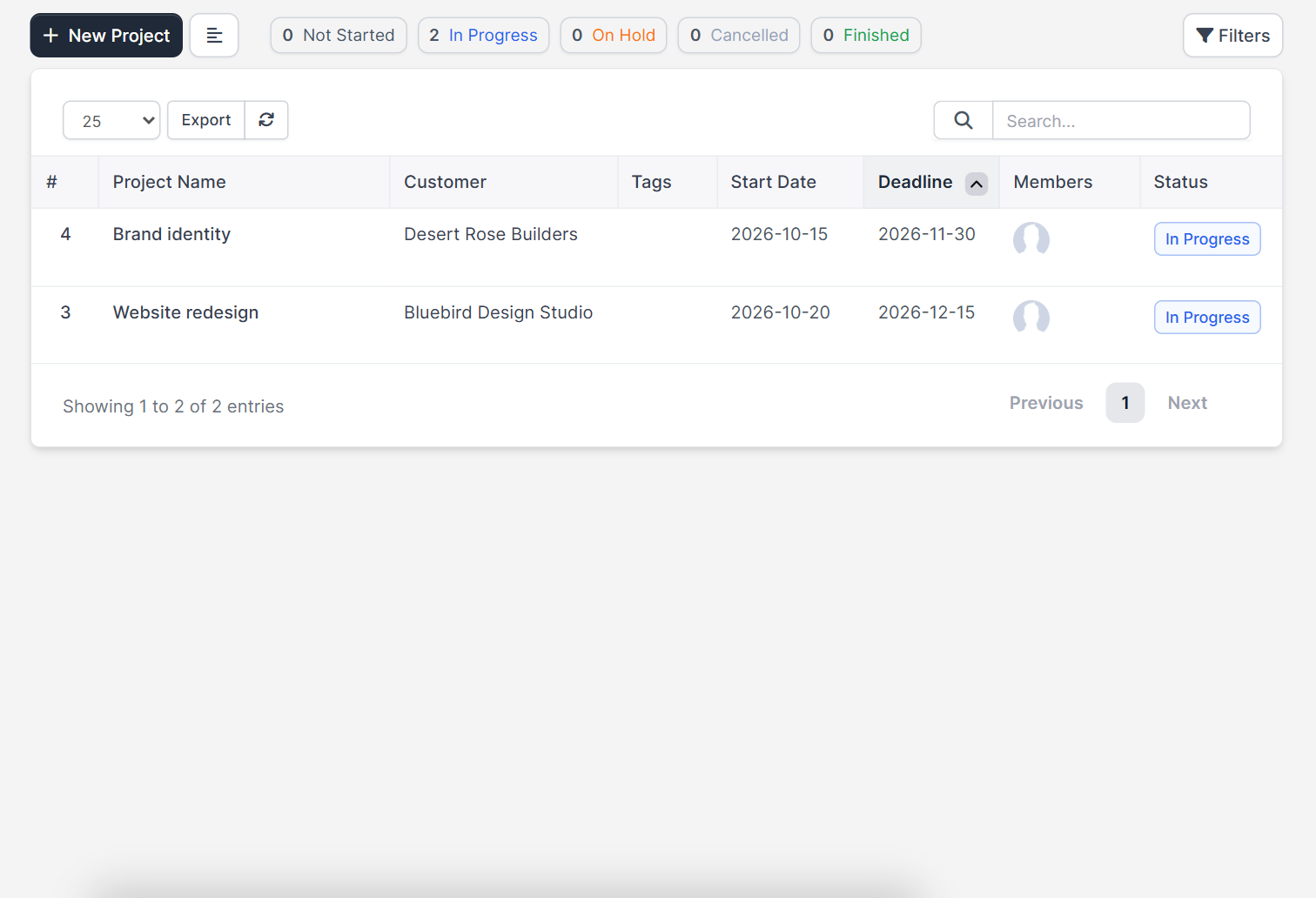
Open Projects in the main menu. The table lists #, Project Name, Customer, Tags, Start Date, Deadline, Members and Status. Use Filters to find projects by status, and New Project to add one.
Step 1: Click New Project #
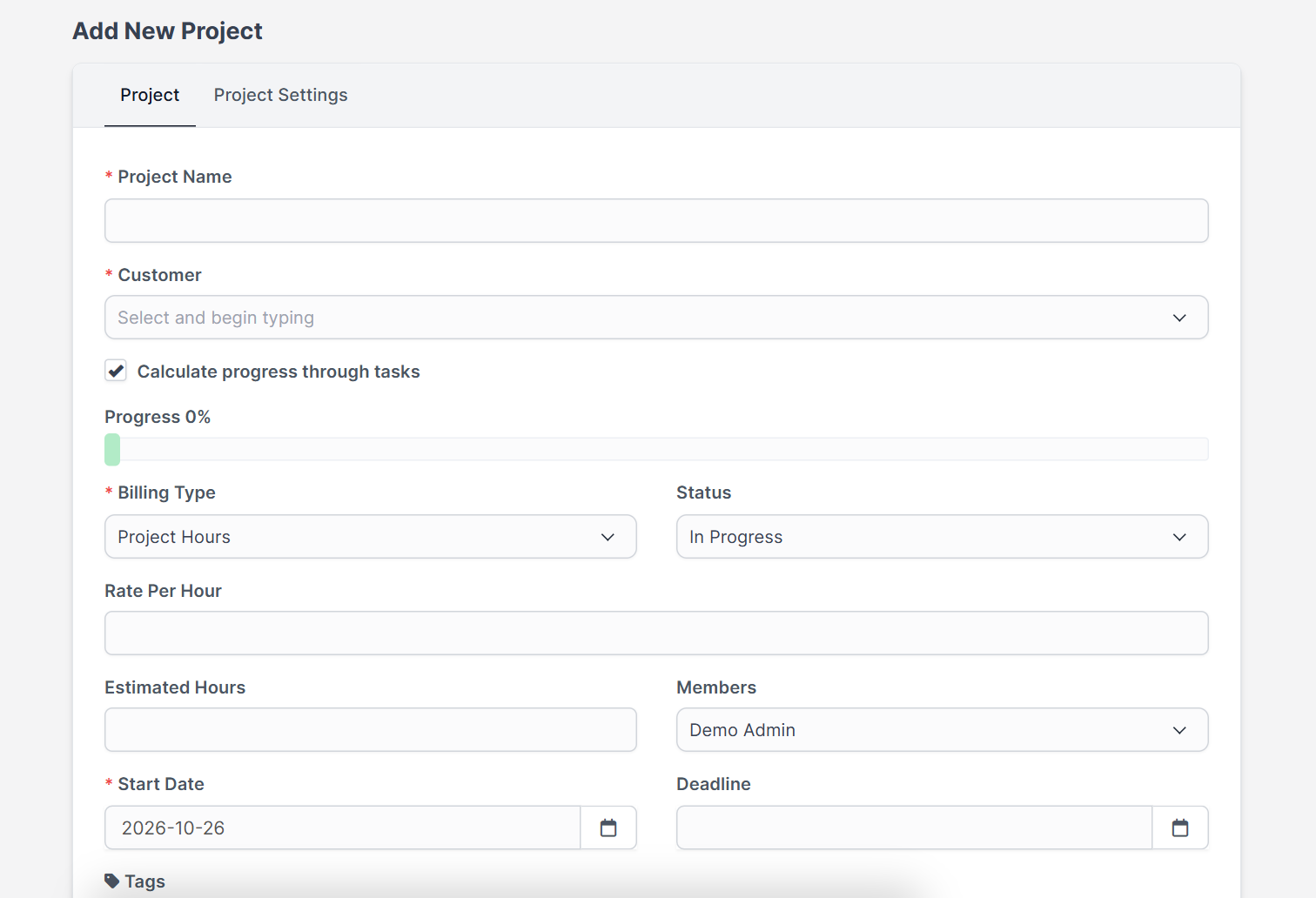
The form Add New Project has two tabs, Project and Project Settings. The customer must exist first, see Perfex CRM new customer.
Step 2: Fill in the project tab #
- Project Name and Customer are required.
- Calculate progress through tasks lets the progress bar follow the completed tasks.
- Billing Type is required. The choices include a fixed rate and hourly billing, such as Project Hours. The field you need, Total Rate or Rate Per Hour, then appears.
- Status starts as In Progress.
- Estimated Hours helps you compare plan and actual time.
- Members are the staff who work on it.
- Start Date is required and Deadline is optional.
- Tags help filtering.
Step 3: Decide who is notified #
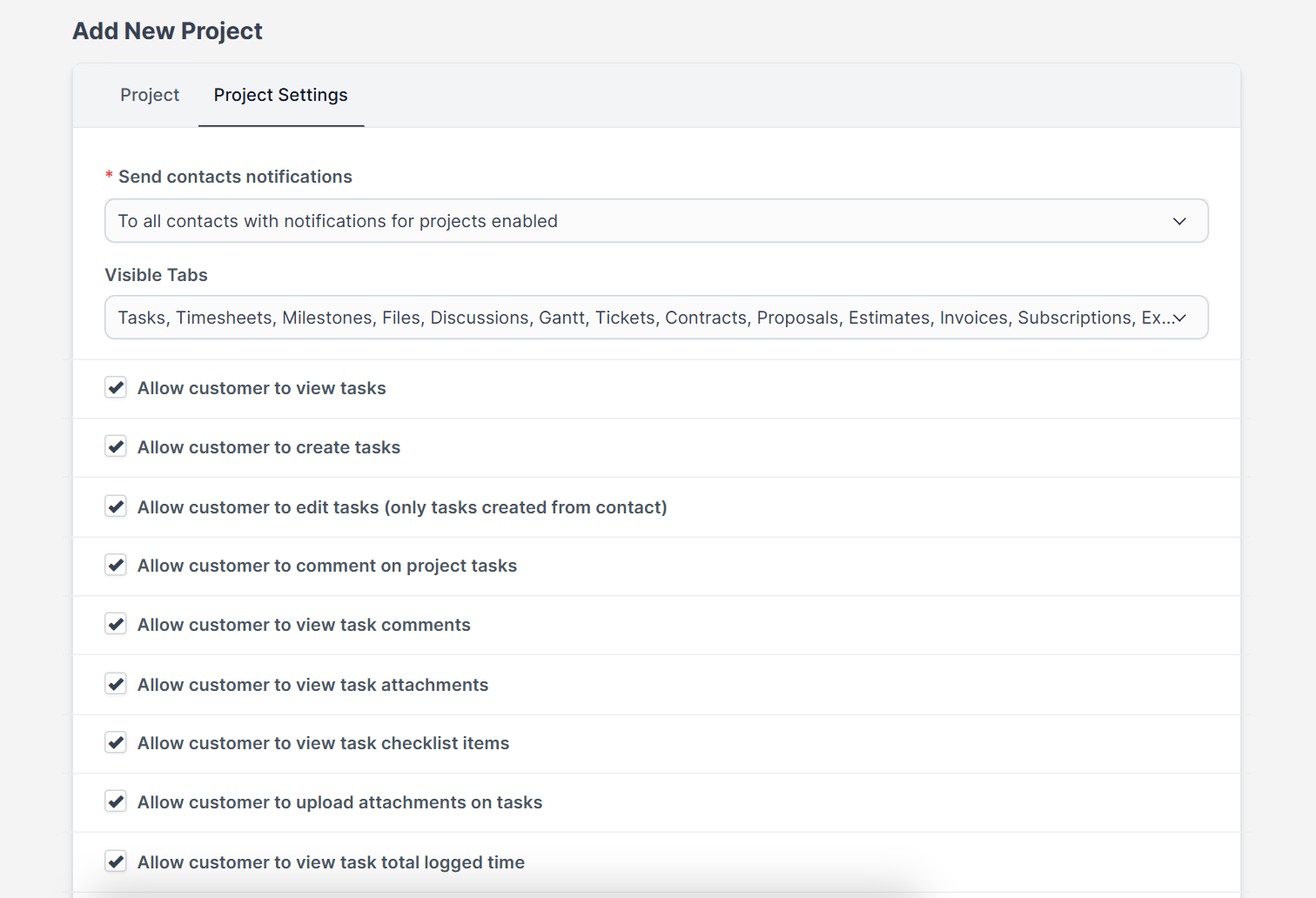
Switch on Send project created email if the customer should hear about it. The option Send contacts notifications lets you notify all contacts who have project notifications turned on, or only the contacts you select. Contacts are managed in Perfex CRM customer contacts.
Step 4: Choose what the customer sees #
Open Project Settings. Under Visible Tabs and the allow options you decide what the customer can do, for example view tasks, create tasks, comment, view task attachments and checklist items, view logged time, view the finance overview, upload files, open discussions, view milestones, the Gantt chart, timesheets, the activity log and team members. There is also Hide project tasks on main tasks table (admin area). Start with fewer options and add more when customers ask.
Step 5: Add tasks and milestones #
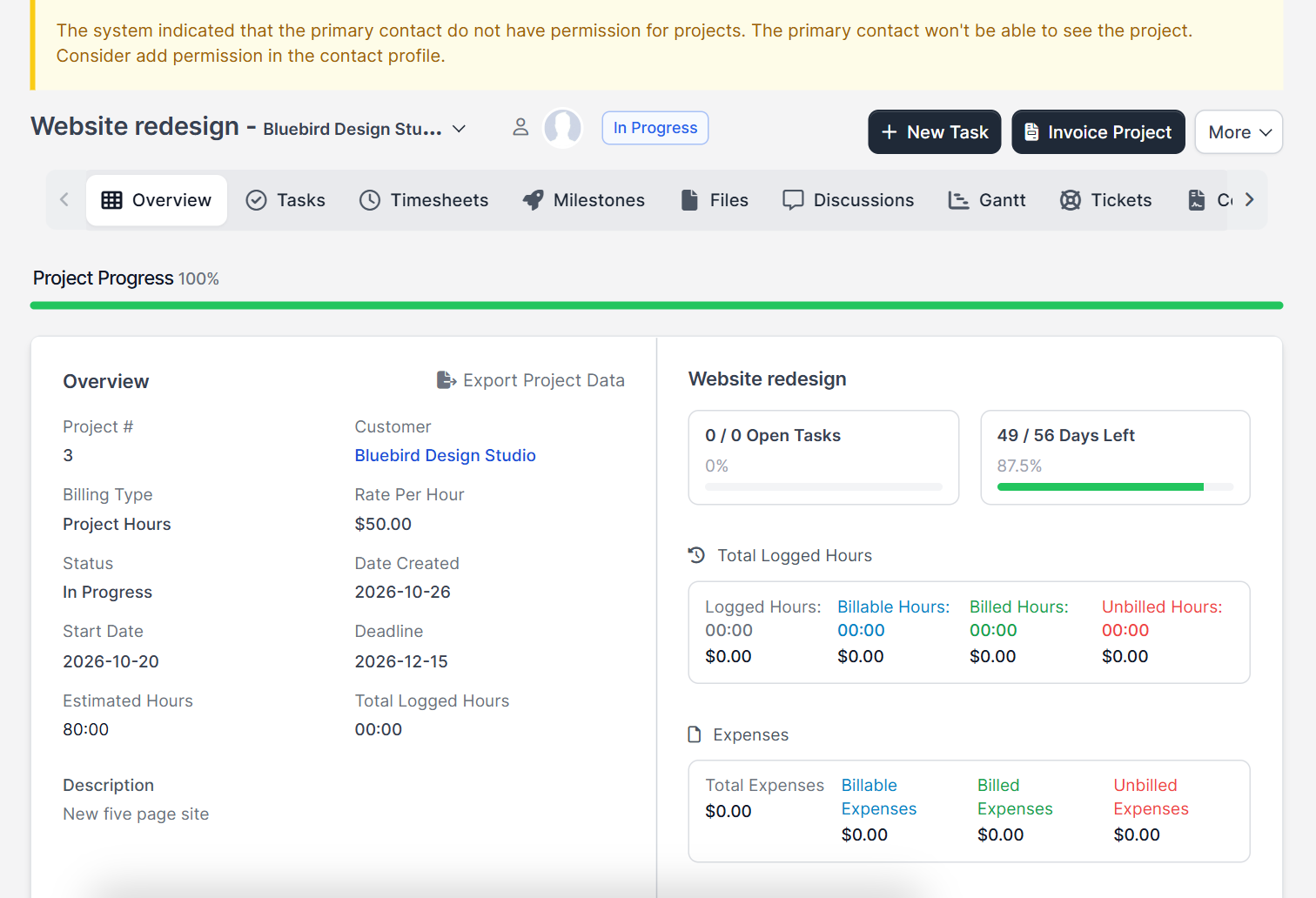
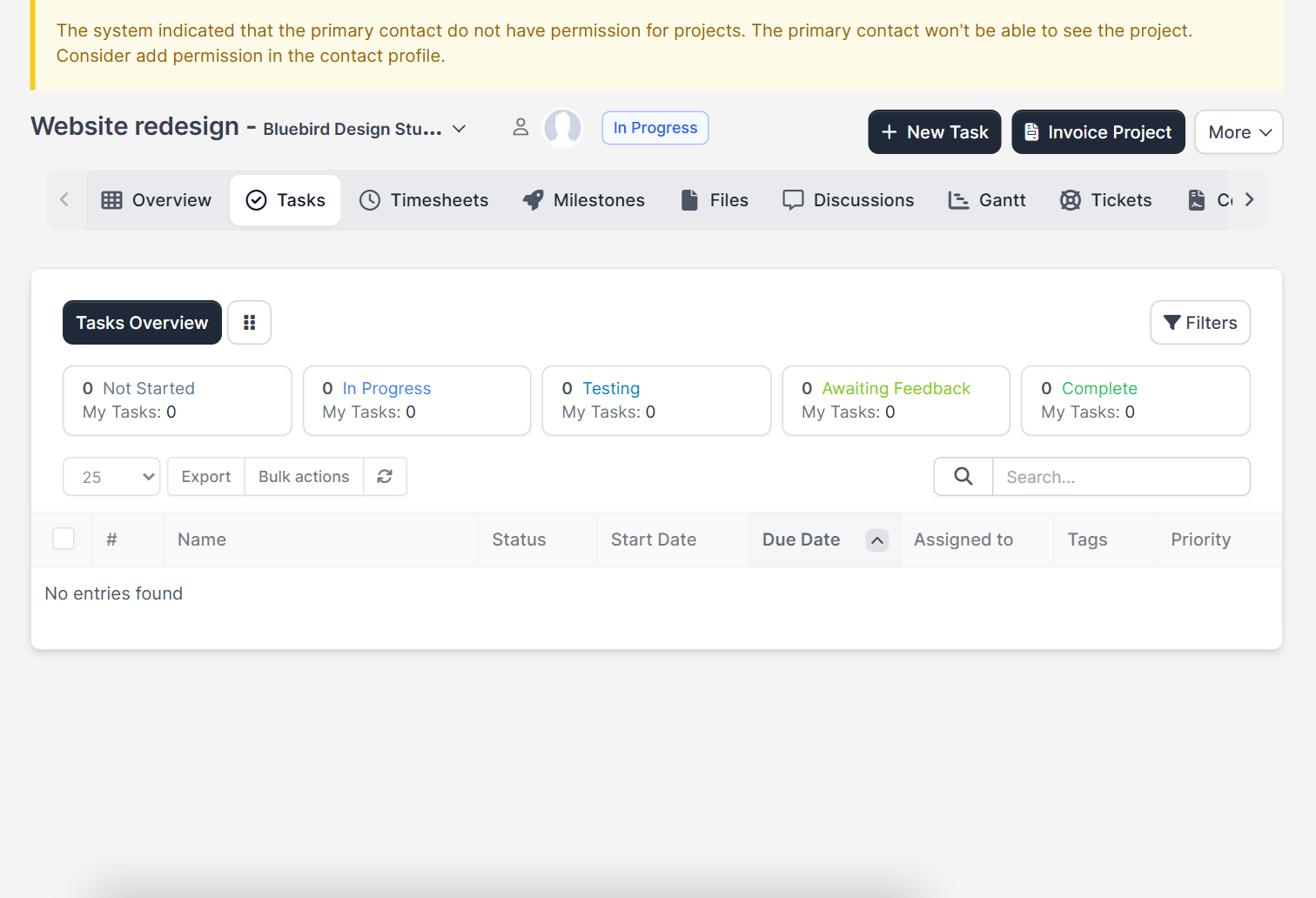
Save the project and open it. The tabs include Overview, Tasks, Timesheets, Milestones, Files, Discussions, Gantt and Tickets. The overview shows the project progress bar, the billing type and rate, the dates, open tasks, days left, logged hours and expenses, with buttons New Task and Invoice Project at the top. In the tasks tab, add work with the same form as in Perfex CRM tasks and assign each task to a member.
Step 6: Track time and costs #
Staff start the timer on a task and the hours are added to the project. Record costs with Perfex CRM expenses and link them to the project to bill them later.
Step 7: Invoice the work #
Click Invoice Project. Depending on the billing type, the invoice is built from the fixed rate or from the logged hours. The project then shows the finance overview, so you can see what is invoiced and what is paid. If you want an offer first, send Perfex CRM estimates and link them to the project.
Tips for running Perfex CRM projects #
- Pick the billing type before you start, because changing it later confuses reports.
- Always set a deadline and an estimate of hours.
- Use tags like website or support to filter lists.
- Show customers only the tabs they need.
- Review project status in a short weekly meeting.
Perfex CRM projects FAQ #
Can a customer see the project? #
Yes, in the customer area, limited to the options you allow.
Can I bill by the hour? #
Yes, choose a rate per project hour or per task hour as the billing type.
Can I add more members later? #
Yes, edit the project and add or remove members at any time.
Where do I change the status? #
Edit the project and change Status, or change it from the project overview.
Modules for teams and time #
Add attendance and leave to your project planning with the Timesheets and Leave Management module, talk to the team with the Perfex CRM Chat Module and follow stock for project work with Inventory Management.
Summary #
Strong Perfex CRM projects start with the right customer, billing type, members and dates, give customers only the access they need and track tasks, time and invoices in one view. Read more at the official Perfex CRM website, and keep your Perfex CRM projects up to date every week. Good Perfex CRM projects also make invoices easier, because time, costs and tasks are already linked to the customer.


