
- What Perfex CRM ticket departments do
- Step 1: Open the departments list
- Step 2: Create a new department
- Step 3: Decide about email to ticket
- Step 4: Add staff to the department
- Step 5: Use the department on tickets
- Step 6: Check the Perfex CRM ticket departments in your ticket list
- Perfex CRM ticket departments: best practices
- Perfex CRM ticket departments FAQ
- Modules that help your support team
- Summary
Good Perfex CRM ticket departments send every support request to the right team from the first minute. A billing question goes to billing, a sales question goes to sales, and nobody has to forward messages by hand. This guide shows how to create Perfex CRM ticket departments, what each field does and how departments connect to email, staff and reports.
What Perfex CRM ticket departments do #
A department is a group that owns tickets. When a customer opens a ticket, they choose a department (unless you hide it), and the staff who belong to it are notified. Departments also decide which email address sends replies and, if you use email piping, which mailbox is checked for new messages. Using several Perfex CRM ticket departments makes reports clearer, because you see how many tickets each team handles.
Step 1: Open the departments list #
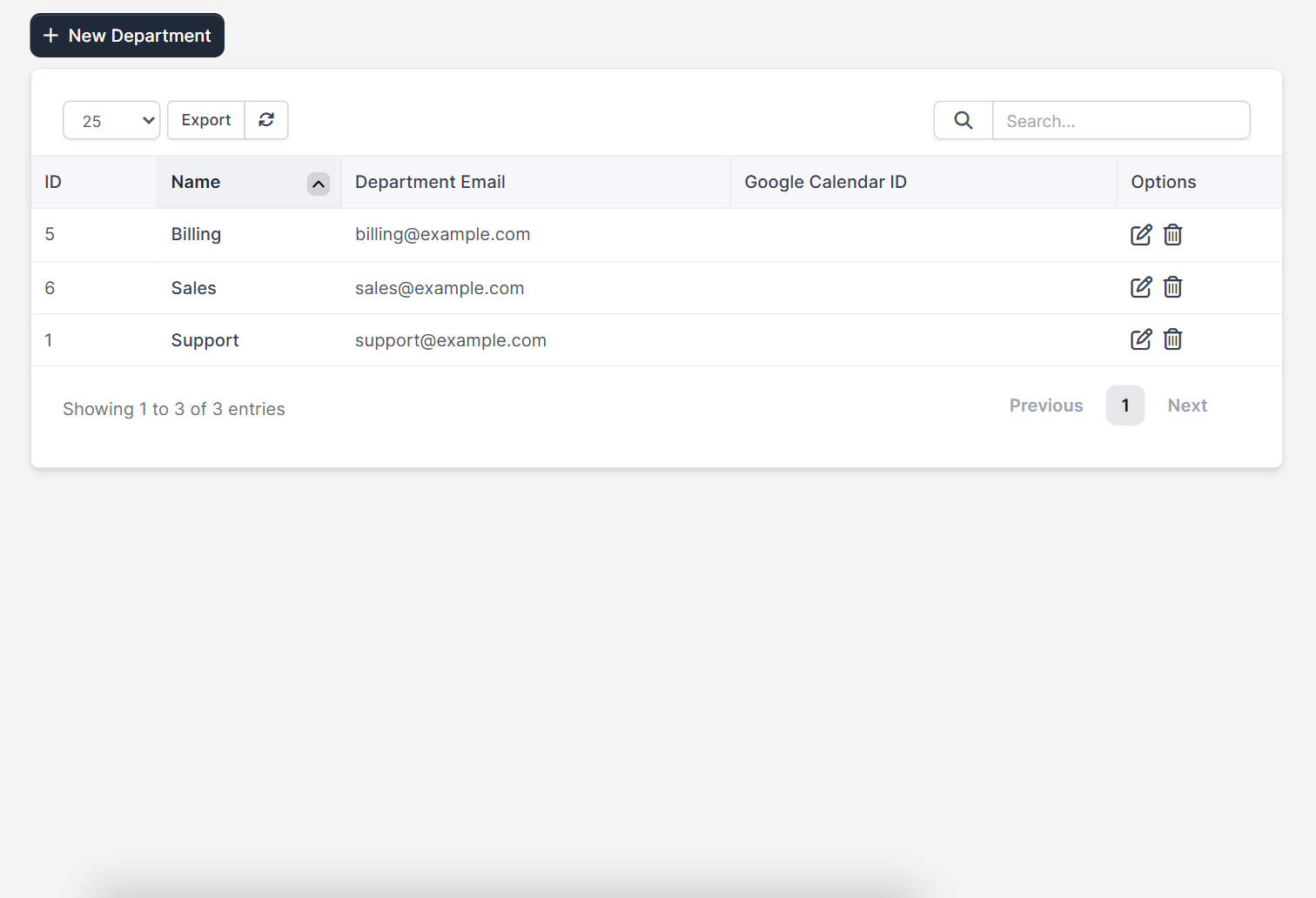
Sign in as an administrator and open Setup > Support > Departments. The list shows the ID, Name, Department Email and Google Calendar ID of each department, with edit and delete icons in the Options column. A new installation has one department called Support.
Step 2: Create a new department #
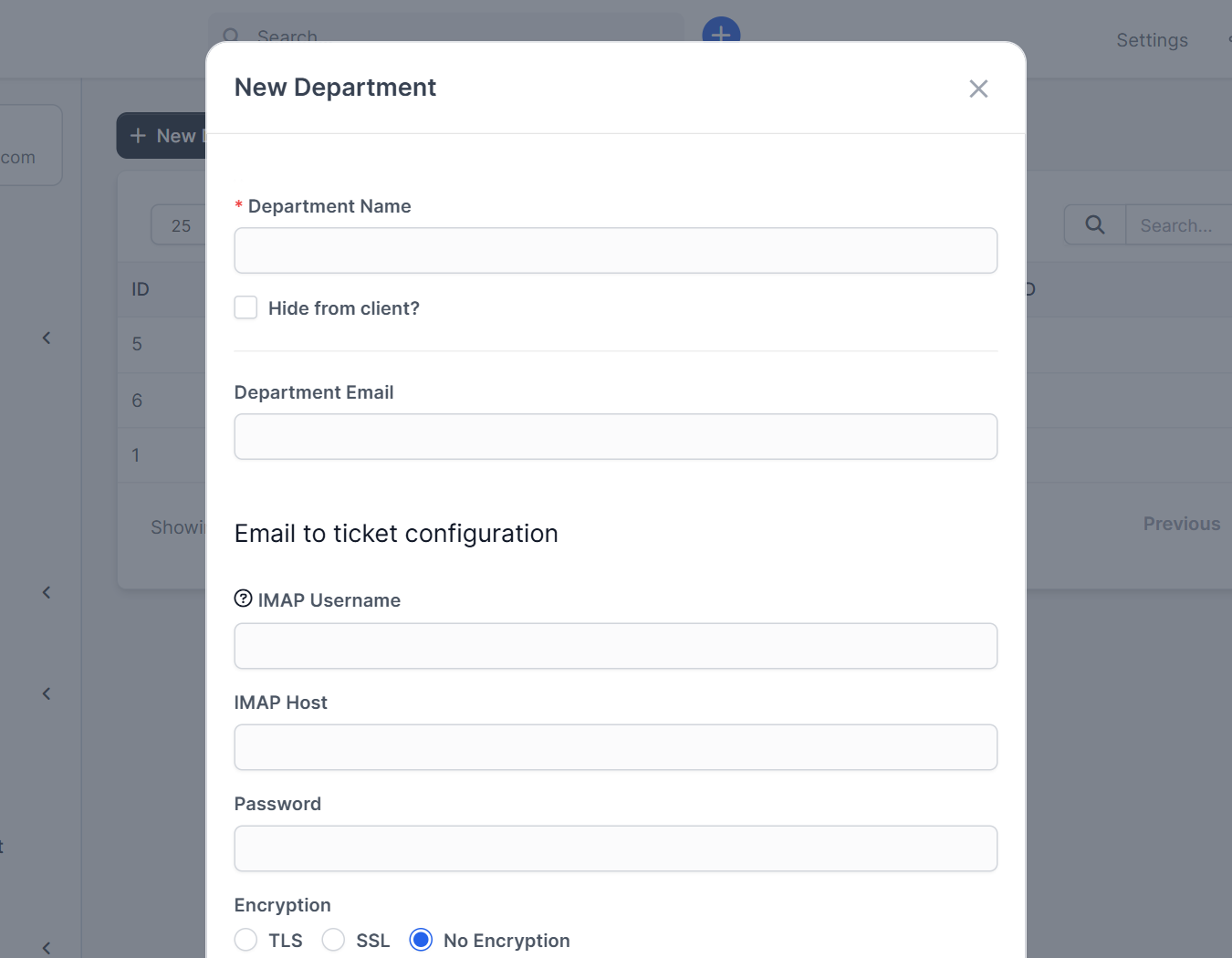
Click New Department. A form opens with these fields:
- Department Name is required. Use a name customers understand, such as Billing or Sales.
- Hide from client? keeps the department out of the list customers see when they open a ticket. Staff can still assign tickets to it. Use this for internal teams.
- Department Email is the address used for this department. Use a real mailbox on your domain, such as
billing@your-domain.com.
Step 3: Decide about email to ticket #
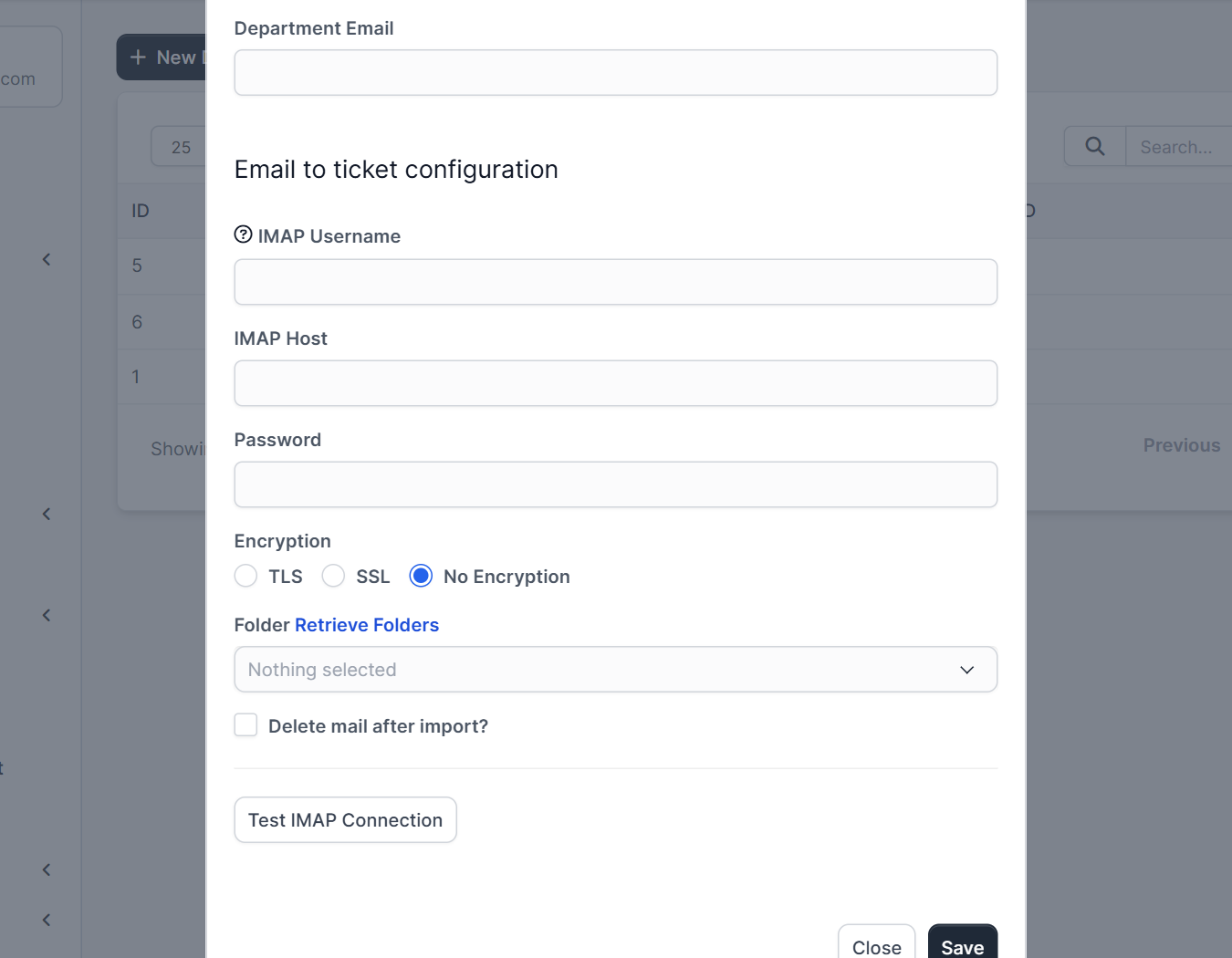
Below the first fields you find Email to ticket configuration: IMAP Username, IMAP Host, Password, Encryption (TLS, SSL or No Encryption), Folder, Delete mail after import? and a Test IMAP Connection button. If you fill them in, Perfex CRM reads that mailbox and turns every new email into a ticket. Our guide to Perfex CRM email piping explains the settings and the cron job it needs. If you only want a department for manual tickets, leave these fields empty and click Save.
Step 4: Add staff to the department #
Departments are linked to staff in their profiles. Open Setup > Staff, edit a staff member and select the departments they work in. In Setup > Settings > Support you can limit staff so they only see tickets from their own departments. That option is useful for teams that handle private billing data.
Step 5: Use the department on tickets #
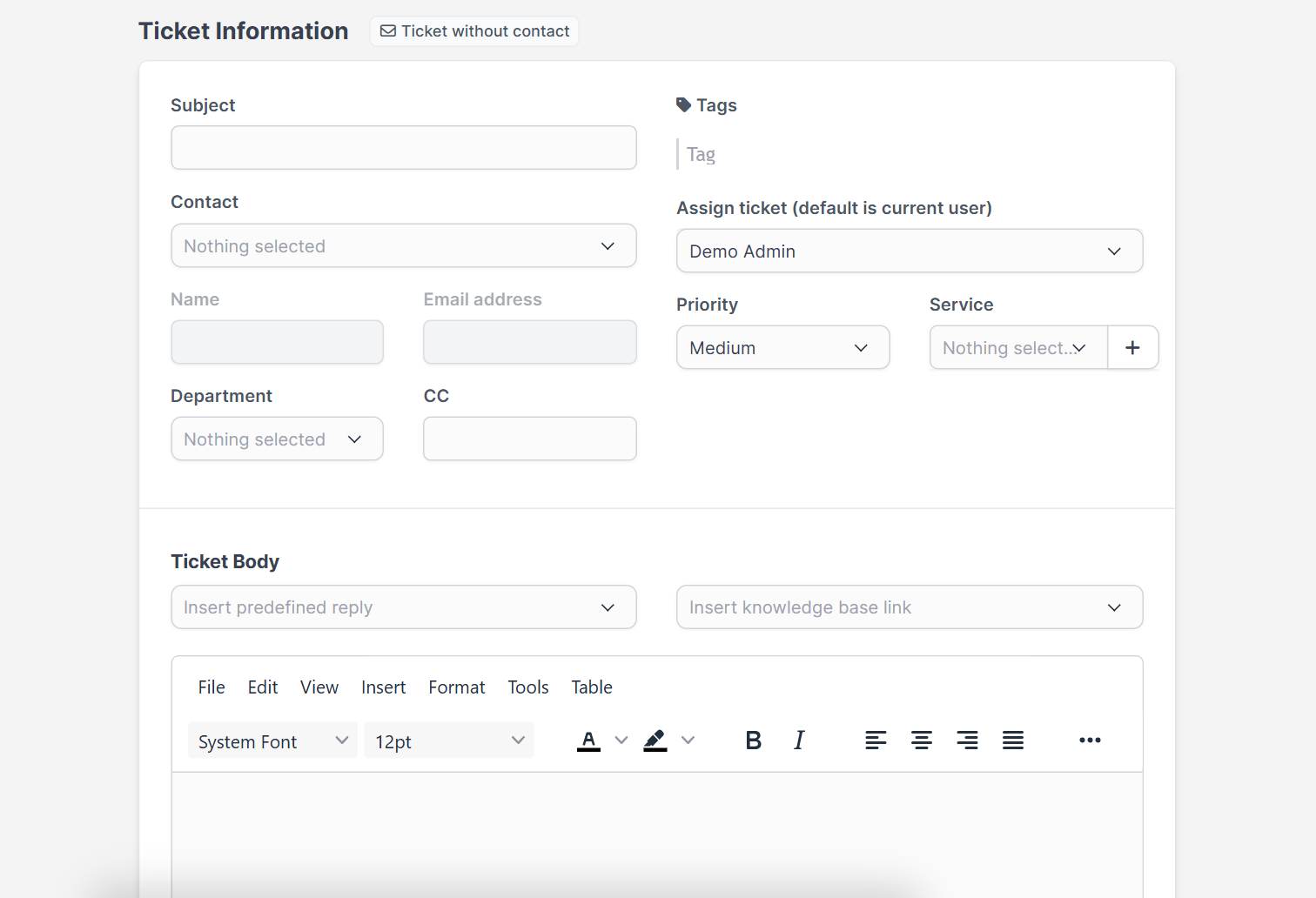
When you open a ticket from the admin area, choose the Department on the new ticket form. The same form has fields for the Contact, Priority, Service, Project and the ticket body. Customers who use the customer area see only the departments that are not hidden.
Step 6: Check the Perfex CRM ticket departments in your ticket list #
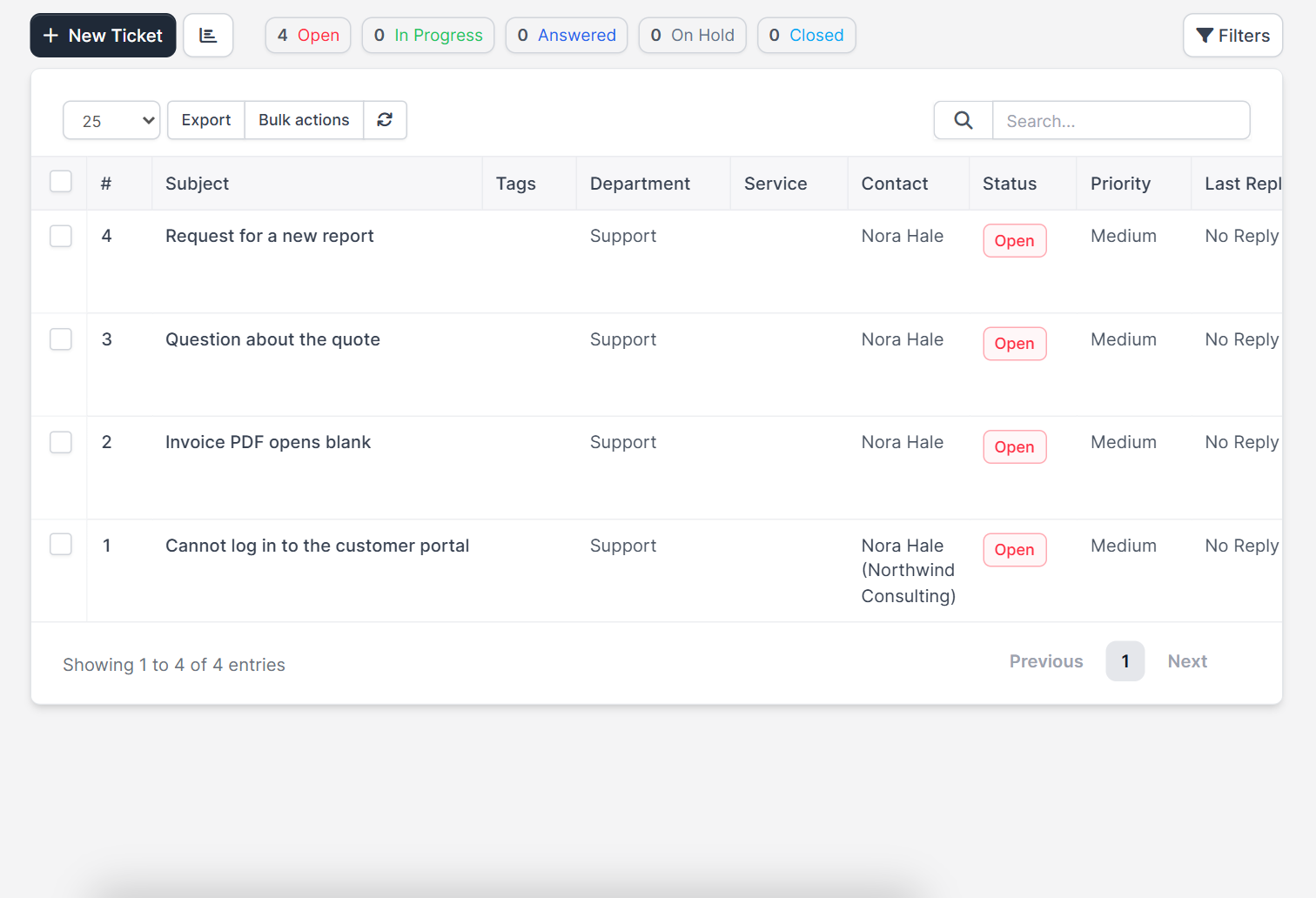
Open Support > Tickets. The Department column shows where each ticket sits, and the filters let you show only one department. Review this list every week. If one department always has the most open tickets, give it more staff or write better replies for common questions in the predefined replies.
Perfex CRM ticket departments: best practices #
- Keep the number of departments small. Three to five is enough for most companies.
- Use one mailbox per department, and name it clearly.
- Hide departments that only your staff should use.
- Test each department by opening a ticket and checking who gets the notification.
- Add the cron job, because auto-closing and email import depend on it. See the Perfex CRM cron job guide.
Perfex CRM ticket departments FAQ #
How many departments can I create? #
There is no fixed limit. Create only what your team really uses, because every extra choice makes customers think longer before they write to you.
Can I rename or delete a department? #
You can rename it at any time. Deleting is only possible when no tickets use it, so move or close those tickets first.
Why do customers not see a department? #
The option Hide from client? is ticked, or the customer’s contact does not have the Support permission. See how to manage Perfex CRM customer contacts.
Do I need a different email for each department? #
No, but it helps. Replies from the right address look professional and keep conversations together.
Modules that help your support team #
Turn emails into tickets from a full inbox with the Mailbox module for Perfex CRM, and answer your colleagues faster with the Perfex CRM Chat Module, which can also convert chat messages into tickets.
Summary #
Clear Perfex CRM ticket departments route every request to the right team, show you where the workload is and keep customers happy. Create the departments, set their emails, decide what is hidden and test each one. Learn more about the system on the official Perfex CRM website, and review your Perfex CRM ticket departments whenever your team changes.


