
- Before you convert lead to customer
- Step 1: Open the leads list
- Step 2: Open the lead
- Step 3: Click Convert to customer
- Step 4: Save and open the new customer
- Step 5: Set the lead defaults for next time
- What happens to the lead after you convert lead to customer
- Convert lead to customer: FAQ
- Modules that help you win customers
- Summary
You convert lead to customer when a person or company you have been talking to is ready to buy. In Perfex CRM this takes one click: the lead details become a customer record with a first contact, the lead moves to the Customer status and the history stays attached. This guide shows how to convert lead to customer in five easy steps and which settings control the result.
Before you convert lead to customer #
Make sure the lead is ready. Check that the name, company, email and phone are right, that the status is Qualified or Contacted and that you have written a note about the agreement. Fixing details on the lead is easier than editing the customer later. If you capture leads from your website, read how to build a Perfex CRM web to lead form.
Step 1: Open the leads list #
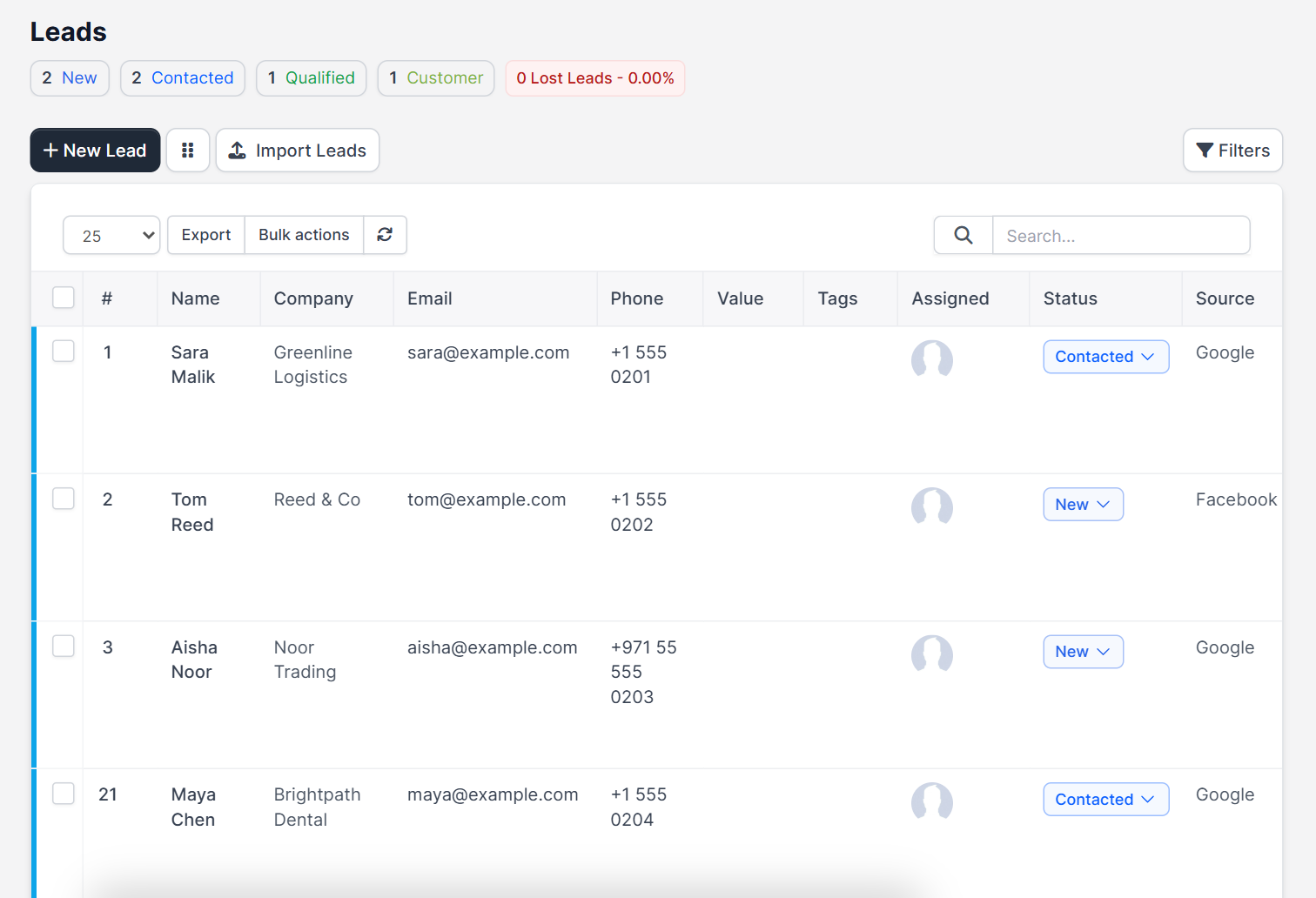
Click Leads in the main menu. The top shows the number of leads in each status (for example New, Contacted, Qualified and Customer) and a table with the Name, Company, Email, Phone, Value, Tags, Assigned, Status, Source and Created date. Buttons above the table let you add a New Lead or Import Leads.
Step 2: Open the lead #
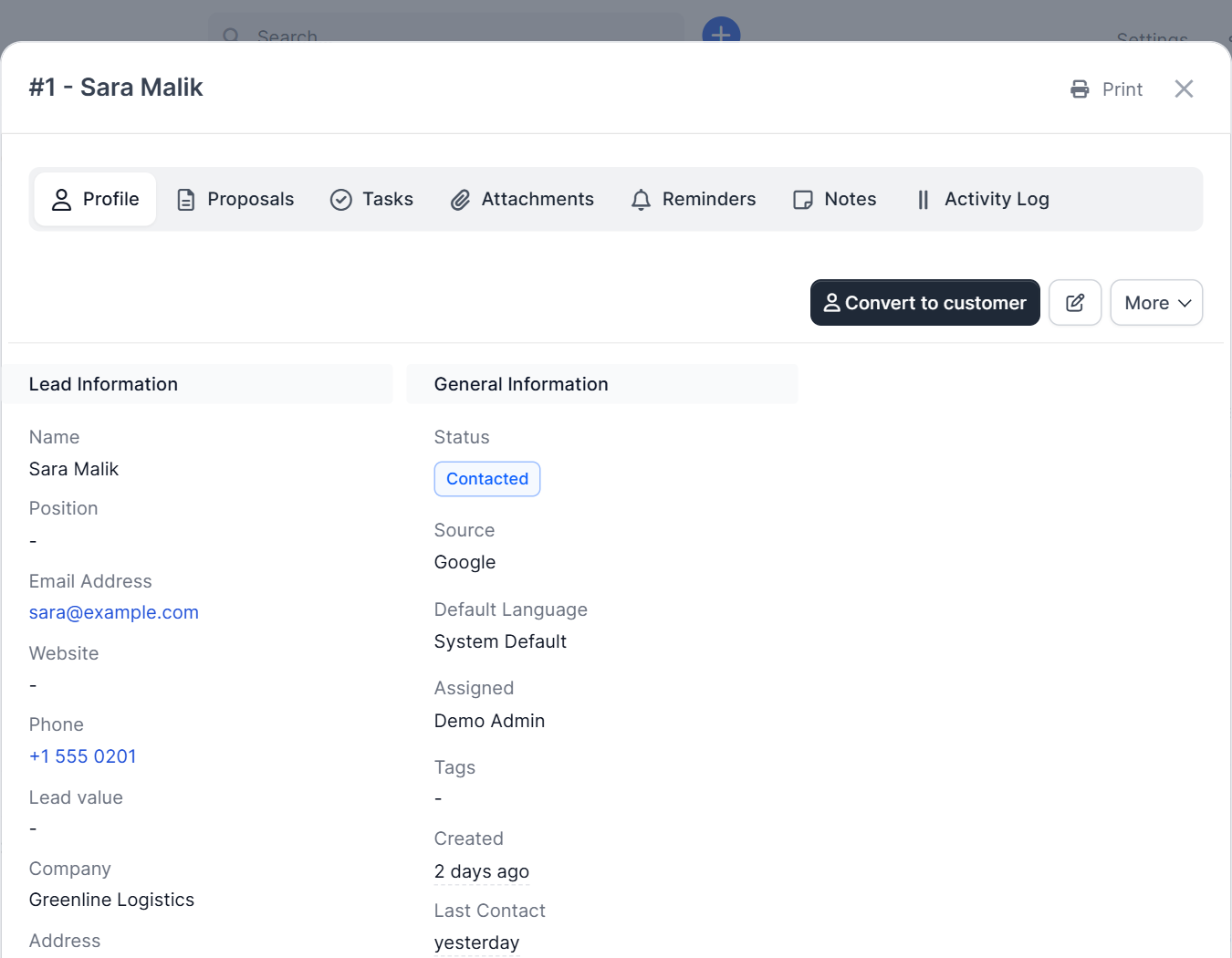
Click the name of the lead. A window opens with the tabs Profile, Proposals, Tasks, Attachments, Reminders, Notes and Activity Log. The profile shows the lead information, the status, the source, who it is assigned to and when the last contact happened. Near the top is the blue button Convert to customer.
Step 3: Click Convert to customer #
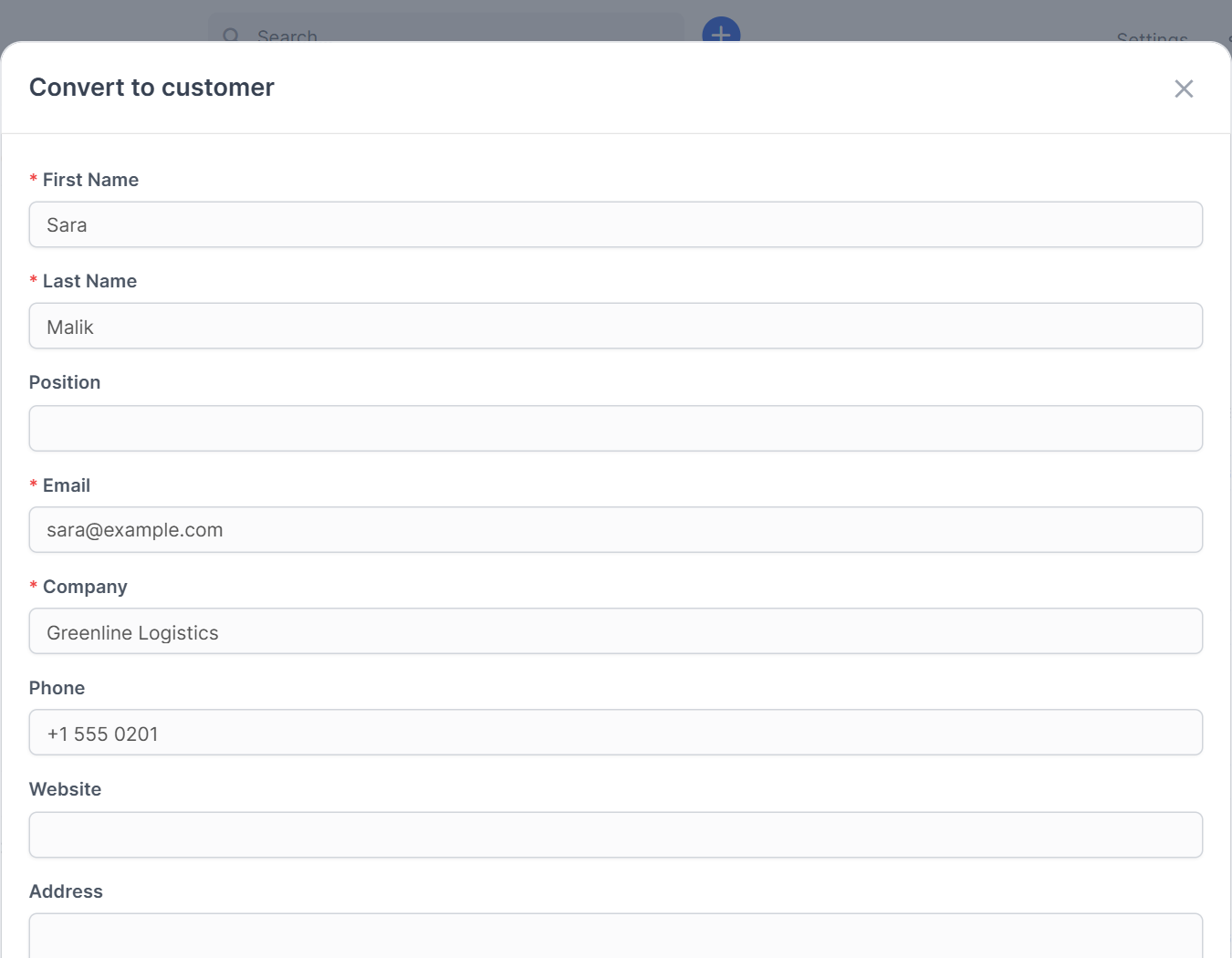
When you click the button, a form titled Convert to customer opens. It shows the details that will be copied: First Name, Last Name, Position, Email, Company, Phone, Website and the address fields. Check each one and correct anything that is missing, for example a billing address. Perfex CRM also checks for duplicates, so if a customer with the same details exists, you are warned.
Step 4: Save and open the new customer #
Save the form. The lead’s status changes to Customer, a new customer is created with the lead as its first contact, and the proposals, files and notes from the lead stay linked. Open the new record and finish it: add the currency, groups, VAT number and shipping address. The full list of fields is in Perfex CRM new customer, and permissions for the first contact are in Perfex CRM customer contacts.
Step 5: Set the lead defaults for next time #
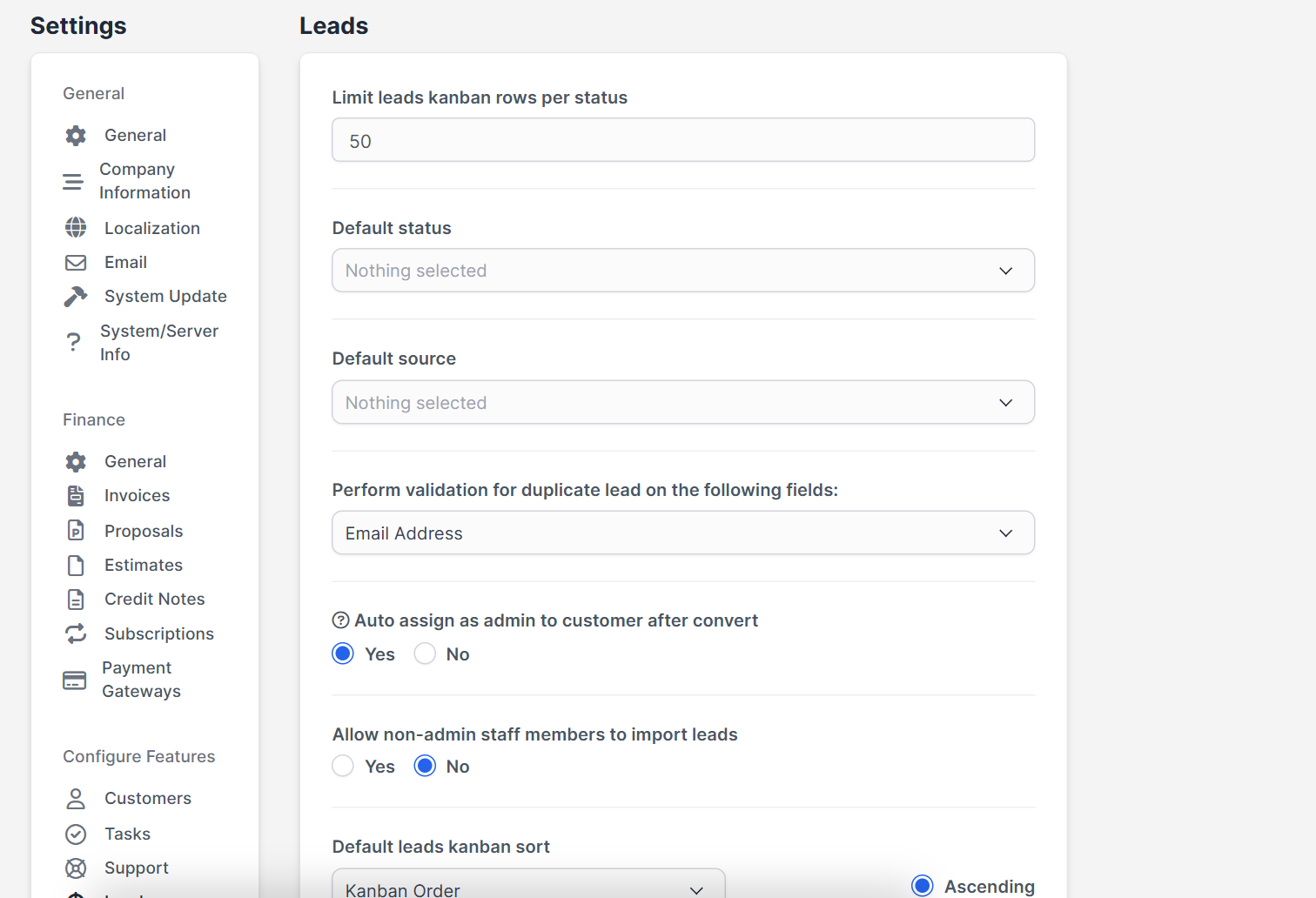
Open Setup > Settings > Leads. These options influence the way you convert lead to customer:
- Auto assign as admin to customer after convert makes the lead’s owner the customer admin automatically.
- Perform validation for duplicate lead on the following fields (for example Email Address) stops two leads for the same person.
- Default status and Default source are used for new leads.
- Allow non-admin staff members to import leads controls who can import.
- Limit leads kanban rows per status and Default leads kanban sort change the kanban board.
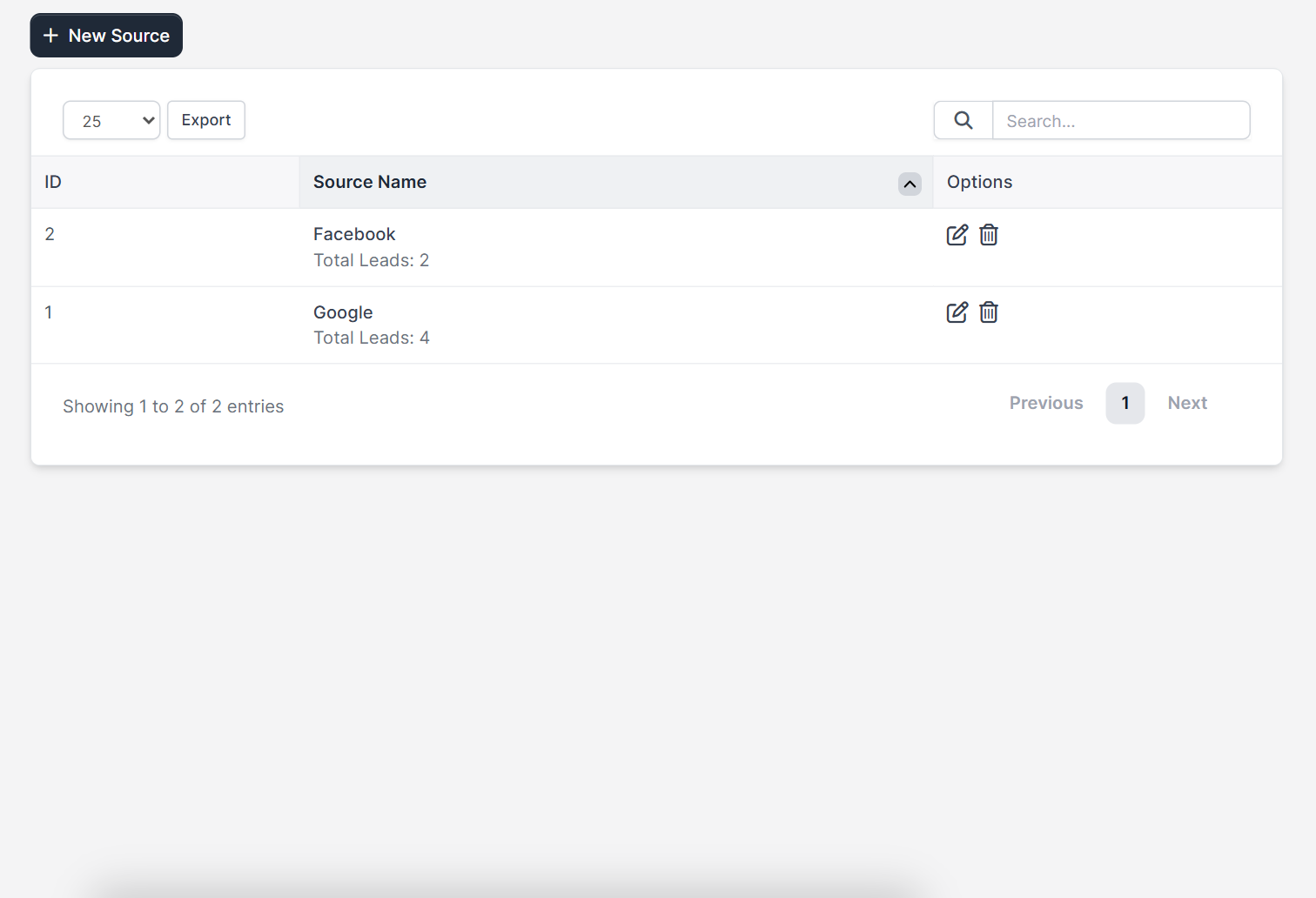
Sources and statuses live under Setup > Leads > Sources and Statuses. Keep the sources short, such as Facebook, Google or Referral, so your reports can show which channel brings customers.
What happens to the lead after you convert lead to customer #
- The lead stays in the system with the status Customer, so your conversion numbers stay correct.
- The lead’s notes, attachments and activity are still visible on the lead.
- Proposals sent to the lead can be seen under the customer’s proposals, and you can create estimates for them. See Perfex CRM estimates.
Convert lead to customer: FAQ #
Can I undo the conversion? #
You can delete the new customer if it has no documents, and change the lead status back. Do this quickly, before you create invoices.
Can I convert several leads at once? #
Convert them one by one, because each conversion needs a check of the details.
Does the customer get an email? #
The first contact receives a welcome email only if you leave that option on in the contact form. Check your Perfex CRM email templates first.
Where do I see how many leads became customers? #
The status counters on the leads page and the lead reports show it.
Modules that help you win customers #
Follow up leads by phone with the Call Manager module, turn emails into leads with the Mailbox module for Perfex CRM and pay your sales team on won business with the Sales Commission Program.
Summary #
To convert lead to customer, check the lead, click Convert to customer, review the copied details, save and finish the customer record. Good defaults and a clean lead source list make it easy to convert lead to customer again and again. Read more on the official Perfex CRM website, and review how you convert lead to customer whenever your sales process changes.


