
- Where to change the Perfex CRM company logo
- Step 1: Prepare your files
- Step 2: Upload the light and dark logos
- Step 3: Set the favicon
- Step 4: Update your company information
- Step 5: Check the result everywhere
- Common problems with the Perfex CRM company logo
- Perfex CRM company logo FAQ
- Quick checklist for Perfex CRM company logo
- Summary
Your Perfex CRM company logo appears in the staff area, on the sign-in pages, in emails and on every invoice, estimate and proposal PDF. Changing it takes a few minutes, but a few details decide whether it looks sharp. This guide was tested on Perfex CRM 3.4.1 and shows how to change the logo and favicon and where the company details for your PDFs are set.
Where to change the Perfex CRM company logo #
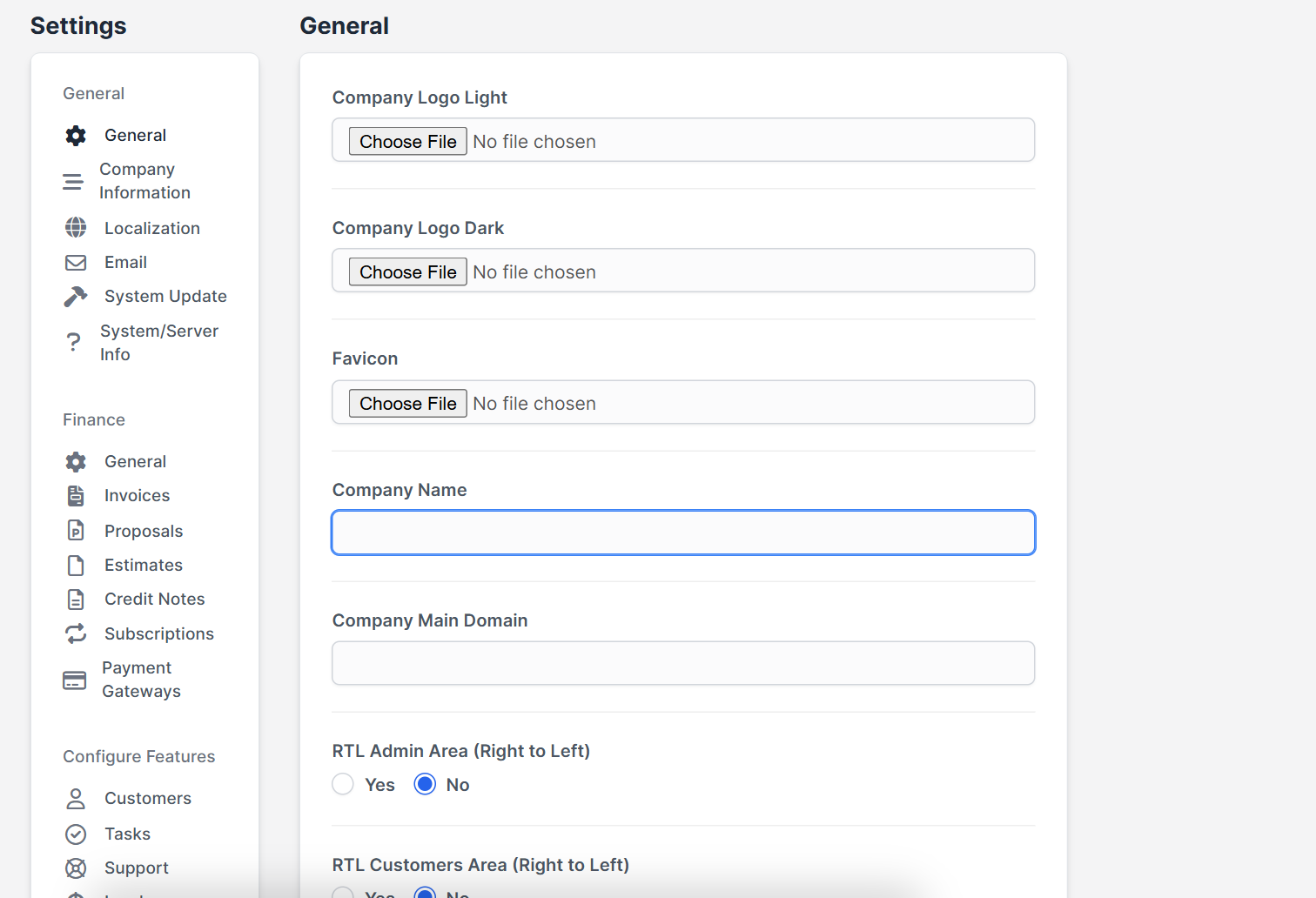
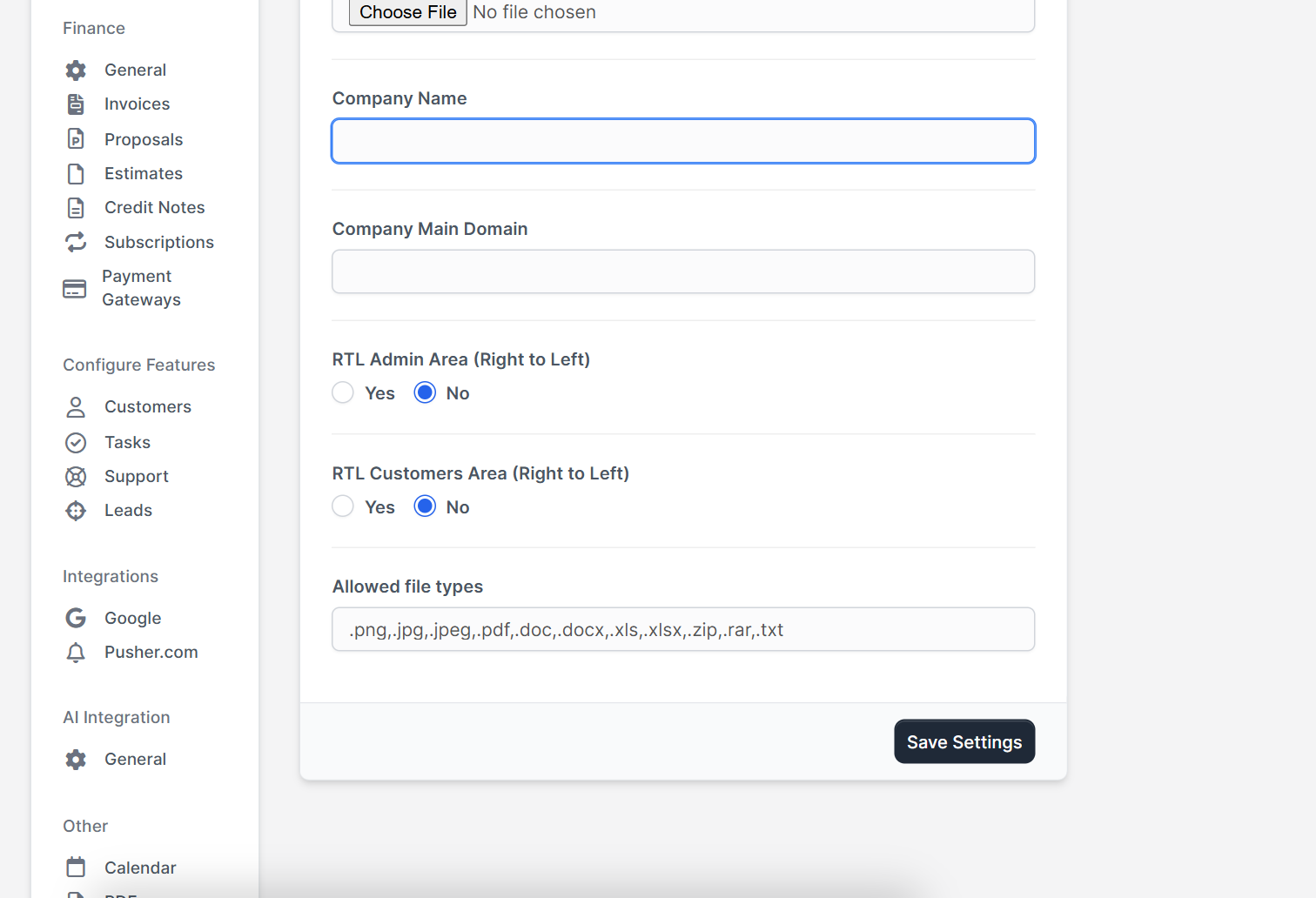
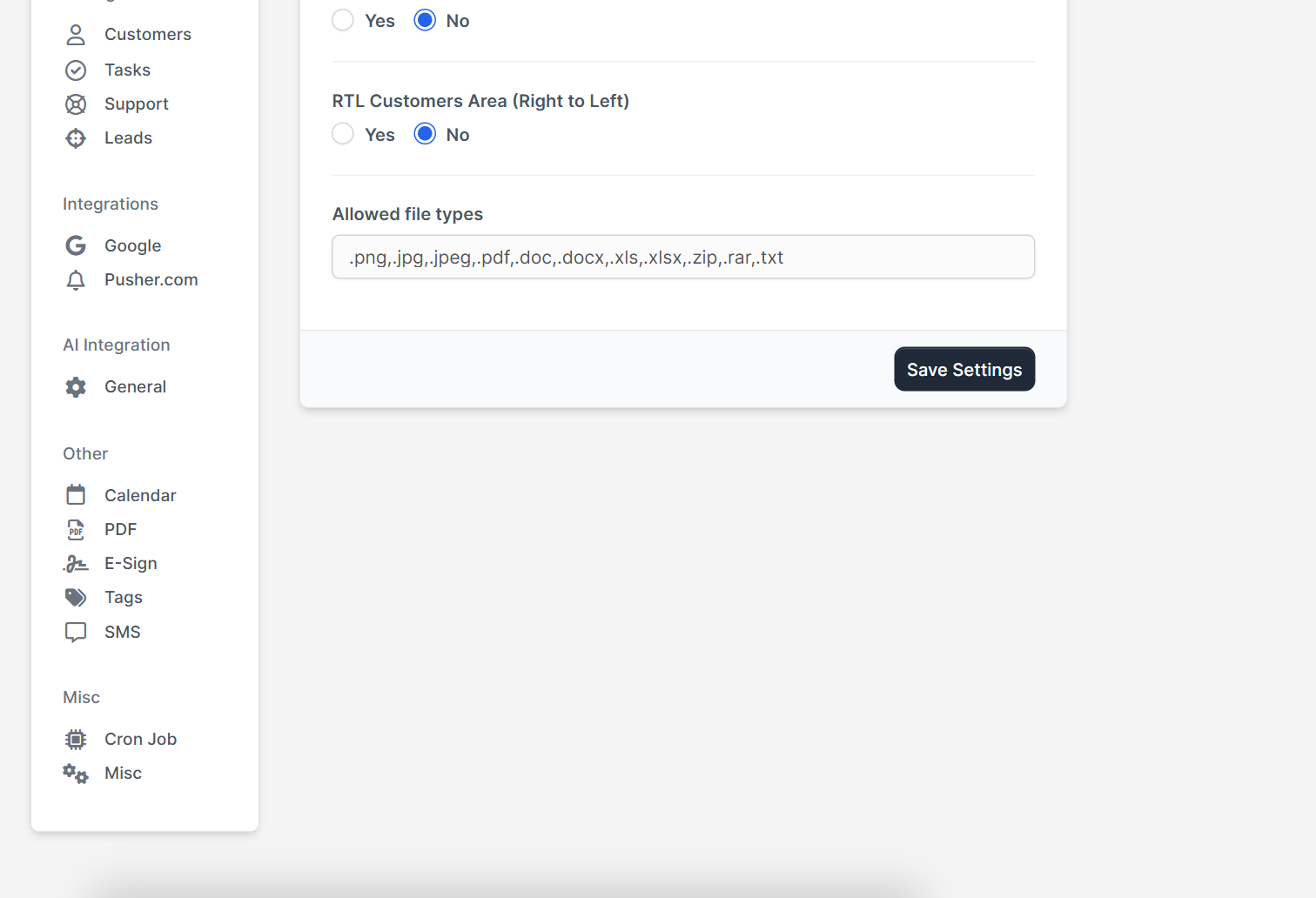
Open Setup > Settings > General. At the top are three upload fields: Company Logo Light, Company Logo Dark and Favicon. Below them you find Company Name, Company Main Domain, the right-to-left options for the admin and customer areas and Allowed file types.
Step 1: Prepare your files #
- Use a PNG with a transparent background. A white box around the logo looks poor on dark pages.
- Make it large enough: 600 pixels wide is a good start, so it stays sharp on high density screens.
- Prepare two versions: one with dark text for light backgrounds and one with light text for dark backgrounds.
- Prepare a square image, about 512 by 512 pixels, for the favicon.
Step 2: Upload the light and dark logos #
Use Company Logo Light and Company Logo Dark for the two versions. Use the light-colored version where the background is dark and the dark version where the background is light. If you only have one logo, upload it to both fields, then check both screens.
Step 3: Set the favicon #
The favicon is the small icon in the browser tab. Upload your square image in Favicon. Browsers keep icons for a long time, so you may need a hard refresh to see the new one.
Step 4: Update your company information #
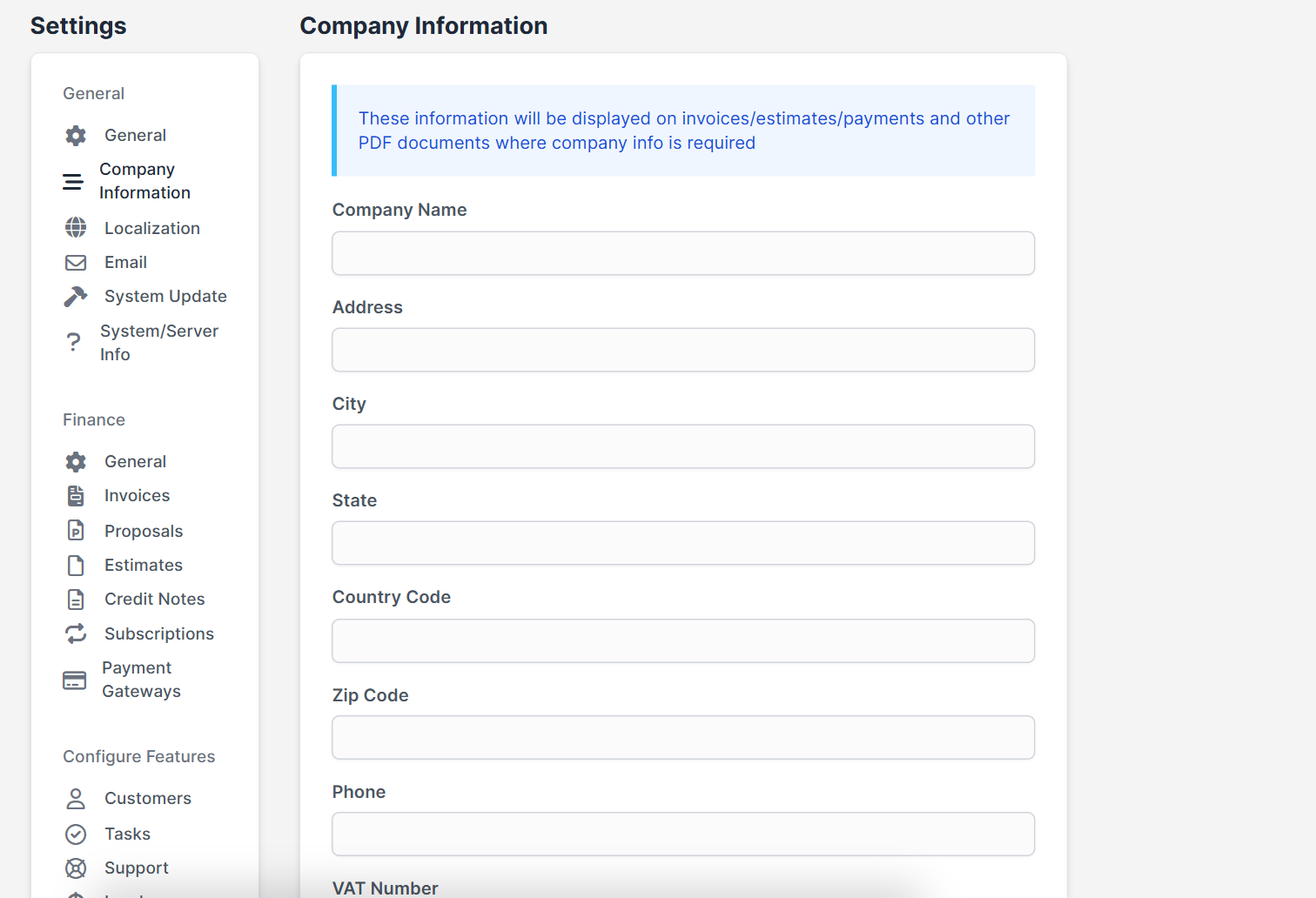
Open Setup > Settings > Company Information. Fill in Company Name, Address, City, State, Country Code, Zip Code, Phone and VAT Number. These details are printed on documents. The box Company Information Format (PDF and HTML) lets you change the layout of that block.
Step 5: Check the result everywhere #
Save and then look at:
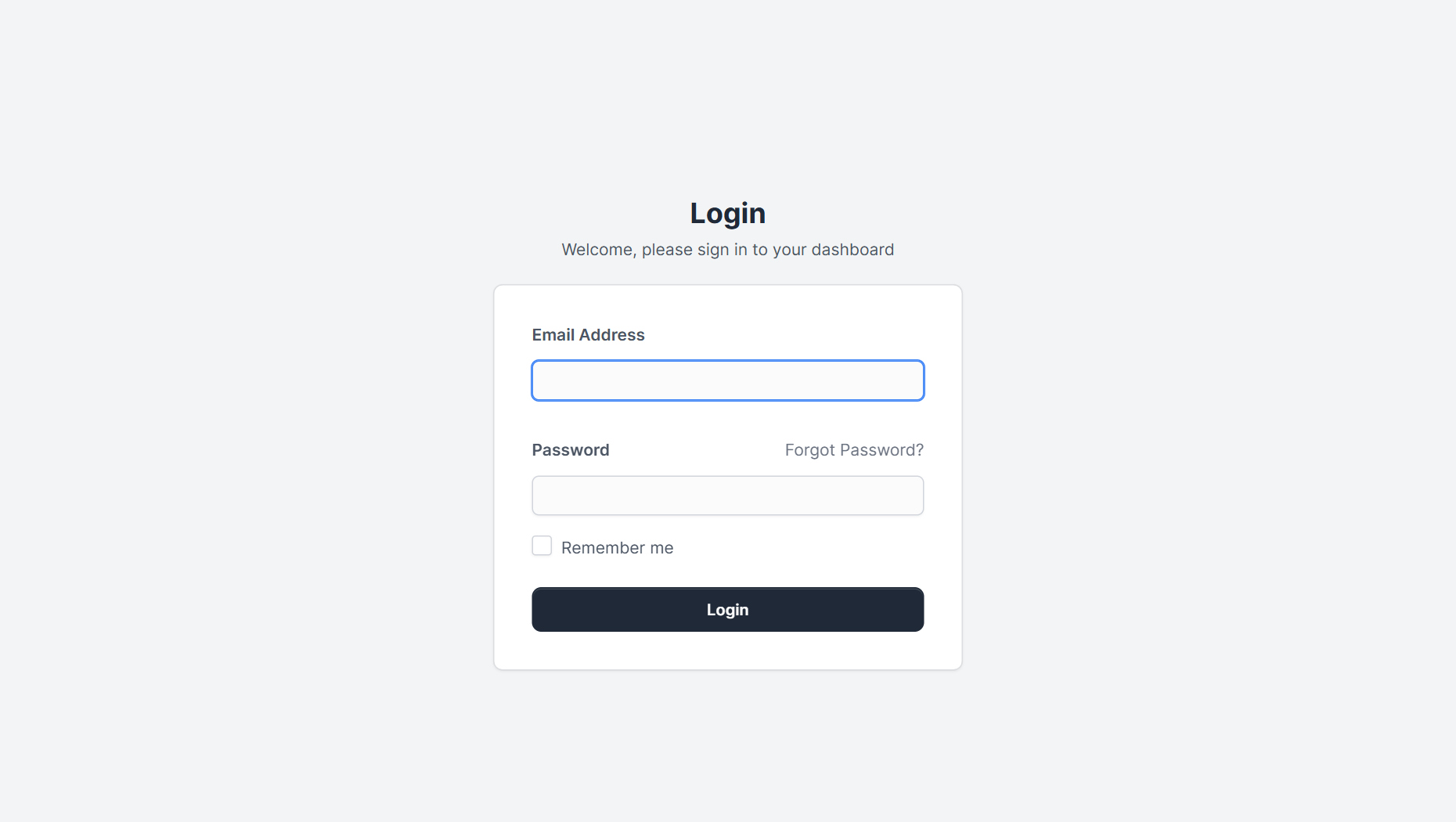
- The sign-in page of the admin area and the customer area (the logo appears above the form once you have uploaded it).
- A PDF of an invoice, see how to create an invoice.
- An email sent from the CRM, see Perfex CRM email templates.
- The Perfex CRM customer portal.
Common problems with the Perfex CRM company logo #
- The old logo still shows: clear your browser cache and any page cache plugin.
- The logo looks blurry: upload a larger file.
- The logo is invisible on a page: use the other version for that background.
- The upload fails: check the allowed file types and the file size limit of your server. See Perfex CRM server requirements.
Perfex CRM company logo FAQ #
How do I change the logo in Perfex CRM? #
Open Setup, then Settings, then General, and upload new files in Company Logo Light and Company Logo Dark.
What size should the logo be? #
Use a transparent PNG about 600 pixels wide. The system scales it down, so a larger file stays sharp.
Why does my PDF not show the new logo? #
Clear caches and open a new PDF. Old PDFs you saved earlier keep the old logo.
Can I change the favicon separately? #
Yes, it has its own upload field.
Quick checklist for Perfex CRM company logo #
- Use a transparent PNG for your Perfex CRM company logo.
- Upload both versions of the Perfex CRM company logo and check each one.
- Re-check the Perfex CRM company logo on a PDF after every change.
Summary #
A sharp Perfex CRM company logo makes your CRM, emails and documents look professional. Prepare transparent PNG files, upload the light and dark versions, set the favicon and fill in the company information. More information is on the official Perfex CRM website. Check your Perfex CRM company logo on the sign-in pages and on a PDF after every change.


