
WhatsApp Module for Perfex CRM: Setup and Documentation
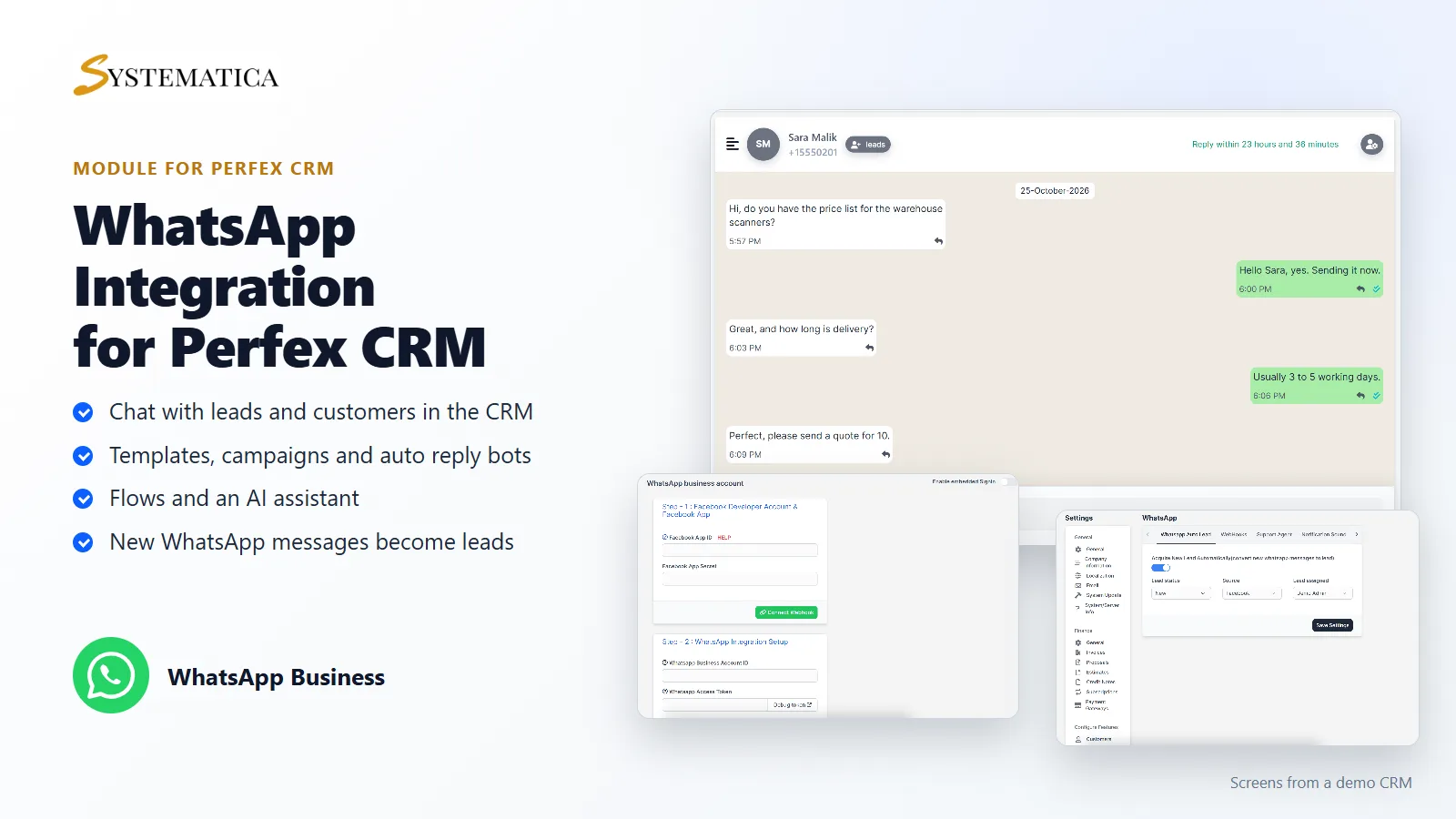
This guide shows how to set up the WhatsApp module for Perfex CRM. It connects your WhatsApp Business account to your CRM, so you can chat with leads and customers, manage message templates, campaigns, auto reply bots and flows, and turn new WhatsApp messages into leads automatically.
What the WhatsApp module for Perfex CRM includes
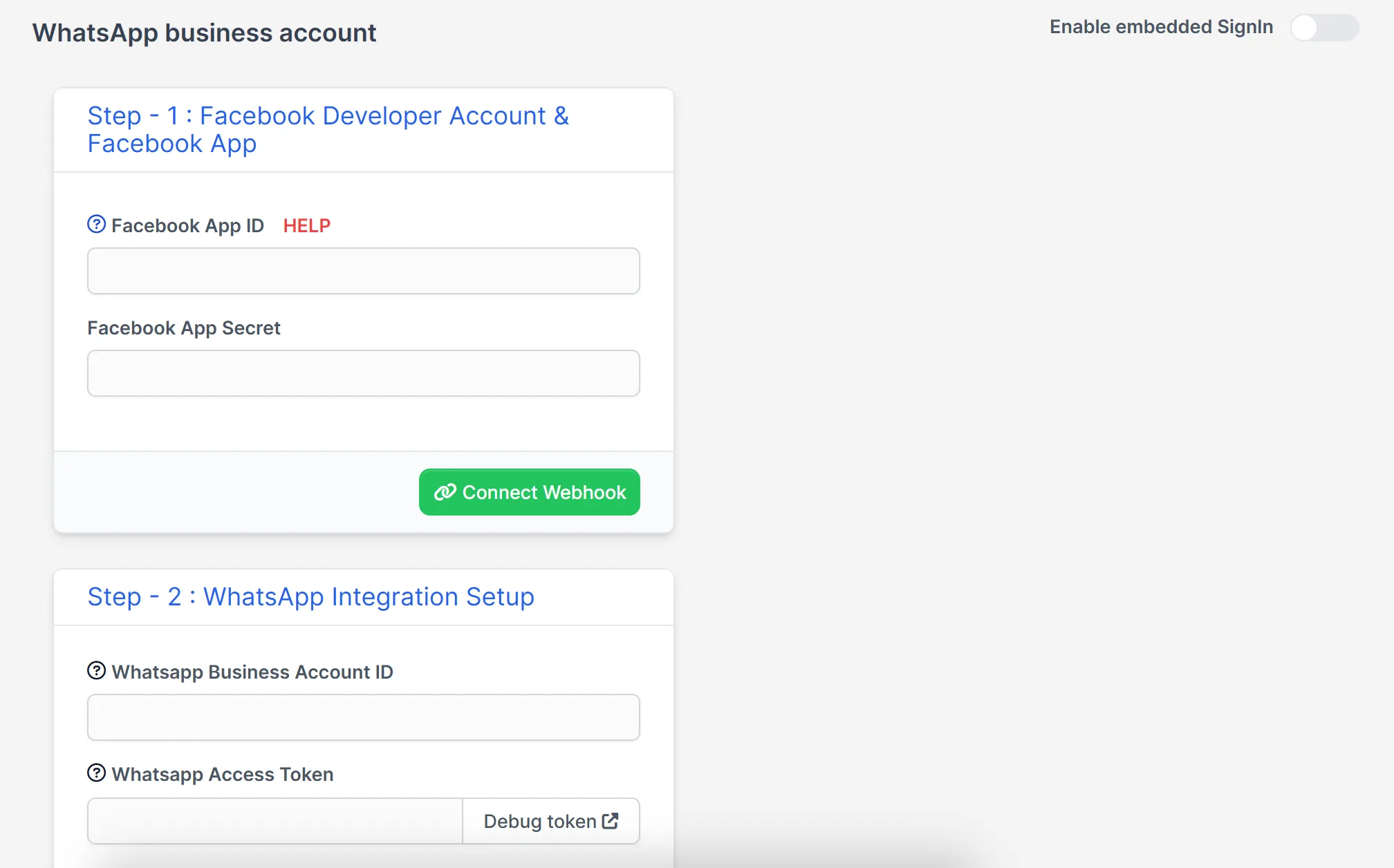
- A connect screen for your Facebook app, webhook, WhatsApp Business account ID and access token
- Live chat with a conversation list, message window, send box and quick replies
- Templates: load your approved message templates and manage them
- Push campaigns and bulk campaigns
- Auto reply bots and template bots with trigger keywords
- A bot flow builder and a flow builder
- An AI assistant and AI prompts
- Marketing automation, an activity log and lead notifications
- Settings to turn new WhatsApp messages into leads
Requirements
- Perfex CRM 3.4 or newer (tested on 3.4.1)
- A Meta developer account, a Facebook app and a WhatsApp Business account. Meta sets its own rules and prices for messages.
- A CRM address on HTTPS that Meta can reach, for the webhook
- A connection from your server to systematica.app over HTTPS for the license check
How to set up the WhatsApp module for Perfex CRM
- Upload the WhatsApp module for Perfex CRM under Setup > Modules and activate it.
- Open WhatsApp > License and enter your license key.
- Open WhatsApp > Connect Account and follow step 1 and step 2.
- Open Templates and click Load Templates.
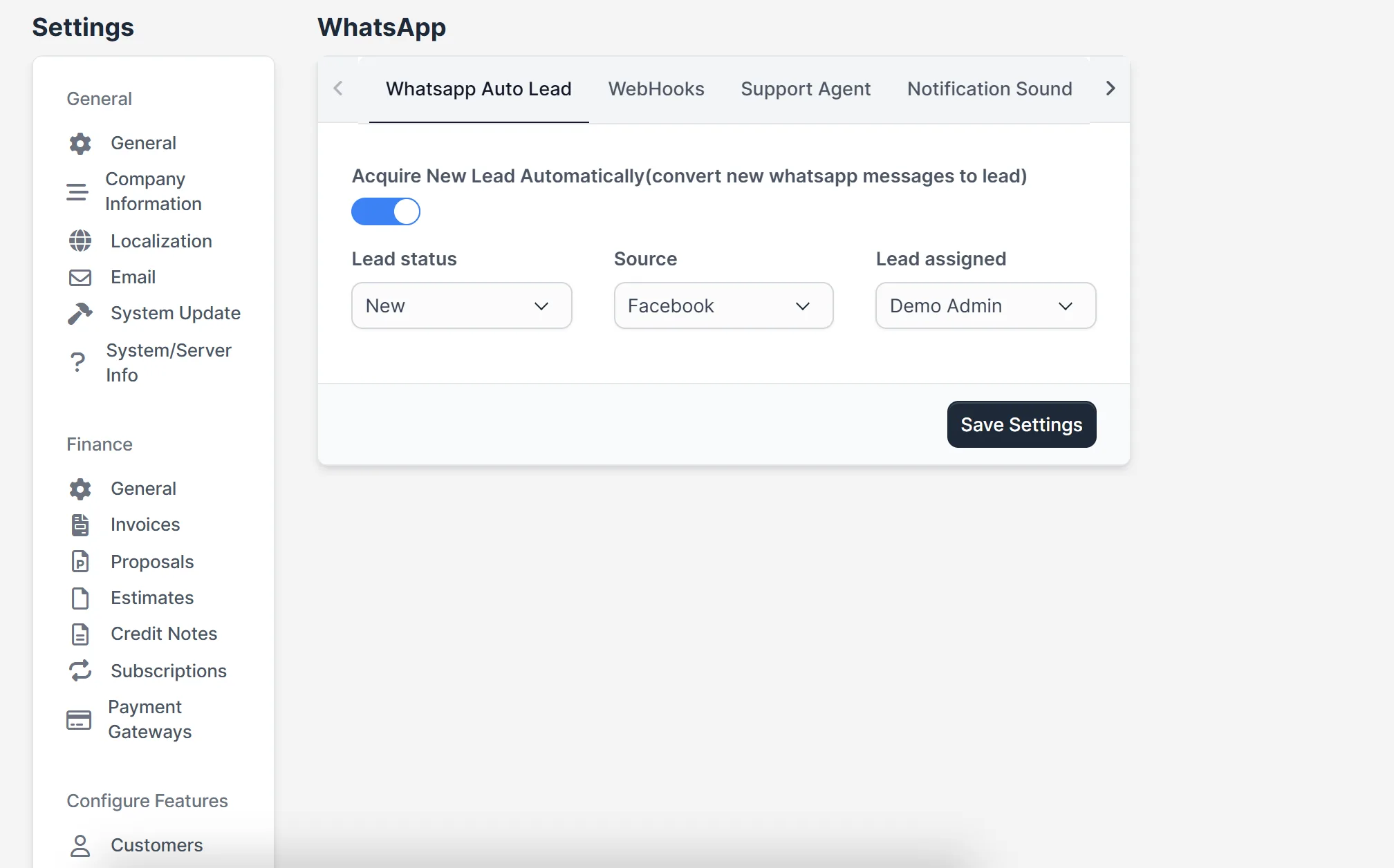
- Create your first bot or campaign, and set the auto lead options under Setup > Settings > WhatsApp.
Connect your WhatsApp Business account
The WhatsApp module for Perfex CRM walks you through the connection in two steps. Step one is your Facebook developer account and app: enter the app ID and secret, then connect the webhook. Step two is the WhatsApp integration setup: enter your WhatsApp Business account ID and access token. There is also a switch for embedded sign-in.
Chat with customers from the CRM
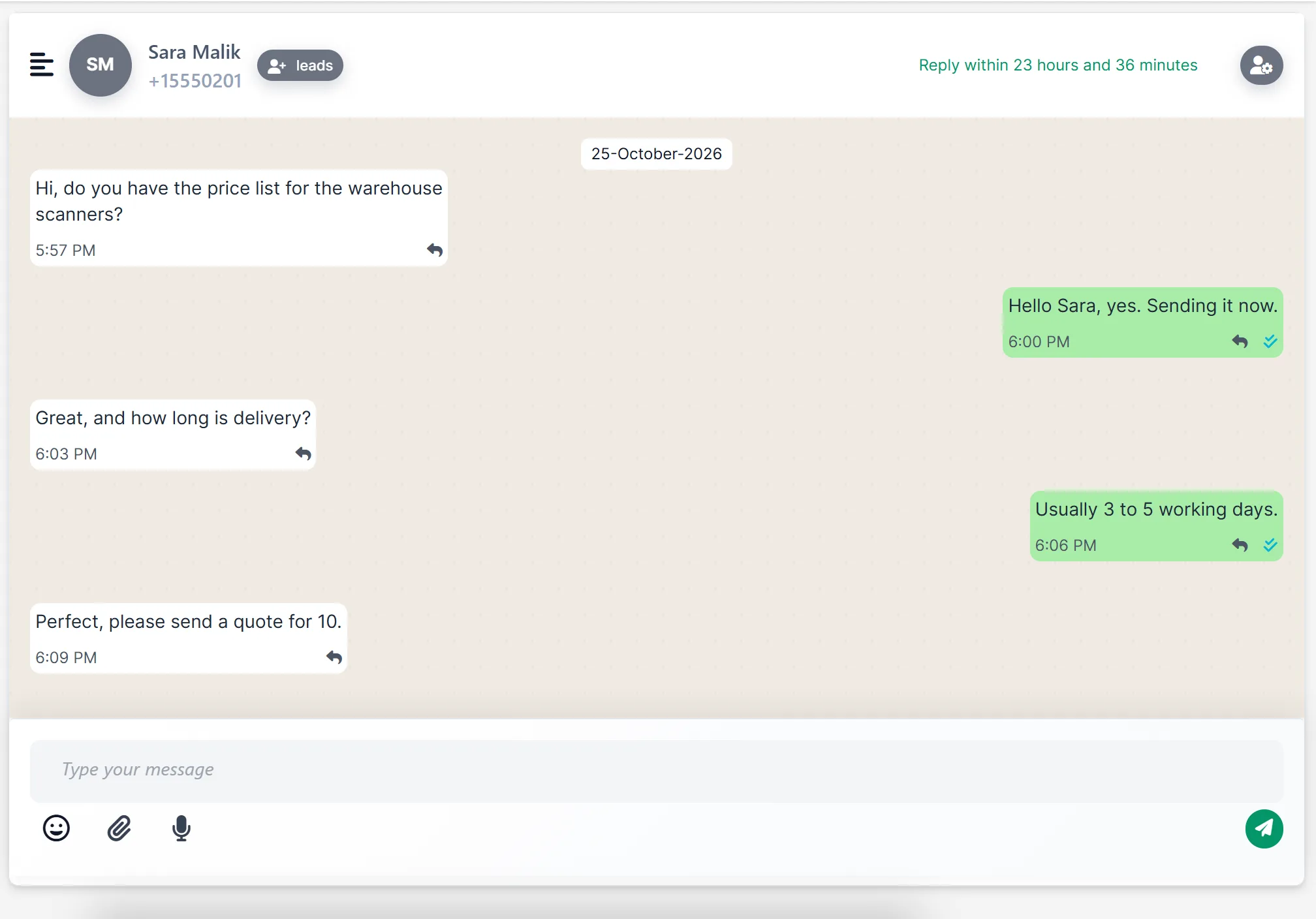
The Live Chat screen ties each conversation to a lead or contact. You see the list of conversations, the messages in a chat window, delivery ticks and a counter for the time left to reply. Type a message, add an emoji or an attachment, and send it.
Templates, bots and flows
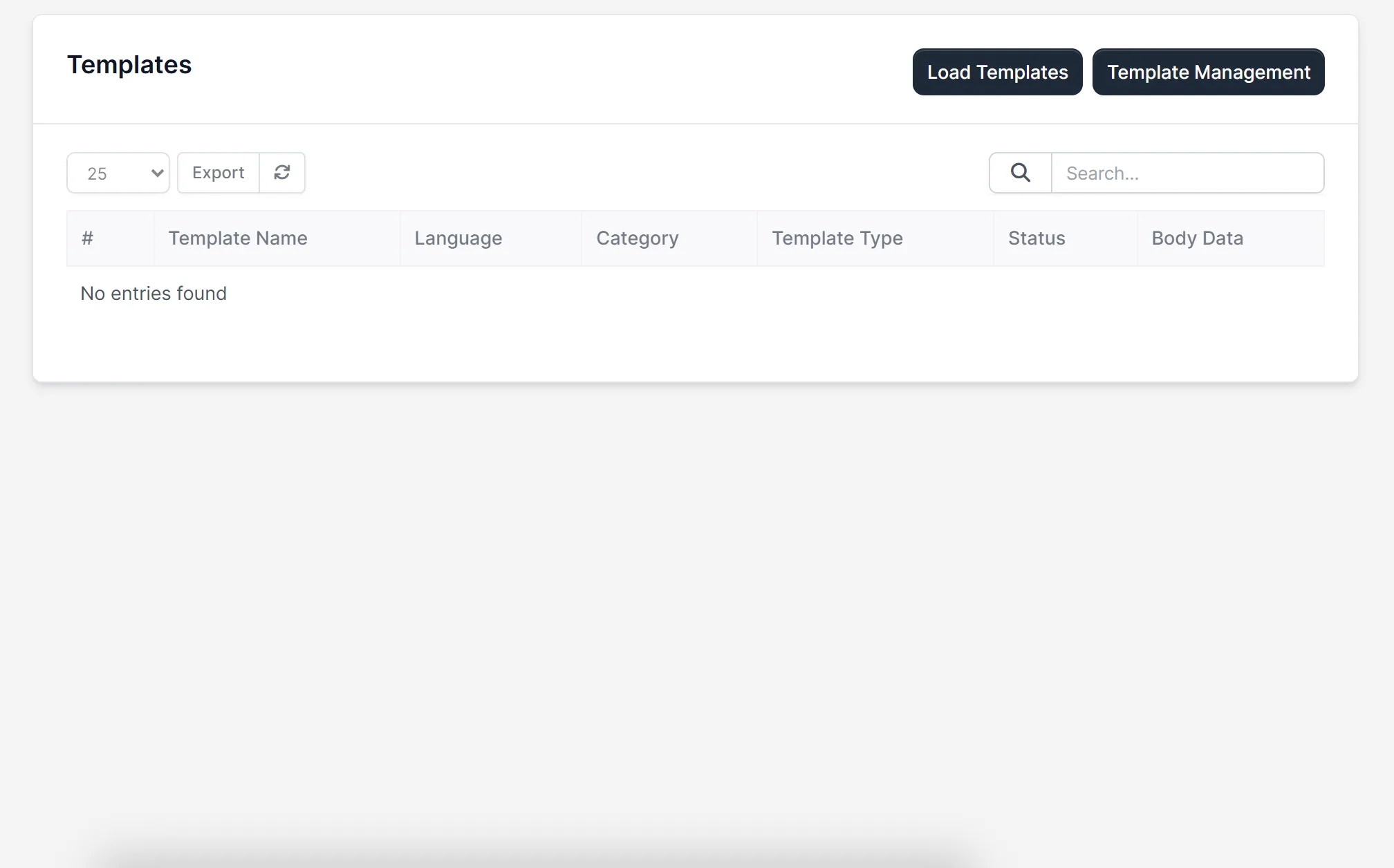
Load your approved templates into the CRM and use them in campaigns. Create message bots that answer when a customer sends a trigger keyword. Build flows for longer conversations. All three sit in the WhatsApp menu.
Turn WhatsApp messages into leads
Switch on automatic leads and every new WhatsApp message from an unknown number becomes a lead. You choose the lead status, the source and who the lead is assigned to. Your team then follows up from the normal Leads screen.
Good to know
- The WhatsApp module for Perfex CRM does not include a WhatsApp number or message credits. Meta bills messages under your own account.
- The AI assistant needs its own AI provider settings.
- The chat picture uses sample messages from a demo CRM. The other pictures show the screens before an account is connected, so their lists are empty.
Your license is valid for 1 year and includes support through our ticket system and free updates through your Systematica account. One license key activates the WhatsApp module for Perfex CRM on one website. It runs inside Perfex CRM, which you need to own.
Frequently asked questions
Do I need a Meta account for the WhatsApp module for Perfex CRM?
Yes. You need a Meta developer app and a WhatsApp Business account. The WhatsApp module for Perfex CRM connects to them with your IDs and token.
Can new WhatsApp messages become leads?
Yes. Switch on the auto lead setting and choose the status, source and owner.
Can I send campaigns?
The WhatsApp module for Perfex CRM has push campaigns and bulk campaigns that use your templates.
Where do I enter the license key?
Open WhatsApp > License after activating the WhatsApp module for Perfex CRM.
Related guides and support
- See the WhatsApp module product page.
- Add calls and SMS with the Call Manager module.
- Read the PWA module for Perfex CRM guide.
- Need help? Open a ticket on the support page.
- Read more in the Perfex CRM documentation.