
- Where to find the Perfex CRM SMTP settings
- What you need before you start
- Step by step: configure the Perfex CRM SMTP settings
- Optional Perfex CRM SMTP settings
- Gmail and Microsoft accounts
- Fix common Perfex CRM SMTP problems
- Keep your email settings safe
- Visual guide: Perfex CRM SMTP settings
- Perfex CRM SMTP settings FAQ
- Modules that work with your email
- Useful resources
Correct Perfex CRM SMTP settings make sure invoices, ticket replies and password resets reach your customers instead of landing in spam or not leaving your server at all. This guide walks through every field on the email screen, explains which port and encryption to choose, and shows how to send a test email before you go live.
Where to find the Perfex CRM SMTP settings #
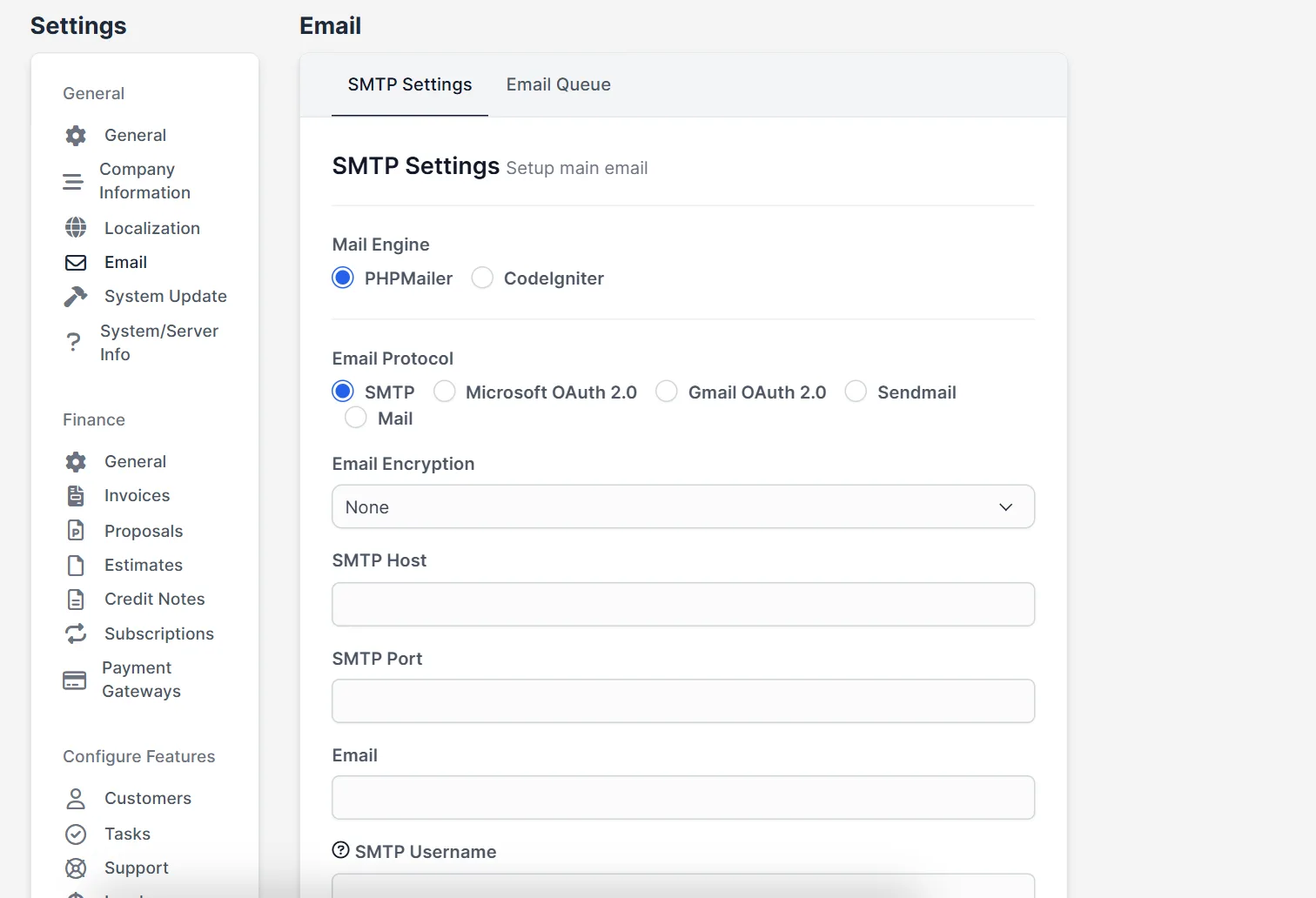
Sign in as an administrator and open Setup > Settings > Email. The screen has two tabs: SMTP Settings and Email Queue. The first one holds the connection details for your main email account. The heading on the screen reads SMTP Settings Setup main email.
What you need before you start #
- The mail server name (for example
mail.your-domain.comor the one your email provider gives you). - The user name and password of the mailbox that will send your email, usually the full address.
- The port and encryption type your provider uses.
Step by step: configure the Perfex CRM SMTP settings #
- Mail Engine. Choose PHPMailer. It is the more modern option. CodeIgniter is the older engine and is only useful if PHPMailer gives you trouble.
- Email Protocol. Choose SMTP for a normal mailbox. The list also offers Microsoft OAuth 2.0 and Gmail OAuth 2.0 for accounts that need a modern sign-in, plus Sendmail and Mail, which use the mail program of your server.
- Email Encryption. Pick the type your provider uses. Port 587 normally goes with TLS, and port 465 normally goes with SSL.
- SMTP Host and SMTP Port. Enter the mail server name and its port.
- SMTP Username and SMTP Password. Enter the mailbox details. Use an app password if your provider offers one.
- Email Charset. Leave
utf-8unless you have a reason to change it. - Save Settings. Then use the Send Test Email box at the bottom of the screen: type an address you can open and press Test.
Optional Perfex CRM SMTP settings #
- BCC All Emails To sends a hidden copy of every outgoing email to one address. Useful for audits, but it also copies private messages, so tell your team.
- Email Signature is added to every email.
- Predefined Header and Predefined Footer wrap every message in your own text or HTML. You can edit each message in the email templates.
Gmail and Microsoft accounts #
Gmail and Microsoft 365 no longer accept plain passwords for many accounts. If the test email fails, switch Email Protocol to Gmail OAuth 2.0 or Microsoft OAuth 2.0. These options ask for a Client Id and a Client Secret, and the Microsoft option also asks for a Tenant ID. You create these values in the Google Cloud console or the Microsoft Azure portal. Our guide to the Perfex CRM Google integration shows the Google side step by step.
Fix common Perfex CRM SMTP problems #
- The test email never arrives. Check the spam folder, then check that the port is not blocked by your hosting firewall.
- Authentication failed. Check the user name (use the full address) and the password. Remove spaces you copied by mistake.
- Certificate or SSL errors. Try the other encryption and port pair from your provider, such as TLS on 587.
- Emails are sent twice or very late. Check the Perfex CRM email queue and that your cron job runs.
- Customers say the mail is in spam. Use a sender address on your own domain and ask your host to set up SPF and DKIM for it.
Keep your email settings safe #
The SMTP password is stored in your database, so protect your backups and use a mailbox that only sends system mail. If you change the password later, come back to this screen and update it, then send another test email.
Visual guide: Perfex CRM SMTP settings #
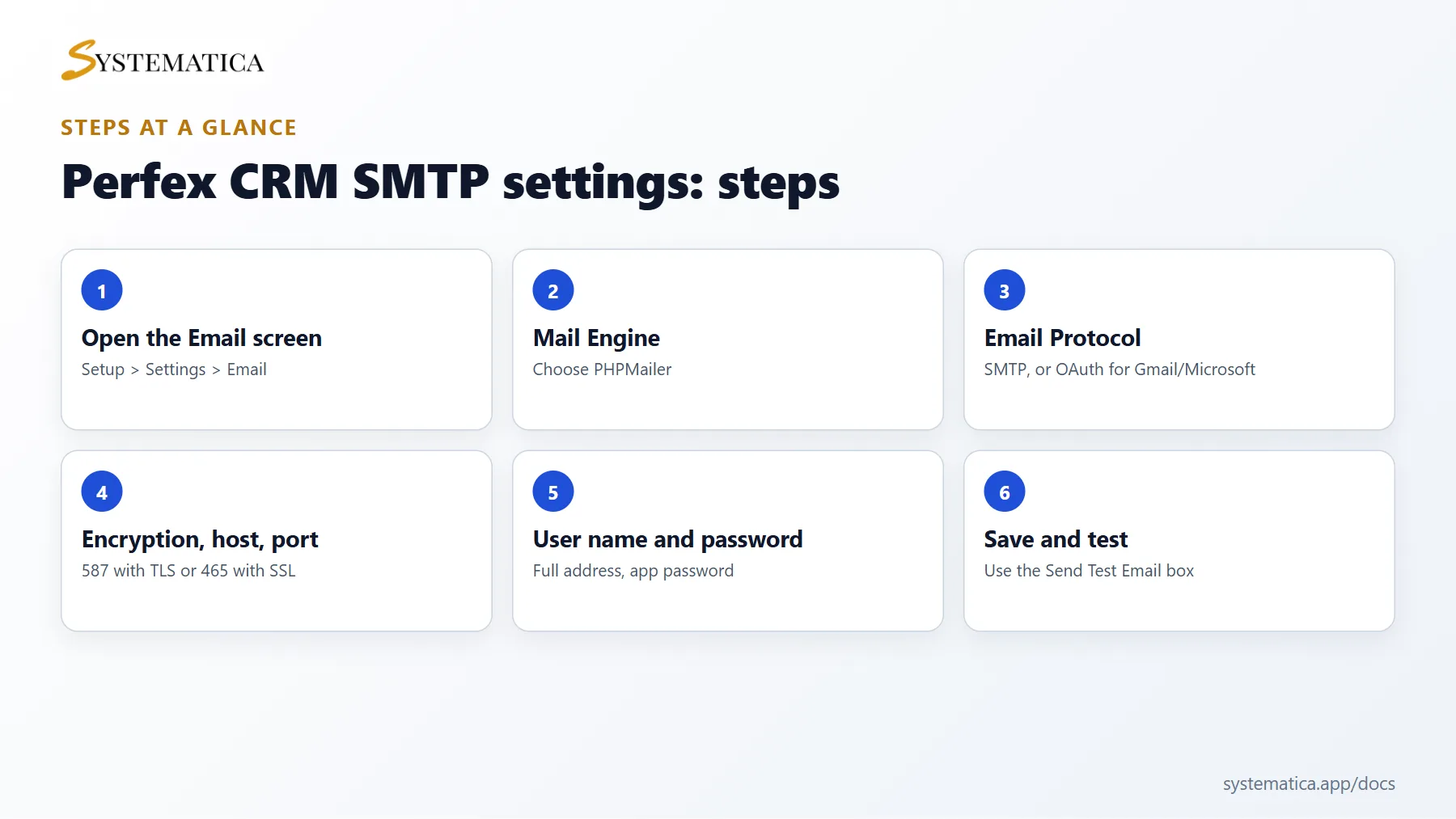
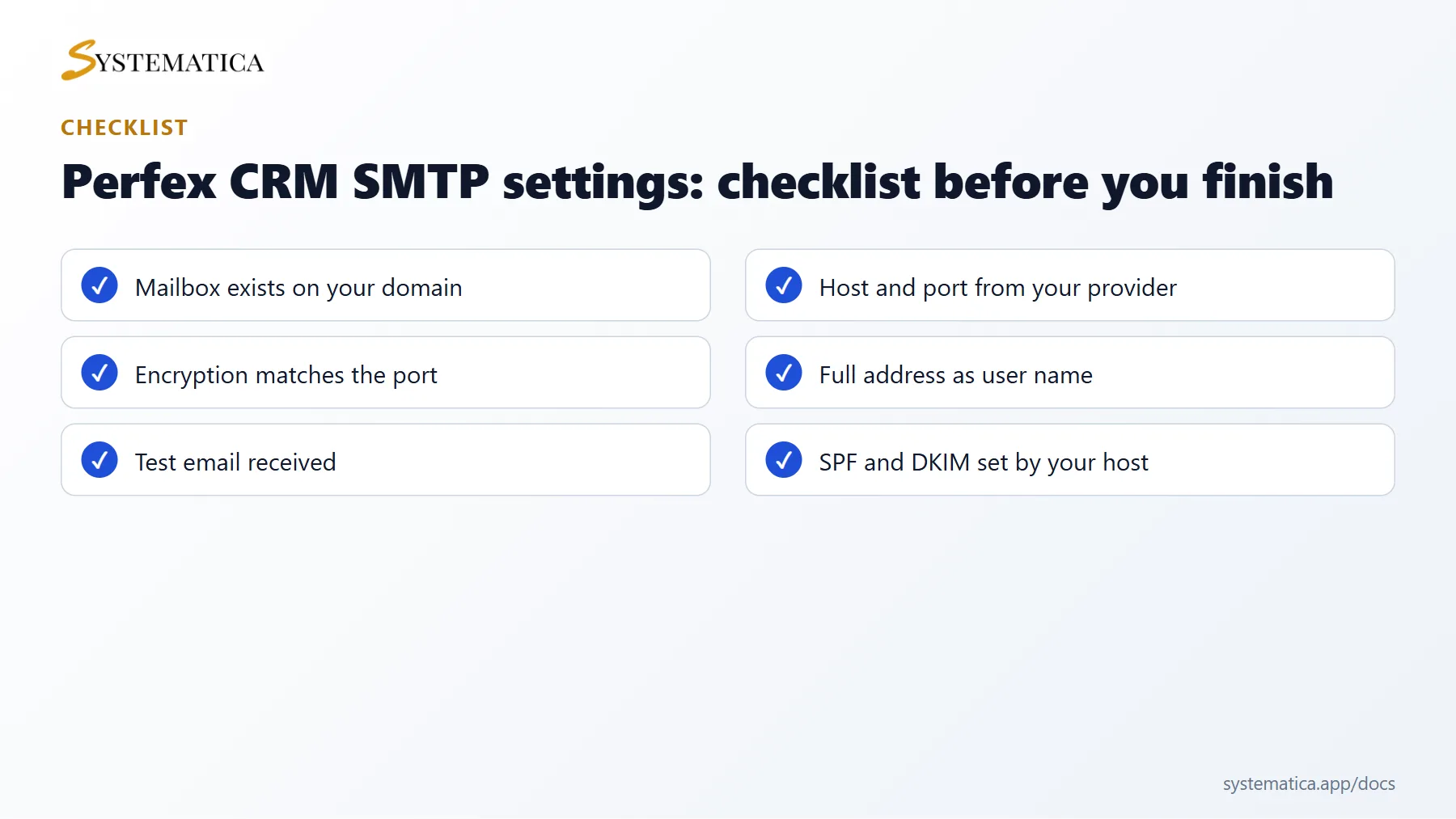
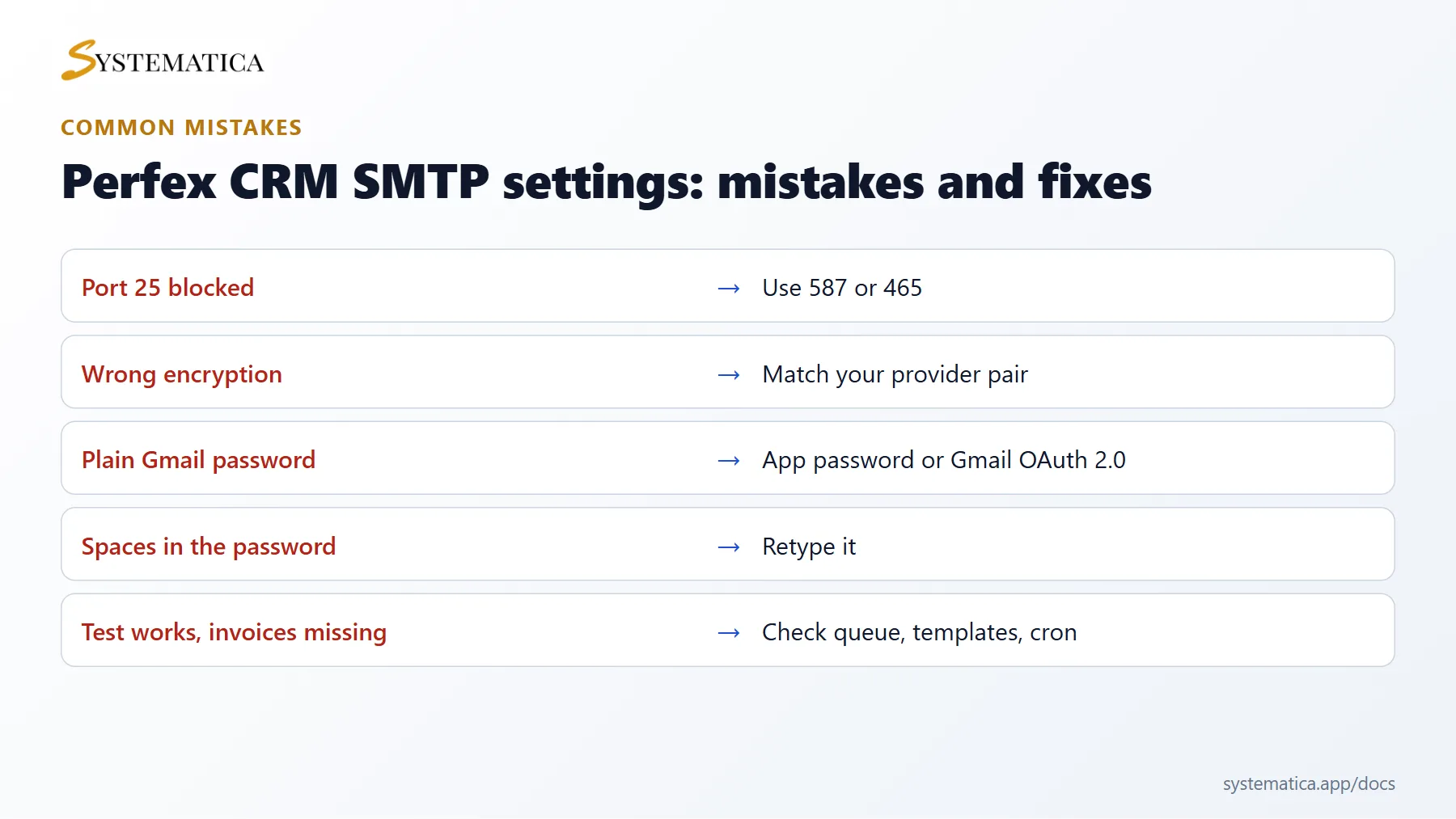
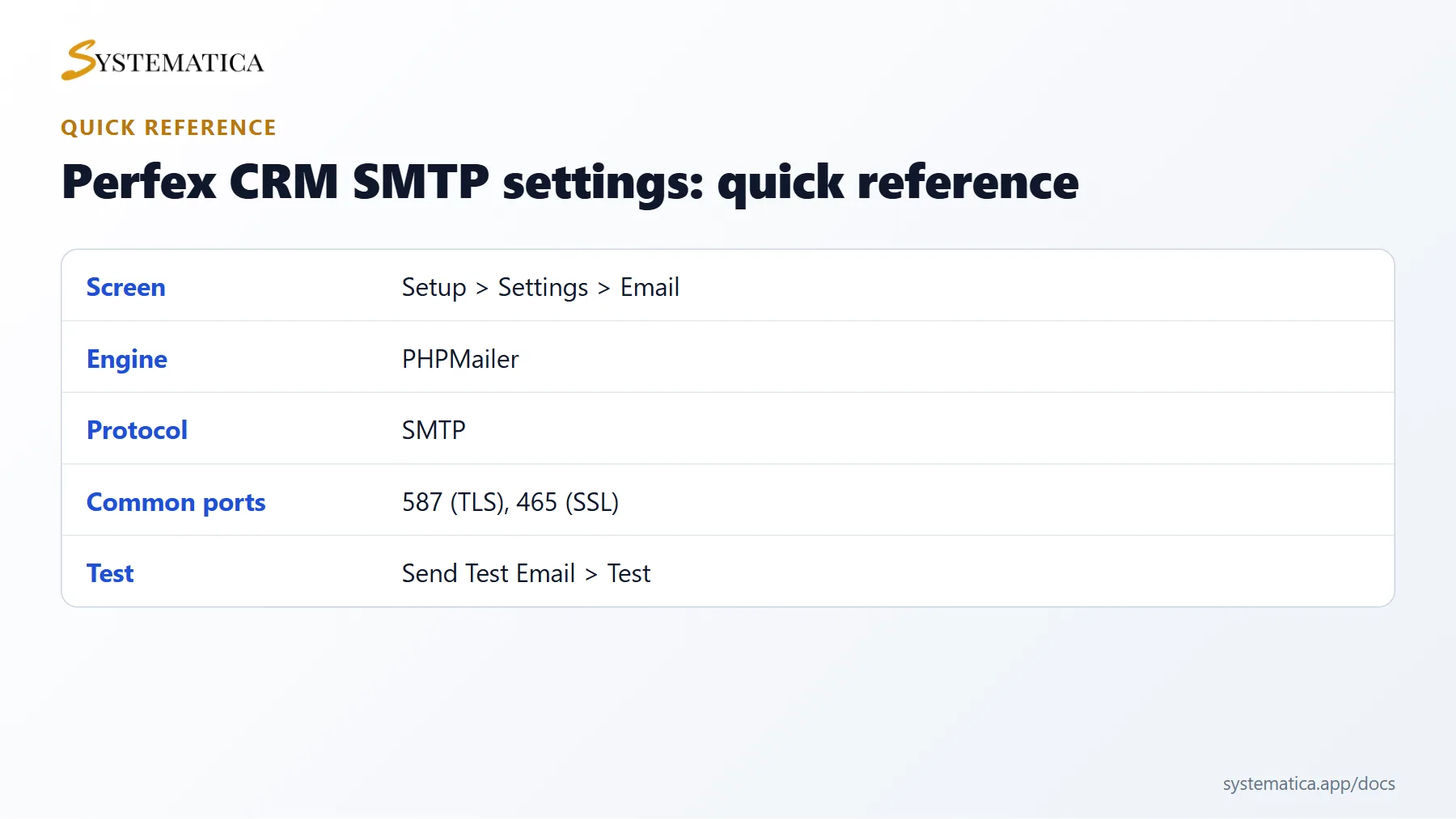
Save or share these four cards. They summarize the steps, the checklist, the usual mistakes and the key values from this guide.
Perfex CRM SMTP settings FAQ #
Which port should I use for my Perfex CRM SMTP settings? #
Use the port your provider documents. In most cases port 587 with TLS or port 465 with SSL works. Port 25 is often blocked by hosting companies and is not a good choice.
Can I use my hosting mailbox? #
Yes. Create a mailbox such as billing@your-domain.com in your hosting panel and use its details in the Perfex CRM SMTP settings. A mailbox on your own domain gives the best delivery.
Can I use Gmail? #
Yes, with an app password or with the Gmail OAuth 2.0 option. Plain account passwords are no longer accepted for many accounts, and Google limits how many emails one account can send per day, so it suits small teams only.
Why does the test email work but customers do not get invoices? #
The test only proves that your server can send. Invoices may be sitting in the queue, disabled in the template, or filtered as spam. Check the email queue and the email templates.
Should I change the From address? #
The sender address should match the mailbox in the Perfex CRM SMTP settings or a domain you control. Many providers reject mail that claims to come from a different domain.
How do I improve delivery? #
Ask your host to add SPF and DKIM records for your domain and avoid sending many emails at once. Check one test message with a spam test tool before you send a large batch.
Modules that work with your email #
After your Perfex CRM SMTP settings work, add a full inbox to your CRM with the Mailbox module for Perfex CRM. Staff can read, reply to and convert emails into tasks, tickets or leads without leaving the system.
Useful resources #
Google explains how to create an app password, and Mail-Tester shows how spam filters rate your message. After you finish the Perfex CRM SMTP settings, send one test email to an outside address, not only to a mailbox on your own domain.


