
- Where to find Perfex CRM invoices
- Step 1: Click Create New Invoice
- Step 2: Choose the customer
- Step 3: Set the number, dates and options
- Step 4: Make the invoice recurring if needed
- Step 5: Add the items
- Step 6: Add notes and save
- Step 7: Record the payment
- Tips for better Perfex CRM invoices
- Perfex CRM create invoice FAQ
- Modules that extend invoicing
- Quick checklist for Perfex CRM create invoice
- Summary
To Perfex CRM create invoice documents, you only need a customer, a date and at least one item. The invoice then goes to the customer by email, appears in the customer area and can be paid online. This guide was tested on Perfex CRM 3.4.1 and shows each step, from the empty form to a recorded payment, for new users of Perfex CRM invoices.
Where to find Perfex CRM invoices #
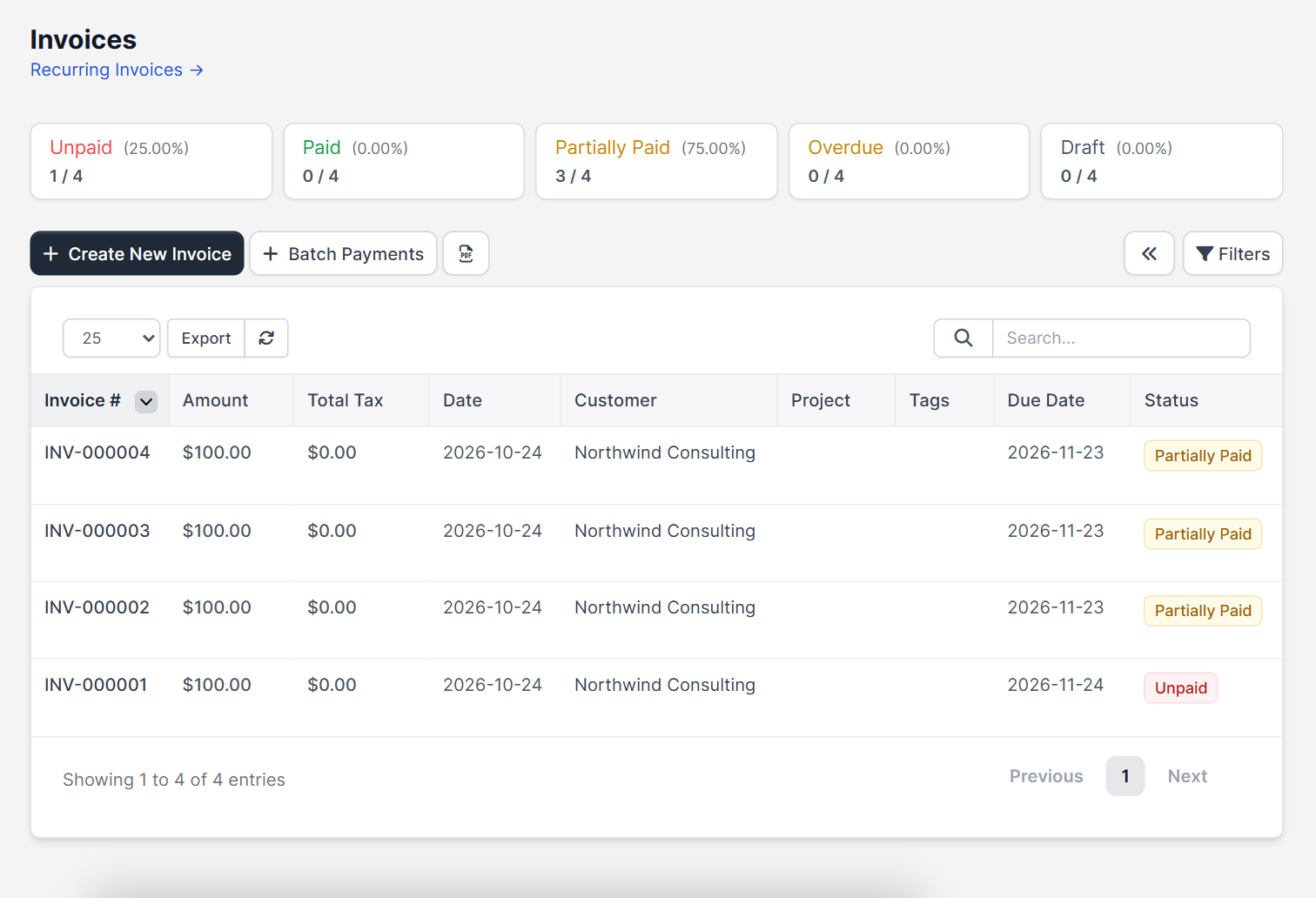
Open Sales > Invoices. The top shows counters for Unpaid, Paid, Partially Paid, Overdue and Draft, each with its share of the total. Below is a table with Invoice #, Amount, Total Tax, Date, Customer, Project, Tags, Due Date and Status. The buttons Create New Invoice, Batch Payments and Filters sit above it.
Step 1: Click Create New Invoice #
The form opens with the customer on the left and the numbers on the right. Make sure the customer exists, see Perfex CRM new customer.
Step 2: Choose the customer #
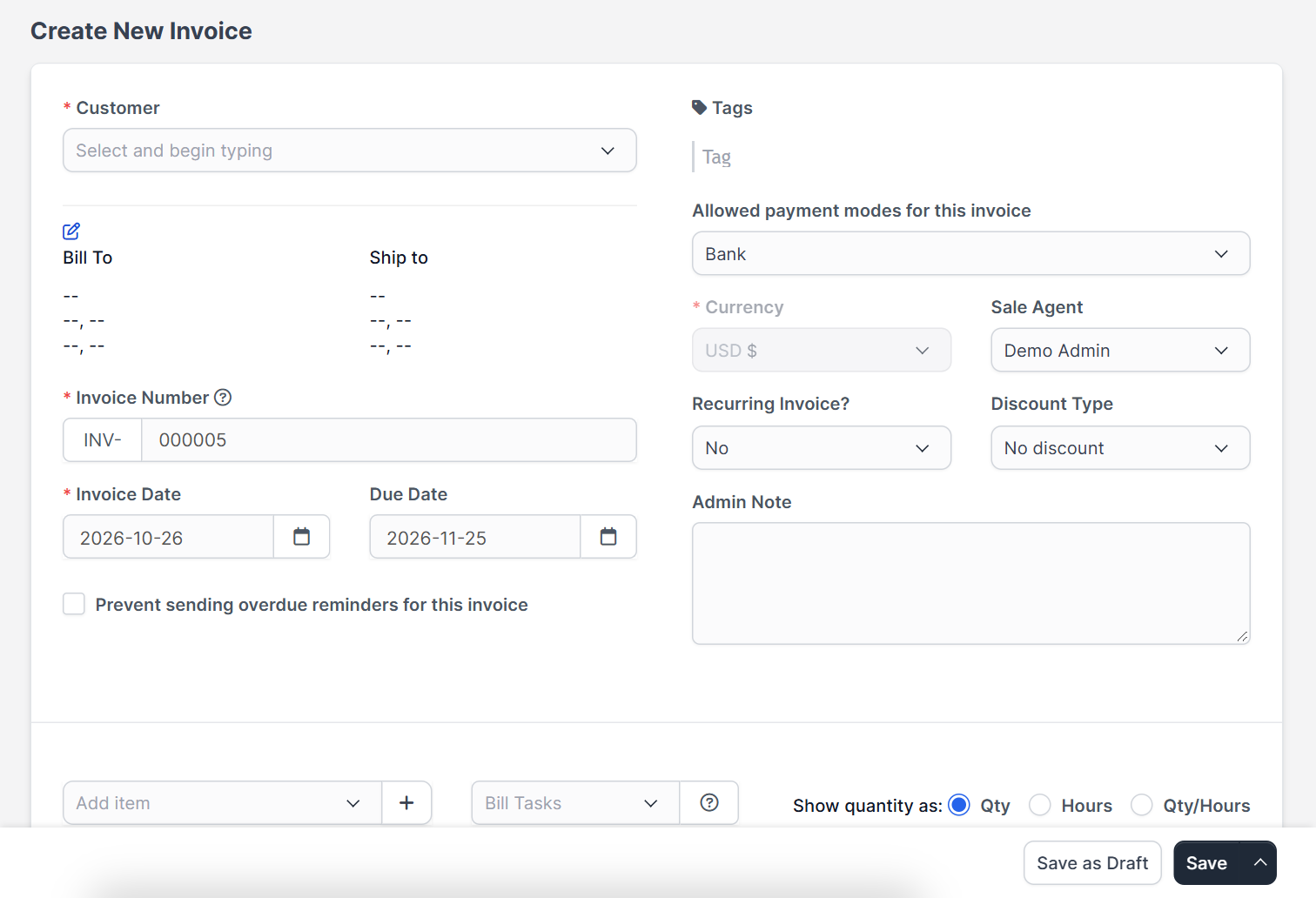
Select the Customer by typing. The billing address is filled in. You can pick a Project, and the Shipping Address block has a switch Show shipping details in invoice.
Step 3: Set the number, dates and options #
- Invoice Number and Invoice Date are required, and Due Date tells the customer when to pay.
- Prevent sending overdue reminders for this invoice switches off reminders for this one invoice.
- Tags help you filter later.
- Allowed payment modes for this invoice selects how the customer may pay. See Perfex CRM payment modes and payment gateways.
- Currency follows the customer. See Perfex CRM currencies.
- Sale Agent, Discount Type and Admin Note are optional.
Step 4: Make the invoice recurring if needed #
The Recurring Invoice? option repeats the invoice every period for a number of cycles. Set it up as described in Perfex CRM recurring invoices.
Step 5: Add the items #
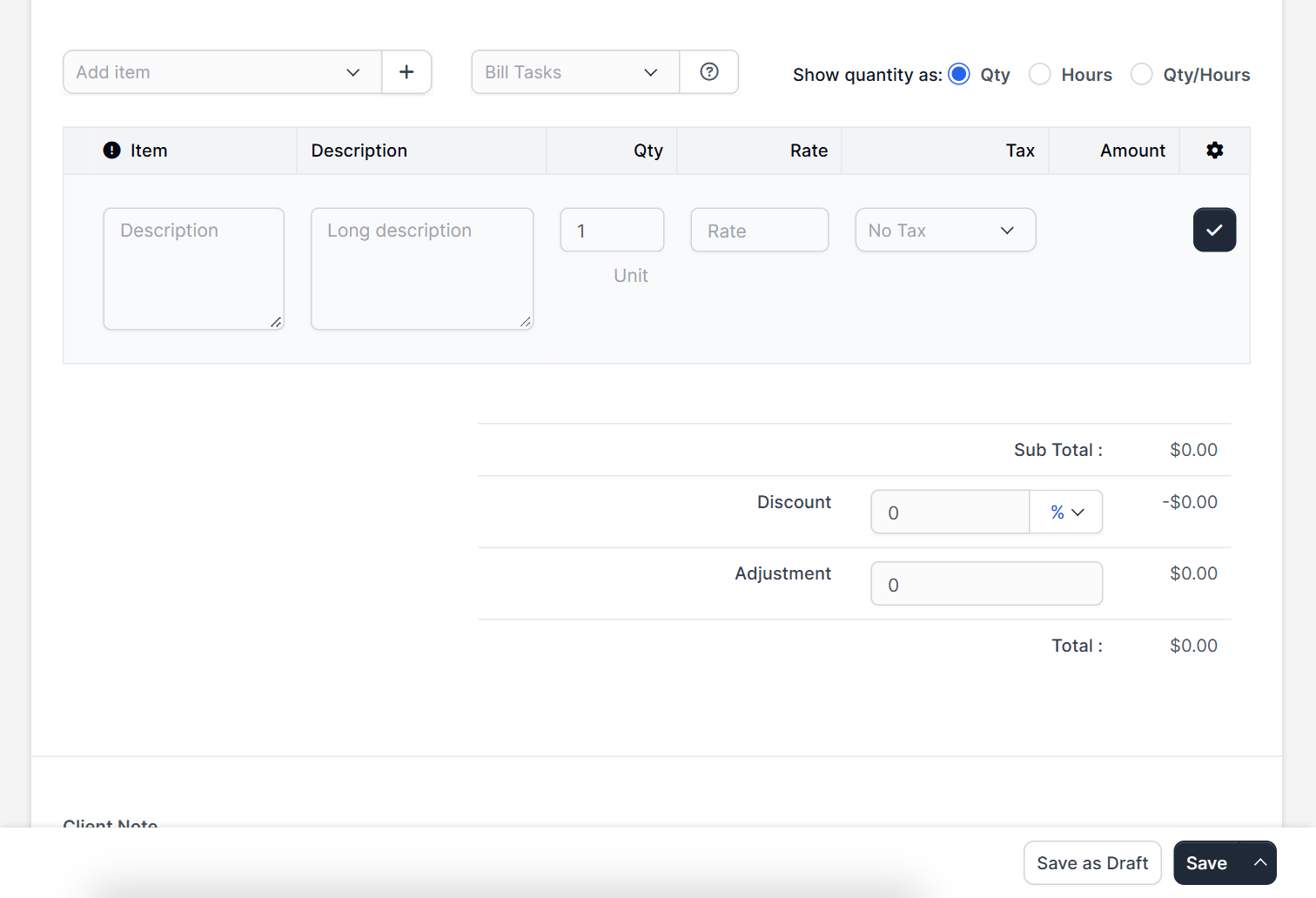
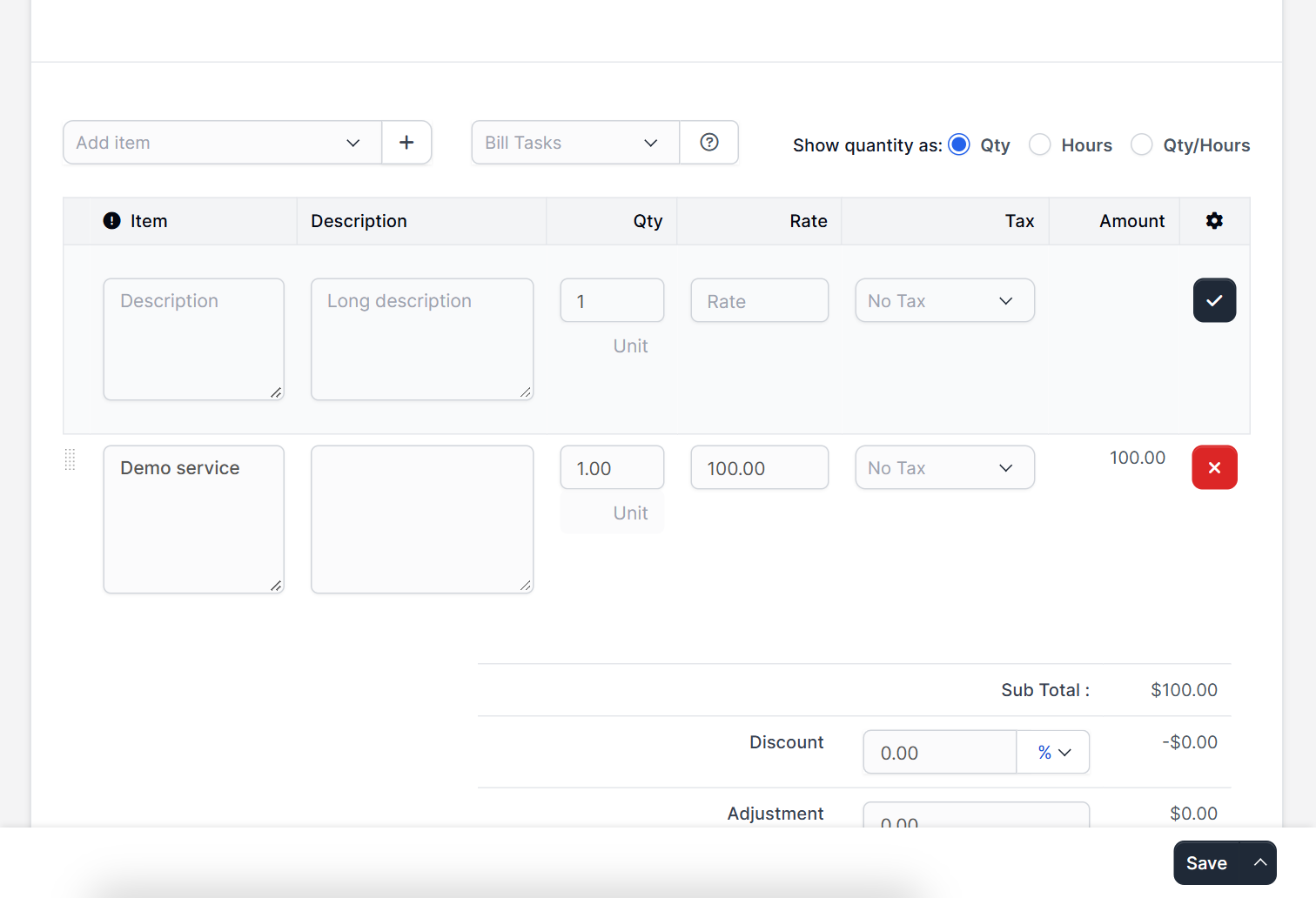
Use Add item to pick a saved product or write a new row. Each row has an item, description, quantity, rate and tax, and the amount is calculated for you. You can also use Bill Tasks to add billable tasks. Save products once in Perfex CRM invoice items.
Step 6: Add notes and save #
Use Client Note and Terms & Conditions for the customer to read. Click Save as Draft to keep working later, or Save to finish. Then send the invoice by email from the invoice view. The message uses your email templates and needs working SMTP settings.
Step 7: Record the payment #
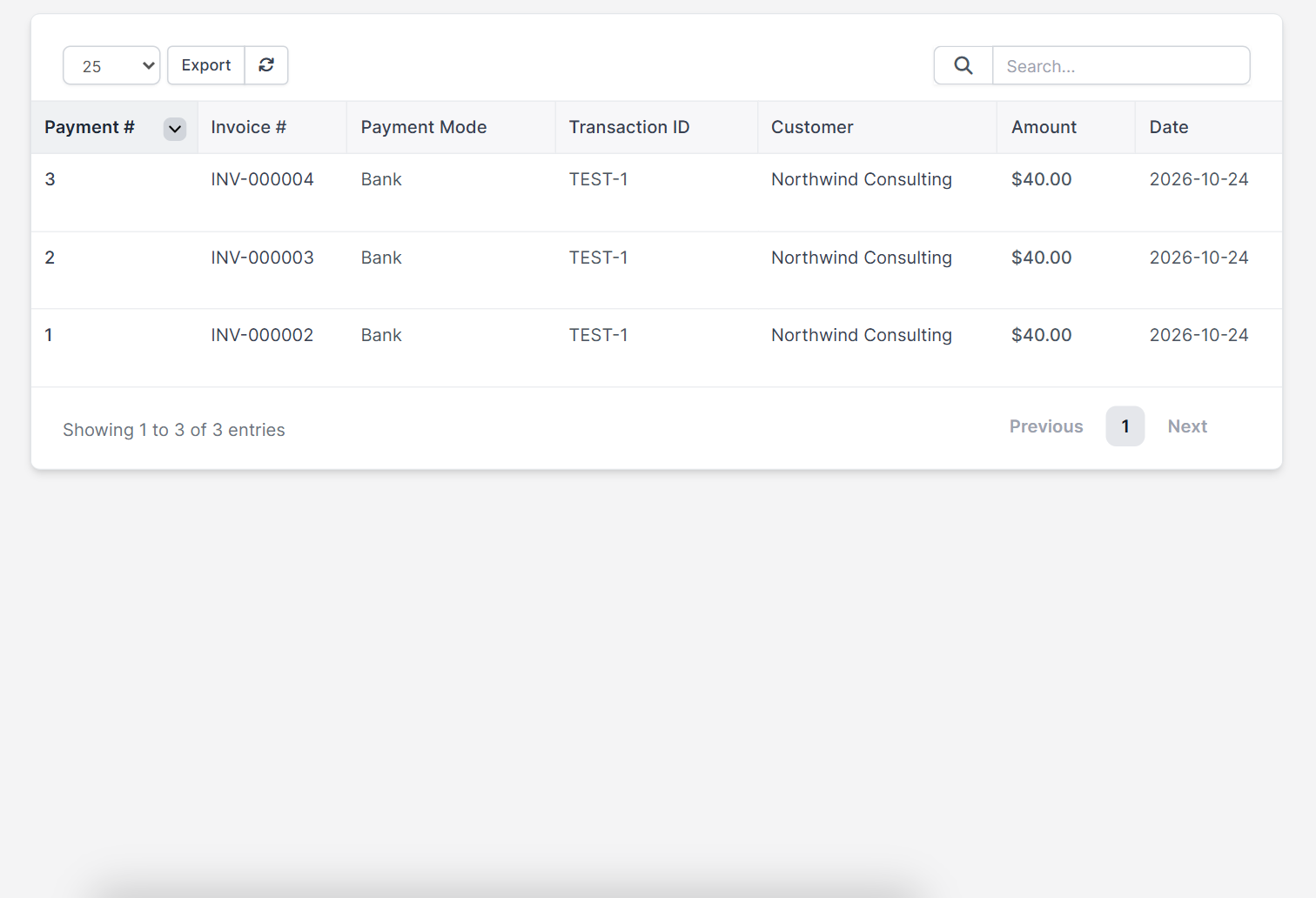
When money arrives, open the invoice and record the payment with the amount, date and payment mode. The invoice moves to Partially Paid or Paid. All payments appear in the payments list with the Payment #, Invoice #, Payment Mode, Transaction ID, Customer, Amount and Date. To record many at once, use Batch Payments.
Tips for better Perfex CRM invoices #
- Add a clear due date. Invoices without one are paid later.
- Use item descriptions that your customer understands.
- Correct mistakes with a credit note, not by rewriting a paid invoice.
- Link invoices to projects so reports stay clean.
- Check overdue invoices every week.
Perfex CRM create invoice FAQ #
How do I create an invoice in Perfex CRM? #
Open Sales, then Invoices, click Create New Invoice, choose the customer, add items and save.
Can I turn an estimate into an invoice? #
Yes, convert an accepted estimate or proposal. See Perfex CRM estimates.
How do I record a payment? #
Open the invoice and add a payment with the amount, date and mode.
Can customers pay online? #
Yes, when you enable a gateway and allow it on the invoice.
Modules that extend invoicing #
Pay your sales team with the Sales Commission Program, add accounting with the Financial Management module and follow stock with Inventory Management.
Quick checklist for Perfex CRM create invoice #
- Gather the customer, items and tax rules before you Perfex CRM create invoice documents.
- Use the same steps each time you Perfex CRM create invoice drafts, so numbers stay consistent.
- Review Perfex CRM create invoice drafts once before you send them.
Summary #
To Perfex CRM create invoice documents correctly: choose the customer, set dates and payment modes, add items, save and send, then record the payment. Good habits with Perfex CRM invoices get you paid sooner. You can find more on the official Perfex CRM website. Practice once with a test customer before you use Perfex CRM create invoice for real work.


