
- Step 1: Open the email settings
- Step 2: Send an SMTP test email
- Step 3: Read the debug log
- Step 4: Check the host, port and encryption together
- Step 5: Check the email queue
- Step 6: Check the email templates
- Step 7: Check spam and your domain
- Quick checklist for Perfex CRM email not sending
- Perfex CRM email not sending FAQ
- Summary
Invoices, ticket replies and password resets all depend on email. When Perfex CRM email not sending is your problem, customers see nothing, and you often do not notice for days. This guide was tested on Perfex CRM 3.4.1. It shows how to test your email, how to read the error message and which seven things to fix first.
Step 1: Open the email settings #
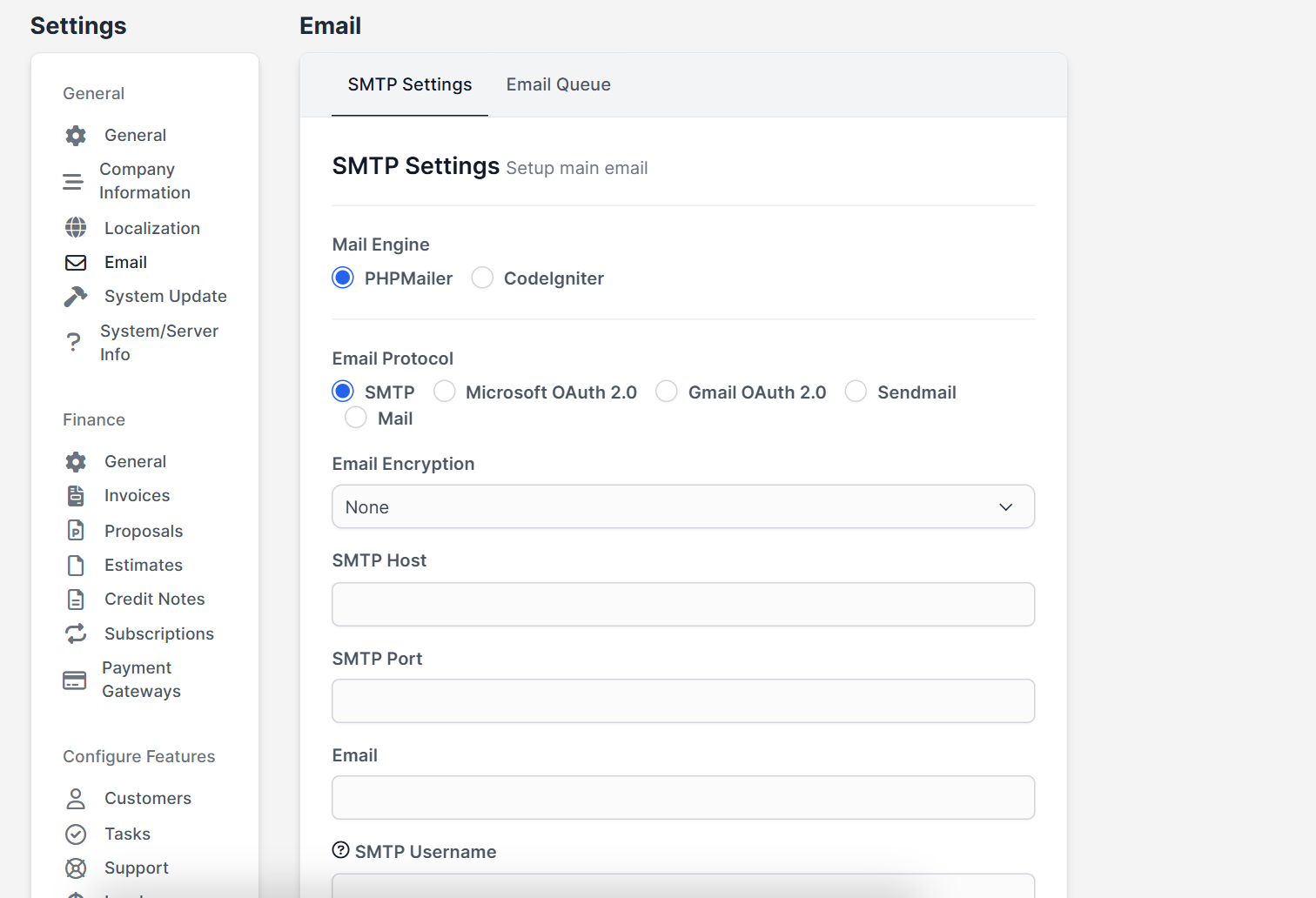
Open Setup > Settings > Email. The page has two tabs, SMTP Settings and Email Queue. Under SMTP Settings you choose the Mail Engine (PHPMailer or CodeIgniter) and the Email Protocol (SMTP, Microsoft OAuth 2.0, Gmail OAuth 2.0, Sendmail or Mail). The full setup is in Perfex CRM SMTP settings.
Step 2: Send an SMTP test email #
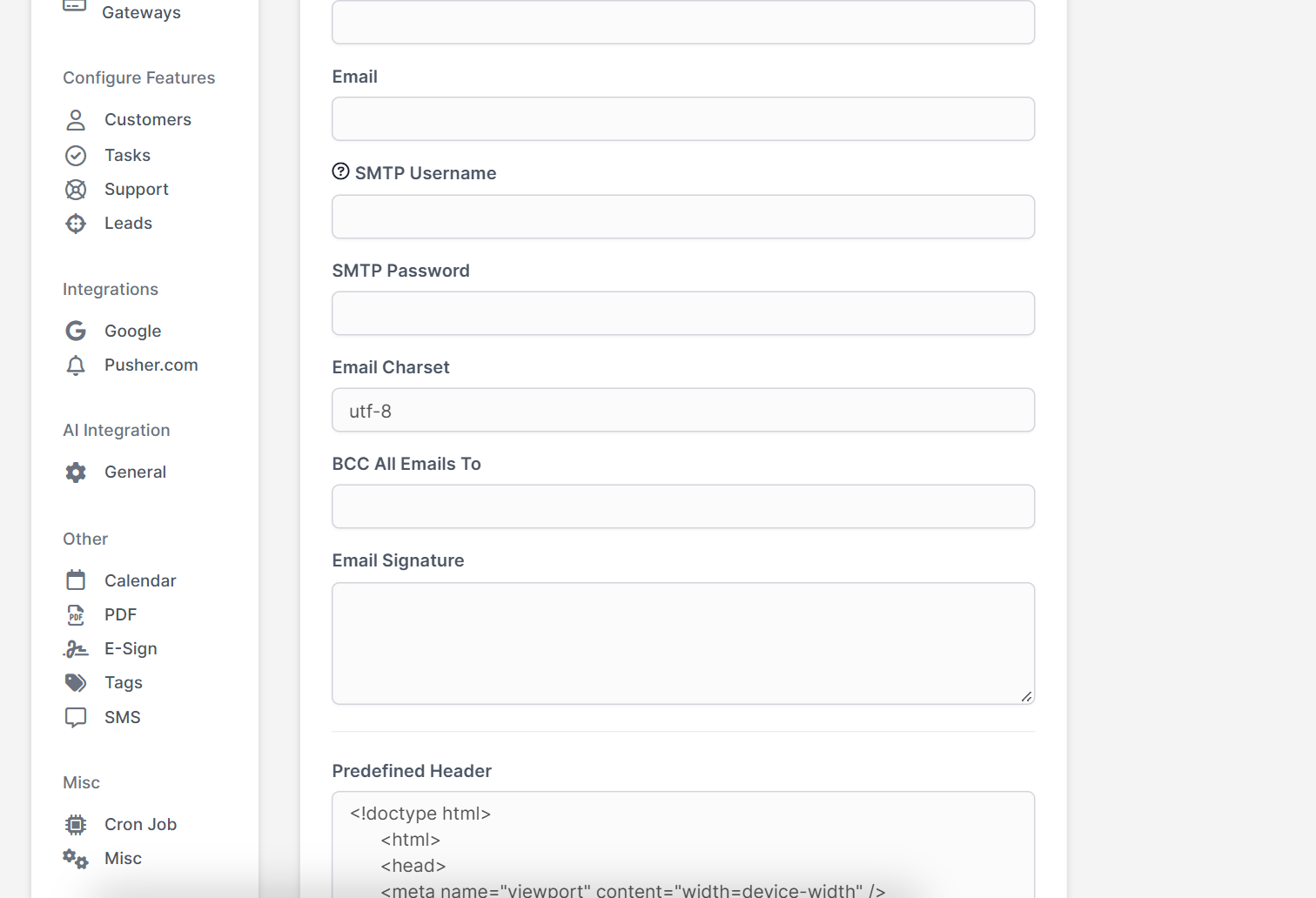
Scroll to Send Test Email, type your own address and click Test. This is the fastest way to know whether the settings work. If the message arrives, the problem is somewhere else, for example in a template or the queue. If it fails, read the message.
Step 3: Read the debug log #
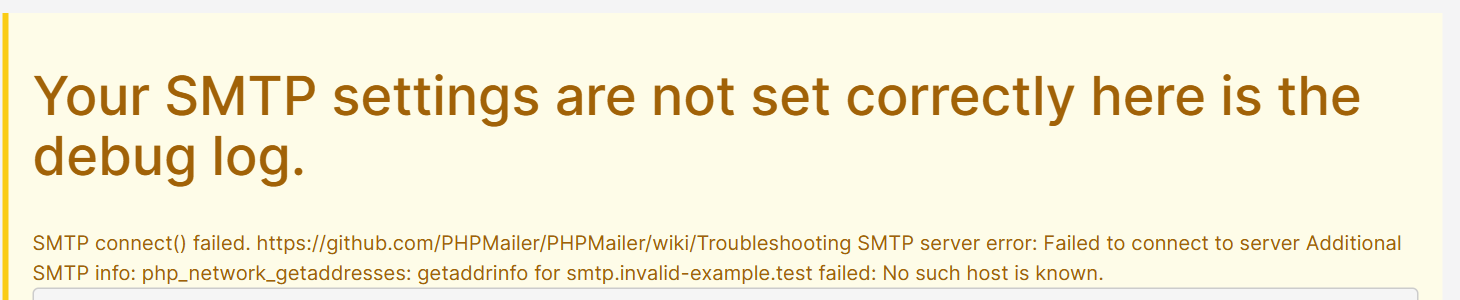
When the test fails, Perfex CRM shows the title Your SMTP settings are not set correctly here is the debug log and the details. In our test with a wrong host name, the log said that the connection failed and that the host name could not be found. The message tells you what to fix:
- Host not found: the SMTP host is spelled wrong.
- Connection timed out or refused: the port or the encryption is wrong, or your server blocks outgoing connections. Ask your host.
- Authentication failed: the username or password is wrong. For Gmail and Microsoft use the OAuth options or an app password.
- Certificate error: the encryption or the server name does not match.
Step 4: Check the host, port and encryption together #
These three must match what your email provider gives you. Common pairs are port 587 with TLS and port 465 with SSL. A wrong pair causes timeouts. Use the SMTP Username and SMTP Password your provider shows, and the same address in Email as the sender.
Step 5: Check the email queue #
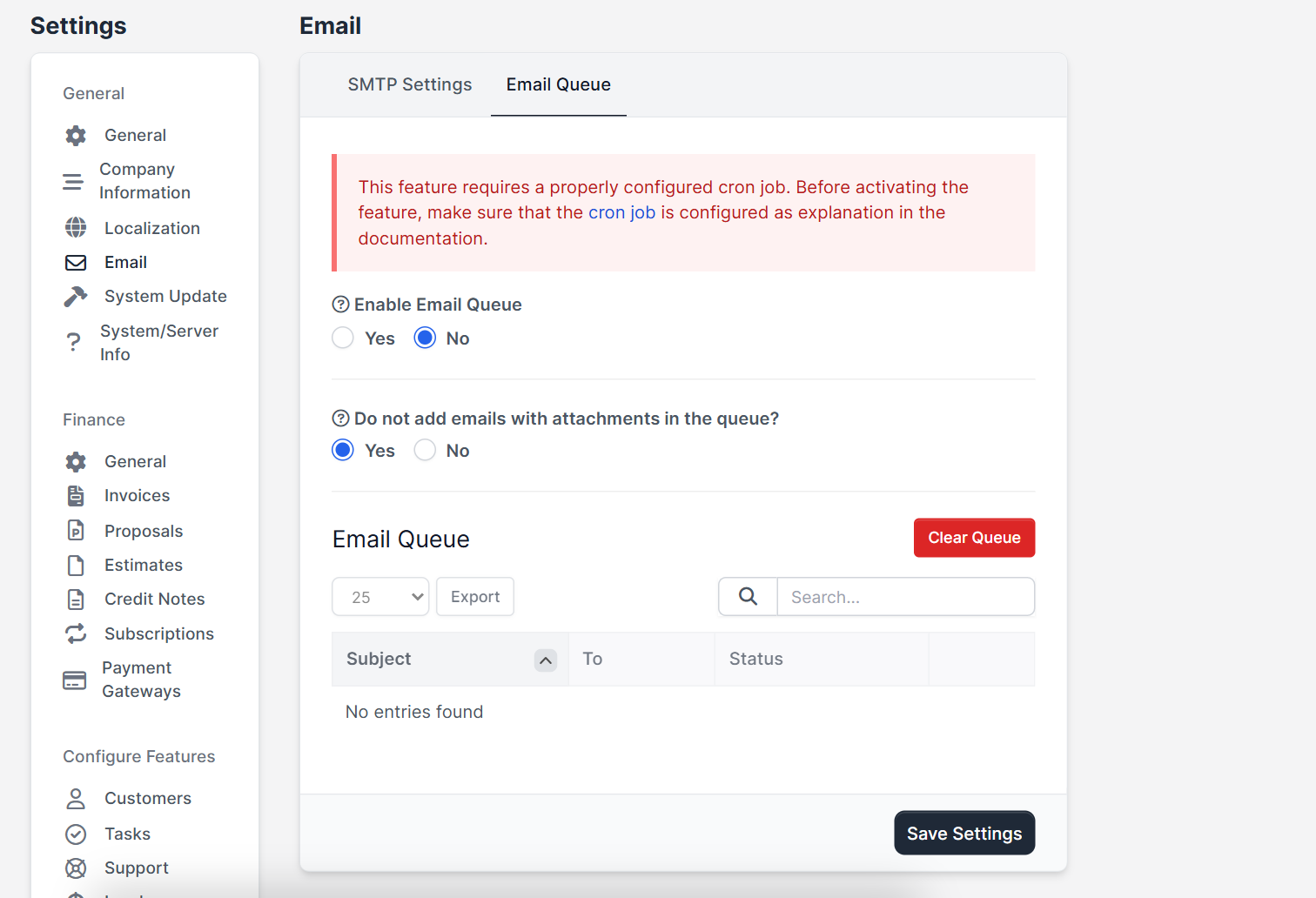
If the queue is on, emails wait until the cron job runs. Open the Email Queue tab to see waiting messages and the option Enable Email Queue. A queue with a broken cron job looks like emails that never leave. See Perfex CRM email queue and Perfex CRM cron job.
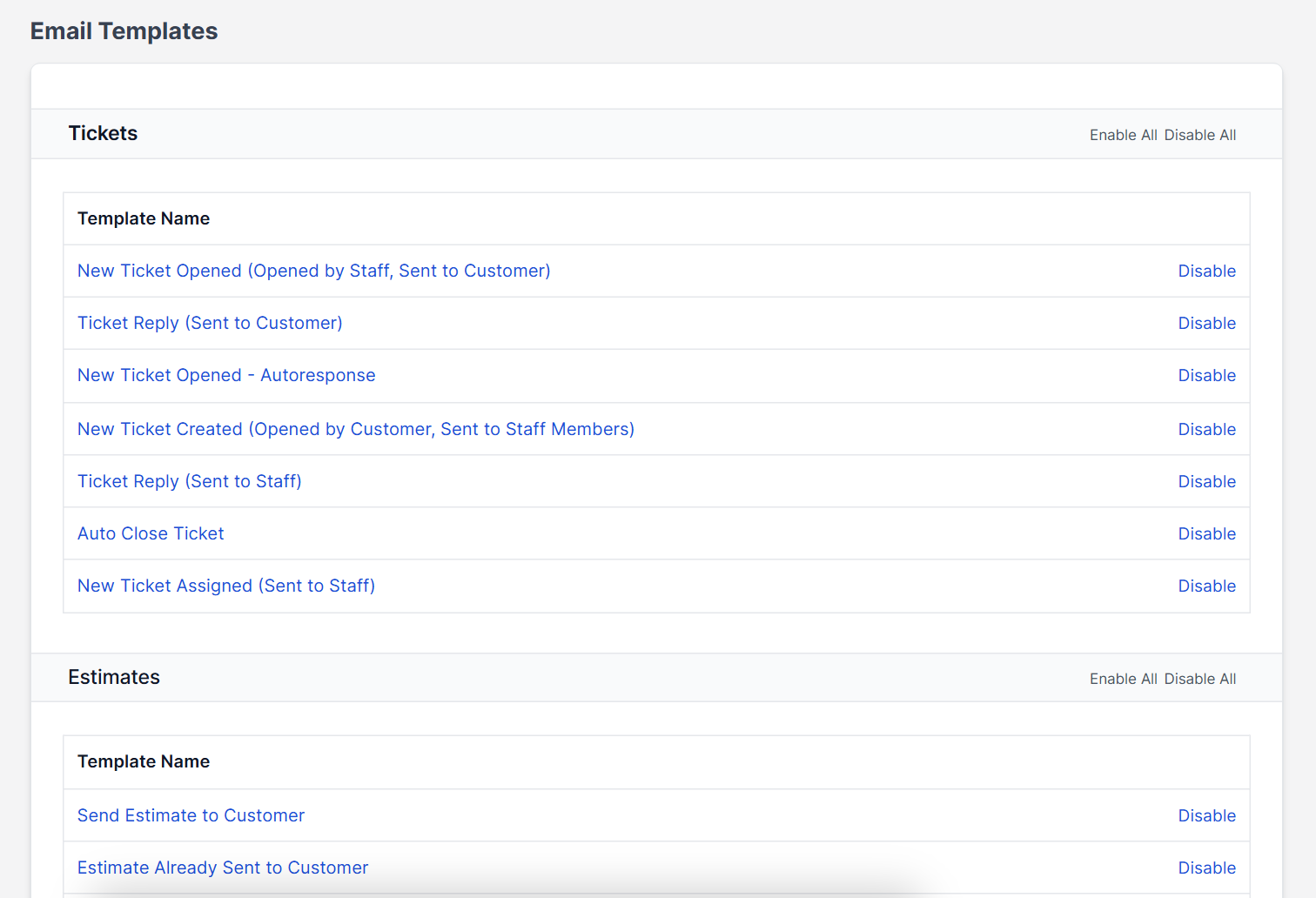
Step 6: Check the email templates #
An email can be switched off in Setup > Email Templates, where each template has a Disable or Enable option. If only one kind of message is missing, such as ticket replies, check its template. See Perfex CRM email templates.
Step 7: Check spam and your domain #
If the test arrives but customers say they get nothing, the messages may be in spam. Send from an address on your own domain, and ask your host or DNS provider to set up SPF and DKIM for that domain. Avoid free addresses as the sender, because they are often rejected when sent through another server.
Quick checklist for Perfex CRM email not sending #
- Send an SMTP test email after every change.
- Fix the first error in the debug log, then test again.
- Check the queue and the cron job.
- Check that the template you need is enabled.
- If Perfex CRM email not sending continues, ask your host whether outgoing SMTP is allowed.
Perfex CRM email not sending FAQ #
Why does the test email fail? #
The debug log tells you. Most often the host, port, encryption or password is wrong.
Why do customers not receive invoices? #
Check the spam folder, the template and the queue, and make sure the invoice is actually sent from the invoice view.
Can I use Gmail or Microsoft email? #
Yes. Perfex CRM has OAuth options for both. You enter a client ID and a client secret from the provider.
Should I use the queue? #
Use it when you send many emails or your host is slow, and make sure the cron job runs.
Summary #
When Perfex CRM email is not sending, send an SMTP test email, read the debug log and fix the first error. Then check the queue, the templates and your domain settings. You can read more on the official Perfex CRM website. A tested setup means Perfex CRM email not sending stops being a surprise. Write down the settings that finally worked, because the next case of Perfex CRM email not sending will look similar. A short note saves hours when Perfex CRM email not sending returns after a server move.


