
- How Perfex CRM roles and permissions work
- Step 1: Open the roles list
- Step 2: Name the role
- Step 3: Set the capabilities
- Step 4: Save and test the role
- Step 5: Assign the role to staff
- Step 6: Review permissions regularly
- Suggested starting roles
- Perfex CRM roles and permissions FAQ
- Modules that add permissions
- Summary
Good Perfex CRM roles and permissions make sure each team member sees and changes only what their job needs. A salesperson can work with leads and proposals, a support agent with tickets and the knowledge base, and only a few people touch settings. This guide shows how to create a role, set its permissions and assign it to staff.
How Perfex CRM roles and permissions work #
A role is a saved set of permissions. You build it once and give it to many staff members, so you do not tick the same boxes for each person. A staff member can also be an administrator, which gives full access, so keep that for very few people. For each feature, a role can allow View (Global), View (Own), Create, Edit and Delete. Global means every record, and Own means only records assigned to or created by that person.
Step 1: Open the roles list #
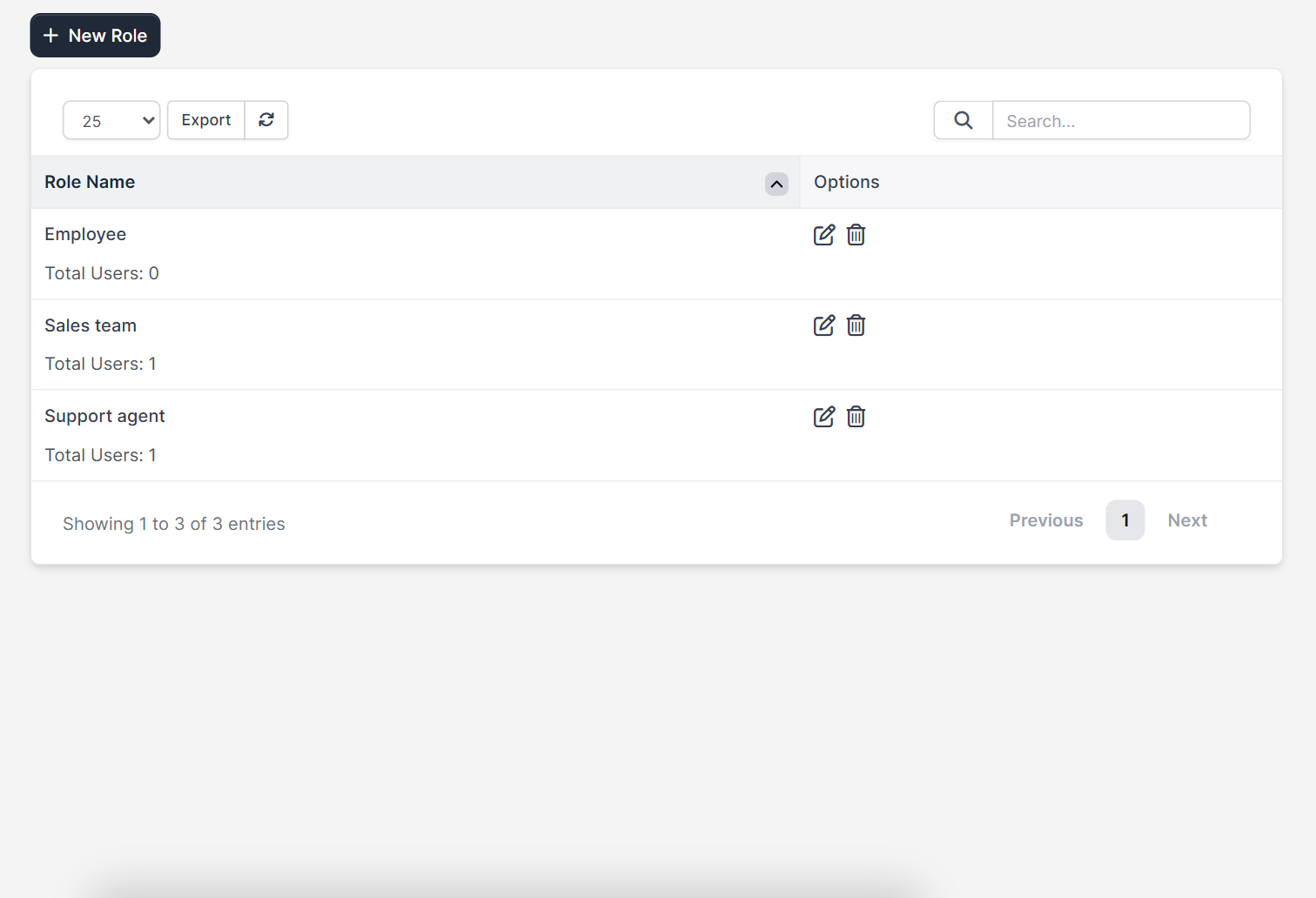
Open Setup > Staff > Roles. The table shows the Role Name and its options. Click New Role to add another one.
Step 2: Name the role #
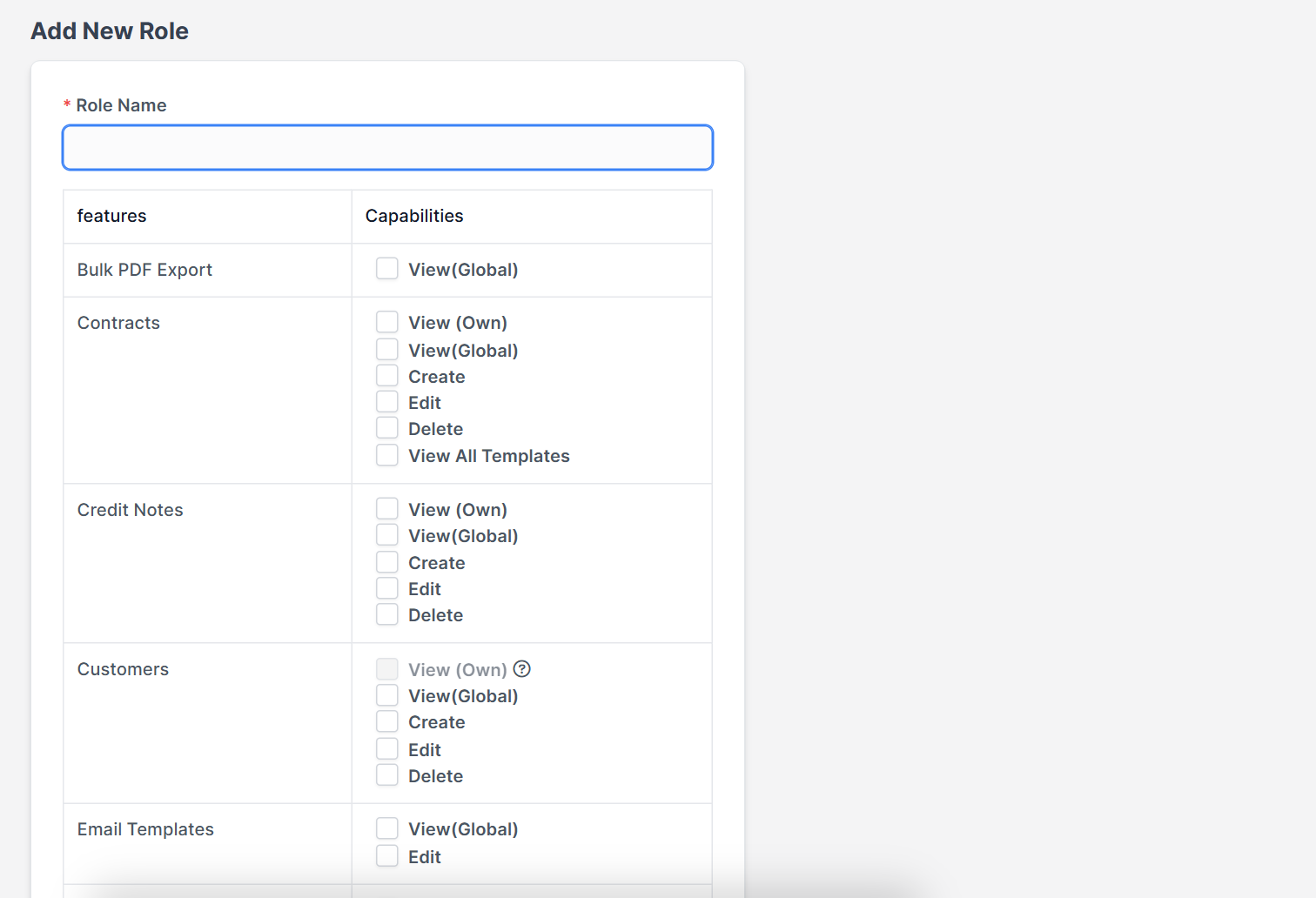
The form Add New Role opens with a required Role Name. Use the job title, such as Sales team or Support agent, so it is clear who should get it.
Step 3: Set the capabilities #
Below the name is a table with features in the first column and Capabilities next to them. Tick the boxes that apply. Some features, such as tasks and projects, add rows for timesheets and milestones. Modules you install add their own rows too, for example the Mobile App adds View(Perfex PWA), Create(Perfex PWA), Edit(Perfex PWA) and Delete(Perfex PWA).
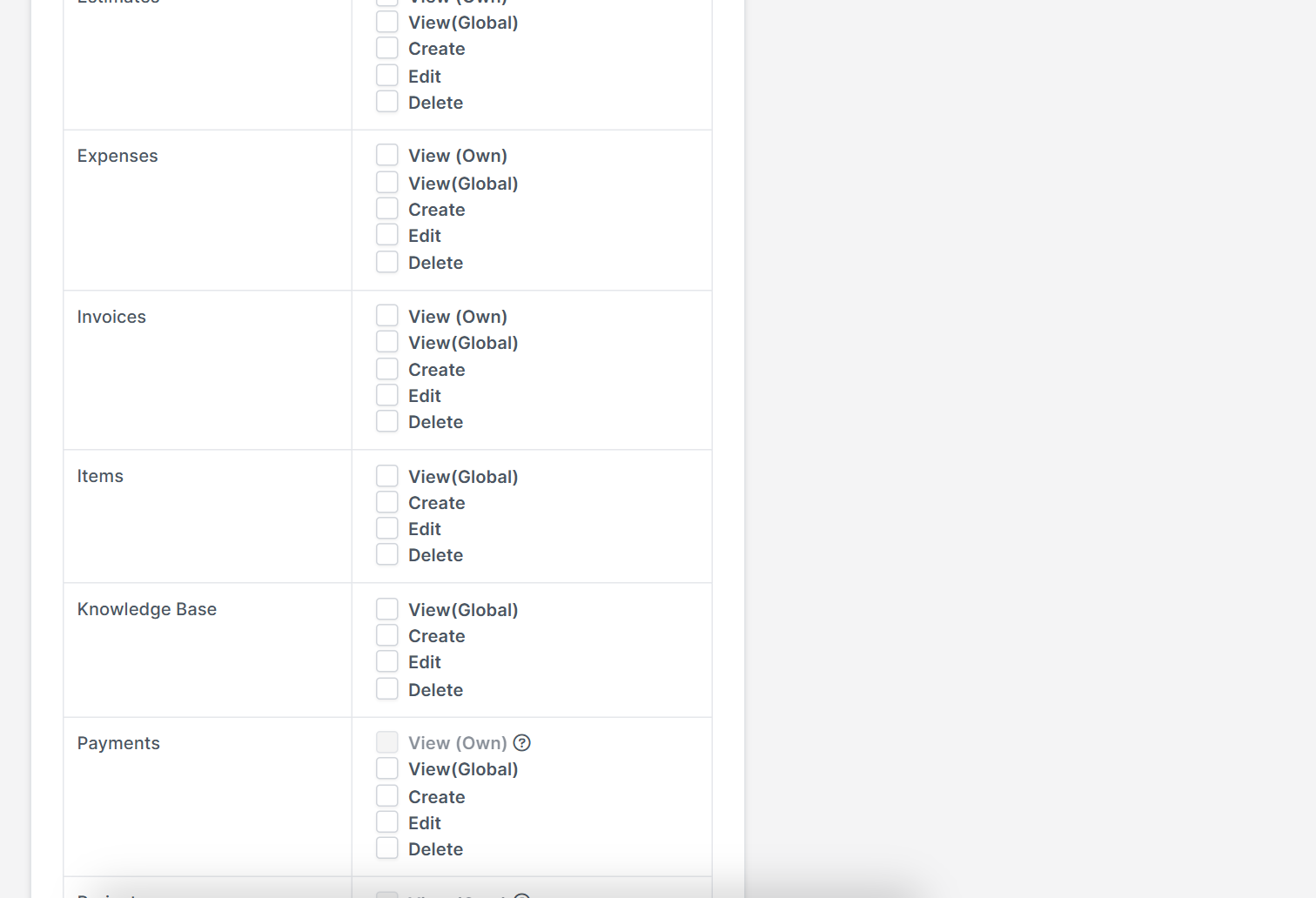
A simple rule works well: give View (Own) to most people, View (Global) to managers and Delete to almost nobody.
Step 4: Save and test the role #
Click Save. Create a test staff member with the role, sign in as them in a private window and check the menus. Items the role cannot use are hidden. If something is missing, edit the role and save again.
Step 5: Assign the role to staff #
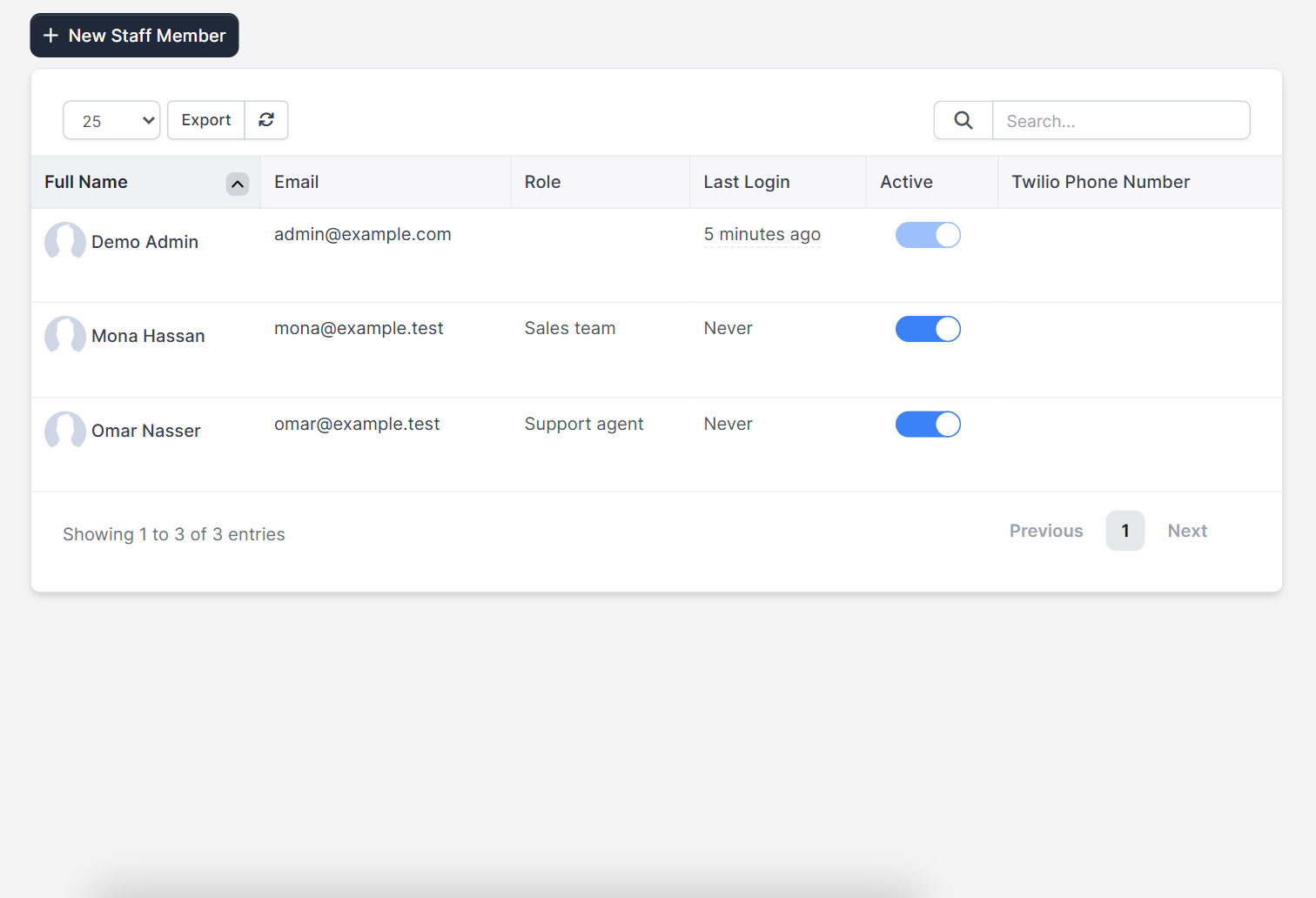
When you add or edit a staff member, choose the role in the Role field. The staff list then shows each person’s role next to the email and last login. Steps for the staff form are in how to add a Perfex CRM staff member.
Step 6: Review permissions regularly #
Review Perfex CRM roles and permissions every quarter and when someone changes jobs. Remove access first and ask questions later: a person who no longer needs access should lose it the same day.
Suggested starting roles #
- Sales team: leads, customers, proposals and estimates with Create and Edit, View (Own) for invoices.
- Support agent: tickets, knowledge base and customer contacts. See Perfex CRM ticket departments.
- Accountant: invoices, payments, expenses and credit notes, without access to settings.
- Project manager: projects and tasks with View (Global).
Perfex CRM roles and permissions FAQ #
What is the difference between an administrator and a role? #
An administrator has full access to everything. A role limits a staff member to the rights you tick.
Can I change a role later? #
Yes. Changes apply to everyone with that role the next time they load a page.
Can one person have two roles? #
No. A staff member has one role, so build a combined role if the job needs both.
Do customer contacts use these roles? #
No. Customer permissions are set on each contact. See Perfex CRM customer contacts.
Modules that add permissions #
The HR module, the HR Payroll module and the Perfex CRM Mobile App each add rows to the role table, so you can control who uses them.
Summary #
Careful Perfex CRM roles and permissions protect your data and keep each person focused. Build a role per job, give the smallest set of rights, test it and review it often. You can read more on the official Perfex CRM website. Revisit your Perfex CRM roles and permissions whenever the team changes. Well planned Perfex CRM roles and permissions also help during audits, because you can show who could see what.


