
- How the limits work
- Step 1: Check the Perfex CRM media limit
- Step 2: Check the allowed file types
- Step 3: Check ticket attachments
- Step 4: Check the PHP limits on your server
- Step 5: Check execution time and memory
- Step 6: Test the upload
- Quick checklist for Perfex CRM file upload size
- Perfex CRM file upload size FAQ
- Summary
“The file is too large” or “file type not allowed”: these messages stop work at the worst moment. The Perfex CRM file upload size is controlled in two places: by the settings inside Perfex CRM and by the limits of your PHP server. Both must allow the file. This guide was tested on Perfex CRM 3.4.1 and shows how to check each, and how to change them.
How the limits work #
A file passes through three checks. First your web server and PHP (the settings upload_max_filesize and post_max_size) decide how big a request can be. Then Perfex CRM checks its own maximum size and the file type. If any check fails, the upload is refused, and the smallest limit wins. Changing only one setting often does nothing, which is why people think the settings are broken.
Step 1: Check the Perfex CRM media limit #
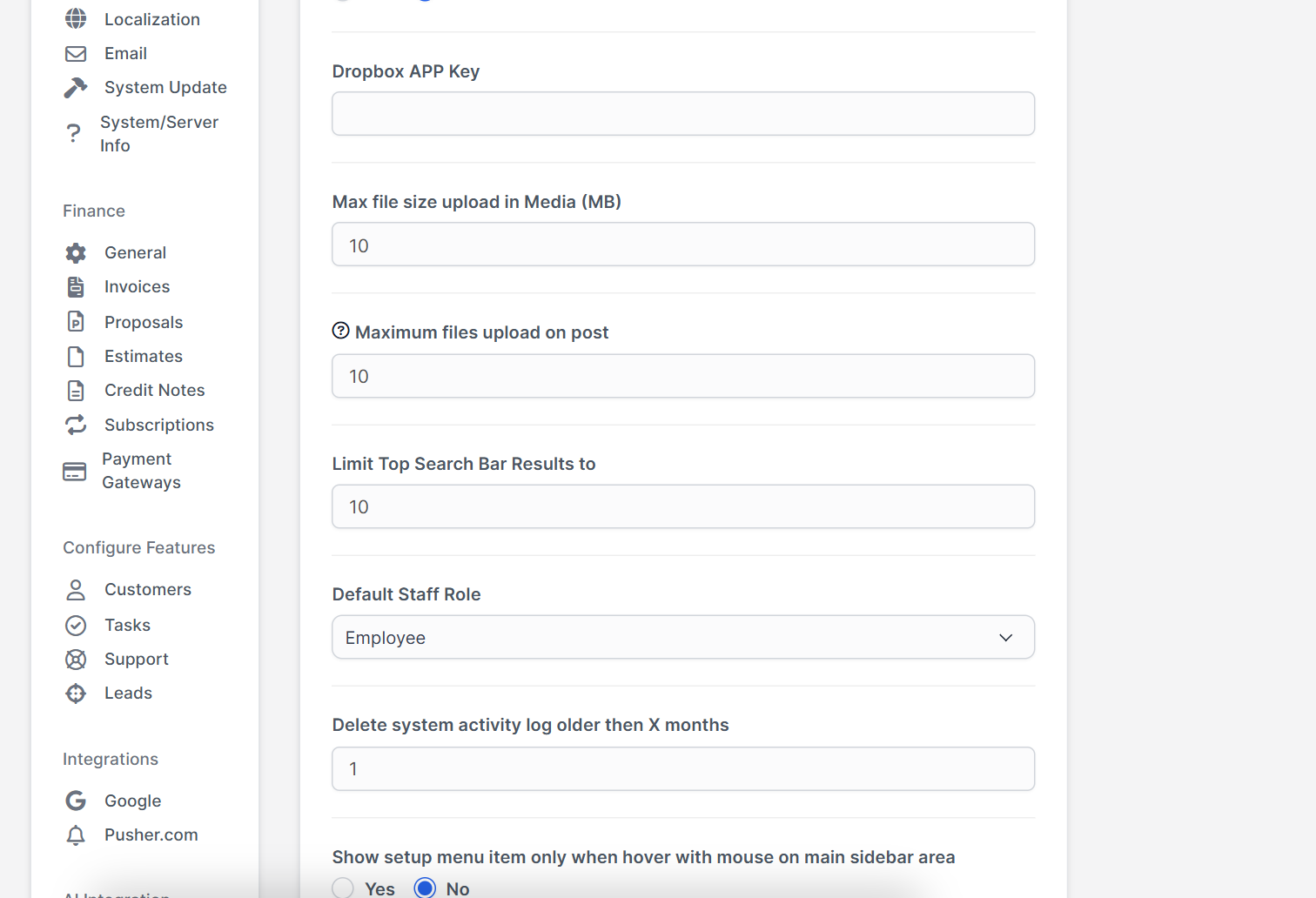
Open Setup > Settings > Misc. Find Max file size upload in Media (MB). In our install it is set to 10. Raise it to what you need, for example 25, and click Save Settings. The field Maximum files upload on post limits how many files go into one post.
Step 2: Check the allowed file types #
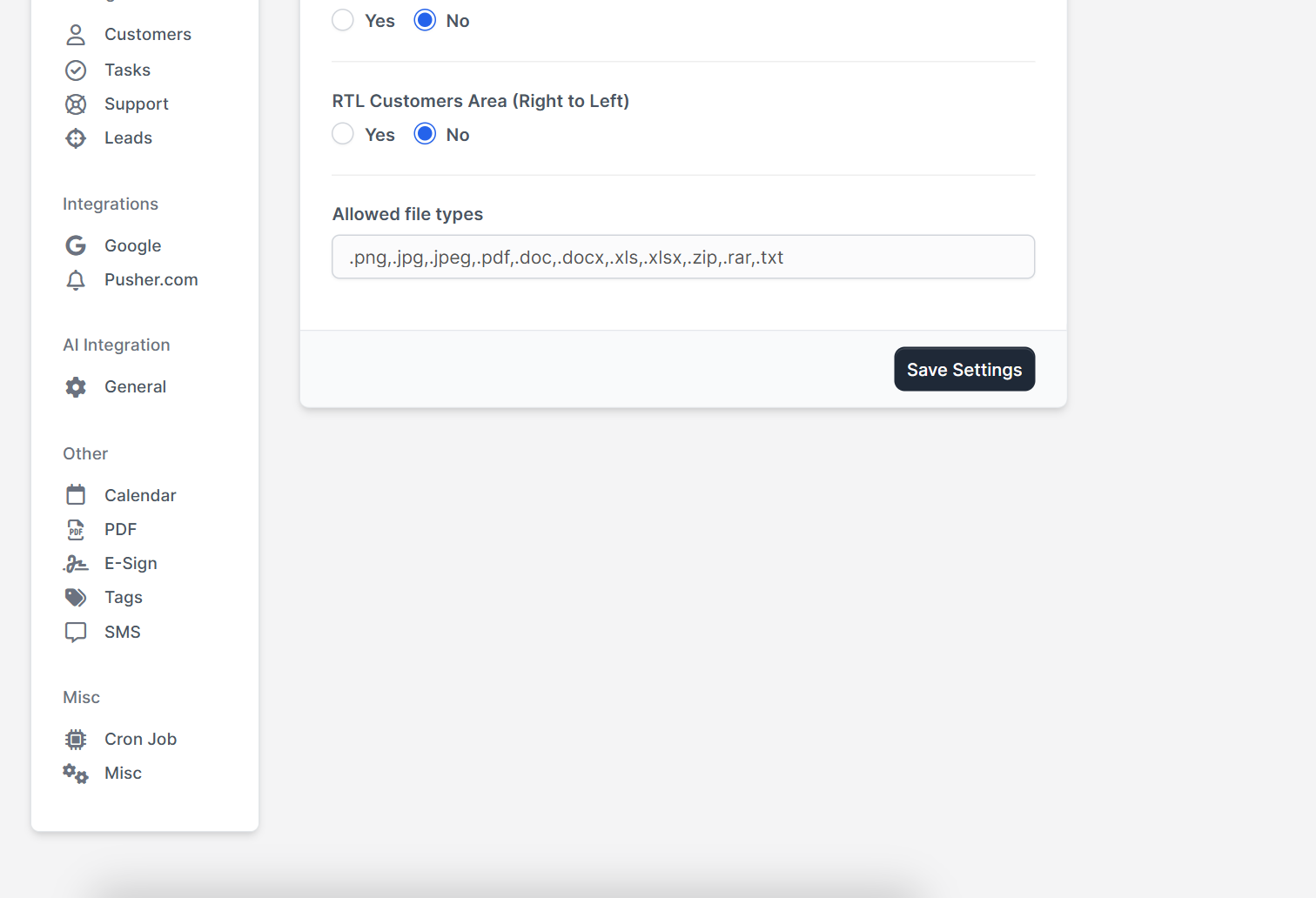
Open Setup > Settings > General and scroll to Allowed file types. It is a list of extensions separated by commas, such as png, jpg, pdf, doc, docx, xls and zip. If a file type is missing, add it, and remove types you do not want users to upload. Be careful with executable file types, which should never be allowed.
Step 3: Check ticket attachments #
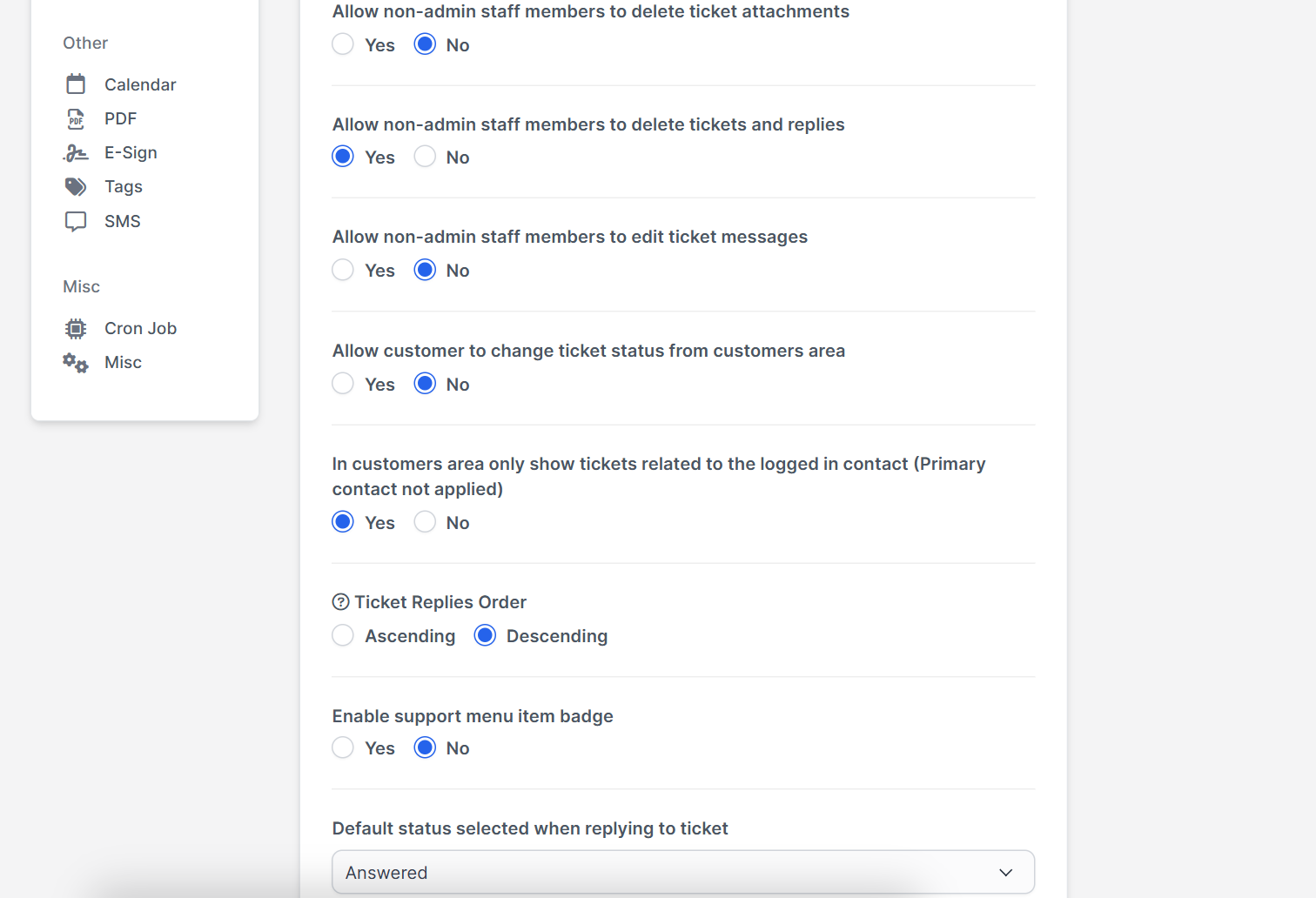
Tickets have their own limits in Setup > Settings > Support: Maximum ticket attachments and Allowed attachments file extensions. Raise them if customers send large files. See Perfex CRM ticket form.
Step 4: Check the PHP limits on your server #
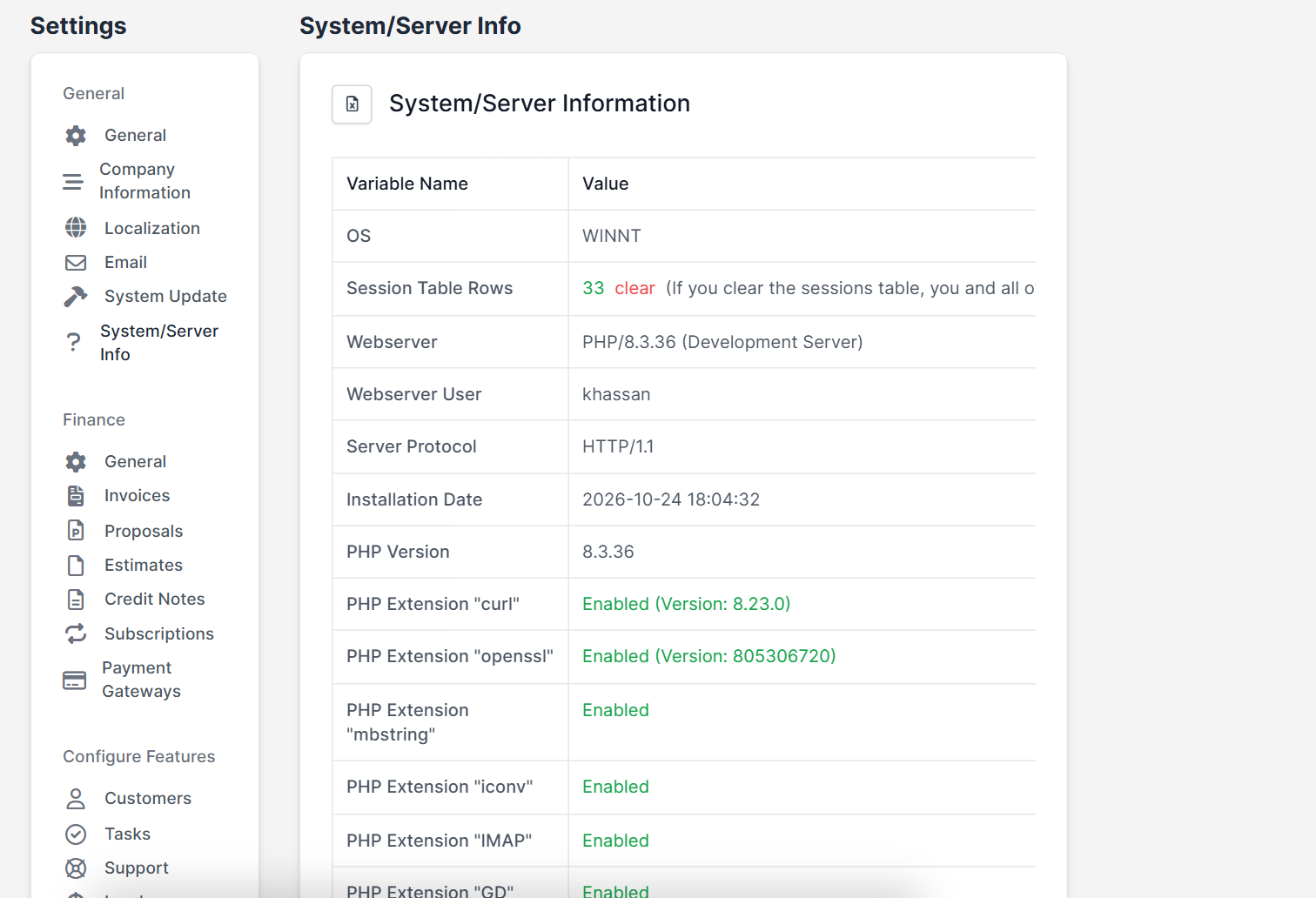
The settings upload_max_filesize and post_max_size live in your PHP configuration, not in Perfex CRM. On cPanel open MultiPHP INI Editor or Select PHP Version > Options, and set both to a value at least as large as your biggest file. Keep post_max_size equal to or larger than upload_max_filesize. Ask your host if you cannot find the options. The page System/Server Info in Perfex CRM shows your PHP version and loaded extensions, which helps when you talk to support.
Step 5: Check execution time and memory #
Large files also need time. If an upload stops halfway, raise max_execution_time and memory_limit in the same PHP settings. Your web server may also have its own limit, for example client_max_body_size on Nginx, see Perfex CRM Nginx configuration. Check Perfex CRM server requirements as well.
Step 6: Test the upload #
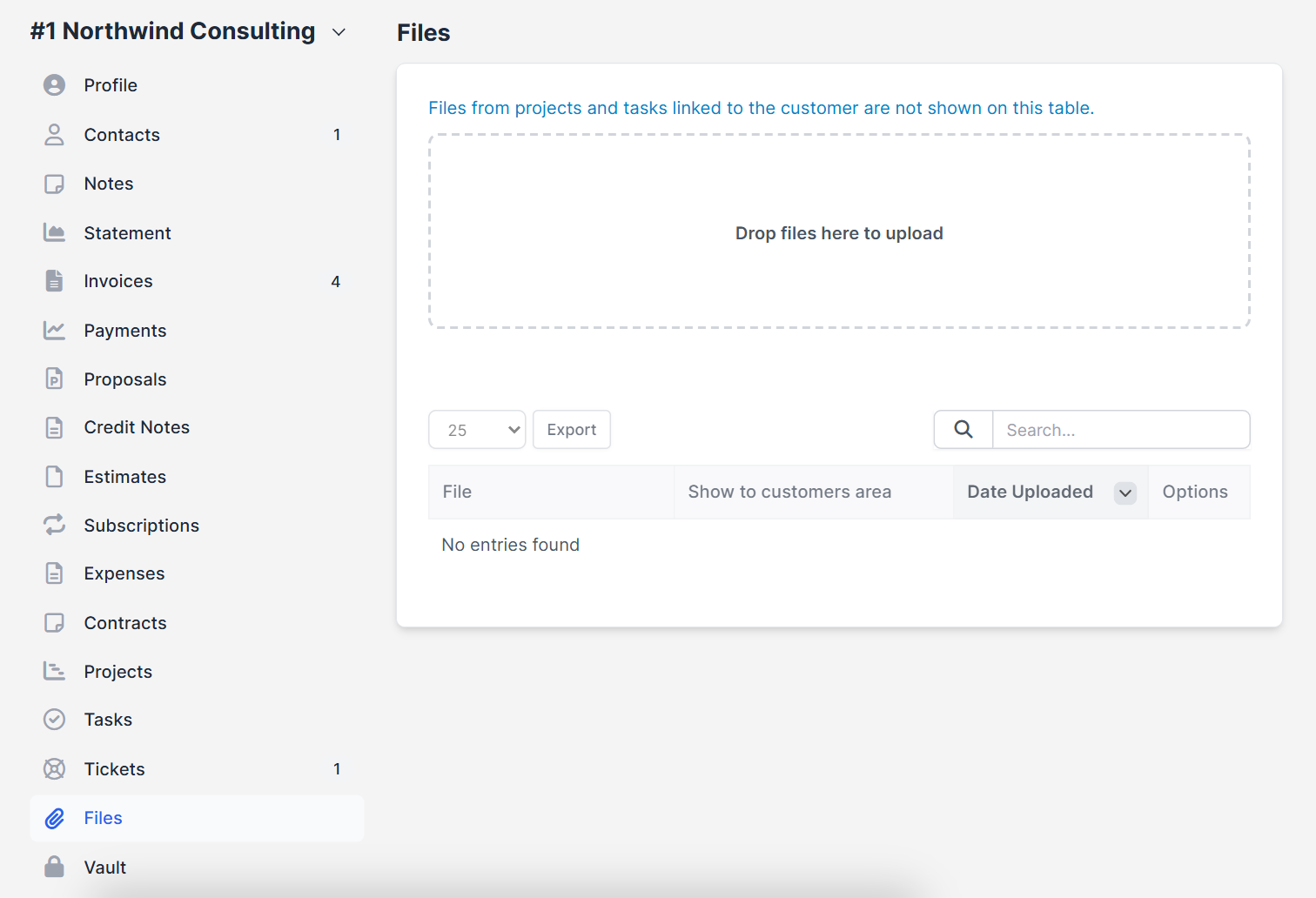
Open a customer, go to Files and drop a test file in the area Drop files here to upload. The list shows each file, whether it is shown to the customer area, and the date uploaded. Try a file just under your new limit and one just over, to confirm both behaviors.
Quick checklist for Perfex CRM file upload size #
- Raise the Perfex CRM file upload size in settings and in PHP together.
- Keep allowed file types as short as possible.
- Do not allow scripts or executables.
- Restart or wait a minute after you change PHP settings.
- Test with a real file, not a tiny one.
Perfex CRM file upload size FAQ #
How do I increase the upload limit in Perfex CRM? #
Raise Max file size upload in Media in Setup, Settings, Misc, and raise upload_max_filesize and post_max_size in PHP.
Why do I still get an error after I raise the limit? #
Another limit is smaller: PHP, your web server or the file type list. Check all of them.
Which file types are allowed? #
Those listed in Allowed file types in the general settings, plus the separate list for ticket attachments.
Where do customers upload files? #
In the customer area, in their files or tickets, depending on the permissions you give them.
Summary #
To raise the Perfex CRM file upload size, change the media limit, the allowed file types and the ticket limits in Perfex CRM, and then raise the PHP limits on your server. Test with a real file. More information is on the official Perfex CRM website. Correct limits mean no more failed uploads, and a clear list of allowed file types keeps your CRM safe. Revisit the Perfex CRM file upload size when your files grow, and note the new limit so the next Perfex CRM file upload size change is quick.


