
- Where to find Perfex CRM payment modes
- Add a payment mode in 5 steps
- What each option does
- Use Perfex CRM payment modes on invoices
- Record a payment
- Good habits for Perfex CRM payment modes
- Related guides
- Visual guide: Perfex CRM payment modes
- Perfex CRM payment modes FAQ
- Modules that help with payments
- Useful resources
A Perfex CRM payment mode is a way a customer pays an invoice or a way you pay an expense, such as bank transfer, cash or a card gateway. Clear payment modes make it easier for customers to pay and for you to match money to documents. This guide shows how to add Perfex CRM payment modes, what each setting does and how they show on invoices.
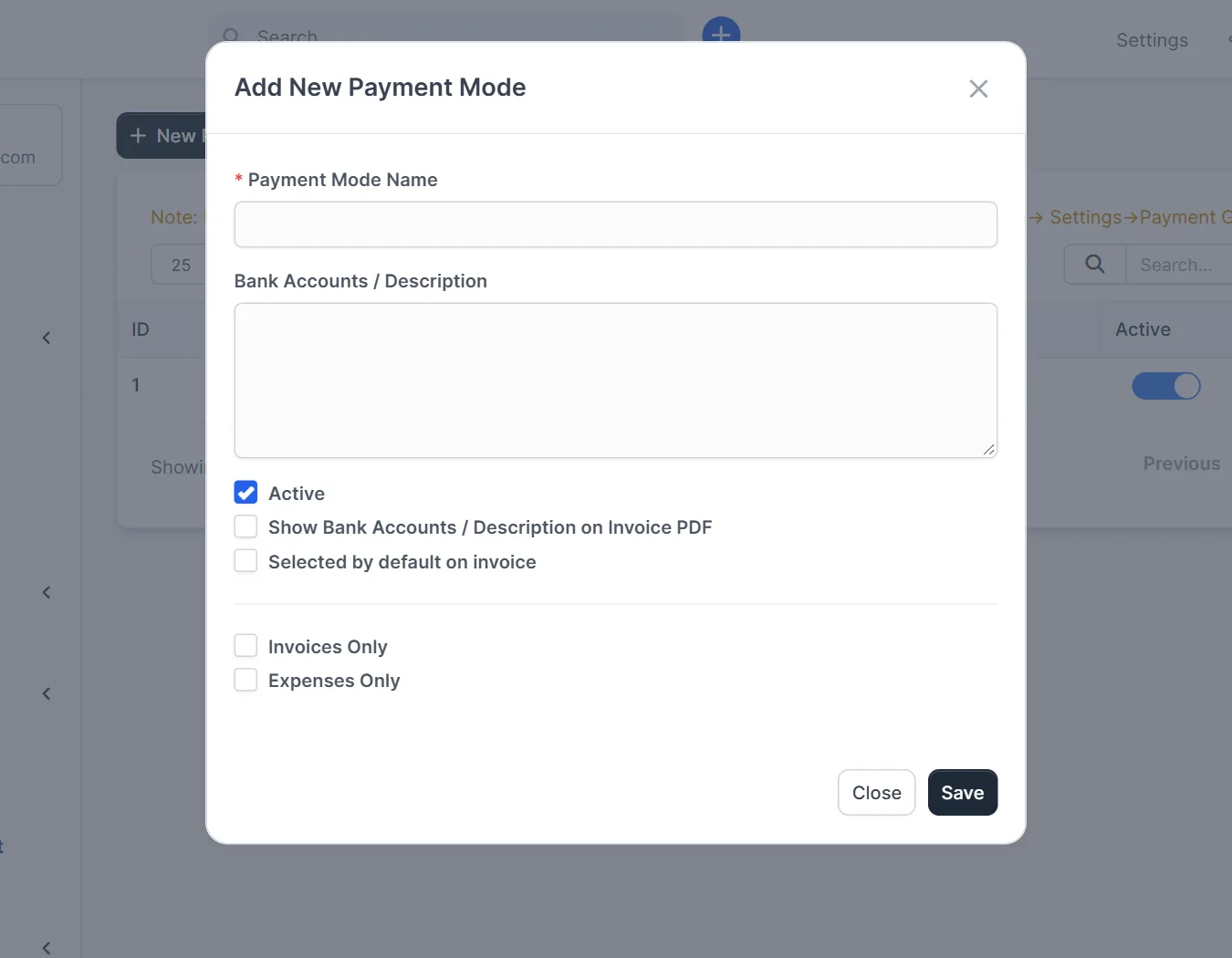
Where to find Perfex CRM payment modes #
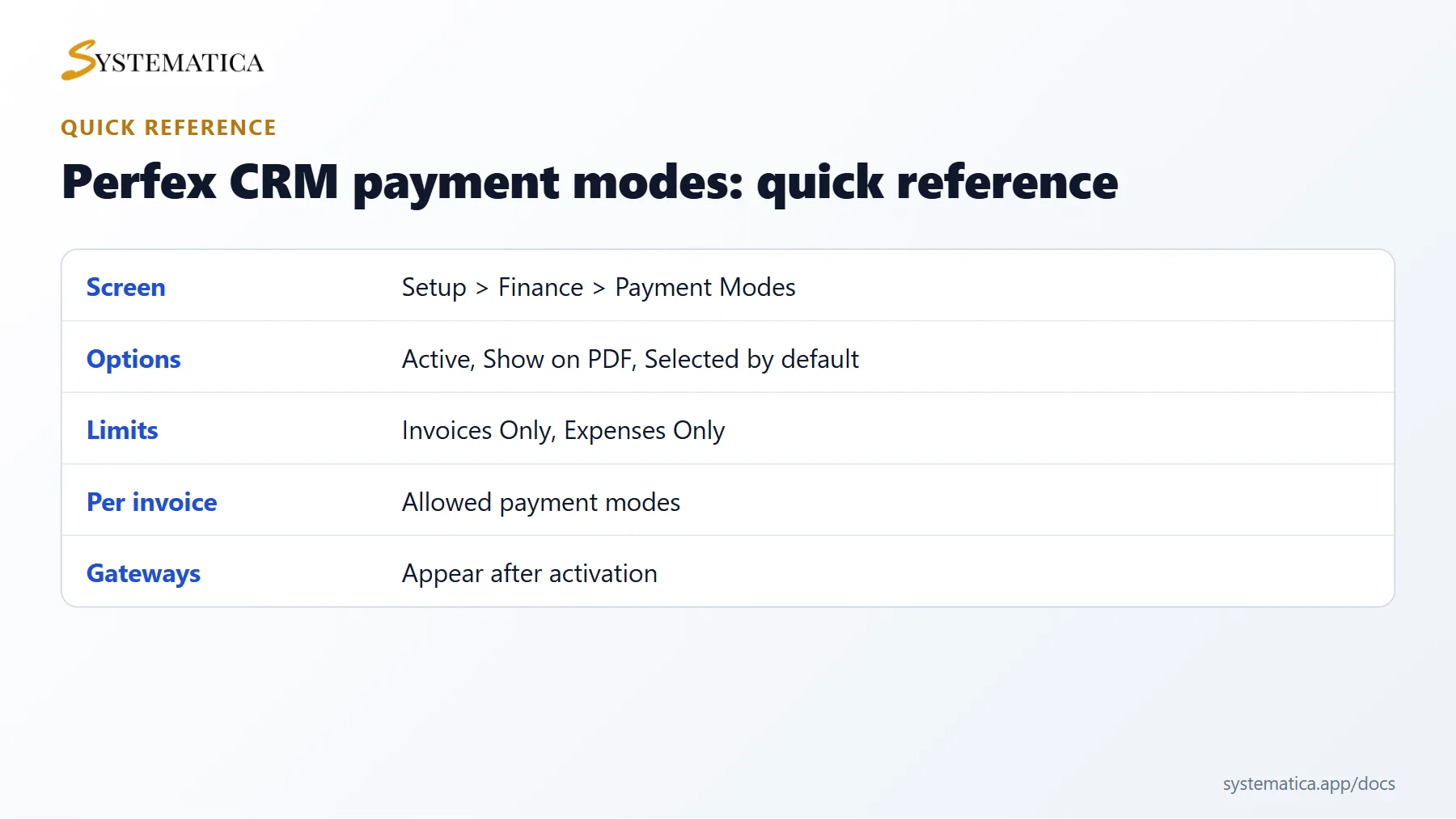
Open Setup > Finance > Payment Modes. The list shows the ID, the Payment Mode Name, the Bank Accounts / Description, whether it is Active, and an Options column for edit and delete. Online gateways also appear here after you activate them. See Perfex CRM payment gateways.
Add a payment mode in 5 steps #
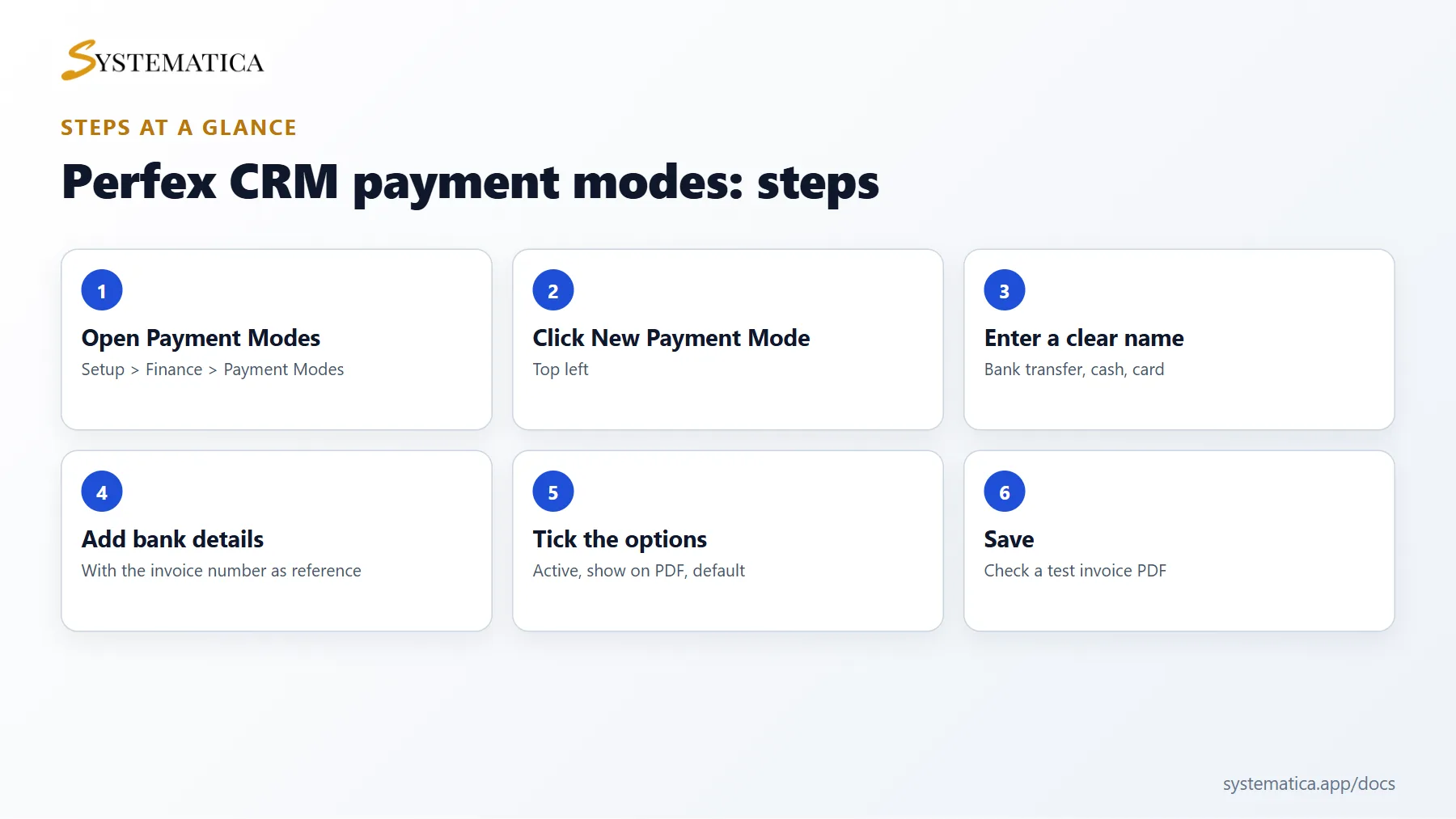
- Click New Payment Mode.
- Enter a Payment Mode Name your customers understand, for example Bank transfer.
- In Bank Accounts / Description, write the details the customer needs, such as the account name, the account number or IBAN, and the reference to use.
- Tick the options you need (see below).
- Click Save.
What each option does #
- Active makes the mode available. Untick it to hide the mode without deleting it.
- Show Bank Accounts / Description on Invoice PDF prints your payment instructions on the invoice. Turn it on for bank transfers.
- Selected by default on invoice pre-selects the mode when you create an invoice.
- Invoices Only and Expenses Only limit the mode to one use. A card gateway should be for invoices only, while a petty cash mode may be for expenses only.
Use Perfex CRM payment modes on invoices #
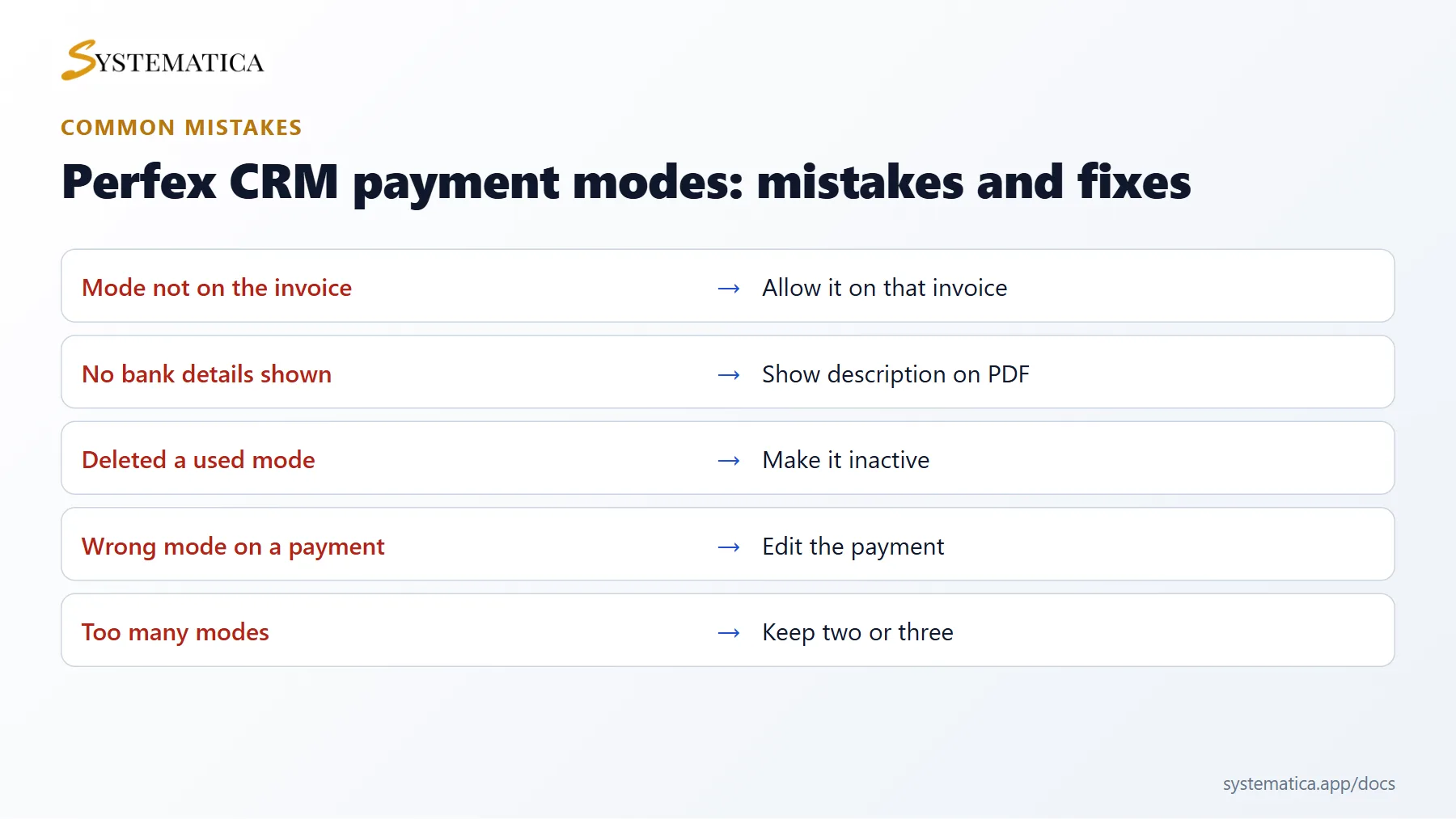
The invoice form has a field called Allowed payment modes for this invoice. You can select all modes or only the ones that fit this customer, for example only bank transfer for a large amount. Customers then see only the allowed modes on the invoice page. If a customer says that no payment mode is shown, check that at least one active mode is allowed on the invoice.
Record a payment #
When money arrives, open the invoice and use the payment button to record it. Choose the payment mode that matches how the customer paid, so your reports show the correct split between cash, bank and online payments.
Good habits for Perfex CRM payment modes #
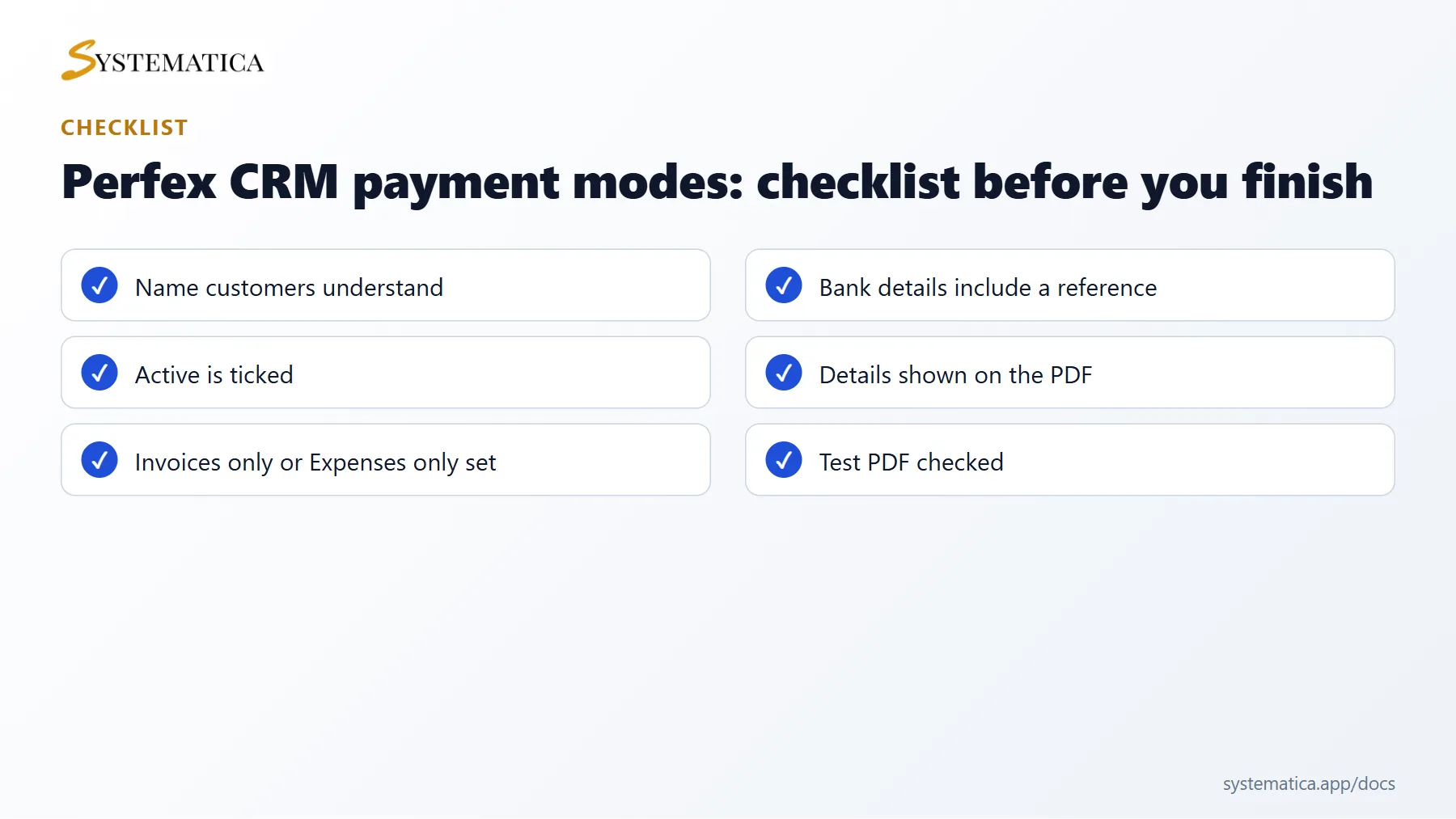
- Keep names short and clear. Customers should not need to guess.
- Put the invoice number as the payment reference in the description, so you can match transfers.
- Do not delete a mode that has payments. Make it inactive instead.
- Check the PDF of a test invoice after each change.
Related guides #
If your invoices use another money format, set up Perfex CRM currencies first. To bill every month, use recurring invoices.
Visual guide: Perfex CRM payment modes #
Save or share these four cards. They summarize the steps, the checklist, the usual mistakes and the key values from this guide.
Perfex CRM payment modes FAQ #
How many Perfex CRM payment modes should I create? #
Only the ones you really accept. Two or three clear modes, such as bank transfer, card and cash, are easier to understand than a long list.
Why does a customer not see my bank details? #
The mode may be inactive, not allowed on that invoice, or its description is not shown on the PDF. Check those three settings.
Can I use payment modes for expenses? #
Yes. Create a mode and choose Expenses Only, or leave both options off to use it for both. Expense records then show how you paid.
What is the difference between a payment mode and a gateway? #
A payment mode is a label for how money moves. A gateway is a connected service that takes a card payment online. Active gateways appear in the list of Perfex CRM payment modes automatically.
Can I change the payment mode of a recorded payment? #
Open the payment and edit it. Changing the mode changes your reports, so tell your accountant if you do this after the month is closed.
How do I make bank transfers easy to match? #
Write the invoice number as the reference in the bank details. Customers copy it, and you find the payment quickly.
Modules that help with payments #
Track where your money goes with the Perfex CRM Financial Management Module, which links invoices, payments and expenses to your accounts.
Useful resources #
Read about the available online options on the official Perfex CRM website and compare gateway fees in your country before you switch them on. Clear Perfex CRM payment modes reduce late payments, because customers see exactly how to pay.


