
- Where to find Perfex CRM tasks
- Step 1: Click New Task
- Step 2: Choose the related item
- Step 3: Set dates, priority and repeat
- Step 4: Assign people and add tags
- Step 5: Work inside the task window
- Step 6: Check the task settings
- Tips for Perfex CRM tasks
- Perfex CRM tasks FAQ
- Modules that help with tasks and time
- Summary
Perfex CRM tasks keep your team’s work in one list. You can attach a task to a customer, a lead, a project, an invoice or an estimate, give it a due date and an owner, and follow it until it is complete. This guide shows how to create and manage Perfex CRM tasks, and which settings change their behavior.
Where to find Perfex CRM tasks #
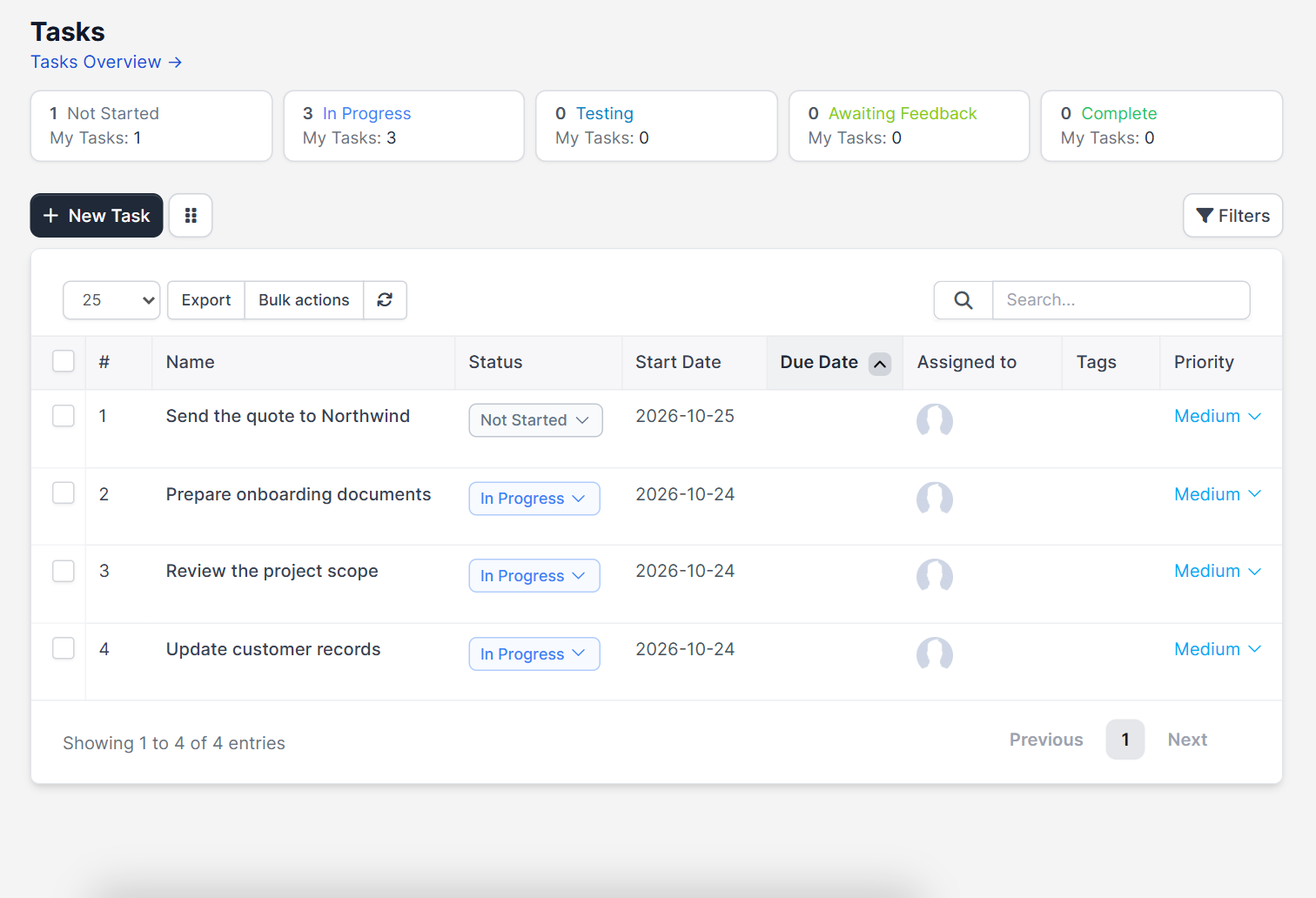
Open Tasks in the main menu. The top of the page shows counters for each status: Not Started, In Progress, Testing, Awaiting Feedback and Complete, with the number that belong to you. The table has the columns #, Name, Status, Start Date, Due Date, Assigned to, Tags and Priority. Use Filters to narrow the list and Bulk actions to change many Perfex CRM tasks at once.
Step 1: Click New Task #
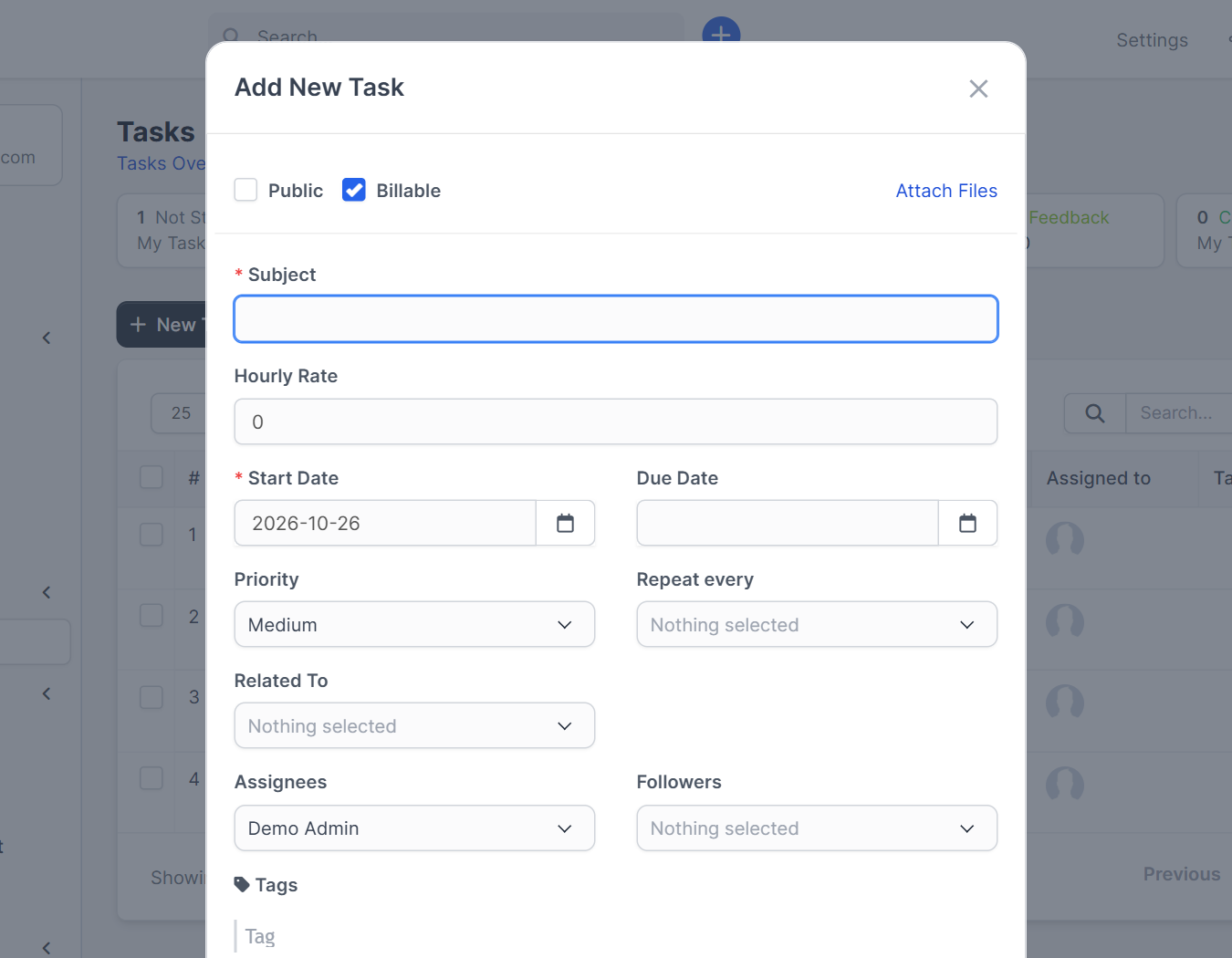
Click New Task. A window opens with the task form. Start with the Subject, which should say what has to be done, such as “Send the quote to Northwind”.
Step 2: Choose the related item #
Use Related To to link the task to a project, invoice, customer, estimate, contract, ticket, expense, lead or proposal. After that you pick the exact record. Linked tasks appear on that record too, so a colleague opening the customer sees what is planned.
Step 3: Set dates, priority and repeat #
Fill in Start Date and Due Date, then choose a Priority: low, medium, high or urgent. The Repeat every field creates the same task again after a set period. At the top of the form, switch on Public if all staff may see the task and Billable if time on it will be invoiced, and use Attach Files to add documents. The form also has an Hourly Rate field.
Step 4: Assign people and add tags #
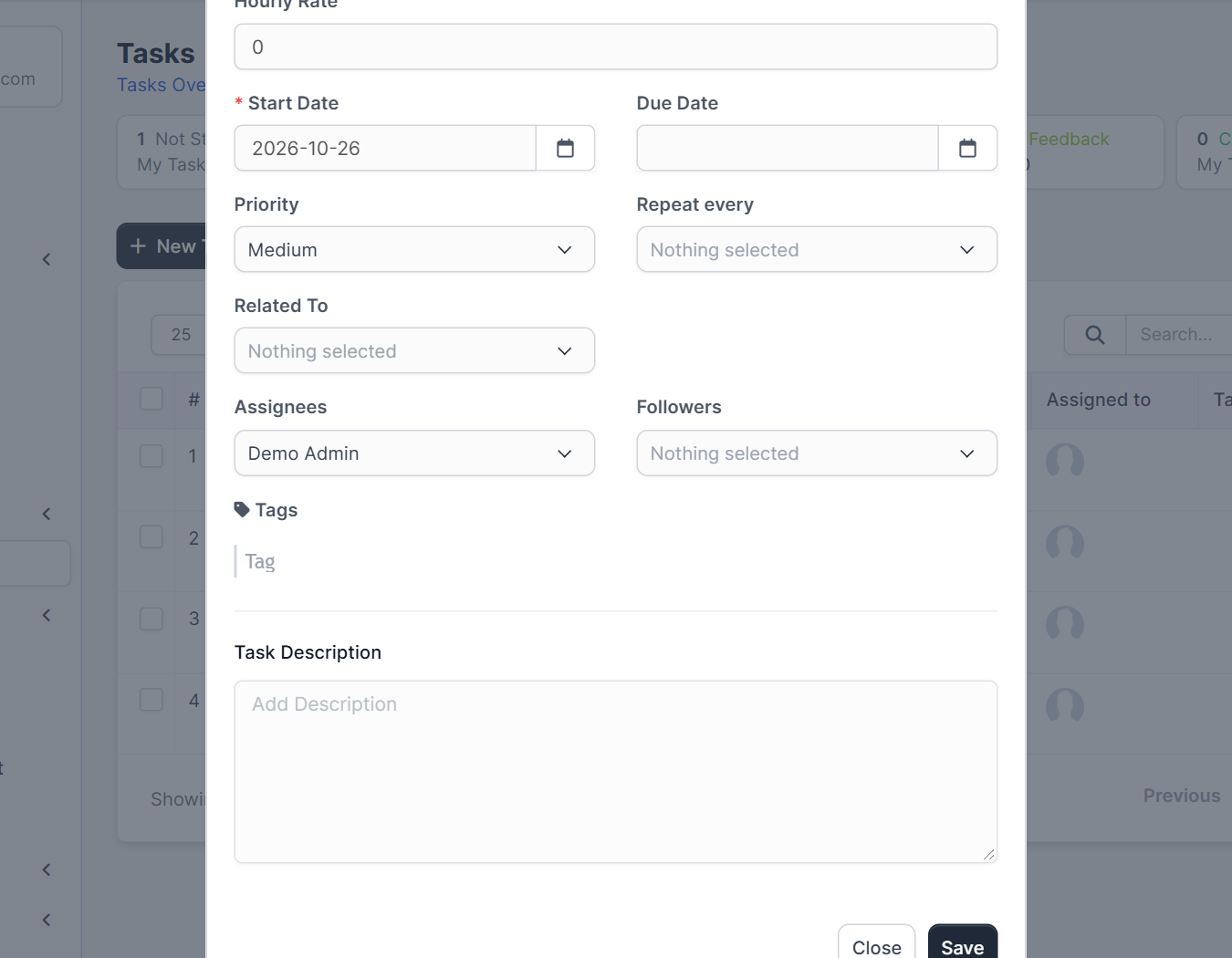
Choose the Assignees who do the work and the Followers who only want updates, add Tags for filtering and write the Task Description. Click Save. Email notifications are sent through your SMTP settings and use the task templates in Perfex CRM email templates.
Step 5: Work inside the task window #
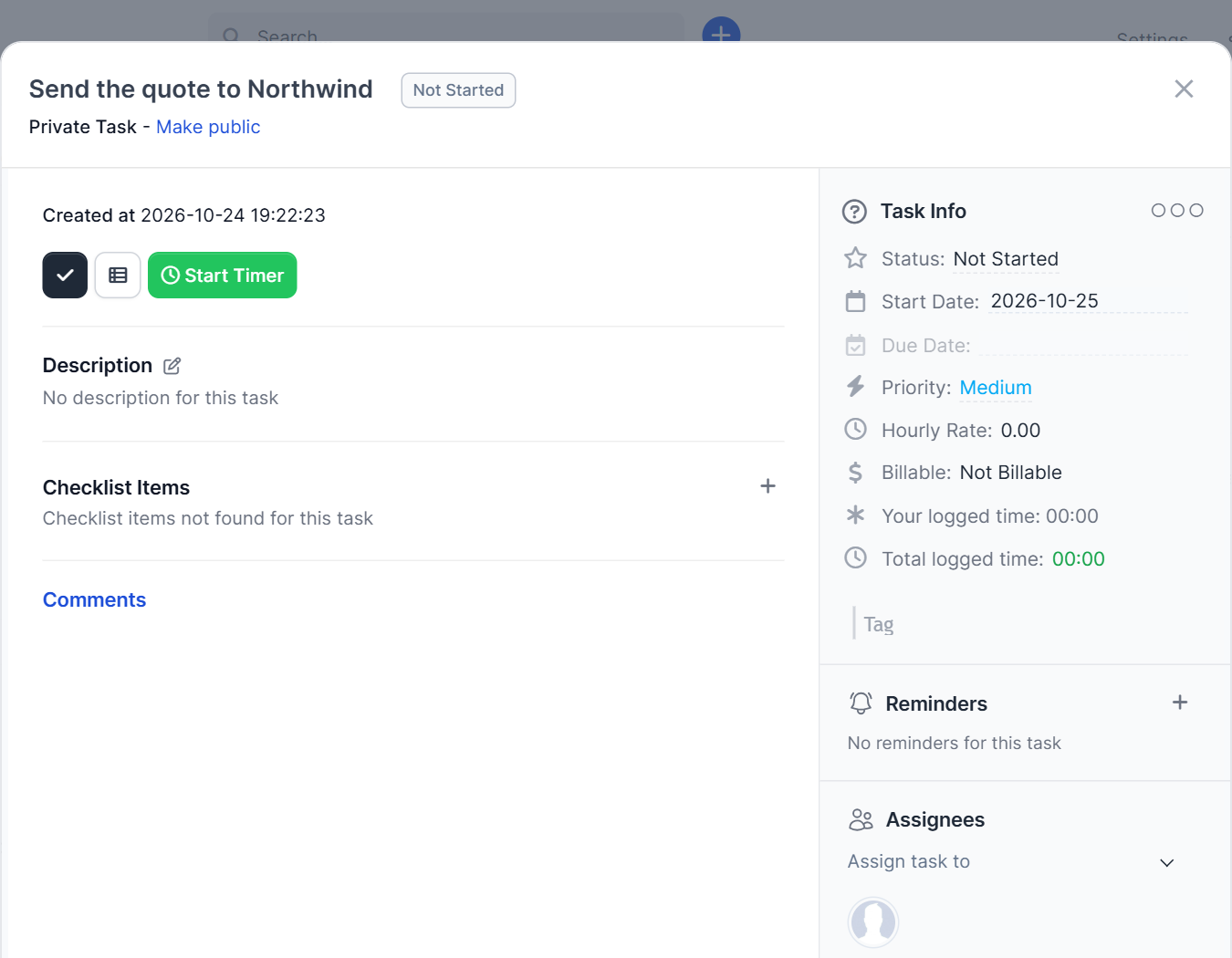
Click a task name to open it. The title shows the status and whether the task is private, with a link to make it public. On the left you find the Start Timer button, the Description, the Checklist Items and the Comments. On the right, Task Info lists the status, start date, due date, priority, hourly rate, billable state and logged time, followed by Reminders and Assignees. Use the checklist for small steps and comments to talk to colleagues. Change the status when the work moves, for example from In Progress to Awaiting Feedback.
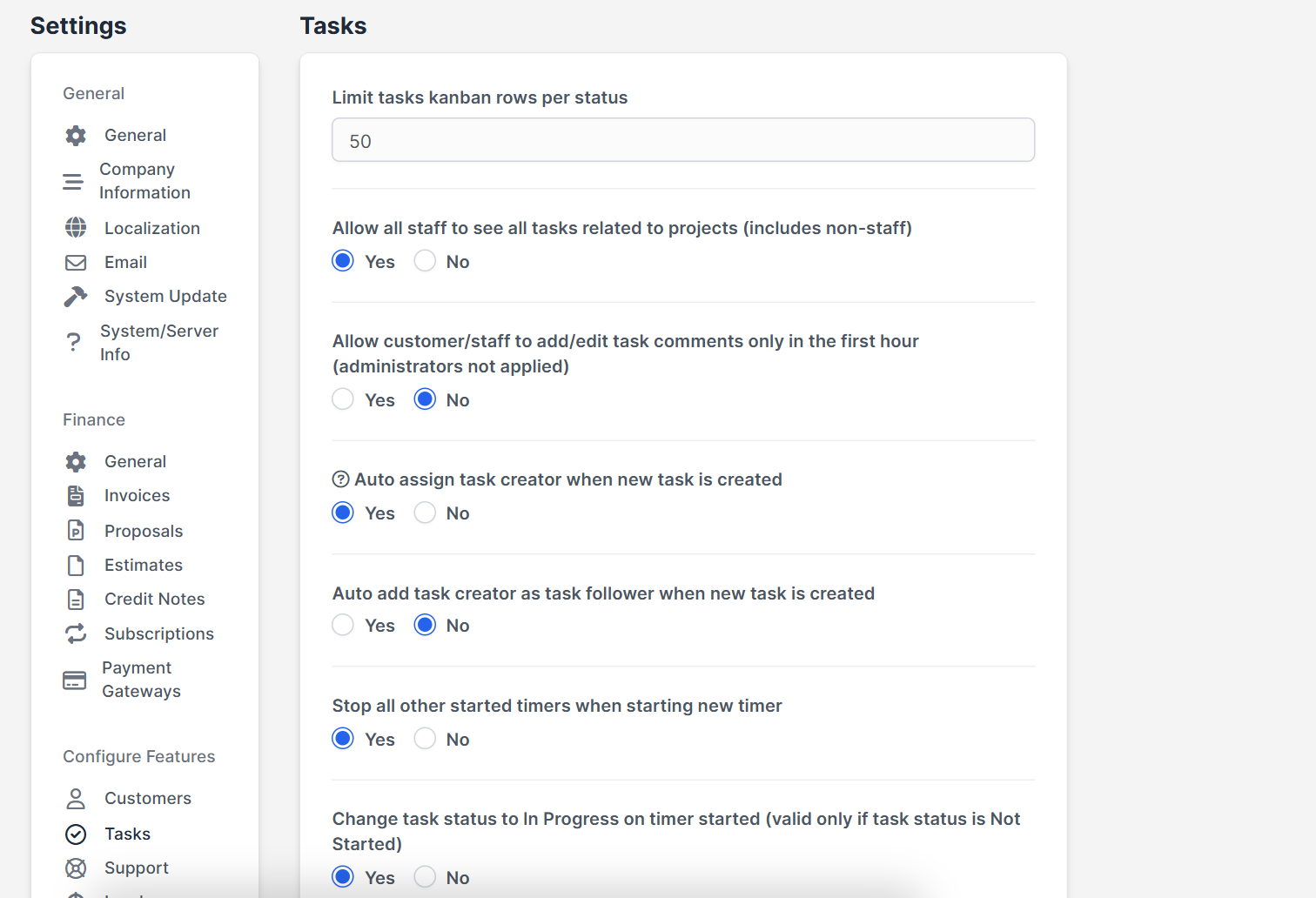
Step 6: Check the task settings #
Open Setup > Settings > Tasks. You can limit the kanban rows per status, allow all staff to see tasks that belong to projects, restrict editing of comments to the first hour, assign the creator automatically, add the creator as a follower, stop other timers when a new one starts and move a task to In Progress when its timer starts. The cron job also sends deadline reminders and stops timers that were left running, so make sure your Perfex CRM cron job works.
Tips for Perfex CRM tasks #
- Write the subject as an action: verb first.
- Always set a due date. Tasks without dates are forgotten.
- Use tags like onboarding or billing to filter reports.
- Split large work into checklist items instead of one huge task.
- Review overdue tasks every Monday.
Perfex CRM tasks FAQ #
Can I link one task to a customer? #
Yes, choose Customer under Related To and pick the company.
Can I bill time from a task? #
Yes. Mark the task as billable, track time and add it to an invoice from the invoice screen.
Can I change many tasks at once? #
Yes. Select rows and use Bulk actions, for example to delete several tasks or change them in one go.
Why do I not get reminders? #
Reminders need a working cron job and email settings.
Modules that help with tasks and time #
Track attendance and leave next to your tasks with the Timesheets and Leave Management module, and keep staff files in the HR module for Perfex CRM.
Summary #
Strong Perfex CRM tasks have a clear subject, a related record, a due date, an owner and a status that changes as work moves. Use filters, tags and checklists to keep the list short. Read more at the official Perfex CRM website, and review your Perfex CRM tasks every week.


