
- Plan before you migrate Perfex CRM
- Step 1: Back up the old site
- Step 2: Create a new database
- Step 3: Import the database
- Step 4: Upload the files
- Step 5: Edit app-config.php
- Step 6: Replace old links in your content
- Step 7: Test before you change the DNS
- Step 8: Switch the DNS and update the other services
- Fix problems after you migrate Perfex CRM
- Visual guide: migrate Perfex CRM
- How to migrate Perfex CRM: FAQ
- Useful resources
To migrate Perfex CRM to a new domain or hosting, you move the files and the database, tell the program its new address and database login, and replace old links in your content. Done in the right order it takes about an hour, and you keep every customer, invoice and attachment. This guide shows how to migrate Perfex CRM in eight steps and how to test it before you switch your DNS.
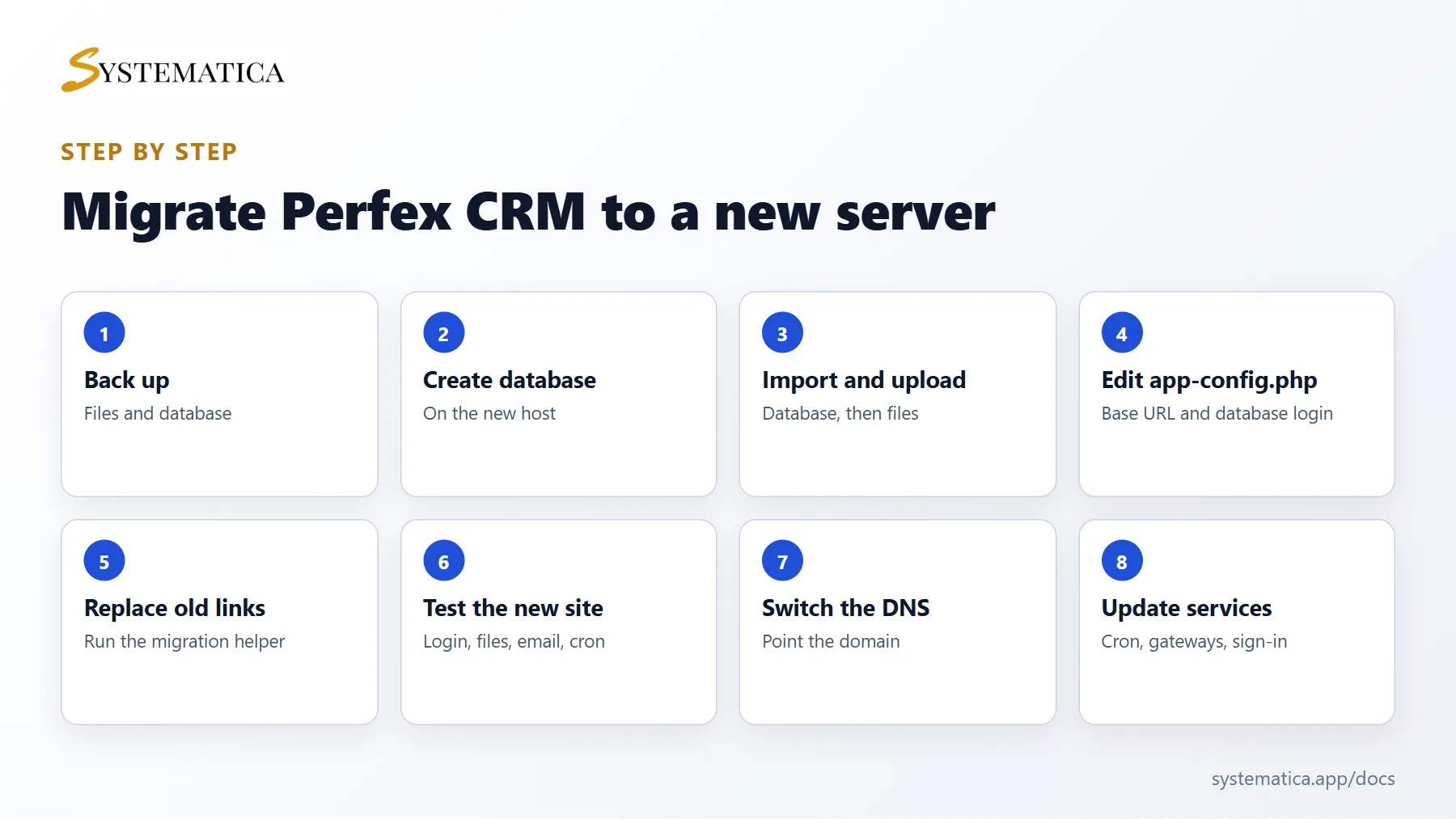
Plan before you migrate Perfex CRM #
- Choose a quiet time and tell your team. Changes made on the old site while you move will be lost.
- Check that the new server meets the Perfex CRM server requirements, with the same or a newer PHP version that your version supports.
- List your modules and any custom changes.
Step 1: Back up the old site #
Export the database with phpMyAdmin and download the whole Perfex CRM folder, including uploads and modules. Keep both backups in a safe place.
Step 2: Create a new database #
On the new host, create an empty database and a user with full rights to it. Write down the host name, the database name, the user name and the password.
Step 3: Import the database #
Import your exported file into the new database with phpMyAdmin. If the file is large, use the import tool of your host or ask support to import it.
Step 4: Upload the files #
Upload all files to the folder of the new domain. Keep the folder structure exactly as it was. Check that the web server can write to the uploads and temp folders.
Step 5: Edit app-config.php #
Open application/config/app-config.php and update these lines for the new site:
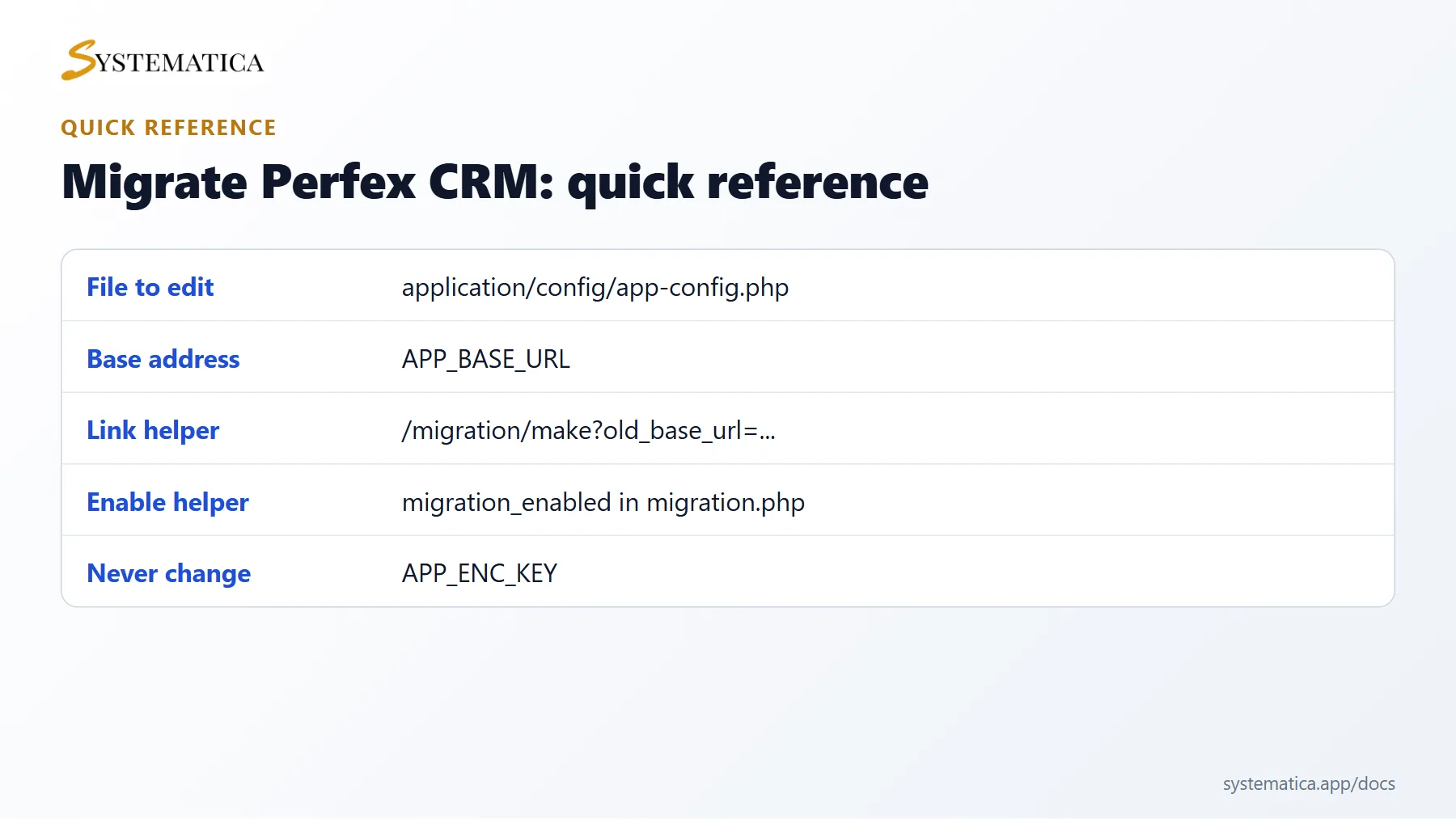
APP_BASE_URLis the new address with a slash at the end, for examplehttps://crm.your-domain.com/.APP_DB_HOSTNAME,APP_DB_USERNAME,APP_DB_PASSWORDandAPP_DB_NAMEare the details of the new database.
Do not change APP_ENC_KEY. It protects encrypted data, such as stored email passwords, and a different key would make that data unreadable.
Step 6: Replace old links in your content #
Notes, email templates, proposals, tickets and other content may contain full links to the old address. Perfex CRM includes a helper for this. Open application/config/migration.php and set migration_enabled to TRUE. Then open this address once in your browser, using your old address in the link:
https://crm.your-domain.com/migration/make?old_base_url=https://old-domain.com/
The page shows how many links it replaced. Afterwards set migration_enabled back to FALSE.
Step 7: Test before you change the DNS #
Use a temporary address from your host, or edit the hosts file on your computer, to open the new site. Sign in and test an invoice, a ticket, a file download and an email. Run the cron job once. See Perfex CRM cron job.
Step 8: Switch the DNS and update the other services #
- Point the domain to the new server. DNS changes can take a few hours to spread.
- Update the cron job command with the new address.
- Update webhook and redirect addresses at your payment gateways. See Perfex CRM payment gateways.
- Update any sign-in redirect address you set for Google.
- Keep the old site for a week, but put it in maintenance mode so nobody works in it by mistake.
Fix problems after you migrate Perfex CRM #
- Database connection error. Check the four database lines in
app-config.php. - 404 errors on inner pages. Check
.htaccessor your Nginx rules. See Perfex CRM 404 Not Found. - Old images do not load. The links were not replaced. Run the link helper again.
- Moving to HTTPS at the same time? Read how to switch Perfex CRM to HTTPS.
Visual guide: migrate Perfex CRM #
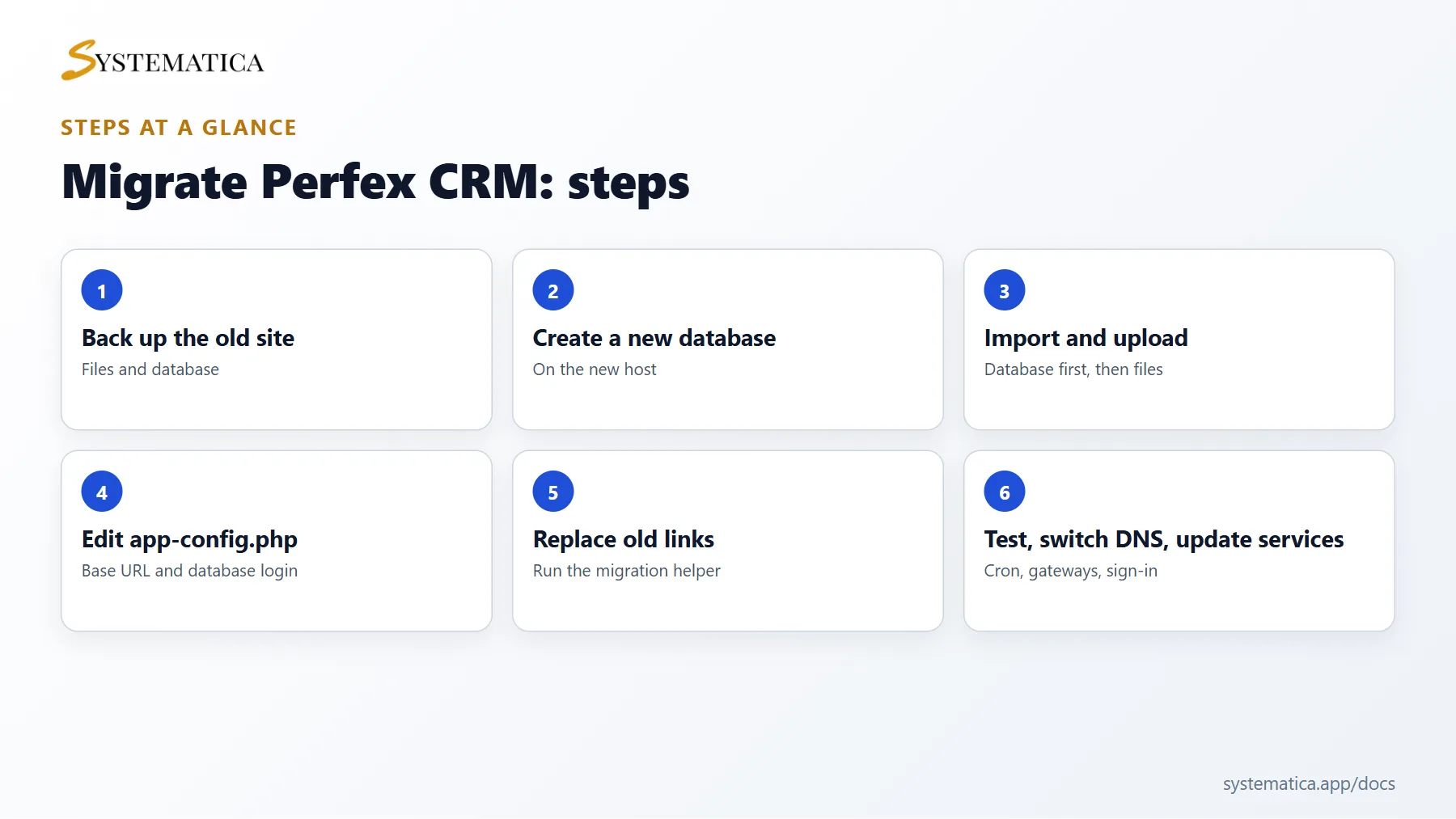
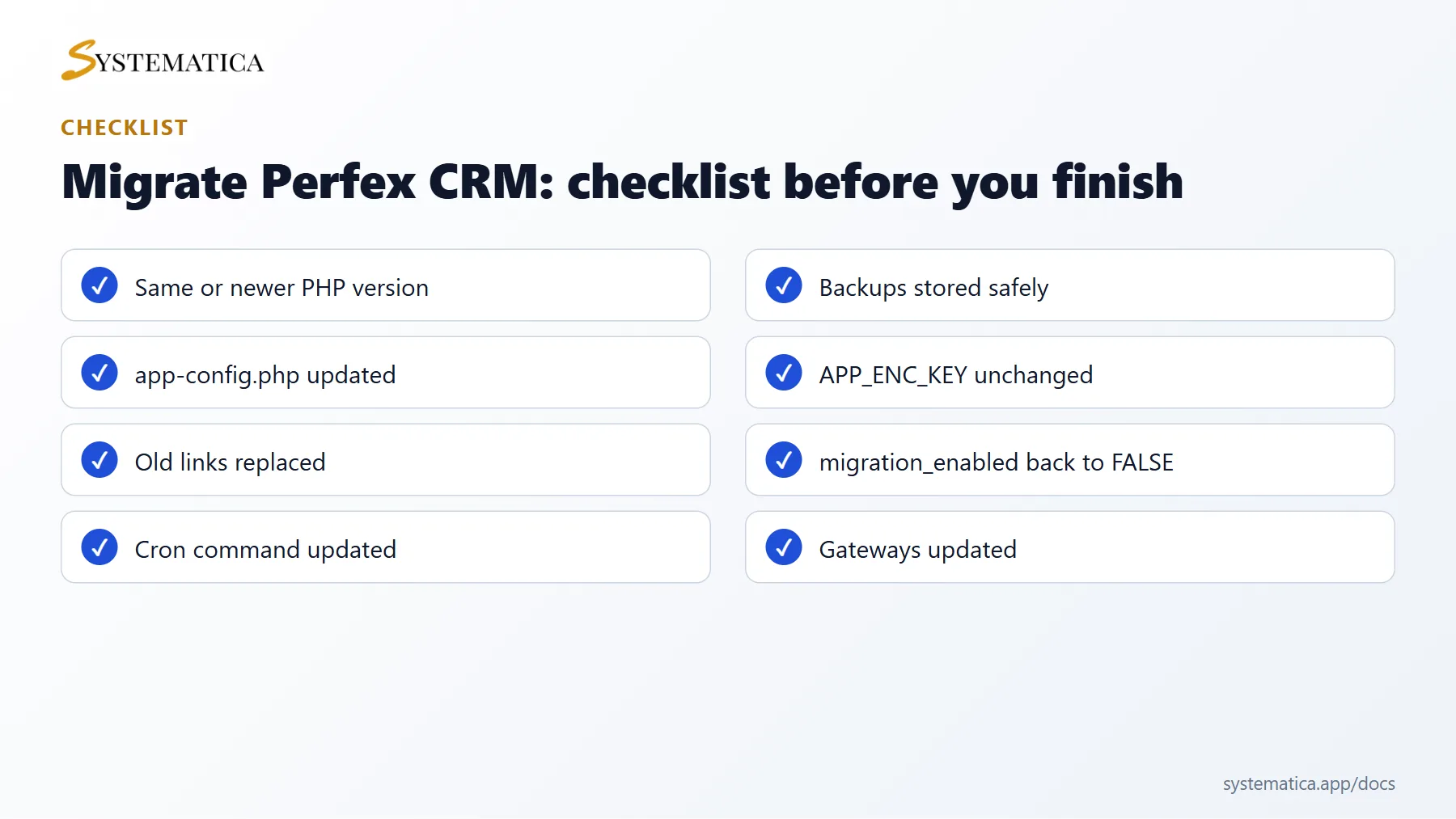
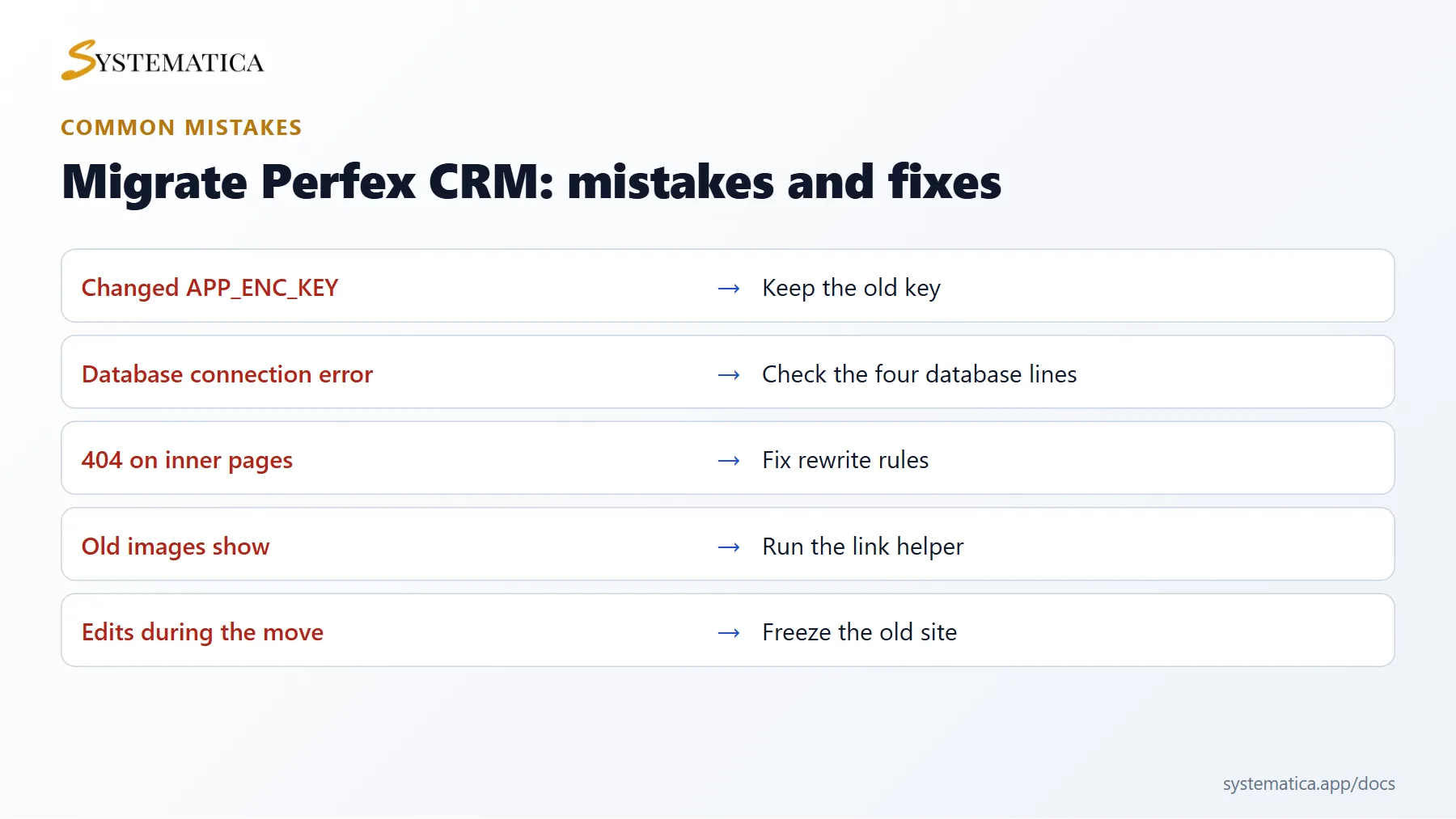
Save or share these four cards. They summarize the steps, the checklist, the usual mistakes and the key values from this guide.
How to migrate Perfex CRM: FAQ #
Can I migrate Perfex CRM without downtime? #
Almost. Build the new site first, test it on a temporary address, then switch the DNS. Staff should stop editing the old site just before the final copy.
Do I need a new licence to migrate Perfex CRM? #
No, you move your existing installation. Modules with their own license keys may need to be deactivated on the old site and activated on the new one.
Why do images show the old address? #
Content such as notes and templates stores full links. Run the link helper once, as described above.
Is my data safe during the move? #
Yes, if you keep backups and use a secure connection when you copy files. Delete the backup files from public folders after the move.
What if the import is too big for phpMyAdmin? #
Use the command-line import of your host or ask support. The phpMyAdmin documentation describes the limits and how to raise them.
What should I check after the move? #
Login, files, emails, the cron job, payment gateways and every module. Keep the old site for a week as a fallback.
Moving modules too? Each of our Perfex CRM modules uses one license per website, so deactivate it on the old site and activate it on the new one after you migrate Perfex CRM.
Useful resources #
A written checklist makes it easy to migrate Perfex CRM again in the future. Keep one copy of your configuration notes, such as database names and cron commands, in a safe place.


