
- Before you start
- Step 1: Open the import page
- Step 2: Download the sample file
- Step 3: Fill in the columns
- Step 4: Choose a file, groups and a password
- Step 5: Run Simulate Import first
- Step 6: Import and check the result
- Common problems when you import customers from CSV
- Perfex CRM import customers FAQ
- Quick checklist for Perfex CRM import customers
- Summary
If you move from another system, you should use Perfex CRM import customers instead of typing each record. Perfex CRM reads a CSV file, creates the companies and their first contacts and can put them in groups at once. This guide was tested on Perfex CRM 3.4.1 and shows how to import customers from a CSV file, how to test the file first and how to fix the common errors.
Before you start #
- Export your old customer list to a spreadsheet and save it as CSV (UTF-8), so names with accents stay correct.
- Keep one row per contact. Each row creates a company and its contact.
- Remove duplicates. Perfex CRM does not import a contact whose email already exists.
- Back up your database. See how to move Perfex CRM safely for the habit.
Step 1: Open the import page #
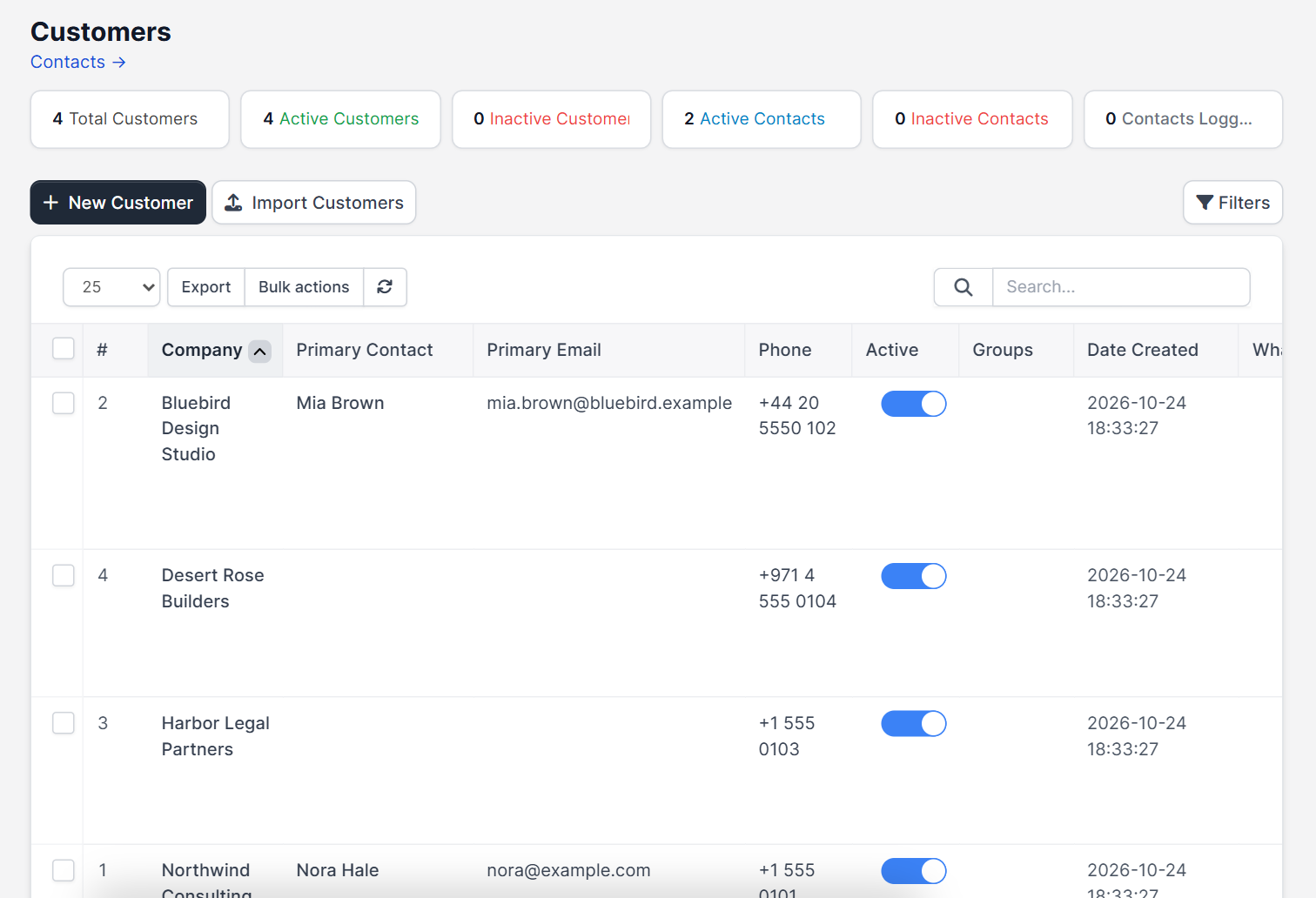
Open Customers and click Import Customers. The page shows every field the file can contain. Required fields have a star.
Step 2: Download the sample file #
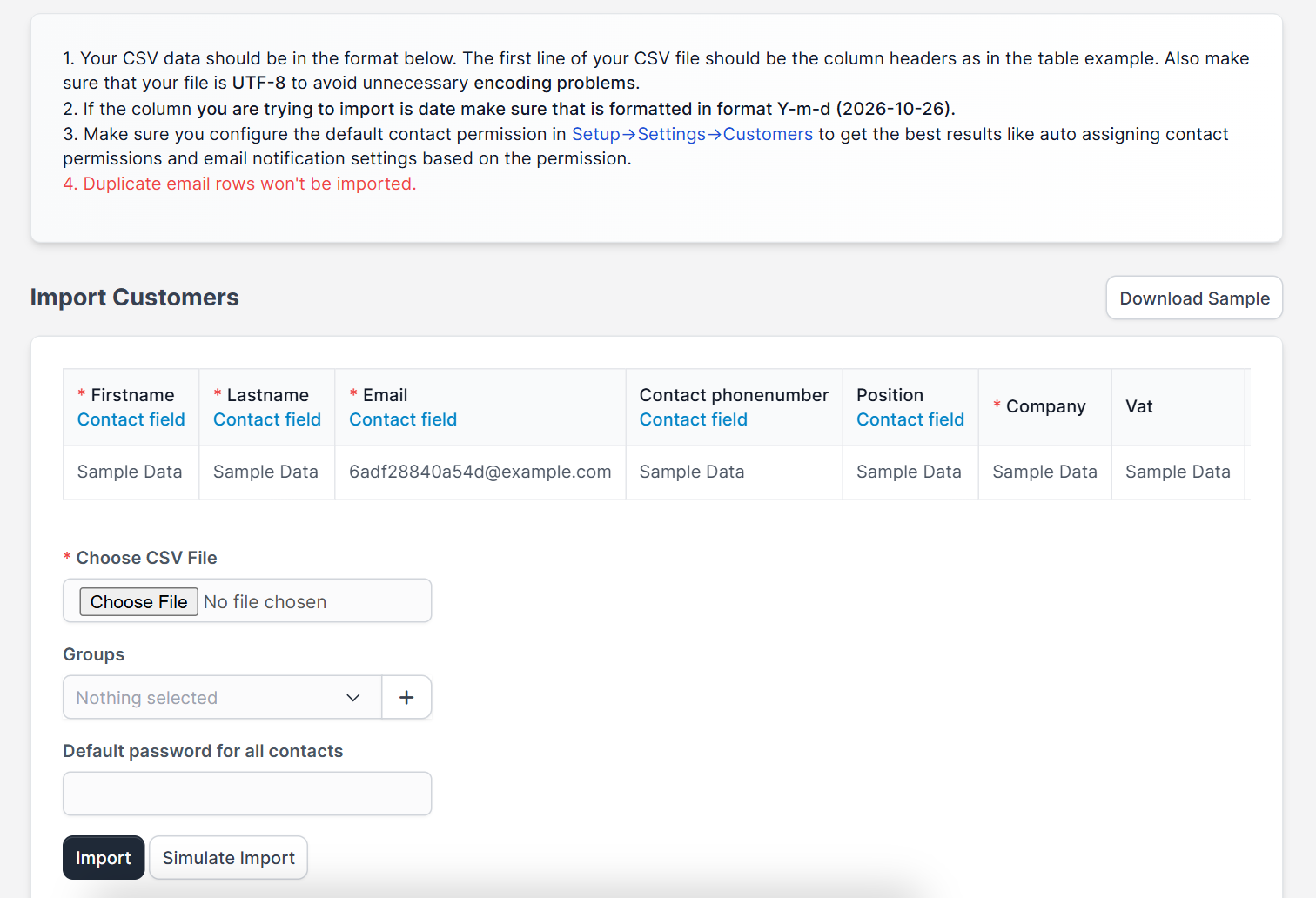
Click Download Sample. It has the column names in the right order, so copy your data into it. The first row must stay as the header row, and the columns must match the order on the page.
Step 3: Fill in the columns #
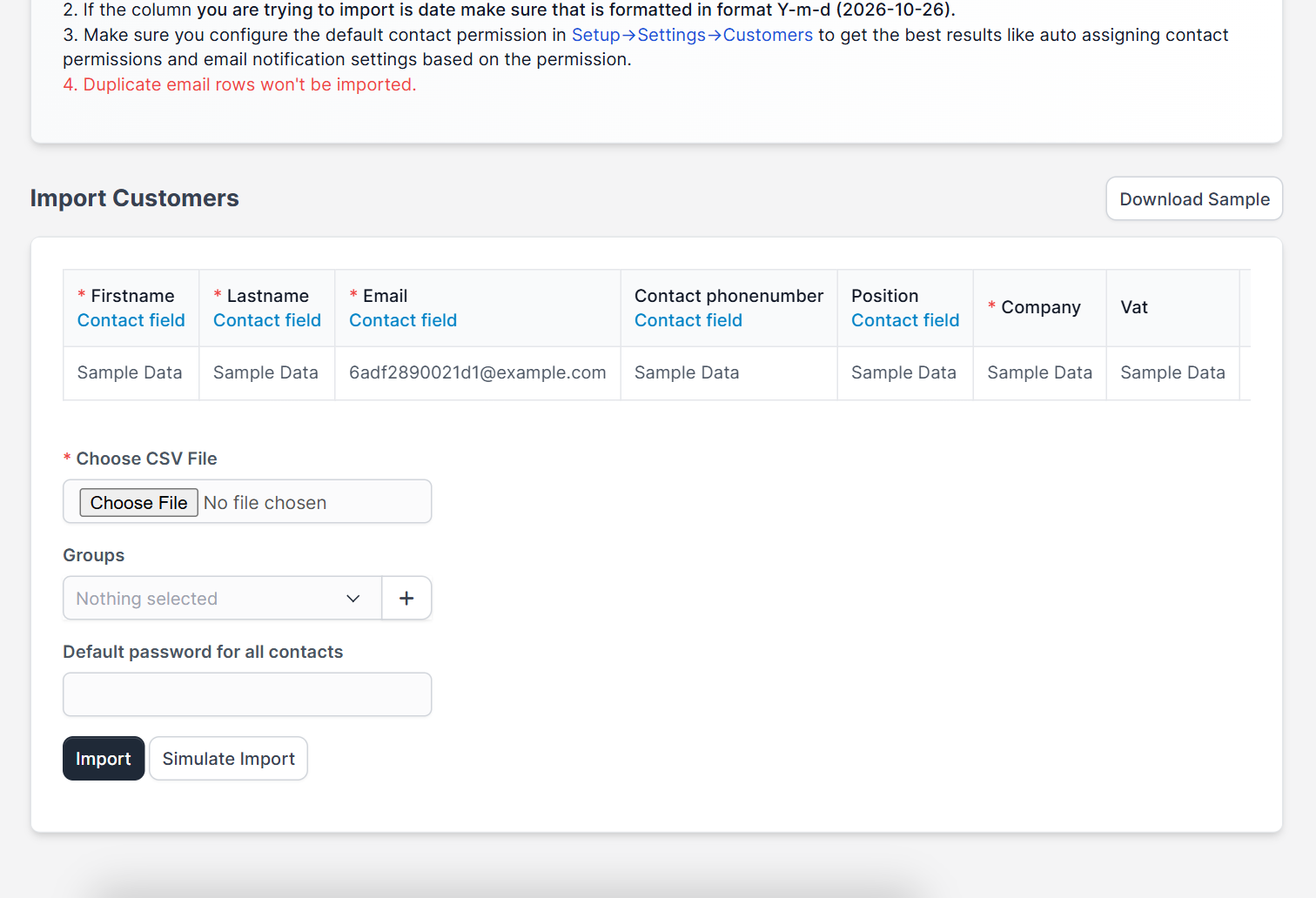
Required columns are Firstname, Lastname, Email (all contact fields) and Company. Optional columns include the contact’s phone number and position, Vat, Phonenumber, Country, City, Zip, State, Address and Website. You can also fill in the billing and shipping street, city, state, zip and country, and any custom fields you created. See Perfex CRM custom fields.
Step 4: Choose a file, groups and a password #
Use Choose CSV File to select your file. In Groups select one or more customer groups to assign to every imported customer. Under Default password for all contacts you can set a first password for the portal. Leave it empty if you do not want contacts to sign in yet, and choose a strong password if you do. See how the Perfex CRM customer portal works.
Step 5: Run Simulate Import first #
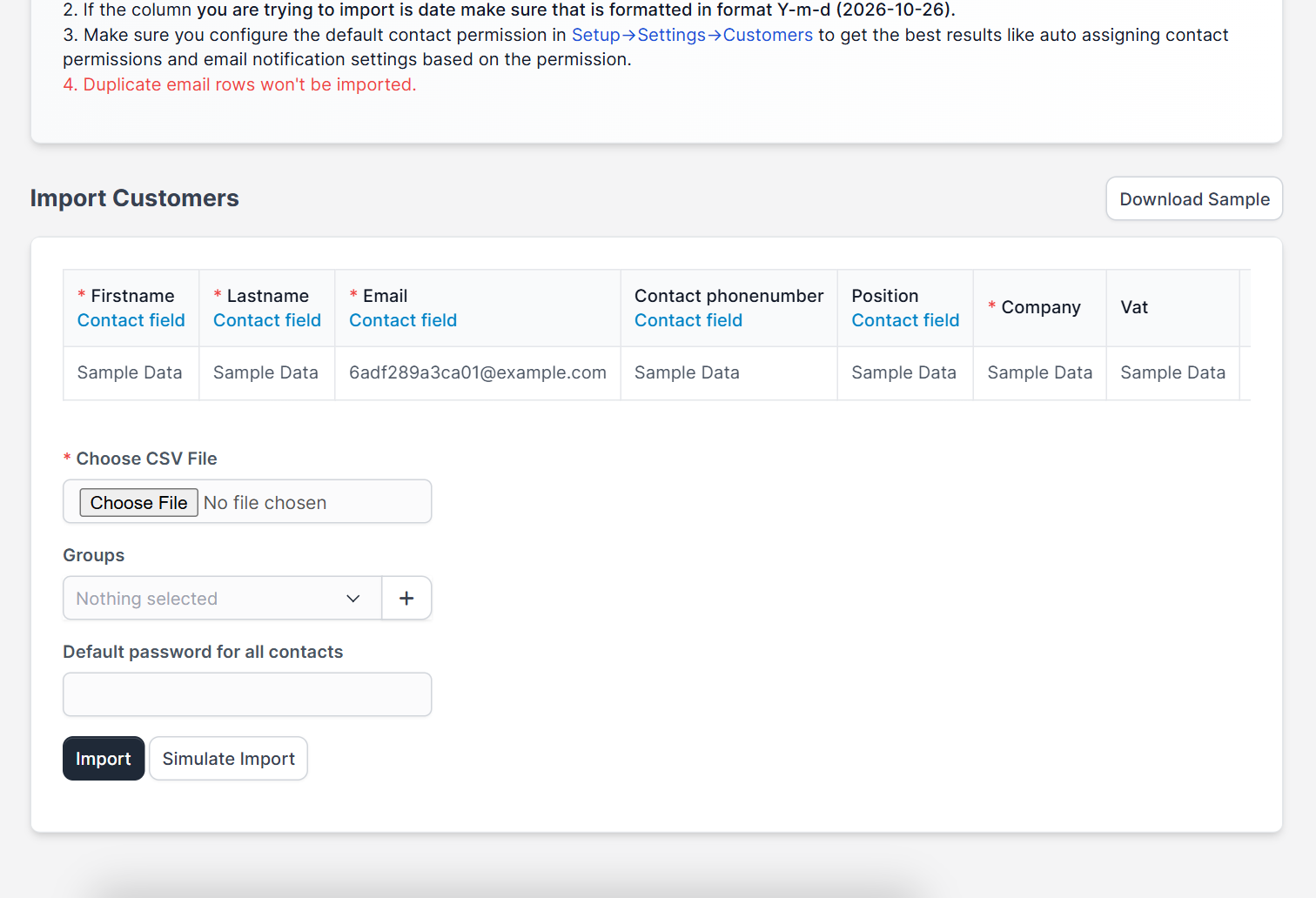
Click Simulate Import. Perfex CRM checks the file and reports problems without saving anything. Fix the rows it lists, such as missing required fields, then run the simulation again until it passes.
Step 6: Import and check the result #
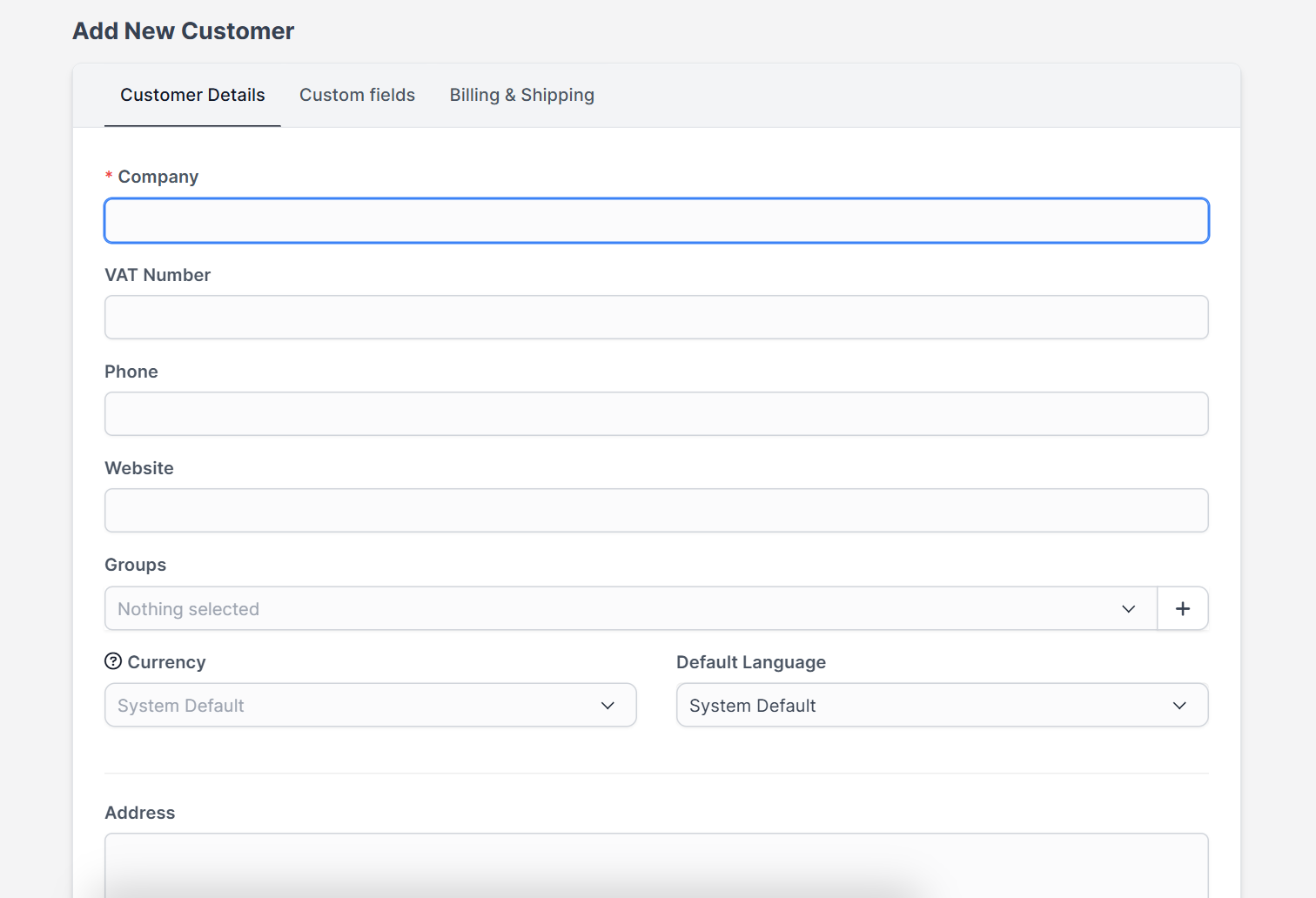
Click Import. Open the customers list and spot check a few records: the company, the primary contact, the address and the groups. Then open one customer and compare it with the form in Perfex CRM new customer.
Common problems when you import customers from CSV #
- Strange characters: the file was not saved as UTF-8.
- Rows skipped: the email already exists, or a required column is empty.
- Everything in one column: your spreadsheet used a semicolon as separator. Save with commas.
- Wrong order: start again from the sample file.
Perfex CRM import customers FAQ #
How many customers can I import at once? #
Large files work, but split very big lists into smaller files, and test each one with Simulate Import.
Can I import contacts for an existing customer? #
The import creates a company with each row. Add extra contacts from the customer profile instead. See Perfex CRM customer contacts.
Can I import leads, items or expenses too? #
Yes. Perfex CRM has import pages for leads, items and expenses with the same simulate step.
Will imported customers get an email? #
Check your email templates and settings before you import, so you know what contacts will receive. See Perfex CRM email templates.
Quick checklist for Perfex CRM import customers #
- Clean the spreadsheet before you use Perfex CRM import customers.
- Always run Simulate Import first, because Perfex CRM import customers reports every problem row.
- Give each batch a group, so every Perfex CRM import customers run can be found again.
Summary #
To use Perfex CRM import customers well, prepare a clean UTF-8 CSV, start from the sample, simulate first and then import. This is the fastest way to bulk import customers and keep your records tidy. You can read more on the official Perfex CRM website. After the import, give each Perfex CRM import customers batch a group so you can find it later.


