
- Where to Perfex CRM add staff member accounts
- Step 1: Open the form
- Step 2: Fill in the profile
- Step 3: Choose departments
- Step 4: Set the password and welcome email
- Step 5: Choose a role or administrator
- Step 6: Save and test
- Tips when you Perfex CRM add staff member accounts
- Perfex CRM add staff member FAQ
- Modules that extend your team tools
- Summary
When your team grows, you need to Perfex CRM add staff member accounts so that each person has their own sign-in, role and departments. Personal accounts also make your activity log meaningful: you can see who changed what. This guide shows how to Perfex CRM add staff member profiles in six easy steps, and how to avoid common mistakes.
Where to Perfex CRM add staff member accounts #
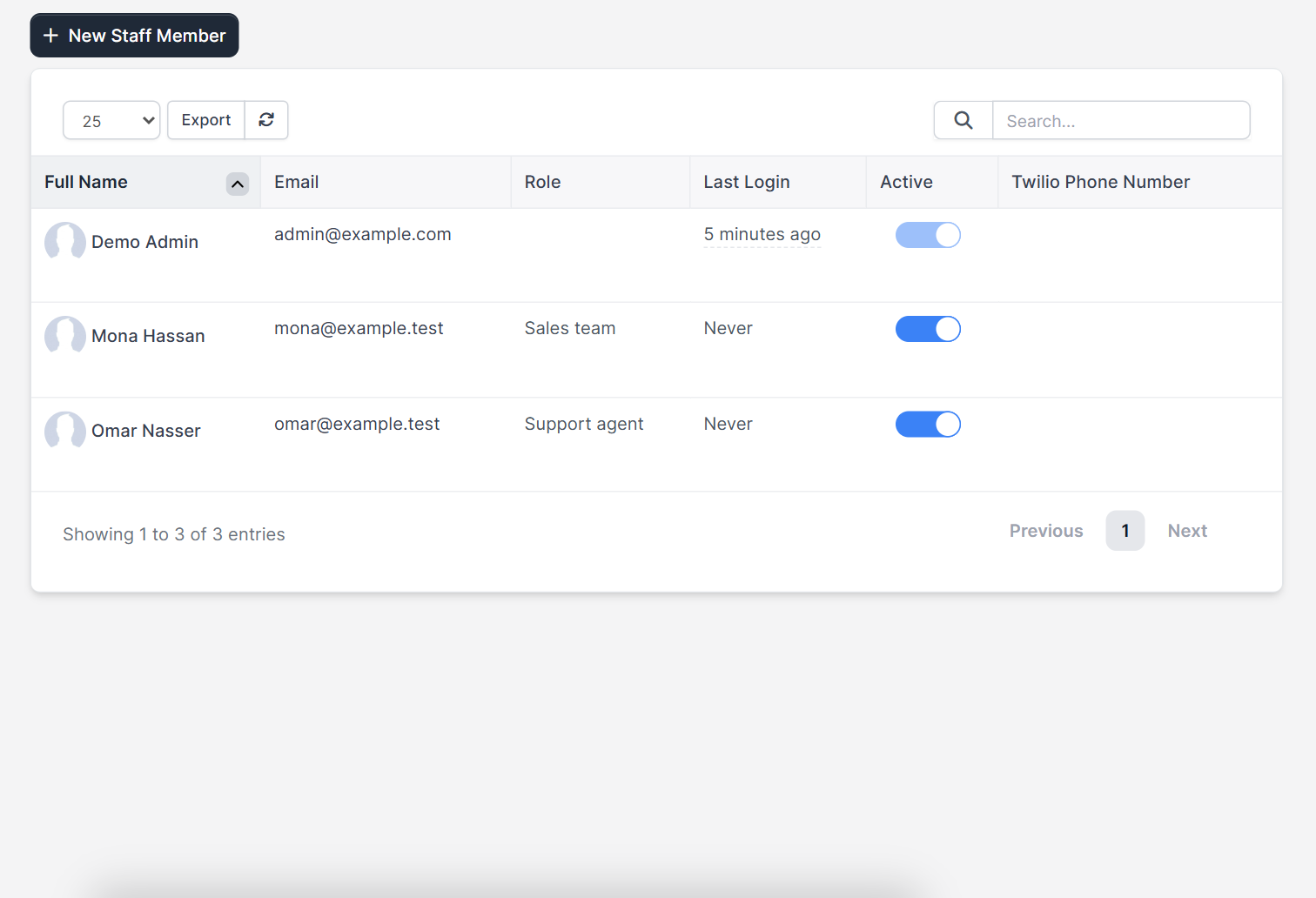
Open Setup > Staff > Staff Members. The table shows the Full Name, Email, Role, Last Login and an Active switch. Click New Staff Member to start.
Step 1: Open the form #
The form Add New Staff Member has two tabs, Profile and Permissions. Create roles first if you want to use them, see Perfex CRM roles and permissions.
Step 2: Fill in the profile #
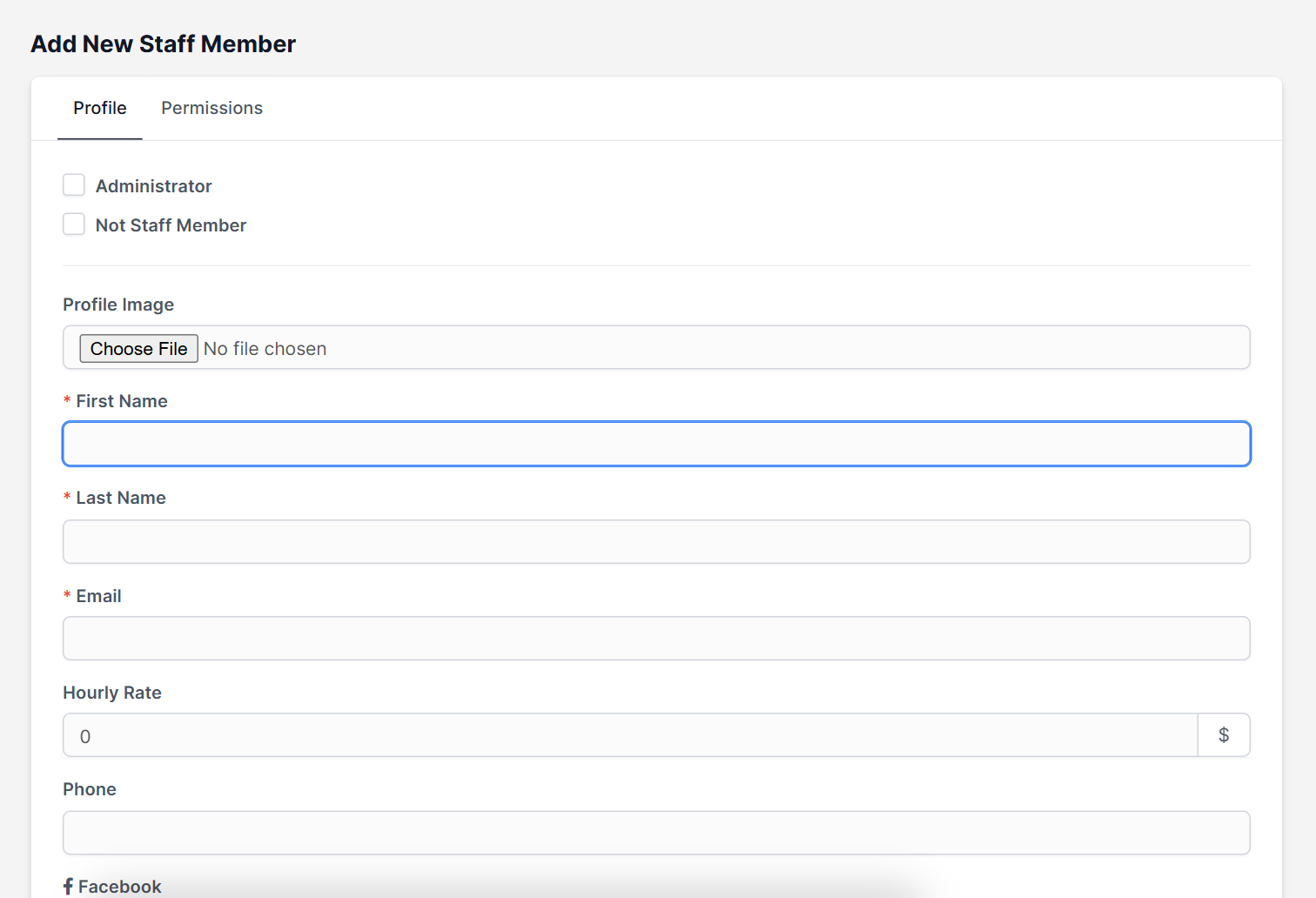
- Profile Image is optional but helps in chats and tasks.
- First Name, Last Name and Email are required. The email is the sign-in name.
- Hourly Rate is used for time and project costs.
- Phone, Facebook, LinkedIn and Skype are optional contact fields.
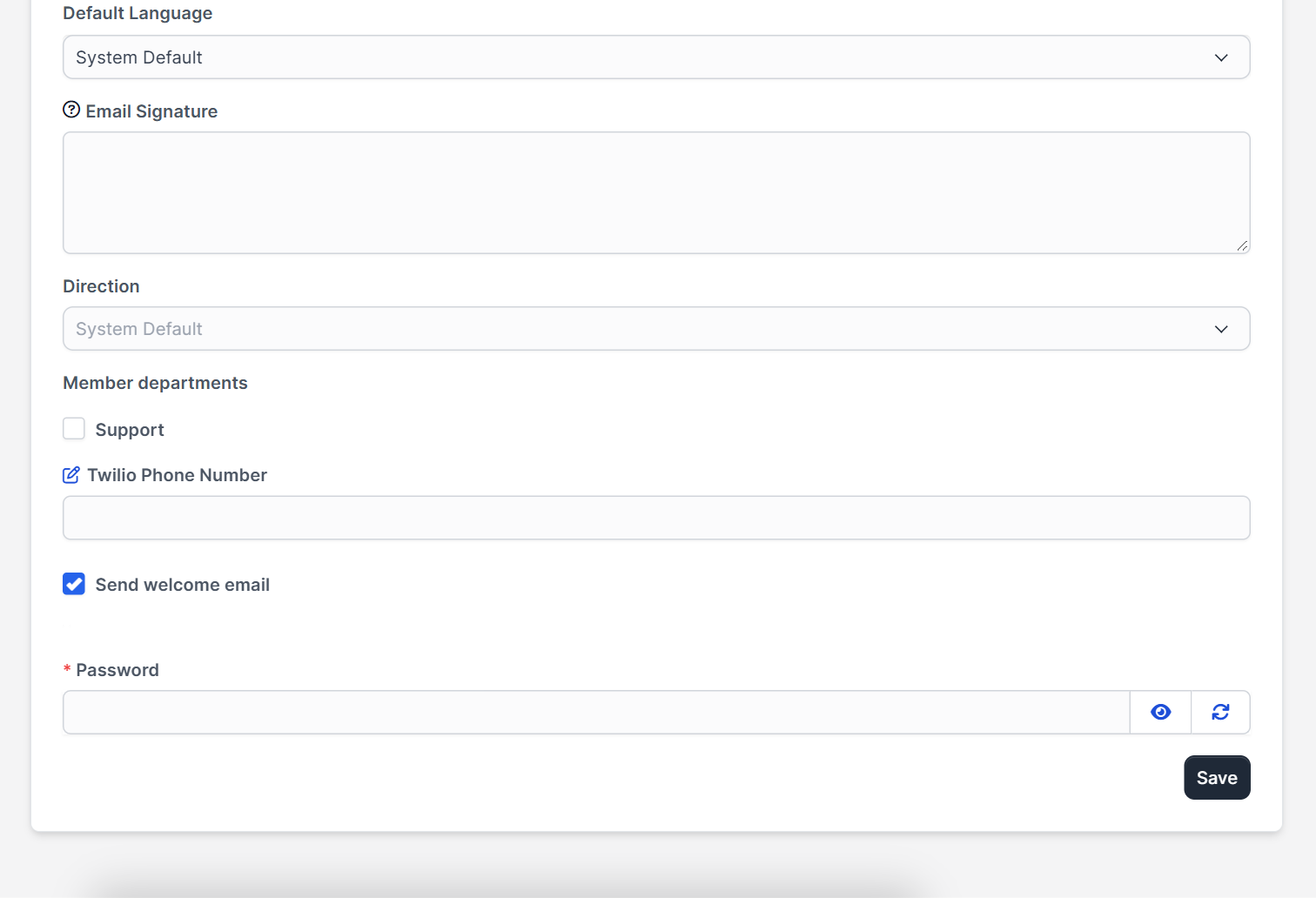
- Default Language follows the system unless you choose another. See Perfex CRM language settings.
- Email Signature is added to emails this person sends.
- Direction sets left to right or right to left.
Step 3: Choose departments #
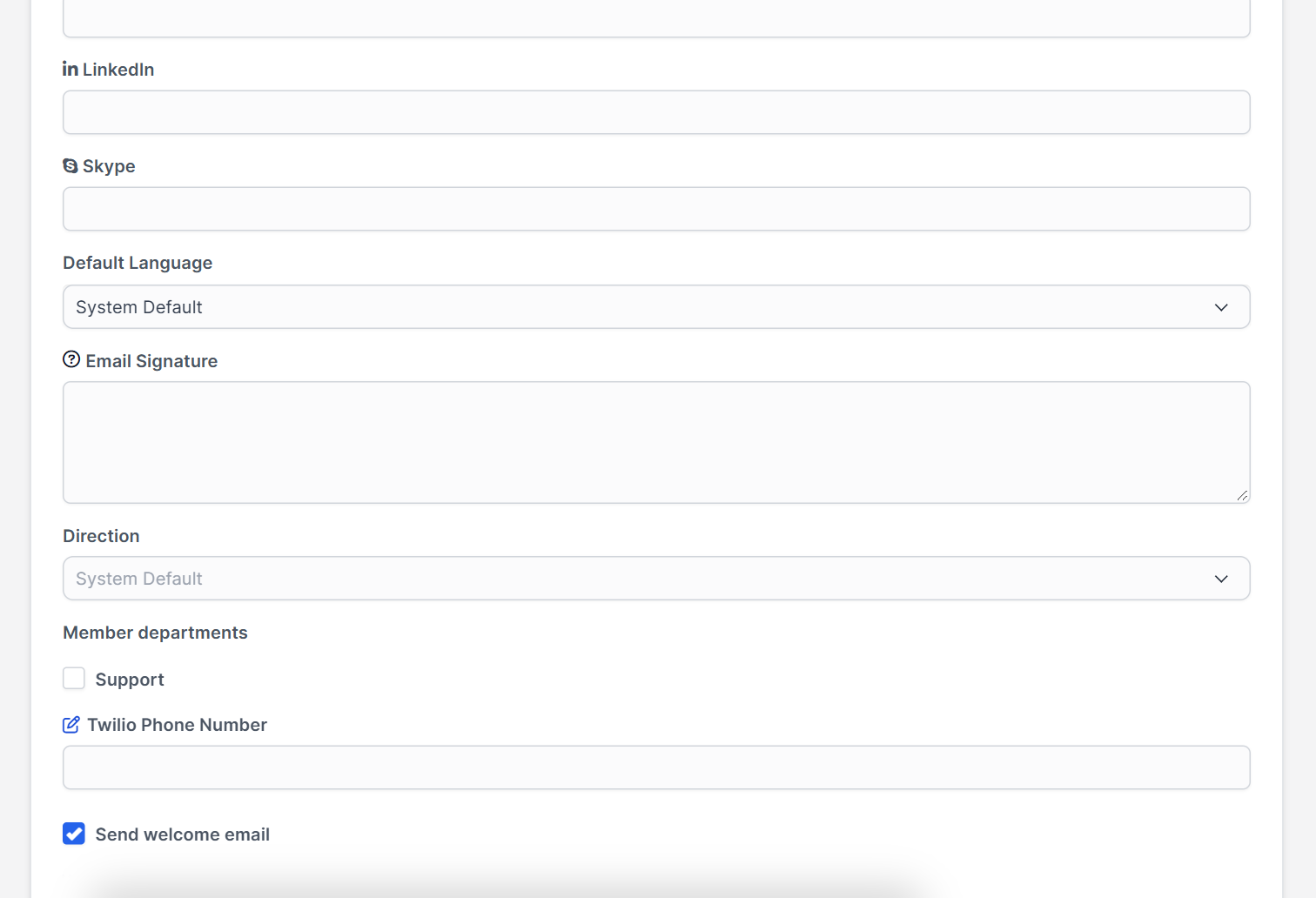
Under Member departments tick the departments the person belongs to, such as Support or Billing. Tickets for those departments appear in their list. Departments are explained in Perfex CRM ticket departments.
Step 4: Set the password and welcome email #
Switch on Send welcome email so the person gets their sign-in details. Enter a Password, which they can change after the first sign-in. The email needs working SMTP settings and uses the staff templates in Perfex CRM email templates.
Step 5: Choose a role or administrator #
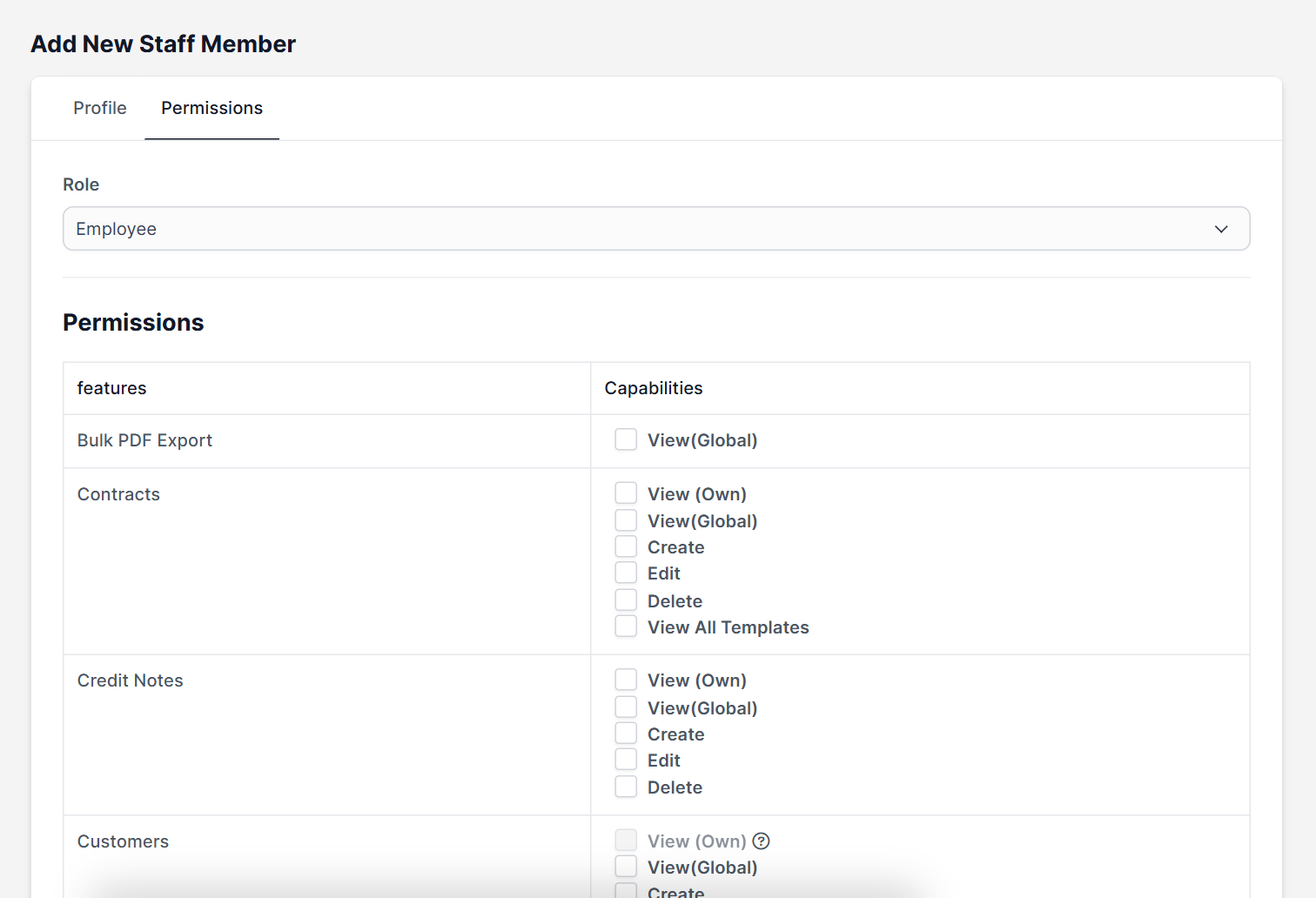
Pick a Role such as Employee. For full access, use the Administrator option, but give it only to people who really need it. On the Permissions tab you see the same capability table as in the role form, so you can fine tune one person without changing the role.
Step 6: Save and test #
Click Save. Ask the person to sign in, and check the menus they see. If they cannot reach something they need, change the role. If they can reach something they should not, remove the permission straight away.
Tips when you Perfex CRM add staff member accounts #
- Use a personal work email, never a shared one.
- Give the smallest role that lets the person work.
- Mark an account inactive when someone leaves, do not delete it, so history stays.
- Set the hourly rate before the person starts logging time on Perfex CRM tasks.
- Write down who has administrator rights.
Perfex CRM add staff member FAQ #
Can I add staff members in bulk? #
Add them one at a time, because each needs a role and a password.
Why did the new staff member not get the email? #
Check your email settings and the queue. See Perfex CRM email queue.
Can a staff member reset their own password? #
Yes, with the forgot password link on the sign-in page.
What happens to their tasks when they leave? #
Mark the account inactive and reassign the open tasks and tickets to someone else.
Modules that extend your team tools #
Add leave and attendance with the Timesheets and Leave Management module, staff files with the HR module and pay slips with the HR Payroll module.
Summary #
To Perfex CRM add staff member accounts well, fill in the profile, choose departments, set a role, send the welcome email and test the sign-in. Review access every few months. You can find more on the official Perfex CRM website, and a careful Perfex CRM add staff member routine keeps your CRM safe as the team grows. Each time you Perfex CRM add staff member profiles, follow the same checklist so access stays consistent.


