
- Step 1: Open the support settings
- Step 2: Turn on the notification options
- Step 3: Check the departments
- Step 4: Check how the ticket arrives
- Step 5: Check the ticket email templates
- Step 6: Check that email works at all
- Quick checklist for Perfex CRM ticket notifications
- Perfex CRM ticket notifications FAQ
- Summary
A customer opens a ticket and nobody in your team knows. When Perfex CRM ticket notifications fail, replies are late and customers lose trust. The causes are almost always in four places: the support settings, the department, your email setup and the email templates. This guide was tested on Perfex CRM 3.4.1 and shows how to fix each, so a new ticket notification always reaches the right person.
Step 1: Open the support settings #
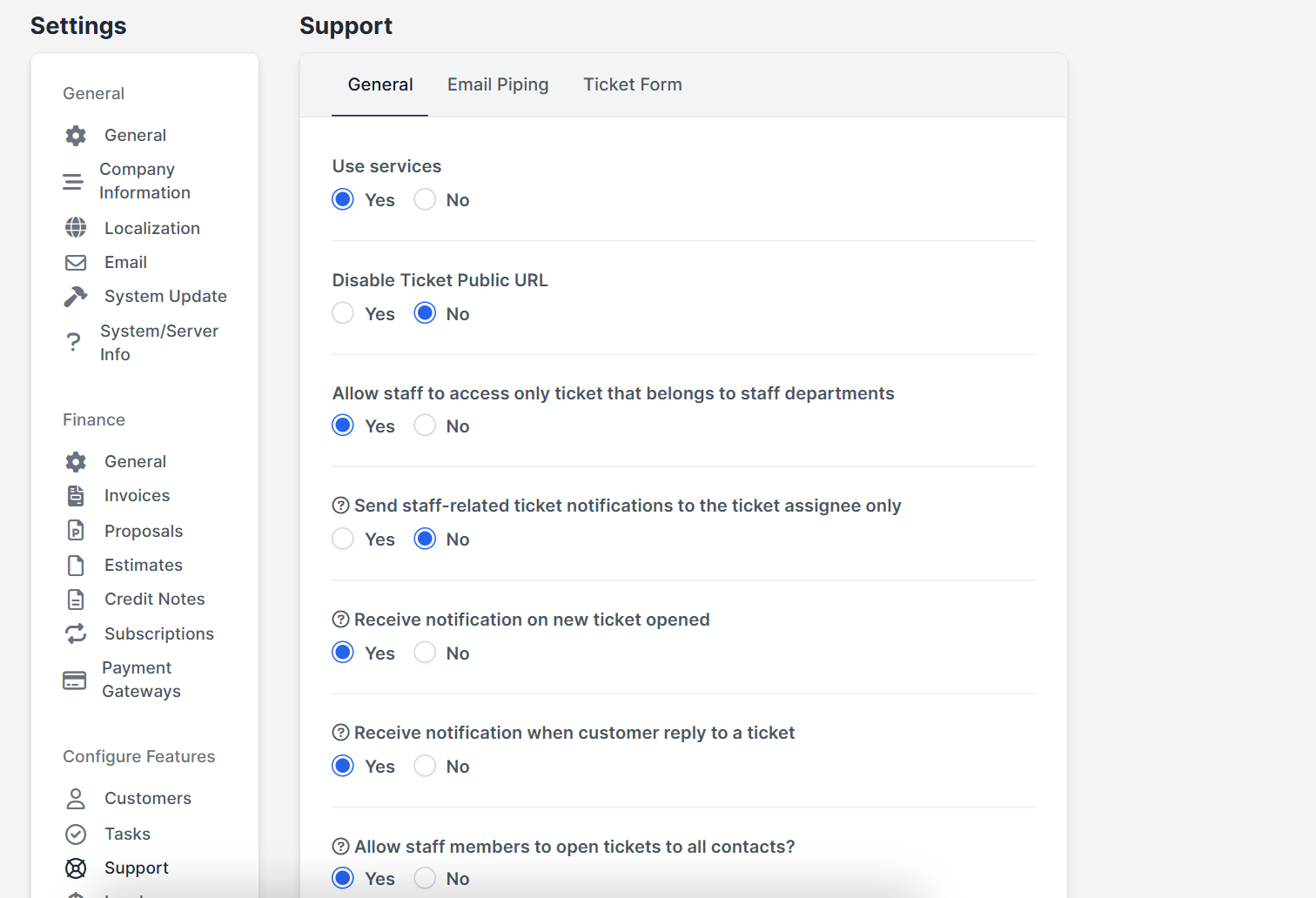
Open Setup > Settings > Support. The tab General has the options that control who is told about tickets. The other tabs are Email Piping and Ticket Form.
Step 2: Turn on the notification options #
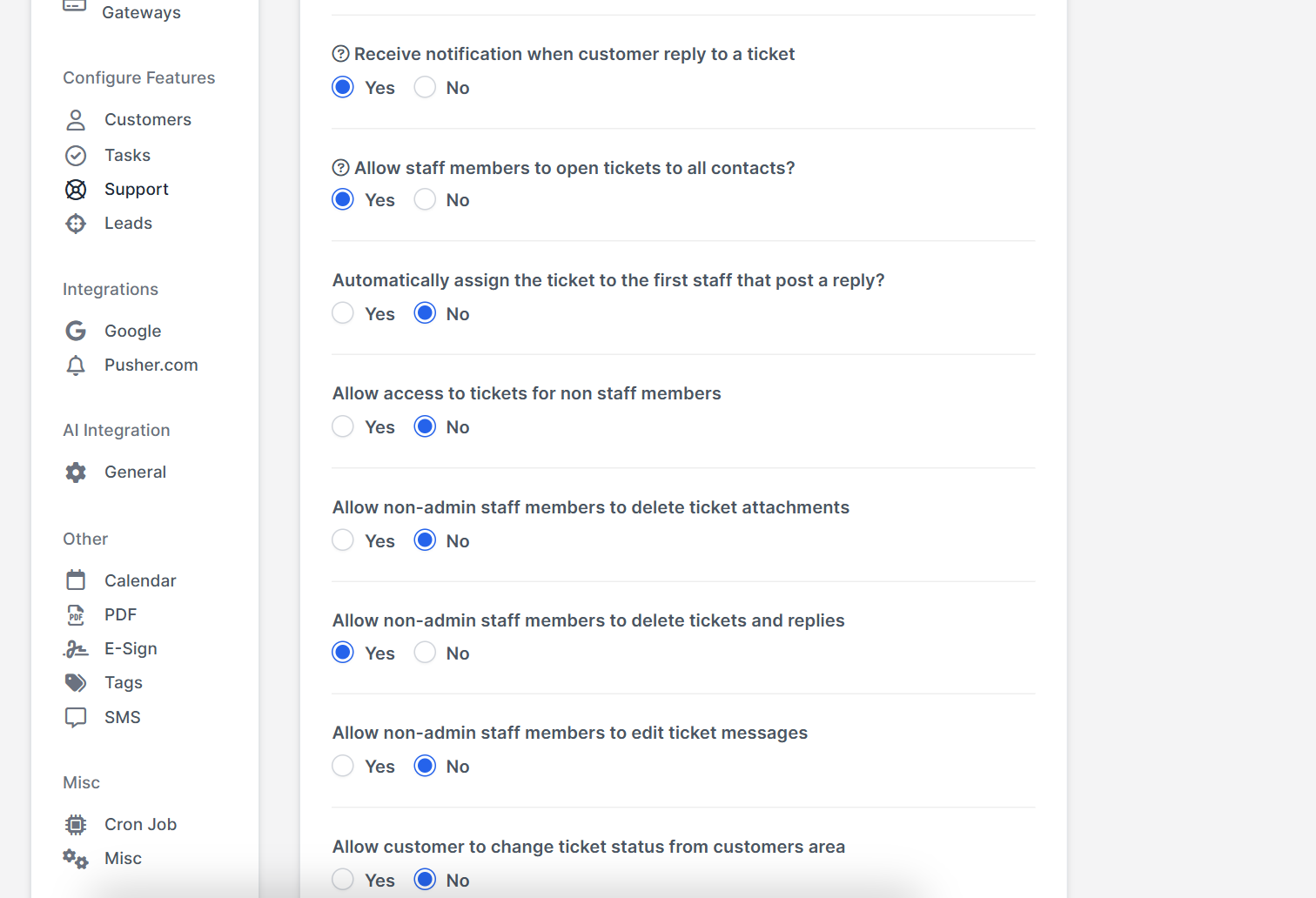
- Receive notification on new ticket opened sends the alert for every new ticket.
- Receive notification when customer reply to a ticket alerts staff when a customer writes back.
- Send staff-related ticket notifications to the ticket assignee only limits messages to the assigned person. Turn it off if the whole department should be told.
- Allow staff to access only ticket that belongs to staff departments hides tickets from other departments, and so also hides their alerts.
Step 3: Check the departments #
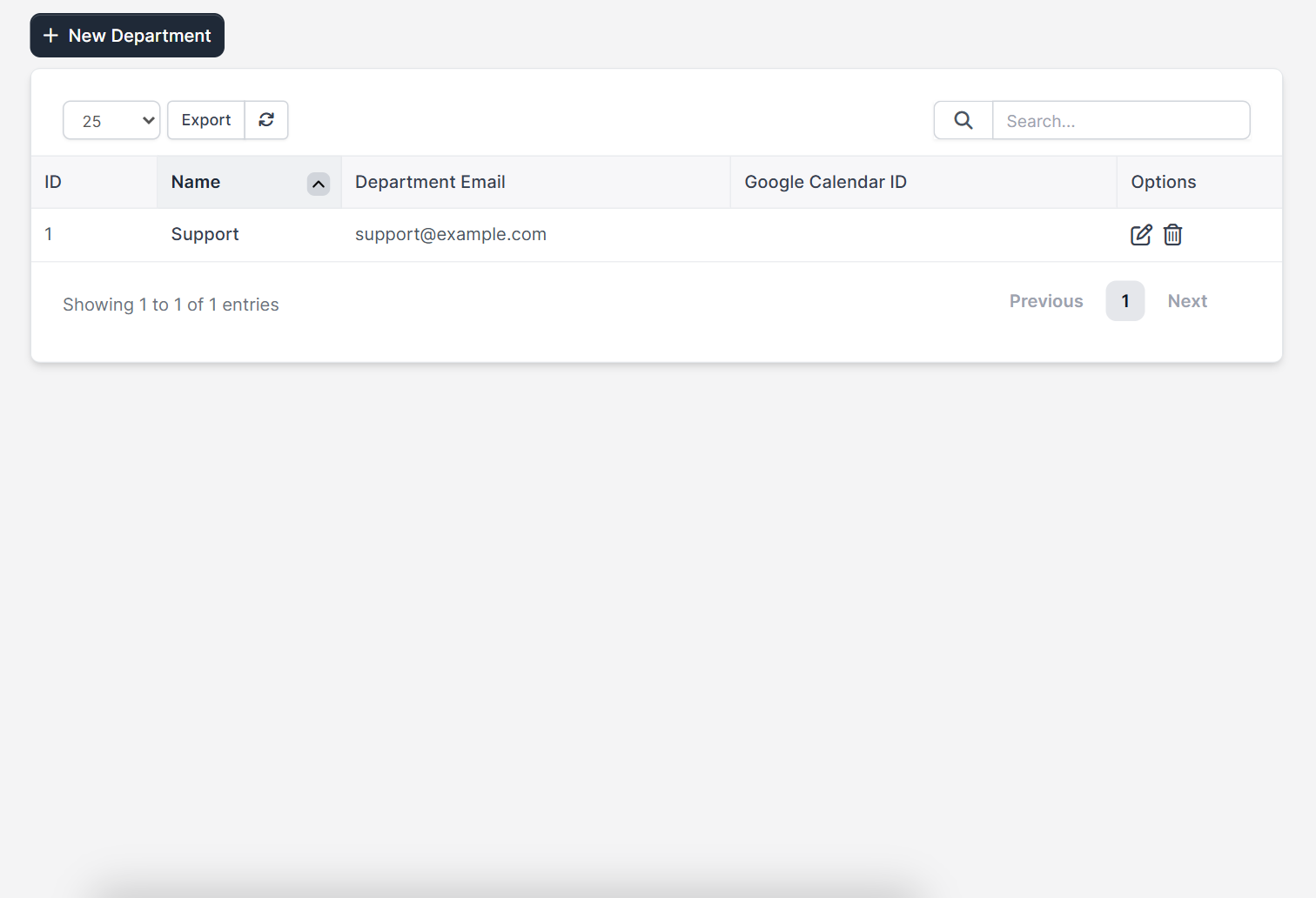
Tickets belong to a department, and staff are notified based on the departments they are members of. Open Setup > Support > Departments and make sure the department exists, and that each staff member is a member of it on their profile. The department can also have its own email address. Read Perfex CRM ticket departments and how to add a staff member.
Step 4: Check how the ticket arrives #
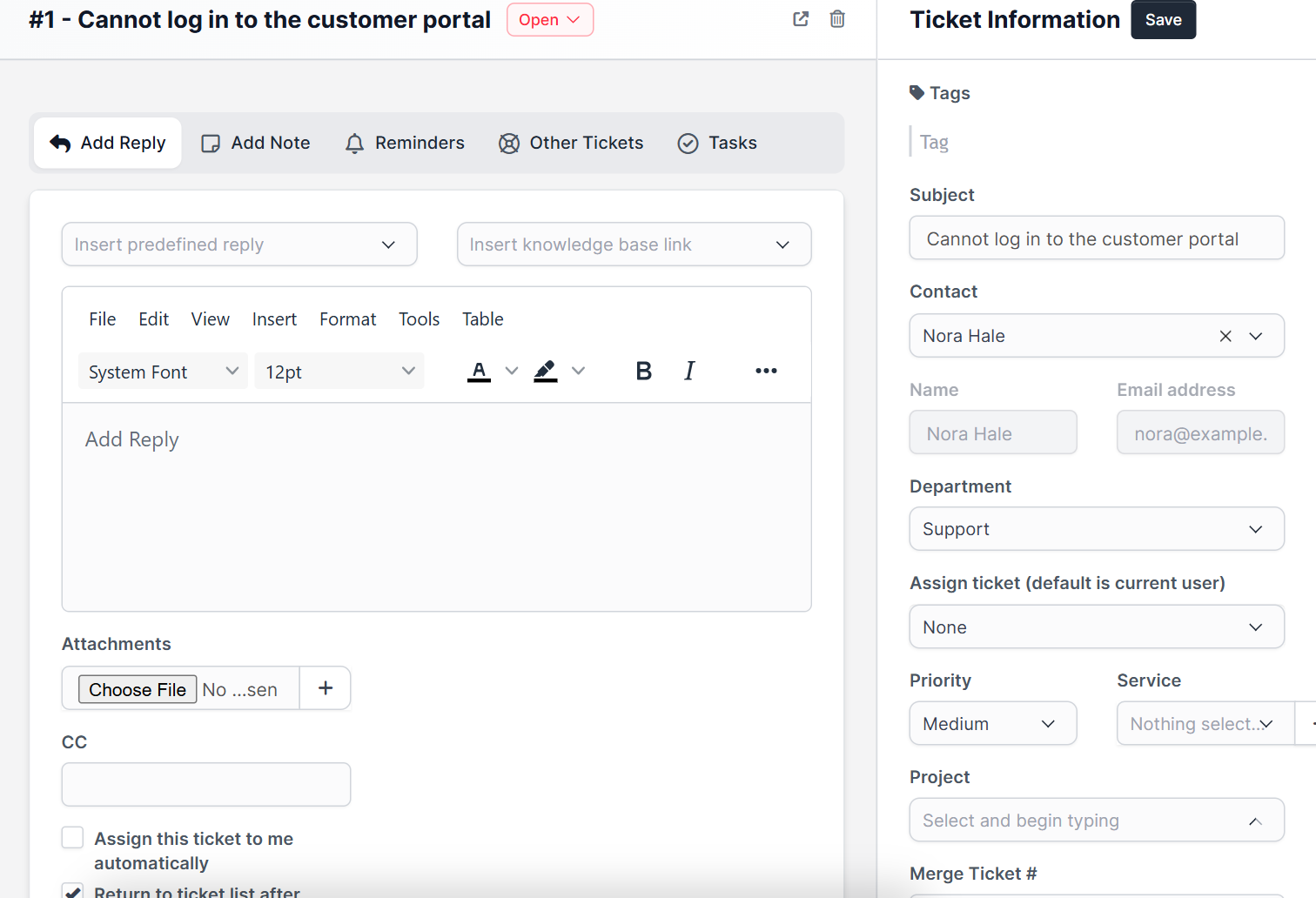
Open a ticket to see its department, assignee and status. Tickets arrive by the customer portal, by the public form and by email. If tickets are missing completely, check Perfex CRM email piping and the Perfex CRM ticket form.
Step 5: Check the ticket email templates #
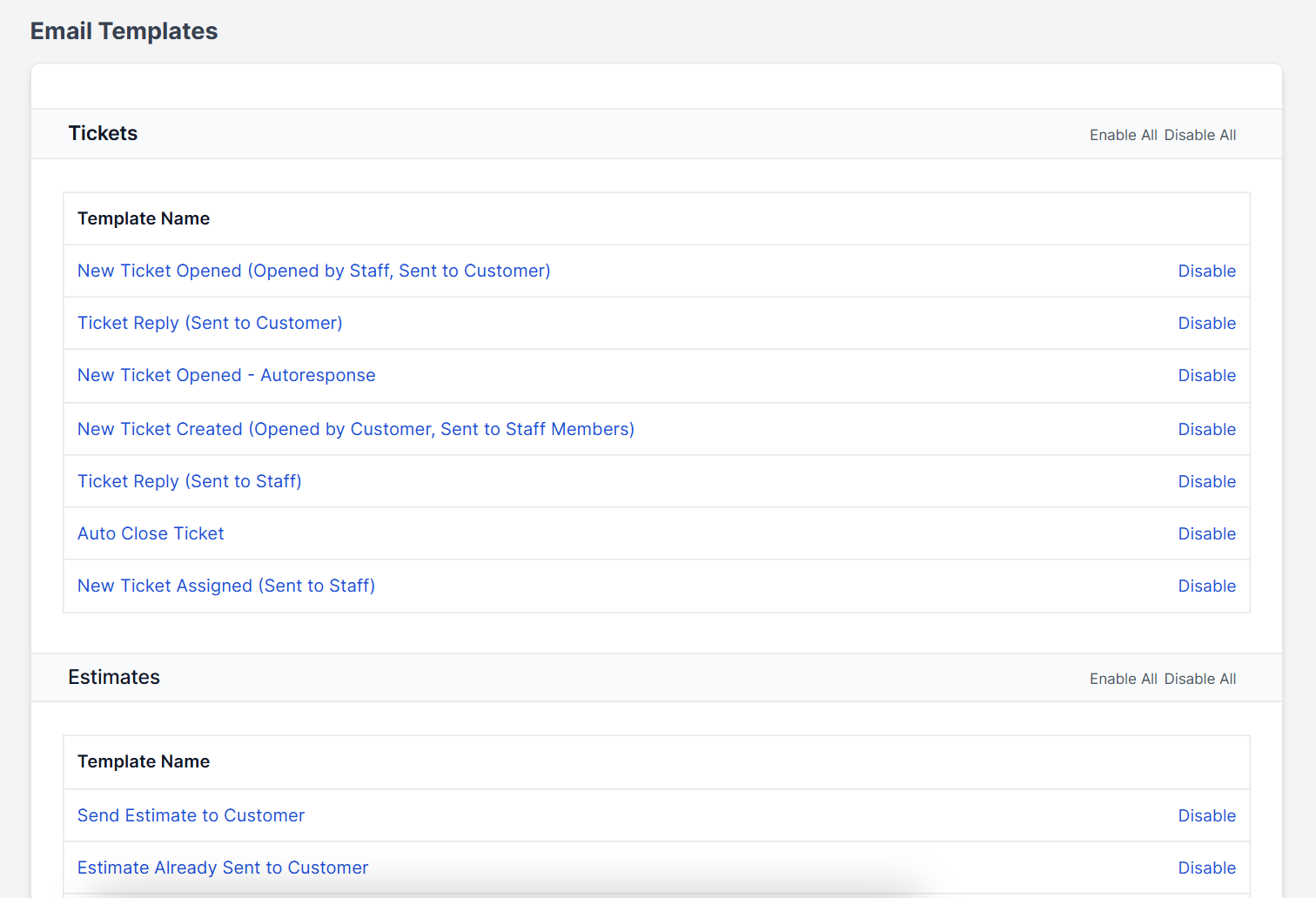
Open Setup > Email Templates. The group Tickets lists templates such as a new ticket opened by staff or a customer, a ticket reply sent to staff and to the customer, and an auto close message. Each has a Disable or Enable link. A disabled template means no email, even when all settings are right. See Perfex CRM email templates.
Step 6: Check that email works at all #
Send a test email from Setup > Settings > Email. If it fails, ticket alerts fail too. Follow what to do when Perfex CRM email is not sending. Also check that the cron job runs, because queued emails leave only then.
Quick checklist for Perfex CRM ticket notifications #
- Test with a ticket from the public form after every change.
- Confirm that each staff member sees the right department.
- Keep the new ticket notification option on for at least one person.
- Check the spam folder of the receiving mailbox.
- Review Perfex CRM ticket notifications whenever staff join or leave.
Perfex CRM ticket notifications FAQ #
Why does my team not get an email for new tickets? #
The notification option may be off, the staff member may not be in the department or the email setup may be broken.
Can only the assignee be notified? #
Yes, with the option to send staff-related notifications to the assignee only.
Do customers get a notification too? #
Yes. The ticket templates for customers send a confirmation and each reply, if the templates are enabled.
Why are replies not arriving as tickets? #
Email piping may be missing or the cron job may not run. Check both.
Summary #
To fix Perfex CRM ticket notifications, turn on the options in the support settings, check departments and membership, review the ticket templates and test email. Then watch a real ticket arrive. More information is on the official Perfex CRM website. Working Perfex CRM ticket notifications keep your support fast. Check Perfex CRM ticket notifications again after every server move, and review your Perfex CRM ticket notifications each quarter.


