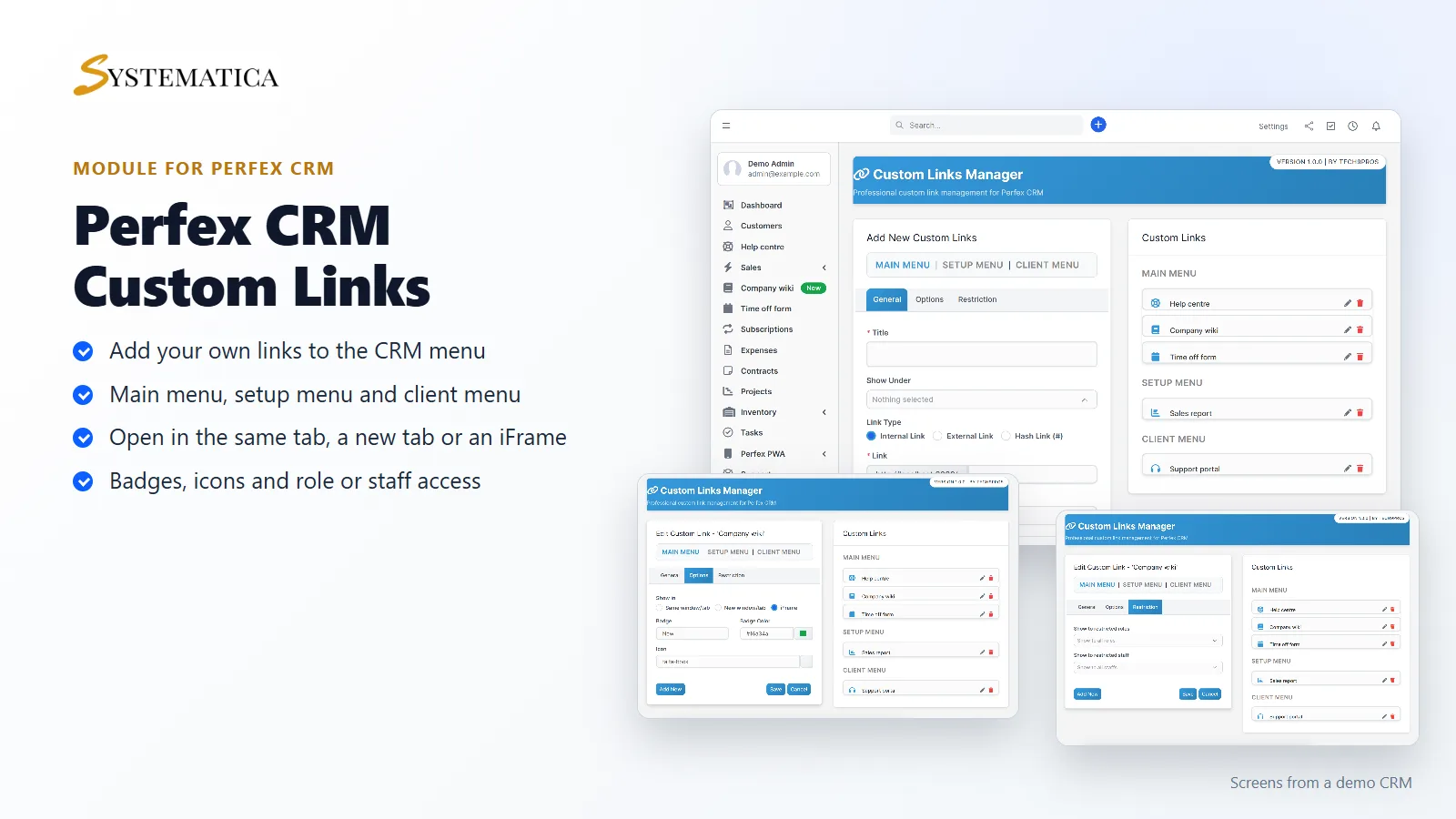
Custom Links for Perfex CRM lets you add your own links to the CRM menu. Your team gets one click to the help centre, the company wiki, a time off form or a report, right next to the built-in items. You decide the title, the icon, where the link sits and who can see it. There is no code to write.
What you get with Custom Links for Perfex CRM
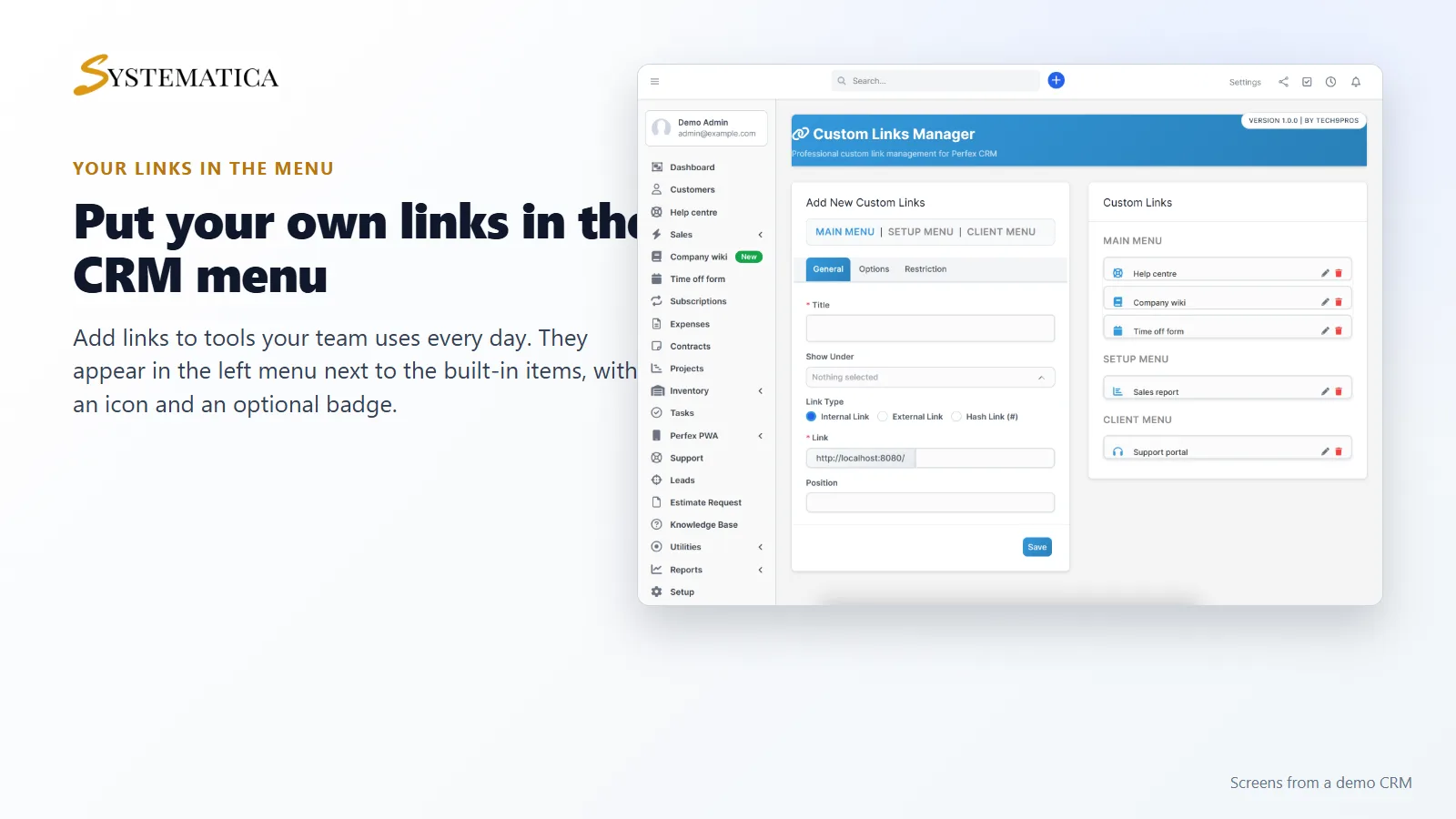
- Links in the main menu, the setup menu and the client menu
- Link types: internal link, external link and hash link
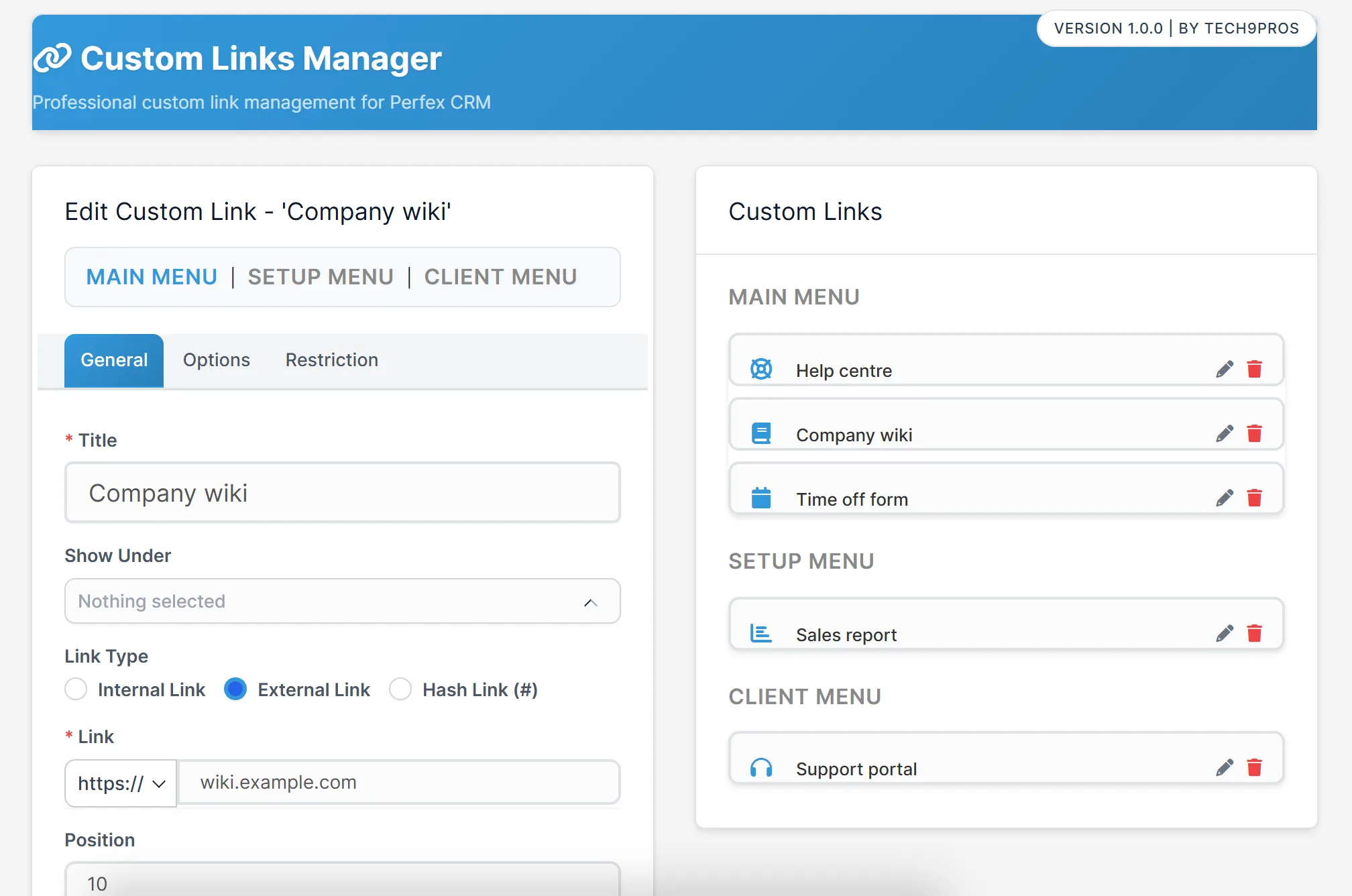
- For external links, a choice of http or https and a web address you type in
- Show a link in the same window or tab, in a new window or tab, or in an iFrame inside the CRM
- An icon, a position number and a badge with its own color, for example “New”
- An option to place a link under an existing menu item
- Access limits by role and by staff member
- One screen that lists all your links by menu, with edit and delete
Add links where your team looks
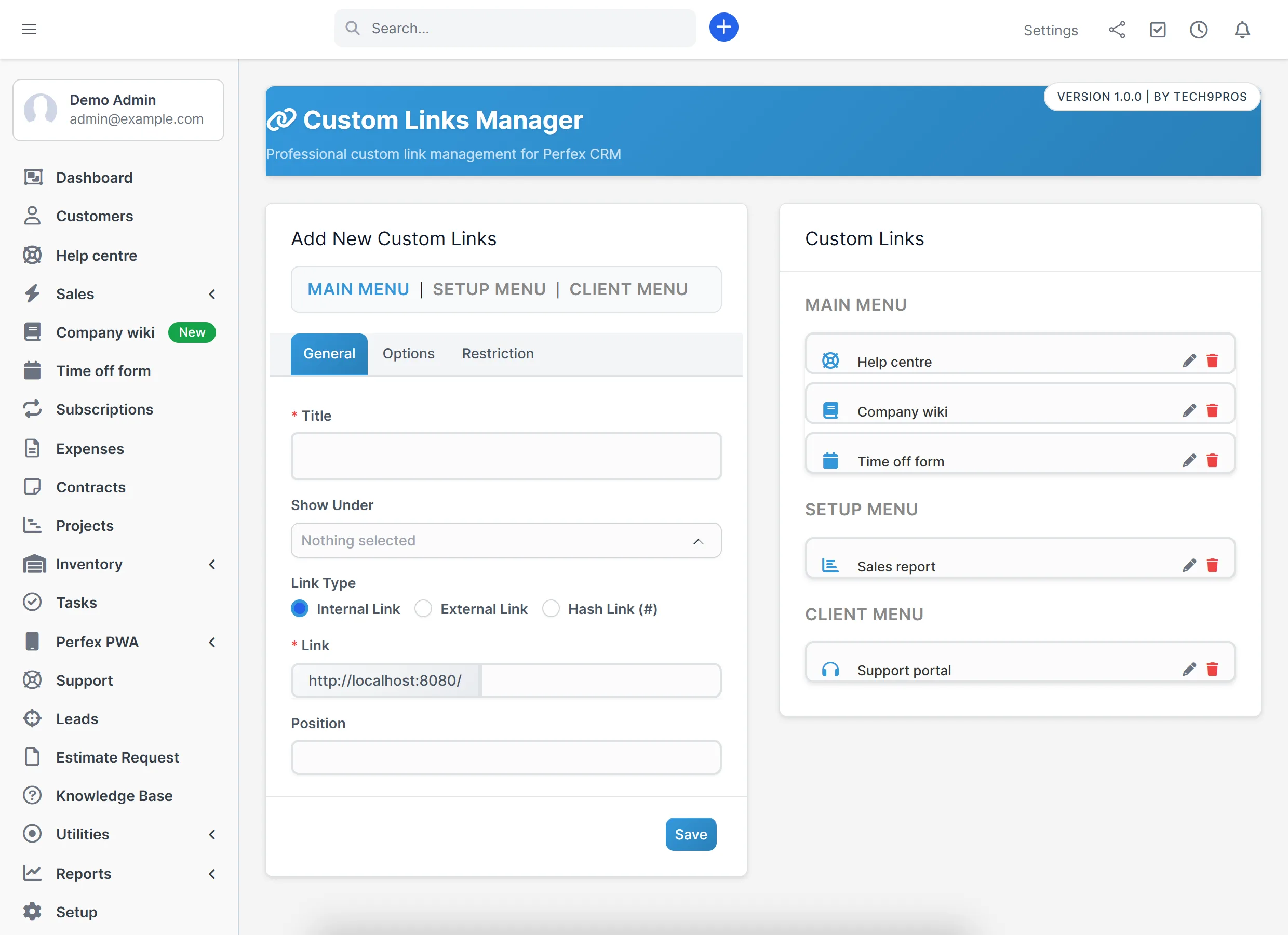
Pick the menu first: main menu, setup menu or client menu. Then give the link a title and choose the link type. Type an internal path such as a report page, or an external web address. Custom Links for Perfex CRM shows the new link in that menu straight away, in the order of the position number you set.
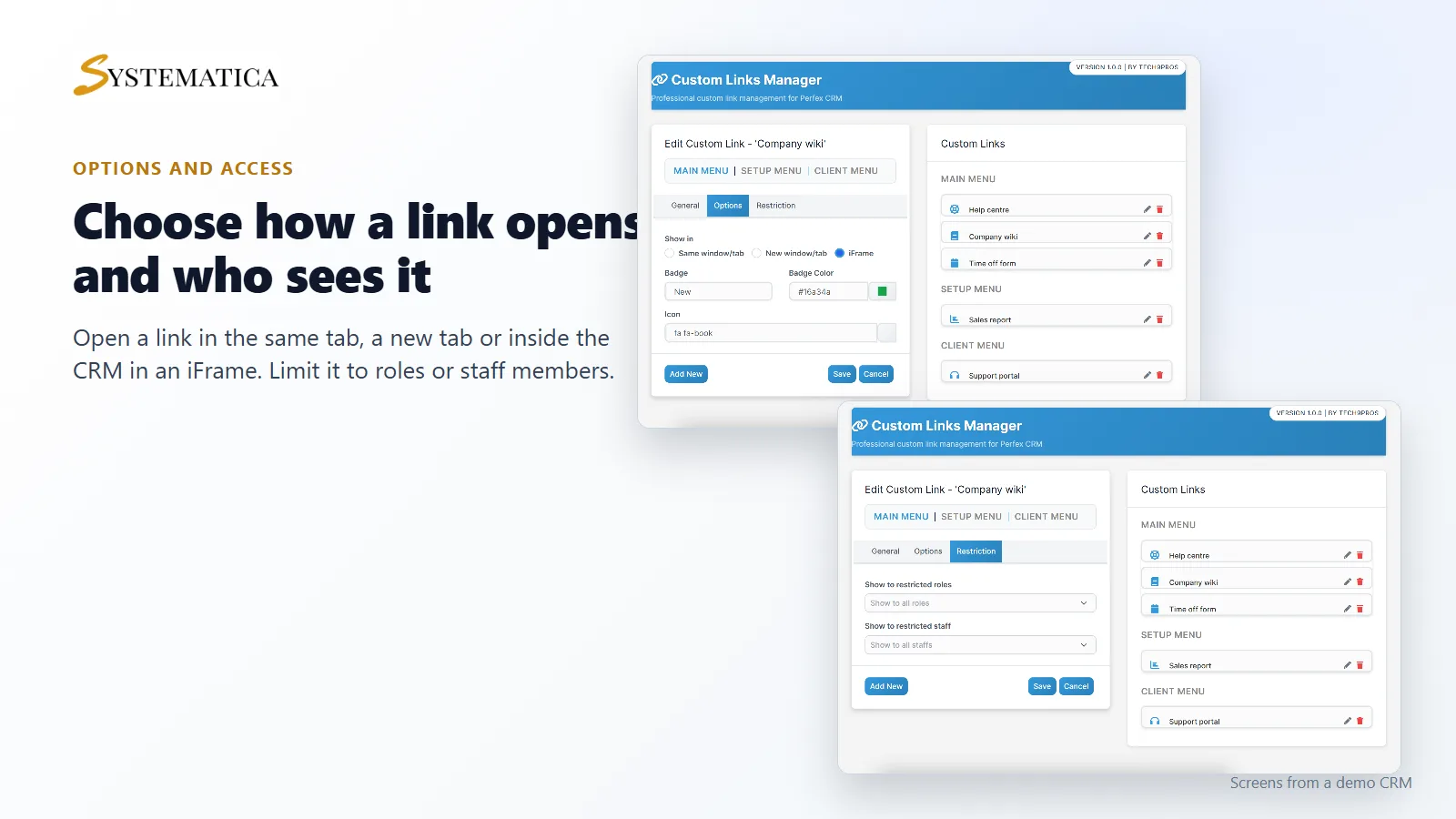
Choose how a link opens
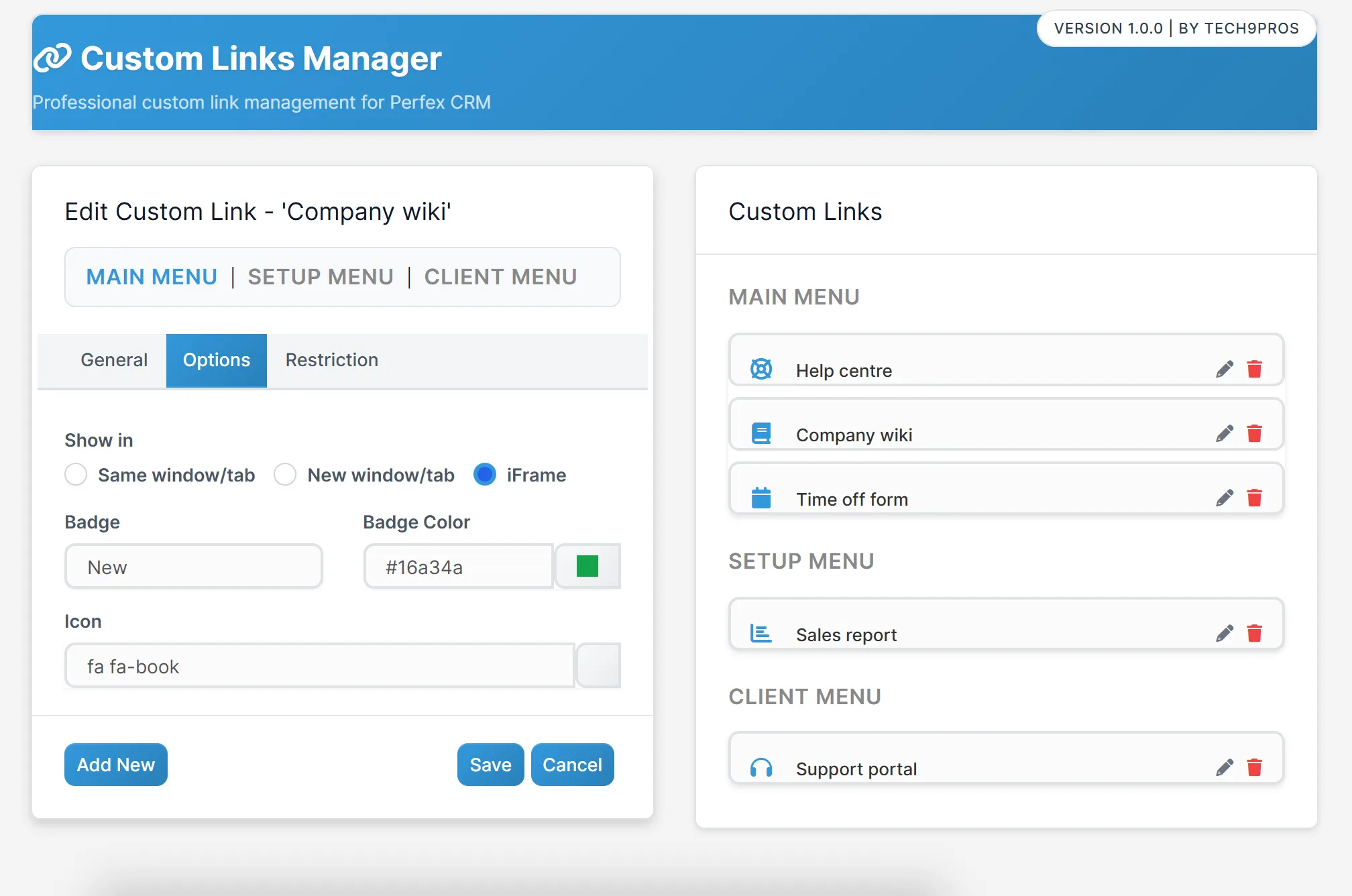
With Custom Links for Perfex CRM, some pages are best in a new tab. Others work well inside the CRM, so people do not lose their place. Under Options you choose to open the link in the same window, in a new window or in an iFrame. You can also add a badge to draw attention to a new link, and pick an icon from the icon set.
Show a link only to the right people
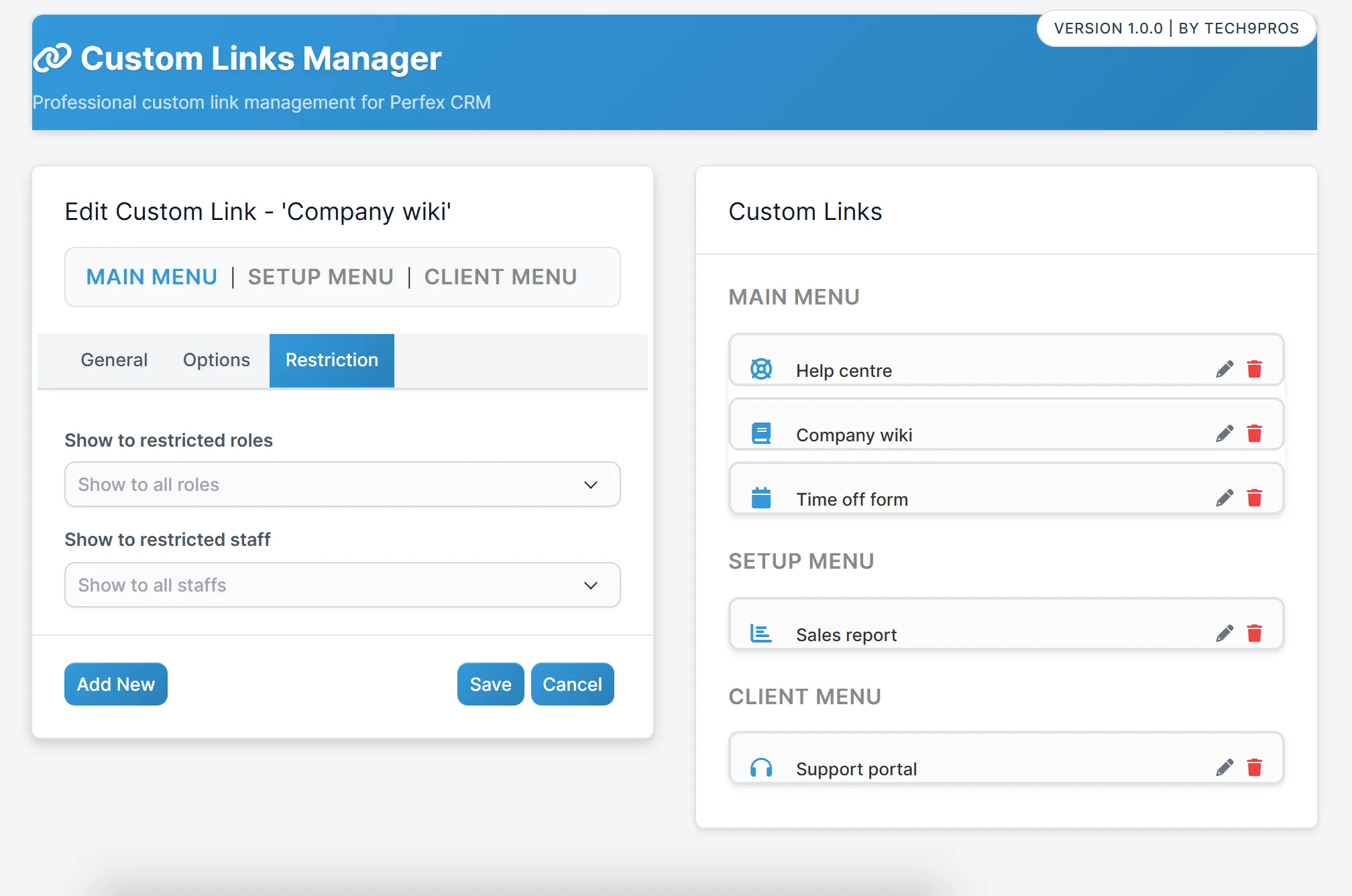
Custom Links for Perfex CRM shows a link by default to everyone who can see that menu. Under Restriction you can limit it to chosen roles or to chosen staff members. A finance link can be seen by finance only, and a sales link by the sales team.
Links for your customers
The client menu is for your customers. Add a link to a support portal, a payment page or a knowledge base, and customers see it when they sign in to the client area.
Set up Custom Links
- Upload the module under Setup > Modules and activate it.
- Open the license page of the module and enter your license key.
- Open Setup > Custom Links.
- Choose the menu, enter the title and the link, and set the options.
- Click Save and check the menu.
Requirements
- Perfex CRM 3.4 or newer (tested on 3.4.1)
- A connection from your server to systematica.app over HTTPS
Good to know
- The screens in the pictures are from a demo CRM with sample data. The web addresses are examples.
- Some websites do not allow themselves to be shown inside an iFrame. If a page stays blank, open it in a new tab instead.
- Custom Links for Perfex CRM changes menus only. It does not change what a person is allowed to do in the CRM.
License, support and updates
After purchase you receive a license key by email. One license key activates the module on one website. To move it, deactivate the license on the old site and activate it on the new one. You get 1 year of use, support through our ticket system and free updates through your Systematica account. Custom Links for Perfex CRM runs inside Perfex CRM, which you need to own.
Frequently asked questions
What does Custom Links for Perfex CRM do?
It adds links of your choice to the main menu, setup menu or client menu of Perfex CRM, with icons, badges and access limits.
Can a link open inside the CRM?
Yes. Choose iFrame under Options. The page then opens inside the CRM. Sites that block iFrames need a new tab instead.
Can I show a link only to some staff?
Yes. Under Restriction choose the roles or the staff members who should see the link.
Can I add links for customers?
Yes. Choose the client menu and the link appears in the client area.
Can I use one license on more than one website?
One license key activates the module on one website. You can move it by deactivating it on the old site and activating it on the new one.
Need help with this module?
Every license is valid for 1 year and includes support through our ticket system and free updates. To keep using the module after that, renew your license.