A Perfex CRM booking system lets clients book a time with you online while your team works from one calendar inside the CRM. Booking Suite adds a public booking page, a colour calendar, email reminders, payments, your choice of where clients are kept, and reports. It suits clinics, salons, consultants, agencies and any business that sells time.
What you get in this Perfex CRM booking system
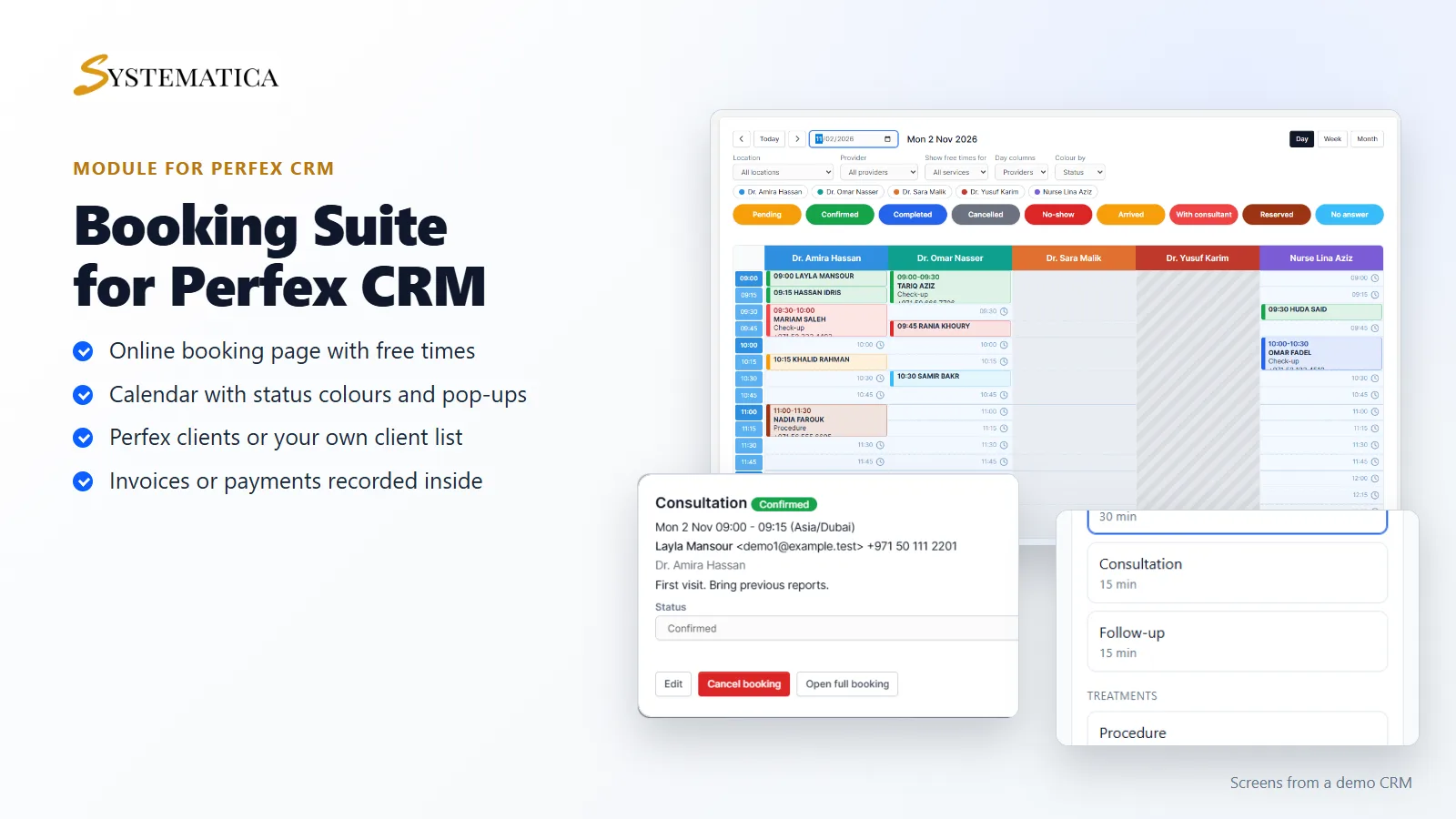
- Colour calendar with a column for each provider, status colours, free times, drag and drop, and pop-ups for booking and editing
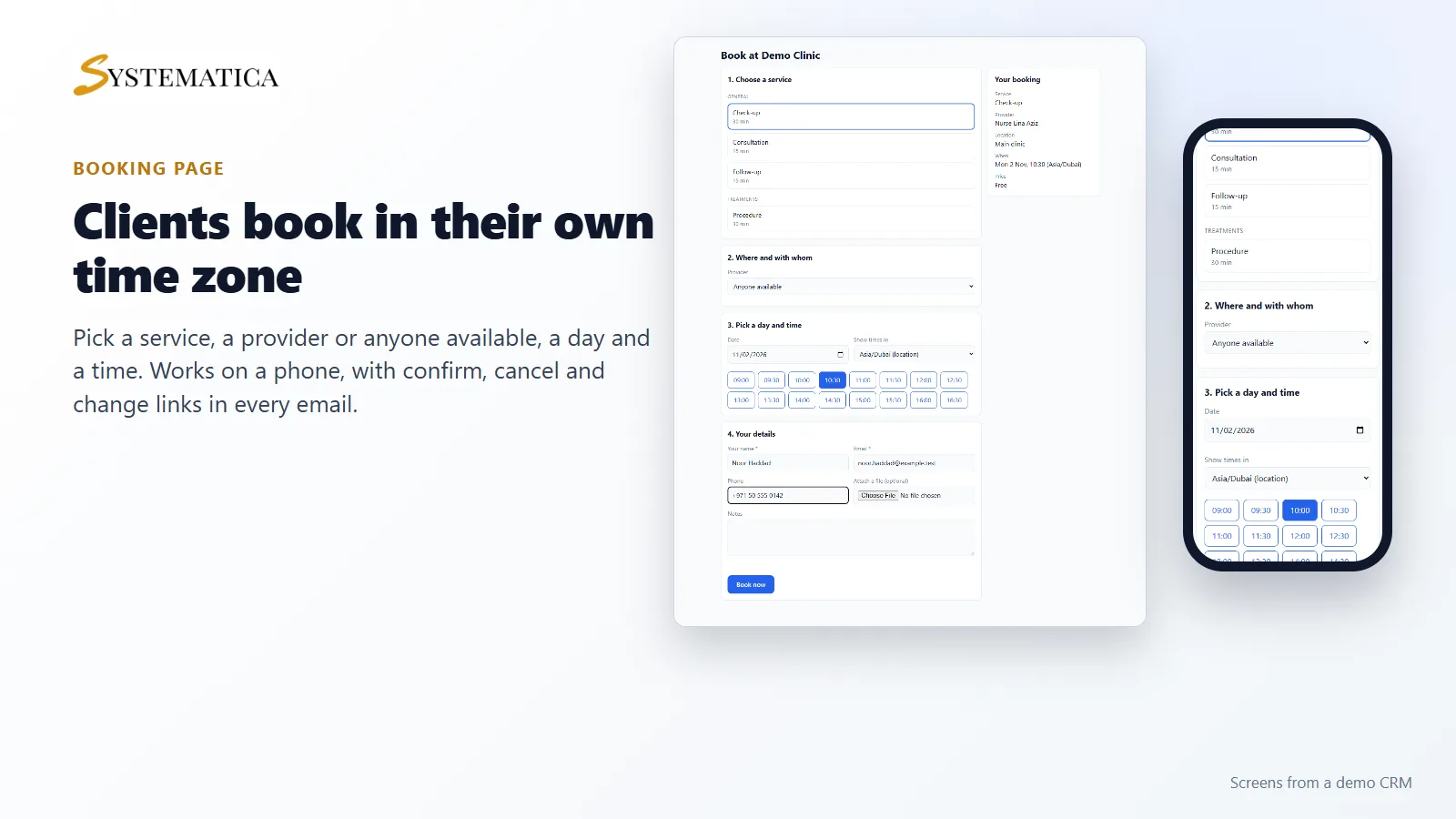
- Public booking page that works on a phone, in the client’s time zone, with confirm, cancel and change links
- Your own statuses, sources, services and slot lengths, all named and coloured by you
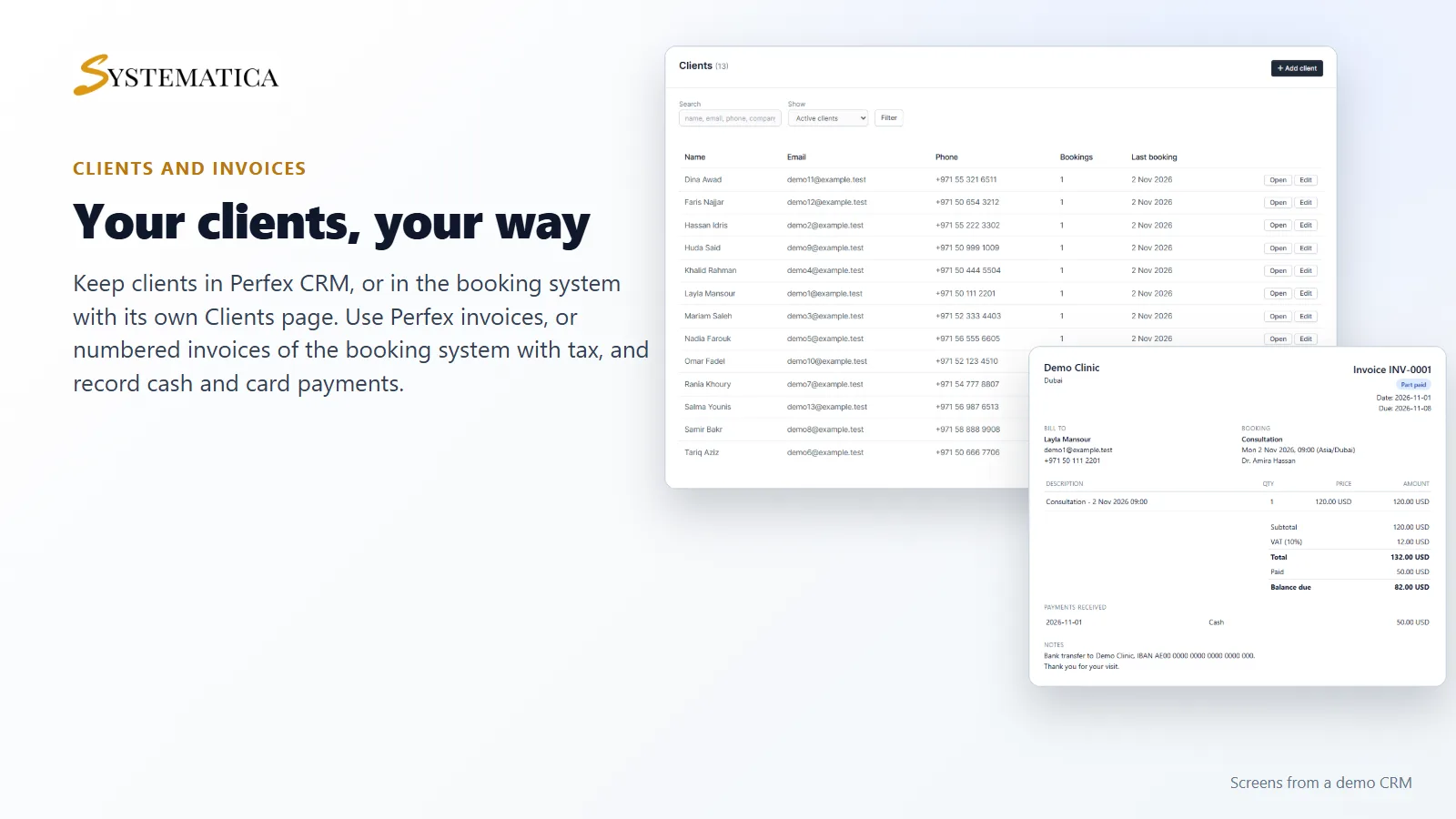
- Clients your way: use Perfex CRM customers and leads, or the booking system’s own client list with its own Clients page
- Invoices and payments your way: Perfex CRM invoices with your payment gateways, or the booking system’s own invoices, numbered, with lines, discount and tax, an invoice page for the client, and payments recorded by your staff
- Staff rights for viewing, adding, editing and deleting clients, for invoices, for recording payments, for reports and for setup
- Provider view: each provider sees only their own calendar column, or everyone’s, as you choose
- Emails and reminders with seven editable texts, a calendar file in every email, and a My bookings page for customers
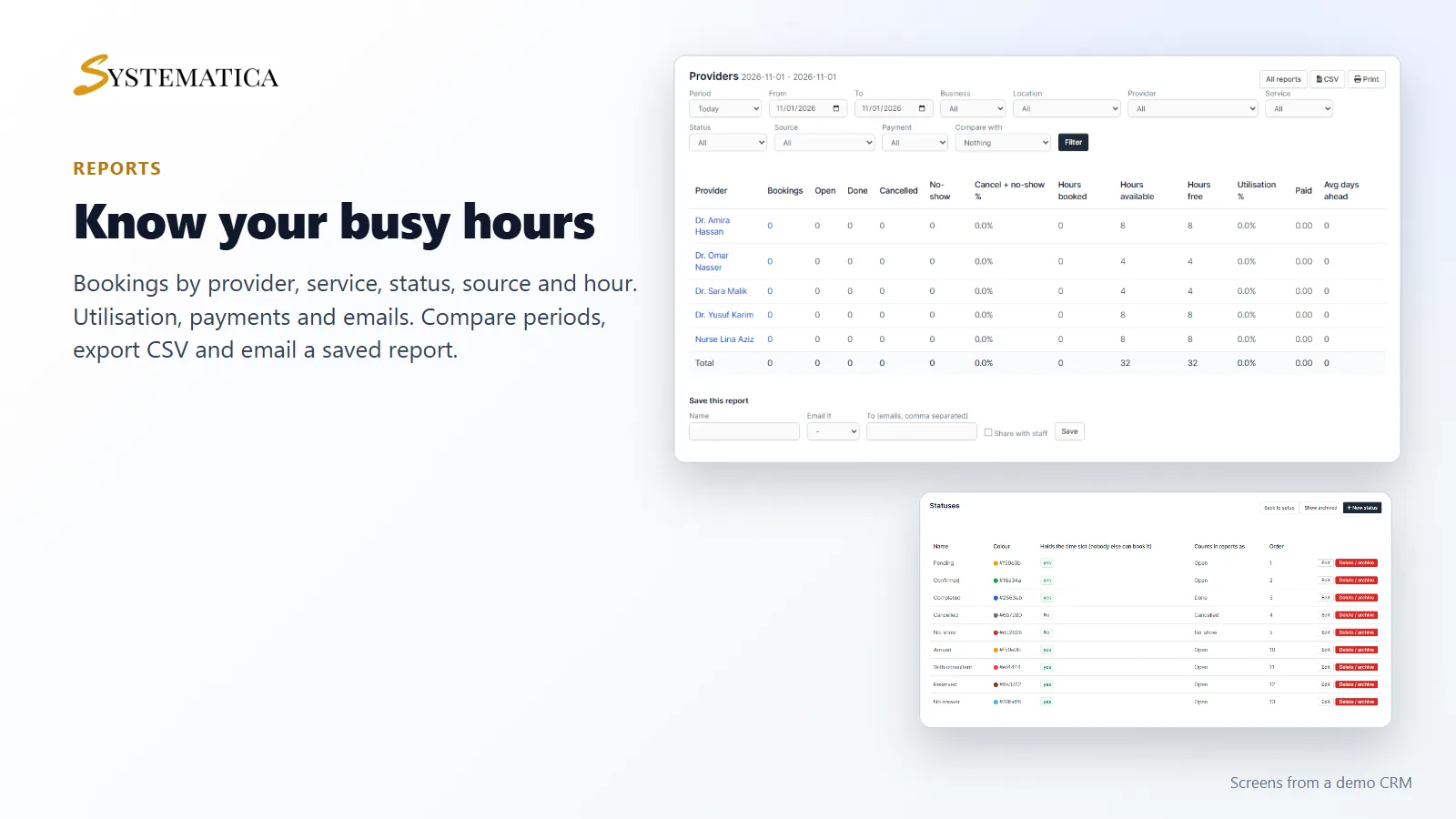
- 14 reports with comparison, CSV export, print view and scheduled emails
A Perfex CRM booking system with a calendar your team will use
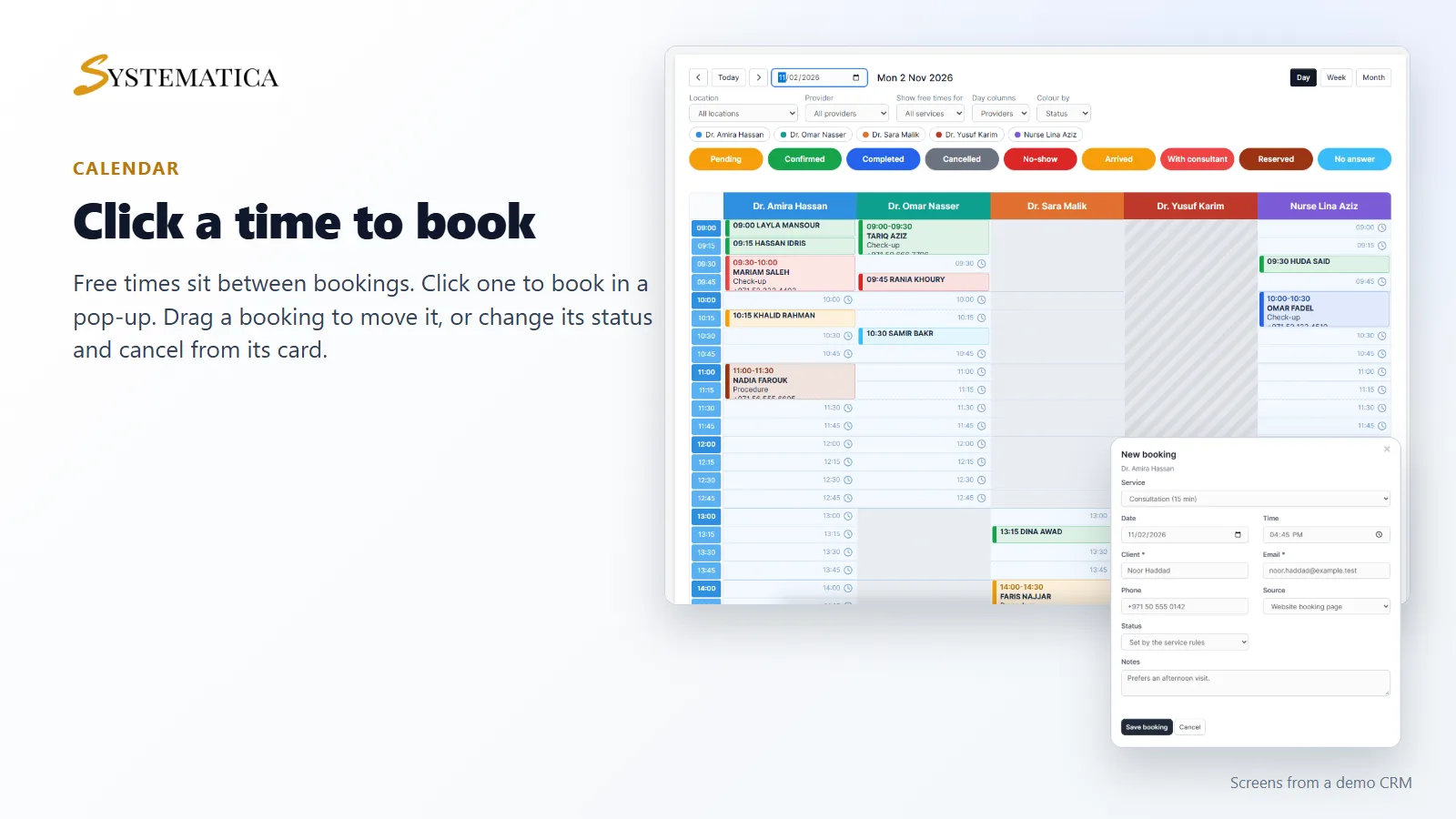
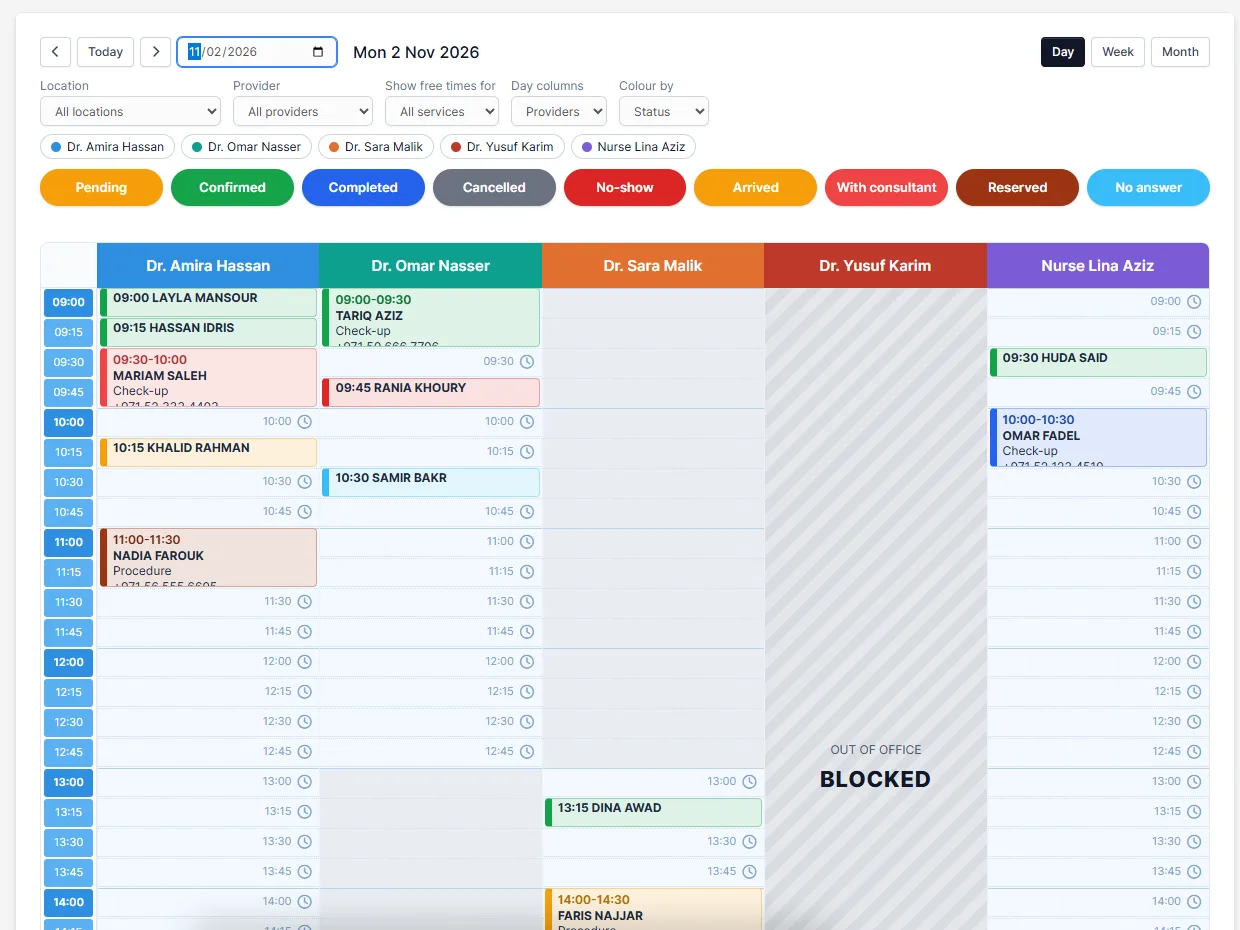
The calendar of this Perfex CRM booking system shows a column for each provider, with 15 minute rows. Every booking has the colour of its status, and a legend at the top lets you hide or show a status. Free times sit between the bookings. Days off and closed days are shaded and show their reason. Switch between day, week and month, or show rooms as columns instead of providers.
Every filter starts on All: all locations, all providers and all services, so the calendar is never empty by accident. Pick one location or one provider when you want a closer look. With all services selected, a time counts as free when any service the provider offers fits it. Today, previous and next move at once, because the calendar loads the neighbouring weeks in the background.
Book in a pop-up, change in a pop-up
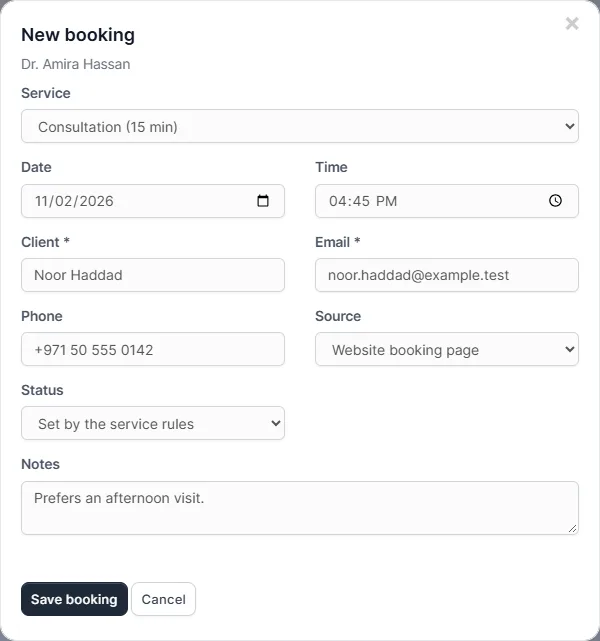
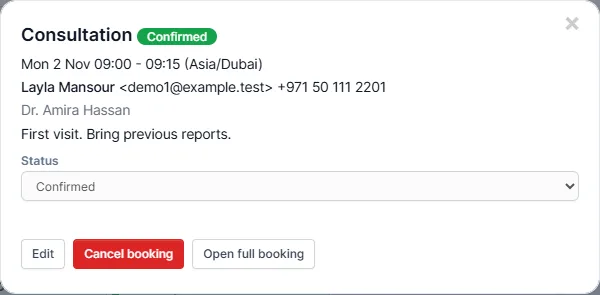
In the Perfex CRM booking system, click a free time and a pop-up opens with the provider, service, date and time already filled in. Add the client and save. Click an existing booking to change its status from a drop-down, edit the details, or cancel it. Drag a booking to a new time, or onto another provider’s column, and the system checks the time is free before it moves. Every pop-up has a close button at the top right.
A booking page for your clients
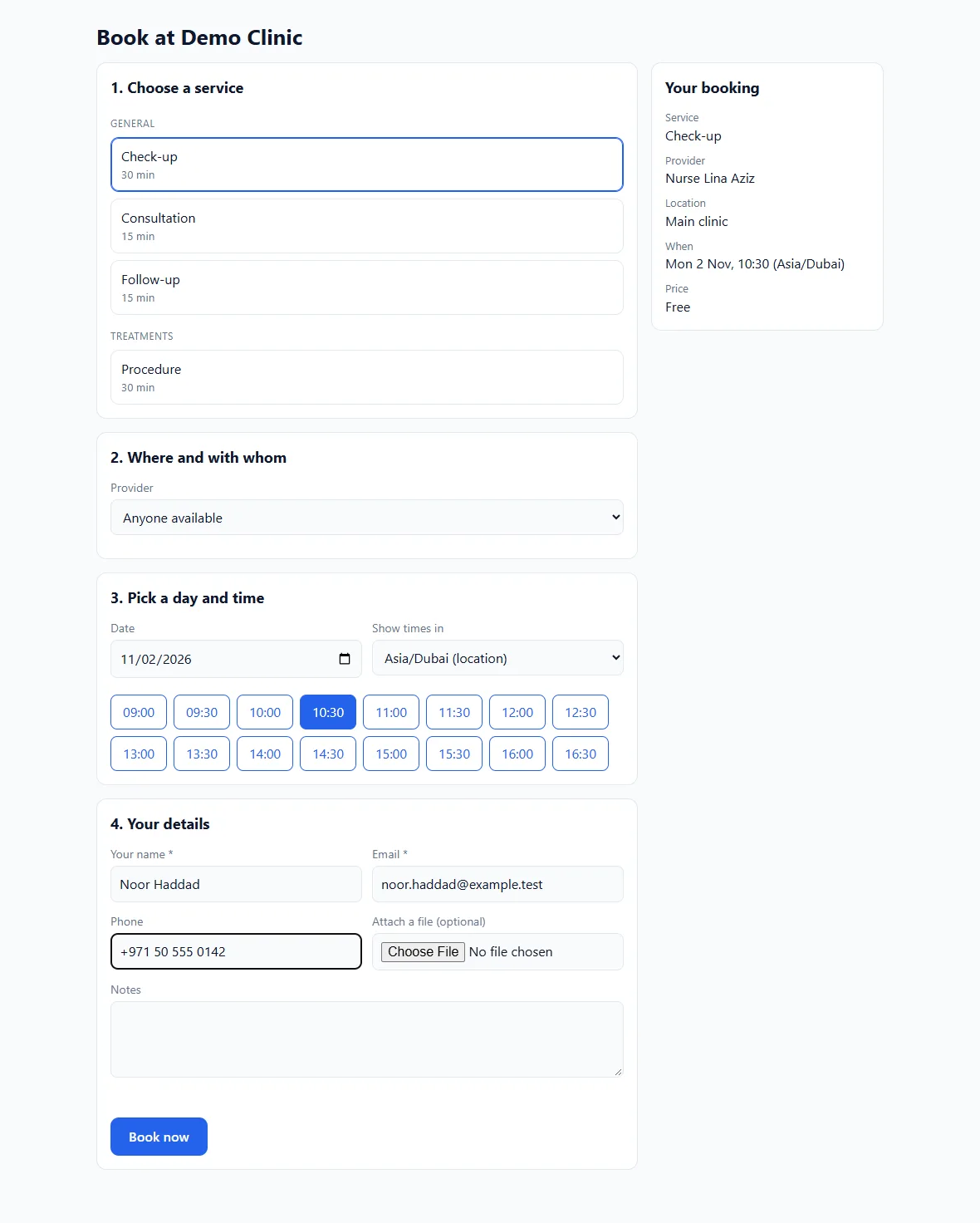
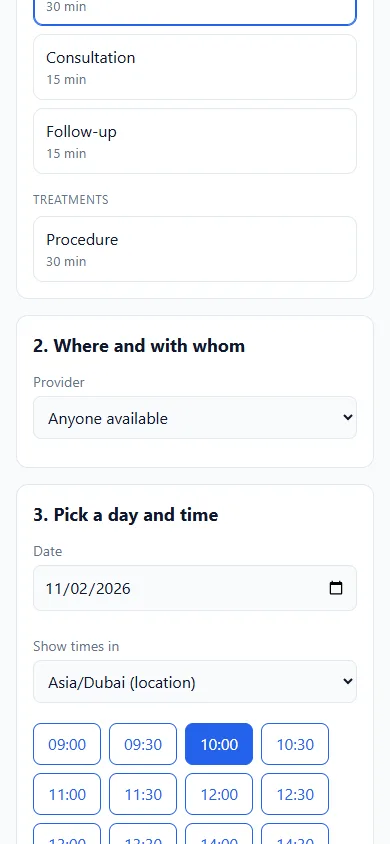
Clients of your Perfex CRM booking system choose a service, a provider or anyone available, a day and a time, then enter their details and can attach a file. Times show in the client’s own time zone if they choose. The page works on a phone and needs no login. Every email has links to confirm, cancel or change the time, and a calendar file. Logged-in customers also get a My bookings page.
Choose where your clients are kept
Under Setup > Settings the Perfex CRM booking system asks where your clients live. Pick Perfex CRM customers and leads and a booking is matched to a customer by email, or becomes a lead if you want that for the business. Pick the booking system’s own clients and Booking Suite keeps its own client list and never adds customers or leads to Perfex CRM. This suits a clinic or salon that wants its client list apart from the sales side of the CRM.
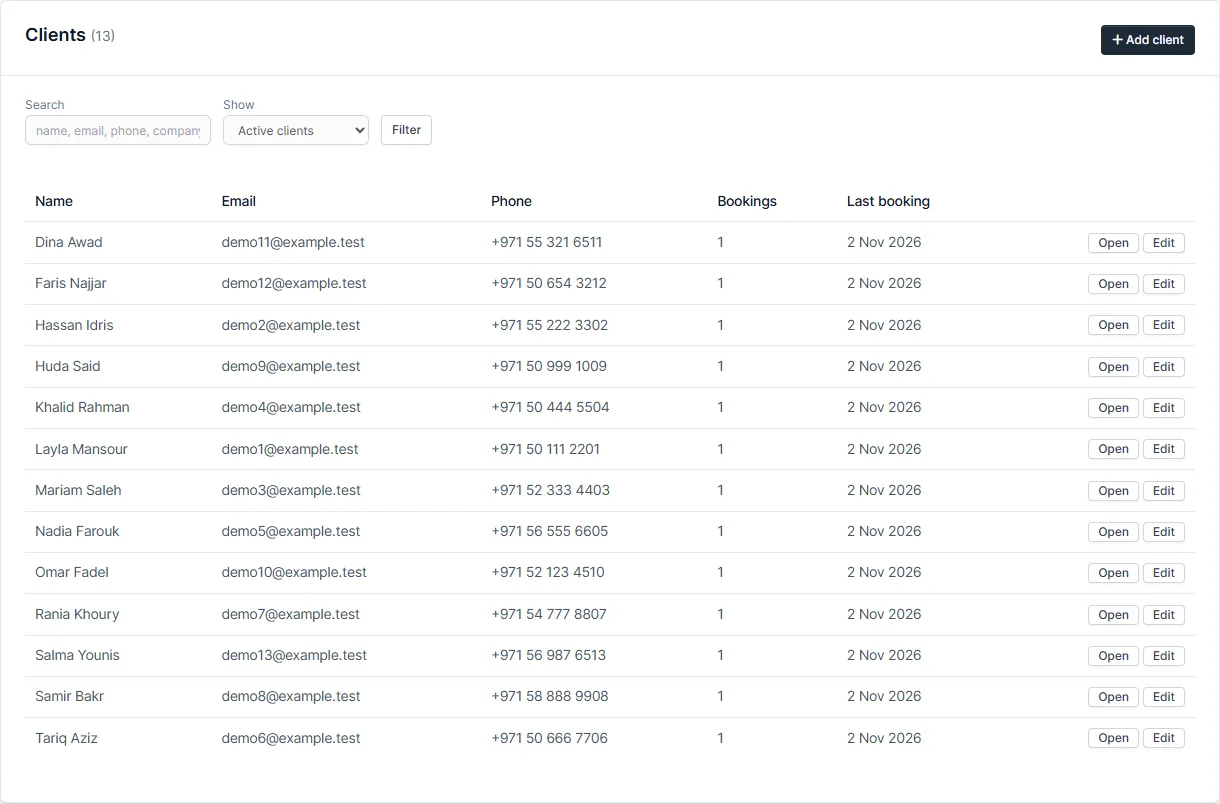
With own clients switched on, a Clients page appears in the menu. Add a client, edit the details, search by name, email, phone or company, and open a client to see every booking. A person who books online is added automatically, once per email address, and a returning client is recognised. Archive a client to hide them without losing their past bookings. Delete is only offered for a client without bookings.
Invoices and payments: Perfex CRM or the booking system’s own
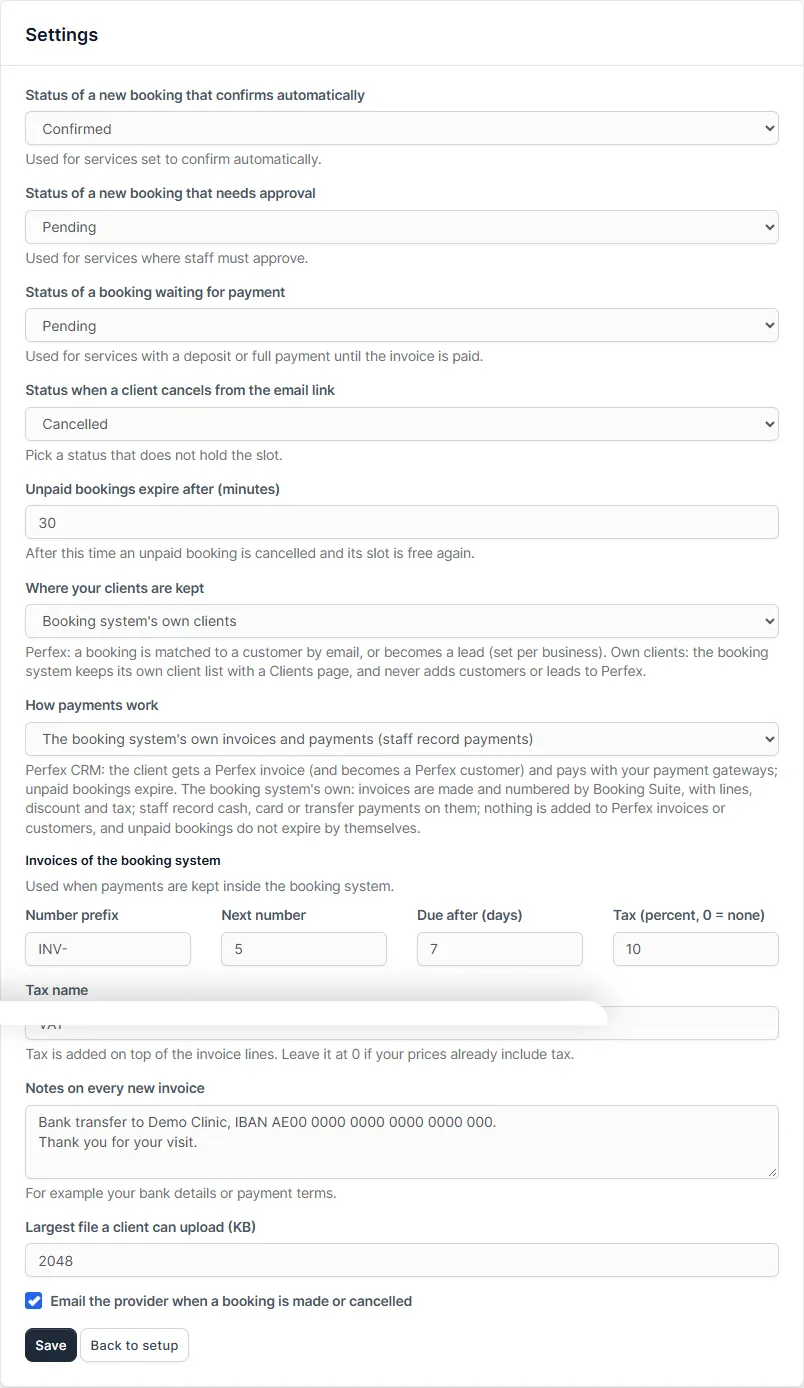
A service can ask for full payment, a fixed deposit or a percent deposit. Under Setup > Settings > How payments work choose one of two ways. The two choices are separate from the choice of where clients are kept, so you can combine them as you like.
- Perfex CRM invoices and payments. Booking Suite makes a Perfex CRM invoice (the client becomes a Perfex customer), holds the time while it is unpaid, confirms the booking when the invoice is paid with your own payment gateways, and frees the time if nobody pays in time.
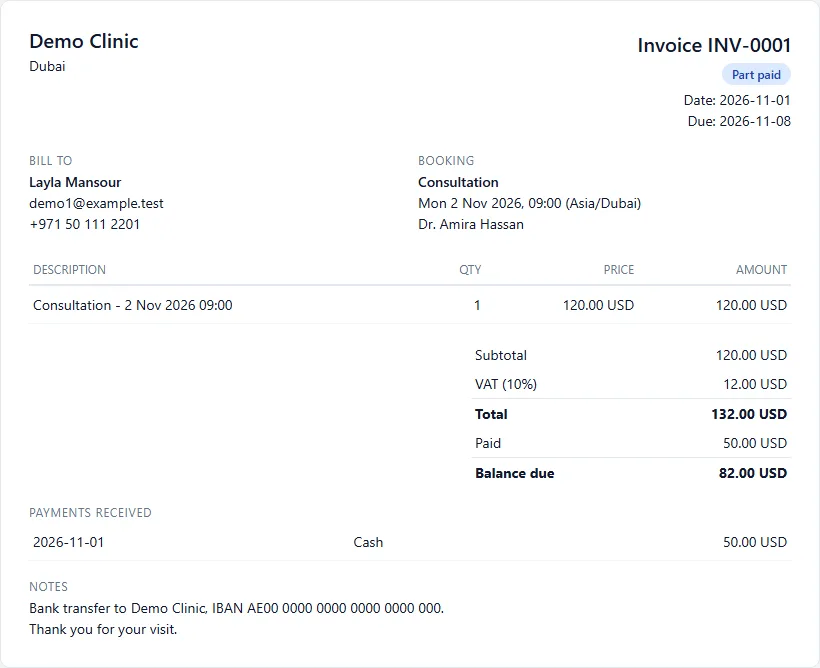
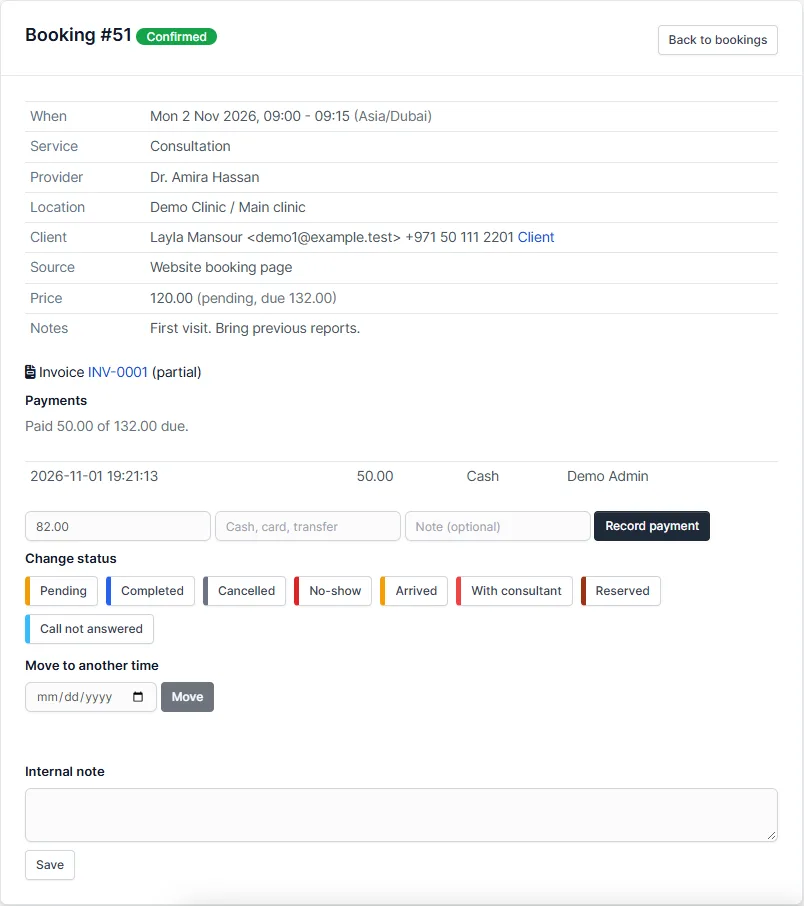
- The booking system’s own invoices and payments. Booking Suite makes its own numbered invoice for each booking with an amount due, and nothing is added to Perfex CRM invoices or customers. Staff add lines, a discount and tax, email the invoice to the client, print it or save it as a PDF, and record cash, card or bank transfer payments on it. The invoice moves from unpaid to part paid to paid, and the booking is confirmed when it is paid in full.
What the booking system’s own invoices include
- Numbers with a prefix and a counter that you set, such as INV-0001, and that never repeat, even when two clients book at the same moment
- Lines for the service and for anything extra, with quantity and price
- Discount and tax: a discount amount, and a tax with the name and percent you choose, for example VAT 10 percent
- Dates and notes: invoice date, due date and your own text, such as bank details
- A page for the client that shows the invoice, what was paid and the balance, with a Print button, from a link in the email
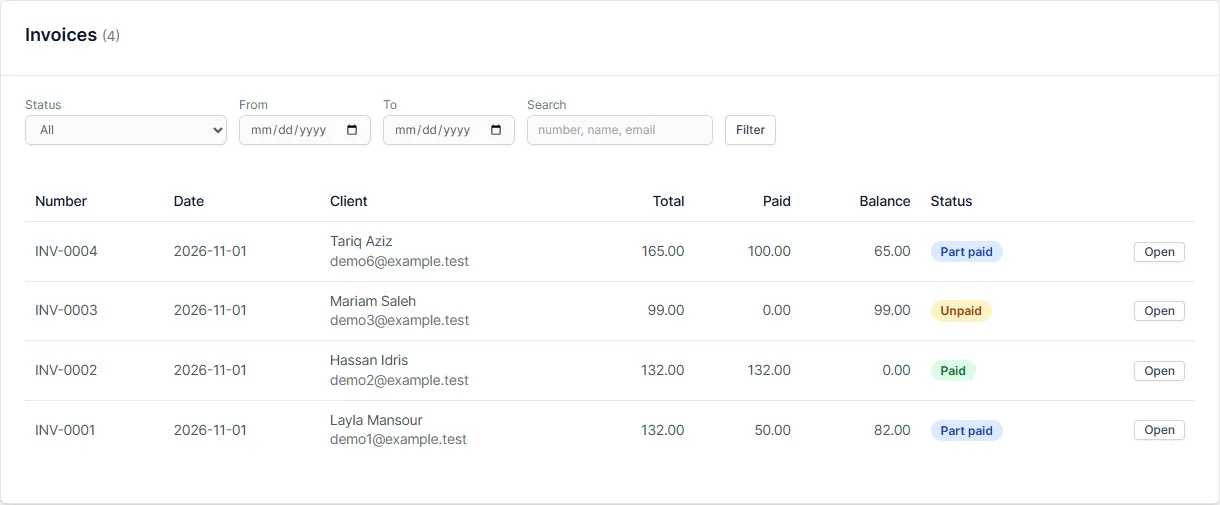
- An Invoices page for staff with filters by status and date, and a search by number or client name
- Cancel and re-issue: cancel an invoice and make a new one for the same booking
Set up your Perfex CRM booking system your way
- Businesses and locations, each with a time zone and opening hours
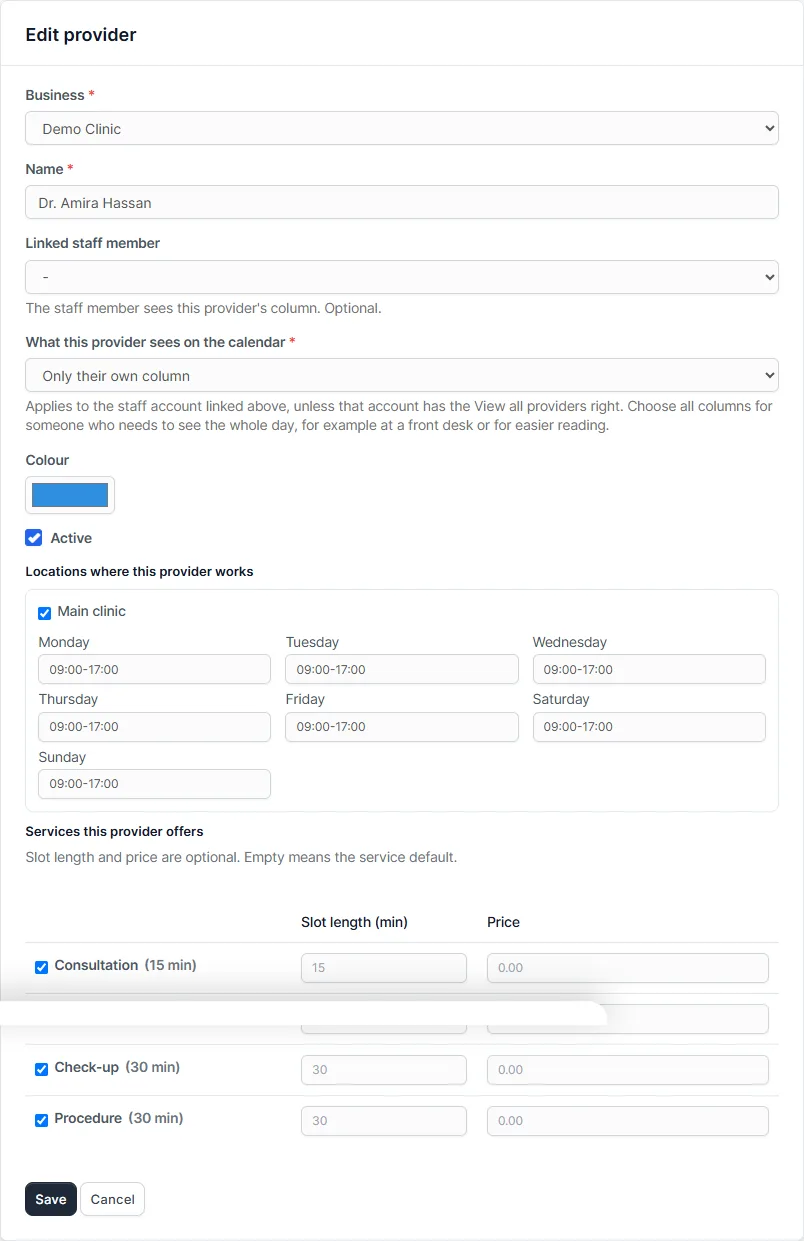
- Providers with weekly hours (split shifts allowed), days off, and their own slot length and price for each service
- Services with duration, price, buffers before and after, minimum notice, how far ahead clients can book, and seats for group sessions
- Rooms or equipment that cannot be double booked
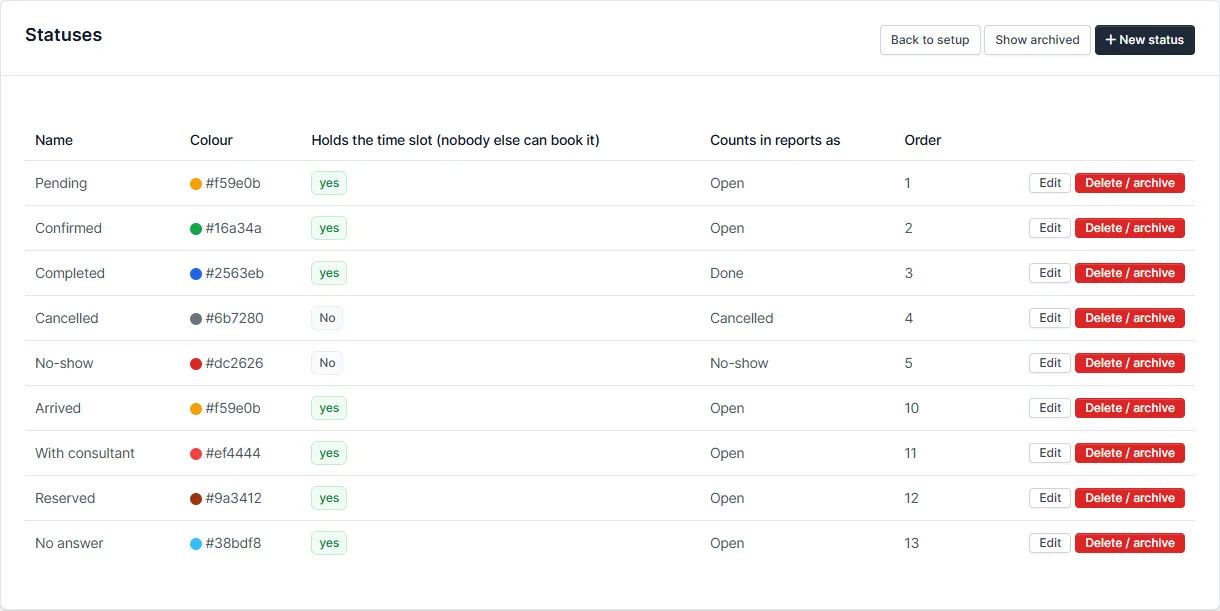
- Statuses and sources that you name, colour and order yourself
- Closed days, one-off or every year
- What each provider sees: a setting on every provider decides whether they see only their own calendar column or all providers’ columns. It also helps staff who want a clear, uncluttered view of their own day.
- Staff rights: view, create, edit and delete bookings; view all providers; reports; setup; view, add, edit and delete clients; view invoices; create, edit and cancel invoices; and record payments. Each person sees and does only what you allow.
Emails and reminders
The Perfex CRM booking system comes with seven email texts, and you can change each one: received, confirmed, cancelled, moved, reminder, follow-up and payment needed. Add as many reminders as you like, for example 24 hours and 2 hours before. Emails go out through the mail settings you already have in Perfex CRM, and each business can have its own sender name and reply-to address.
Reports for the whole booking system
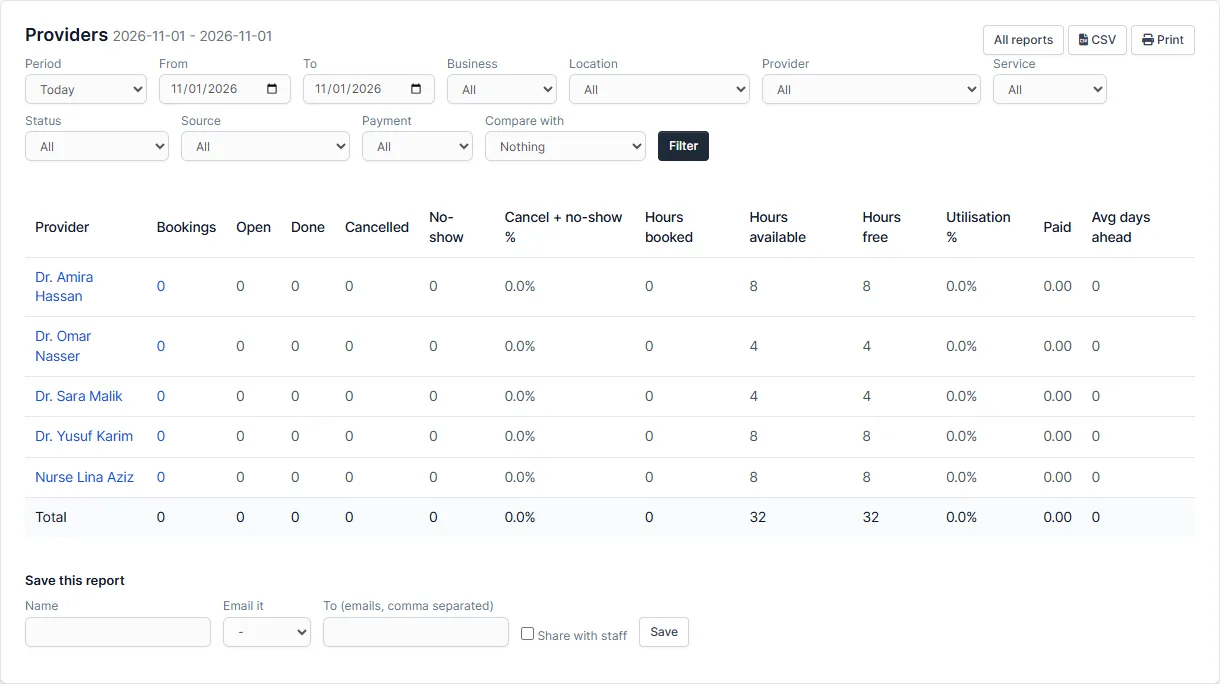
Count bookings in your Perfex CRM booking system by provider, service, status, source, day, hour or client. See hours booked, hours free and utilisation for each provider. Check payments, emails and how far ahead clients book. Every report has filters, a comparison with the previous period, CSV export and a print view. Save a report and have it emailed every day, week or month.
Set it up
- Upload the module under Setup > Modules and activate it.
- Open Booking > Setup > License and enter your license key.
- Add your business, location, services and providers under Booking > Setup.
- Choose where clients are kept and how payments work under Setup > Settings.
- Share the booking page address, or add bookings yourself from the calendar.
Requirements
- Perfex CRM 3.4 or newer (tested on 3.4.1)
- PHP with the sodium extension, which is included with PHP since 7.2
- The Perfex CRM cron job, needed for reminders, unpaid booking expiry and emailed reports
- Working email settings in Perfex CRM, and your own payment gateways if you take online payments through Perfex CRM invoices
- A connection from your server to systematica.app over HTTPS for the license check
Good to know
- The pictures show the Perfex CRM booking system in a demo CRM with sample data.
- Booking Suite gives clients a calendar file to add to their calendar. It has no two-way sync with Google or Outlook calendars.
- It has no recurring bookings, waiting list, SMS or packages in this version.
- The booking system’s own invoices are for your records and your clients. They have no online card payment: recording a payment does not charge a card. Online card payment needs the Perfex CRM invoice option and your own payment gateway.
- Own invoices have one currency (the base currency of Perfex CRM) and one tax rate per invoice.
- Delivery of emails to inboxes and live payments depend on your own mail server and payment gateway settings.
License, support and updates
After purchase you receive a license key by email. One license key activates the module on one website. To move it, deactivate the license under Booking > Setup > Booking Suite license and activate it on the new site. You get 1 year of use, support through our ticket system and free updates through your Systematica account. The Perfex CRM booking system runs inside Perfex CRM, which you need to own. Looking for more guides? See the Perfex CRM documentation.
Frequently asked questions
What is a Perfex CRM booking system?
It is a module that lets clients book appointments online and lets your team manage them inside Perfex CRM. Booking Suite adds the booking page, calendar, clients, emails, payments and reports.
Can each provider have a different slot length?
Yes. In this Perfex CRM booking system a service has a default slot length, and each provider can have their own for that service, for example 30 minutes for one doctor and 45 for another.
Do I have to use Perfex CRM customers for my clients?
No. You choose in Settings. Use Perfex CRM customers and leads, or switch to the booking system’s own client list. With own clients the module has its own Clients page and never adds customers or leads to Perfex CRM. You can switch back at any time; bookings already made keep the client they were linked to.
Does it take payments?
Yes, in two ways. The Perfex CRM booking system can make a Perfex CRM invoice and take payment through the payment gateways you already use, with a fixed deposit, a percent deposit or full payment. Or it uses its own invoices and payments, where staff record cash, card or transfer payments on the invoice and the booking is confirmed when the amount due is covered.
Can the booking system make its own invoices without Perfex CRM invoices?
Yes. Choose the booking system’s own invoices and payments in Settings. Each booking with an amount due gets a numbered invoice with lines, a discount and tax. You can email it, print it or save it as a PDF, and your client can open it from a link. Nothing is added to Perfex CRM invoices or customers.
Can I add tax or a discount to an invoice?
Yes. Set a tax name and percent in Settings, for example VAT 10 percent. It is added to new invoices and you can change it on any invoice. You can also give a discount amount and add extra lines such as supplies or a second service.
Can I control what my staff can see and do?
Yes. Staff rights are separate for viewing, adding, editing and deleting clients, viewing and editing invoices, recording payments, viewing reports and managing setup, on top of the usual rights to view, create, edit and delete bookings. A staff member without a right does not see the page or the button.
Can a provider see only their own bookings?
Yes. Link a provider to a staff account and choose whether that person sees only their own calendar column or all providers’ columns. The own-column view keeps the screen clear and uncluttered, which also helps staff who prefer a simpler screen.
Does the calendar work with more than one location?
Yes. The calendar starts on all locations, all providers and all services. Pick a location or a provider to narrow it down. A provider who works in two places appears once.
Can clients cancel or change a booking themselves?
Yes. Each email has links to cancel or change the time. You set per service how many hours before the visit clients can still do this. Changes only happen when the client presses a button on the page.
Can I use my own booking statuses?
Yes. Add, rename and colour statuses, choose whether a status holds the time, and choose which email is sent when a booking gets that status.