
- What Perfex CRM customer admins are
- Step 1: Open the Customer Admins tab
- Step 2: Assign an admin to the customer
- Step 3: Remove a Perfex CRM customer admin
- Step 4: Let Perfex CRM customer admins see their own customers
- See the result in the customer list
- Common mistakes with Perfex CRM customer admins
- Quick checklist for Perfex CRM customer admins
- Related guides
- Summary
- Frequently asked questions
Perfex CRM customer admins are the staff members who are responsible for a customer. When you assign an admin to a customer, that person is listed on the customer’s profile, and with the right permission the customer appears in their own list. This guide, tested on Perfex CRM 3.4.1, shows how to assign and remove admins and how permissions use the assignment.
What Perfex CRM customer admins are #
A customer admin is a staff member linked to one customer, like an account manager. A customer can have several admins, and a staff member can be the admin of many customers. The link does not change the customer’s data; it only says who looks after the customer. The tab on the customer profile shows how many admins are assigned as a small number.
Step 1: Open the Customer Admins tab #
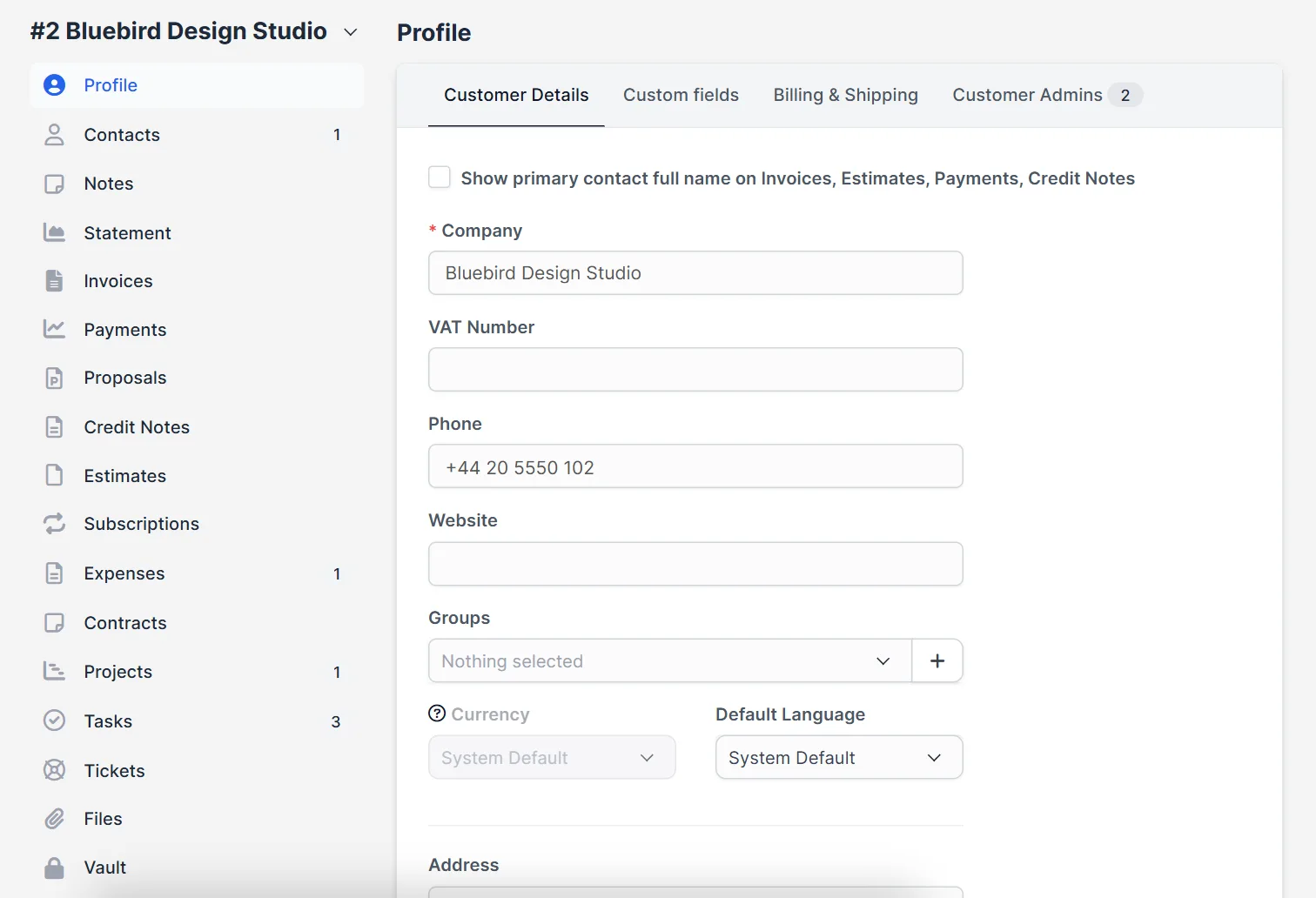
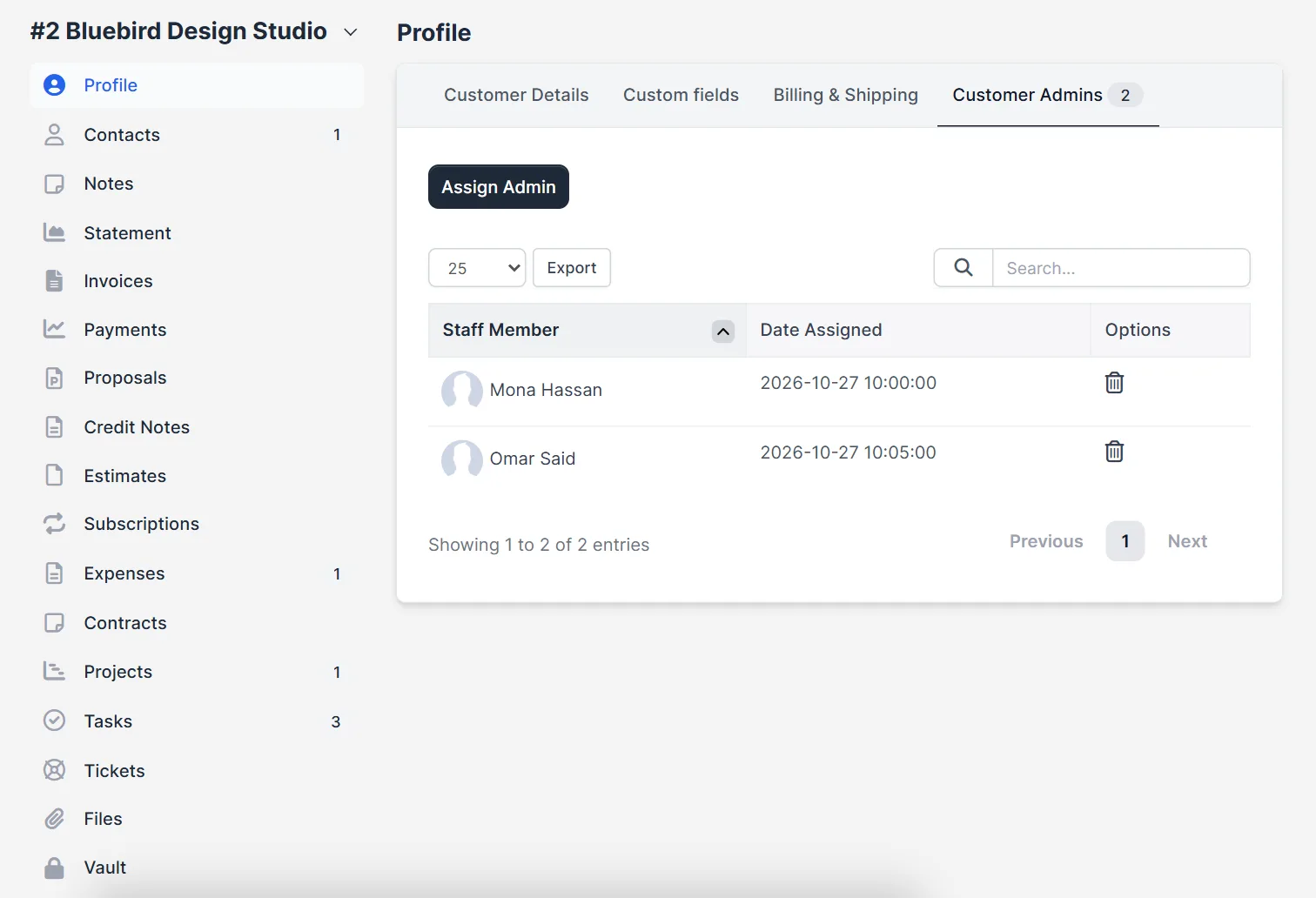
Go to Customers and click the company name. On the Profile page, click the Customer Admins tab next to Customer Details, Custom fields and Billing & Shipping. The table lists each admin with the Staff Member and the Date Assigned, and a delete icon in the options column.
Step 2: Assign an admin to the customer #
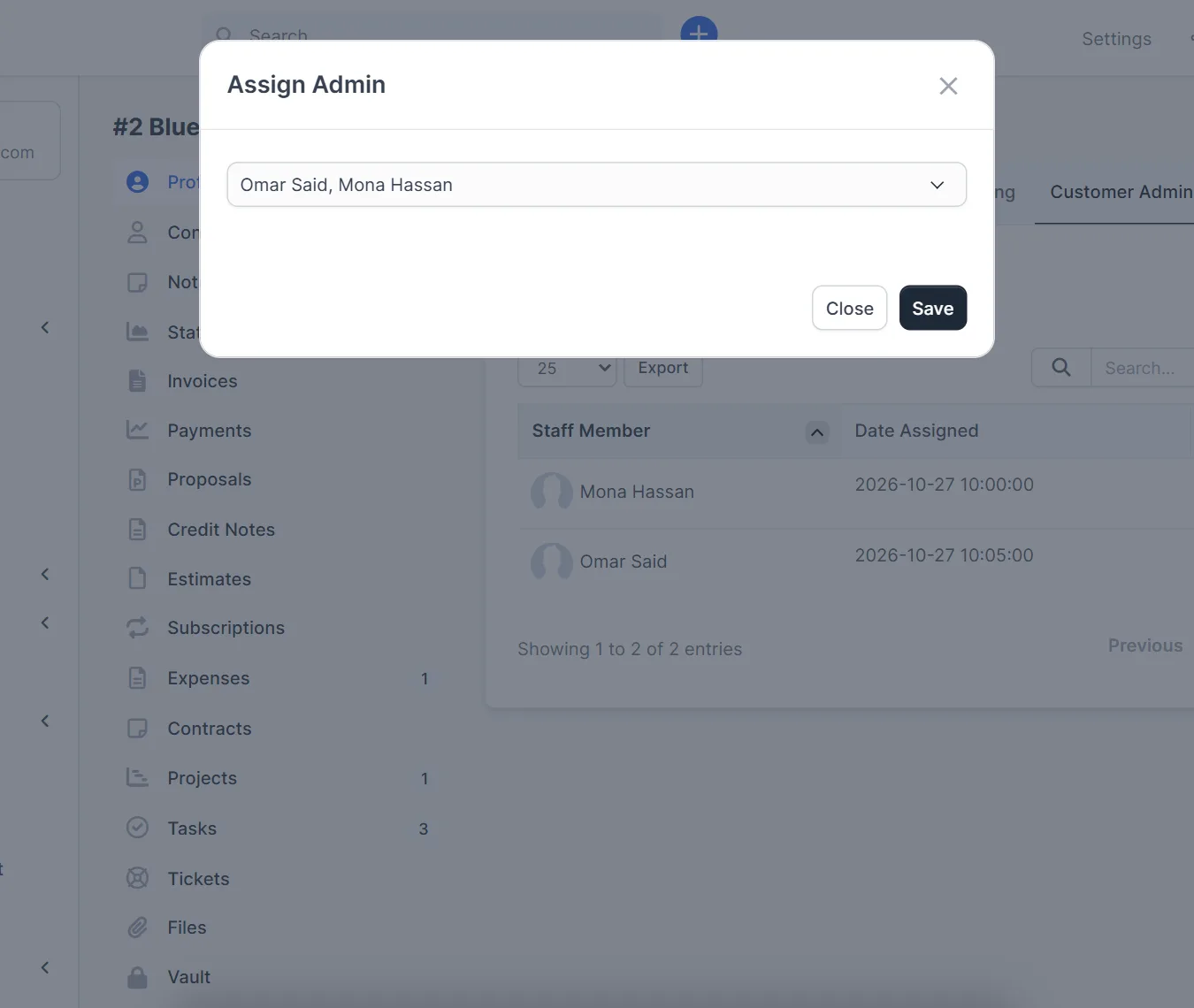
Click Assign Admin. A small window opens with a list of your staff members. Choose one or more people and click Save. The new admins appear in the table with the date of the assignment. This is how you assign staff to customer accounts.
- Assign one main admin per customer, so everyone knows who to ask.
- Add a second admin as a back-up for holidays.
- Check that the staff member is active before you assign the customer.
Step 3: Remove a Perfex CRM customer admin #
When a person leaves a team or changes role, open the same tab and click the delete icon in the row. The customer stays, and the other admins stay assigned. You can assign someone else straight away.
Step 4: Let Perfex CRM customer admins see their own customers #
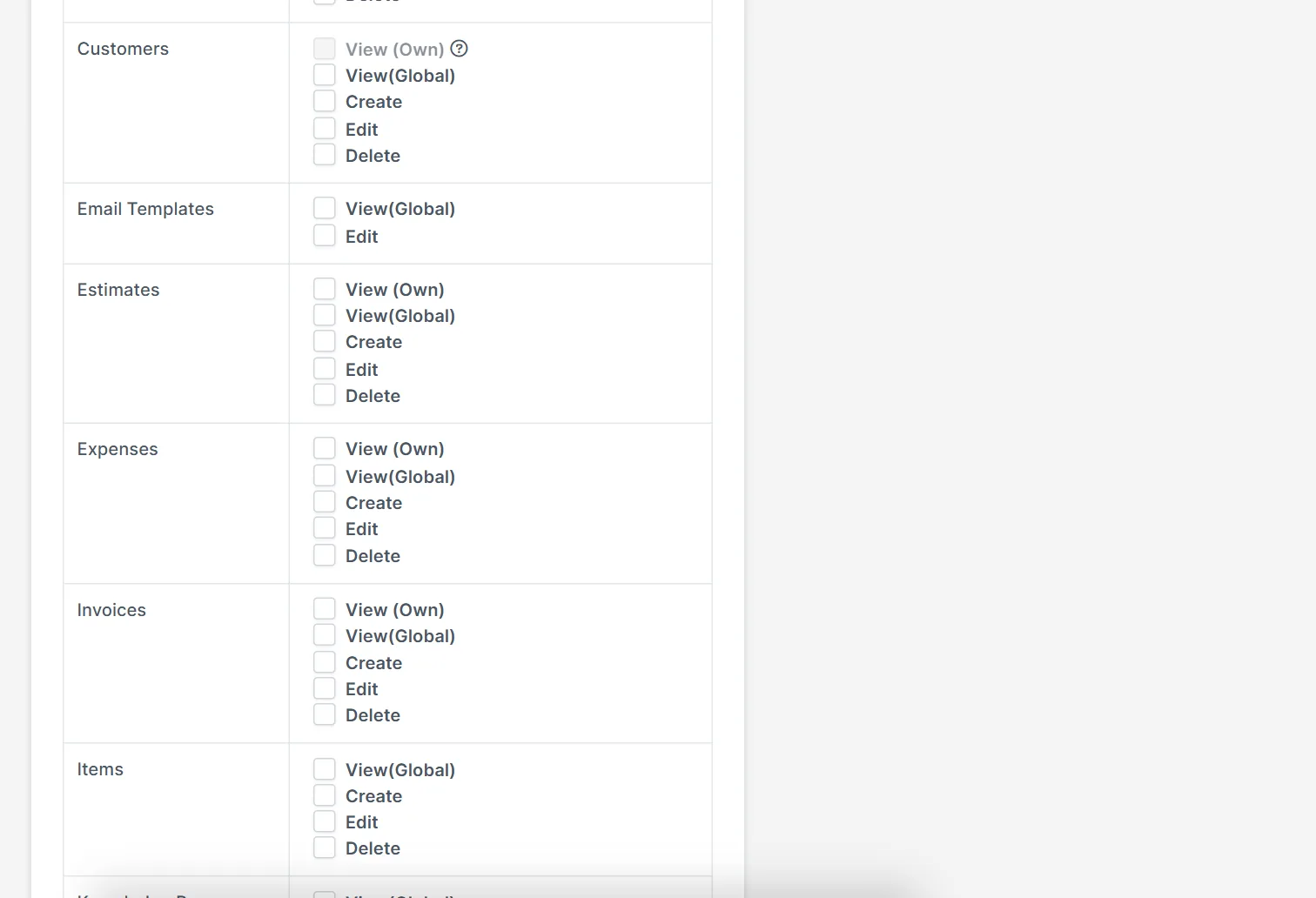
Customer admins matter most together with permissions. Open Setup > Staff > Roles and look at the Customers block. It has View (Own), View (Global), Create, Edit and Delete. With View (Own) a staff member works with the customers that they are assigned to; with View (Global) they see every customer. Our guide to roles and permissions in Perfex CRM explains how roles work.
See the result in the customer list #
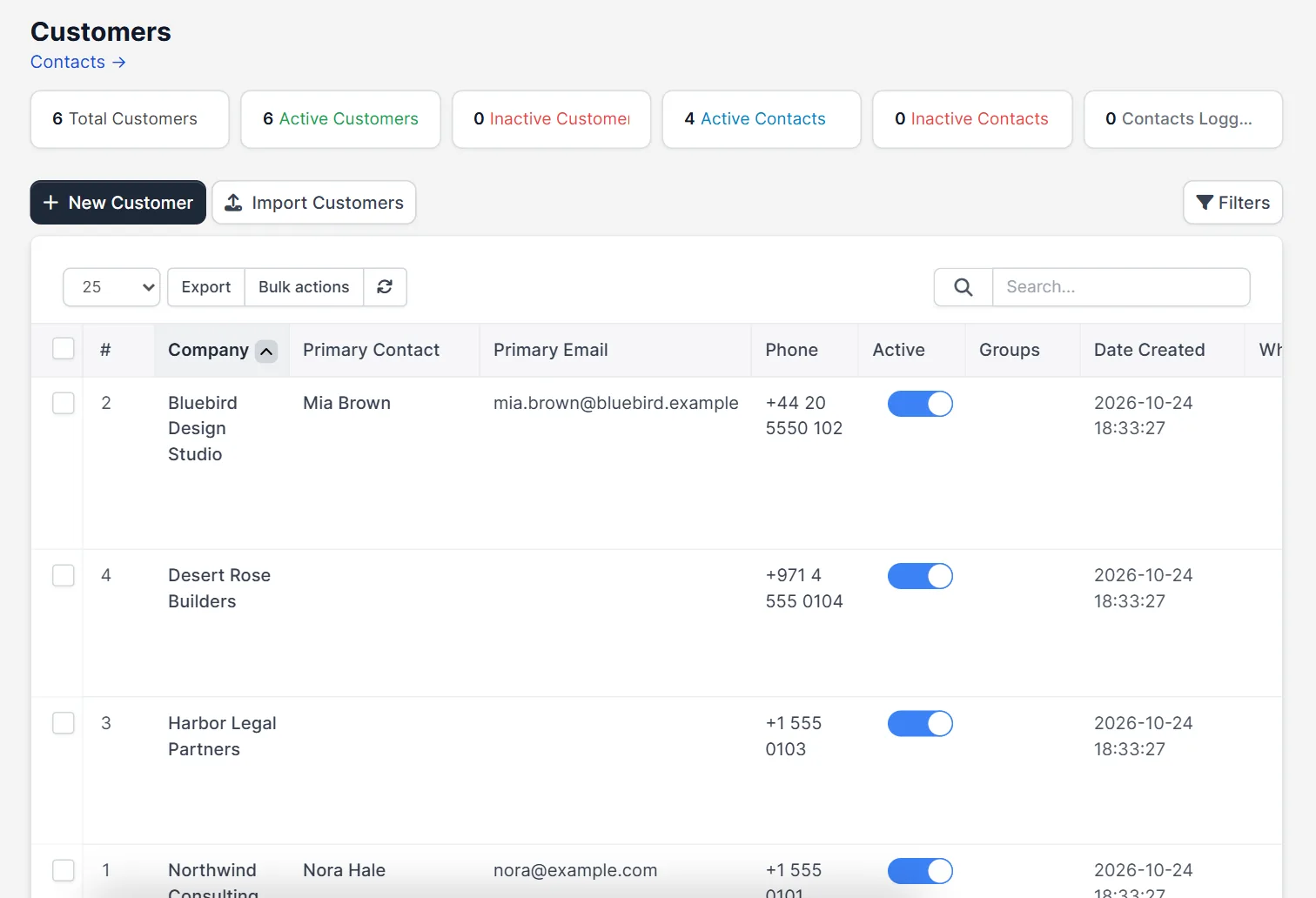
The Customers page lists all customers with the company, the primary contact, the phone and the date created, plus counters for active and inactive customers. After you assign admins and set View (Own) on a role, staff with that role see only their own customers in this list.
Common mistakes with Perfex CRM customer admins #
With Perfex CRM customer admins, the most frequent problem is assigning nobody, so a customer has no owner and nobody feels responsible. The second is giving View (Own) to a role before you assign customers: that staff member may then see an empty customer list. The third is leaving a former colleague assigned to a customer. Review the Customer Admins tab when a person changes team, and assign staff to customer accounts again when the work moves.
Quick checklist for Perfex CRM customer admins #
- Every active customer has at least one admin.
- The admin is a current member of the team.
- Roles that use View (Own) have customers assigned to them.
- A second admin is assigned for the most important customers.
- The list is reviewed when a staff member changes role or leaves.
- The customer profile is checked after each change.
Related guides #
- Create the customer first with a new customer and add contacts.
- Group customers with customer groups.
- Create the staff first with add staff member.
- Automate hand-overs with our Workflow Rules module.
- Read the official Perfex CRM help for more customer topics.
The screenshots come from a demo CRM. The effect of View (Own) on a real staff login, and the exact menu path to Roles, were not tested end to end; they follow the standard Perfex CRM setup menu.
Summary #
Perfex CRM customer admins give every customer an owner. Open the Customer Admins tab, click Assign Admin, choose the staff and save; remove admins with the delete icon. Combine the assignment with View (Own) permissions to show each person only their customers.
Frequently asked questions #
How do I assign a customer admin in Perfex CRM? #
Open the customer, click the Customer Admins tab, click Assign Admin, choose a staff member and save.
Can a customer have more than one admin? #
Yes. You can assign several staff members to one customer, and one staff member to many customers.
How do I remove a customer admin? #
Open the Customer Admins tab and click the delete icon in the staff member row.
What does View (Own) do for customers? #
It is a permission in the role. A staff member with View (Own) works with the customers assigned to them instead of all customers.


