
Perfex CRM Pusher is the setting that turns the notification bell into a live feed, so staff see a new ticket, task or comment without reloading the page. This guide, tested on Perfex CRM 3.4.1, shows where the Pusher keys go, how to switch on real time notifications and desktop alerts, and what to check when nothing arrives.
What Perfex CRM Pusher does #
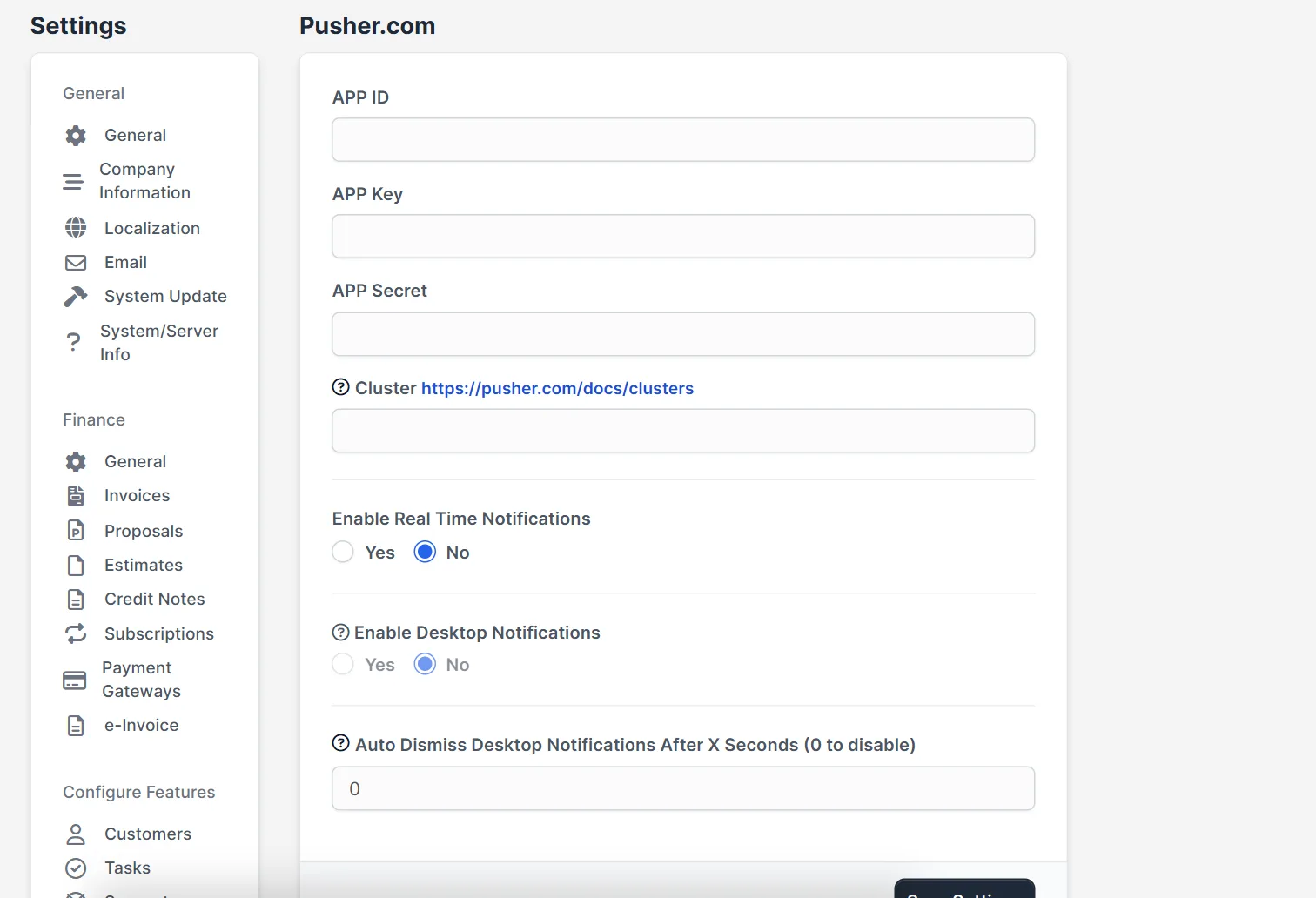
Without Pusher, the CRM checks for new items from time to time. With Perfex CRM Pusher it uses Pusher.com, a hosted service, to push the event to the browser at once. You need a free Pusher account and an app with a key, a secret and a cluster. The settings are under Setup > Settings > Integrations > Pusher.com.
Step 1: Create a Pusher app #
Sign in at pusher.com and create a Channels app. Copy four values from the app keys page: the app id, the key, the secret and the cluster, for example eu or mt1. Keep the secret private.
Step 2: Enter the keys in Perfex CRM #
Paste the values in the fields APP ID, APP Key, APP Secret and Cluster. The label of the cluster field links to the Pusher list of clusters.
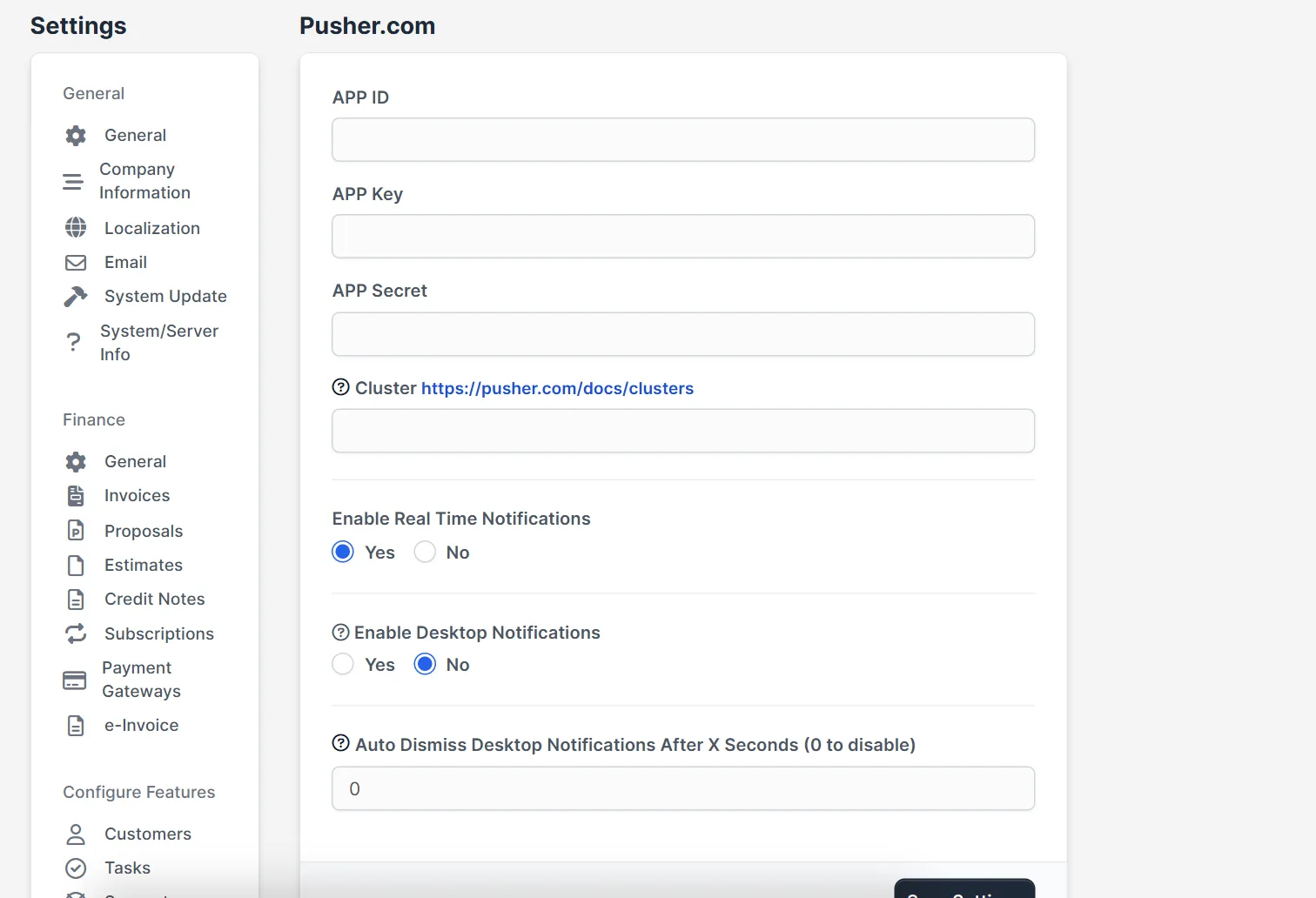
Step 3: Enable real time notifications #
Set Enable Real Time Notifications to Yes. The option Enable Desktop Notifications is greyed out until real time notifications are on.
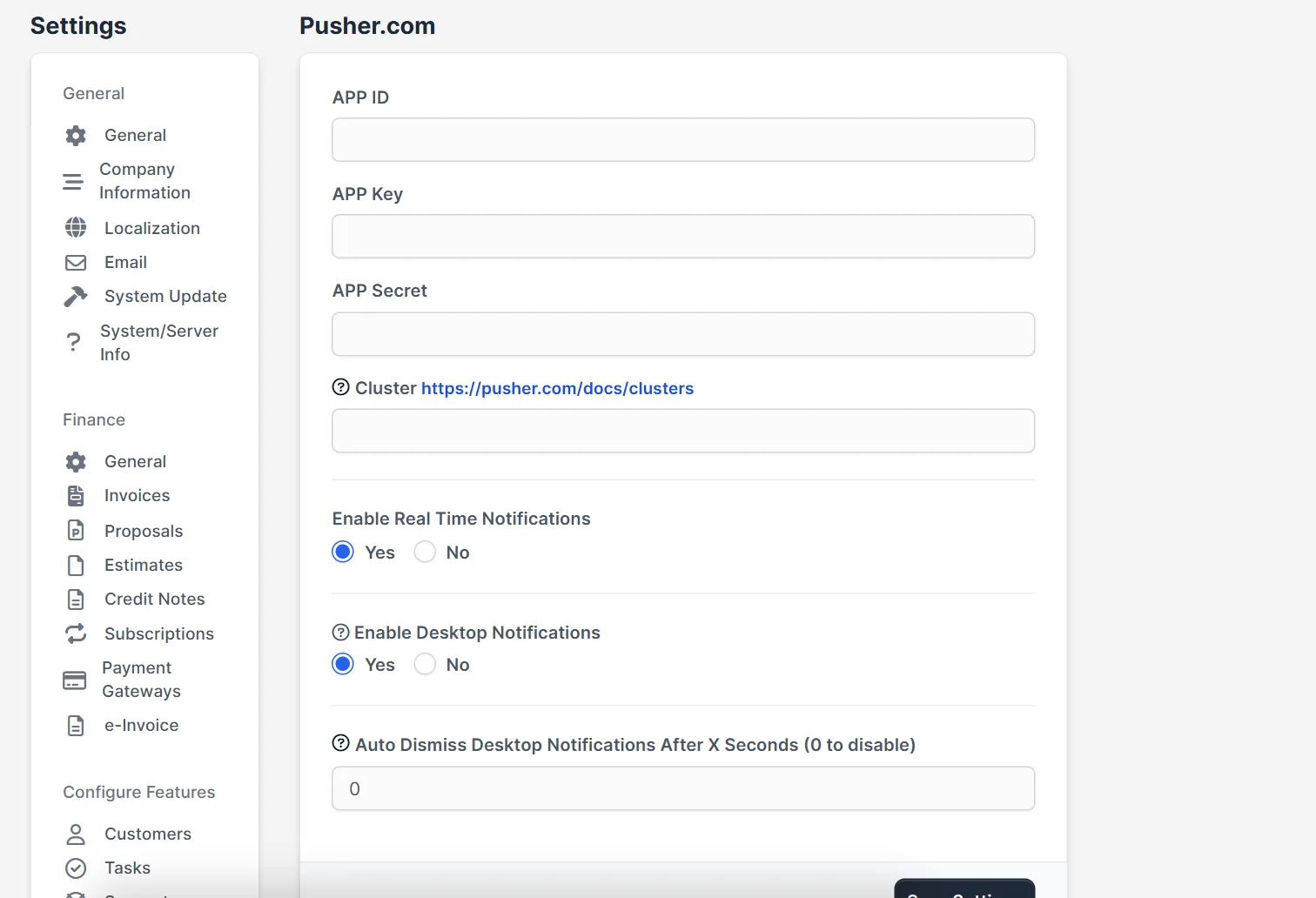
Step 4: Switch on desktop alerts #
Set Enable Desktop Notifications to Yes and choose after how many seconds an alert disappears in Auto Dismiss Desktop Notifications After X Seconds. The value 0 keeps the alert until staff close it. Each person must allow notifications in the browser.
Step 5: Save and test #
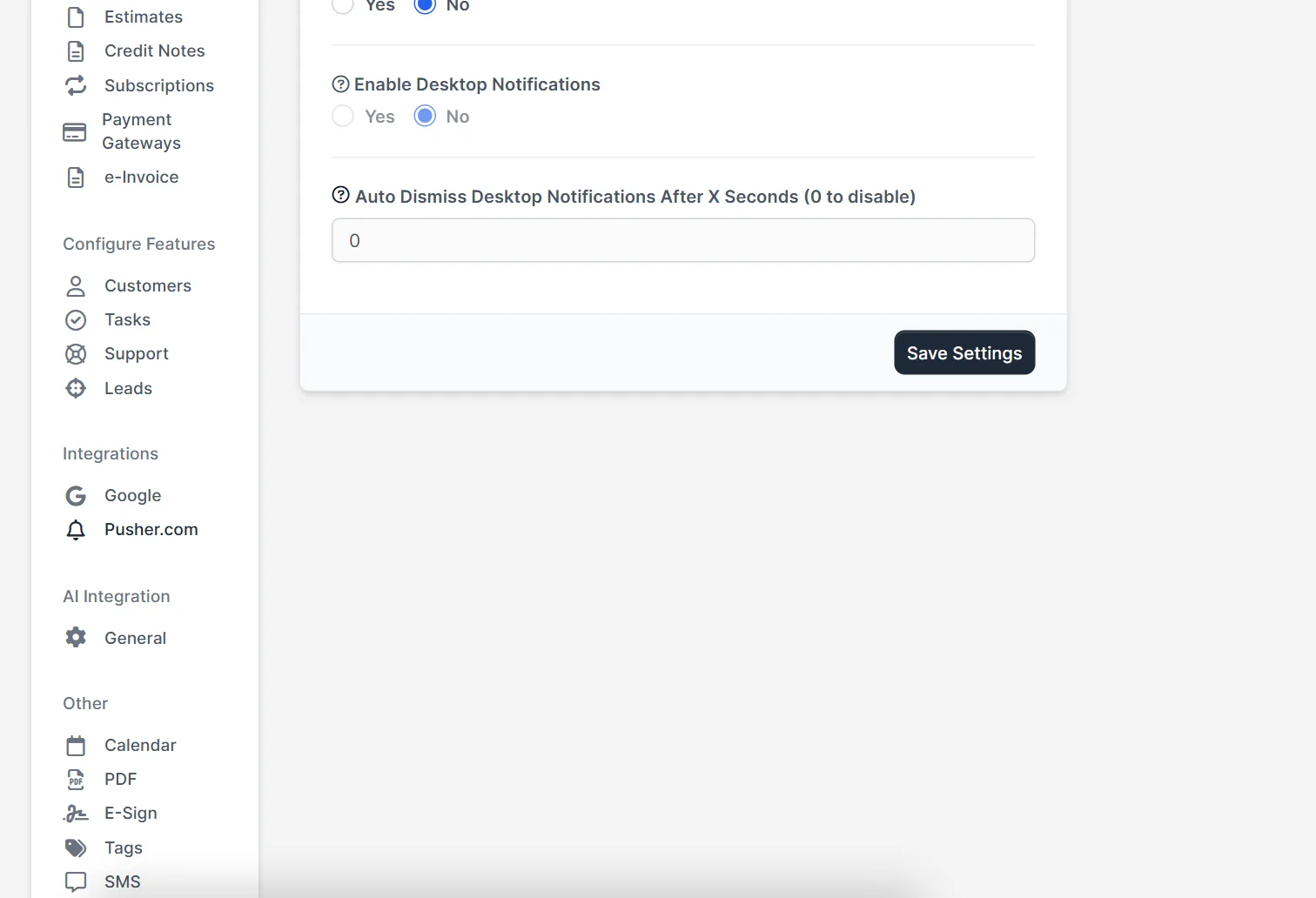
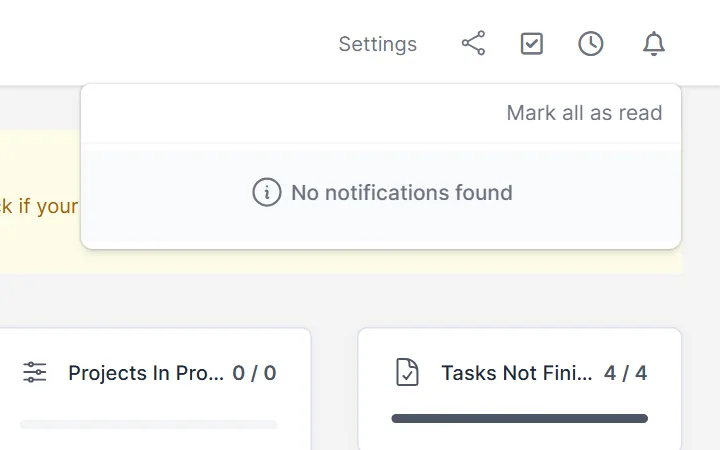
Click Save Settings, then open the CRM in two browsers. Create a task for the second user. The bell of that user should show a new notification at once. The bell opens a list with the link Mark all as read.
When Perfex CRM Pusher is worth it #
A small team that opens the CRM a few times a day may not need Perfex CRM Pusher. A support or sales team that works in the CRM all day gains minutes, because a new ticket or task shows up at once. The free plan of Pusher has limits on connections and messages, so compare them with the size of your team before you switch on real time notifications. Keep the secret out of screenshots and emails, and change it in the Pusher dashboard if it leaks.
Tips for real time notifications #
- If nothing arrives, check the key, secret and cluster for typing mistakes.
- Make sure the site uses HTTPS, because browsers block desktop alerts on plain HTTP.
- Clear the browser cache after you change the keys.
- Staff can still see notifications in the bell if Pusher is off.
- Use the Perfex CRM ticket notifications guide for email alerts.
Not tested here: a live Pusher connection, because the demo CRM has no Pusher account. The fields, the Yes and No options and the bell are real. Read the official Perfex CRM help for more.
Related module: After Perfex CRM Pusher is set up, the Perfex CRM Mobile App puts the CRM on the phone of your staff, with push notifications and a quick create button.
Frequently asked questions #
Where do I add Pusher in Perfex CRM? #
Open Setup, Settings, Integrations, Pusher.com and enter the app id, key, secret and cluster.
Is Pusher free? #
Pusher has a free plan with limits. Check the current plans on pusher.com.
Why are desktop notifications greyed out? #
They stay off until Enable Real Time Notifications is set to Yes.
Do I need Pusher to use the CRM? #
No. Without it, notifications still work but arrive with a delay.


