
The Perfex CRM activity log records what happens in your CRM, such as logins, new staff members and changes, with the date and the staff member. This guide, tested on Perfex CRM 3.4.1, shows how to read the log, filter it by date, search it, export it and clear it.
What the Perfex CRM activity log shows #
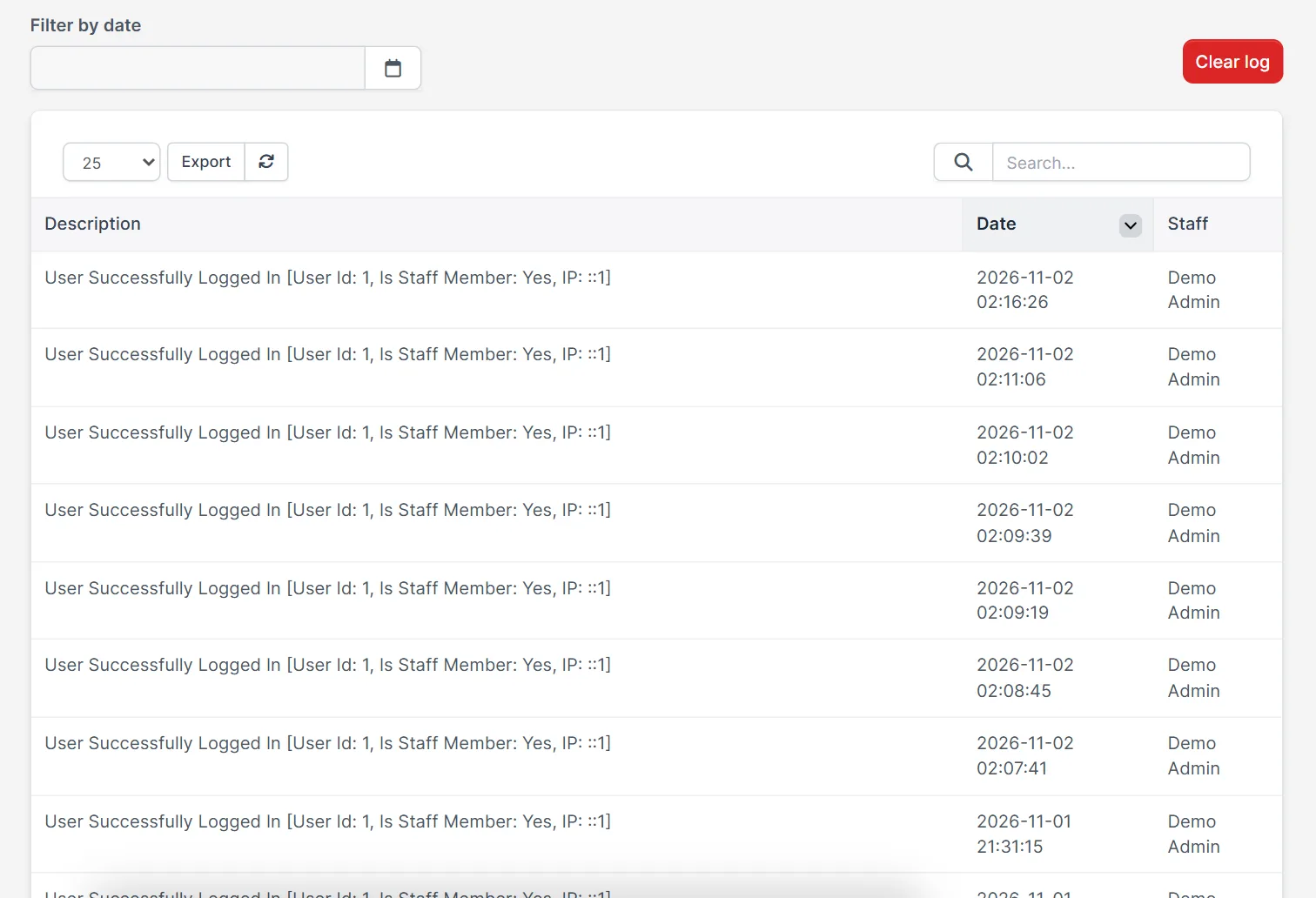
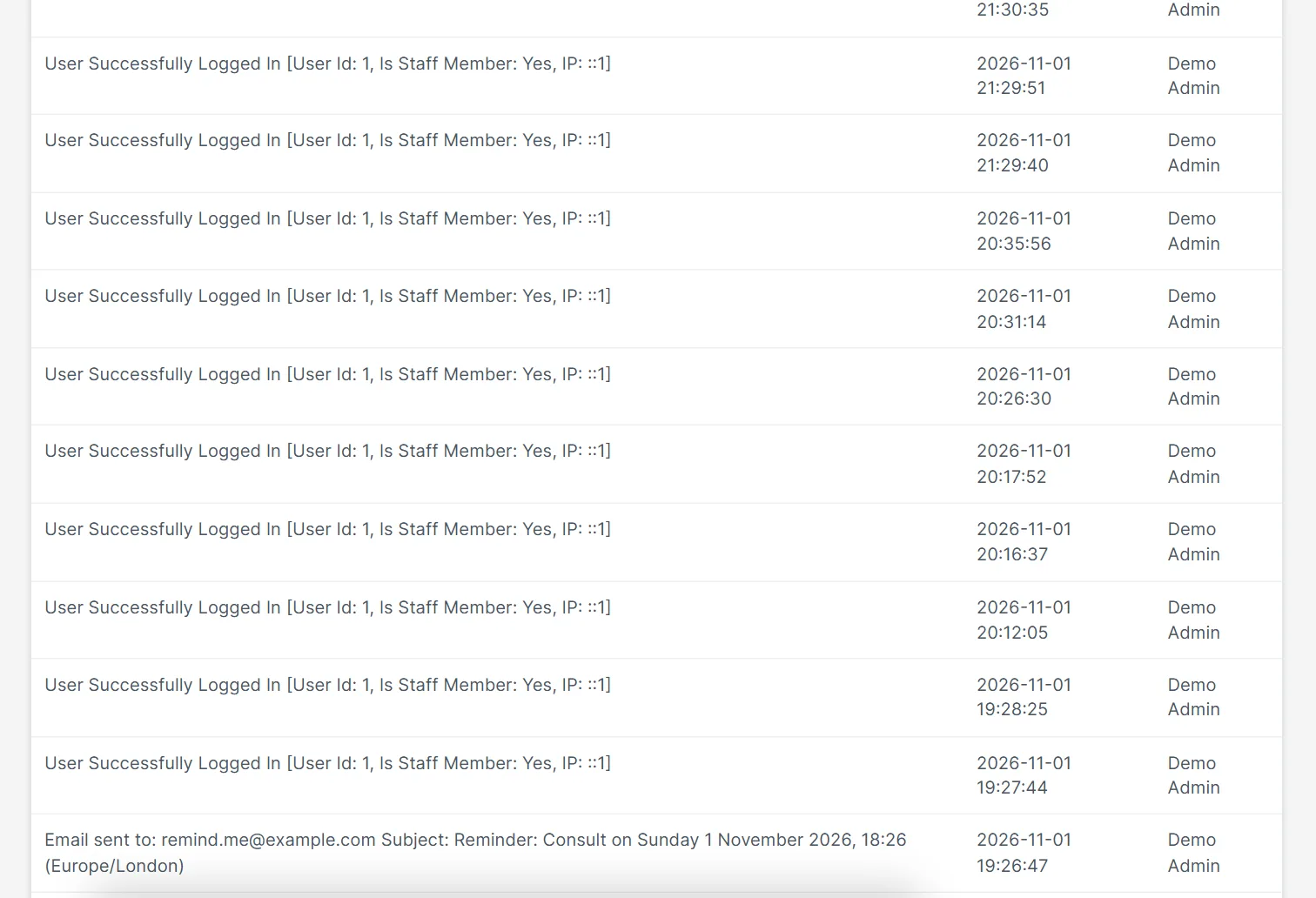
Open Utilities > Activity Log. The table has three columns: Description, Date and Staff. A line such as “User Successfully Logged In” shows the user id, whether the person is staff and the IP address. The newest entry is on top.
Step 1: Filter by date #
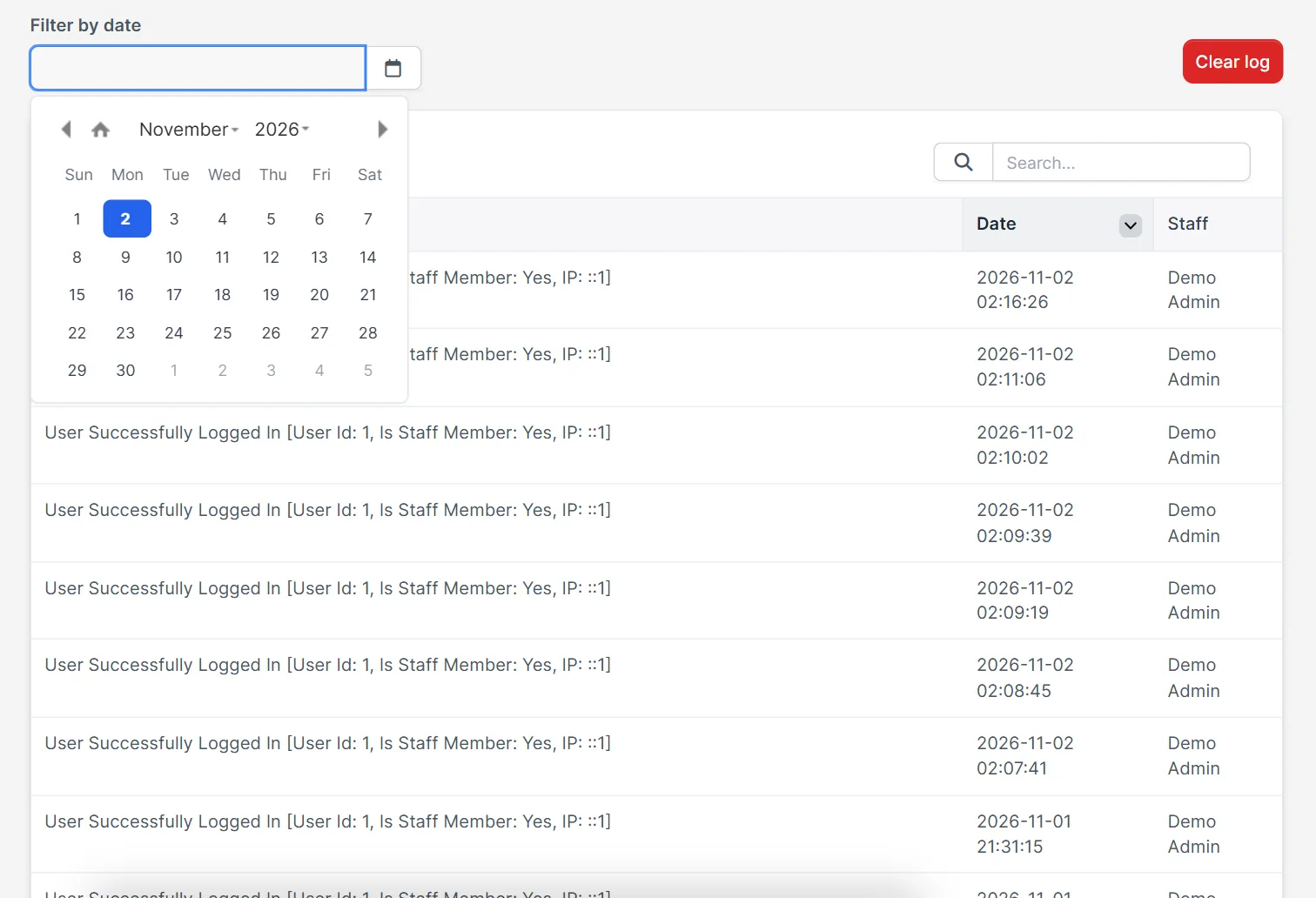
Click the Filter by date field. A calendar opens, and you pick the day. The table shows only entries from that day. This helps when you know when a problem started.
Step 2: Search the log #
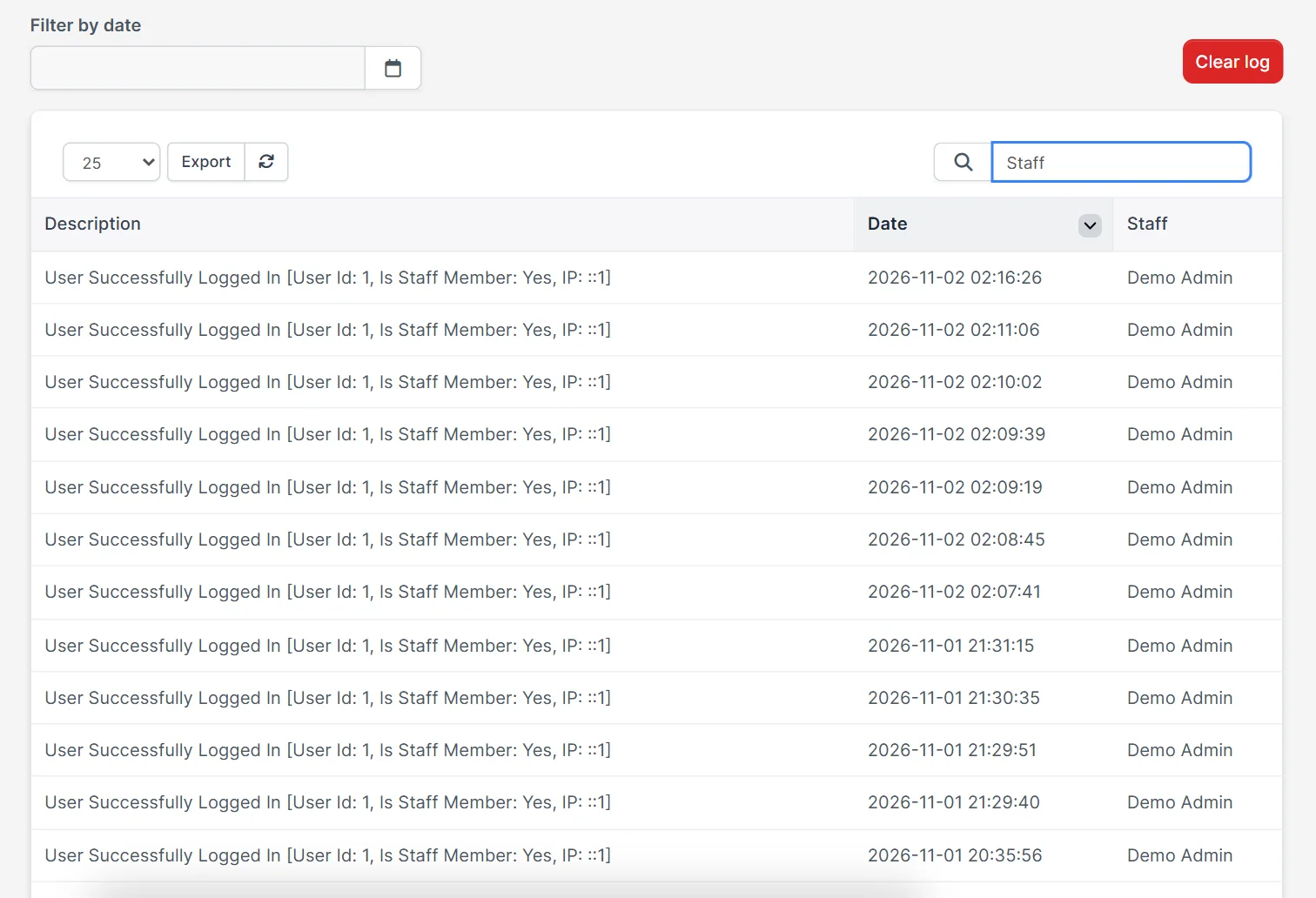
Type in the search box above the table. For example, type “Staff” to see lines that add a staff member, or a customer name to see what happened to that customer. The table updates as you type and the footer shows how many entries match.
Step 3: Export the log #
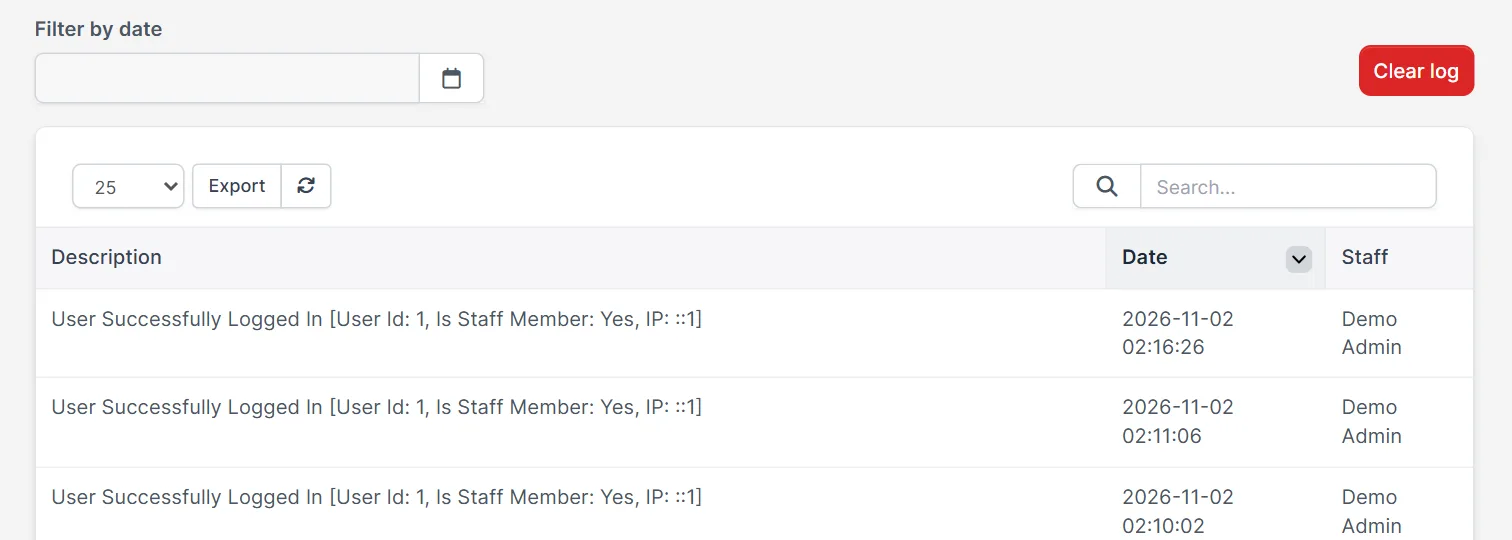
Next to the number of rows (25 by default) there is an Export button and a refresh icon. Use Export to save the visible entries for a report or for a security check. Change the row count to see more lines per page.
Step 4: Use the log to find a problem #
If a setting changed or a record disappeared, filter the date and search for the name. The staff column tells you who did it. For access problems, also check Perfex CRM roles and permissions and Perfex CRM add staff member.
Step 5: Clear the log when it grows #
The red Clear log button above the table removes all entries. A busy CRM writes thousands of lines (the demo CRM had more than 2,000), so the log can grow large. Export it first if you need a copy, then clear it. Clearing cannot be undone.
What the log does not record #
The Perfex CRM activity log shows that something happened, not the full content that changed. It does not replace a backup, and it does not show what a visitor did on your public pages. For a clear picture, use it together with Perfex CRM database backup and the notes on each record. Keep an exported copy of the log if your rules require a trail of staff actions, for example for an audit.
Tips for the activity log #
- Export the log once a month and keep the file.
- Do not clear the log during an investigation.
- Give each person a separate login, so the staff column is useful.
- A log entry shows the action, not the full content that changed.
- Watch for logins from unknown IP addresses.
- Read the Perfex CRM activity log after every staff change, so you can see who added or removed an account.
- Search for a customer name when a client says that something was changed without notice.
Not tested here: pressing Clear log, because it removes data. The other buttons were used in the demo CRM. Read the official Perfex CRM help for more.
Related module: After you learn the Perfex CRM activity log, Workflow Rules for Perfex CRM keeps its own run log, so you can see which automatic rule ran and what it did.
Frequently asked questions #
Where is the Perfex CRM activity log? #
Open Utilities, then Activity Log.
Can I see who changed something? #
Yes. The Staff column shows the person for each entry.
Can I filter the activity log by date? #
Yes. Use the Filter by date field above the table.
Does Clear log delete everything? #
Yes. It removes all entries and cannot be undone, so export first.


