
- Where to add a Perfex CRM new customer
- Step 1: Fill in the customer details
- Step 2: Use customer groups
- Step 3: Add the billing and shipping addresses
- Step 4: Save and create the first contact
- Step 5: Check the customer profile
- Step 6: Set the defaults for every new customer
- Tips for a clean customer list
- Perfex CRM new customer FAQ
- Modules that help with customers
- Summary
Adding a Perfex CRM new customer is the first step to invoices, estimates, tickets and projects, because almost everything in the system belongs to a customer. A clean customer record saves time later: the right currency, address and contacts are filled in for every document. This guide shows how to create a Perfex CRM new customer, what each field is for and how to avoid duplicates.
Where to add a Perfex CRM new customer #
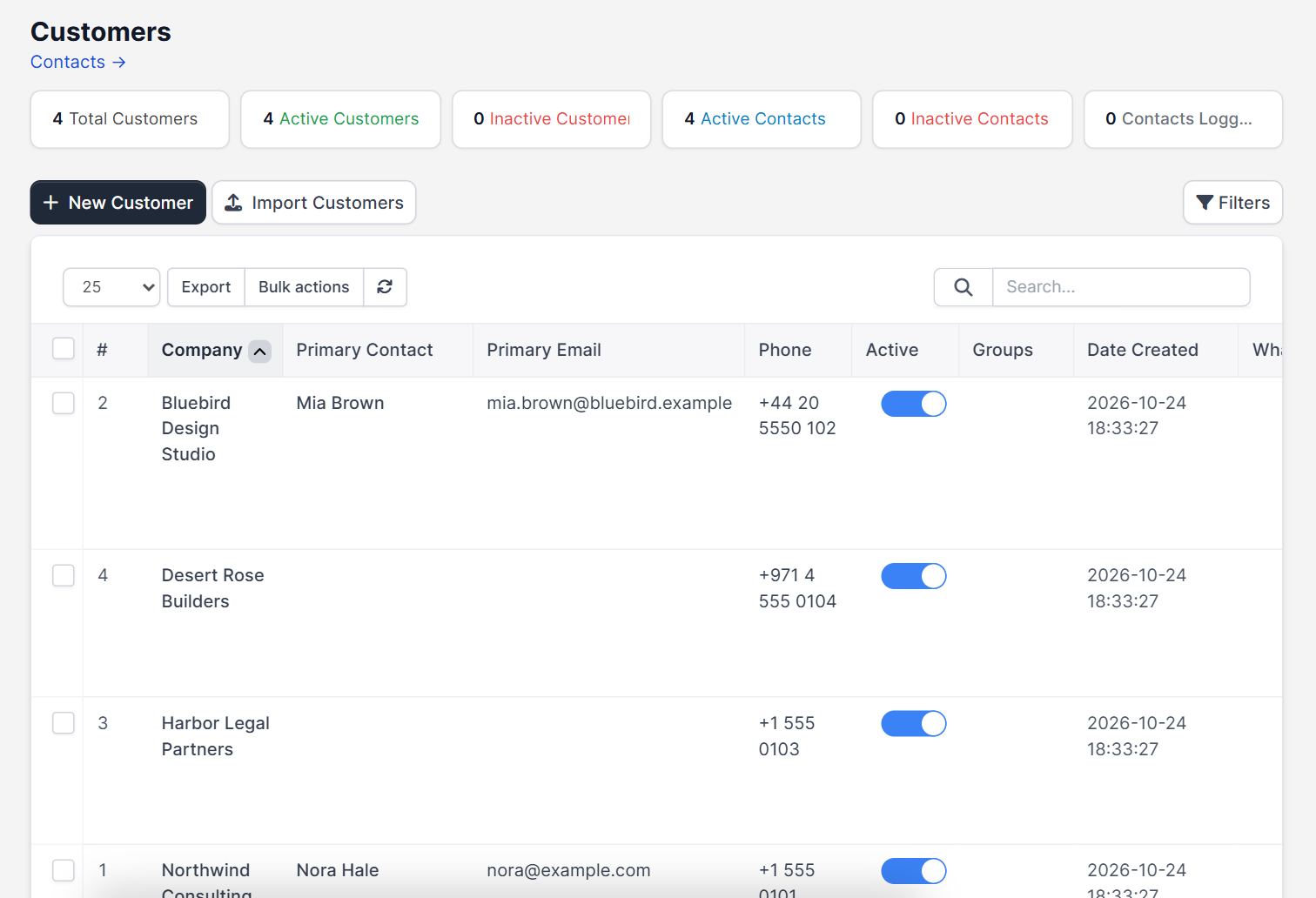
Open Customers in the main menu. The page shows summary boxes (total customers, active and inactive customers, active contacts and contacts who logged in today) and a table with the company, primary contact, primary email, phone, active switch, groups and date created. Use the buttons New Customer and Import Customers above the table. Import is faster when you move from another system.
Step 1: Fill in the customer details #
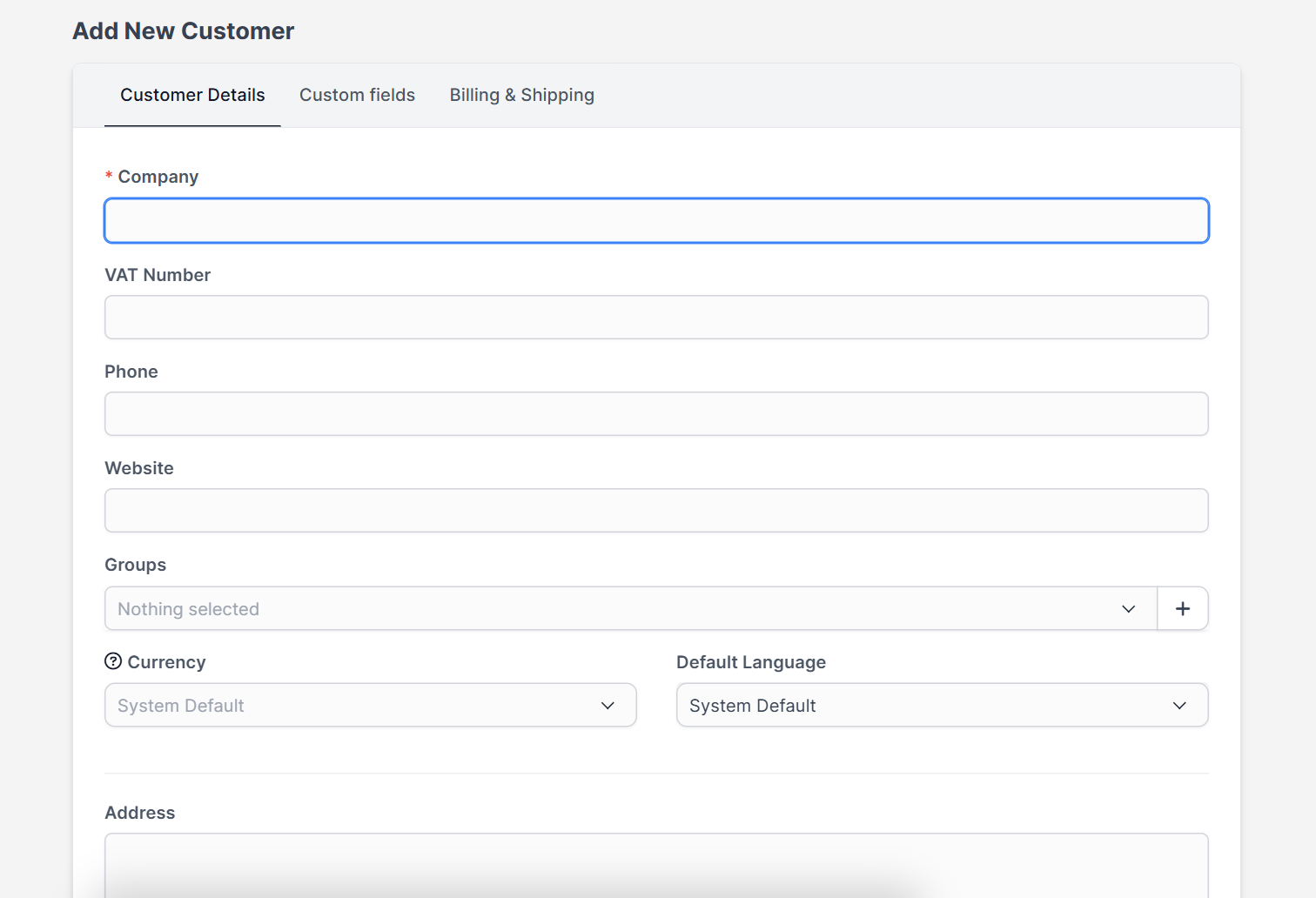
Click New Customer. The form is called Add New Customer and has three tabs: Customer Details, Custom fields and Billing & Shipping. Start with the first tab:
- Company is required. Use the legal or trading name that should appear on invoices.
- VAT Number, Phone and Website are optional but useful for tax documents and calls.
- Groups lets you tag the customer, for example Retail or Partner.
- Currency and Default Language decide how documents for this customer look. Leave System Default unless the customer needs something else. See Perfex CRM currencies and Perfex CRM language settings.
- Address, City, State, Zip Code and Country are the customer’s main address.
There is also a switch called Show primary contact full name on Invoices, Estimates, Payments, Credit Notes. Turn it on when the customer wants a person’s name on documents.
Step 2: Use customer groups #
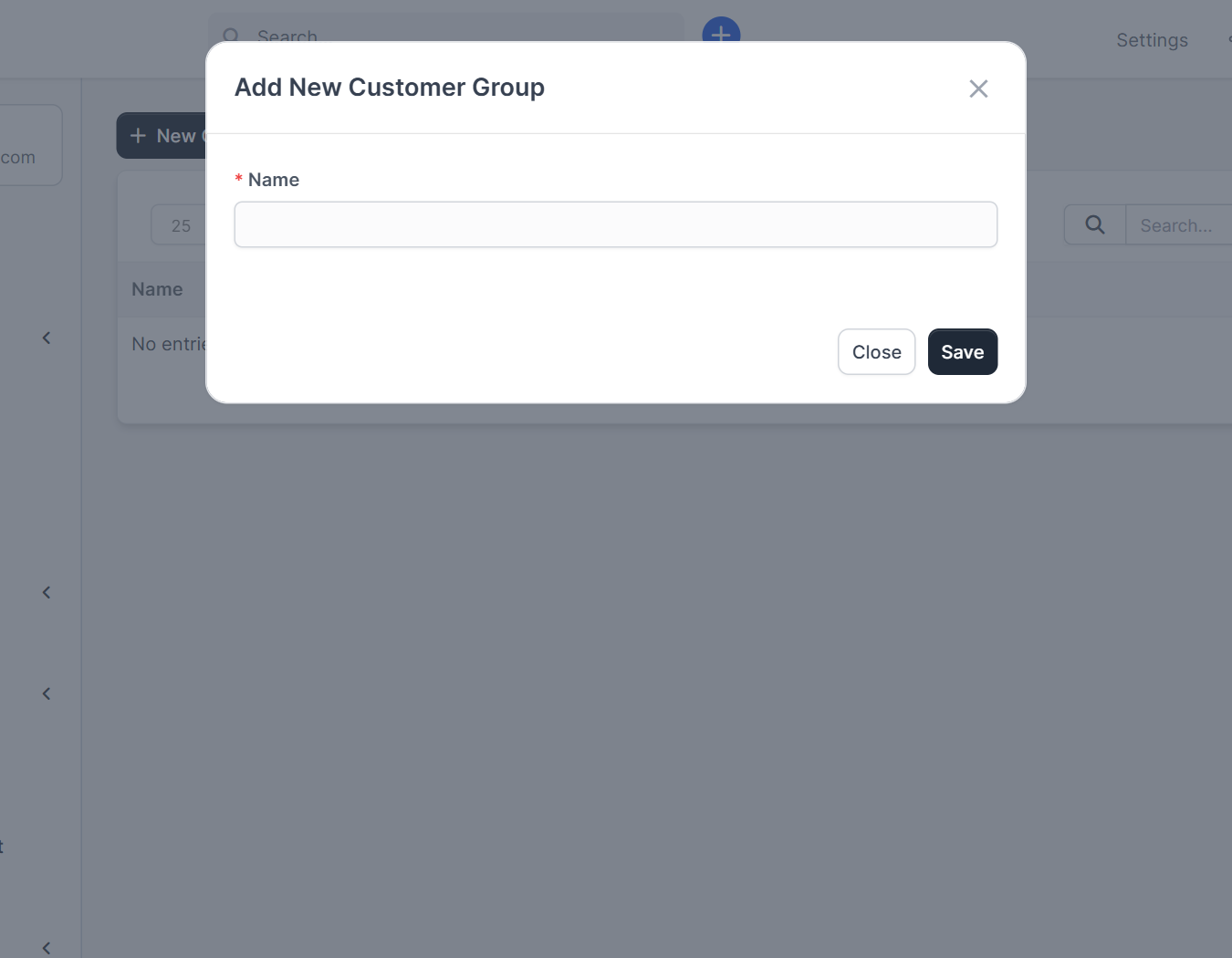
Next to the Groups field there is a plus button that opens the form Add New Customer Group with one field, Name. You can also manage groups under Setup > Customers > Groups. Groups help you filter lists and reports and, in some modules, decide who gets what. Keep the names short and consistent.
Step 3: Add the billing and shipping addresses #
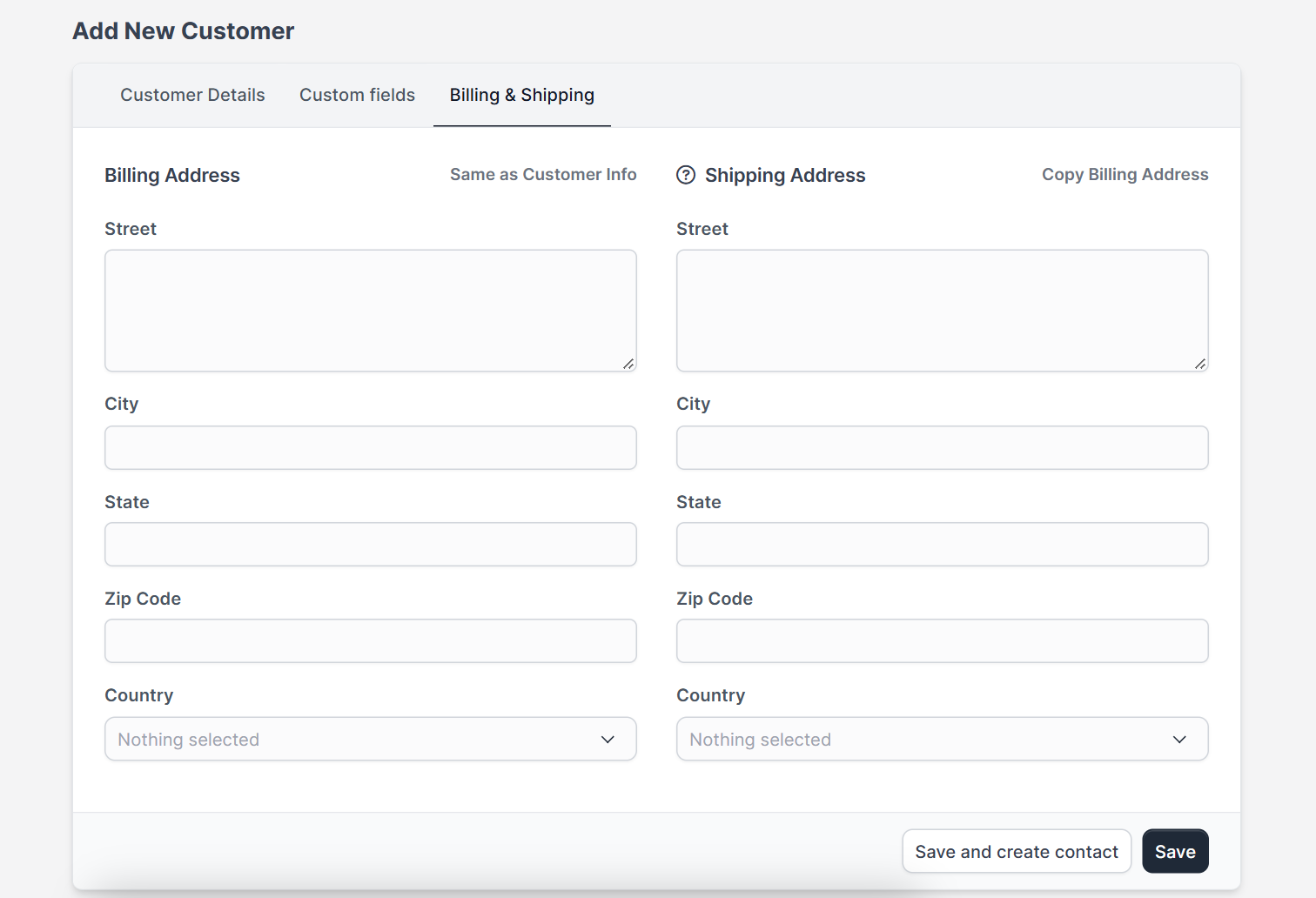
Open the Billing & Shipping tab. It has a Billing Address block with a link Same as Customer Info, and a Shipping Address block with Copy Billing Address. Fill in the street, city, state, zip code and country. Invoices and estimates use these addresses, and the shipping address can be shown on documents when the customer needs it.
Step 4: Save and create the first contact #
At the bottom you see Save and create contact and Save. Choose Save and create contact if you want to add the main person right now. A customer without a contact cannot receive emails or sign in to the customer area. Read how to manage Perfex CRM customer contacts for the contact form and permissions.
Step 5: Check the customer profile #
After saving, the customer page opens. The side menu lists Profile, Contacts, Notes, Statement, Invoices, Payments, Proposals, Credit Notes, Estimates, Subscriptions, Expenses, Contracts, Projects, Tasks, Tickets, Files and Vault. Inside Profile there is a Customer Admins tab where you assign staff members who look after the customer.
Step 6: Set the defaults for every new customer #
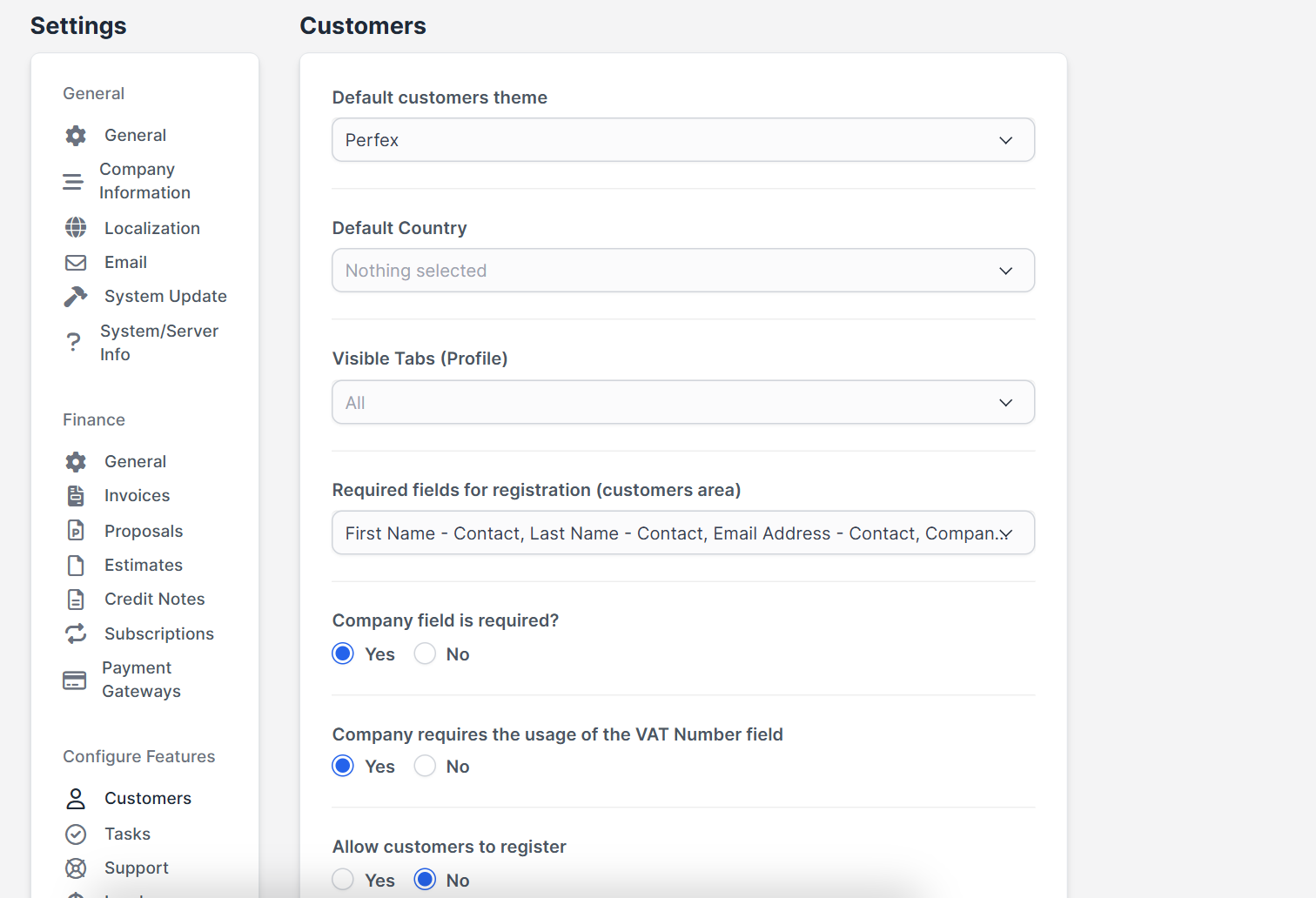
Open Setup > Settings > Customers. Here you choose the default customer theme and country, the tabs that are visible in the profile, the fields that are required when customers register themselves, whether customers may register at all, and the default permissions of new contacts for invoices, estimates, contracts, proposals, support and projects. Set these once and every Perfex CRM new customer starts with the same rules.
Tips for a clean customer list #
- Search before you add, to avoid duplicates. Use the company name and the email address.
- Fill in the VAT number when your country requires it on invoices.
- Use groups from the first day, because adding them later means editing every record.
- Assign a customer admin so someone always owns the relationship.
- Keep phone numbers in one format, with the country code.
Perfex CRM new customer FAQ #
Can a lead become a customer? #
Yes. Convert it from the lead screen and all details are copied. See how to convert a lead to a customer.
Can I import many customers? #
Yes, with Import Customers. Prepare a file with the same columns as the form and test with a few rows.
Can customers register on their own? #
Yes, if you turn on the registration option in the customer settings. You can require admin approval before the account works.
What happens when I delete a customer? #
Deleting removes related records such as invoices unless you remove them first, so mark the customer inactive instead when you only want to hide it.
Modules that help with customers #
Call and message customers from their record with the Call Manager module and the WhatsApp integration for Perfex CRM, which adds a WhatsApp switch to the customer form.
Summary #
A good Perfex CRM new customer record has the right company name, currency, addresses, groups and a first contact. Set sensible defaults, avoid duplicates and review the customer admins. More background is on the official Perfex CRM website, and every Perfex CRM new customer you add the same way keeps your data tidy. Review each Perfex CRM new customer record after you save it: check the currency, the billing address and the first contact. A tidy Perfex CRM new customer record saves time on every invoice, and a team that follows the same steps for each Perfex CRM new customer keeps its data clean.


