
- Before you update Perfex CRM manually
- Step 1: Check your current version
- Step 2: Back up everything
- Step 3: Download the new version
- Step 4: Upload the new files
- Step 5: Run the database upgrade
- Step 6: Test your system
- Step 7: Clear caches and tell your team
- If something goes wrong when you update Perfex CRM manually
- Visual guide: update Perfex CRM manually
- How to update Perfex CRM manually: FAQ
- Useful resources
- Summary: update Perfex CRM manually
You can update Perfex CRM manually by replacing the program files with the new version and letting the system upgrade your database. Done carefully, it takes about thirty minutes and keeps all your data. This guide shows how to update Perfex CRM manually in seven steps, what to keep, what to check afterwards and how to go back if something breaks.
Before you update Perfex CRM manually #
- Read the release notes of the new version for changes that affect you, especially for your modules and your PHP version.
- Check that your server still meets the Perfex CRM server requirements.
- Choose a quiet time. Staff should not work during the update.
- Test on a copy of your site first if you have many custom changes or modules.
Step 1: Check your current version #
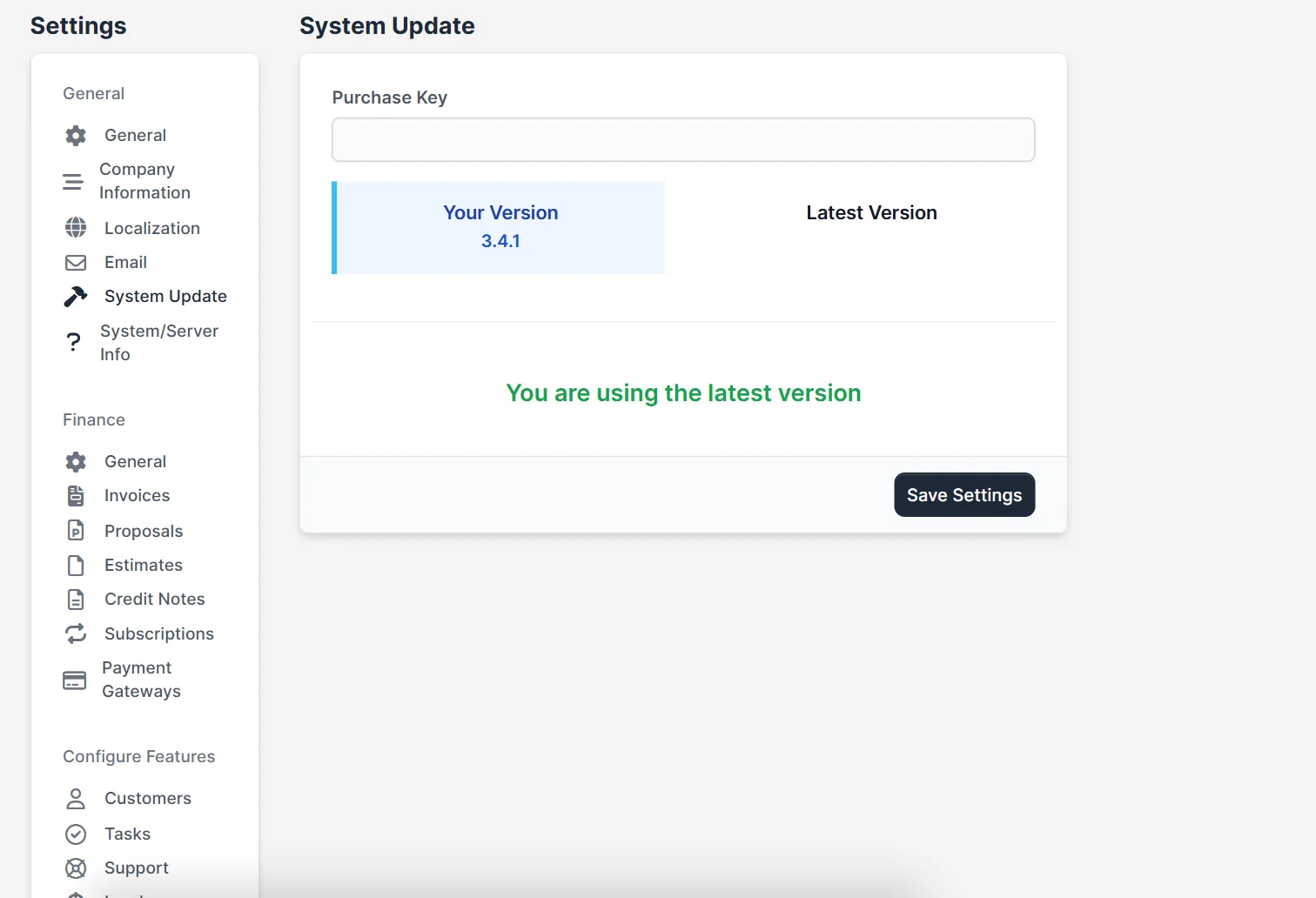
Open Setup > Settings > System Update. The page shows Your Version and Latest Version, and the field for your Purchase Key. Write down your version so you know what you started from.
Step 2: Back up everything #
This is the step you must not skip. Make two backups:
- The database. Export it with phpMyAdmin or the backup tool in your hosting panel.
- The files. Download or copy the whole Perfex CRM folder. It holds your uploads, your modules and your
application/config/app-config.phpfile.
Store both copies outside the website folder. Check that the database file is not empty.
Step 3: Download the new version #
Download the latest package from the place where you bought Perfex CRM, using your own account. Unzip it on your computer and open the folder that holds the program files.
Step 4: Upload the new files #
Upload the new files to your server and overwrite the old ones. Be careful with these items, which belong to you and must stay:
application/config/app-config.phpkeeps your database details and site address.- The
uploadsfolder holds customer files, attachments and logos. - The
modulesfolder holds the add-ons you installed. Do not delete modules. Update them separately if their authors publish new versions. - Any files you changed on purpose, such as a custom theme or language file. Compare them with the new version and merge your changes.
Step 5: Run the database upgrade #
Open your admin address in the browser. If the new version needs database changes, Perfex CRM asks you to upgrade the database. Follow the on-screen prompt and wait until it finishes. Do not close the page while it works. Then sign in again.
Step 6: Test your system #
- Open Setup > Settings > System Update and confirm that Your Version shows the new number.
- Open a customer, an invoice, a ticket and a lead.
- Send a test email from your SMTP settings.
- Run the cron job once with Run Cron Manually. See Perfex CRM cron job.
- Open every module menu and check that it loads.
Step 7: Clear caches and tell your team #
Clear your browser cache and, if you use a page cache plugin or a server cache, clear that as well. Tell your team what changed and where to find new features.
If something goes wrong when you update Perfex CRM manually #
- A blank page. Turn on error display in your hosting panel to read the message. A missing PHP extension or an old module is the usual cause.
- 404 errors. Check the
.htaccessfile. Read Perfex CRM 404 Not Found after installation. - A module breaks. Disable it under Setup > Modules and ask its author for a version made for the new release.
- You must go back. Restore the files and the database from your backup together. Never restore only one of them.
Plan your next update the same way. A regular backup habit is the best protection you have.
Visual guide: update Perfex CRM manually #
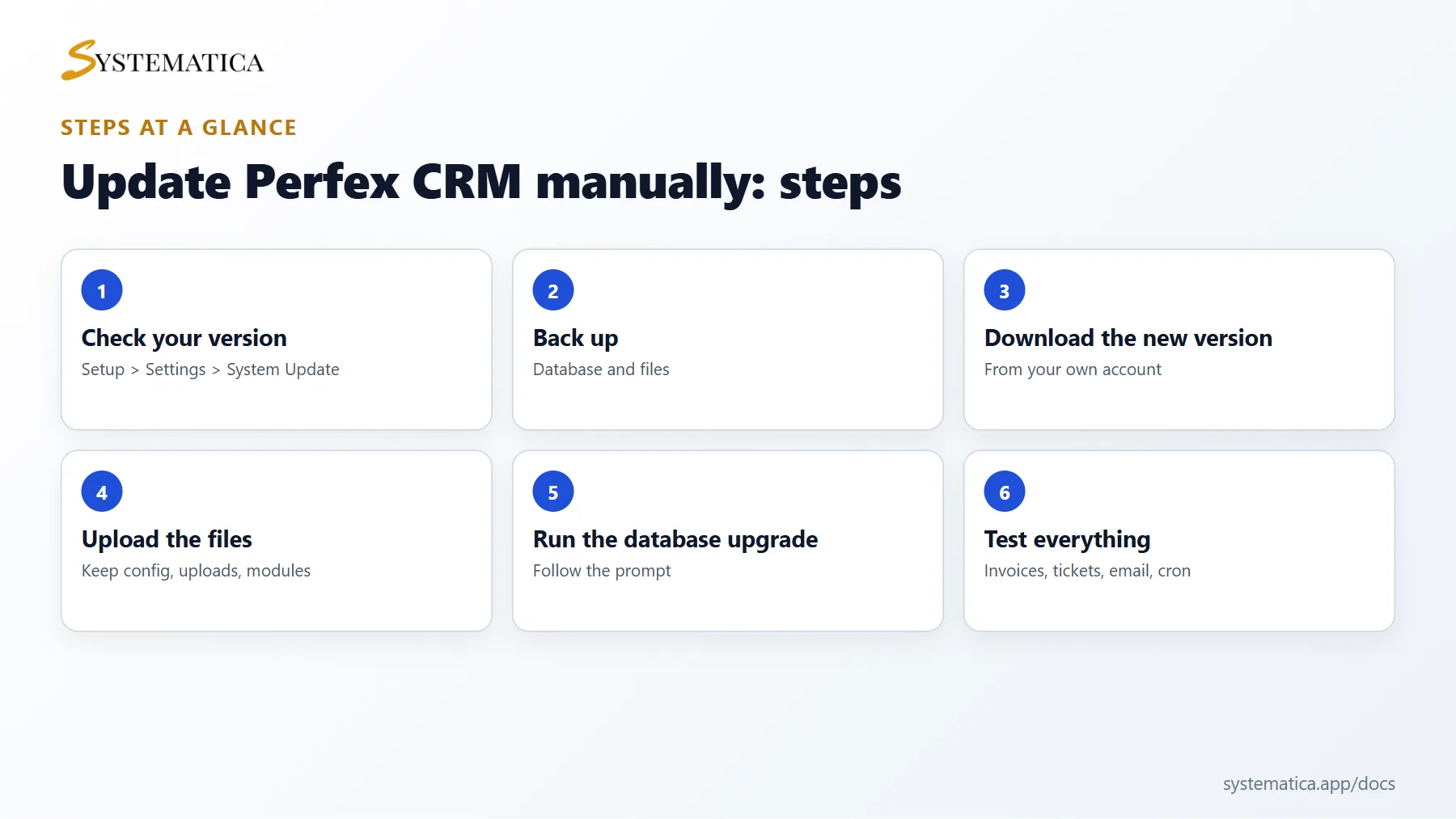
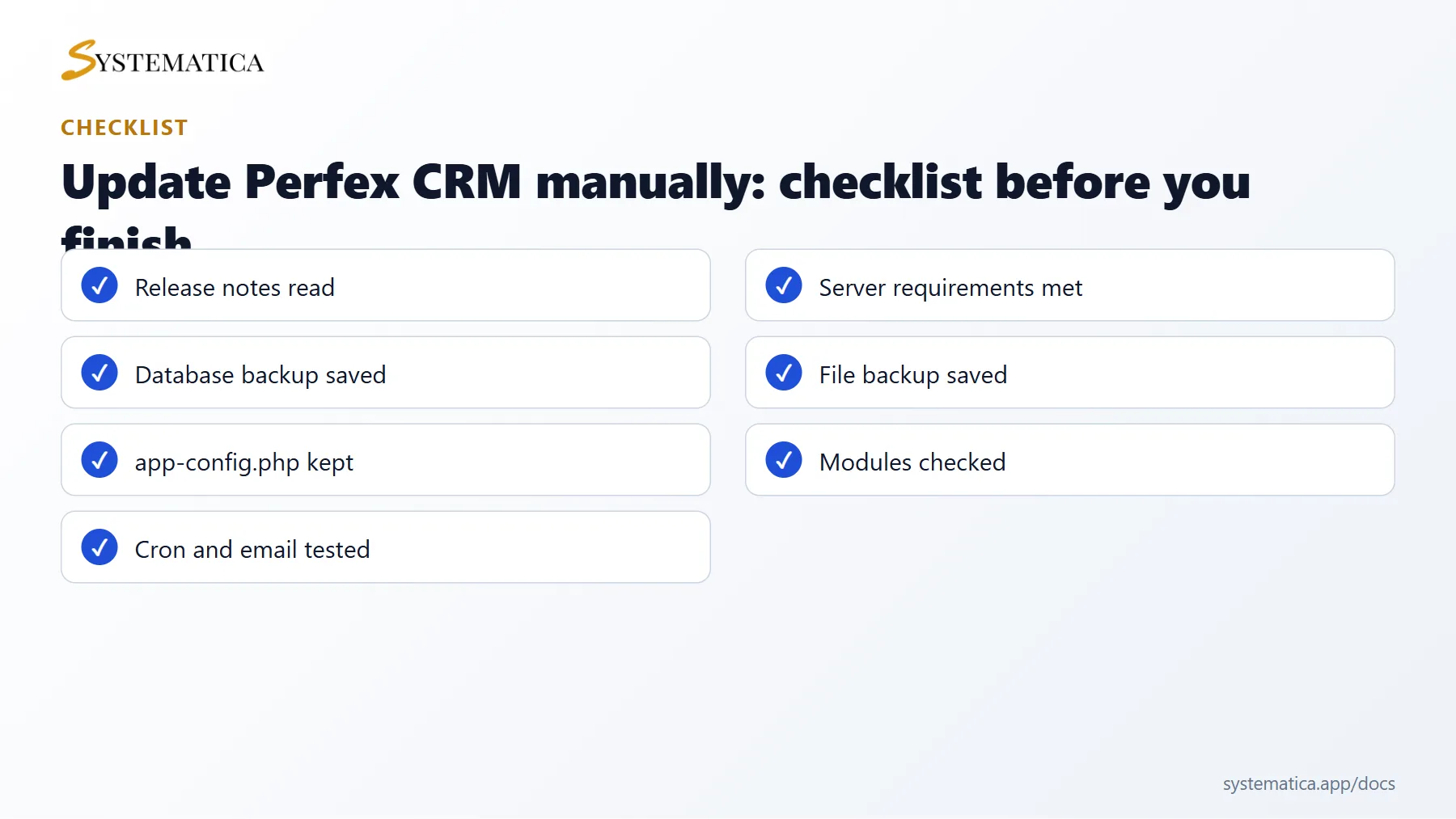
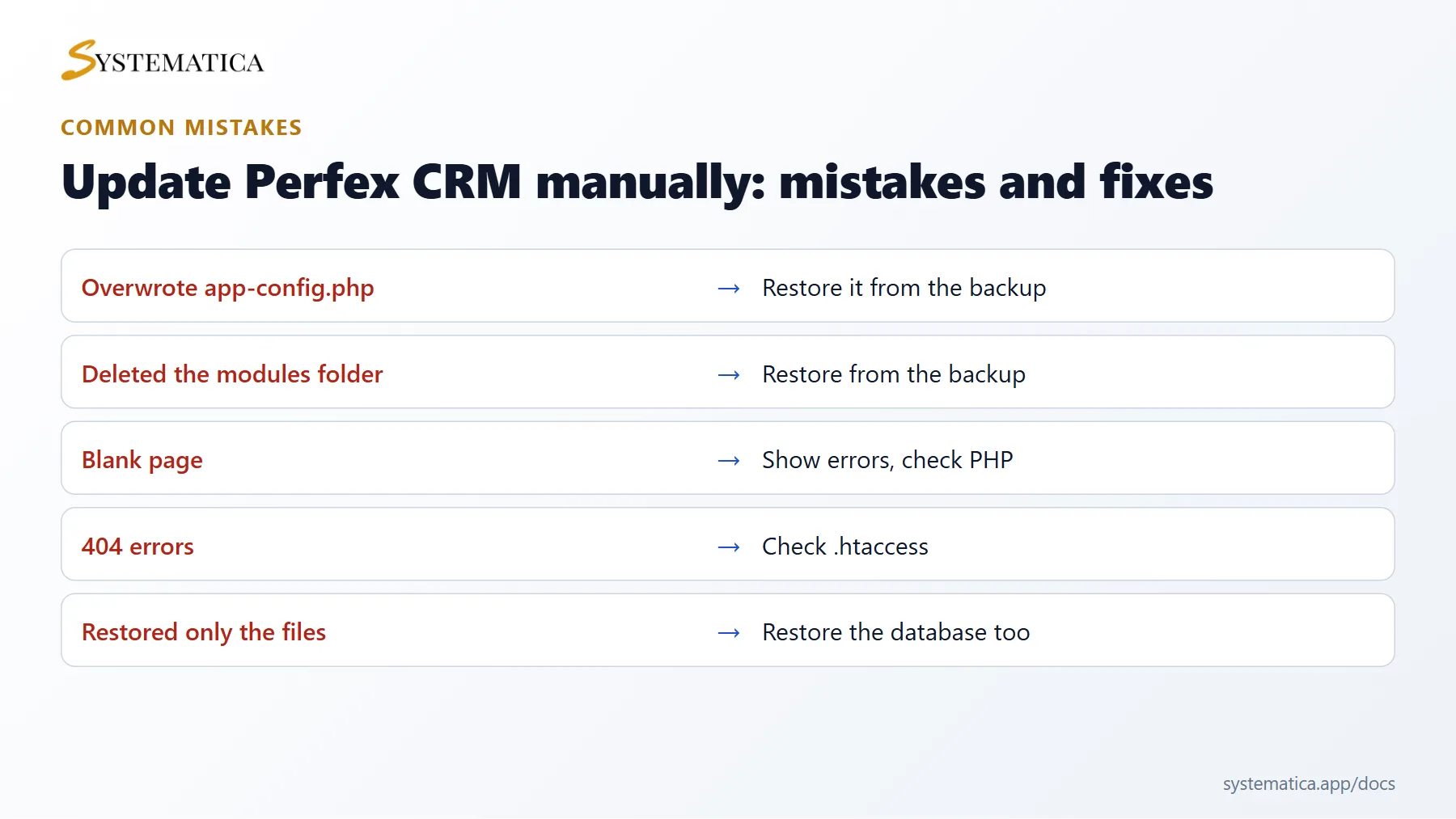
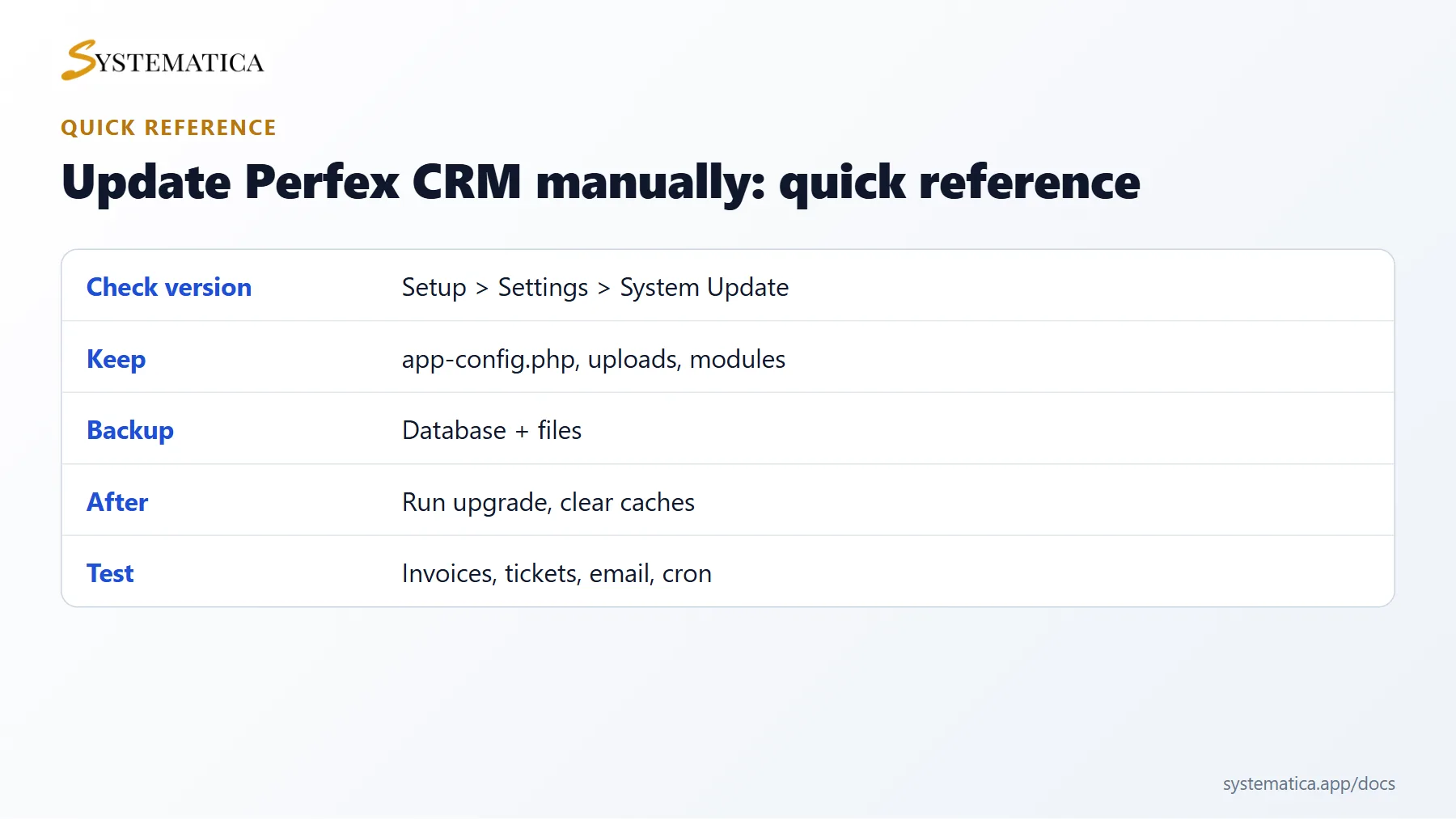
Save or share these four cards. They summarize the steps, the checklist, the usual mistakes and the key values from this guide.
How to update Perfex CRM manually: FAQ #
How often should I update Perfex CRM manually? #
Update when a release fixes security problems or bugs you meet. Avoid waiting years, because larger jumps are harder. Always read the notes first.
Will I lose my data when I update Perfex CRM manually? #
Not if you keep the configuration file, the uploads folder and the modules, and upgrade the database as asked. A backup protects you if something goes wrong.
Which PHP version do I need? #
Newer releases may require a newer PHP version. Check the PHP supported versions page and your server requirements before you update.
Can I update with a staging copy? #
Yes, and it is the safest way. Copy the site to a test address, update it there, test it, and repeat the same steps on the live site.
What about modules and custom code? #
Check that every module supports the new version. Disable modules that do not, and compare any file you edited with the new one.
How long does the update take? #
Uploading the files takes a few minutes, and the database upgrade usually takes less than a minute on a small site. Plan thirty minutes with testing.
After an update, check the modules you use. Browse our Perfex CRM modules, each tested on Perfex CRM 3.4.1, and see the Perfex CRM Mobile App for phone access.
Useful resources #
Keep a written checklist for the next time you update Perfex CRM manually, and read the notes at the official Perfex CRM website. Regular backups and a calm routine turn each update into a small task.
Summary: update Perfex CRM manually #
To update Perfex CRM manually, check your version, back up the database and the files, upload the new files while keeping your configuration, uploads and modules, run the database upgrade and test your system. Plan to update Perfex CRM manually at a quiet time and keep a written checklist. When you update Perfex CRM manually with a backup at hand, any problem can be undone in minutes, and you can update Perfex CRM manually again next time with confidence.


