
Perfex CRM ticket statuses show where each support ticket stands: new, being worked on, answered or closed. A clear set of statuses and a sensible ticket priority help your team see what needs attention first. This guide, tested on Perfex CRM 3.4.1, shows the built-in statuses, how to add your own and where the statuses appear.
The built-in Perfex CRM ticket statuses #
Open Setup > Support > Ticket Statuses. The list shows each status with its ID, its name and the total number of tickets in it. A fresh Perfex CRM has five ticket statuses:
- Open: a new ticket that waits for an answer.
- In progress: someone is working on it.
- Answered: staff replied and the customer must read it.
- On Hold: the ticket waits for something else.
- Closed: the problem is solved.
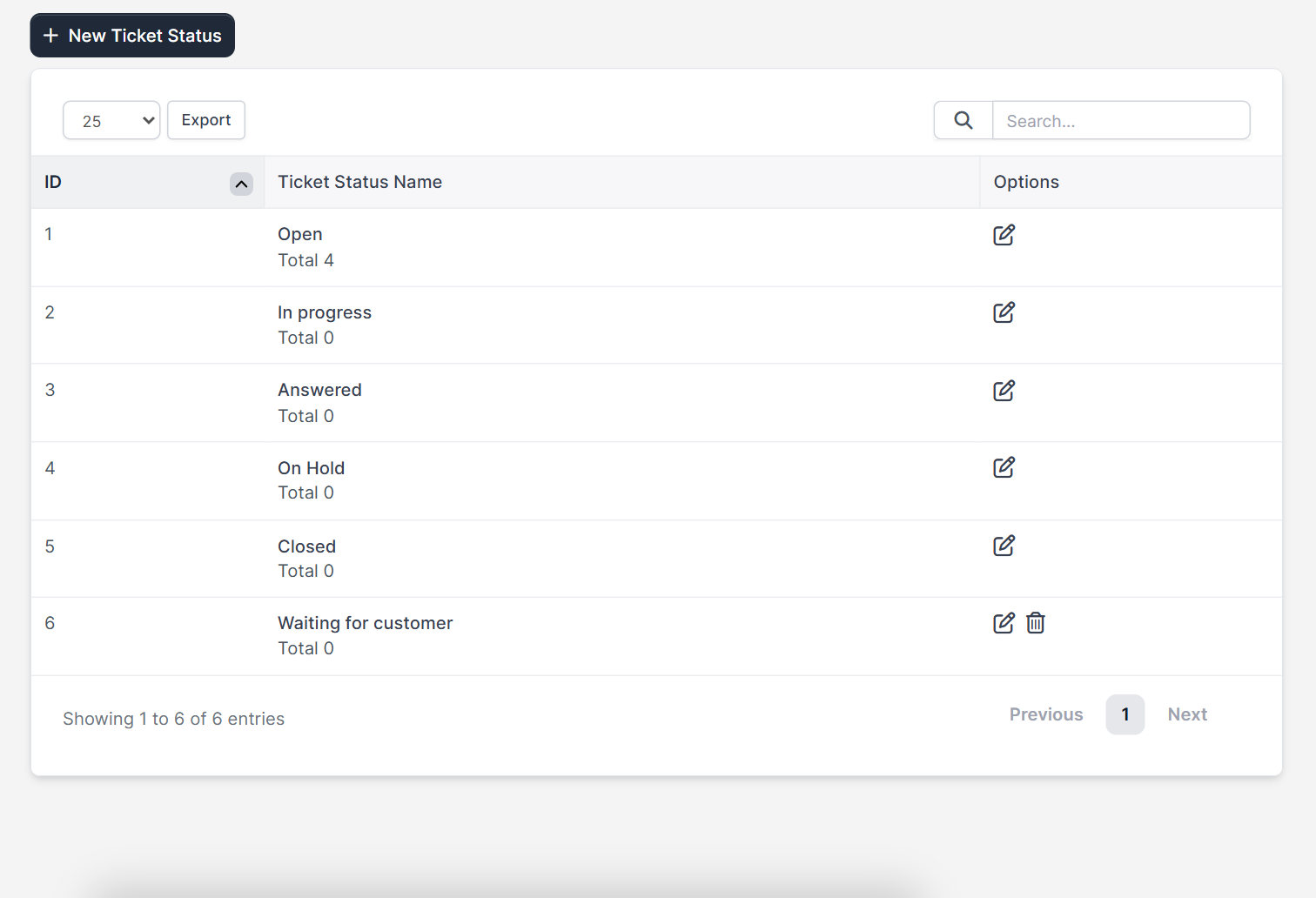
The built-in statuses only have an edit icon, so you can rename them but not delete them. A status that you add yourself also gets a delete icon.
Step 1: Decide if you need more Perfex CRM ticket statuses #
Many teams work well with the five built-in Perfex CRM ticket statuses. Add your own only when it changes what an agent does next. A good example is Waiting for customer: the agent asked a question and has nothing to do until the customer answers. Avoid statuses that sound alike, because agents will pick them at random.
Step 2: Add a ticket status #
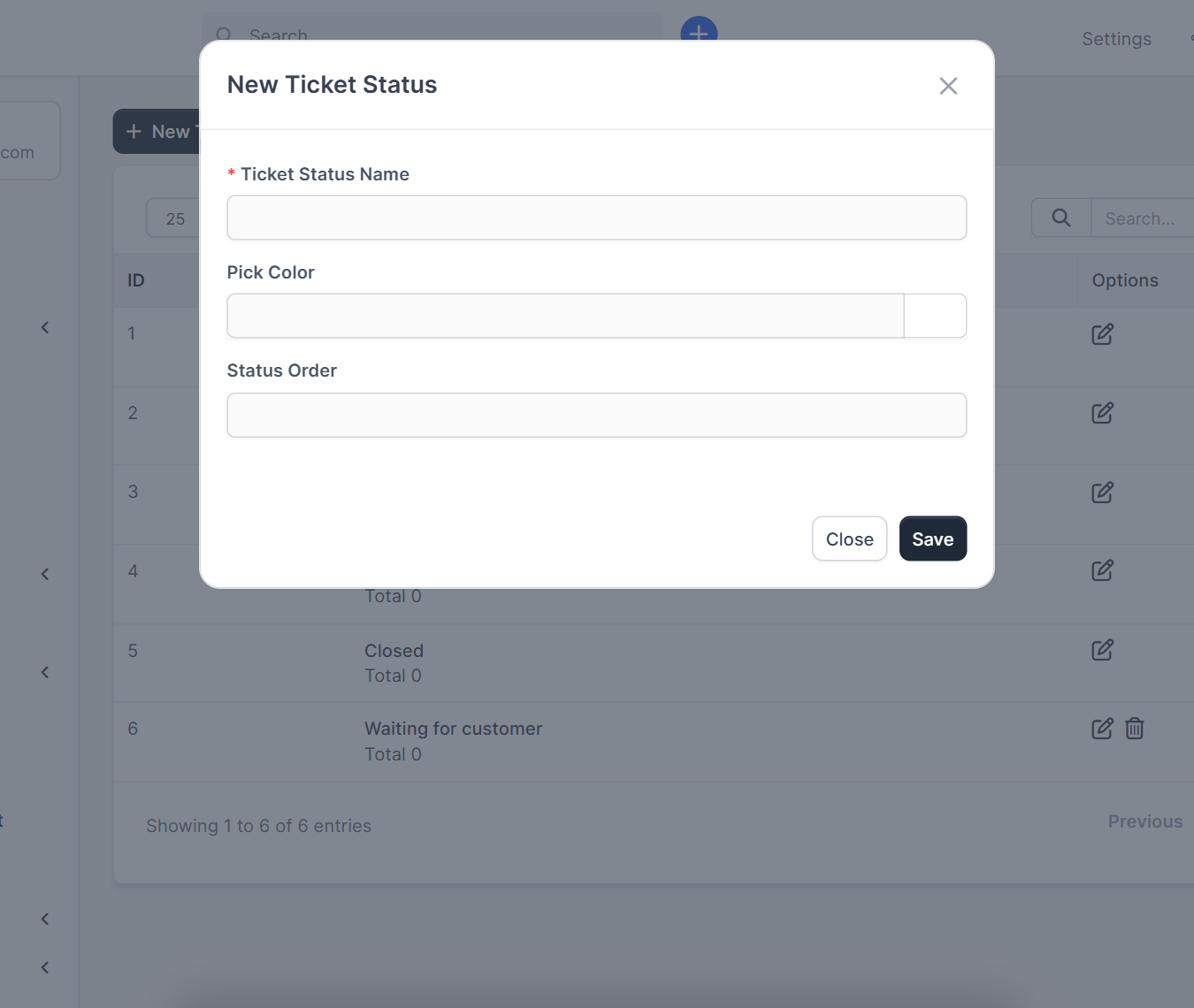
Click New Ticket Status. The window asks for the Ticket Status Name, a Pick Color and a Status Order. The color is used for the counters and the label in the ticket list. The order decides where the status appears in the list. Click Save and the status is ready to use.
Step 3: Check the ticket priority #
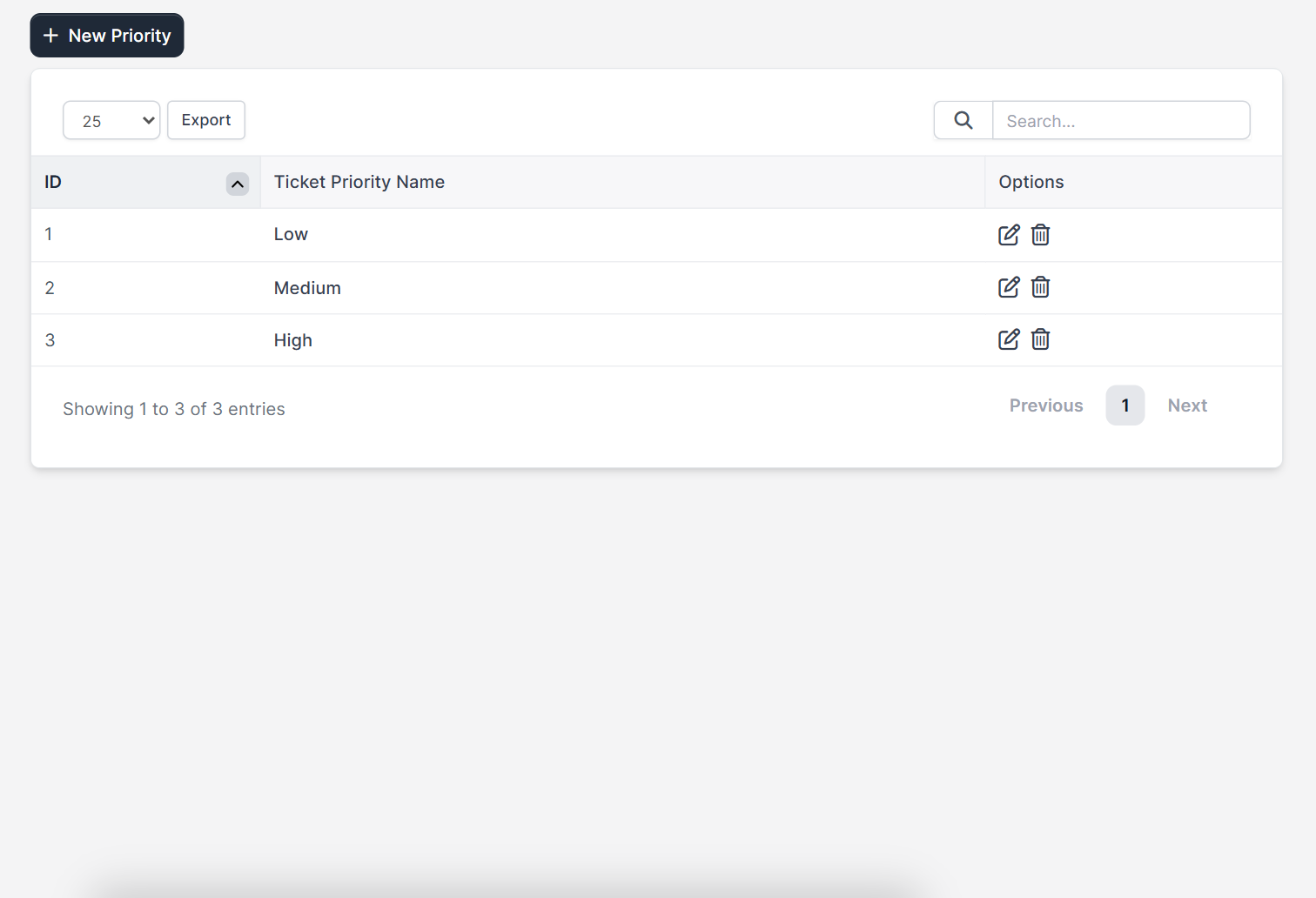
The ticket priority is a second label next to the status. Open Setup > Support > Ticket Priority to see the list. Perfex CRM starts with Low, Medium and High, and you can add more with New Priority. Use priority for urgency and status for progress, so the two never mean the same thing.
Step 4: See the Perfex CRM ticket statuses in the ticket list #
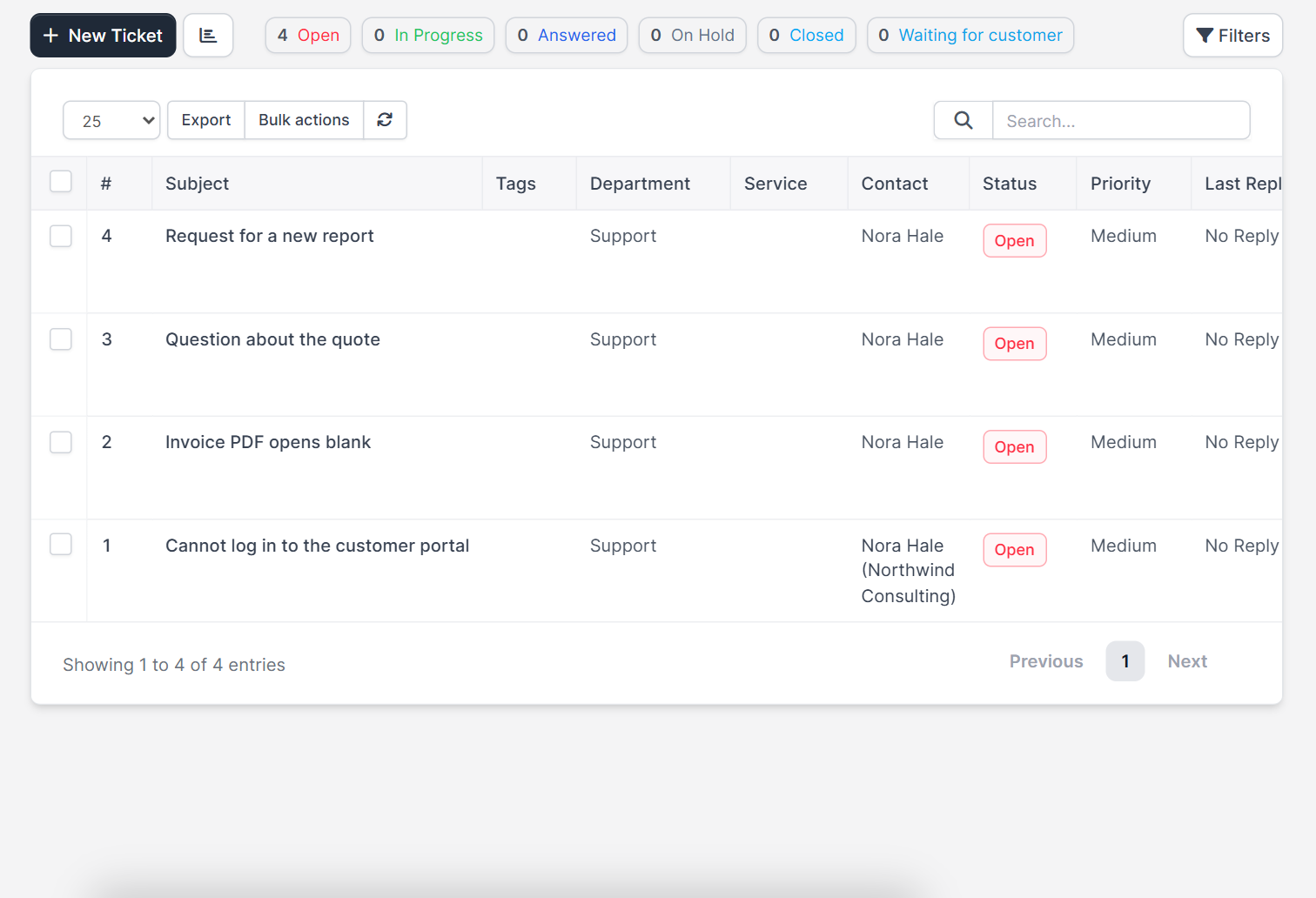
Open Support. Above the table, a row of colored counters shows how many tickets sit in each status, including the status you added. The table below lists the subject, department, contact, status, priority and last reply. Click a counter to see only the tickets with that status.
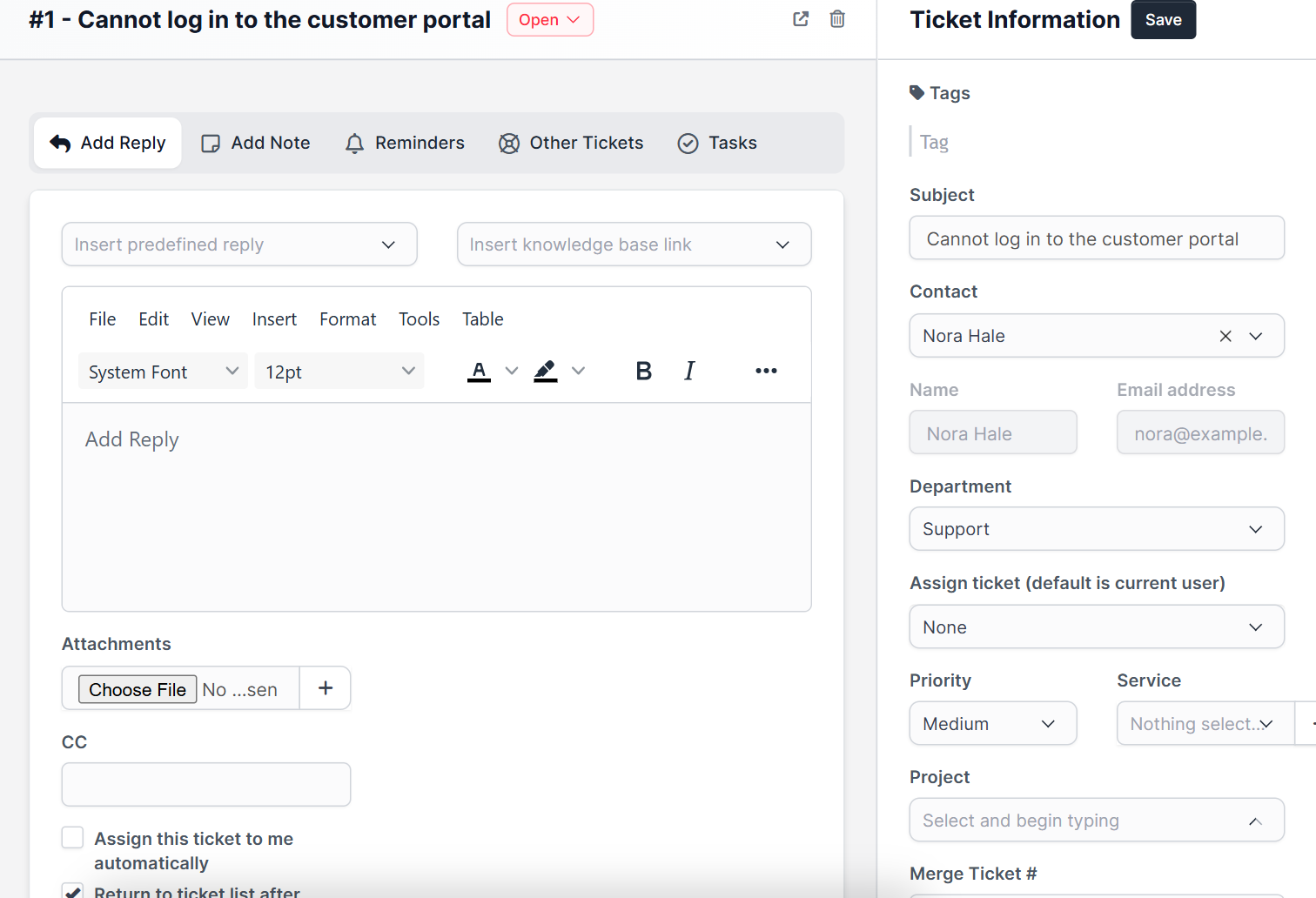
Inside a ticket, the current status is shown next to the title, and the Ticket Status field at the bottom of the reply area lets you change it together with your answer.
Tips for ticket statuses #
- Close tickets that are solved, so the Open counter of your Perfex CRM ticket statuses shows real work only.
- Create an alert for tickets that stay open too long with Workflow Rules, which can react when a ticket is created.
- Answer faster with Perfex CRM predefined replies.
- Send the right people an alert with Perfex CRM ticket notifications.
- Route tickets to the right team with Perfex CRM ticket departments.
For more detail read the official Perfex CRM help. The screenshots come from a demo CRM, and automatic closing of tickets by status was not tested.
Frequently asked questions #
What are the default Perfex CRM ticket statuses? #
Open, In progress, Answered, On Hold and Closed.
Can I add my own ticket status? #
Yes. Open Setup, Support, Ticket Statuses, click New Ticket Status and enter a name, a color and an order.
What is the difference between status and ticket priority? #
The status shows progress, such as Open or Closed. The priority shows urgency, such as Low, Medium or High.
Where do I see how many tickets have each status? #
The ticket list shows a colored counter for every status above the table.


