
- How Perfex CRM email piping works
- What you need before you start
- Step 1: Open the department
- Step 2: Enter the email to ticket configuration
- Step 3: Choose the folder and the delete option
- Step 4: Test the connection
- Step 5: Make sure the cron job runs
- Step 6: Check the email piping settings
- Step 7: Send a test email
- Fix common Perfex CRM email piping problems
- Perfex CRM email piping FAQ
- Modules that work with email piping
- Summary
Perfex CRM email piping turns every email sent to your support address into a ticket and every reply from a customer into a ticket reply. Your team works in one place, customers can keep using email, and nothing is lost in a shared inbox. This guide shows how to set up Perfex CRM email piping with IMAP, which cron job it needs and how to test it safely.
How Perfex CRM email piping works #
For each department you can enter the login of a mailbox. On a schedule, Perfex CRM connects to that mailbox over IMAP, reads new messages and creates tickets from them. A message from an address that belongs to a customer contact is matched with that contact. The department then notifies its staff. Email piping runs from the cron job, so it only works when the cron job runs.
What you need before you start #
- A mailbox on your domain with IMAP enabled, for example
support@your-domain.com. - The IMAP host name, user name and password from your email provider.
- A working Perfex CRM cron job and working SMTP settings, so replies can be sent.
- The PHP IMAP extension on your server. See the Perfex CRM server requirements.
Step 1: Open the department #
Go to Setup > Support > Departments and click the name of the department that should receive the email, for example Support. If you have not created departments yet, read Perfex CRM ticket departments first.
Step 2: Enter the email to ticket configuration #
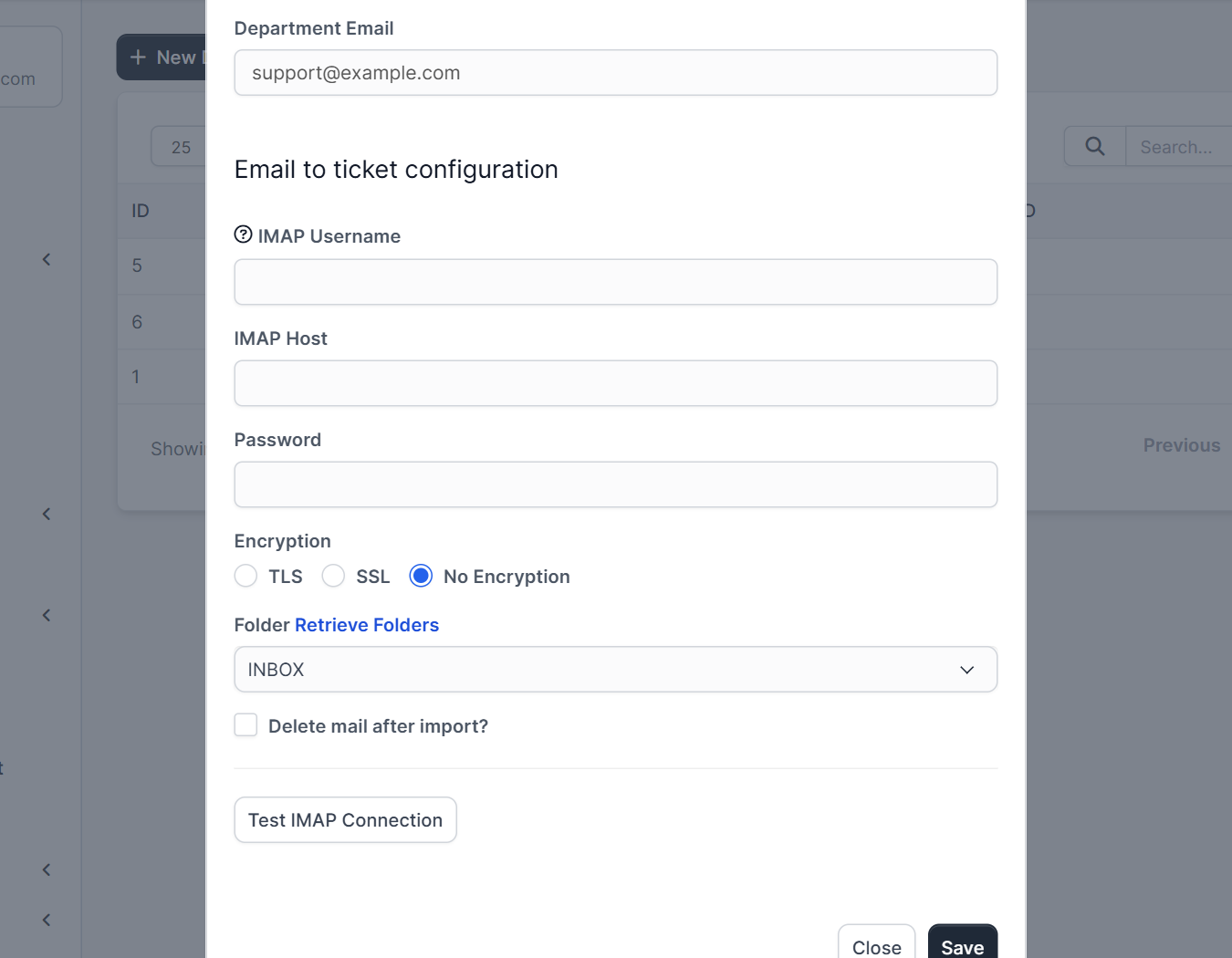
Scroll to Email to ticket configuration and fill in:
- Department Email, the address people write to.
- IMAP Username, usually the full address.
- IMAP Host, for example
mail.your-domain.comor the host of your provider. - Password of the mailbox.
- Encryption: choose TLS or SSL if your provider requires it, or No Encryption for local servers.
Step 3: Choose the folder and the delete option #
Click Retrieve Folders after you entered the login. Perfex CRM lists the folders of the mailbox, and you pick the one to read, normally INBOX. The option Delete mail after import? removes the email from the mailbox once the ticket exists. Leave it off while you test, so you keep a copy.
Step 4: Test the connection #
Click Test IMAP Connection. A success message means that the host, port, login and encryption are right. If the test fails, check the user name, the password and the encryption. Some providers need an app password. Google explains how to turn on IMAP in Gmail. Click Save.
Step 5: Make sure the cron job runs #
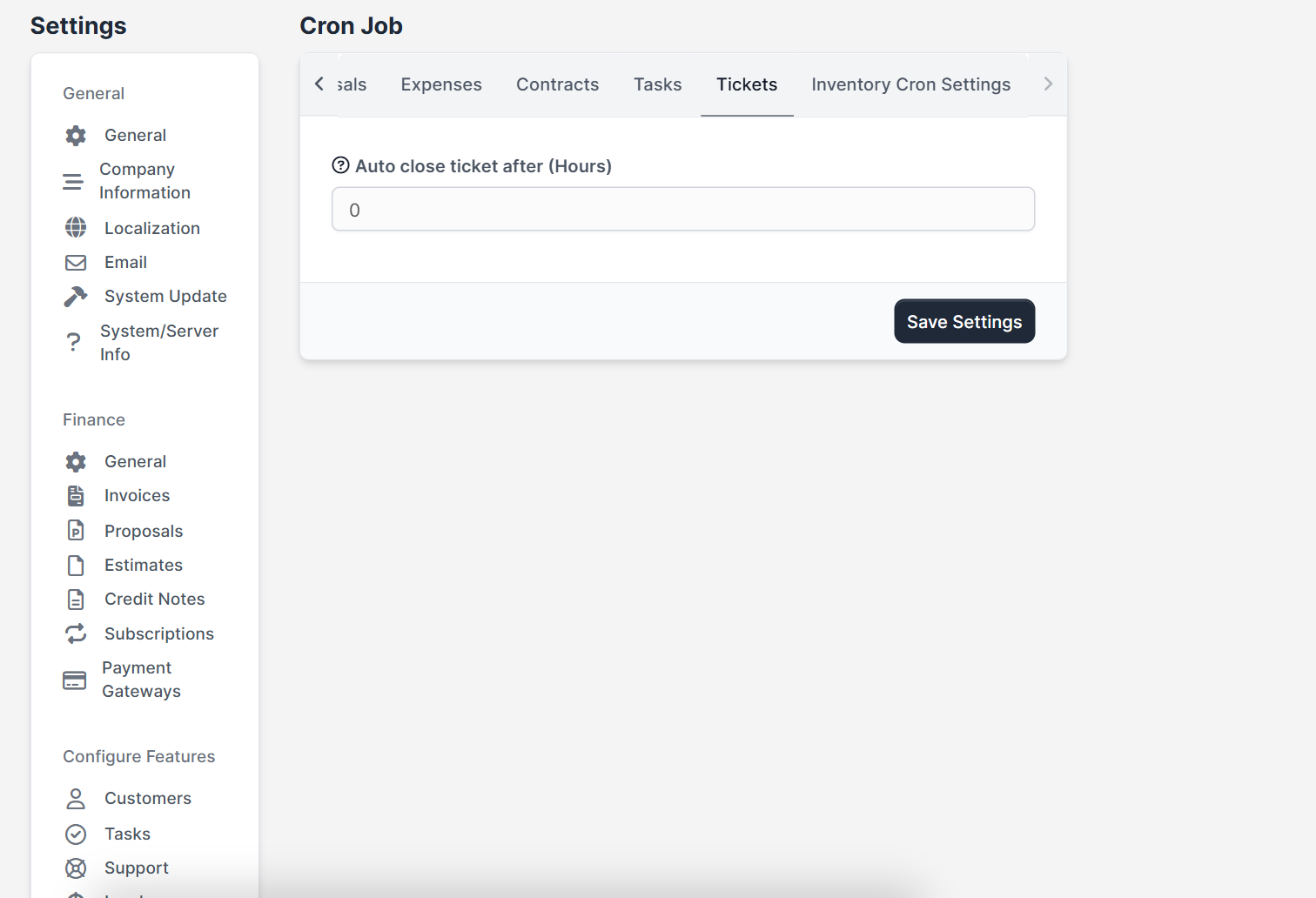
Email piping is processed when the cron job runs, so the delay between an email and its ticket is the time between two cron runs. On the cron screen, the Tickets tab holds the option Auto close ticket after (Hours), which uses the same job. Run the cron job every five minutes, or every minute if answers must be fast.
Step 6: Check the email piping settings #
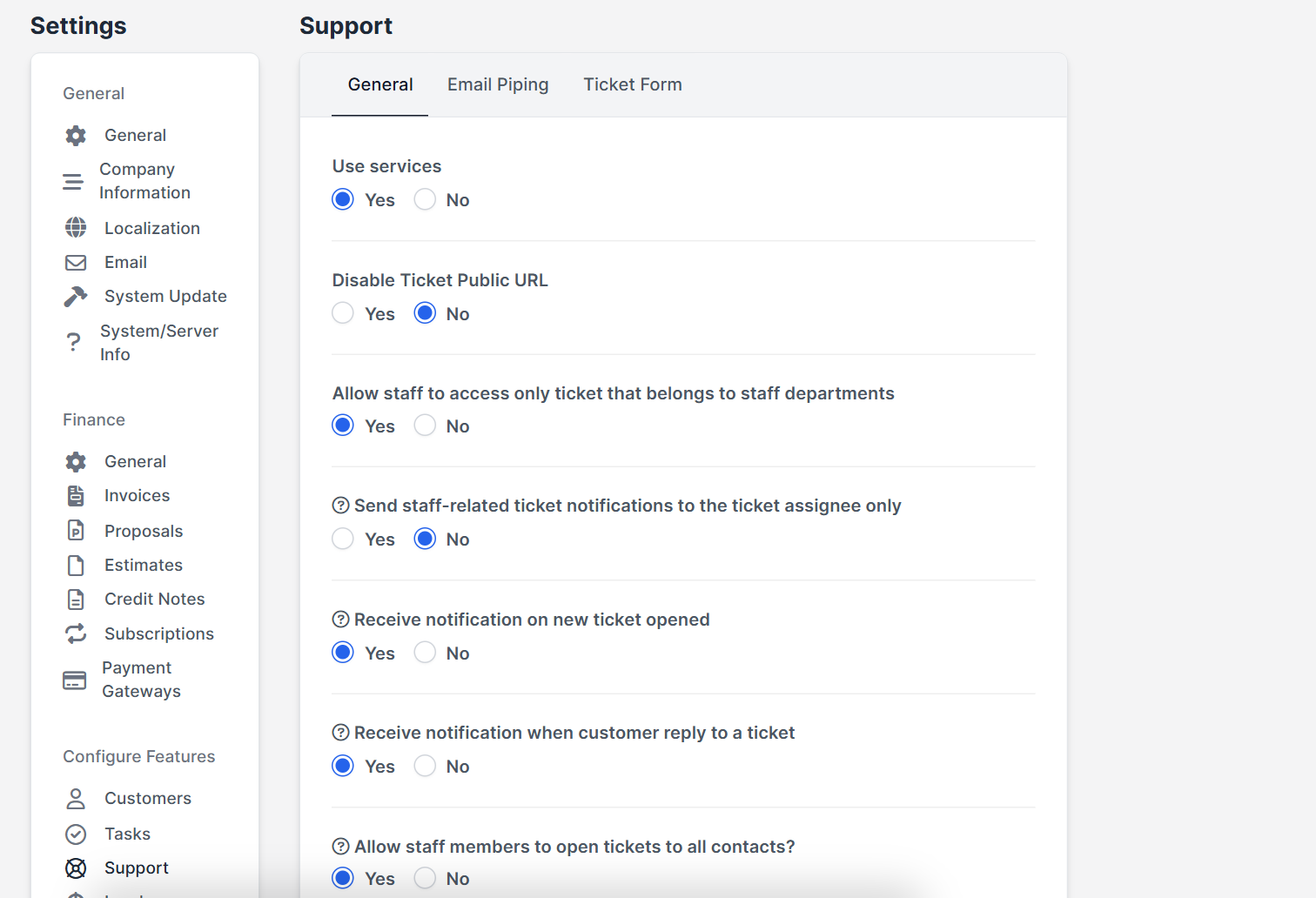
Open Setup > Settings > Support. The page has three tabs: General, Email Piping and Ticket Form. The Email Piping tab holds four rules for imported messages: Pipe Only on Registered Users (emails from unknown senders are ignored), Only Replies Allowed by Email (new tickets must be opened in the system, and email can only answer existing ones), Try to import only the actual ticket reply (without quoted/forwarded message) and Default priority on piped ticket. The General tab controls notifications, for example Receive notification on new ticket opened and Receive notification when customer reply to a ticket.
Step 7: Send a test email #
- From an address that belongs to a customer contact, send an email to the department address.
- Wait for the next cron run, or press Run Cron Manually.
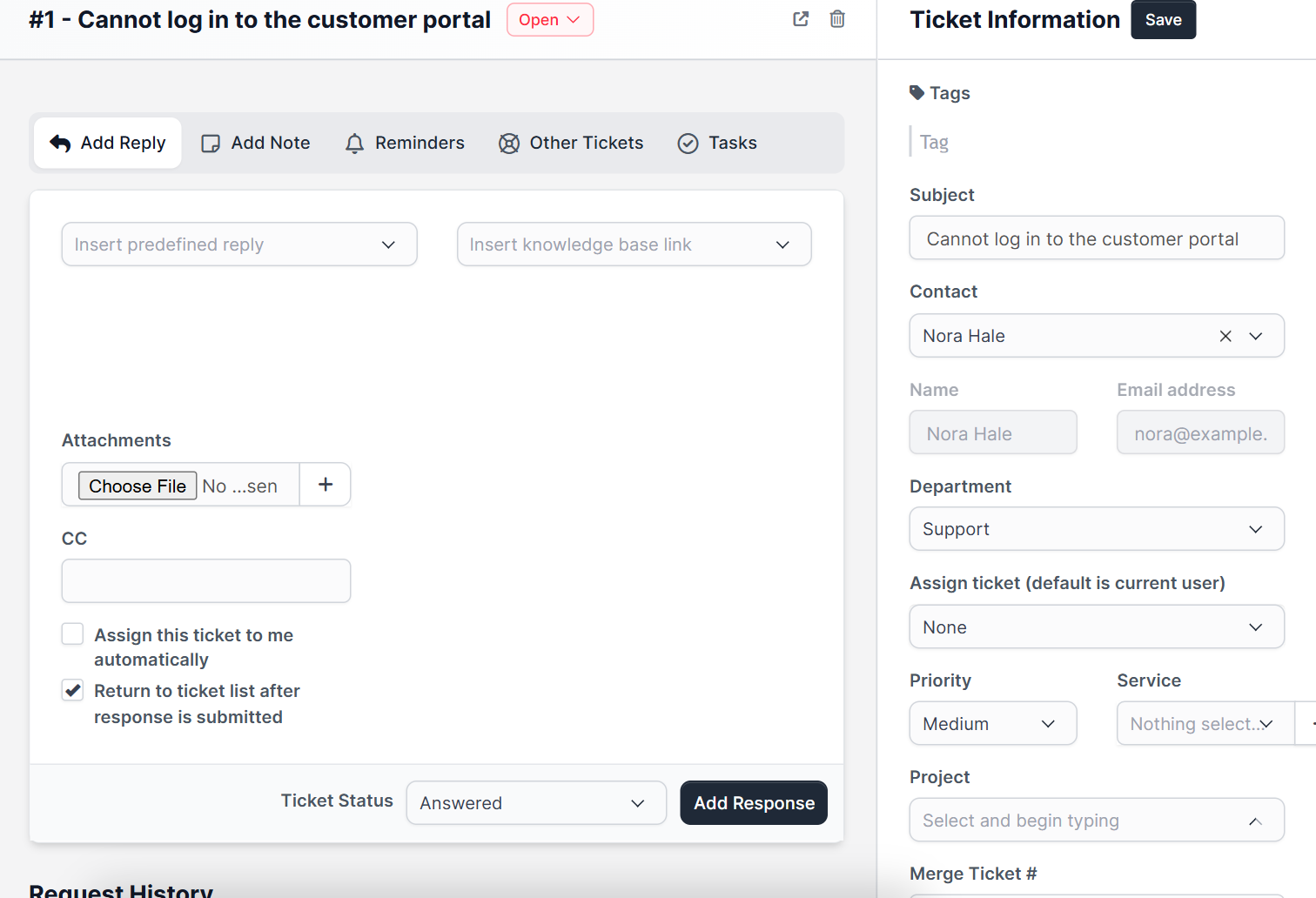
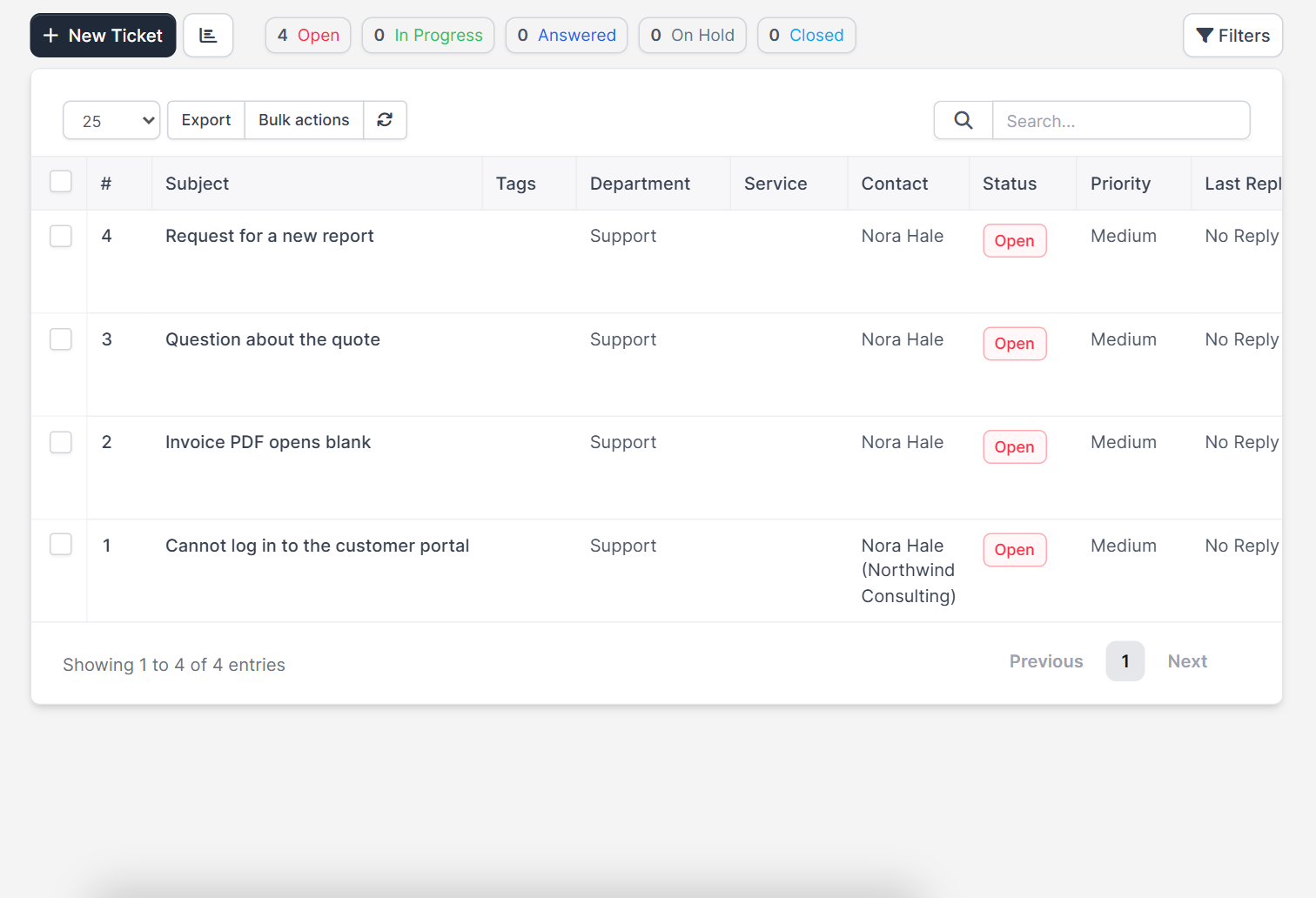
- Open Support > Tickets. The new ticket should appear with the right department, contact and subject.
- Reply from the ticket and check that the customer receives your answer.
Fix common Perfex CRM email piping problems #
- No tickets are created. Test the IMAP connection, check the folder and confirm that the cron job runs.
- Tickets arrive twice. Another tool may also read the mailbox, or the delete option is off and the cron job fails halfway. Use one reader per mailbox.
- Unknown senders create no ticket. This is the effect of Pipe Only on Registered Users. Turn it off if strangers should be able to open tickets by email.
- Replies do not reach the customer. The problem is the outgoing email. Check your SMTP settings and the email queue.
- Attachments are missing. Check the allowed file extensions in the ticket settings.
Perfex CRM email piping FAQ #
Can I use Gmail or Microsoft 365? #
Yes, if IMAP is enabled and you use an app password or the sign-in method your provider requires. Shared hosting mailboxes are the easiest.
Can several departments use one mailbox? #
It is better to use one mailbox per department. Two departments reading one inbox may create duplicate tickets.
Is the email password stored safely? #
It is stored in your database, so protect your backups and use a mailbox that only receives support mail.
How fast are tickets created? #
As fast as your cron job runs. Every five minutes is common.
Modules that work with email piping #
For a full webmail inbox inside your CRM, with convert-to-ticket buttons, see the Mailbox module for Perfex CRM.
Summary #
Perfex CRM email piping needs a mailbox with IMAP, the email to ticket settings in a department, a working cron job and a careful test. Set it up once and your support address becomes a ticket system. If you want more background, visit the official Perfex CRM website and keep your Perfex CRM email piping settings in your documentation.


