
- Why the Perfex CRM timezone matters
- Step 1: Open the localization settings
- Step 2: Choose the default timezone
- Step 3: Choose the date format and time format
- Step 4: Check the server information
- Step 5: Check the cron job and the real results
- Common problems with the Perfex CRM timezone
- Quick checklist for Perfex CRM timezone
- Perfex CRM timezone FAQ
- Summary
An invoice dated yesterday, a reminder that arrives at 3 a.m. or an activity log that is hours off: these are signs of a wrong Perfex CRM timezone. The fix takes a minute, but you need to know which settings matter. This guide was tested on Perfex CRM 3.4.1 and shows how to set the timezone, the date format and the time format, and how to check the result.
Why the Perfex CRM timezone matters #
Dates and times are used in invoices, due dates, task deadlines, reminders, the calendar, the activity log and the cron job. If the timezone is wrong, a due date can move by one day, and reminders go out at the wrong hour. The setting is global for the system, so set it once for your main office.
Step 1: Open the localization settings #
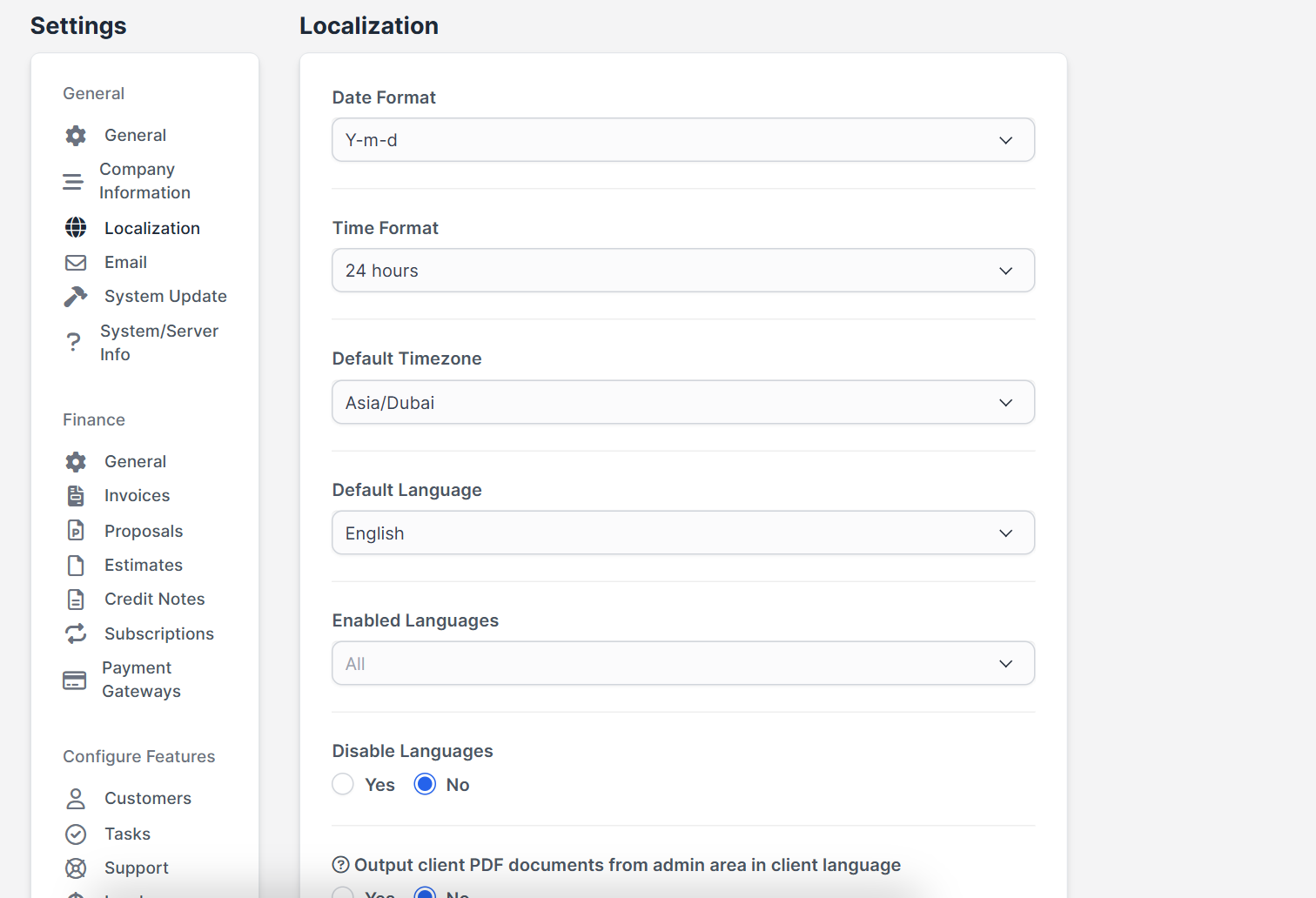
Open Setup > Settings > Localization. The page has the fields Date Format, Time Format, Default Timezone, Default Language, Enabled Languages, Disable Languages and a switch to output client PDF documents in the client’s language.
Step 2: Choose the default timezone #
Select the timezone of your office in Default Timezone, for example by city, such as Asia/Dubai, Europe/London or America/New_York. Use a city name, not only an offset, so daylight saving time is handled for you. Click Save Settings.
Step 3: Choose the date format and time format #
The date format decides how dates are written, such as Y-m-d (2026-10-26) or d/m/Y. The Time Format offers a 24 hour clock or a 12 hour clock. Pick what your team and customers expect, because customers see this on invoices. For other languages see Perfex CRM language settings.
Step 4: Check the server information #
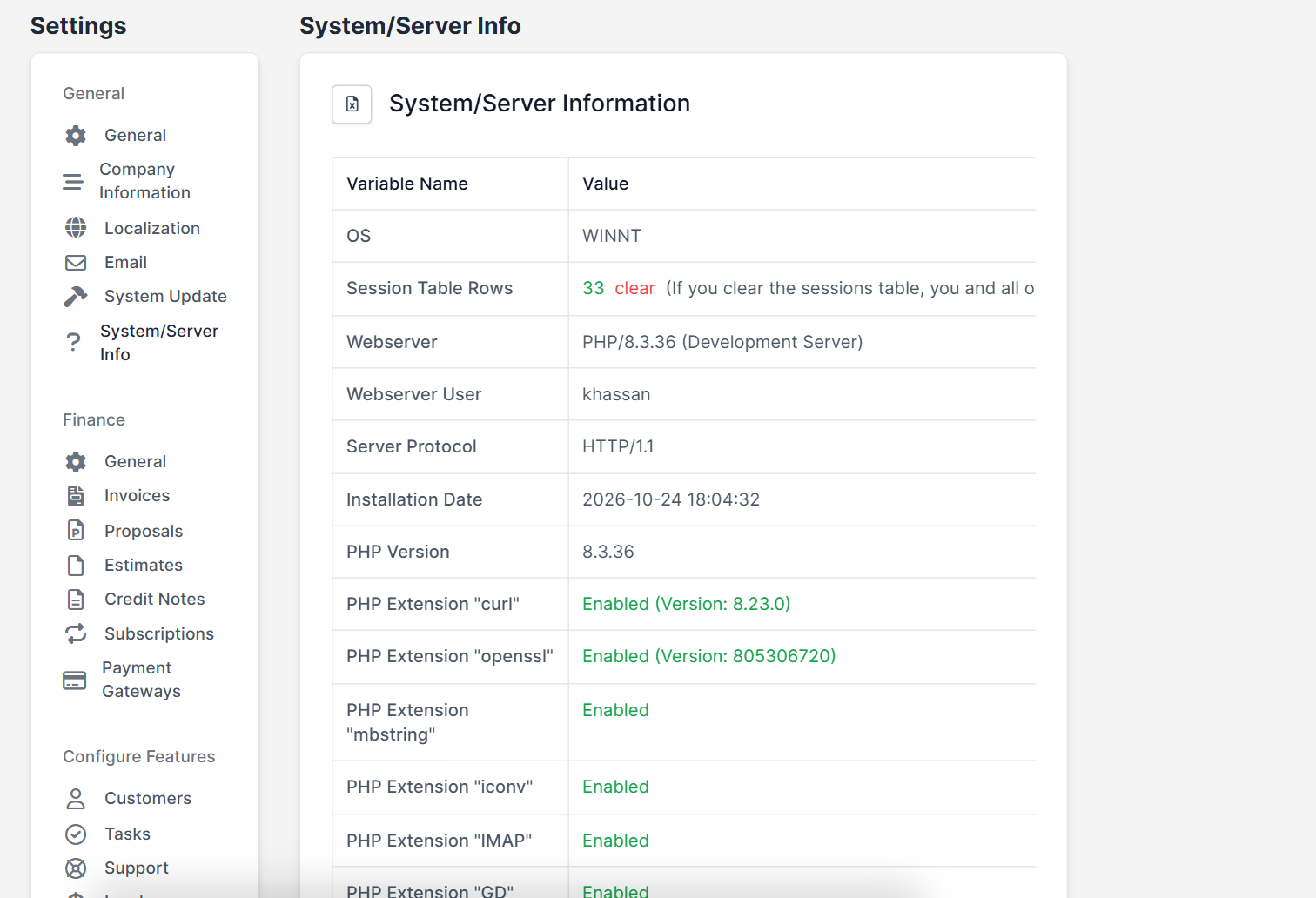
Open Setup > Settings > System/Server Info. It shows the installation date and the version of PHP and the web server. If your server has another timezone, the setting in Perfex CRM still decides how the system shows dates, but check with your host if values do not match.
Step 5: Check the cron job and the real results #
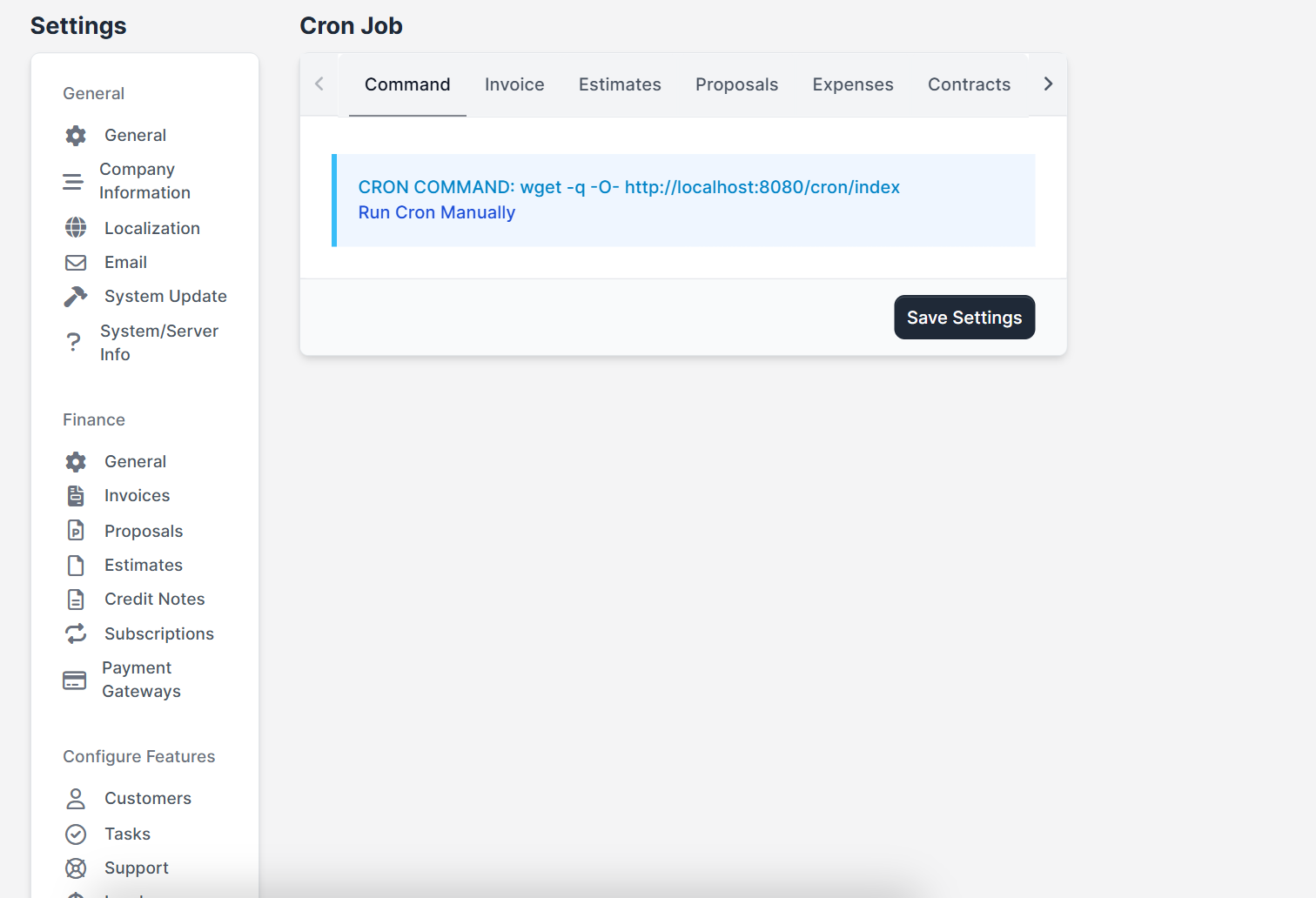
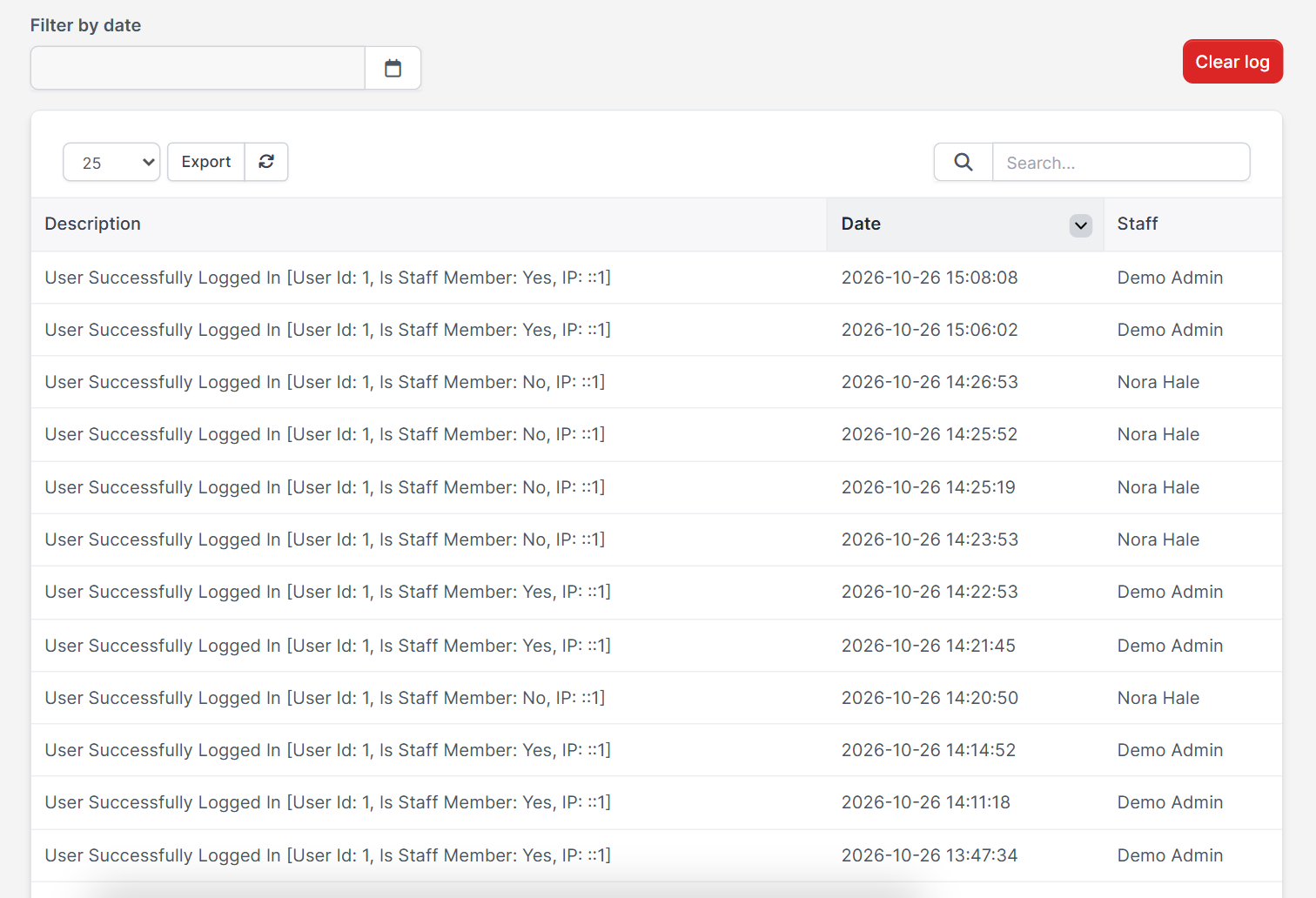
The cron job runs reminders and recurring invoices at a set hour. In Cron Job settings you choose the hour of day for automatic operations, and that hour uses your timezone. See Perfex CRM cron job. Then create a test task and look at its dates, and open the activity log to compare the time of your last actions with your clock.
Common problems with the Perfex CRM timezone #
- Recurring invoices are created a day late: check the timezone and the hour set for automatic operations. See Perfex CRM recurring invoices.
- The activity log is hours off: the timezone is still the default one. Save a city again.
- Customers see odd dates: change the date format, because it is shared with the customer area.
- Nothing changes: clear your browser cache and any page cache plugin.
Quick checklist for Perfex CRM timezone #
- Set the Perfex CRM timezone before you enter real data.
- Use a city, not a fixed offset.
- Check the date format on a PDF invoice.
- Check the time of the first reminder after a change.
Perfex CRM timezone FAQ #
How do I change the timezone in Perfex CRM? #
Open Setup, Settings, Localization, choose a Default Timezone and save.
Can each staff member have a different timezone? #
The timezone is a system setting, so everyone sees the same one.
Does the timezone change old records? #
The setting does not edit existing records. Check a few old records after the change.
How do I change the date format? #
Use the Date Format field on the same page and save. The change applies to the staff area and the customer area.
Summary #
To fix the Perfex CRM timezone, open the localization settings, choose your city as default timezone, pick a date format and time format and test with a task and the activity log. More information is on the official Perfex CRM website. A correct Perfex CRM timezone keeps invoices, reminders and reports on the right day.


