
- Where to find Perfex CRM customer contacts
- Step 1: Click New Contact
- Step 2: Choose the contact options
- Step 3: Set permissions
- Step 4: Choose email notifications
- Step 5: Save and test the sign-in
- Step 6: Review customer admins and defaults
- Best practices for Perfex CRM customer contacts
- Perfex CRM customer contacts FAQ
- Modules that work with contacts
- Summary
Perfex CRM customer contacts are the people at a customer who receive invoices, open tickets and sign in to the customer area. One company can have many contacts with different permissions: the owner sees everything, the accountant only sees invoices, and a project manager sees projects and tasks. This guide shows how to add and manage Perfex CRM customer contacts, how permissions work and which emails each person receives.
Where to find Perfex CRM customer contacts #
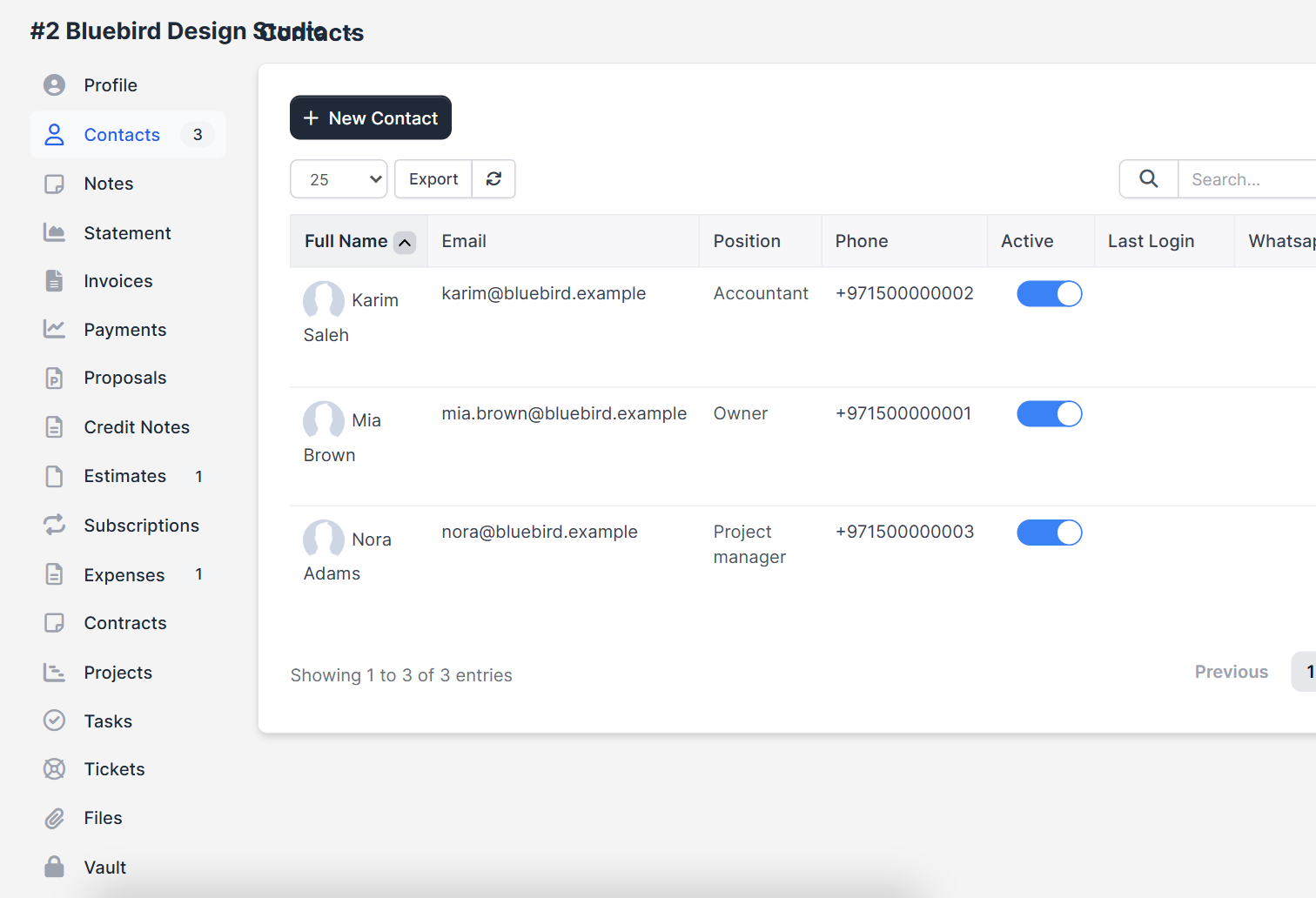
Open Customers, click the company, and choose Contacts in the side menu. The table shows each contact’s Full Name, Email, Position, Phone, an Active switch, Last Login and, if you use the WhatsApp module, a Whatsapp Enable column. The first contact you create becomes the primary contact.
Step 1: Click New Contact #
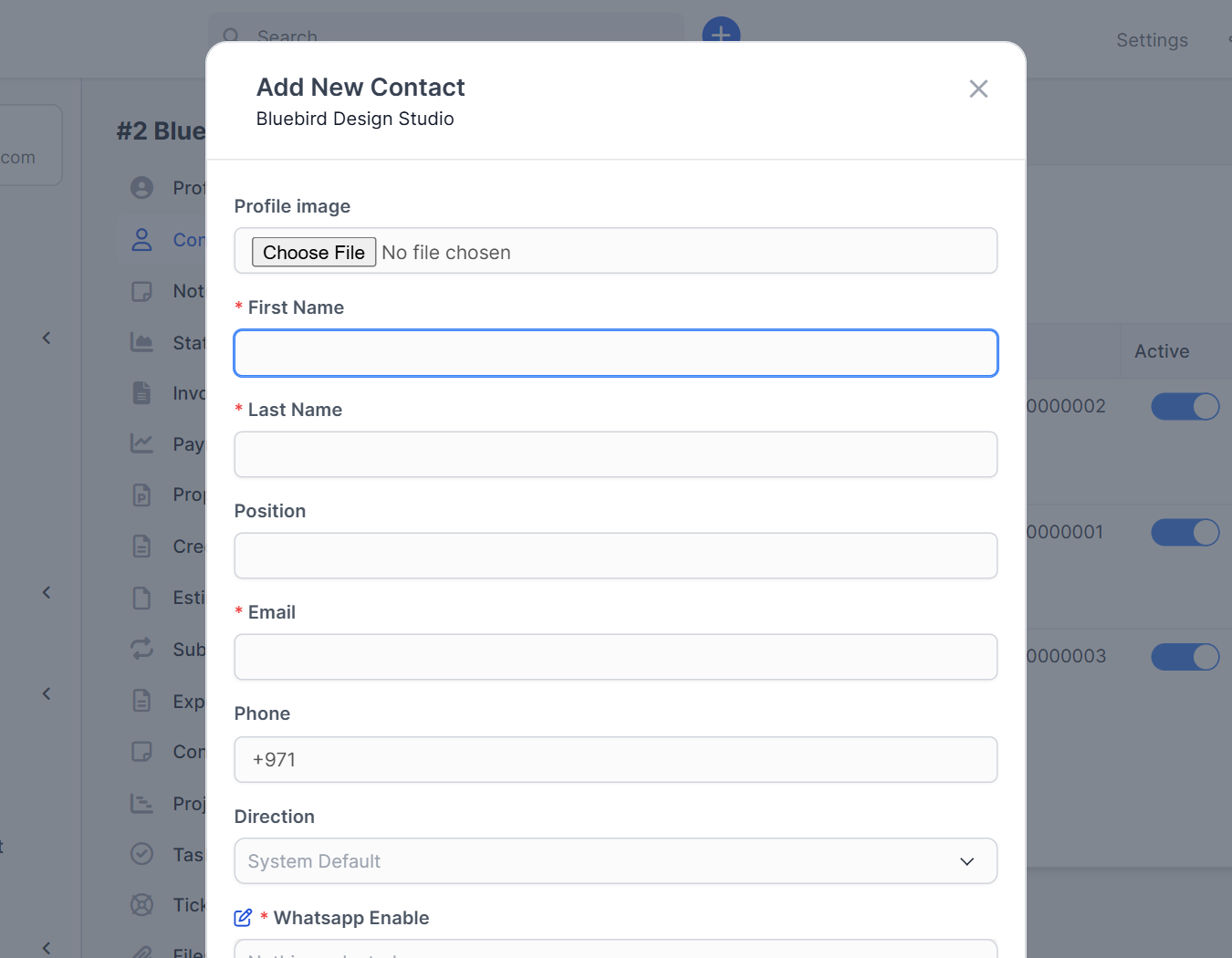
Click New Contact. The form Add New Contact opens with the company name under the title. Fill in:
- Profile Image, optional.
- First Name, Last Name and Email, all required. The email is also the sign-in name.
- Position, for example Accountant.
- Phone and Direction (left to right or right to left).
Step 2: Choose the contact options #
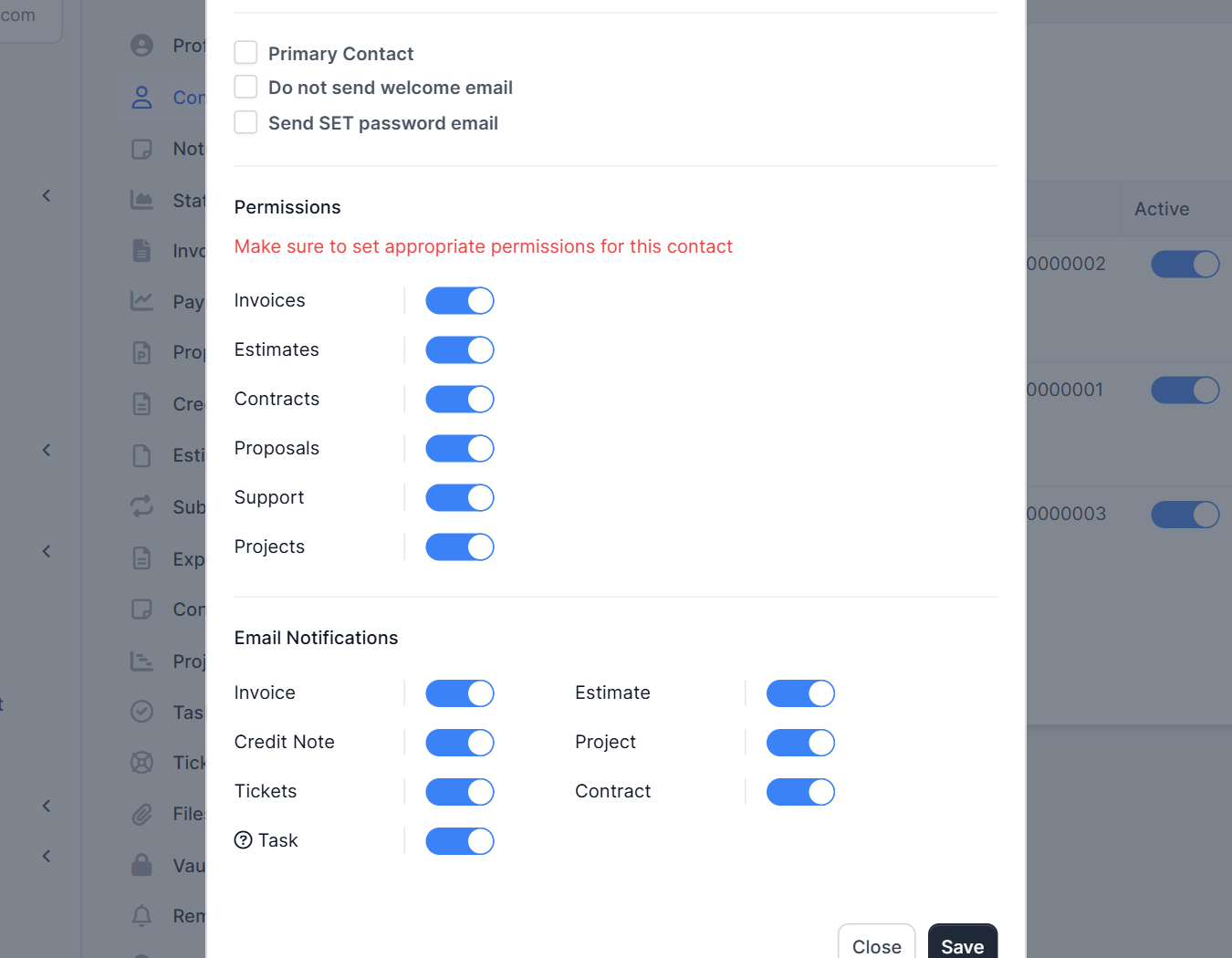
Below the password area you find three switches: Primary Contact, Do not send welcome email and Send SET password email. Use the last one when you want the person to choose their own password. The primary contact is the main person for the customer, and invoices and statements go to them first.
Step 3: Set permissions #
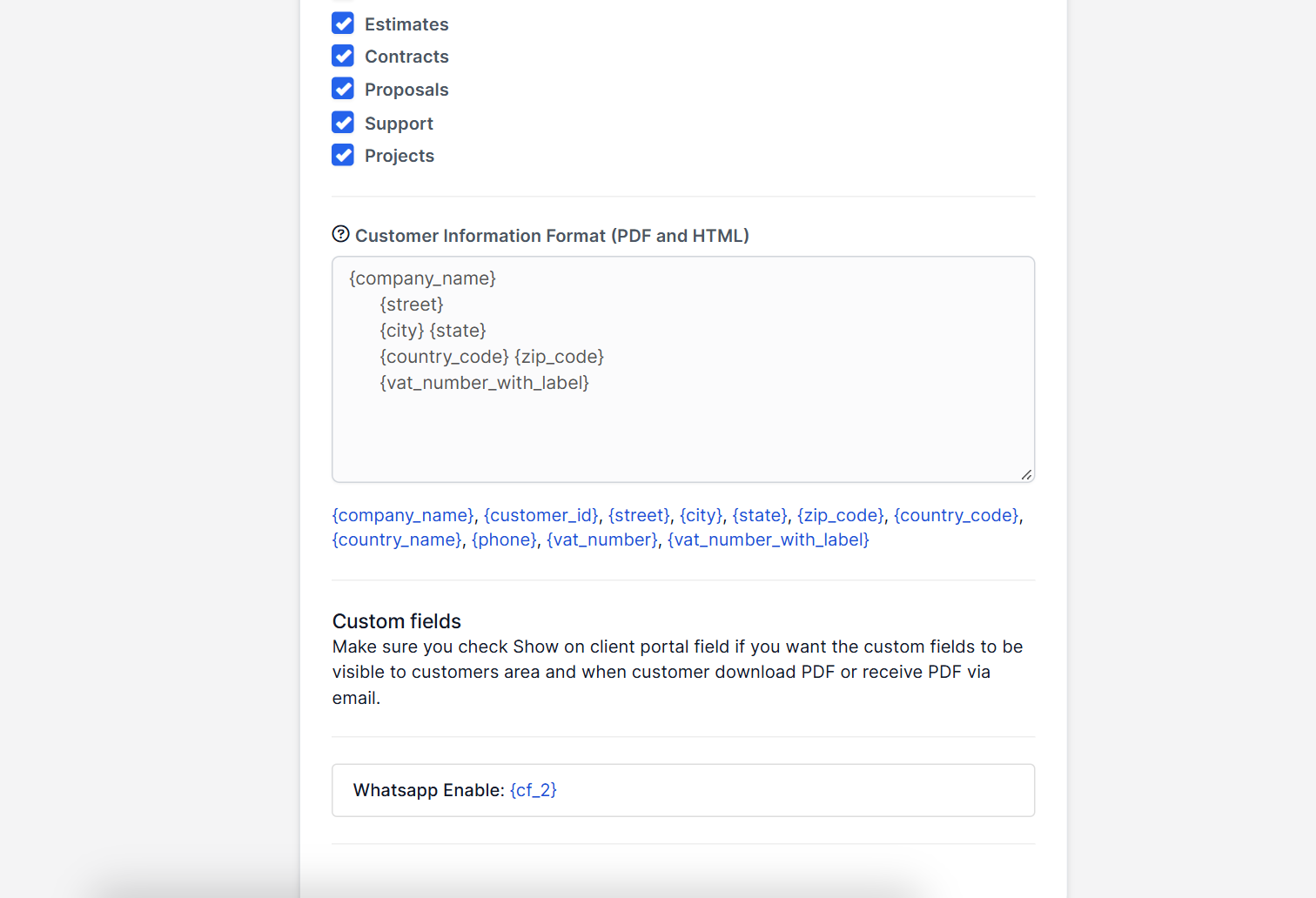
The section Permissions reminds you to make sure the permissions are right for this contact. Switch on the areas this person may use in the customer area: Invoices, Estimates, Contracts, Proposals, Support and Projects. A contact without the Support permission cannot open tickets, so check this before you tell a customer that they can contact you through the portal. Departments follow the same rule, see Perfex CRM ticket departments.
Step 4: Choose email notifications #
Under Email Notifications pick the messages this contact receives: Invoice, Estimate, Credit Note, Project, Tickets, Contract and Task. Send invoice emails to the accountant and project emails to the project manager, and nobody gets messages they do not need. The text of those messages comes from your Perfex CRM email templates.
Step 5: Save and test the sign-in #
Click Save. If you did not turn off the welcome email, the person receives a message with their access. Check your SMTP settings first, or the email will not leave your server. Ask the contact to sign in once and confirm that they see only what you intended.
Step 6: Review customer admins and defaults #
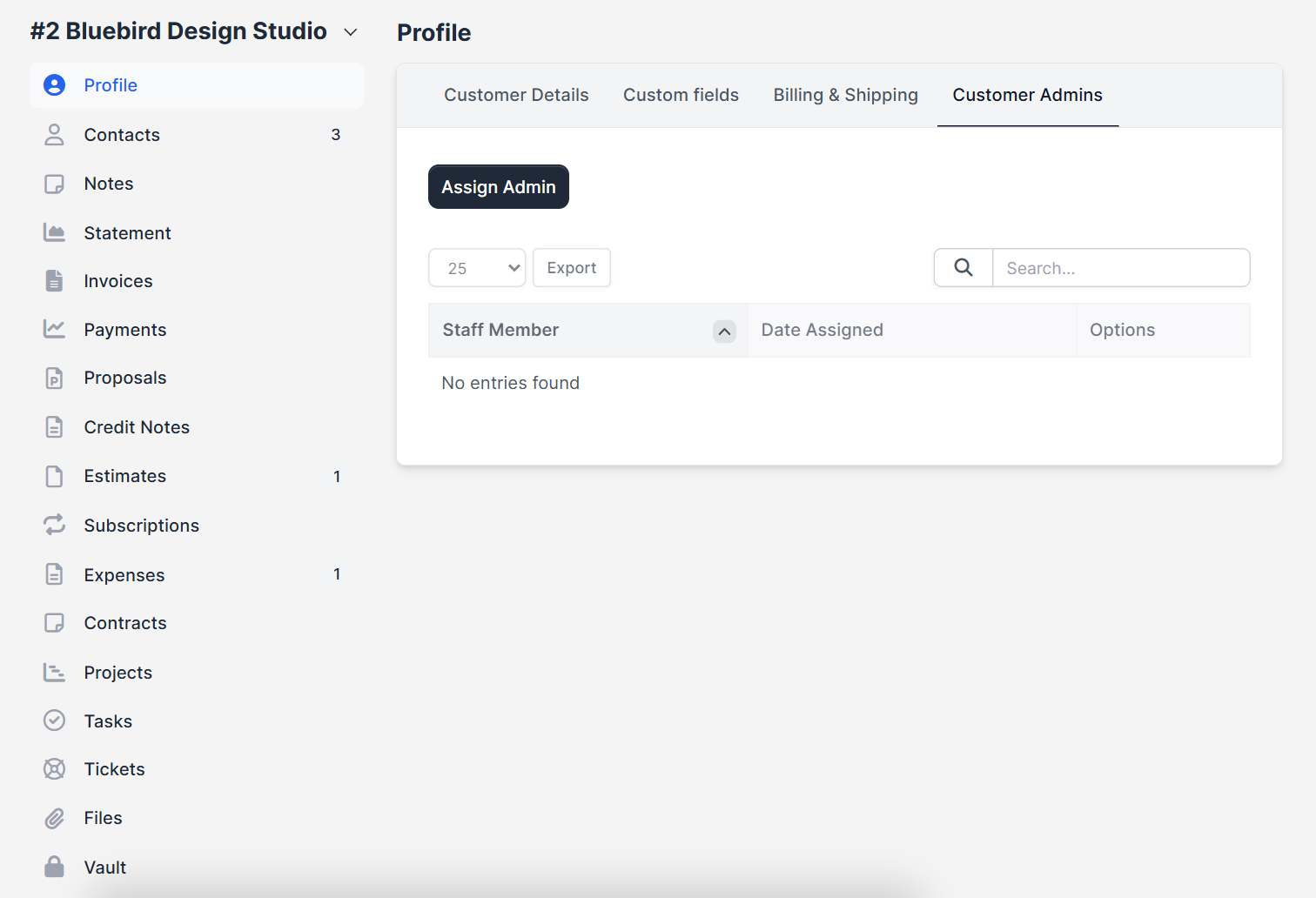
Customer contacts belong to the customer. Your own staff are linked through the Customer Admins tab of the profile, where Assign Admin adds a staff member and the table shows Staff Member and Date Assigned.
The default permissions for new contacts are set once under Setup > Settings > Customers, in Default contact permissions. The same page has Allow primary contact to manage other customer contacts, which lets the customer add their own colleagues.
Best practices for Perfex CRM customer contacts #
- Use one named contact per person. Do not share one login between several people.
- Use a role-based address, such as billing@, only for invoices, and personal addresses for people.
- Switch a contact to inactive instead of deleting it when someone leaves.
- Review permissions every quarter.
- Keep one primary contact per customer.
Perfex CRM customer contacts FAQ #
Can two customers share one contact? #
No. A contact belongs to one customer. Create a second contact with another email address if the person works for two companies.
Why does a contact not receive emails? #
Check the notification switches, the email address and your email settings. See the Perfex CRM email queue if messages are waiting.
Can a contact reset their password? #
Yes, with the forgot password link on the customer sign-in page, or you can send a new set-password email.
How many contacts can a customer have? #
There is no fixed limit.
Modules that work with contacts #
Add WhatsApp messaging for contacts with the WhatsApp integration for Perfex CRM, and let customers chat with your team through the Perfex CRM Chat Module.
Summary #
Well managed Perfex CRM customer contacts mean the right person gets the right email and sees the right data. Add each contact with a clear position, set permissions and notifications, and test the sign-in. Learn more at the official Perfex CRM website, and keep your Perfex CRM customer contacts reviewed as customers grow. If you have not added the company yet, start with Perfex CRM new customer. Review your Perfex CRM customer contacts every few months: remove people who left, check the permissions and confirm who receives each email. Clear rules for Perfex CRM customer contacts mean customers see only what they should, and your team always knows who to write to.


