
- How payment modes and gateways differ
- Fix 1: Check Allowed payment modes on the invoice
- Fix 2: Switch the gateway on
- Fix 3: Check the gateway currency
- Fix 4: Check the invoice status
- Fix 5: Use the default selection
- Fix 6: Check what the customer can see
- Quick test when payment methods are not showing
- Perfex CRM payment methods not showing FAQ
- Quick checklist: Perfex CRM payment methods not showing
- Summary
Your customer opens an invoice and cannot find a way to pay. This is the classic Perfex CRM payment methods not showing problem. It nearly always comes from one of six settings: the payment modes allowed on the invoice, the gateway being switched on, the currency, the invoice status, the gateway keys or the customer’s contact permissions. This guide was tested on Perfex CRM 3.4.1 and shows where to look.
How payment modes and gateways differ #
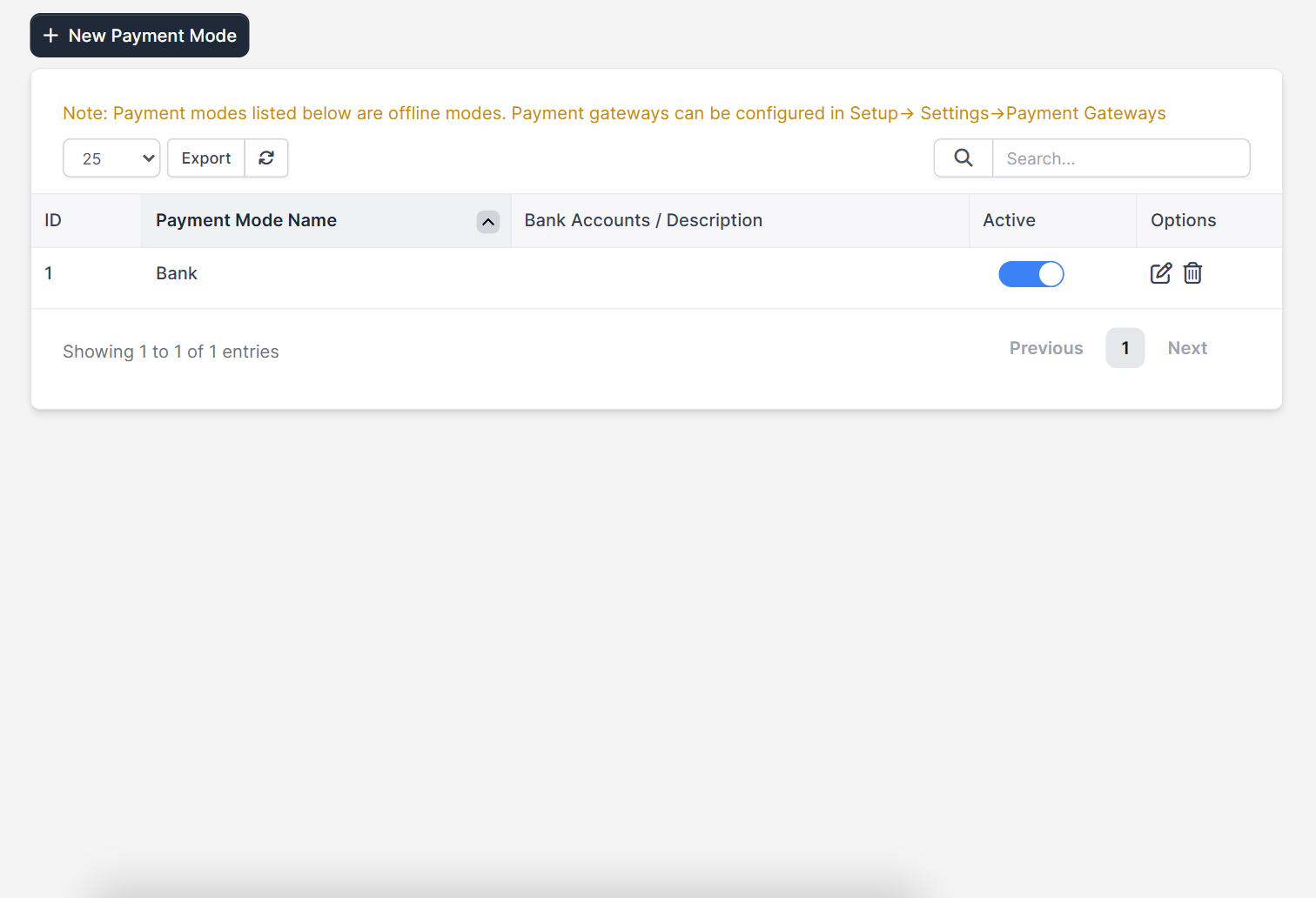
Perfex CRM has two kinds of payment methods. Offline payment modes, such as a bank transfer, are created under the payment modes page. Online payment gateways, such as Stripe or PayPal, are configured under Setup > Settings > Payment Gateways. The page for offline modes even carries a note saying that gateways are set up in the settings, which is a common source of confusion. See Perfex CRM payment modes and Perfex CRM payment gateways.
Fix 1: Check Allowed payment modes on the invoice #
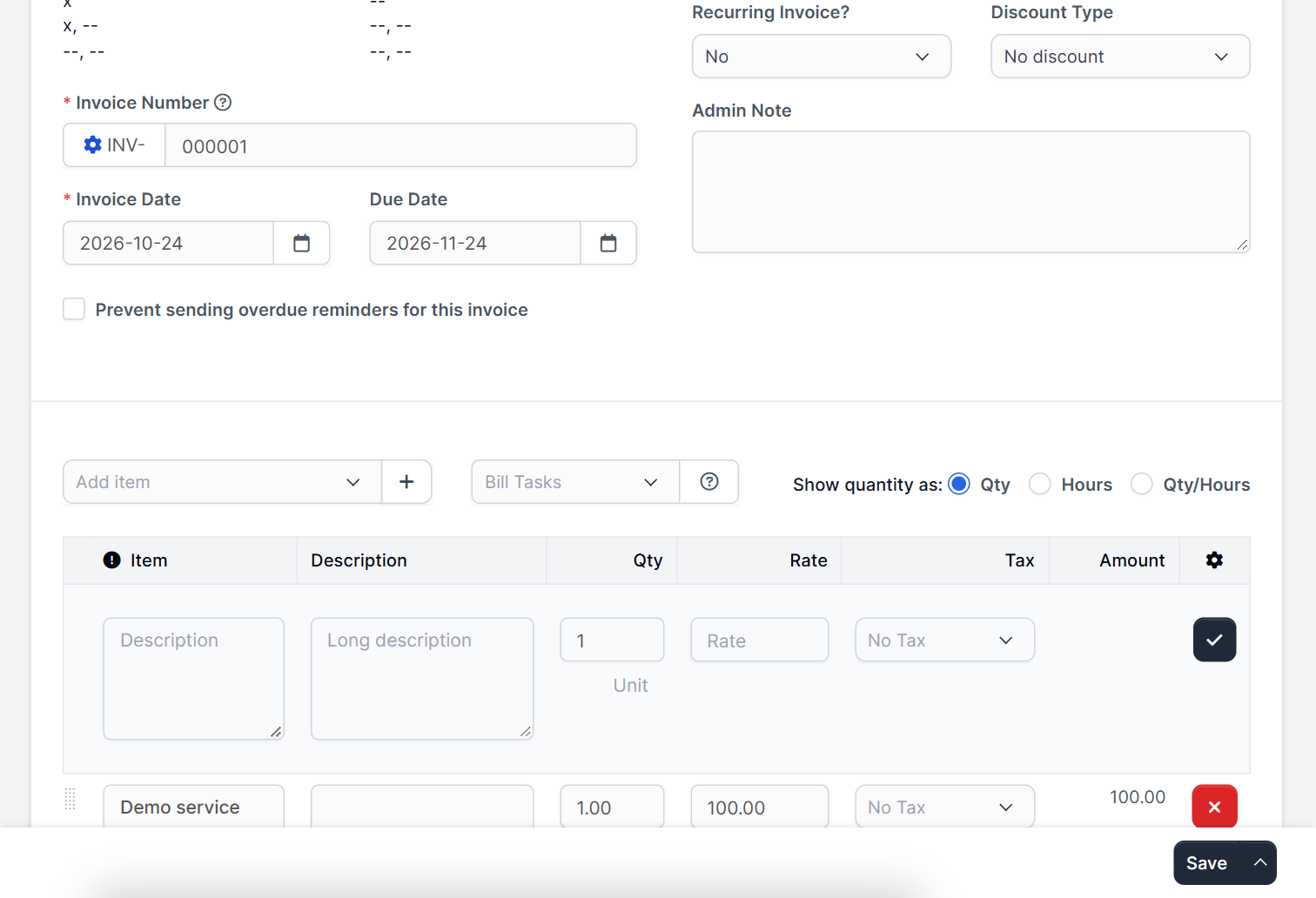
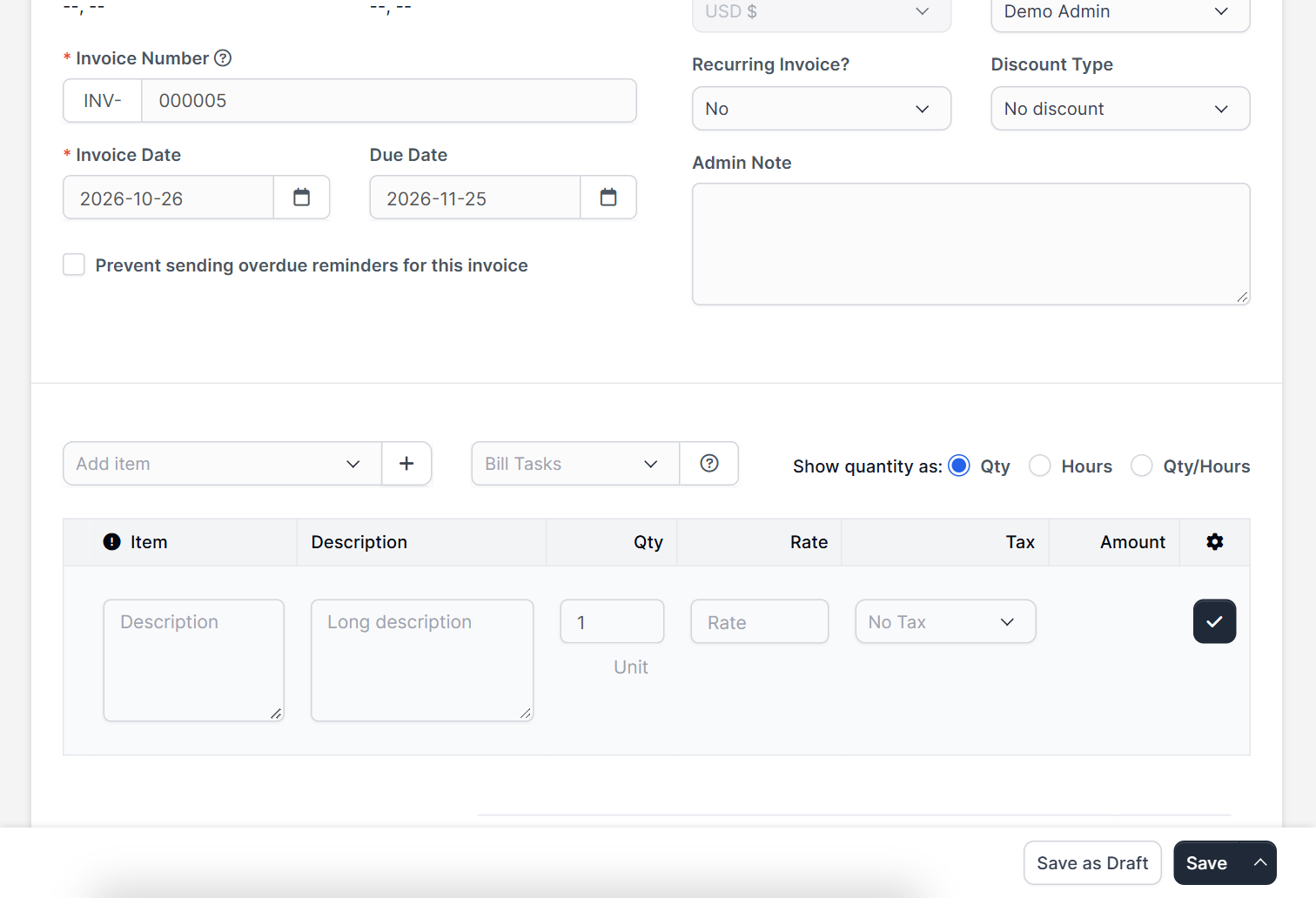
Open the invoice in edit mode and find Allowed payment modes for this invoice. Only the modes selected here appear to the customer. If the field is empty, the customer sees no method. Select the right modes and save. For new invoices, choose them while you create the invoice, see how to create an invoice.
Fix 2: Switch the gateway on #
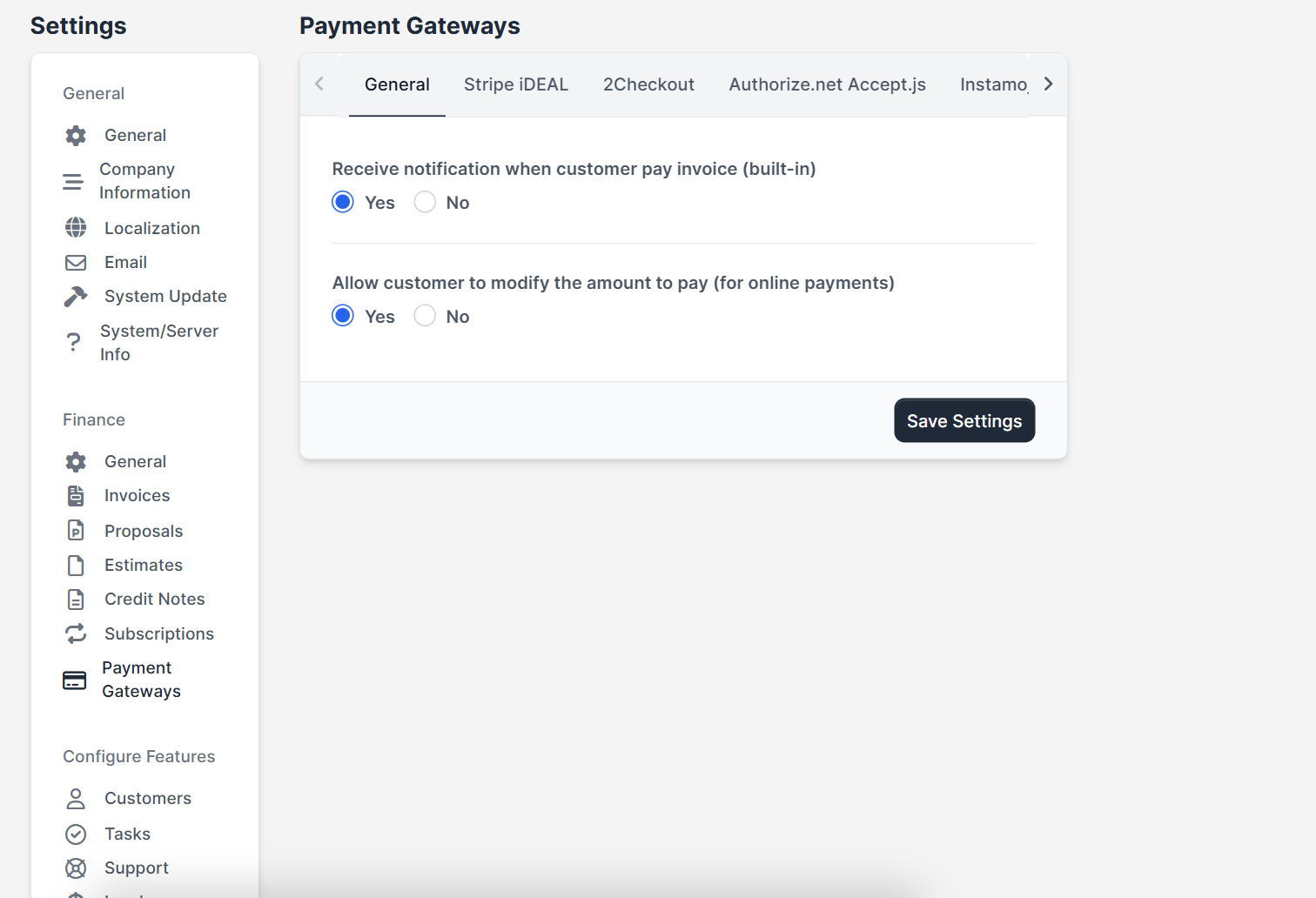
Open Payment Gateways in the settings. Each gateway has its own tab and an Active switch. A gateway that is not active never appears. Keys that are missing or wrong can also hide it or make it fail, so enter the keys exactly as your provider shows them, and test with a small amount.
Fix 3: Check the gateway currency #
Gateways accept only some currencies. Some have a Currencies field, where you list the codes, separated by commas. If the invoice currency is not in the list, the gateway is hidden for that invoice. See Perfex CRM currencies.
Fix 4: Check the invoice status #
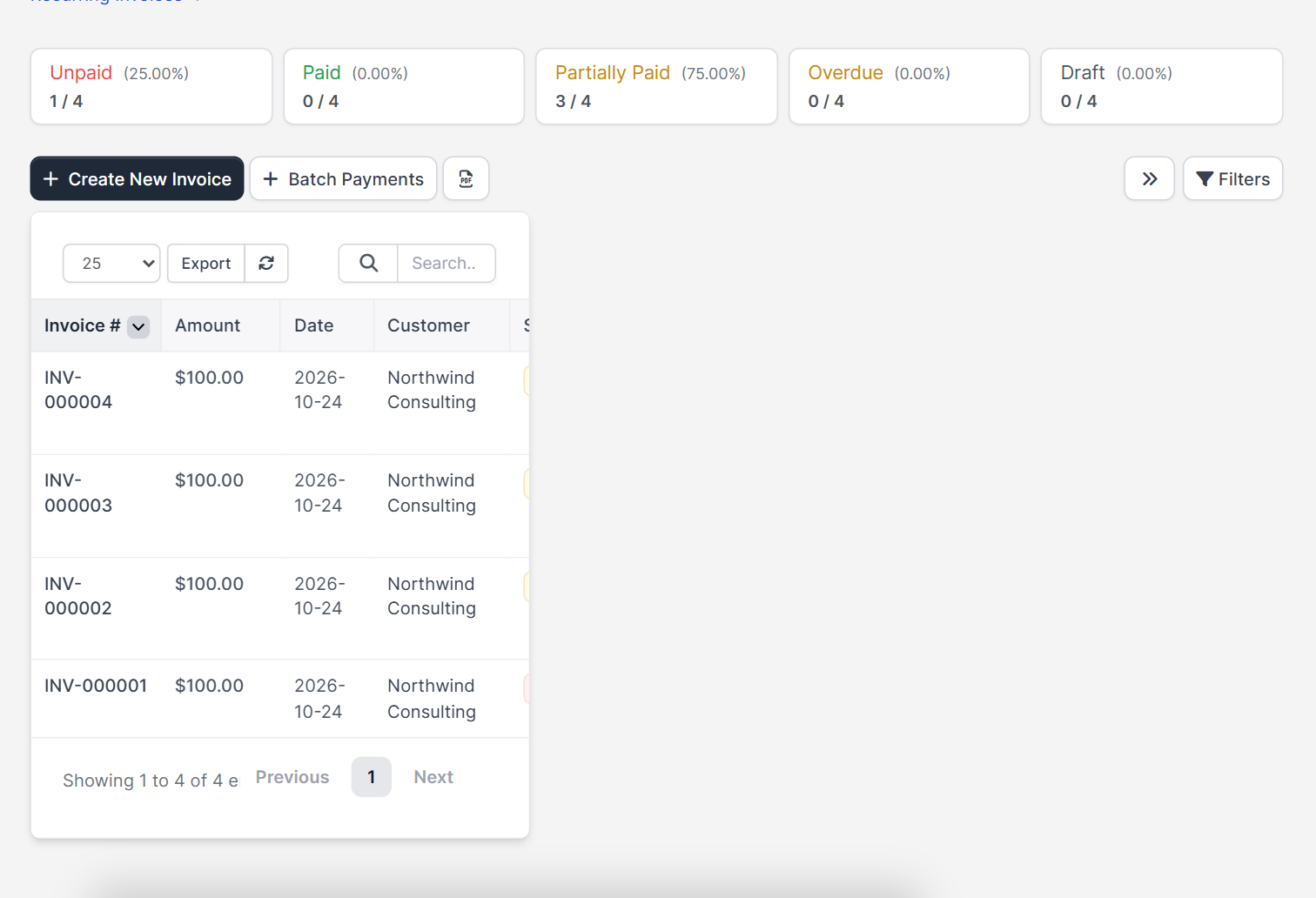
A paid or cancelled invoice has nothing left to pay, and a draft is not visible to customers. Check the status in the invoices list. If the invoice is a draft, mark it as sent when it is ready.
Fix 5: Use the default selection #
Each gateway has a switch Selected by default on invoice. Turn it on for the method you want most customers to use, so every new invoice has it selected from the start.
Fix 6: Check what the customer can see #
The customer needs permission for invoices in the customer area. Open the contact and check its permissions. See Perfex CRM customer contacts and Perfex CRM customer portal.
Quick test when payment methods are not showing #
- Create a test invoice for yourself.
- Select every payment mode you offer.
- Open the public link in a private window.
- Confirm that each method appears.
- Pay a small amount if the gateway has a test mode.
Perfex CRM payment methods not showing FAQ #
Why does my customer not see the Stripe or PayPal option? #
The gateway must be active, the invoice must allow it and its currency must match. Check all three.
Why is a payment gateway not showing on only one invoice? #
That invoice probably has different allowed payment modes or another currency than the others.
Can I show the bank details on the invoice? #
Yes. Add the bank details in the description of the offline payment mode and allow it on the invoice.
Do I need a payment gateway at all? #
No. You can accept offline payments and record them yourself.
Quick checklist: Perfex CRM payment methods not showing #
- Open the public link of a test invoice whenever Perfex CRM payment methods not showing is reported.
- Check allowed modes first, then the gateway.
- Write down which payment modes you offer, so Perfex CRM payment methods not showing is easy to compare with your plan.
- If Perfex CRM payment methods not showing happens only for one customer, check that contact’s permissions.
Summary #
When Perfex CRM payment methods are not showing, check the allowed modes on the invoice, the Active switch of the gateway, the currency, the invoice status and the customer’s permissions. Fix them in that order and test with a private window. More background is on the official Perfex CRM website. With the right setup, Perfex CRM payment methods not showing becomes a problem you solve in minutes.


