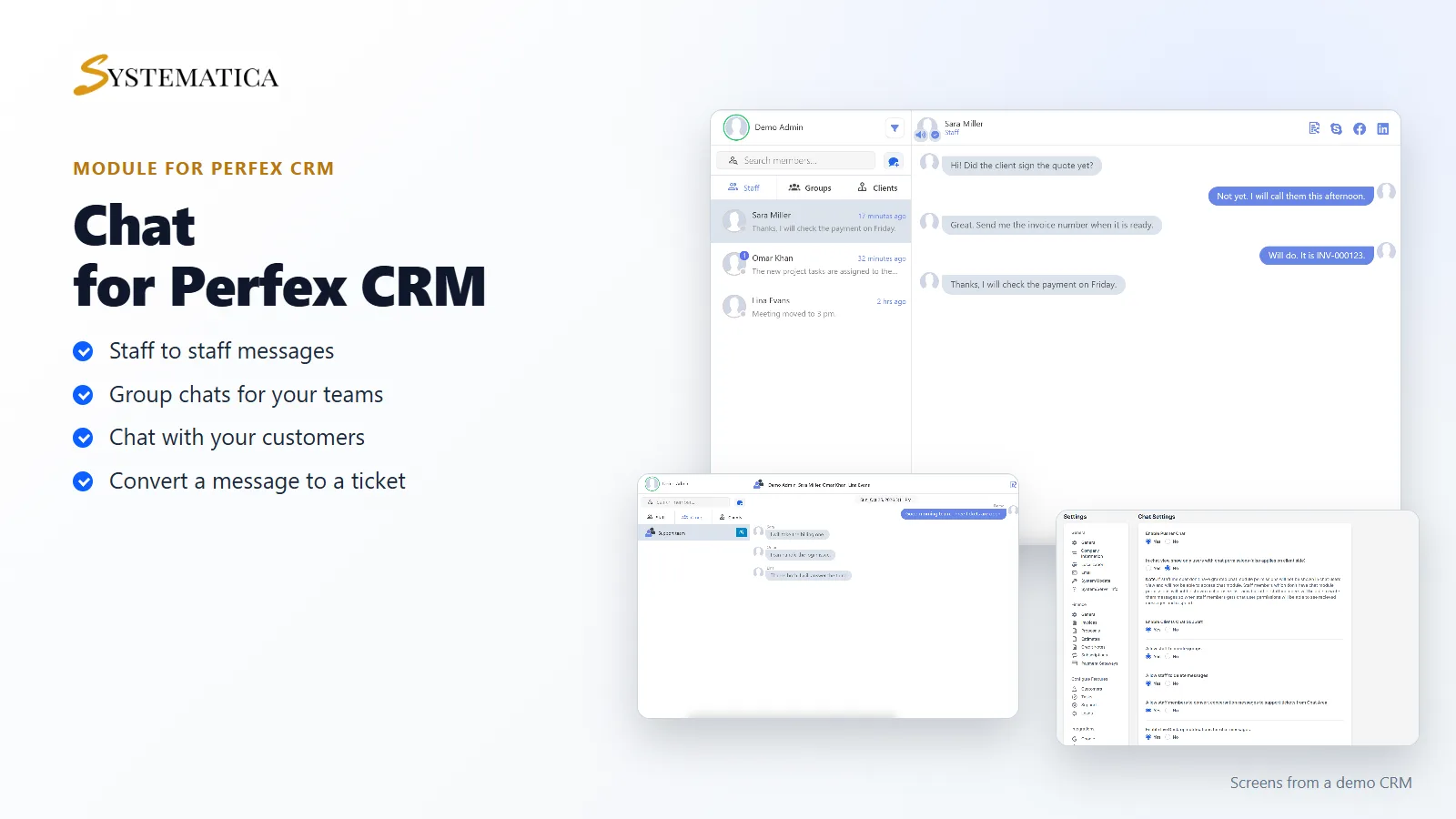
The Perfex CRM Chat Module adds a chat screen to your CRM. Your staff talk to each other, work in groups and, if you switch it on, talk to customers, all without leaving Perfex CRM. Messages are delivered through Pusher, so your own server does not have to run a chat service.
What you get with the Perfex CRM Chat Module
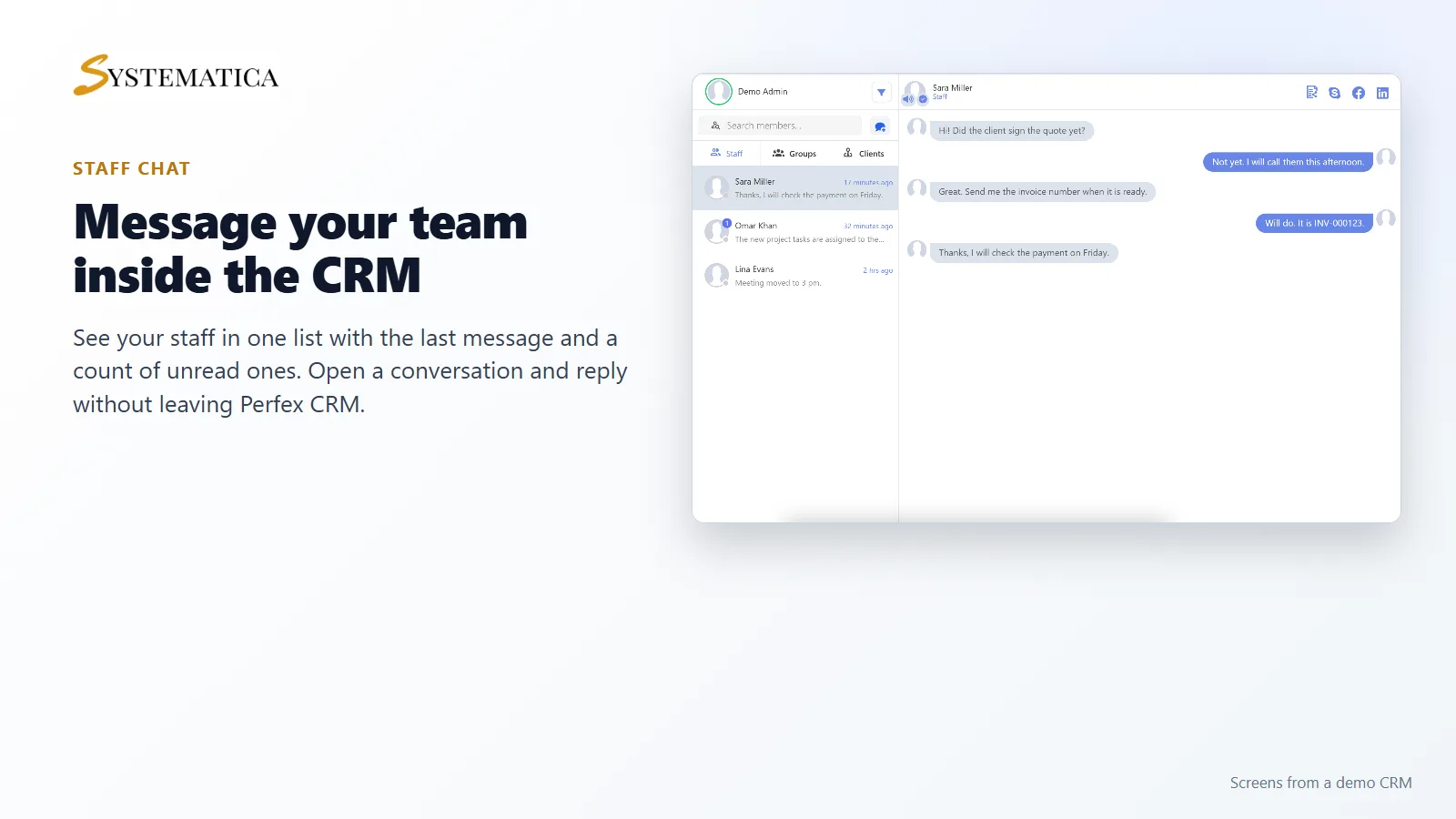
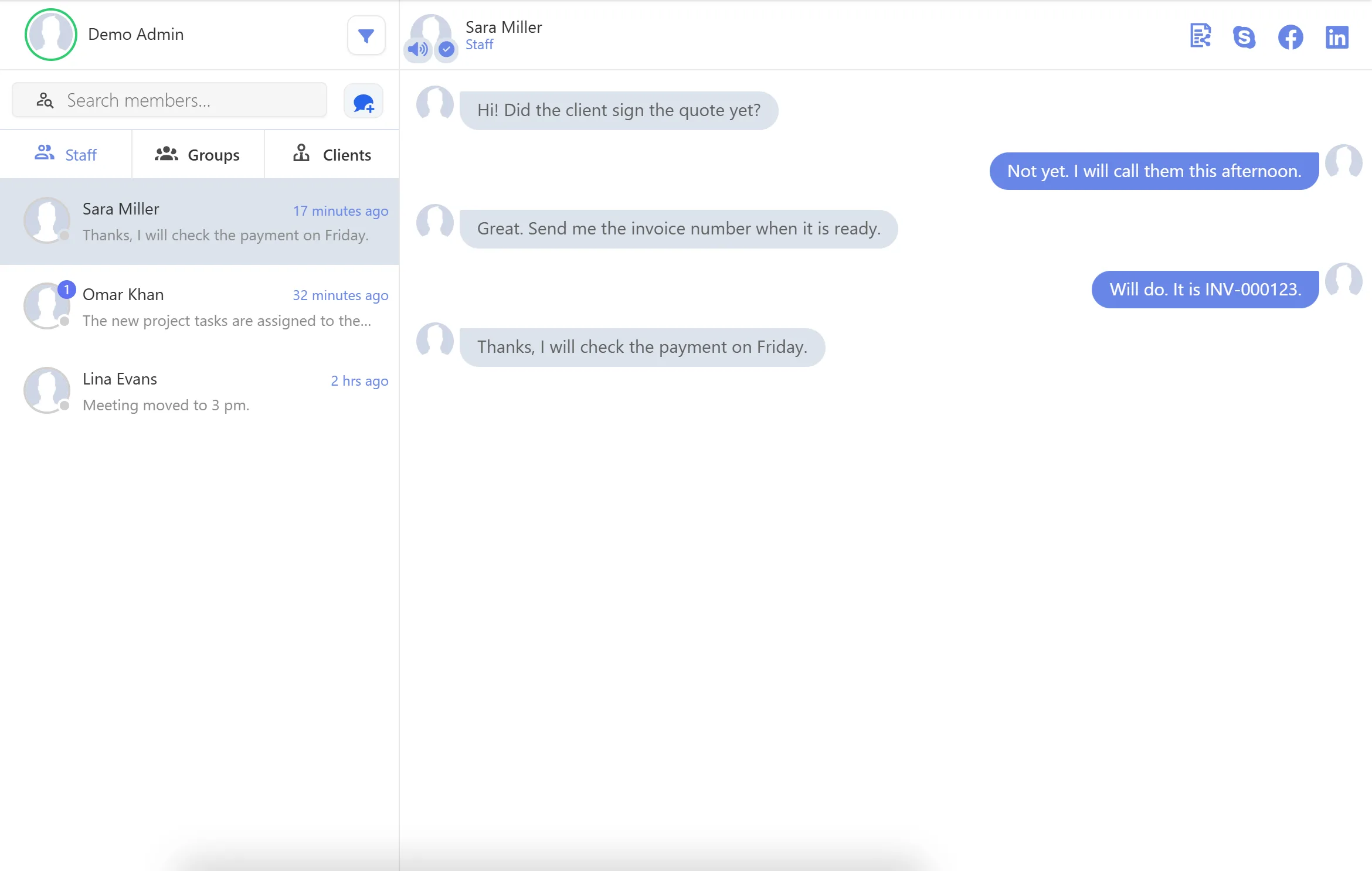
- A staff list with the last message, how long ago it was sent and a count of unread messages
- One-to-one conversations between staff members
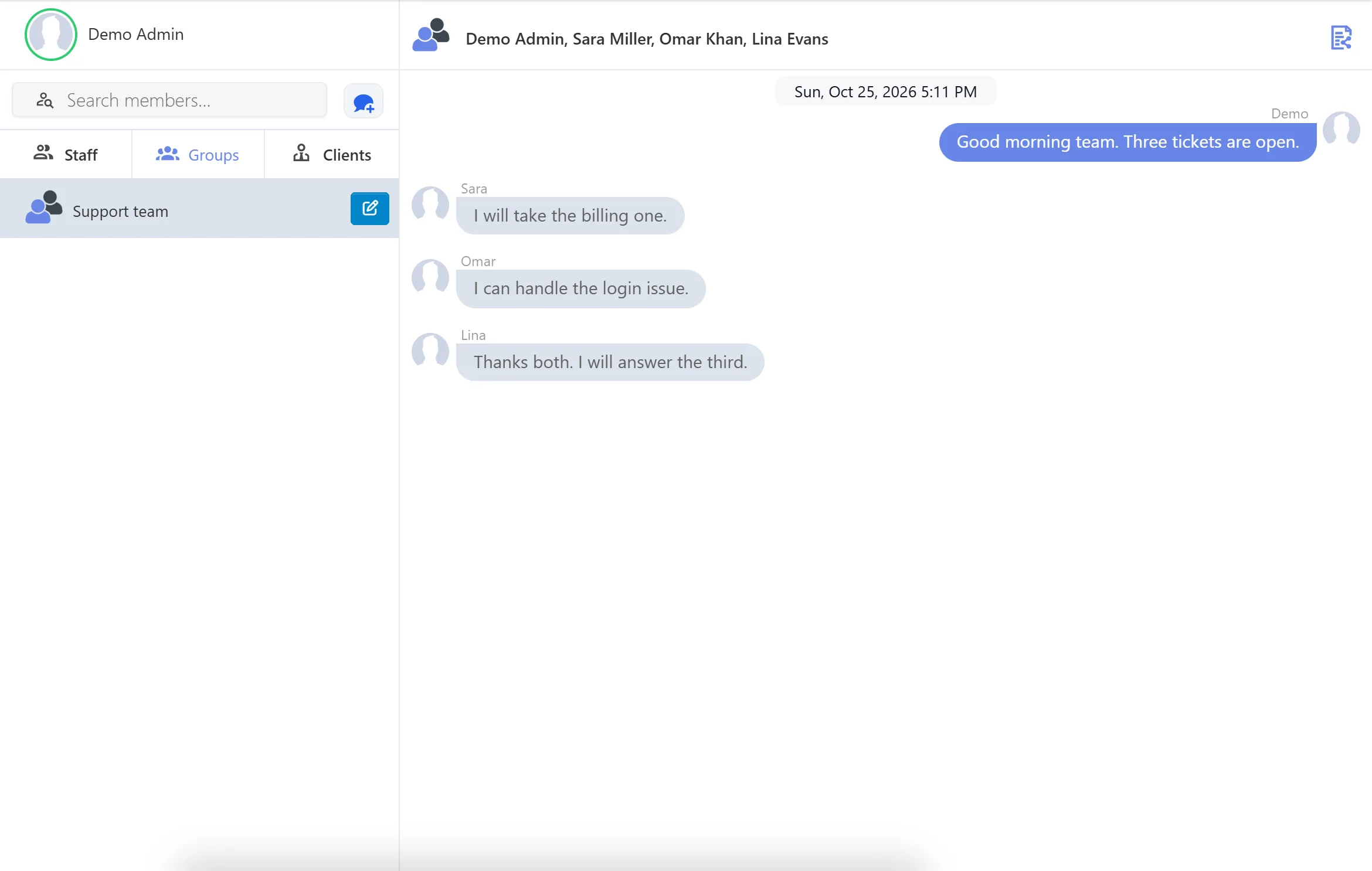
- Group chats that staff can create when you allow it
- A Clients tab for chatting with customers, which you can turn on or off
- Shared files in a conversation
- @mentions, a message search and a forward option
- Announcements to selected staff members
- Sound and desktop notifications, and a chat status for each person: online, away, busy or offline
- Convert a conversation into a support ticket
Message your team inside the CRM
Open Chat in the menu. The Perfex CRM Chat Module shows your staff on the left. Click a name to see the conversation and type your reply. Messages you have not read are marked with a number, and the list shows when the last message was sent.
Groups for teams and projects
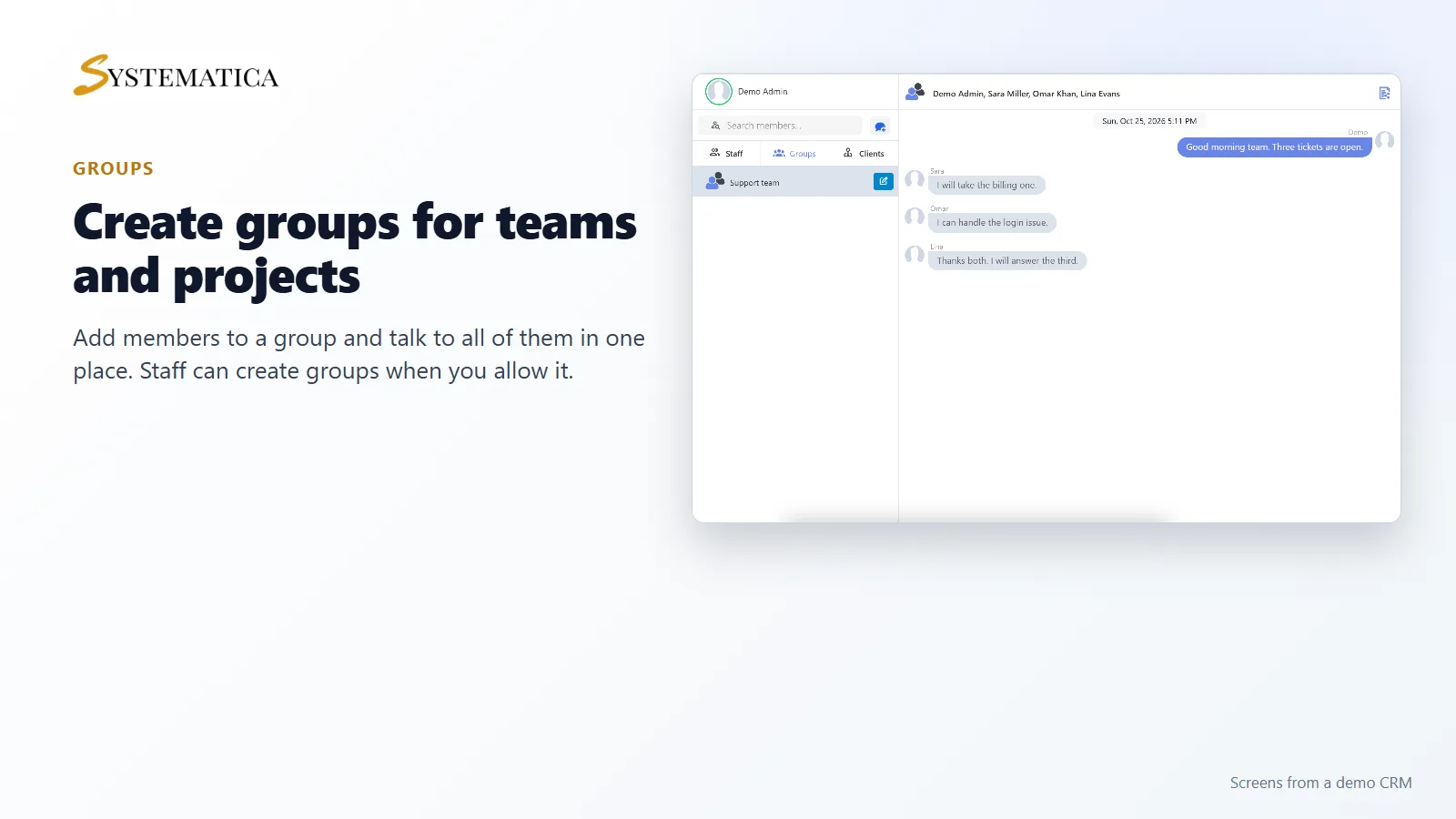
Create a group, add members and talk to all of them in one conversation. Each message shows who wrote it. You decide in the settings whether staff may create groups themselves.
Control who can do what
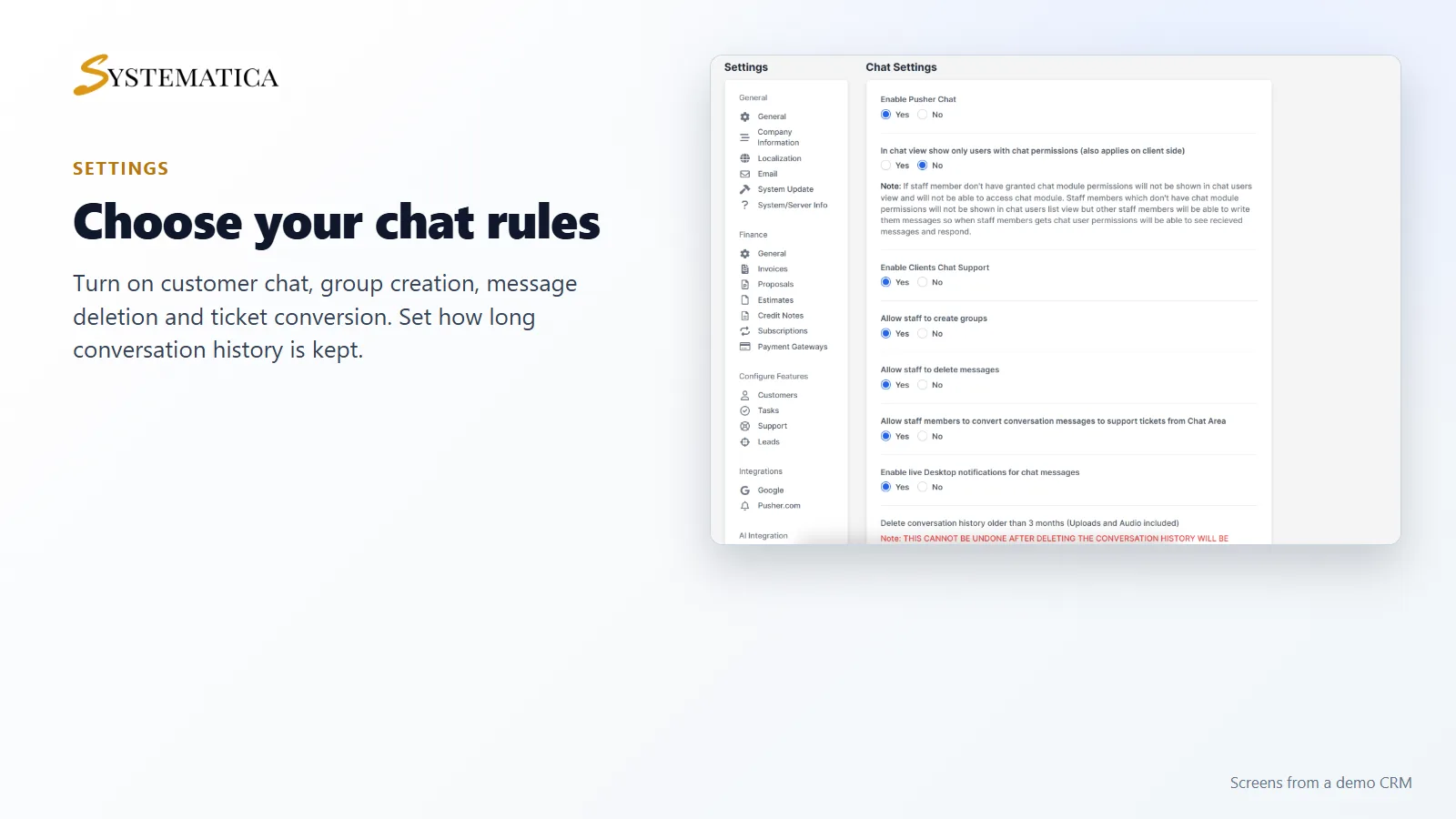
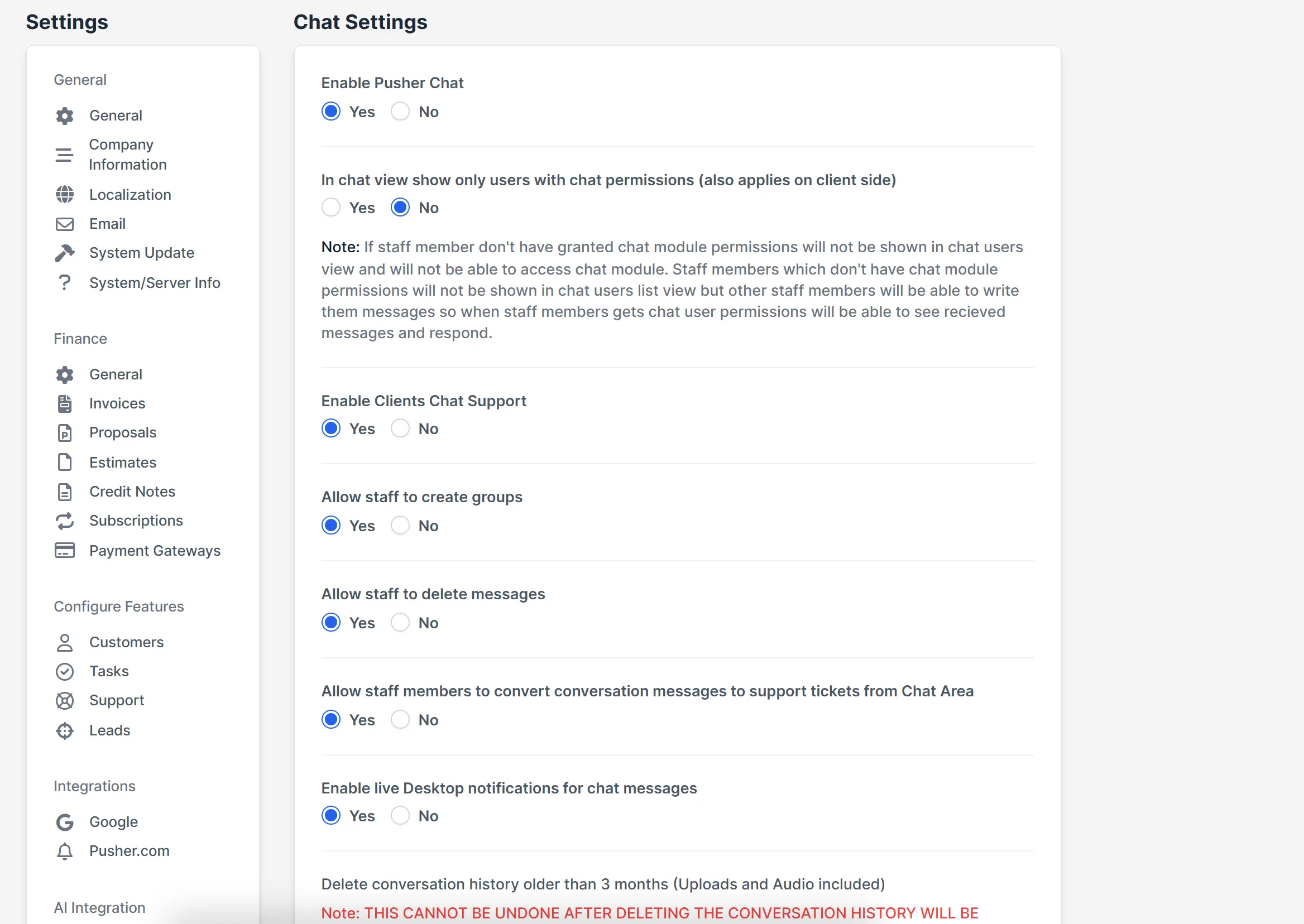
The chat settings sit under Setup > Settings. Turn customer chat, group creation, message deletion, ticket conversion and desktop notifications on or off. You can also show only the staff members who have chat permission, and delete old conversation history after a set time.
Set it up
- Create a free account at pusher.com and create a Channels app.
- Upload the module under Setup > Modules and activate it.
- Open Chat > License Management and enter your license key.
- Go to Setup > Settings > Pusher.com and enter your app ID, key, secret and cluster.
- Open Chat and send your first message.
Requirements
- Perfex CRM 3.4 or newer for the Perfex CRM Chat Module (tested on 3.4.1)
- Your own Pusher account. The module sends messages through it. Pusher has its own plans and limits, so check them for the number of staff and customers you have.
- PHP with the sodium extension, which is included with PHP since 7.2
- A connection from your server to systematica.app over HTTPS
Good to know
- The pictures show a demo CRM with sample staff and messages.
- Without a working Pusher account, the chat list does not load. The module shows a message telling you to set Pusher up.
- Delete conversation history cannot be undone. Read the note in the settings before you use it.
License, support and updates
After purchase you receive a license key by email. One license key activates the module on one website. To move it, deactivate the license under Chat > License Management and activate it on the new site. You get 1 year of use, support through our ticket system and free updates through your Systematica account. The Perfex CRM Chat Module runs inside Perfex CRM, which you need to own.
Frequently asked questions
What does the Perfex CRM Chat Module do?
It adds a chat screen to Perfex CRM for one-to-one messages, group chats and, if you enable it, chat with customers.
Do I need a Pusher account?
Yes. The module sends and receives messages through Pusher. You enter your own app ID, key, secret and cluster in the CRM settings.
Can my customers use the chat?
The module has a Clients tab and a setting called Enable Clients Chat Support. You can turn it on or off.
Can I turn a conversation into a support ticket?
Yes. Staff can convert recent messages into a ticket from the chat screen. You can switch this off in the settings.
Can I use one license on more than one website?
One license key activates the module on one website. You can move it by deactivating it on the old site and activating it on the new one.
Need help with this module?
Every license is valid for 1 year and includes support through our ticket system and free updates. To keep using the module after that, renew your license.