
An accounting and bookkeeping module for Perfex CRM adds a set of books next to your invoices, so you do not keep one system for billing and another for accounts. This guide shows what the module adds, the six steps to start, which reports you can run, and what it does not do. The example is our Perfex CRM Financial Management Module.
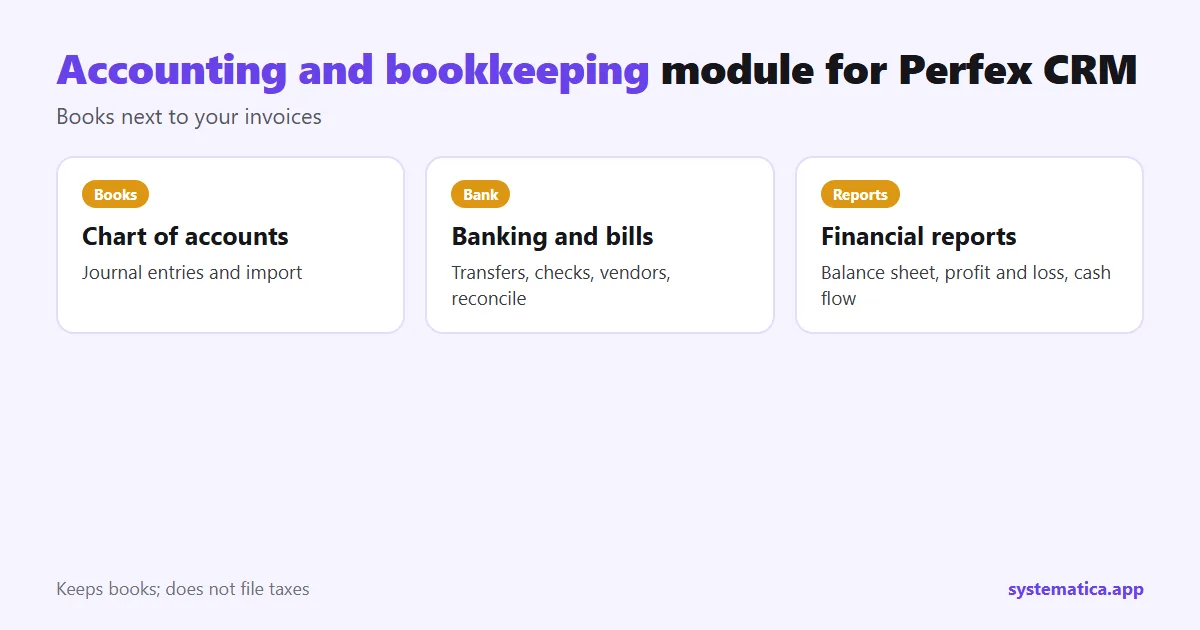
What the accounting and bookkeeping module for Perfex CRM adds
- A dashboard with bank balances, a profit and loss chart and an expense account overview.
- A chart of accounts with account types and detail types, import and export.
- Journal entries with a date, number, reference and description.
- Banking, registers, transfers, bills, checks and vendors, plus reconcile and budget screens.
- Transactions screens that link invoices, payments and expenses to your accounts.
- Reports: balance sheet, profit and loss, statement of cash flows, statement of changes in equity and more, with a currency tab for more than one currency.
Your invoices, payments and expenses stay in Perfex CRM, next to your books.
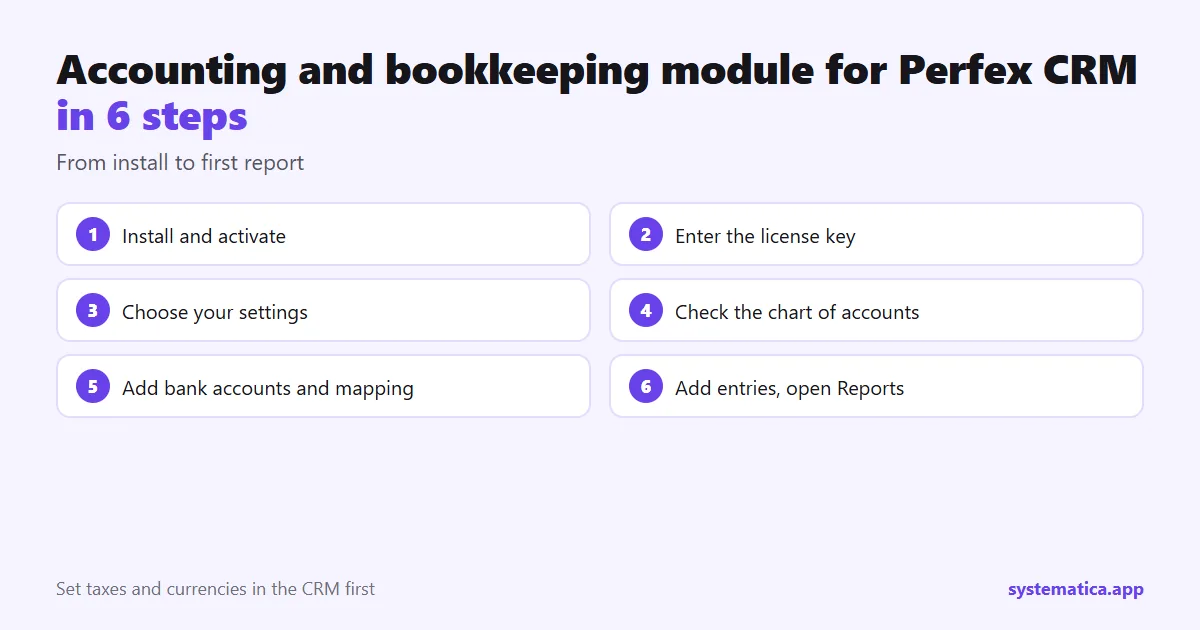
Accounting and bookkeeping in 6 steps
- Install and activate the module: install a module.
- Enter the license key under Accounting, License.
- Choose your options under Accounting, Setting.
- Check the chart of accounts. It comes with a ready list such as accounts receivable, cash, sales and rent. Add your own or import a list.
- Add your bank accounts and set how invoices, payments and expenses map to accounts.
- Add journal entries, then open Reports.
Before this, set up taxes and currencies in the CRM: tax rates and currencies.
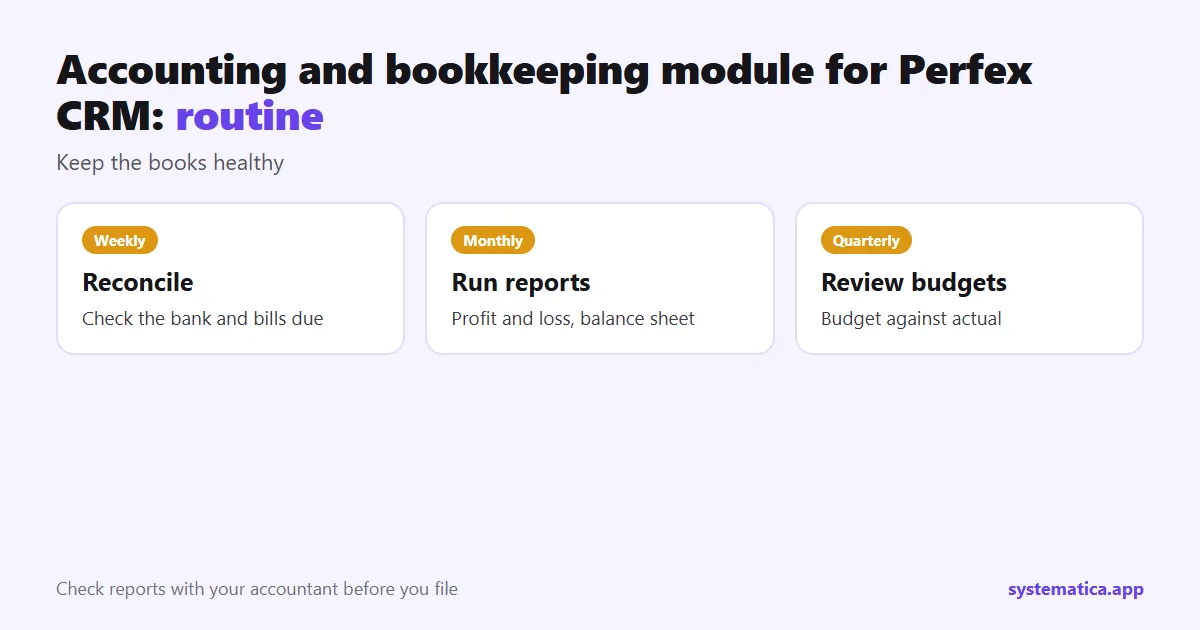
A first-month routine
- Weekly: reconcile the bank account and check bills due.
- Monthly: run the profit and loss and balance sheet reports and compare them with your invoices.
- Quarterly: review budgets against actual spending.
What it does not do
The module keeps books. It does not file taxes or pay anyone. Accounting rules differ by country, so check your reports with your accountant before you file. If your business also holds stock, pair it with Inventory Management and Purchase Management; see CRM with inventory management. For billing basics, read how to create an invoice and expenses.
See also the best Perfex CRM modules, Perfex CRM pricing and Perfex CRM hosting. The CRM itself comes from the official Perfex store.
Who needs accounting and bookkeeping inside Perfex CRM
- Small businesses that bill from the CRM and want their books in the same place.
- Agencies that need profit and loss by period without exporting to a spreadsheet.
- Companies with several bank accounts or more than one currency.
If you already have an accountant who uses another system, ask them first. Sometimes the right setup is the CRM for billing and their system for the books.
Mistakes to avoid
- Starting without a plan for your chart of accounts. Agree the account list with your accountant.
- Mixing test and real data. Use a copy of the CRM to learn.
- Forgetting to reconcile, so balances drift from the bank.
- Posting entries without a reference or description, which makes audits slow.
- Trusting reports before you compare them with a few known numbers.
Month-end checklist
- All invoices for the month are sent and recorded.
- Payments and expenses are linked to accounts.
- Bank accounts are reconciled.
- Journal entries have numbers and descriptions.
- You ran the profit and loss and balance sheet reports and saved a copy.
Frequently asked questions
What does an accounting and bookkeeping module for Perfex CRM include?
A chart of accounts, journal entries, banking, bills, budgets and financial reports, linked to your CRM invoices and expenses.
Which reports are included?
Balance sheet, profit and loss, statement of cash flows and statement of changes in equity, among others.
Can I use more than one currency?
The dashboard has a tab for each currency in your CRM.
Does it replace my accountant?
No. It keeps your books tidy. Check your reports with an accountant before you file anything.